
1. In short
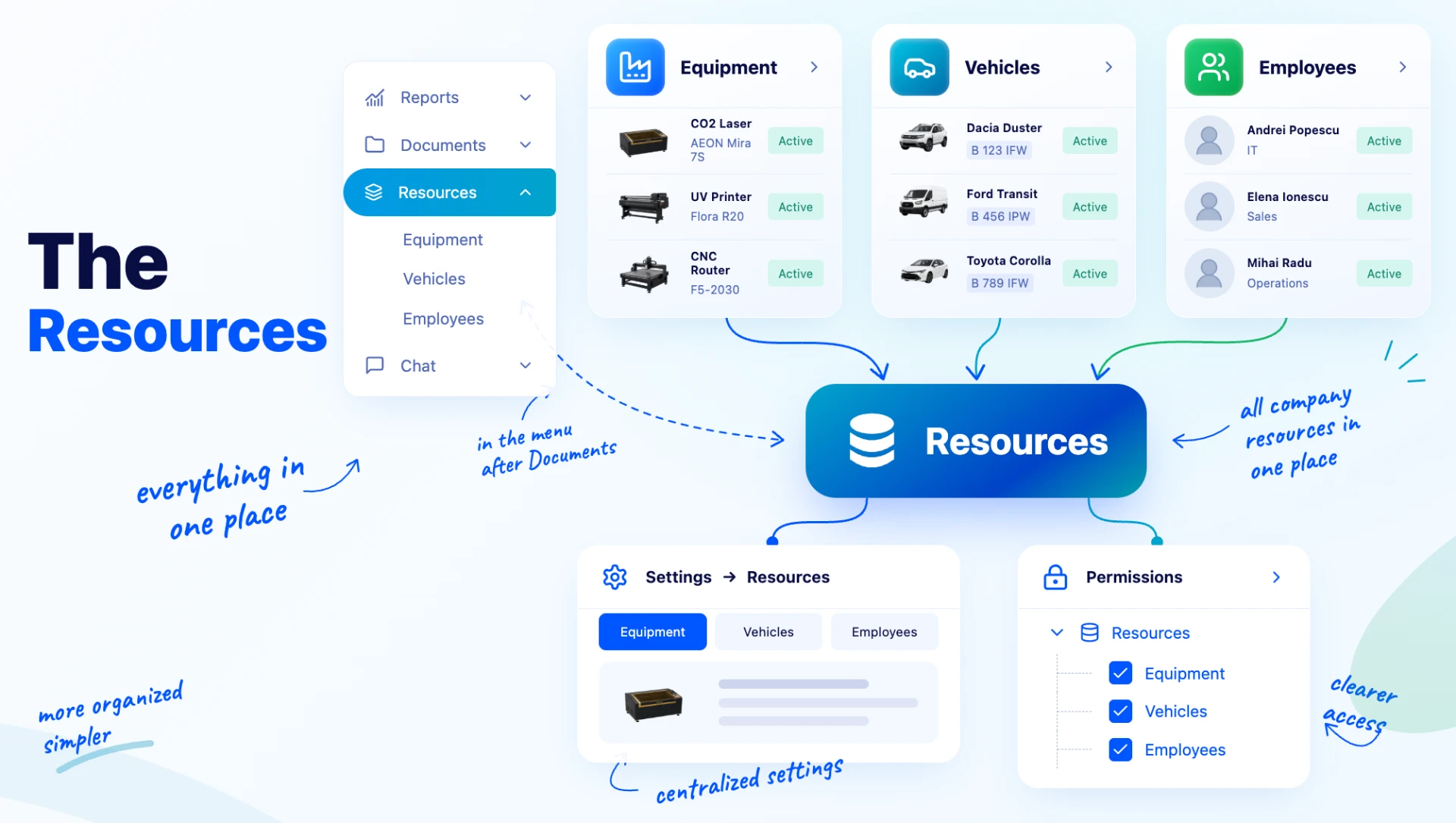
The main menu has a new group, Resources, which brings together the company’s resources: Equipment, Vehicles (the new module) and Employees. The group sits after Documents. The Employees page is no longer in the Financial group, but here.
The settings of these modules are gathered in the new page, and in the permissions editor their rights are grouped under the Resources category. The pages themselves do not change: lists, forms and actions work as before. Only their place in the menu and in settings changes.
| Page | Before | Now |
|---|---|---|
| Equipment | ||
| Vehicles | — | (new module) |
| Employees, with the Salaries, Leave, Inactive Employees and Permissions tabs | ||
| Equipment settings (Locations, Cost Adjustment) | , Equipment tab | |
| Departments and Job Titles | , Employees tab |
2. Where to find it
- Main menu → , Vehicles, Employees.
- — the Equipment, Vehicles and Employees tabs.
- , Permissions tab — the permissions editor, with the Resources category.
3. Before you start
- You do not need to configure anything: granted rights stay the same.
- The addresses of the Equipment and Employees pages have not changed, so saved links still work.
- Let colleagues who used or / Job Titles know where these pages are now.
4. Opening pages from the Resources menu
Step 1. In the main menu, click Resources. The group expands and shows the pages you have access to: Equipment, Vehicles, Employees.
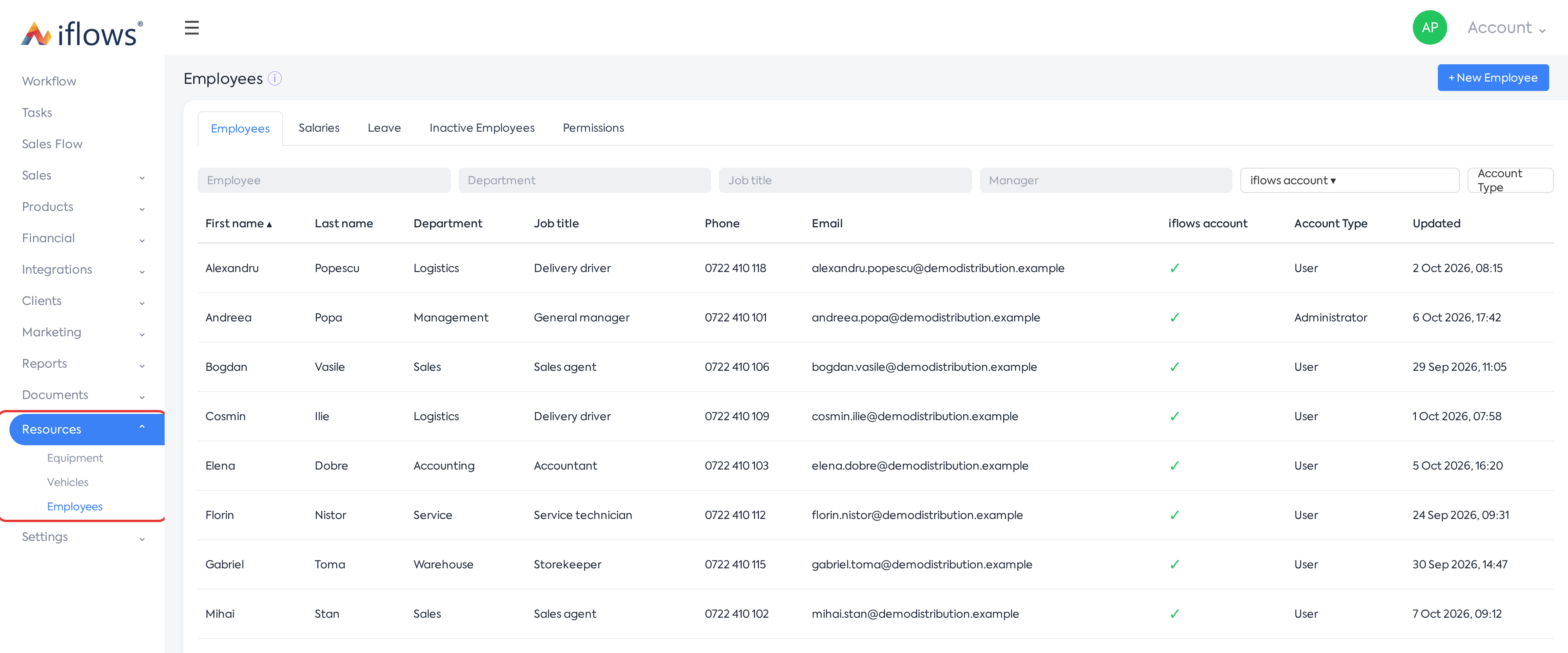
The main menu, with the Resources group expanded after Documents.
Note: the Employees entry no longer appears in the Financial group.
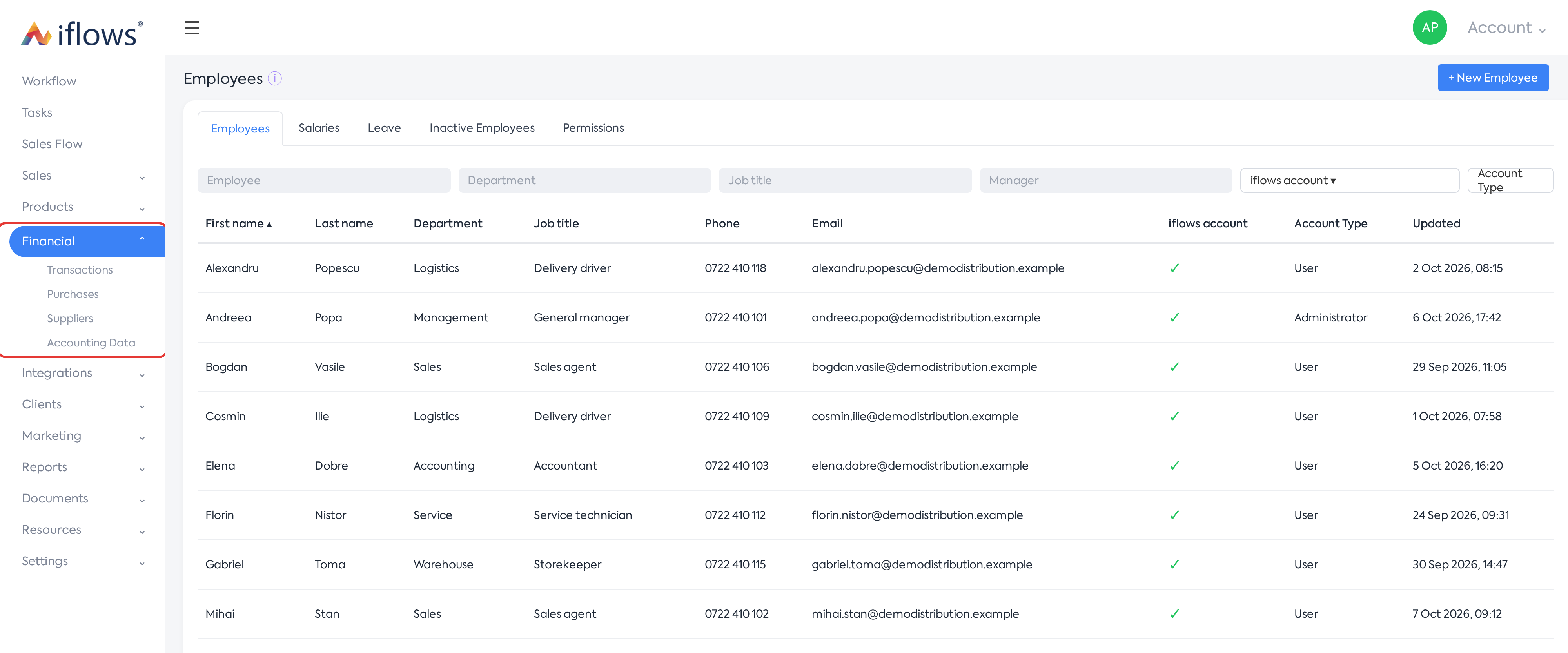
The Financial group expanded, without the Employees entry.
Step 2. Click the page you want. The Employees entry opens the first tab of the module you have access to: the Employees list, otherwise Leave, otherwise Permissions. As before, the page shows the Employees, Salaries, Leave, Inactive Employees and Permissions tabs, depending on your rights.
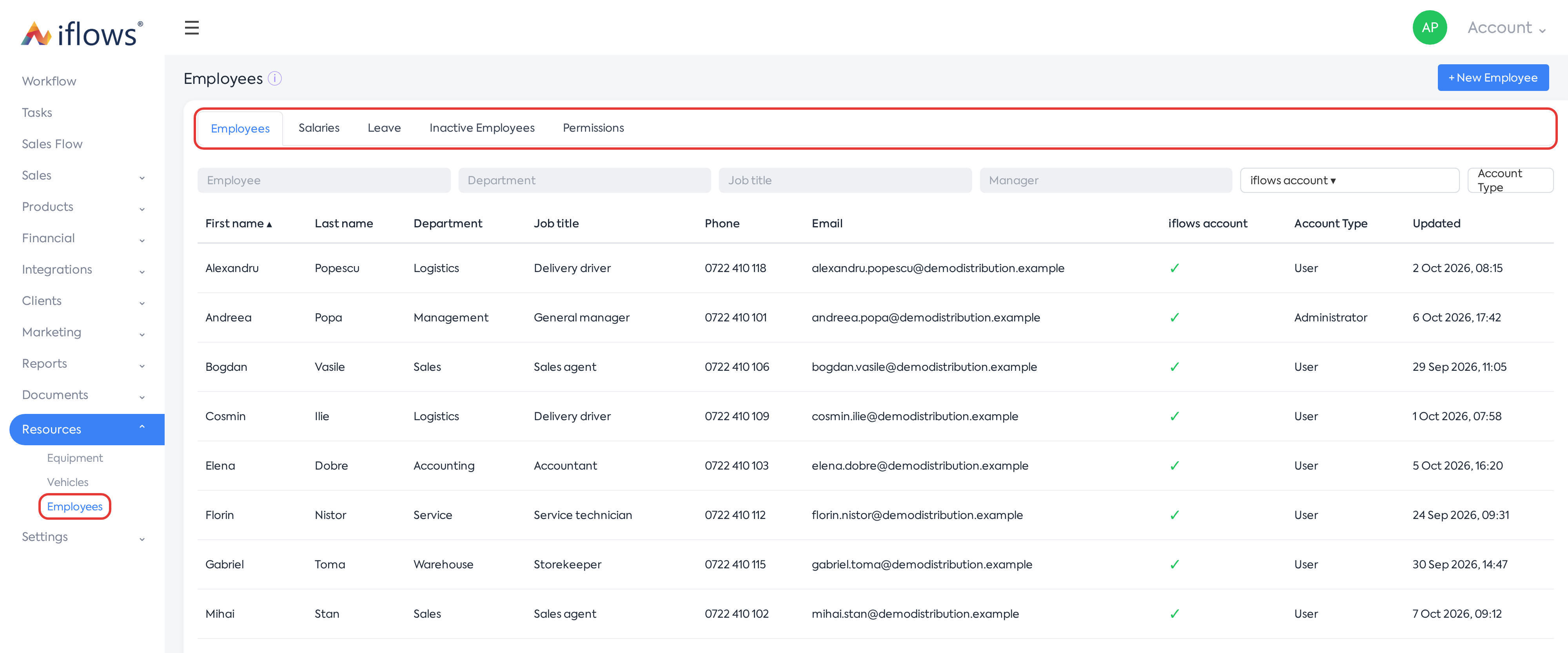
The Employees page opened from the Resources menu, with the module tabs.
5. Configuring the resources settings
Step 1. Open . The Resources entry is in the Settings menu, after Clients and before Templates.
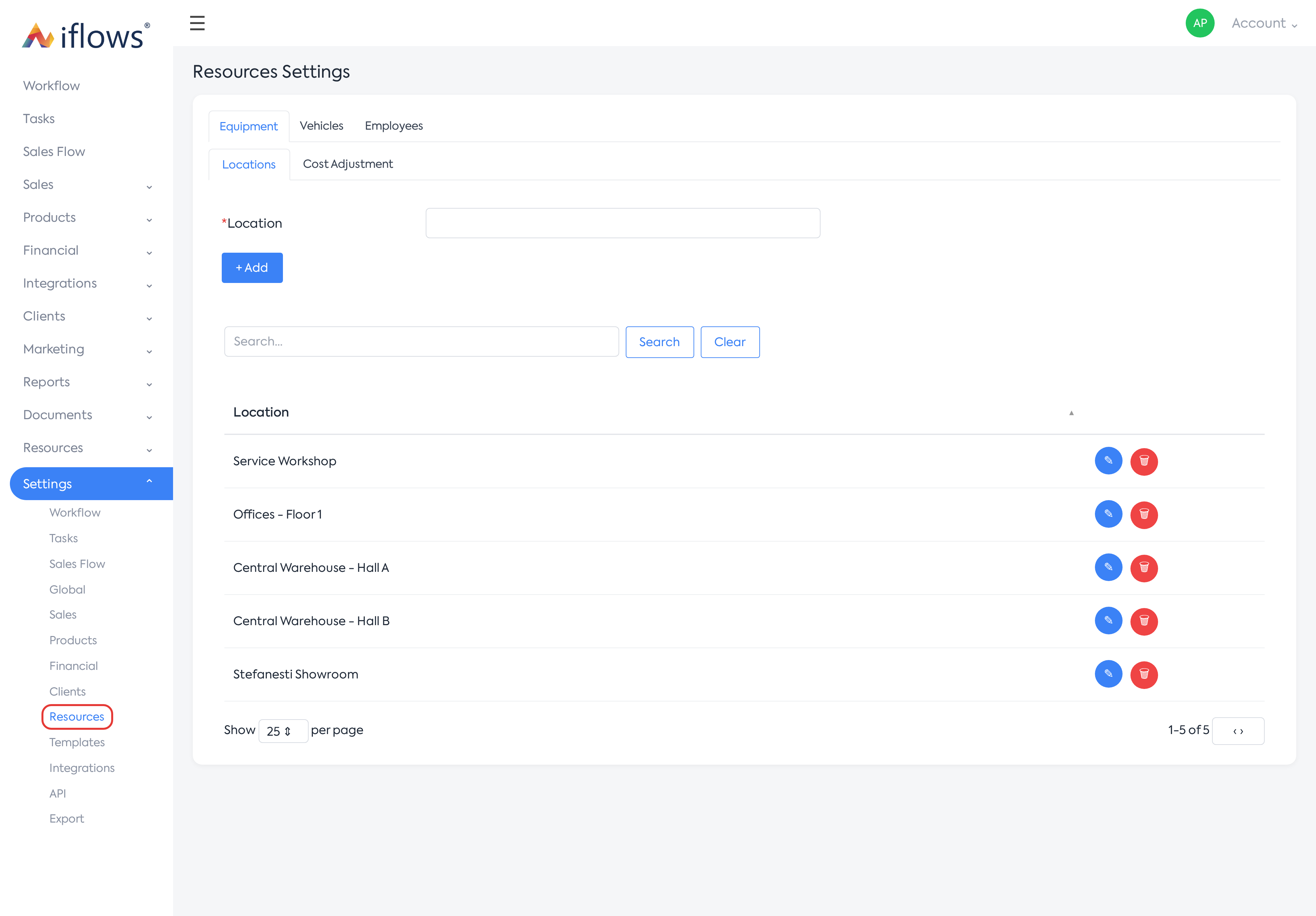
The Settings menu expanded, with the Resources entry.
The Resources Settings page has three tabs: Equipment, Vehicles and Employees. Each tab is shown only to users with the matching right, and the page opens on the first available tab.
Step 2. For equipment, open the Equipment tab. It has the Locations and Cost Adjustment sub-tabs. Fill in the Location or Cost Adjustment field and click Add. The list below has search, edit and delete.
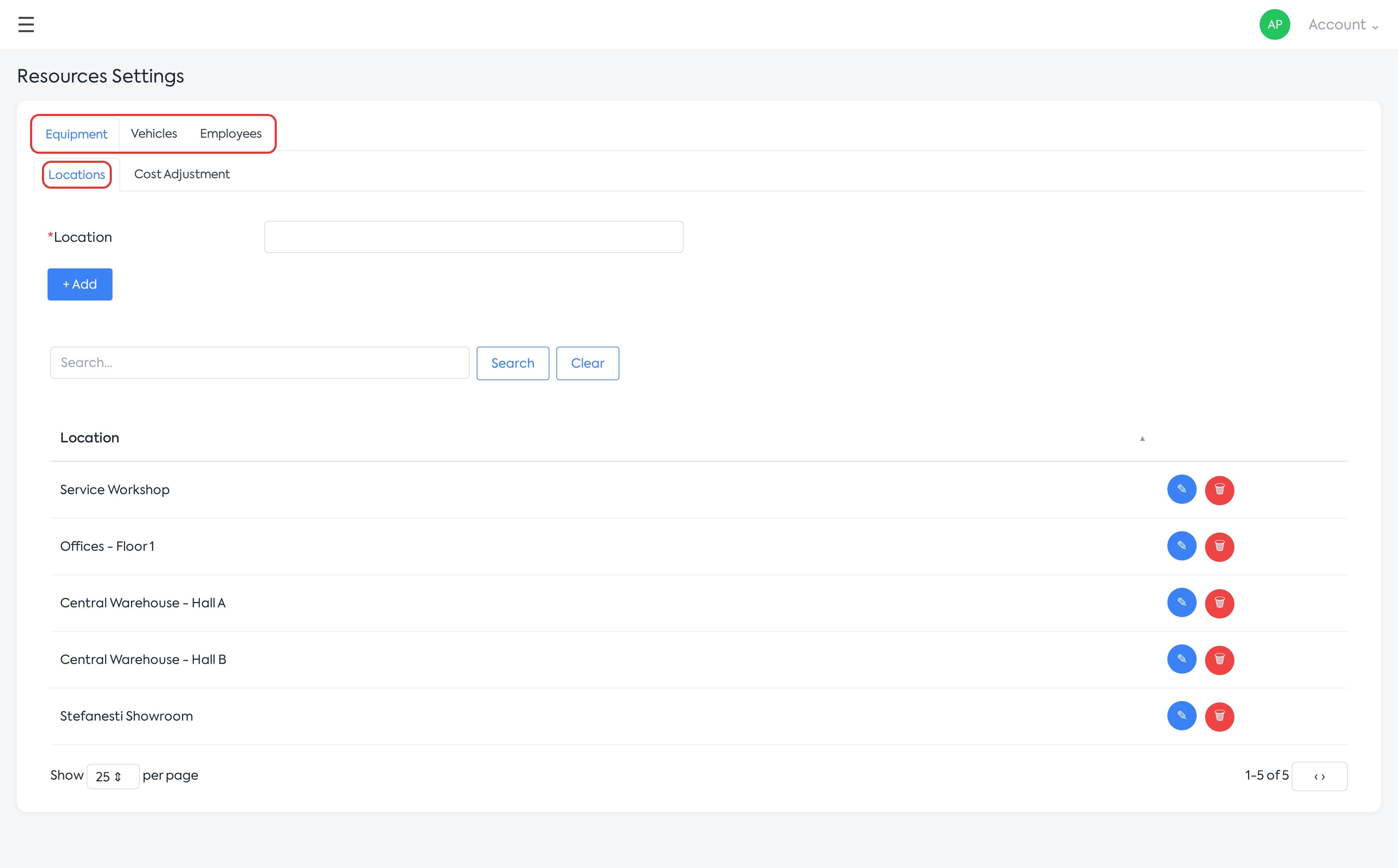
The Resources Settings page, Equipment tab, Locations sub-tab.
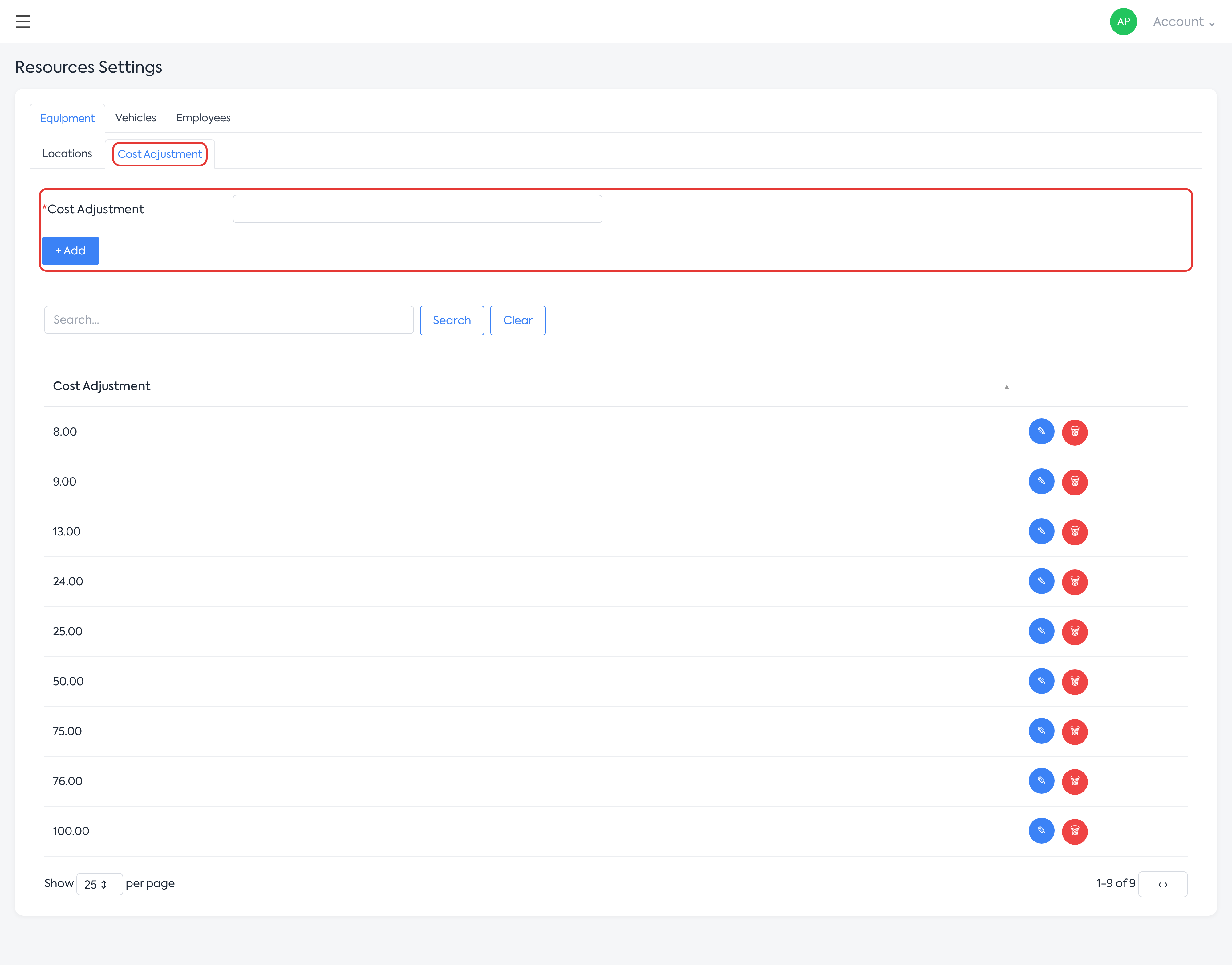
The Cost Adjustment sub-tab, with the add form and the list.
Step 3. For vehicles, open the Vehicles tab. It has the Categories, Document types, Labels and Custom fields sub-tabs (see Vehicles — fleet management: vehicle file, expiry alerts and compliance panel).
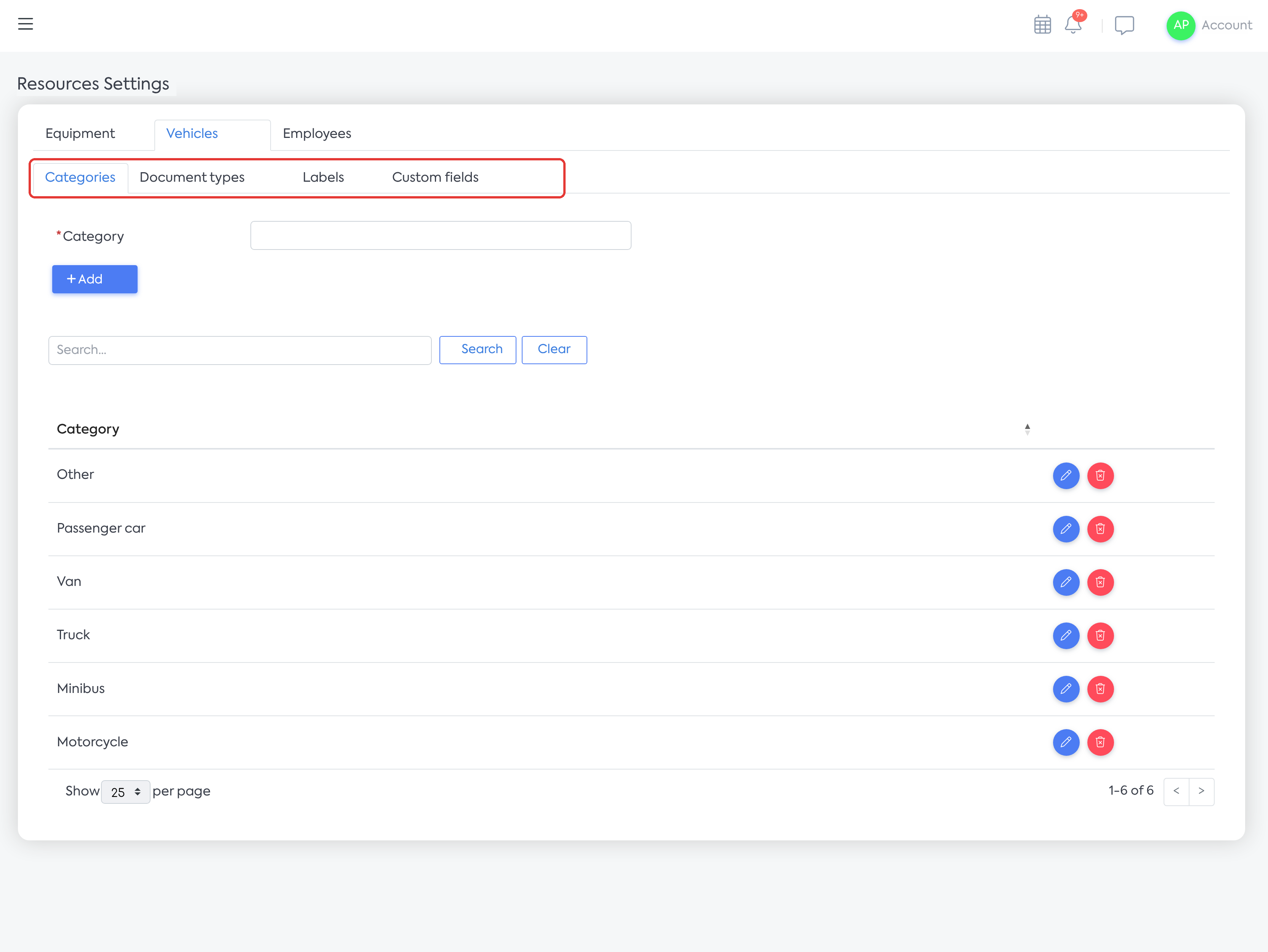
The Vehicles tab, with the module settings sub-tabs.
Step 4. For employees, open the Employees tab. It has the Departments and Job Titles sub-tabs. Fill in New Department or New Job Title and click Add. The list has search, edit and delete.
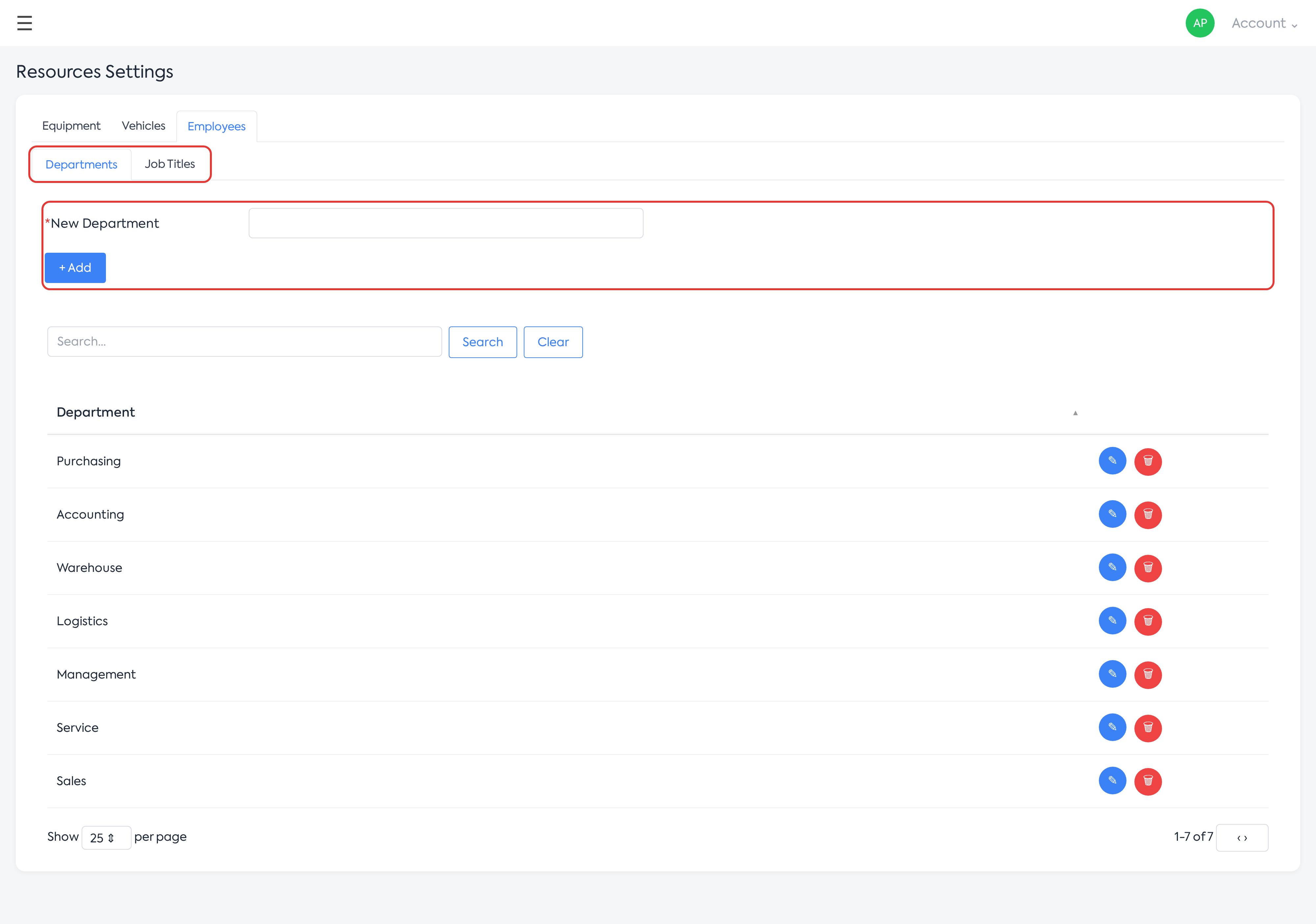
The Employees tab, Departments sub-tab.
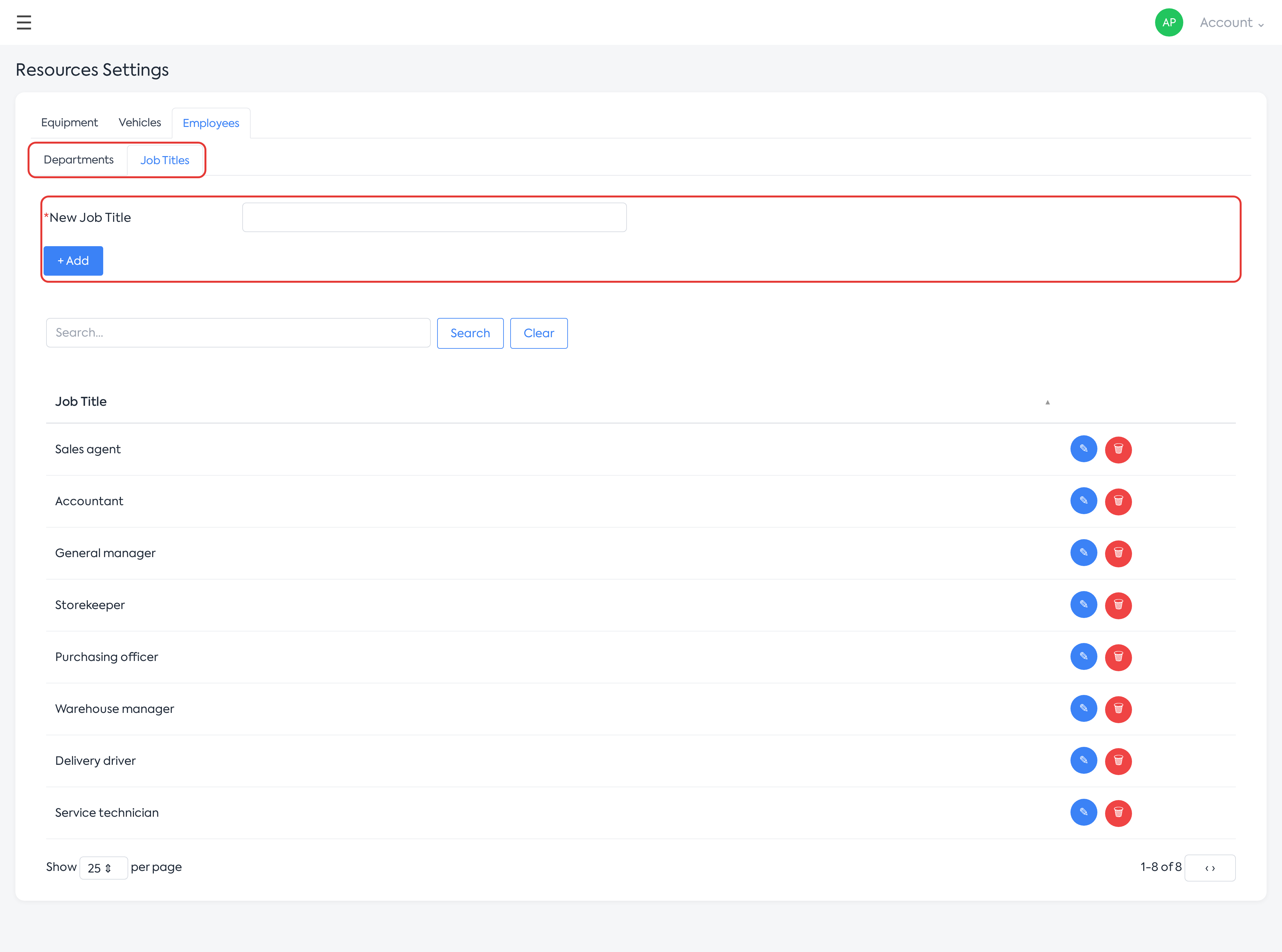
The Employees tab, Job Titles sub-tab.
Note: Departments and Job Titles are now found only in , Employees tab.
6. Finding rights in the permissions editor
Step 1. Open , Permissions tab, and click the pencil icon (Edit Access Level) on the access level row.
Step 2. Scroll to the Resources category. It has three subcategories:
- Equipment: Equipment, Equipment Costs, Equipment Locations;
- Vehicles: Vehicles, Vehicle Costs, Vehicle Settings, Vehicle Map;
- Employees: Employees, Salaries, Permissions, Leave - Public holidays, Employee leave allocation, Departments, Job Titles and the new Employee Documents right.
The rights in the Vehicles subcategory are new. Until they are granted, the Vehicles page is visible only to administrators (see Vehicles — fleet management: vehicle file, expiry alerts and compliance panel).
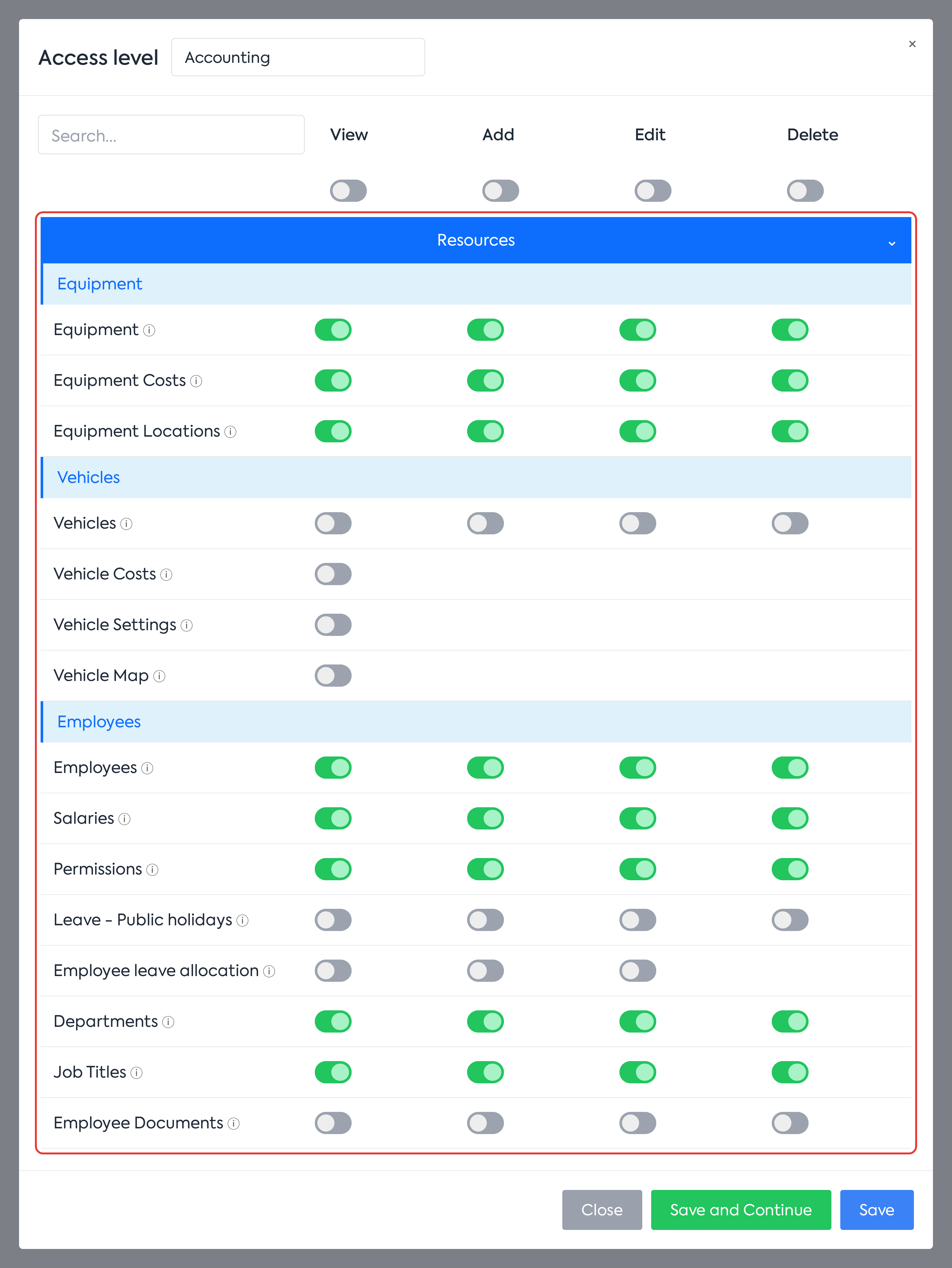
The access level window: the Resources category, with its subcategories and rights.
Step 3. For access to the equipment settings, look for the Resources Settings right in the Settings category, General subcategory. Financial Settings, required for the Employees tab in , is also here.
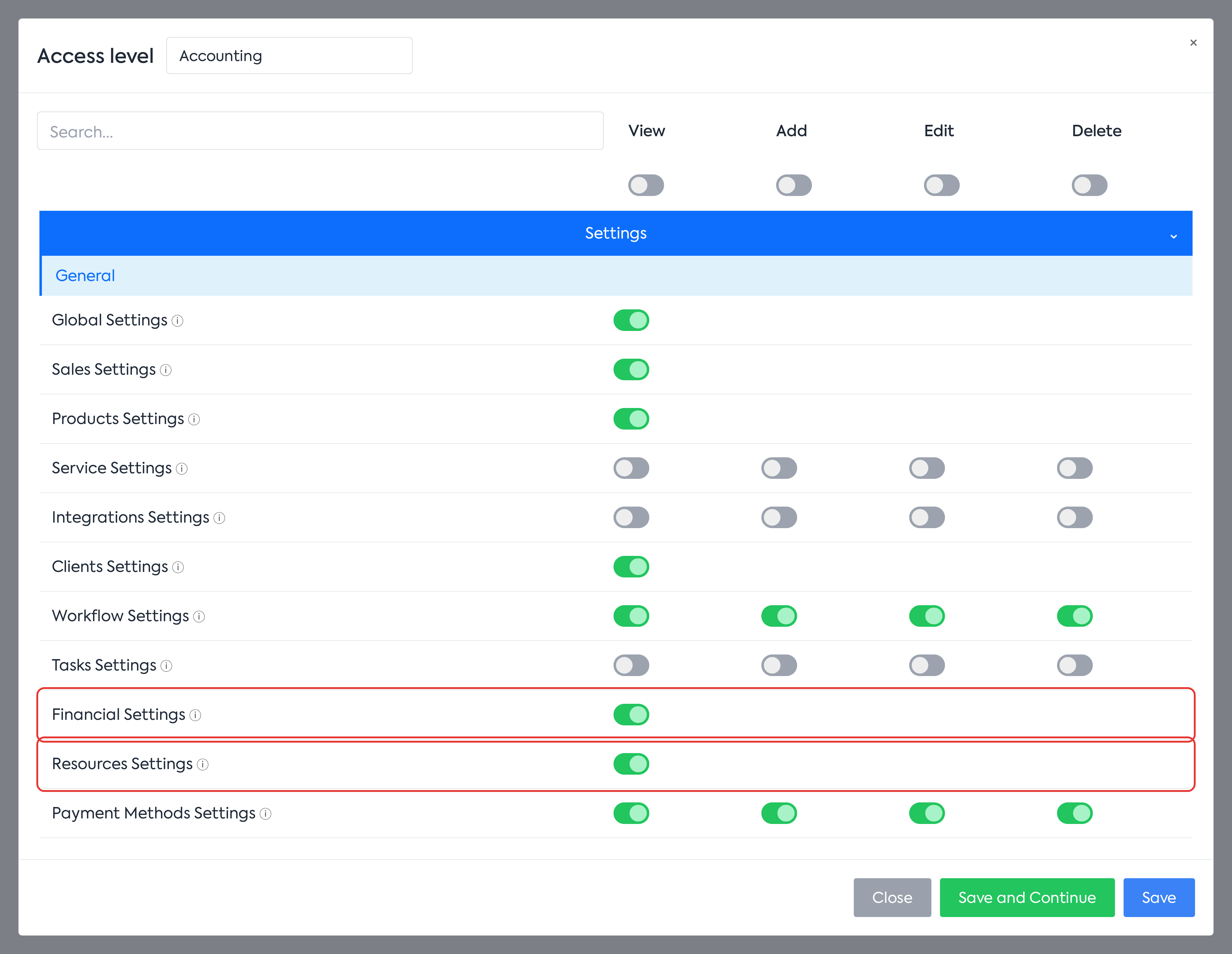
The Settings category, General subcategory, with the Resources Settings and Financial Settings rights.
7. What you see afterwards
- In the main menu, the Resources group, after Documents. Employees no longer appears in the Financial group.
- In the Settings menu, the new Resources page. Settings → Financial no longer contains Departments and Job Titles and now opens on the Document Products tab.
- In the permissions editor, the reorganised categories: Resources (Equipment, Vehicles, Employees) and Service, separately. Sales Flow and Calendar have their own categories, and Dragon Star .
8. Rules and limits
- The Resources group appears if you have rights on at least one of the Equipment, Vehicles or Employees modules.
- The Leave tab and the Leave entry appear only if your subscription includes the leave module.
- The and reports stay in the Reports menu.
- The old page automatically leads to , on the matching sub-tab (Locations or Cost Adjustment).
- The Resources Settings right gives access to the Equipment tab in .
9. Settings and permissions
| Content | Required right | |
|---|---|---|
| Equipment | Locations, Cost Adjustment | Resources Settings () |
| Vehicles | Categories, Document types, Labels, Custom fields | Vehicle Settings () |
| Employees | Departments, Job Titles | Financial Settings () |
- Each sub-tab is shown to users with the view right on that list (Equipment Locations, Equipment Costs, Departments, Job Titles), and the add field only to those with the add right. Administrators see everything.
- On Locations and Cost Adjustment, the edit and delete buttons appear only to users with the edit or delete right, respectively.
When you tick a right, the editor automatically adds the rights it depends on:
- Departments or Job Titles adds Financial Settings; the user thus also gets access to the page;
- Equipment Locations or Equipment Costs adds Resources Settings;
- Resources Settings and Vehicle Settings add Settings Section.
- The reorganisation only changes how rights are grouped in the editor. Granted rights stay the same. The new rights are those of the Vehicles module and Employee Documents.