
1. What has changed
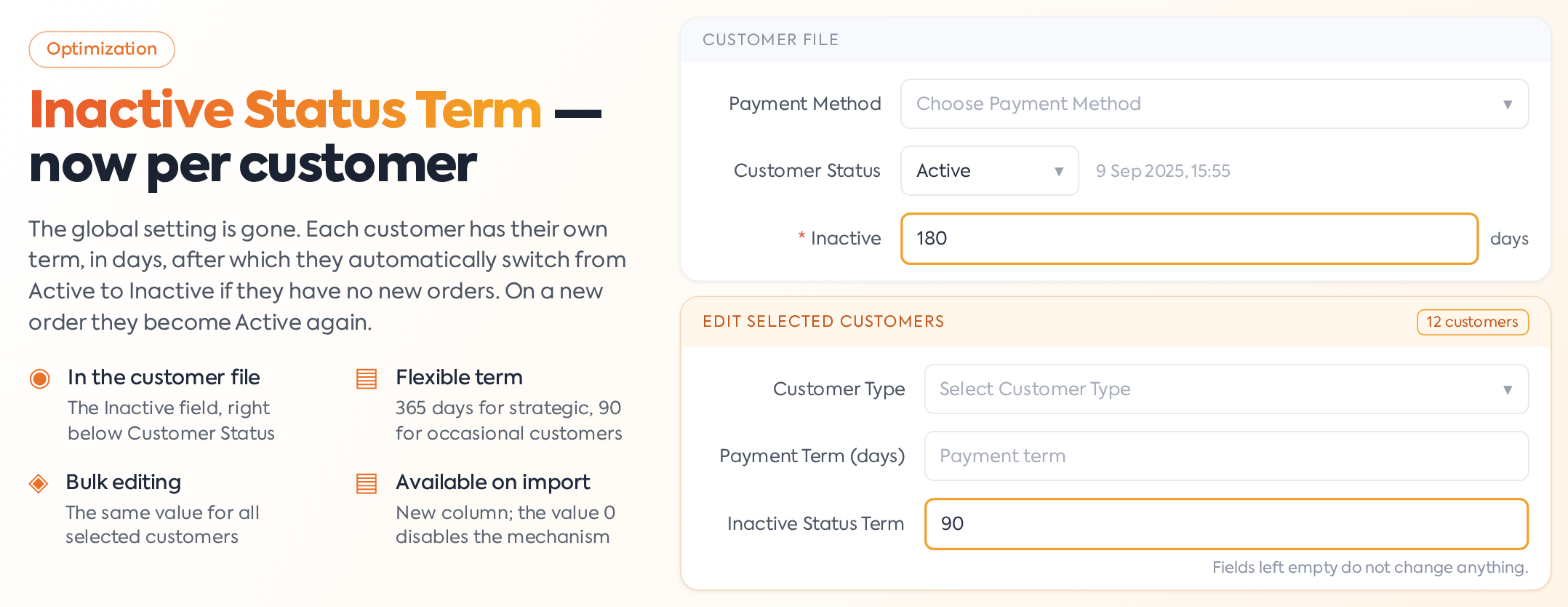
The Inactive Status term is the interval, in days, after which a customer without new orders automatically switches from Active to Inactive status. Previously, this was a global setting (, Level tab), identical for all customers. Now the global setting has been removed, and the term is established for each customer individually — a strategic customer can have 365 days, while an occasional one 90.
During the transition to the new mechanism, the global value was automatically copied to all existing customers, so behavior remains unchanged until you modify the individual term.
2. How it works
Daily, the platform checks every Active customer: if more days have passed since their last order than the term set for that customer, the status automatically becomes Inactive. Upon a new order, the customer automatically becomes Active again. A value of 0 disables the mechanism for that specific customer — their status will no longer change automatically, regardless of how much time passes. The check runs nightly, around 00:01. It takes into account the date of the customer's last order, regardless of the stage the order is in or whether it has been invoiced. Customers who have never had orders do not become Inactive — they move to Prospect. The switch back to Active occurs upon any save of an order for that customer, not just at its creation.
Modifying the term on the customer file applies immediately upon saving: if the new term is already exceeded relative to the last order, the customer switches to Inactive on the spot, without waiting for the nightly check.
The platform does not send any notification when a customer becomes Inactive; the change is visible in the Status column of the customer list, where a status filter is also available, as well as in sales reports.
3. Where it is set
In the customer file (creation and editing), the field is named Inactive and is located immediately below Customer Status, in the billing data area. It is mandatory.
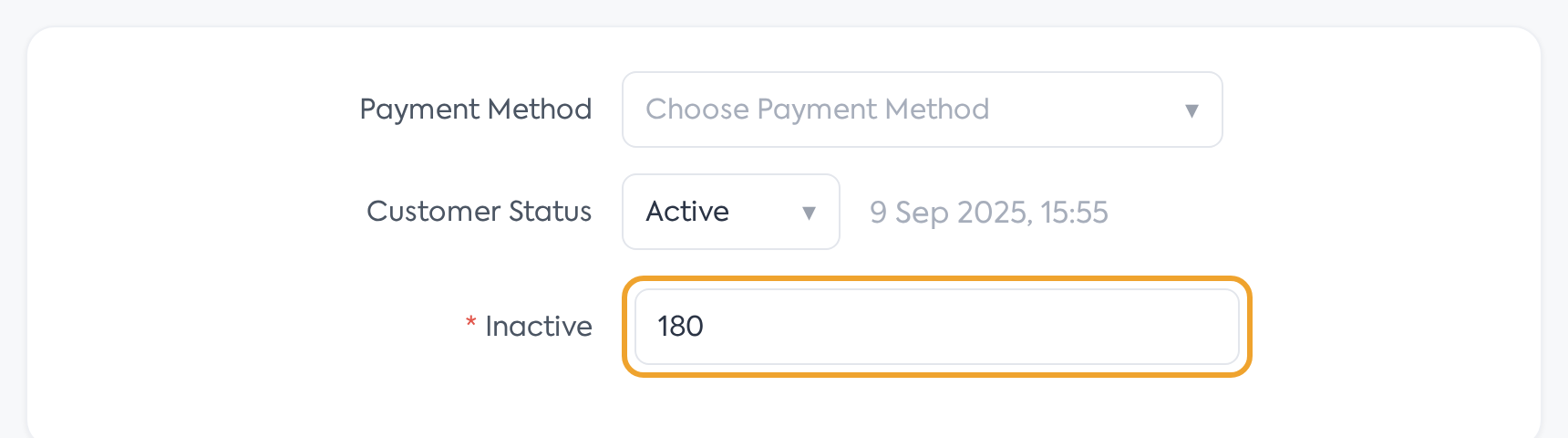
The Inactive field in the customer file, under Customer Status.
For multiple customers at once: in the customer list, check the desired customers and press Billing in the action bar at the bottom of the screen. In the "Edit Selected Customers" window, the Inactive Status Term field applies the value to all selected customers — fields left empty do not modify anything. Caution with this field: if you enter anything other than a digit, the saved value becomes 0, meaning the mechanism is disabled for the selected customers without any error message.
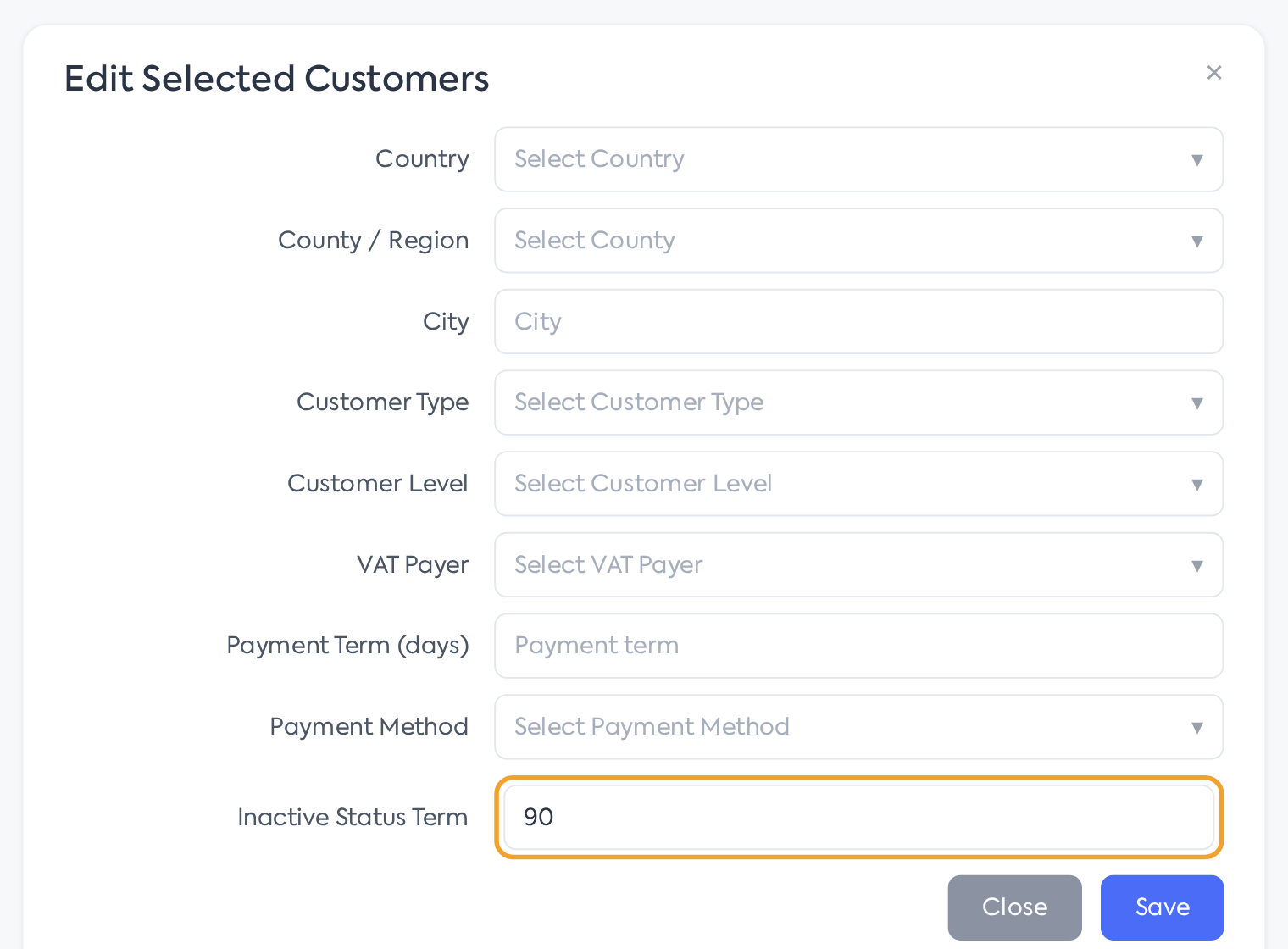
The bulk editing window, with the Inactive Status Term field.
The term can also be populated through customer import — the import file includes the Inactive Status Term (days; 0 - disabled) column. A cell left empty keeps the customer's existing value, and for new customers, 0 is used. A value that is not a positive integer stops that specific row with the message "Only digits are accepted".
4. Permissions
To modify the term on a customer file, customer add and edit rights are required, and for bulk editing from the customer list, the add right is required. Users with administrator rights have implicit access.