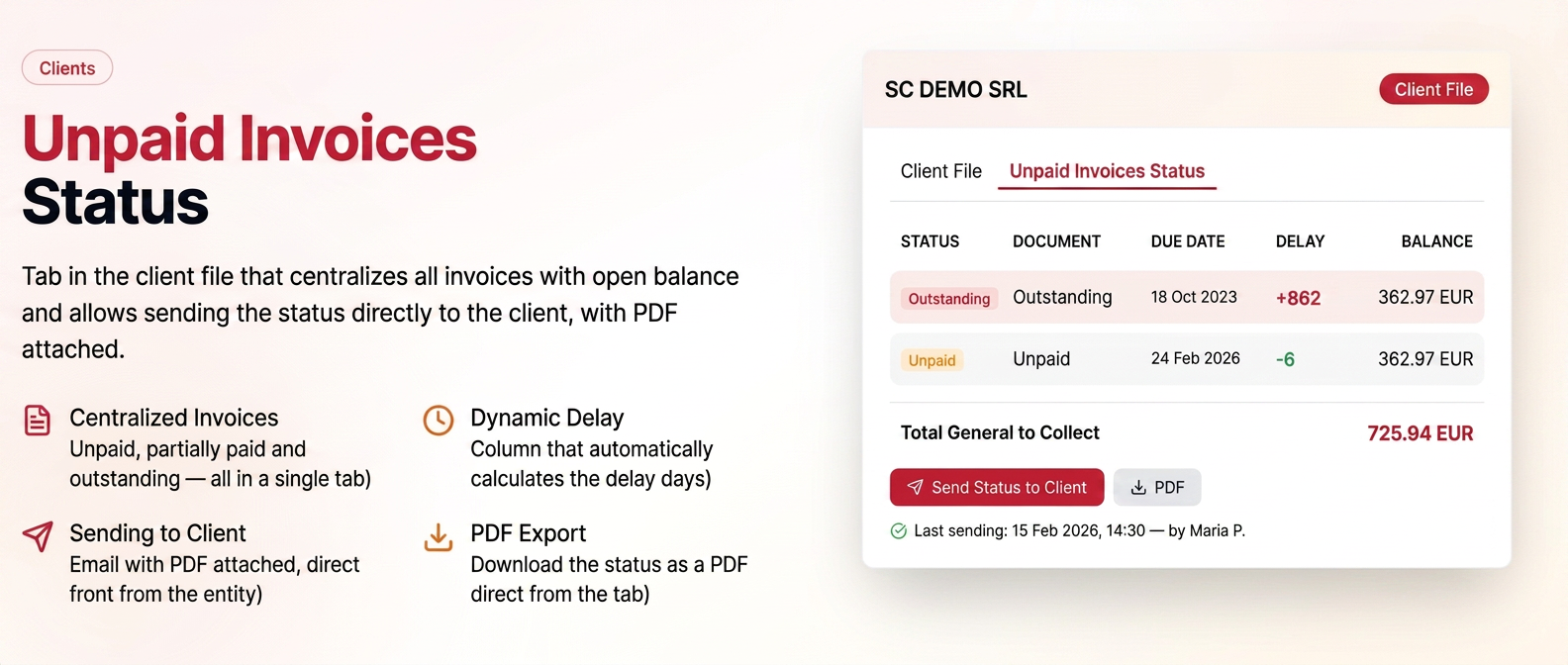
The "Customer Sheet" section has been expanded with a new tab — "Unpaid Invoices Status" — which centralizes all the customer's open balance invoices and allows sending the statement directly to them.
- New "Unpaid Invoices Status" tab in the customer page, next to the existing "Customer Sheet" tab.
- Displays only Unpaid, Partially Paid, or Overdue invoices with a balance greater than zero.
- The "Delay (days)" column dynamically calculates the difference from the current date — positive values appear in red.
- Grand total to be collected displayed at the end of the table.
- "Send Status to Customer" button — generates an email with the status PDF attached, using the dedicated template.
- Next to the send button, the date of the last sent notification appears to avoid duplicate sends by different colleagues.
- PDF Export available directly from the tab.
How to use
- Access the customer page → Customer Sheet tab.
- Click on the "Unpaid Invoices Status" sub-tab.
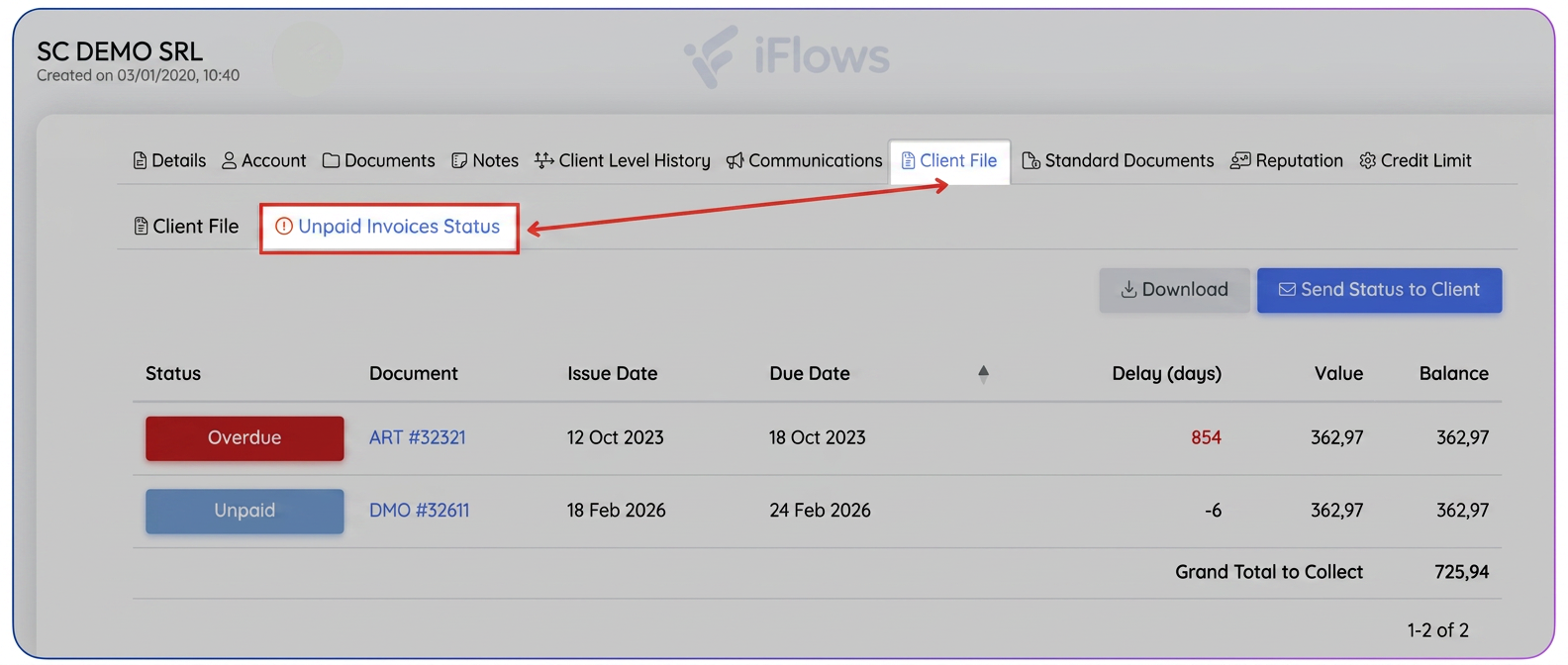
- Check the list of overdue invoices and the total to be collected.
- To notify the customer, click on "Send Status to Customer".
- The email pop-up opens with the pre-filled template and the PDF attached.
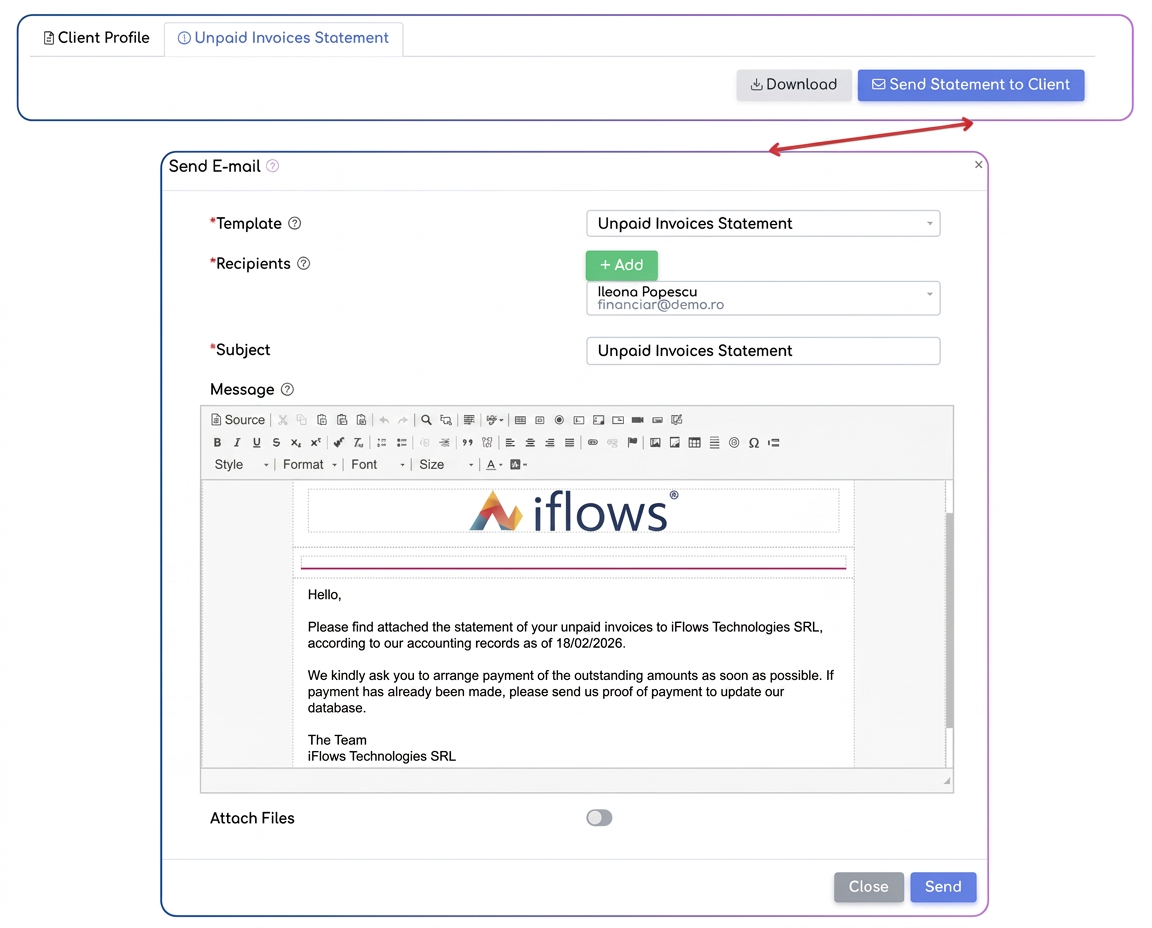
- Verify/change the recipient and the message, then send.
Template used for automatic sending
The email generated via the “Send Status to Customer” button automatically uses the predefined template named “Unpaid Invoices Status”.
This template can be modified from:
Steps:
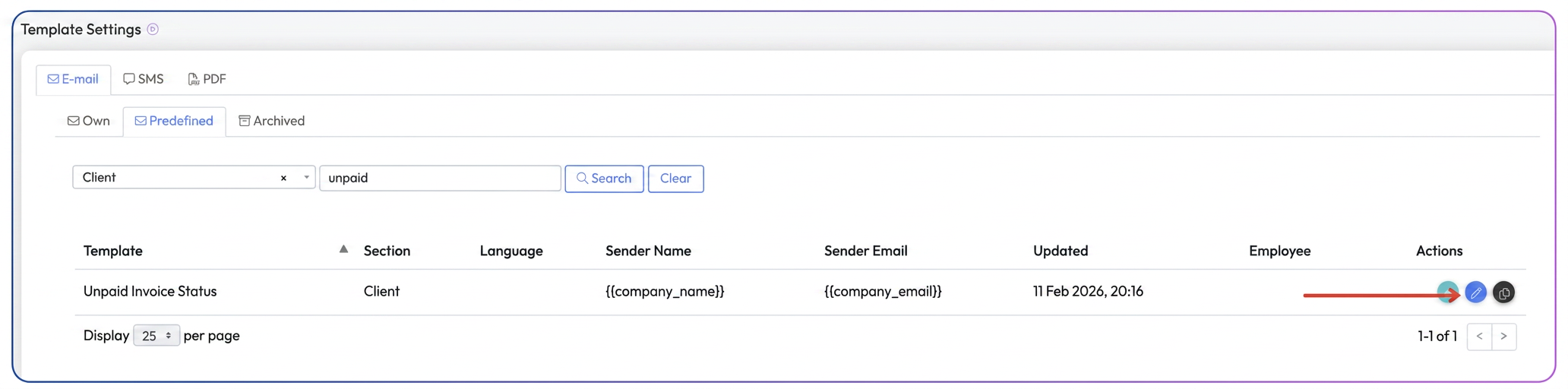
- After accessing the settings – templates – email – predefined page, select the filter for Section: Customer.
- Look for the template “Unpaid Invoices Status”.
- Click the Edit button (pencil icon).
- Modify the message content.
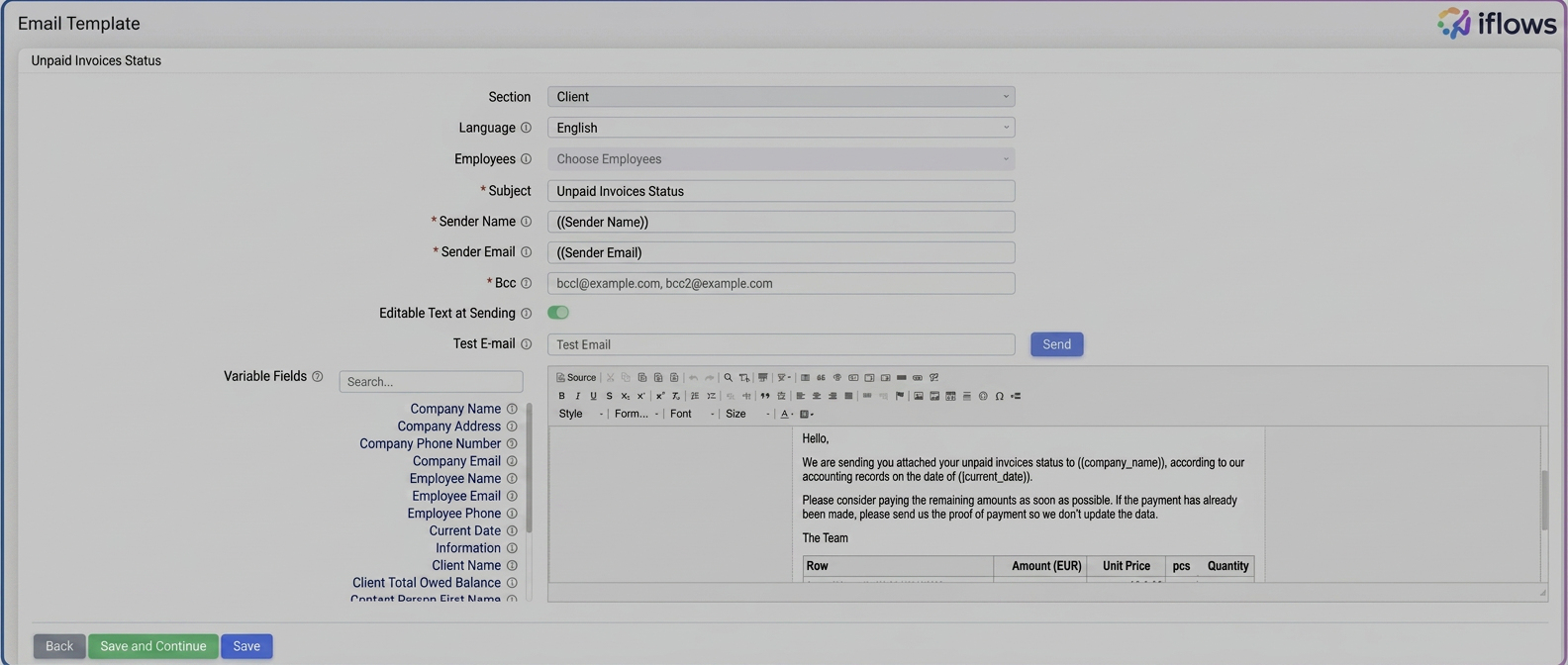
- Save the changes.
If you want the ability to adjust the message with each send, enable the “Editable text on dispatch” option within the template. Thus, before transmission, the user will be able to modify the email content without changing the standard structure of the template.
Downloading the Unpaid Invoices Status (PDF)
From the “Unpaid Invoices Status” tab, the user can download the complete statement of all invoices with an open balance by clicking the “Download” button.
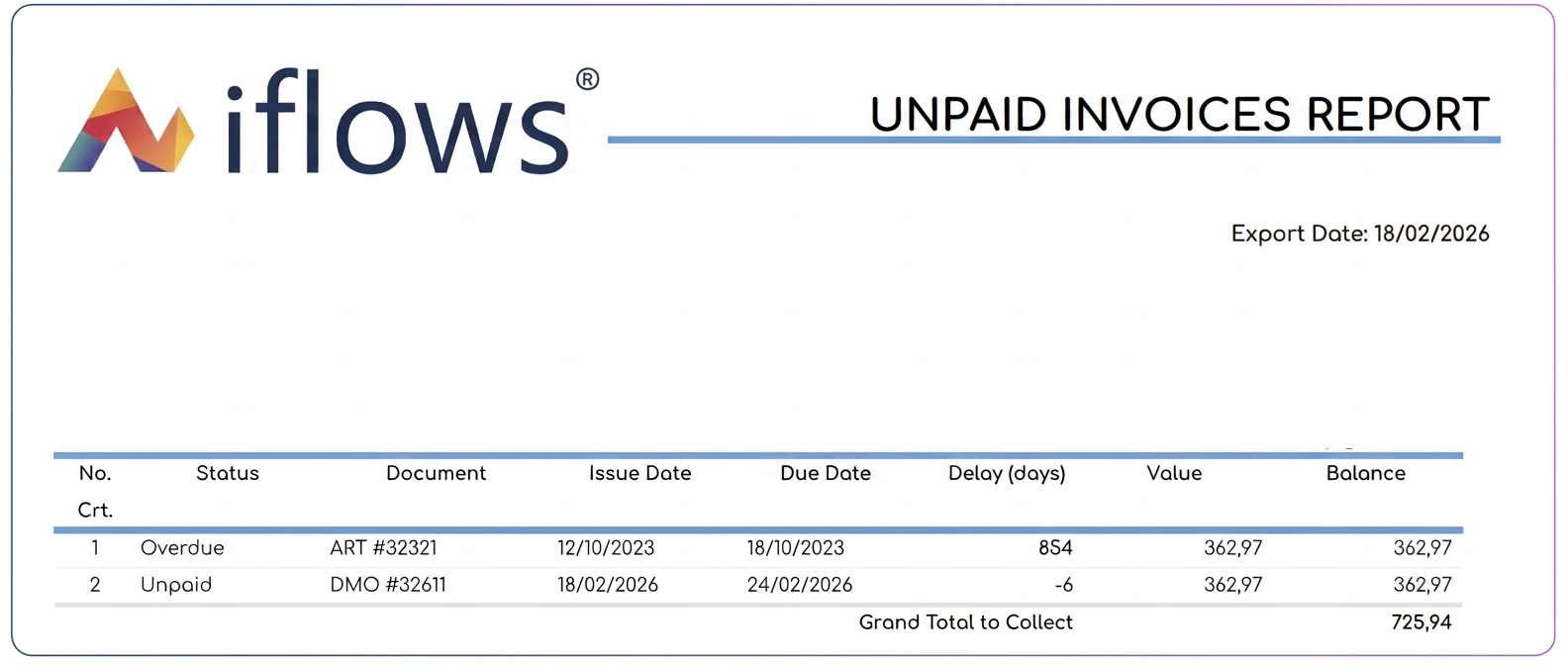
The document generated in PDF format contains the following information:
- Issuer company details
- Customer details
- Export date
- Detailed table with the following columns:
- Status (Unpaid / Partially paid / Overdue)
- Document
- Issue date
- Due date
- Delay (days) – dynamically calculated
- Value
- Balance
- Grand Total to be Collected at the end of the document
This is the same document that is automatically attached to the email when the “Send Status to Customer” button is pressed, ensuring consistency between the manual export and the notification sent to the customer.