
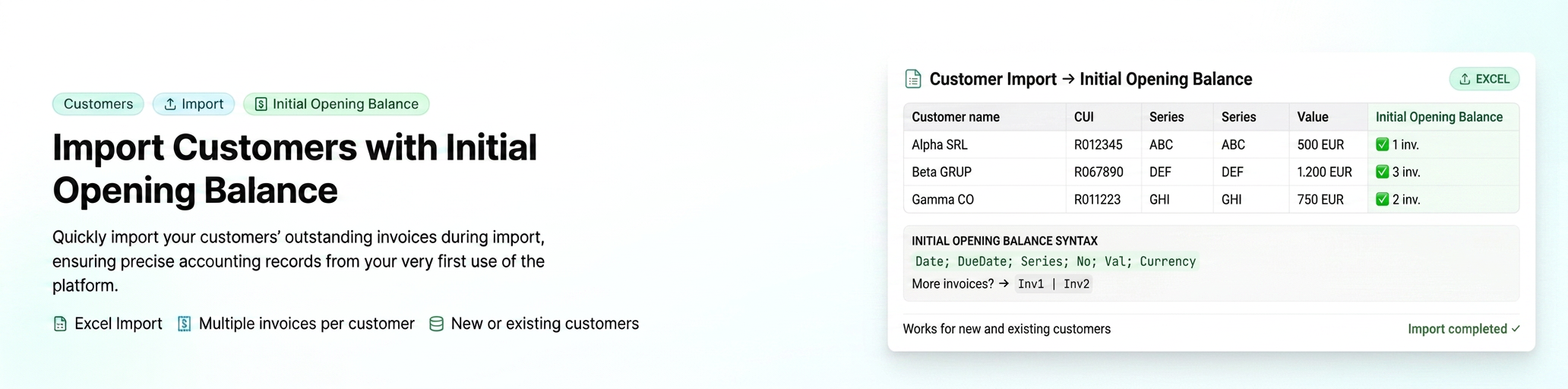
The existing import function is extended by adding the initial balance of customers. Thus, you can quickly take over all unpaid invoices from the past, ensuring accurate accounting records right from the first use.
Step 1: Accessing the Customer Import module
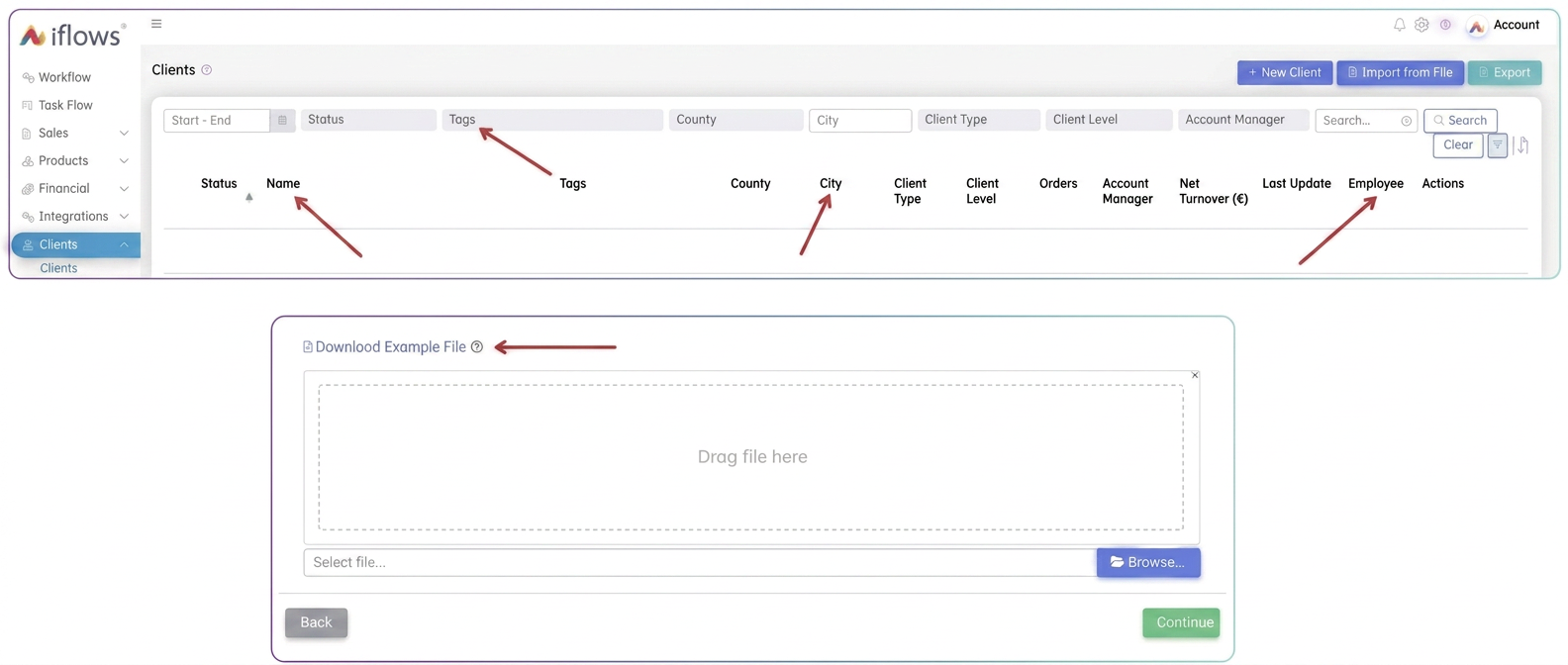
- Access the side menu: Customers -> Customer.
- In the top-right corner, click the Import from file button.
Step 2: Preparing the Excel file
- Download the working template using the Download file example link.
- Identify the Initial balance column. This extends the standard import, allowing you to attach outstanding invoices to each customer.

Step 3: Syntax for the Initial Balance
For the system to process data correctly, follow these rules in the Excel cell:
- For one invoice: Invoice date; Due date; Series; Number; Value; Currency
- Example: 01.01.2024; 15.01.2024; ABC; 101; 500; EUR
- For multiple invoices: Separate them using the vertical bar symbol |.
- Example: Invoice 1 | Invoice 2 , namely: 01.01.2024; 15.01.2024; ABC; 101; 500; EUR | 15.01.2024; 30.01.2024; ABC; 105; 1200; EUR
Step 4: Uploading and Mapping data
- Upload the completed file to the platform and press Continue.
The way you fill out the Excel file depends on your situation:
- If you are adding a customer for the first time: You must complete all mandatory fields along with the column for the Initial Balance.
- If you are updating an existing customer: If you only want to add outstanding invoices to a customer already in the database, it is sufficient to fill in only the identification fields (Name, CUI (Tax Identification Number)) and the Initial balance column.
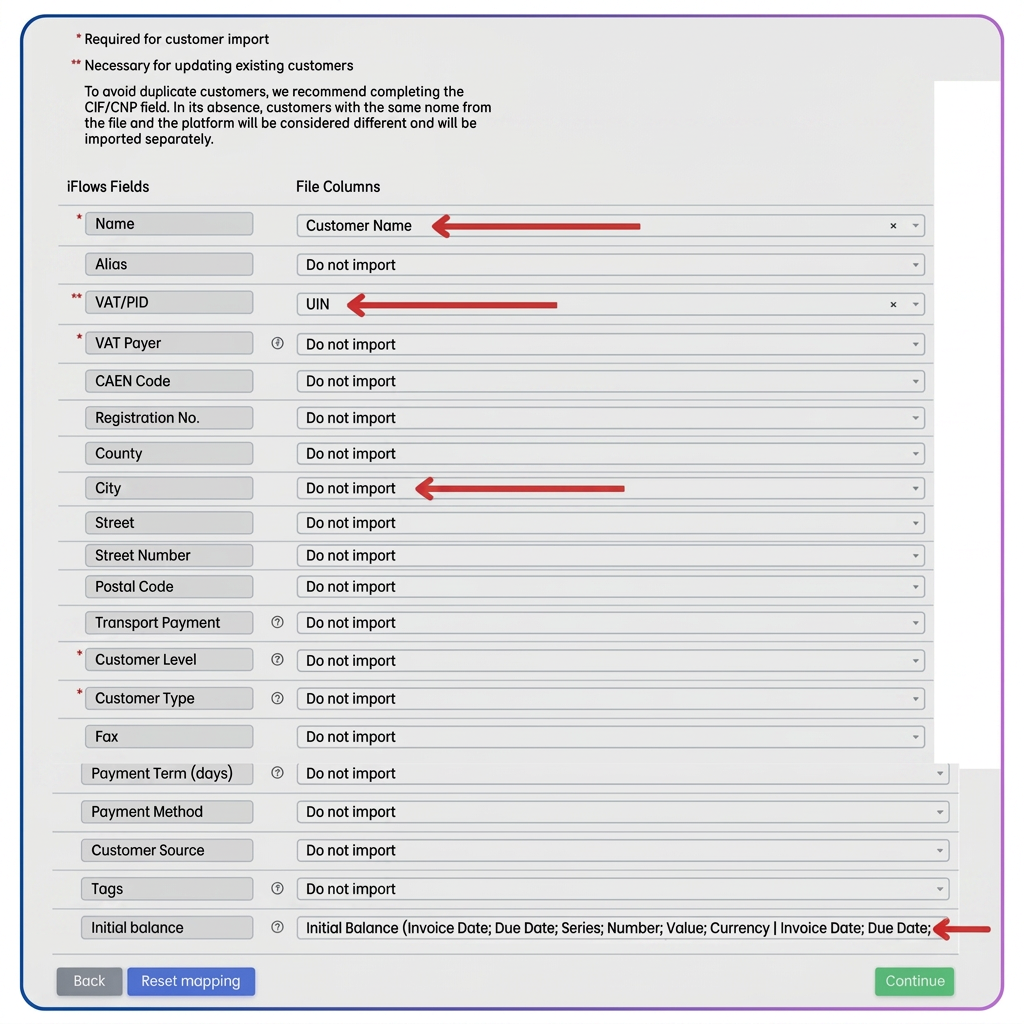
- Complete the process by pressing the Import button.
Step 5: Verifying outstanding amounts
- In Sales -> Invoices, you will find the imported invoices.
- Being historical records (issued previously in another system), they present major differences compared to invoices generated directly in the platform.
What you can do with these invoices:
- Record their payment to clear the customer's debt.
- Apply labels to them or delete them.

What you CANNOT do (limitations):
- No Editing: The data of these invoices cannot be modified after import.
- No Viewing/PDF: A PDF document cannot be generated or downloaded, and a standardized document cannot be generated based on them.
- No e-Factura: They cannot be transmitted to the RO e-Factura system (it is assumed they were reported at the time of their actual issuance).
Step 6: Analysis in the Customer Statement
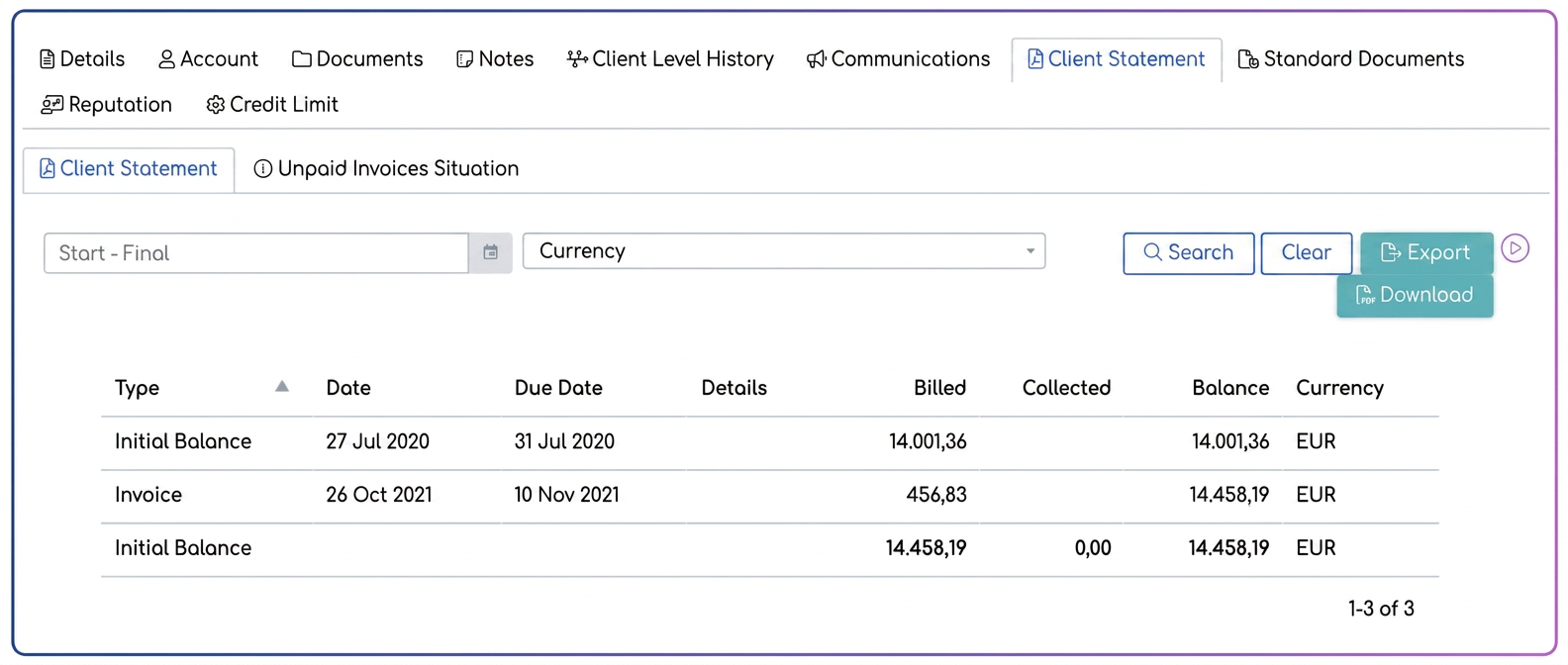
For a quick verification, access the customer profile -> Customer statement tab. Here you will see the centralized status of the balance.
🔎 Note regarding the Initial Balance entry strategy
There are two approaches frequently used by companies, depending on the level of detail desired in the records:
1️. Granular version (invoice by invoice)
Some users prefer to fully reproduce the historical situation, entering each outstanding invoice individually.
Advantage:
- Detailed records per document.
- Possibility to track exactly which invoice was cleared by a specific payment.
This approach is particularly recommended if you want traceability at the document level.
2️. Consolidated version (a single cumulative invoice)
Other users choose to enter a single distinct invoice (with a dedicated series and number), which accumulates all the customer's historical debts.
Example:
A unique record is created reflecting "Initial Balance – status as of date X", with the total value of outstanding amounts.
Advantage:
- Fast implementation.
- Simplification of historical records.
In this case, in the Customer Statement, an Initial Balance = total sum will appear, and subsequently, all invoices issued directly from the platform will be added naturally.
When the customer makes a payment for debts prior to migration into the system, the collection will be allocated to this initial balance invoice.
Conclusion
The choice of method depends exclusively on internal policy and the level of detail desired in the financial records. Both options are functionally correct; the difference lies in the granularity of reporting and the way payment clearing is tracked.