
Customer Archiving
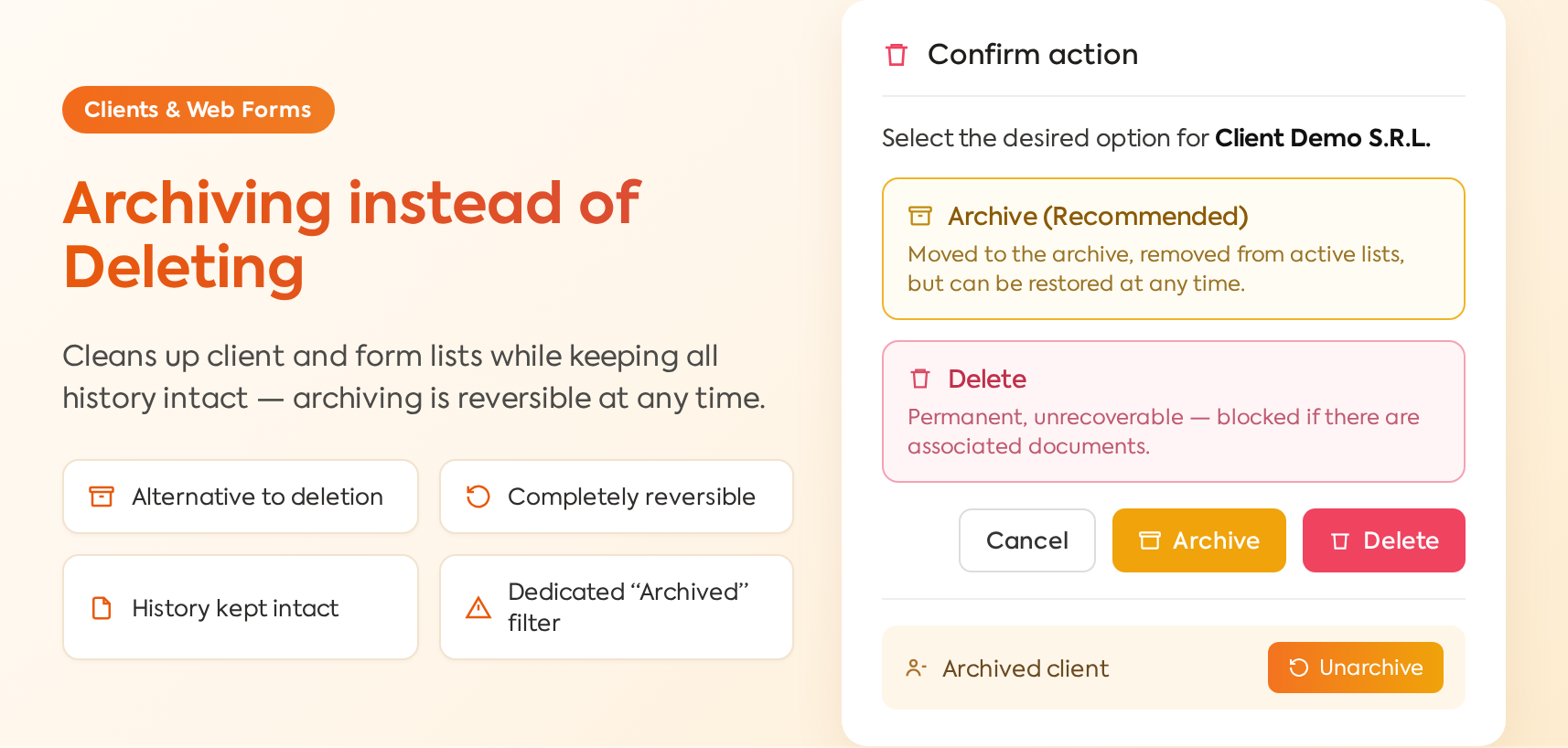
Customer archiving is an alternative to permanent deletion, useful for customers with whom collaboration has ended or who are no longer active. It allows cleaning up the customer list without losing the history of associated invoices, payments, or orders. Unlike deletion, archiving is fully reversible — the customer can be restored at any time.
New Features and Functionalities
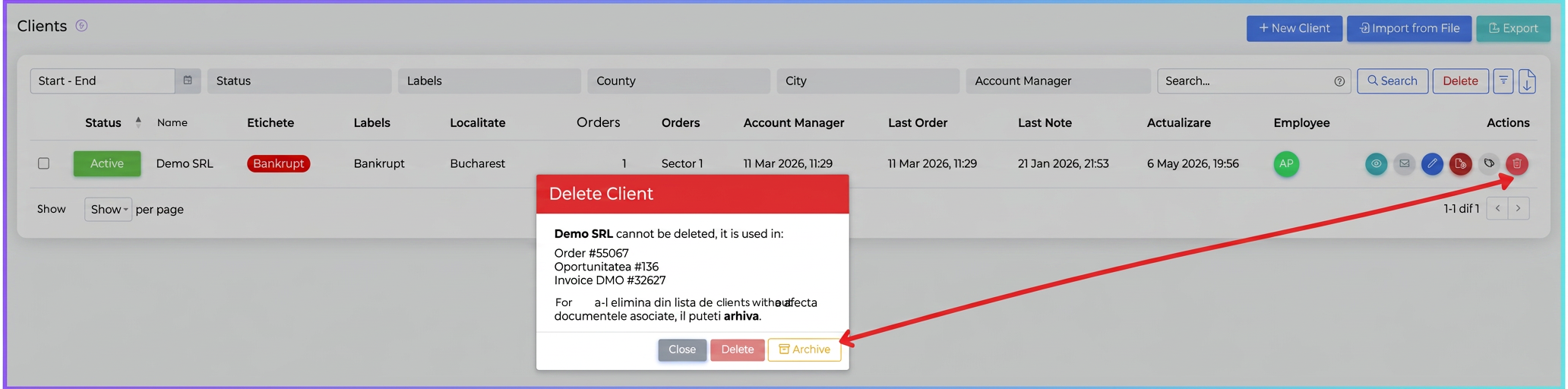
- Initiation via the delete option — when you press the Delete button on a customer, the platform opens a window showing associated documents (orders, invoices, offers, etc.) and offers two clear options:
- Archive — the customer is moved to the archive, keeping all documents and information intact.
- Delete — permanent deletion, possible only if the customer is not used in any document. If associated documents exist, the window message explains this and the delete button is blocked.
- Consequences of archiving — the customer disappears from the active list and no longer appears in the autocomplete when creating orders, invoices, offers, or other new documents — they can no longer be selected for future operations. At the same time, all associated historical documents, balances, and financial history remain intact and accessible through the respective modules.
- Access to archived customers — in the customer list there is a dedicated "Archived" filter through which the view toggles to archived customers.
- Warning banner in the archived customer file — when you open an archived customer's file, a banner appears at the top of the page with the message "Archived Customer" and an orange Unarchive button for quick restoration.
- Upon unarchiving — the customer immediately reappears in the main list and becomes selectable again in autocomplete for new documents — without additional configuration steps.
How to Use
To archive a customer:
- Open the customer file or navigate to the customer list and press the Delete button on the desired customer.
- In the resulting window, choose the Archive option.
To unarchive:
- Activate the Archived filter in the customer list to see archived customers.
- Open the desired customer's file and press the Unarchive button in the banner displayed at the top.
Practical Example
A company has ended its collaboration with a customer it worked with for years, having dozens of invoices and orders in its history. The operator wants to clean up the active customer list but cannot delete the customer because they have associated documents.
→ Presses the Delete button on the customer file — the window displays the long list of associated documents and the message that deletion is not possible.
→ Chooses the Archive option — the customer disappears from the active list, no longer appears in autocomplete for new invoices, but the entire financial history remains available for reports.
→ If the customer returns after a few months, the operator finds them through the "Archived" filter, presses Unarchive from the banner, and the customer instantly becomes selectable again.
Web Form Archiving
For web forms, archiving offers a temporary withdrawal solution without losing the configuration and associated data. Useful when a form is inactive for a certain period (campaign ended, page under reconstruction) but is to be reactivated later.
New Features and Functionalities
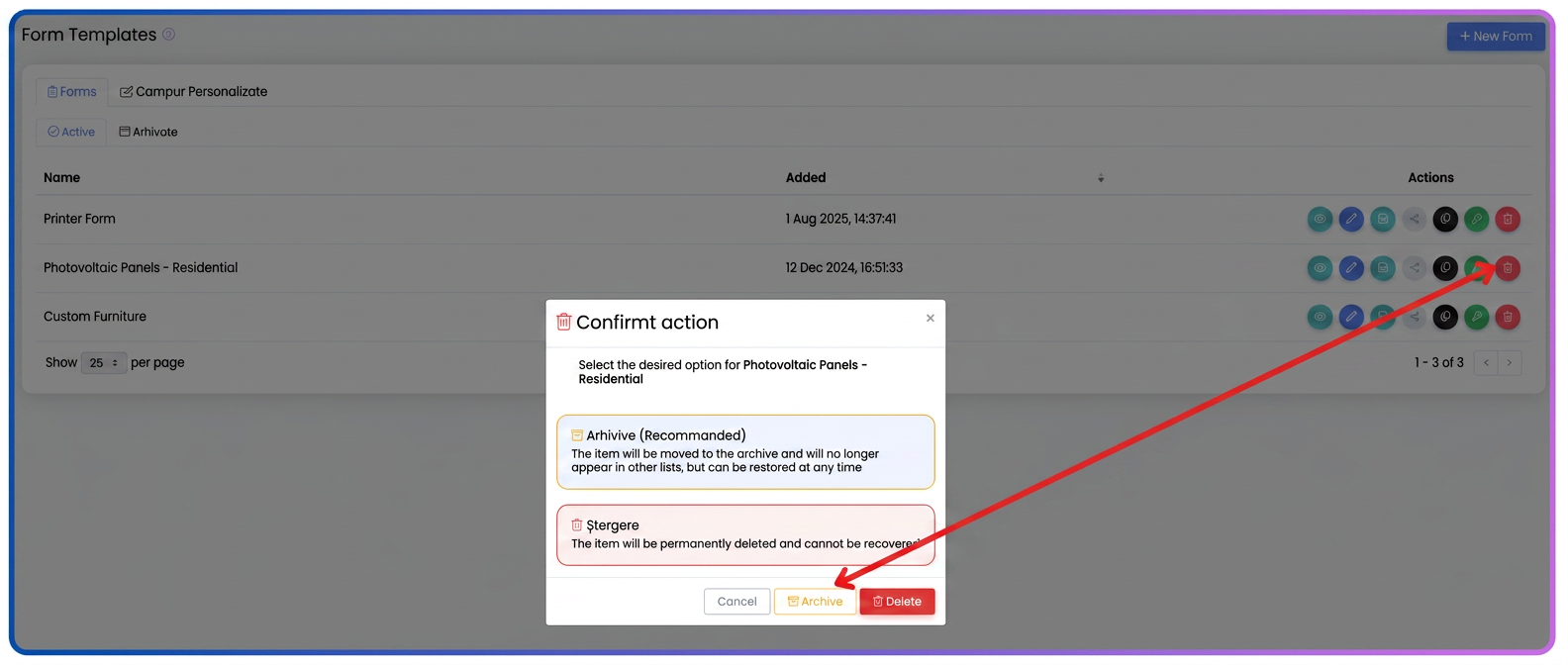
- Initiation via the delete option — when pressing the Delete button on a form, the platform opens a window with two options:
- Archive (Recommended) — form moved to archive, can be restored at any time with all settings intact.
- Delete — form deleted permanently, irrecoverable.
- Consequences of archiving — the form disappears from the active list and can no longer be used. If it was integrated on an external site, that page displays a "form unavailable" message — visitors can no longer submit entries.
- Access to archived forms — in the web form management page there is a dedicated "Archived" tab, visible directly in the interface.
- Upon unarchiving — the form becomes active again instantly and can be used once more — on the external site, the page where it was integrated works normally again, without code changes or reintegration.
How to Use
- To archive a form, press the Delete button on the desired form.
- In the resulting window, choose the Archive (Recommended) option.
- To unarchive, access the Archived tab from the web form management page and press Unarchive on the desired form.
Practical Example
A firm runs a seasonal campaign with a web registration form integrated on the promotions page. The campaign ends, but the form might be reused next year.
→ The operator presses Delete on the form and chooses Archive from the confirmation window.
→ The external page displays "form unavailable" — visitors can no longer submit entries, and the campaign configuration remains saved.
→ At the start of the next campaign, the operator accesses the Archived tab, presses Unarchive, and the form becomes active instantly on the already integrated page, without reconfiguration.