
In short
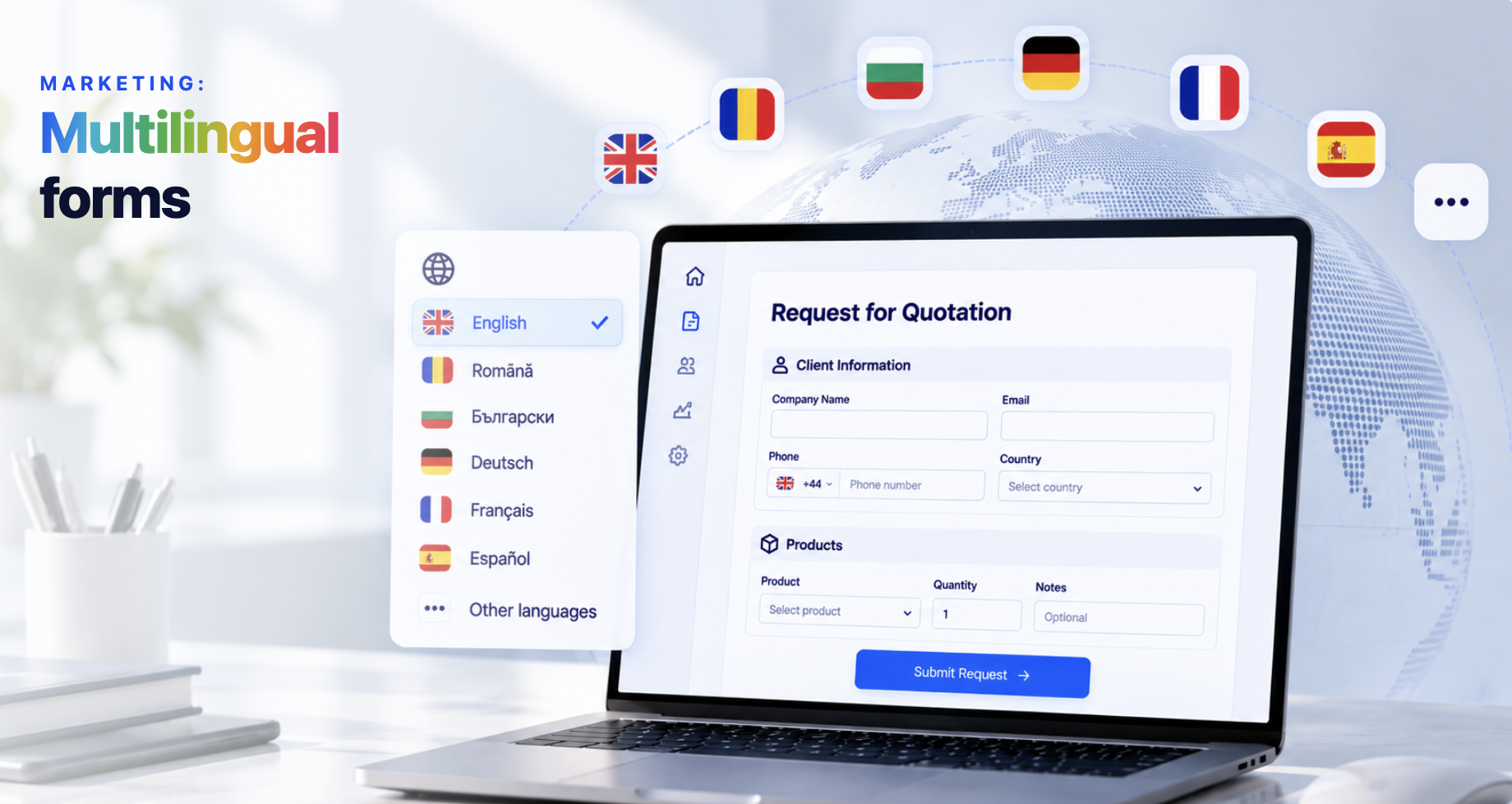
Every public form created in now has its own language. The texts displayed by the platform on the form page appear in the chosen language: section titles, buttons, the GDPR text, the calendar, validation messages and the page shown after submission. The language of the company or of the visitor no longer matters.
Until now, the public page appeared in the company’s language for visitors and in the account language for logged-in employees. Now a company from Romania can publish, for example, a form in English or German for foreign clients, while employees keep using the platform in Romanian. The feature is also useful for companies from other countries, which can display their forms in their clients’ language.
Where to find it
→ New Form Template or Edit on an existing form — the Template Design panel, the Form Configuration card, the Form language field.
The public page of the form — opened from the form’s public link or from the custom link.
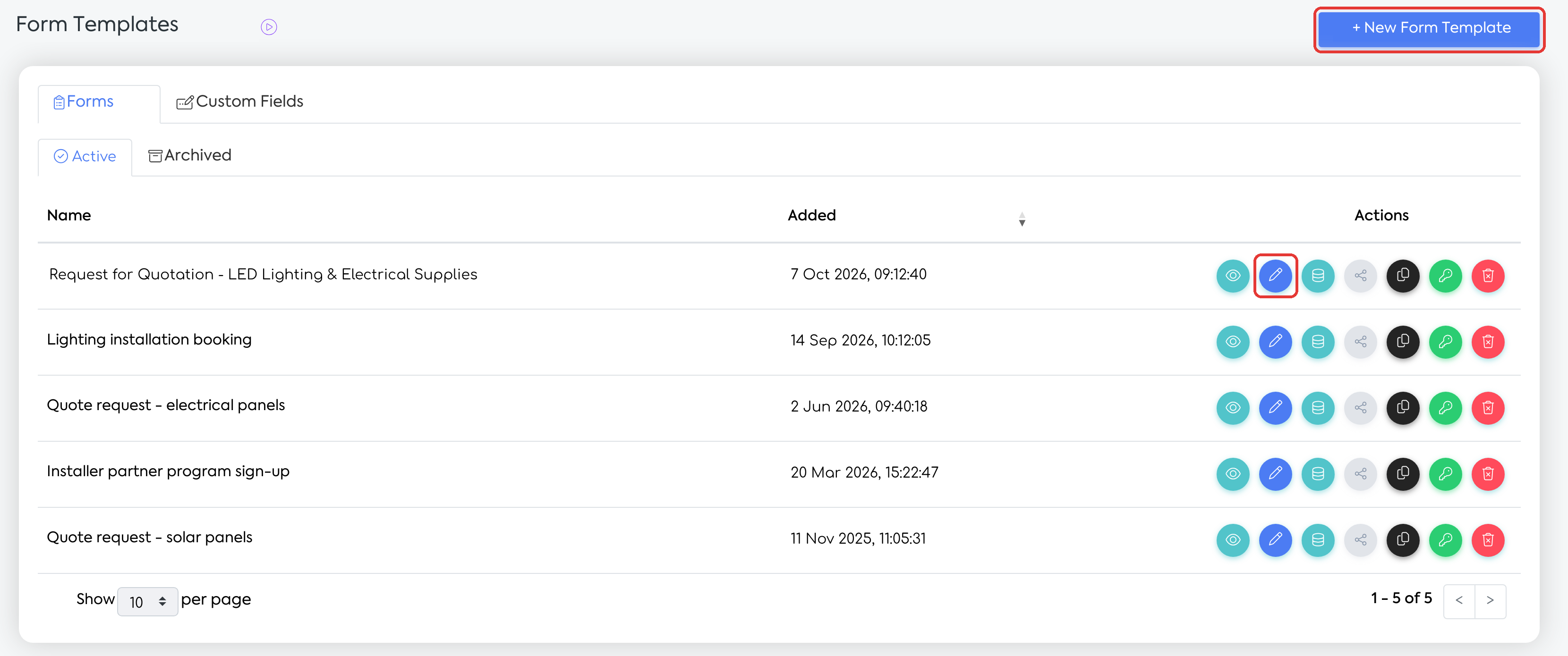
: the New Form Template button and the Edit action on the form row.
Before you begin
You need permission to add or edit forms.
Prepare your own texts in the desired language. The form title, custom texts, field labels and list options are not translated automatically.
For forms addressed to foreign clients, include the Country field in the Client Information section (see “Rules and limits”).
Choosing the language of a form
Step 1. Open and click New Form Template or Edit on the desired form. The editor opens, with the Template Design panel on the left.
Step 2. In the Form Configuration card (“General form settings”), open the Form language list, located between Form Title and Notification, and choose the language.
| Field | What to fill in | Required |
|---|---|---|
| Form language | Romana, English, Spanish, Hungarian, German, French or Bulgarian. On a new form, your account language is preselected, if you have a language set on your account; otherwise the field stays empty. You can leave the field empty; the form will use the default language. | No |
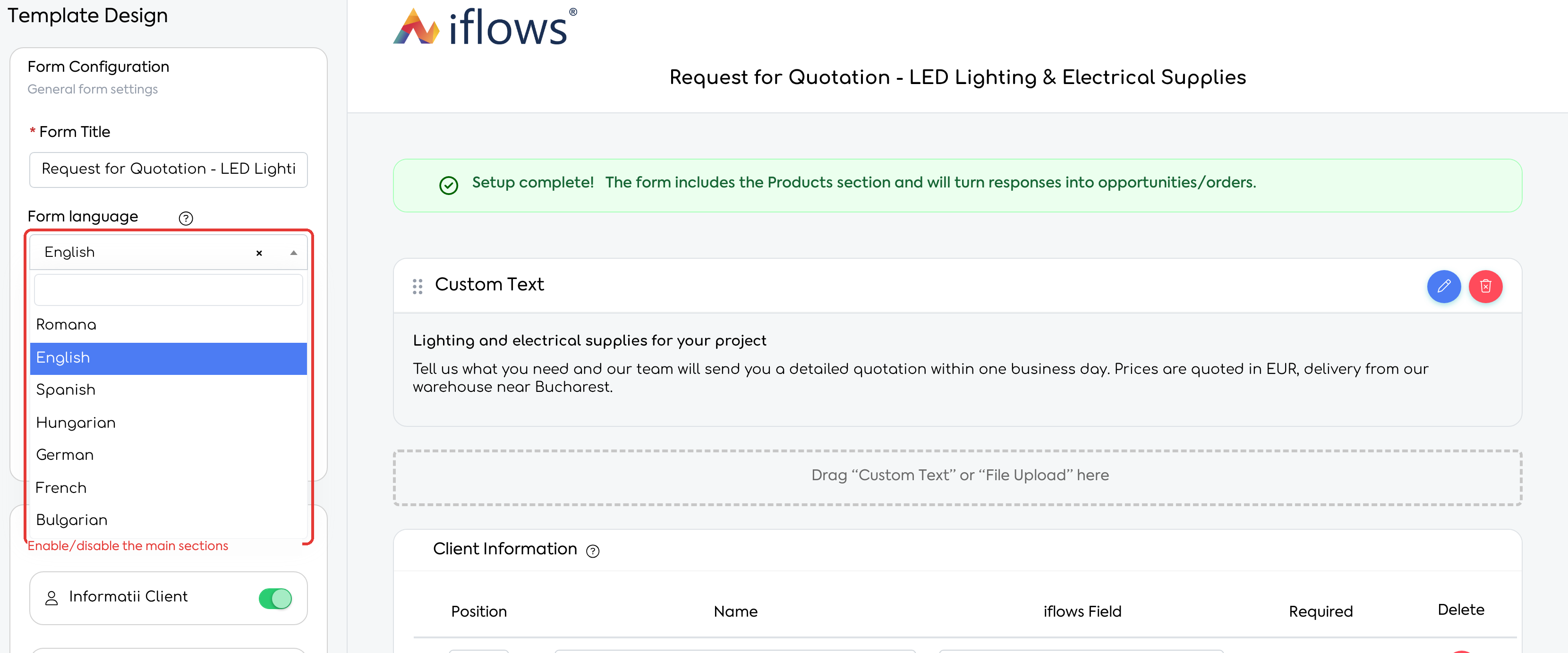
The Form Configuration card, with the Form language list open; the form is set to English.
Note: the “?” icon next to the field displays the rule: “Changes only the platform texts (buttons, section titles, GDPR, calendar). It does not translate the form title, question labels or options entered by the user.”
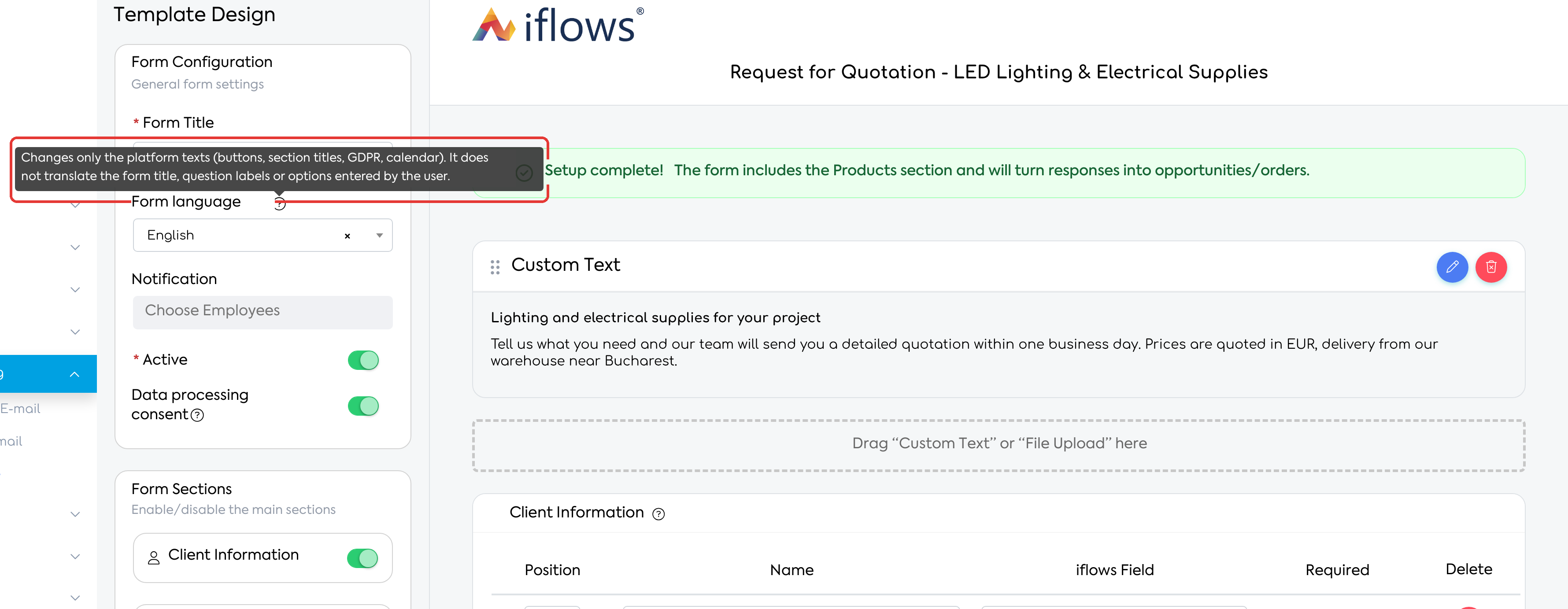
The explanation shown by the “?” icon next to Form language.
Step 3. Write your own texts in the chosen language: Form Title, the Custom Text blocks, the field names in Client Information and Additional Fields, and the list options.
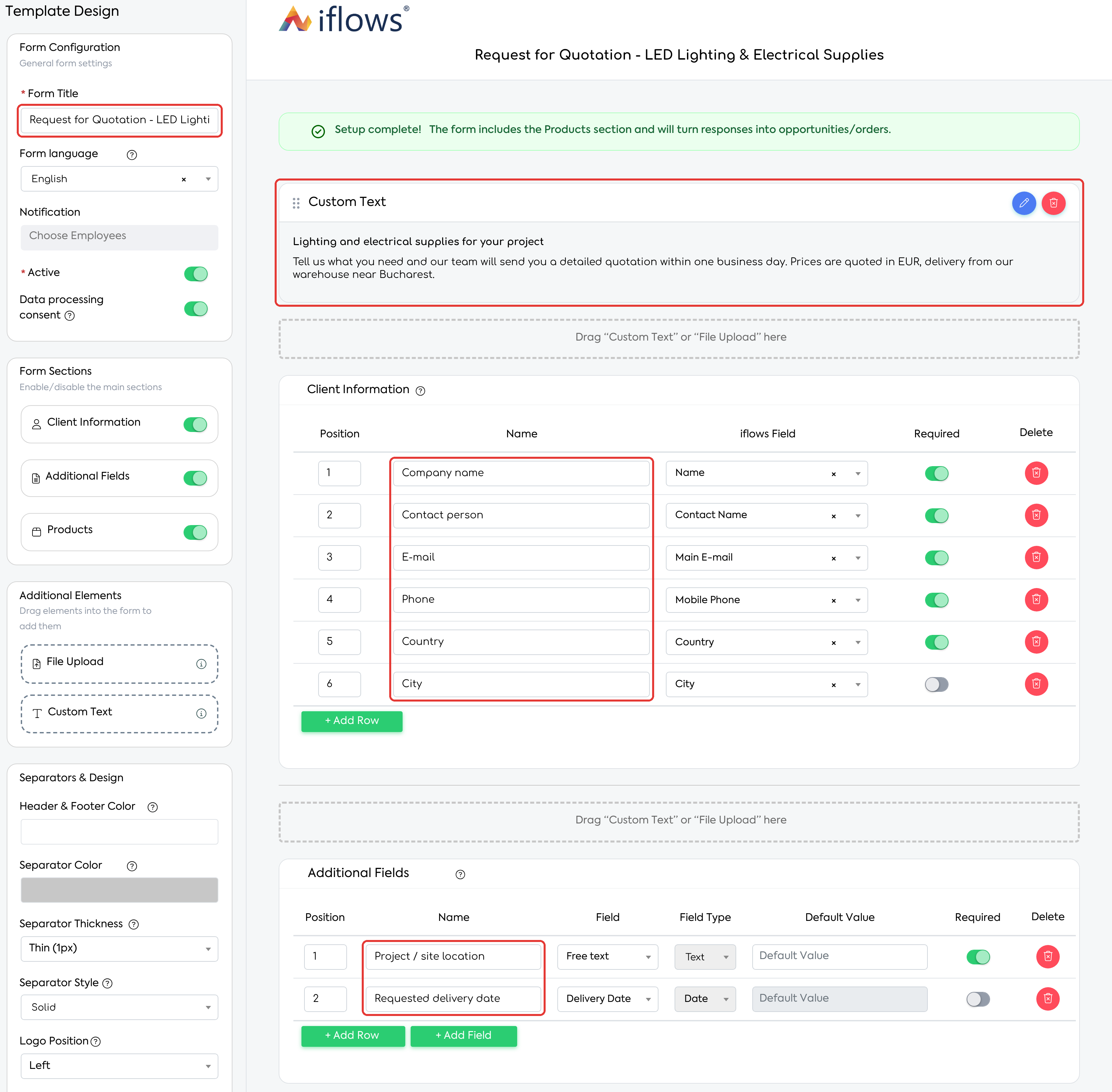
The title, the custom text and the field labels, written directly in English.
Step 4. Click Save, or Save and Continue if you want to stay in the editor. The language is applied immediately on the form link.
Step 5. Open the form from the public link to check how it is displayed.
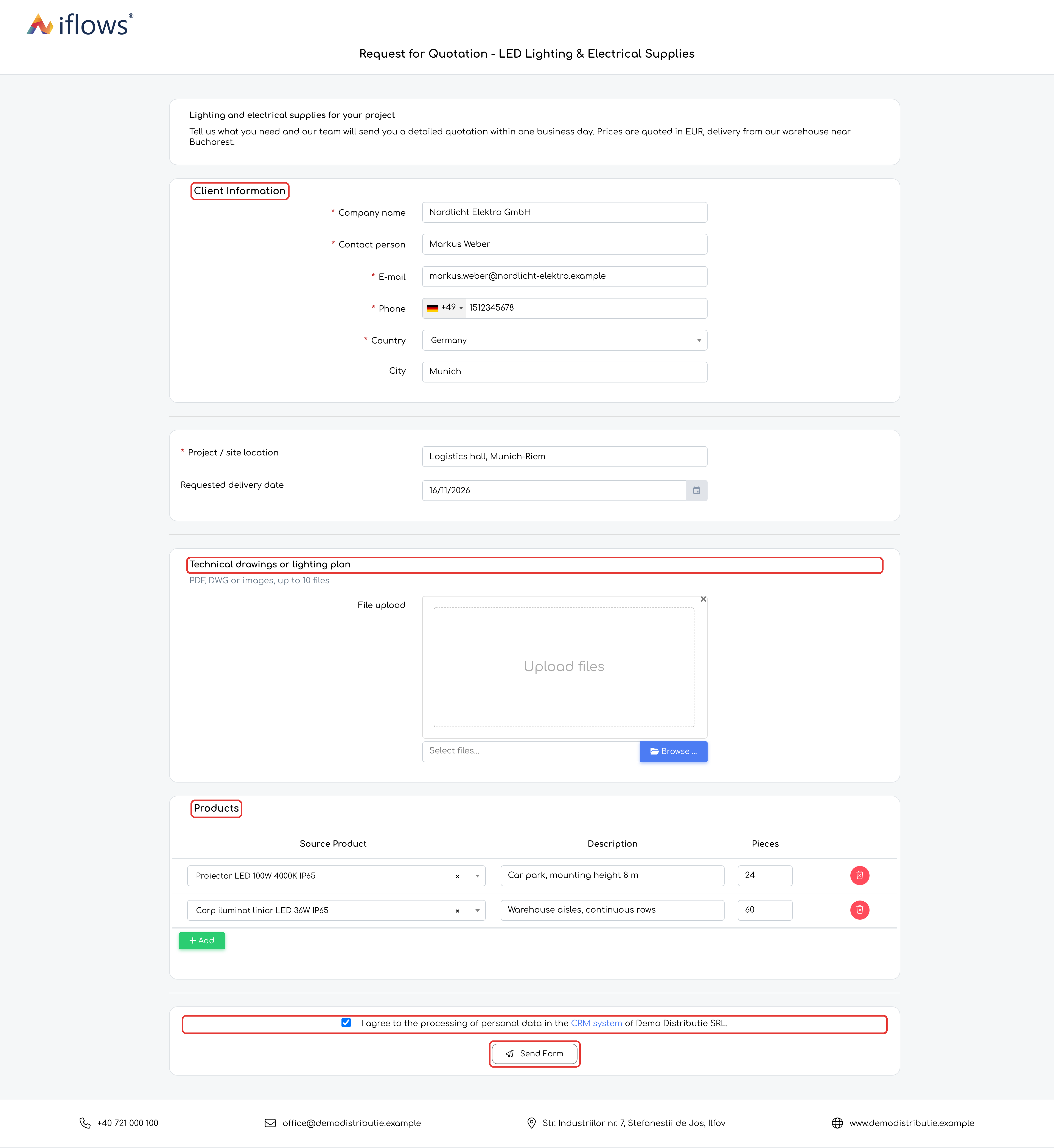
The public page of the form in English: section titles, the product grid, the GDPR consent and the submit button are translated automatically.
Note: the View action in the list opens the internal preview page of the form. The preview has no submit button, so submission validations and the page shown after submission can only be checked from the public link.
What you see afterwards
On the public page, the following appear automatically in the form language:
section titles (in English, “Client Information” and “Products”), the automatic import area by Tax ID and the product grid columns;
file upload, the selection texts in lists (“Choose …”) and the calendar;
the submit button (in English, “Send Form”);
the GDPR text, with the company name and a link on “CRM system” (in English, “I agree to the processing of personal data in the CRM system of <company>.”);
validation messages and submission error messages;
the page shown after submission (in English, “Thank you!”, with the confirmation of the submission). If the form has a redirect set after completion, the visitor is taken to the set address;
the “Form unavailable” page, displayed for a disabled or archived form.
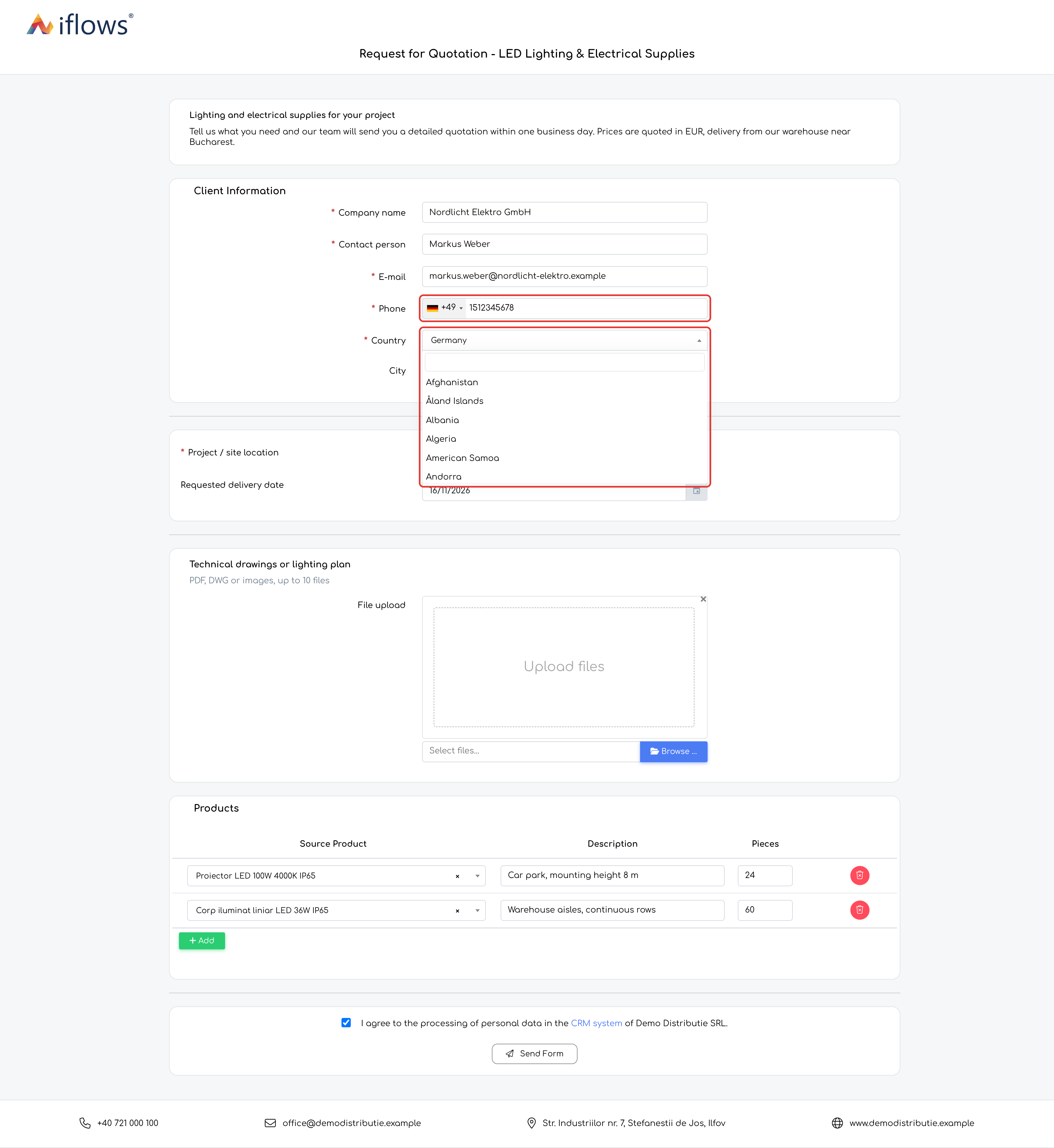
Validation messages appear in the form language; the phone and country fields start with the company’s country.
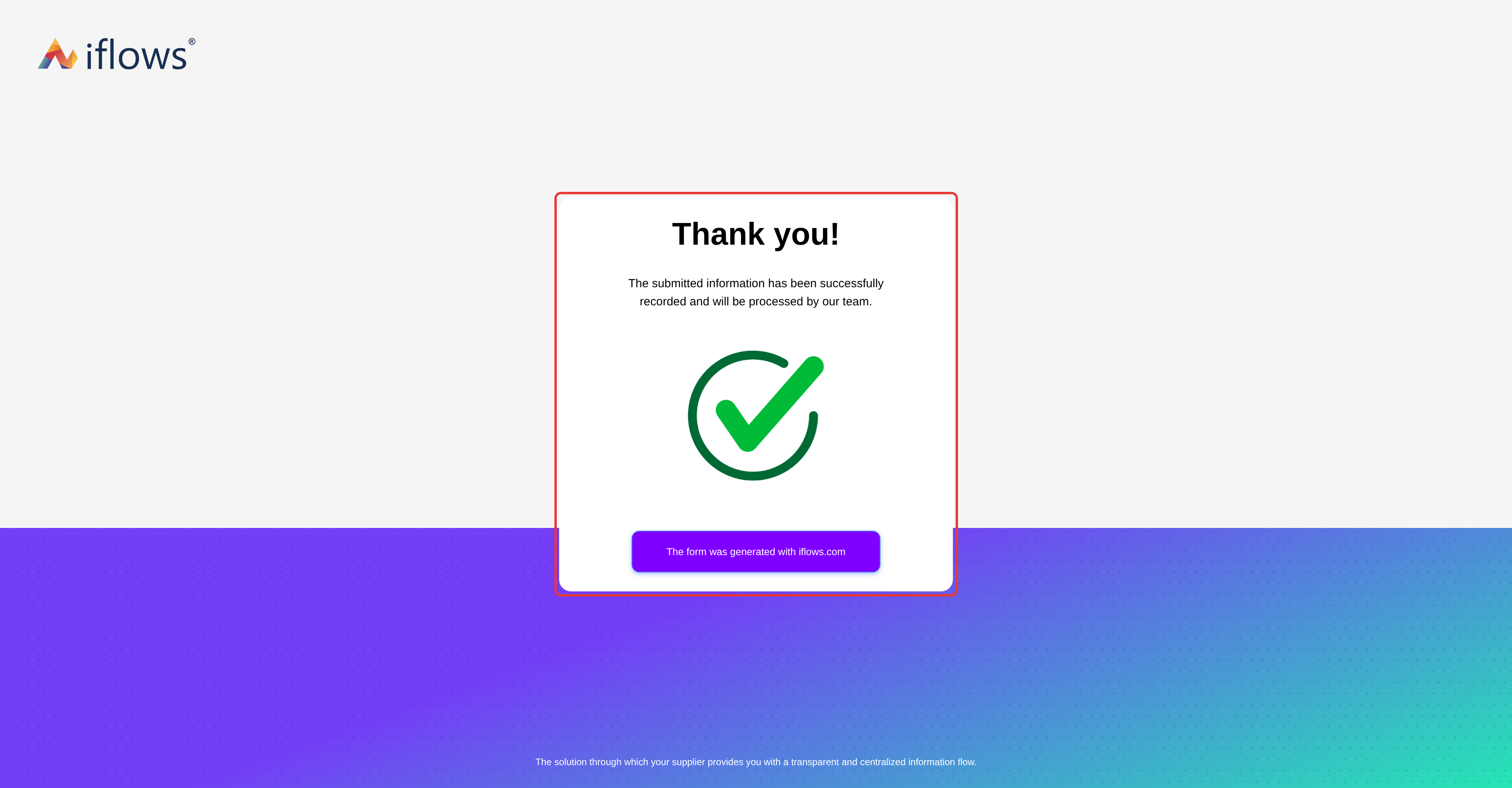
The confirmation page, displayed in the form language after submission.
In the data created from the form:
the title of the opportunity or order created from the form (“Forms <title> <number>”) starts with the prefix in the form language. The number in the title is the registration number of the submitted form, not the order number;
in the notification e-mail sent to the users selected under Notification, the words “client”, “opportunity” and “order #” follow the form language; the rest of the text comes from the e-mail template;
phone numbers are saved in international format (see “Rules and limits”).
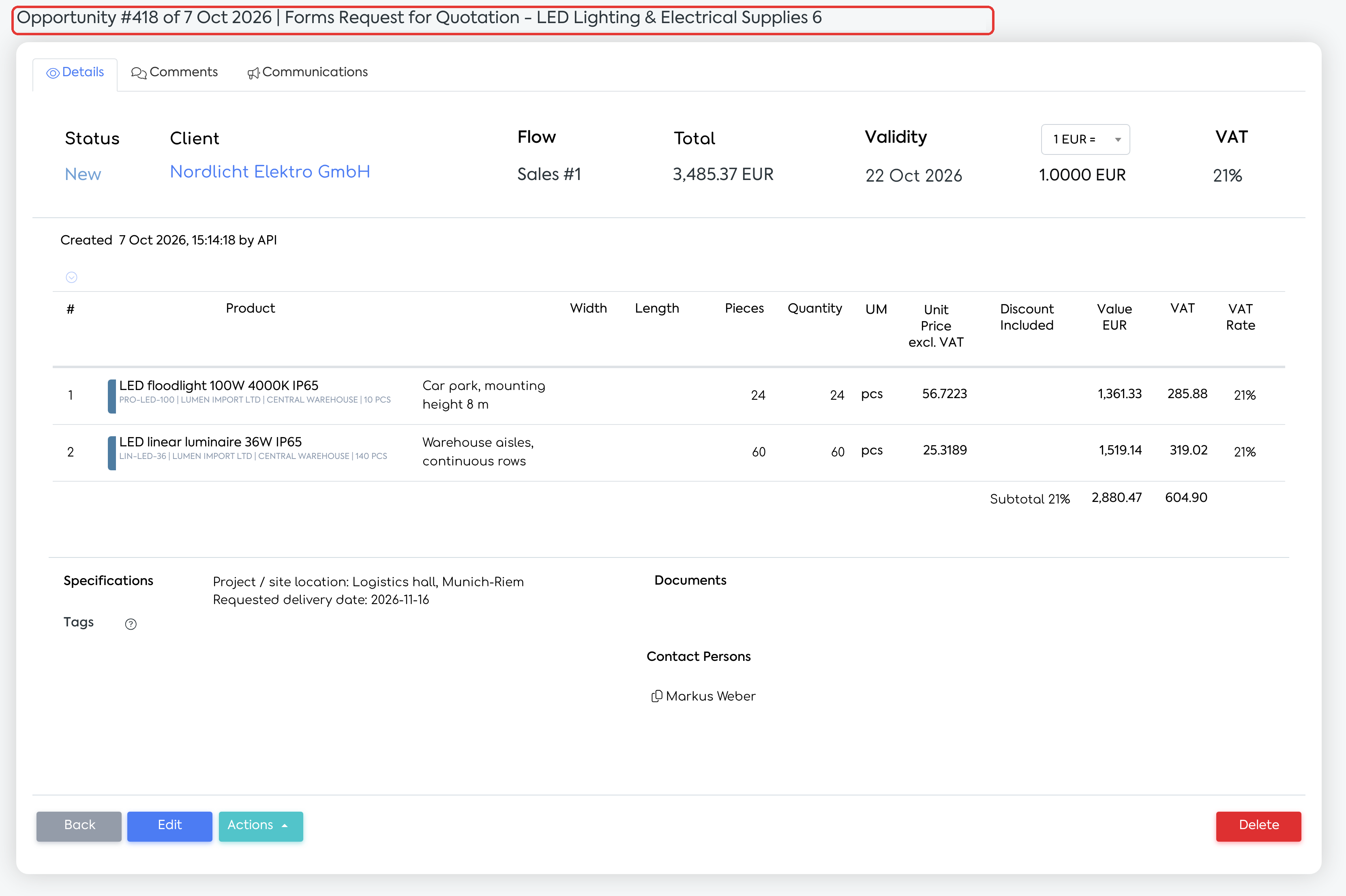
The opportunity created from the form, with the automatically generated title and the answers from the additional fields under Specifications.
Rules and limits
Form language
The language can be changed at any time and is applied immediately, including on the custom link. When cloning, the new form keeps the language of the source form.
Existing forms have the field empty and behave as before: a logged-in employee sees the form in their account language, and a visitor sees it in the company’s default language.
The visitor’s browser language does not affect the platform texts. The exception is the anti-robot check (reCAPTCHA), displayed by Google in the browser language.
Opening a form in another language does not change the language in which the employee uses the platform.
The form language is not saved on the client, opportunity or order created from the form.
The “Form unavailable” page appears in the form language only for disabled or archived forms. For a wrong link or a deleted form, the page appears in the default language.
What is not translated
The form title, custom texts, field labels, list options and product names.
The country names in the Country list, which come from the platform’s country list.
Fields filled in by the visitor
The Country list starts preselected with the company’s country. The visitor must choose their own country.
The Tax ID field accepts only digits when “Romania” is chosen under Country or when the form has no Country field, regardless of the form language. For foreign clients, whose VAT number contains letters, include the Country field.
Custom date fields are filled in using the day/month/year format, in all languages.
Phone: the field starts with the flag and dialling code of the company’s country. Numbers entered without a prefix are saved with the company country’s prefix (for a company from Romania, 0722… becomes +40722…; for one from Bulgaria, 0888… becomes +359888…). If the visitor chooses another flag, the number is saved with the chosen prefix. Numbers starting with “+” or “00” are saved exactly as entered.
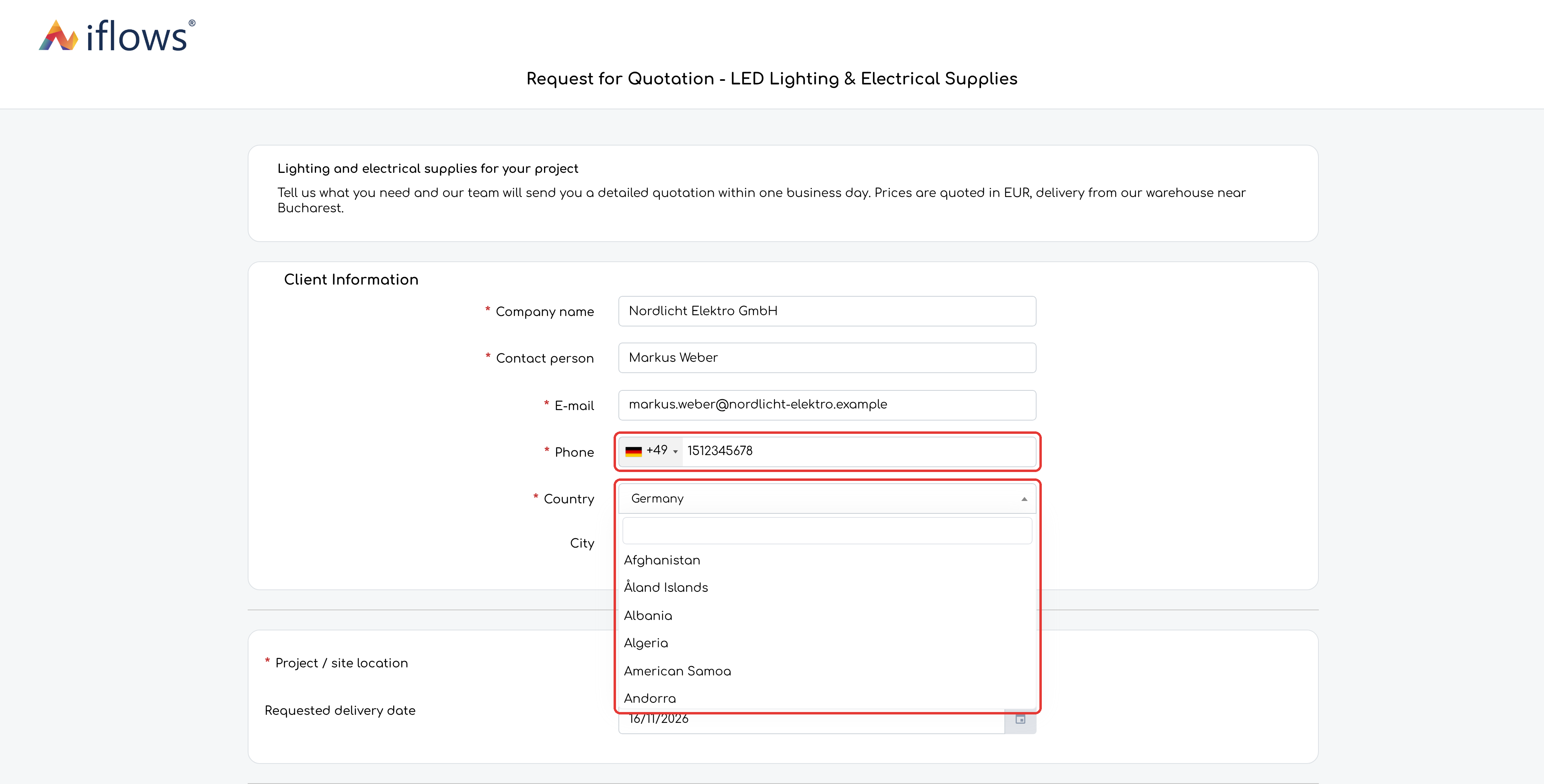
The open country field and the phone field, with the flag and dialling code of the chosen country.
The client created from the form
If the submitted Tax ID already exists in the platform, the existing client is used. Its country and other details are not changed.
If the form does not contain the Country field, the new client receives the company’s country. Country-based rules, for example quote expiry reminders, use this information: the rule matching the client’s country is applied. For this reason, include the Country field in forms for foreign clients.
Settings and permissions
There are no new permissions or settings. The language is chosen on each form, by the users who can add or edit forms.
The company’s language and country, used for the default display, the dialling code and the country of new clients, are the ones set when the platform was configured and cannot be changed from the forms screen.