
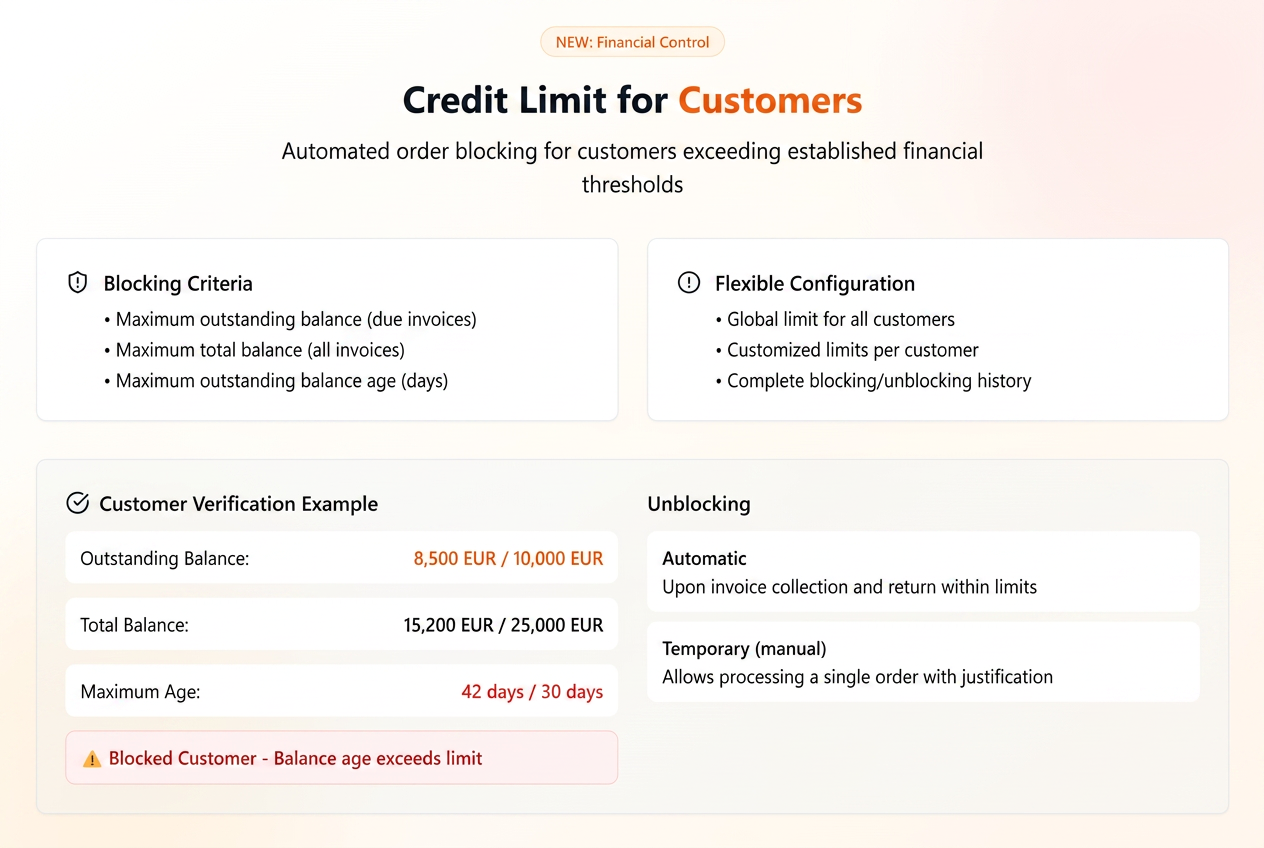
To ensure rigorous financial control and minimize risks associated with commercial credit, the iFlows platform introduces an advanced balance limit management functionality for customers. This system allows automatic blocking of order processing for customers who exceed certain pre-established financial thresholds, thus preventing the accumulation of uncontrolled debt.
The Balance Limit system allows you to define clear rules that, once breached, will block the ability to process new orders for that customer. Blocking can be based on three essential criteria:
- Overdue Balance Limit: Represents the maximum value of overdue, unpaid invoices that a customer can have at any given time.
- Total Balance Limit: Represents the total value of issued, unpaid tax invoices, regardless of whether they are overdue or not.
- Overdue Balance Age Limit (days): The maximum number of delay days accepted for overdue invoices.
Once a customer exceeds any of these set limits, their status will become "Blocked", and their orders can no longer be processed in the workflow until the situation is rectified.
Configuring Balance Limits
The functionality can be activated in two ways, offering both global and personalized control.
Global Activation (Default)
This option is ideal for applying a standard credit policy to all customers who do not have custom settings.
- Navigate to Settings -> Customers.
- In the "Balance limit" section, activate the "Enable default balance limit" option.
Effect:
- All new customers, as well as existing ones who do not have a custom limit, will have a default balance limit of 0 EUR. This means that an order cannot be processed in the workflow if an invoice is generated for it that is not already paid. Basically, the customer will have to make an advance payment to allow the operation of the production/delivery flow.
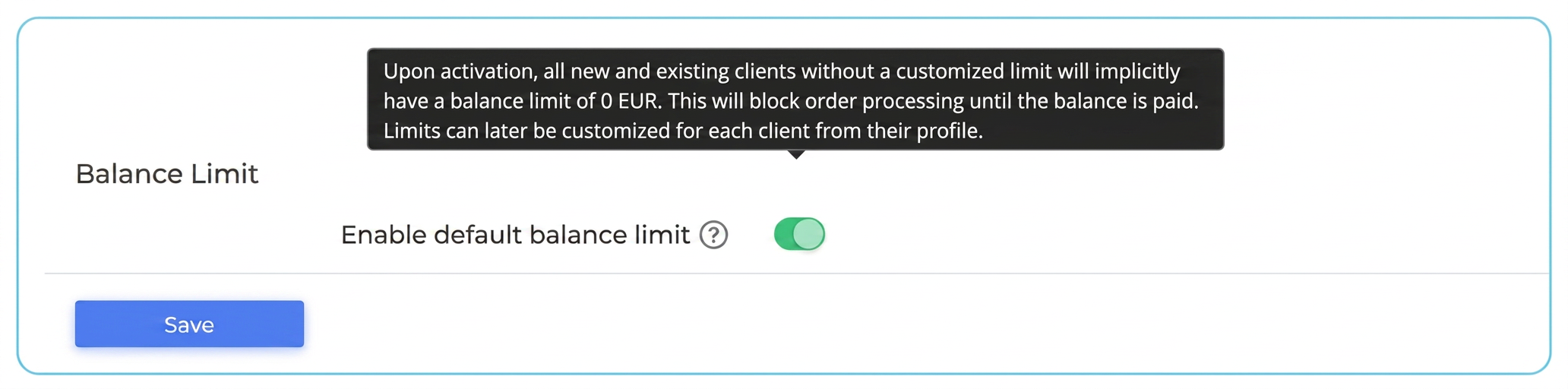
Important: Activating or deactivating this global option will not affect customers who already have a custom limit set on their profile. Individual settings always take precedence over the default setting.
2. Individual Activation per Customer
To set specific limits for a particular customer:
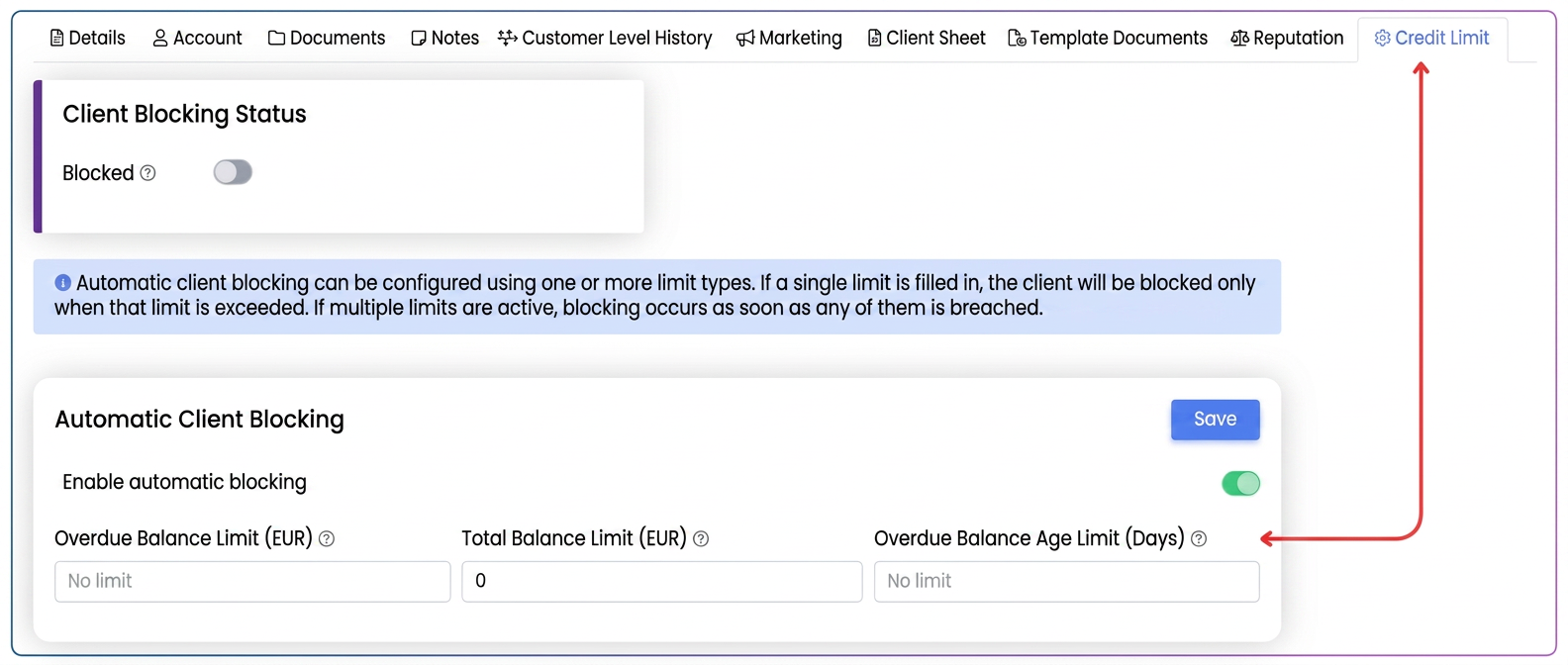
- Navigate to Customers, select the desired customer, and access the "Balance Limit" tab.
- Activate the "Enable automatic blocking" option.
- Fill in the desired values for one or more of the three types of limits (Overdue Balance, Total Balance, Overdue Balance Age).
- Press the "Save" button.
In the "Limits History" section, you can view a complete log of all events: activation of limits, automatic blocks (detailing the exceeded limit), and unblocks.
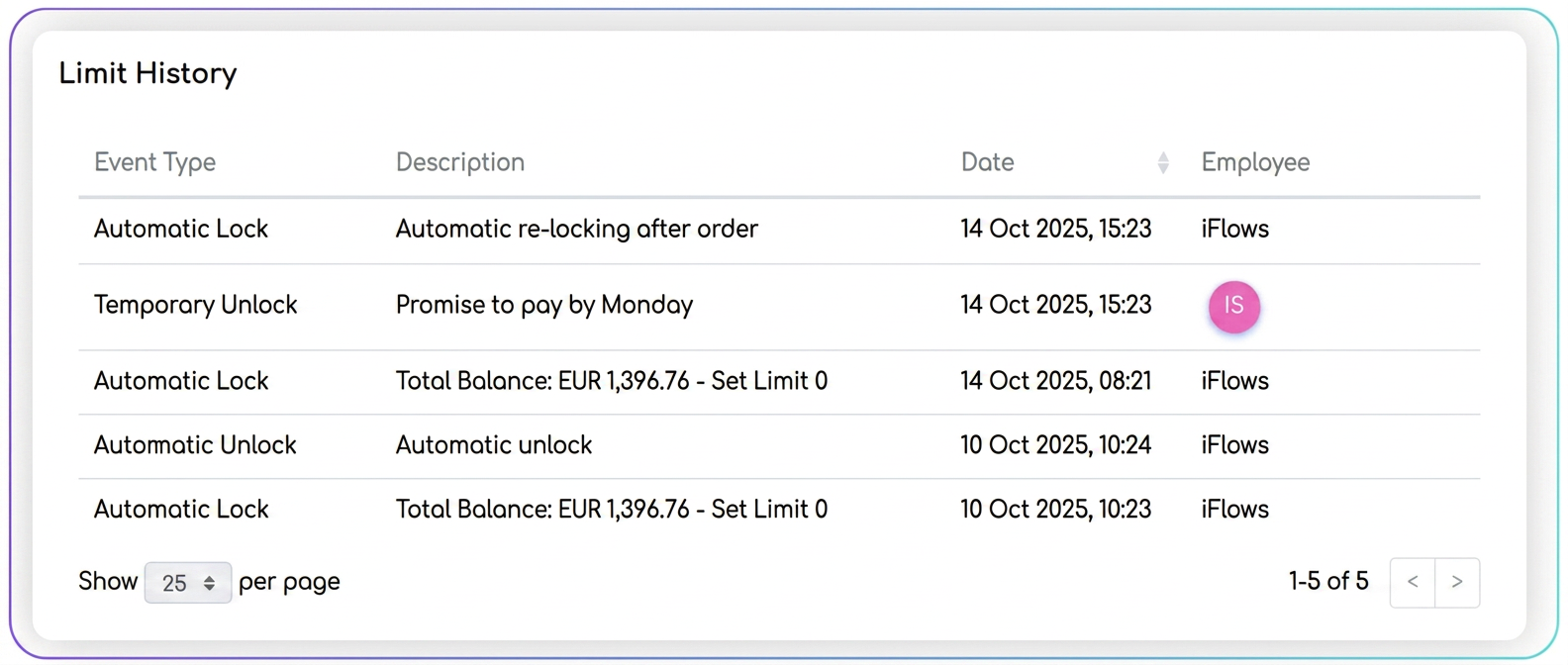
Managing a Blocked Customer
When a customer is blocked, the platform will notify you in several places:
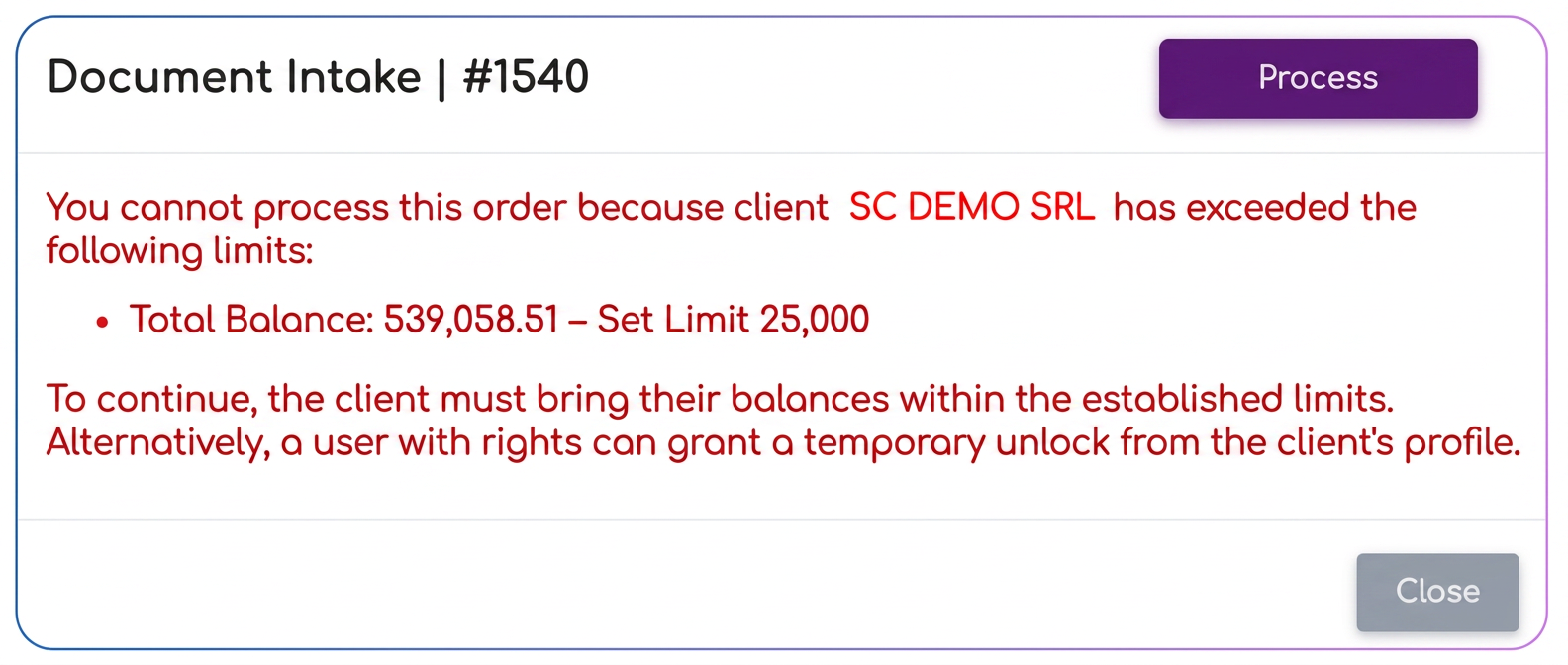
- When trying to save a new order for that customer.
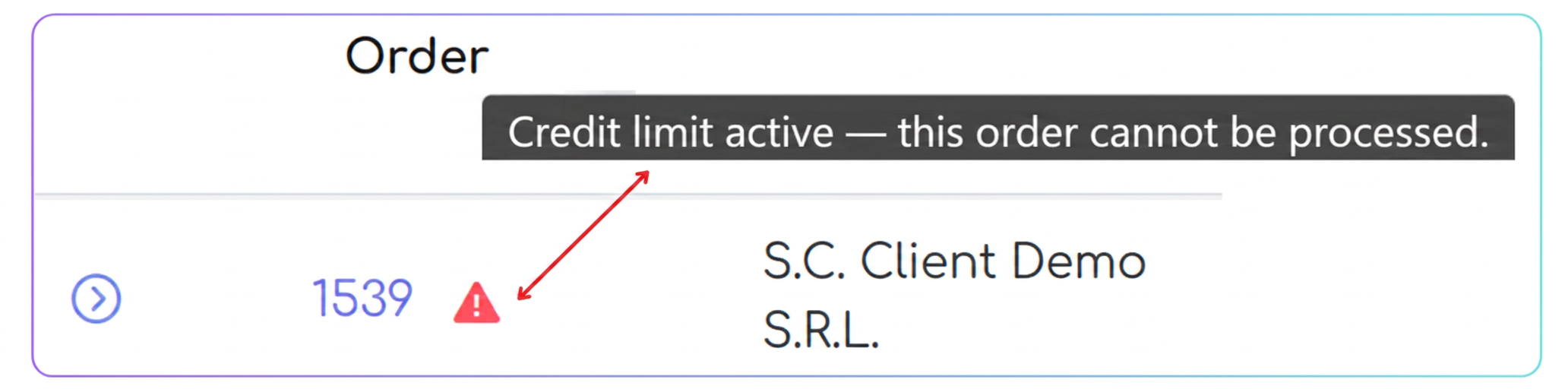
- In the order list and in the workflow, via a visual indicator next to the blocked order.
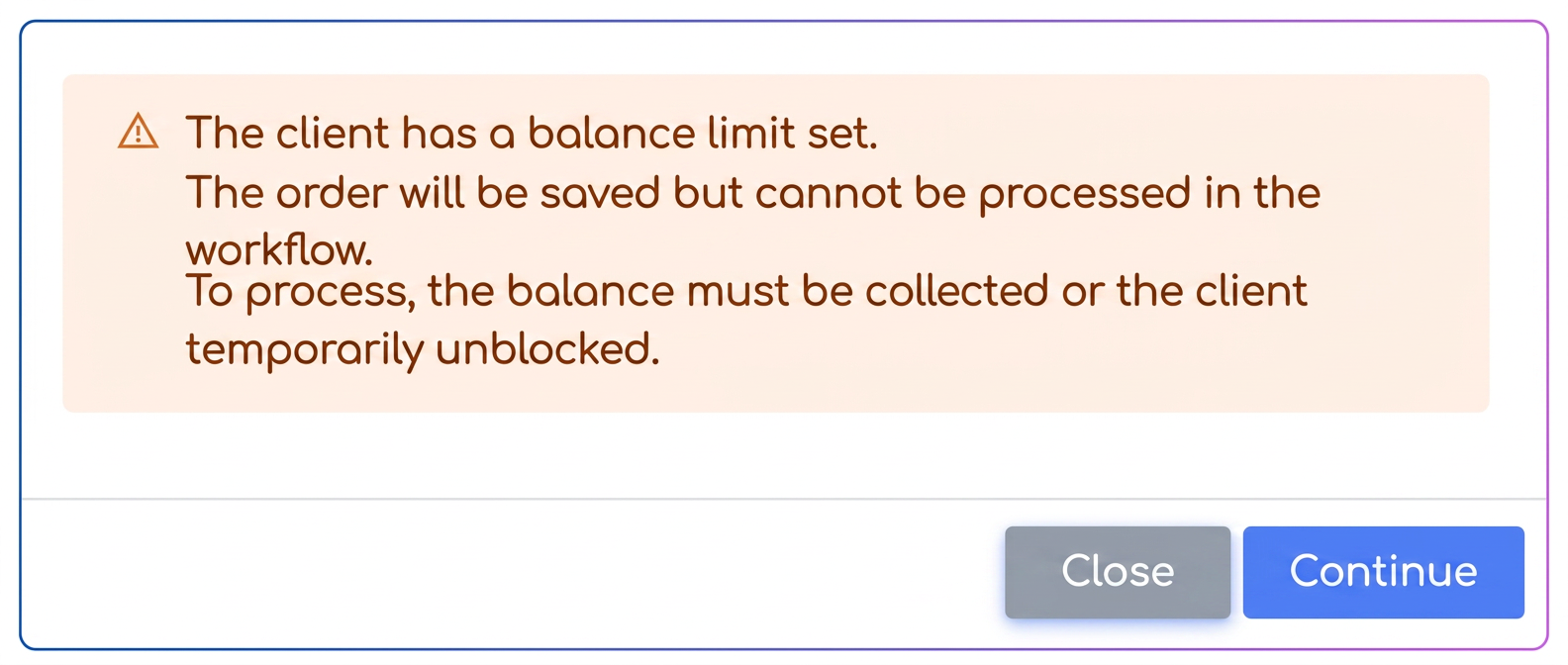
To process an order for a blocked customer, you have two options:
1. Rectifying the Financial Situation
The customer is automatically unblocked once their financial situation returns to the established parameters (e.g., by collecting the overdue invoices that led to the block).
2. Temporary Unblocking (Manual)
In exceptional situations, an authorized user can temporarily unblock a customer to allow processing an urgent order.
- Access the customer's profile, "Balance Limit" tab.
- In the "Customer Block Status" box, toggle the button from "Blocked" to "Unblocked".
- A window will open where you must select the type of unblock: "Temporary unblock (one order)".
- Enter a reason for unblocking (this will be saved in the history).
- Press "Unblock".
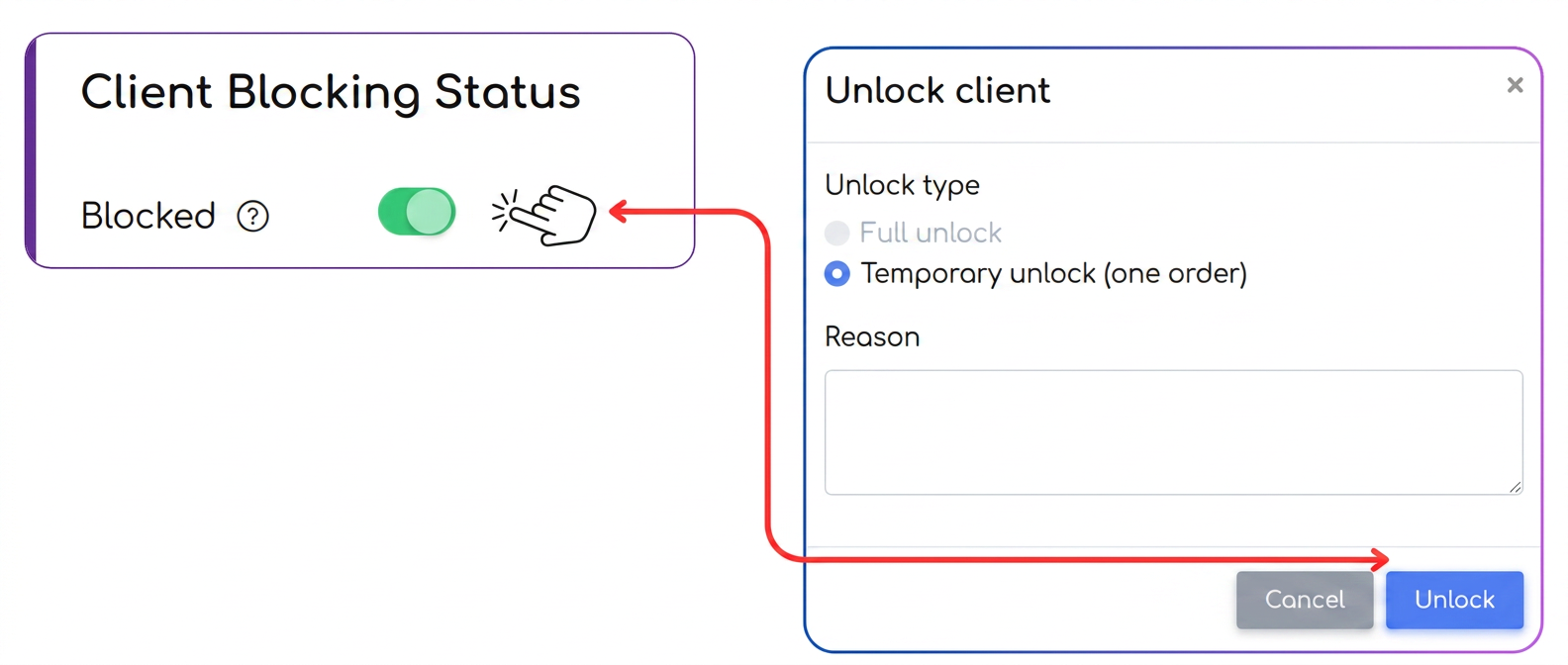
The customer will be unblocked to allow the processing of a single order from the workflow. After the action is finalized, if their balance still exceeds the limits, the customer will be automatically blocked again.
Notes:
- Does blocking affect invoice generation or just saving orders?
Blocking only affects the order flow. Invoicing is allowed. - If I have a global limit and an individual limit activated, which takes priority?
The individual limit always takes priority over the global one. - Can I define only one of the limits (e.g., only overdue balance)?
Yes. The system allows activating any combination of the three criteria. Blocking occurs when any of the defined thresholds are exceeded. - Is the unblocking history saved?
Yes. All actions (block, unblock, reason, user, date) are recorded in "Limits History". - What exactly does "Overdue balance" mean and how is it calculated?
It represents the total sum of overdue and uncollected invoices at the current date. - Does "Total balance" include invoices not yet due?
Yes, the total balance includes all issued and uncollected tax invoices, regardless of the payment term. - What happens if an invoice is partially paid?
The system deducts only the collected value from the balance. The unpaid remainder continues to be factored into limit checks. - How is the age of the overdue balance calculated?
It refers to the oldest unpaid overdue invoice. If it exceeds the maximum number of days set, the customer enters a blocked state. - Is the balance updated automatically based on payments registered in the system?
Yes, the balance is recalculated in real-time with each collection or invoice issuance. - What happens if a customer exceeds the balance limit, but the order has already been entered into the system and operated up to a certain point?
If the breach occurs while an order is already in the flow, it can no longer be operated further from that point.
Stages currently in progress can be paused or finalized (so as not to block already recorded work times), but cannot be resumed later and no new stages can be taken over for that order.
The block takes effect immediately and prevents any further operational progress in that workflow. - What happens if I later deactivate the global option?
Deactivating the global balance limit option has an immediate effect on all customers who were affected by the default setting (limit 0 + block).
These customers will be automatically unblocked, and the system will consider that there is no longer an active limit for them.
Exception: customers who have received personalized limits in the meantime—for these, the specific settings remain active and unaffected by the global change. - What permissions are required to unblock a customer?
To unblock a customer (temporarily or permanently), the user must hold the "Customer Limits – View and Edit" right.
This right allows access to the "Balance Limit" tab in the customer profile, modification of limit values, as well as executing manual unblock / block actions.
Users without this right can only view the block status but cannot intervene on it.