
1. Overview
The employee activity report (, Flows tab) could previously only be consulted within the platform. With this update, the report can now also be exported: two new buttons allow downloading it as a PDF — individually or as an archive for multiple employees — and scheduling the automatic, recurring delivery of reports via email to employees and other persons (managers, HR, management).
The feature is intended for managers and administrators who track team activity. It links to the Employees module (departments and employees), workflows and tasks (the source of activity data), and the platform's email system.
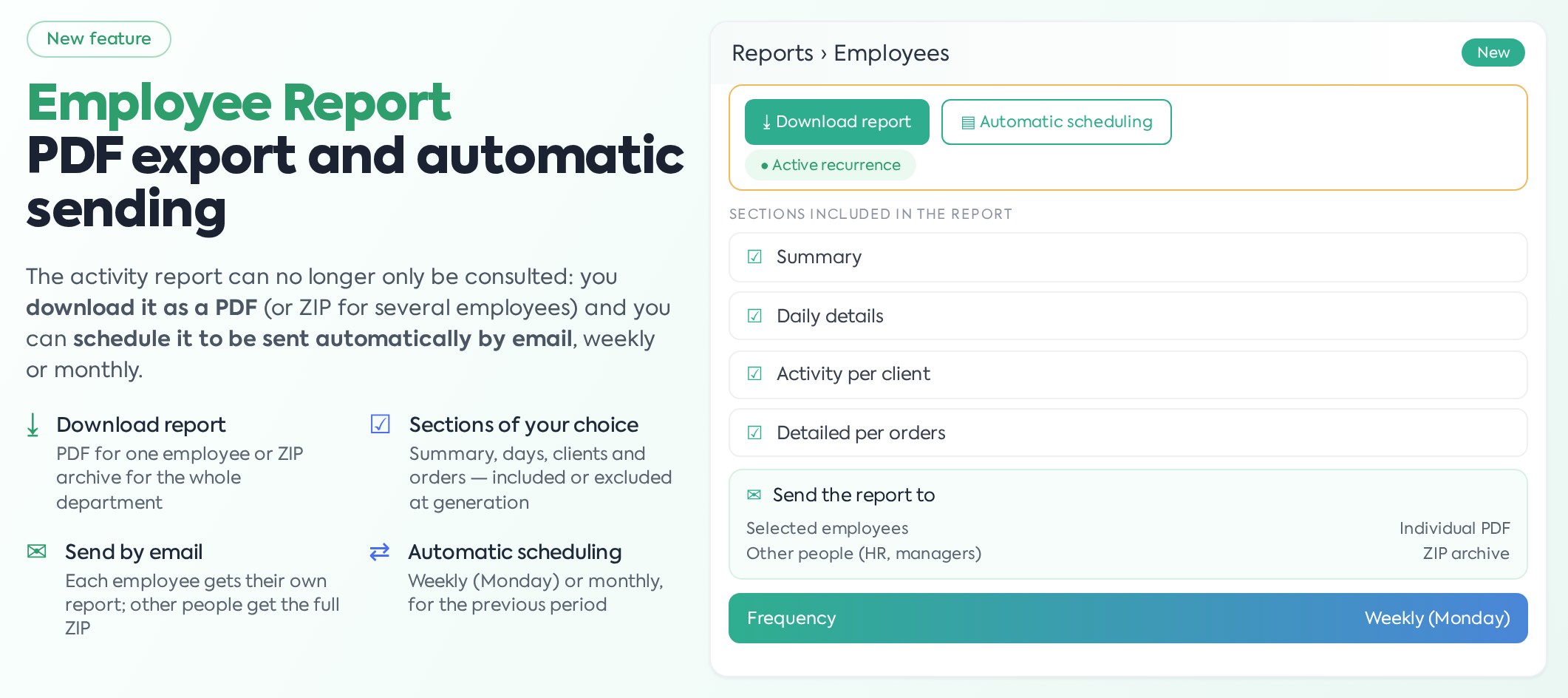
The two new buttons are located in the report's filter bar, next to Search and Clear: Download report and Automatic scheduling. When recurring delivery is enabled, the "Active recurrence" label appears next to the buttons.

The report filter bar, featuring the two new buttons and the recurrence label.
2. PDF Report Sections
An employee's PDF report consists of four sections, each of which can be included or excluded during generation:
- Summary — aggregated indicators: total hours, days worked, average, orders, break analysis.
- Daily Details — a table with hours worked, first and last action for each day.
- Activity per Client — distribution of hours and orders by client, including activity percentage.
- Order Details — work intervals per order and breaks during the day (from Gantt).
The order of sections in the PDF remains fixed, regardless of the selection. At least one section must be included.
3. Downloading the Report
First, select the month and department from the report filters — the department is mandatory for downloading ("This field is required"). The Client, Stage, and Flow Type filters, if filled in, also apply to the content of the exported report. Then press Download report. The "Download report" window opens, specifying the period used (the month from the filters) and contains:
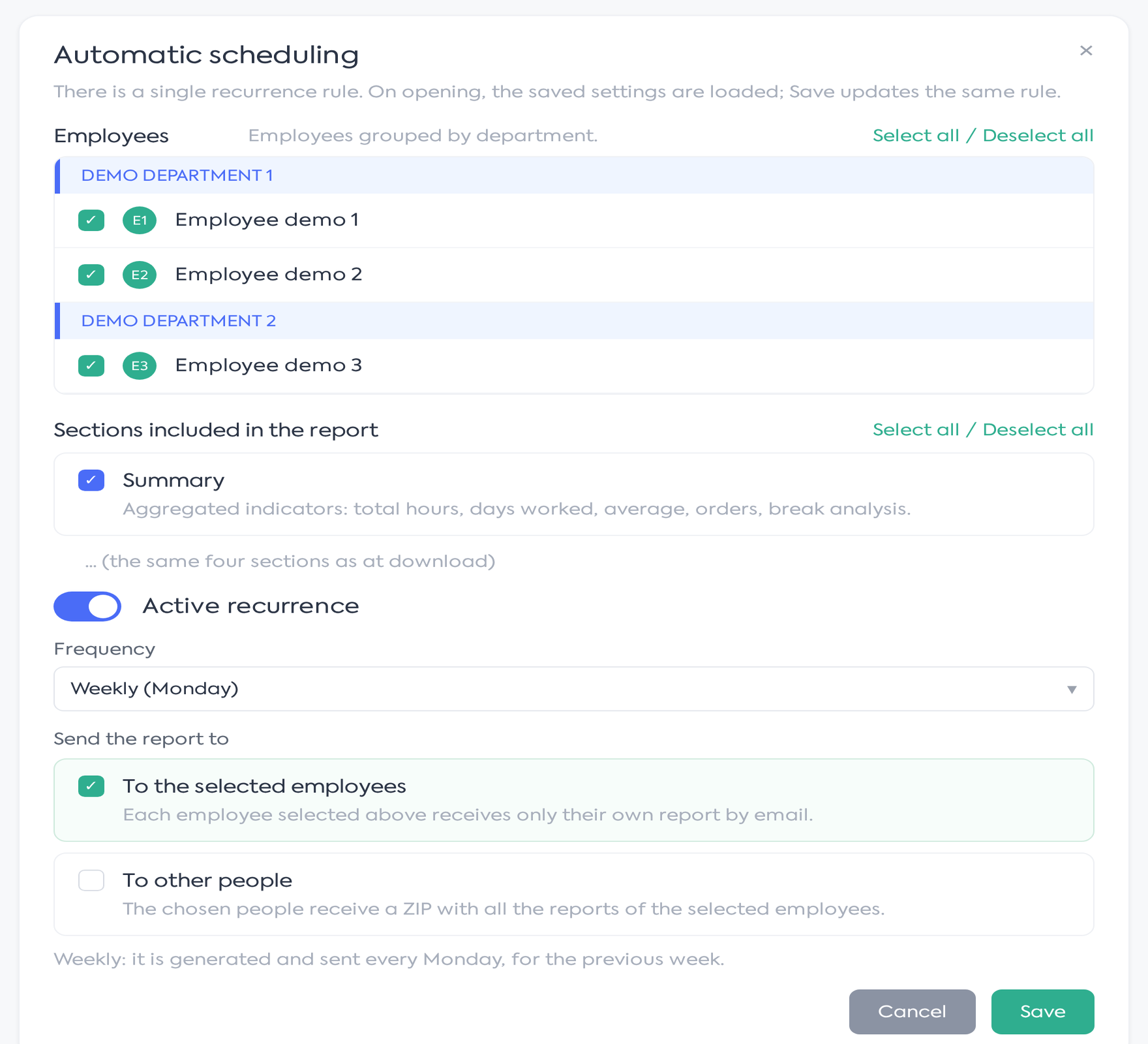
The Download report window, with email delivery enabled.
- Employees — the list of employees in the selected department, all checked by default, with a "Select all / Deselect all" option. Uncheck the employees you do not want in the export; at least one is required.
- Sections included in the report — the four sections mentioned above, all checked by default.
- Send by email — a toggle that converts the download into an email delivery (see below).
Press Generate and Download: for a single employee, the PDF is downloaded directly; for multiple employees, a ZIP archive is downloaded containing a PDF for each (e.g., "Employee reports - August 2026.zip"). For the current month, the report covers the interval from the start of the month to the present. Files are named "Report [Employee Name] - [Month Year].pdf". Generation happens on the spot while the window is open: for many employees it may take time, and if you interrupt the page, the download is lost. An employee without activity in the chosen period still receives a report, noting that there is no data for the selected period.
Email Delivery (One-time)
By enabling the Send by email toggle, the delivery options "Send report to" appear in the window, and the Send by email button replaces the download button:
- To selected employees — each checked employee receives only their own report at their email address.
- To other persons — the individuals chosen from the recipient list receive a single email with the ZIP archive containing all reports for the selected employees. The recipient list contains platform users, grouped by department; email addresses from outside the platform cannot be entered.
At least one of the two options must be checked, and for "To other persons," at least one recipient must be selected. Finally, the platform confirms the sending ("Reports have been sent by email (X sent, Y omitted)."); employees without an email address in their profile are omitted.
4. Automatic Scheduling
The Automatic scheduling button opens the configuration window for recurring delivery. There is only one recurrence rule on the platform: upon opening, saved settings are loaded, and Save updates that same rule. The window contains:
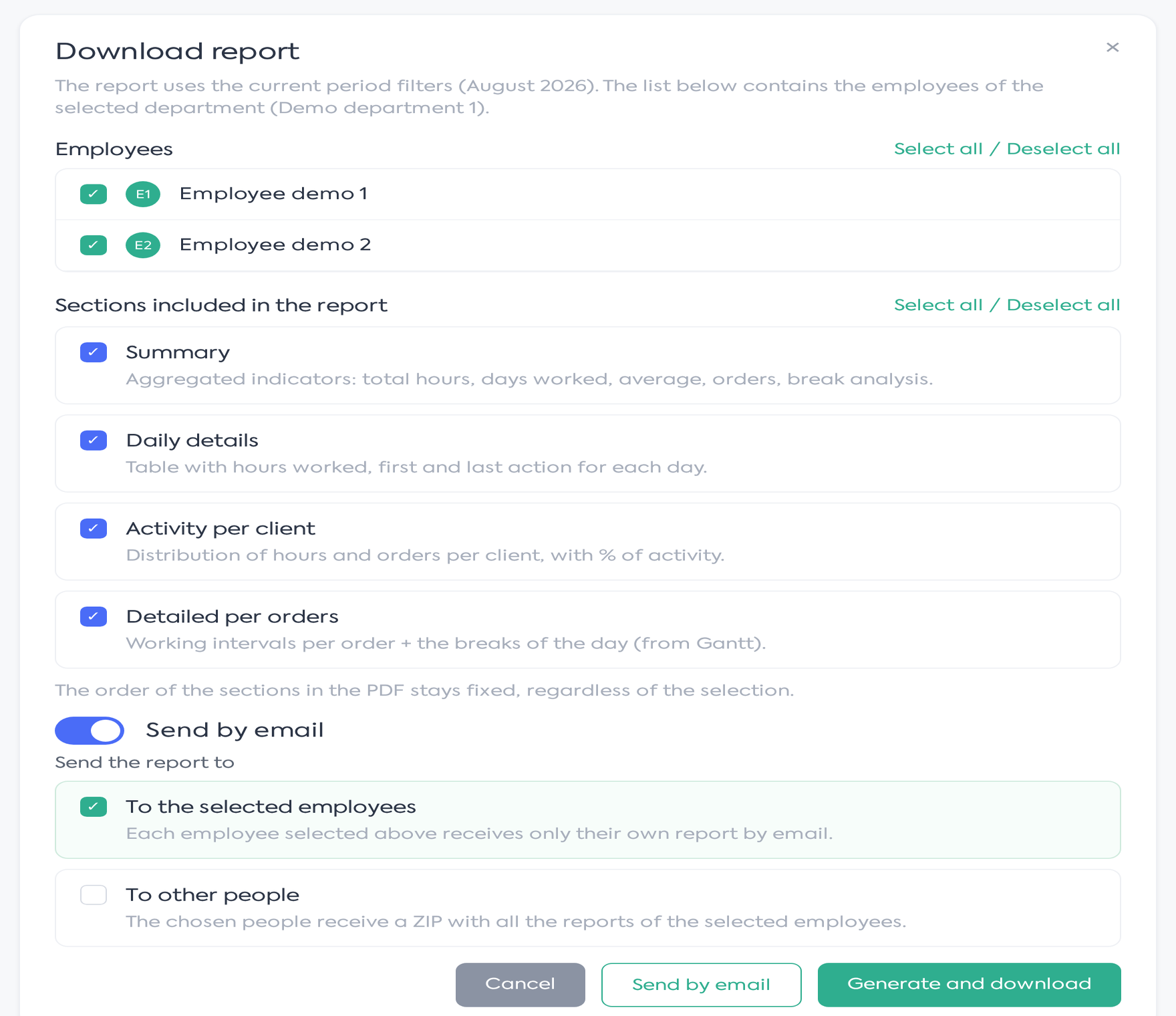
The Automatic scheduling window, with employees grouped by department.
- Employees — all employees on the platform, grouped by department, with individual checkboxes and "Select all / Deselect all." Unlike downloading, employees from multiple departments can be chosen here. At least one employee is required.
- Sections included in the report — the same four sections, checked by default.
- Active recurrence — a toggle that turns automatic delivery on or off. Settings remain saved even when recurrence is turned off.
- Frequency — Weekly (Monday) — the report is generated and sent every Monday for the previous week (Monday–Sunday); or Monthly — sent on the first day of the month for the previous month. An explanation of the chosen frequency is displayed below the field.
- Send report to — the same two options as manual sending: to selected employees (each with their own report) and/or to other persons (a ZIP with all reports).
Upon saving, the platform confirms the status: "The schedule has been saved and recurrence is active." or "The schedule has been saved. Recurrence is off.". When the rule is active, the "Active recurrence" label appears on the report page.
Recurring delivery runs automatically in the morning on the day set by the frequency. Reports are generated with the sections and filters saved in the rule, and emails are sent from the company address: each employee receives "Activity Report — Name (period)" with the PDF attached, and other persons receive "Activity Reports (period)" with the ZIP archive attached. Checks are performed daily around 06:00, but delivery only occurs on the appropriate frequency day: Monday for the weekly rule, or the first day of the month for the monthly one. If you save the rule Monday morning before the run time, it may start that very day.
The rule retains selected employees, sections, recipients, and Client, Stage, and Flow Type filters. Department and period are not retained: the department is derived from the chosen employees, and the period is calculated by the platform based on frequency.
Employees deactivated in the meantime are automatically omitted from the sending, without any warning in the scheduling window — it is worth checking the list of checked employees periodically.
If generation fails for one employee, the others receive their reports normally, and the one with issues is simply skipped. In manual downloading, however, an error stops the entire export.
5. Permissions
The download and scheduling buttons follow the same permission as the report: Can See Employee Report. Users with administrator rights have access by default. The scheduling rule is common across the platform — any user with access to the report can view and modify it, and the last save replaces the previous one. The permission is named "Poate Vedea Raport Angajati" (Can See Employee Report) and is granted at the access level from the .