
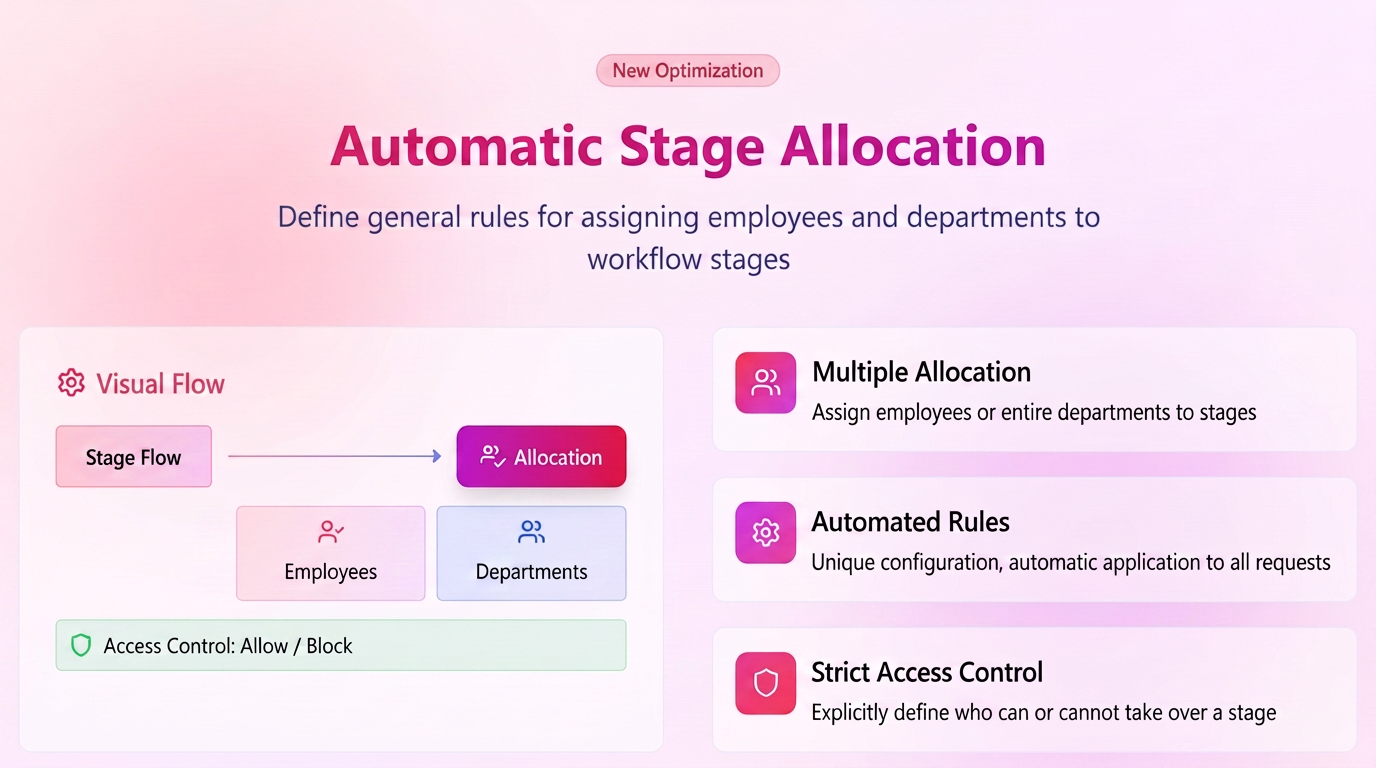
The system now allows the definition of general rules that establish, at the workflow level, who can take over, process, or access a specific stage — whether an employee or an entire department. These rules apply automatically to all orders within that workflow, eliminating the need for repeated manual allocations. Additionally, the feature introduces an advanced level of operational security by enabling the explicit permission or blocking of access to stages, ensuring they are managed exclusively by authorized personnel.
Features:
- Multiple and Departmental Allocation: You now have the flexibility to designate one or more employees, or even an entire department, as responsible for a specific stage of the workflow.
- Automation through General Rules: Manual allocation for each individual order is no longer necessary. A general rule can be defined at the workflow configuration level, which will automatically apply to all future orders.
- Strict Access Control (Allow/Block): The functionality includes advanced permission options. You can explicitly define who has the right to take over a stage and who is blocked from access. This ensures that critical stages are handled only by qualified personnel.
Configuration Method:
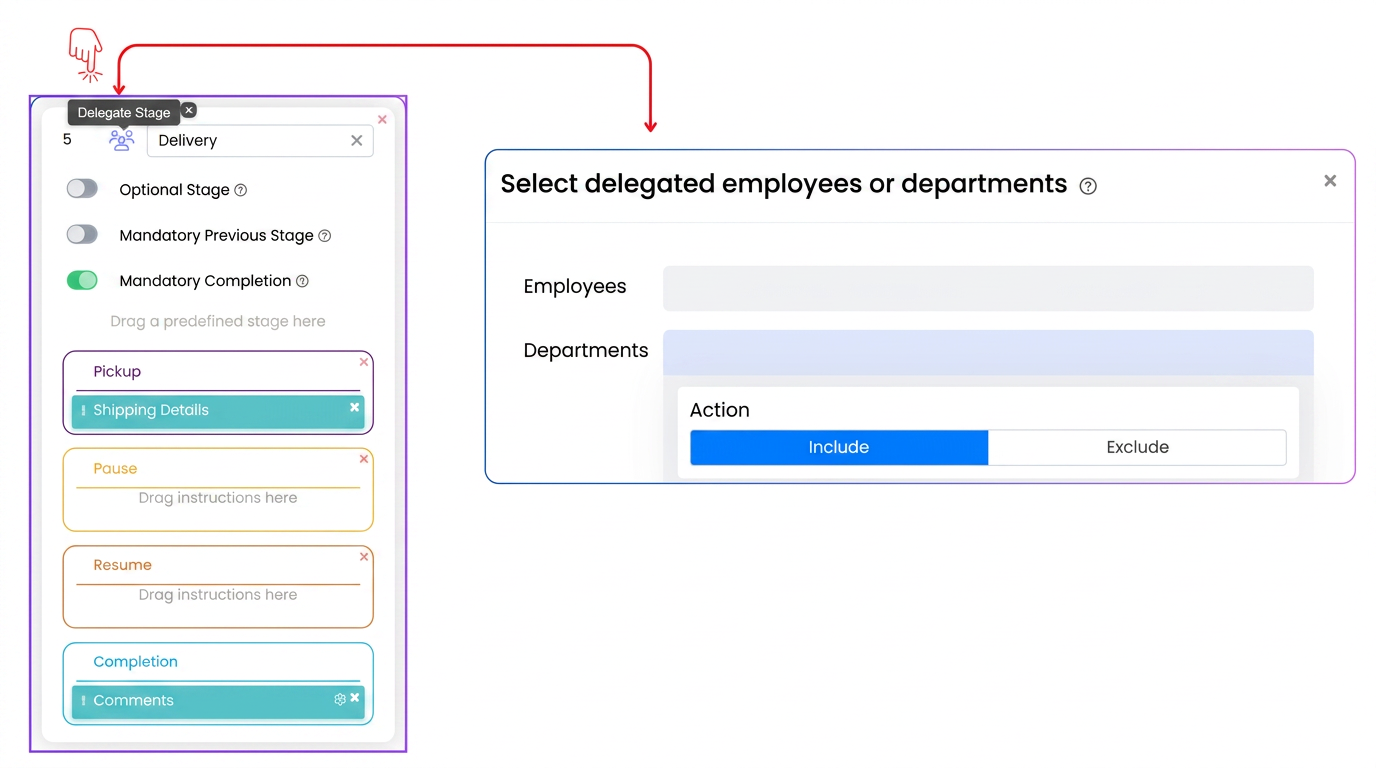
- Access the menu Settings -> Workflows.
- Identify the desired workflow and the stage you wish to configure.
- Next to the respective stage, click on the allocation icon (the icon representing users/group).
- In the opened window, select the employees or departments that have permission (or restriction) to manage 그 stage in a general manner.
Practical usage example:
To ensure correct order processing, you can configure the workflow as follows:
- "Financial" Stage: Is automatically and exclusively allocated to the Accounting department (or specific financial users), blocking access for other departments.
If an unauthorized employee attempts to take over a stage according to the general allocation rules, the system will automatically block the action and display an explicit message stating that the stage cannot be processed by that person: „The action cannot be processed! The product [product name] cannot be taken over by [employee name].”
Note: Manual Override (Priority): The general rule can be overridden at the individual order level.
If on the workflow page, for a specific order, you use the manual "Allocate Employee" option, this action takes priority.
Concrete example: Suppose that for the "Production" stage, the entire Production Department is allocated via a general rule. If for Order #105 the manager intervenes and manually allocates only employee "Ion Popescu", then the departmental rule is ignored strictly for that order, and the stage can be taken over and processed only by Ion Popescu.