
iflows offers the possibility to allocate specific users for any stage of an order/project. This is particularly useful in situations where you want to assign a task to an employee with particular skills, especially when you have multiple employees in the same role. In the absence of a specific allocation, the system allows any team member to take over that stage, ensuring flexibility and continuity in the workflow.
Steps for allocating an employee to an order stage:
- Access the workflow: After logging into your iflows account, go to the Workflow section in the left-hand menu.
- Select the User Allocation tab: After accessing the workflow, you will see a tab at the top named User Allocation. This is the section where you can allocate employees to various order stages.
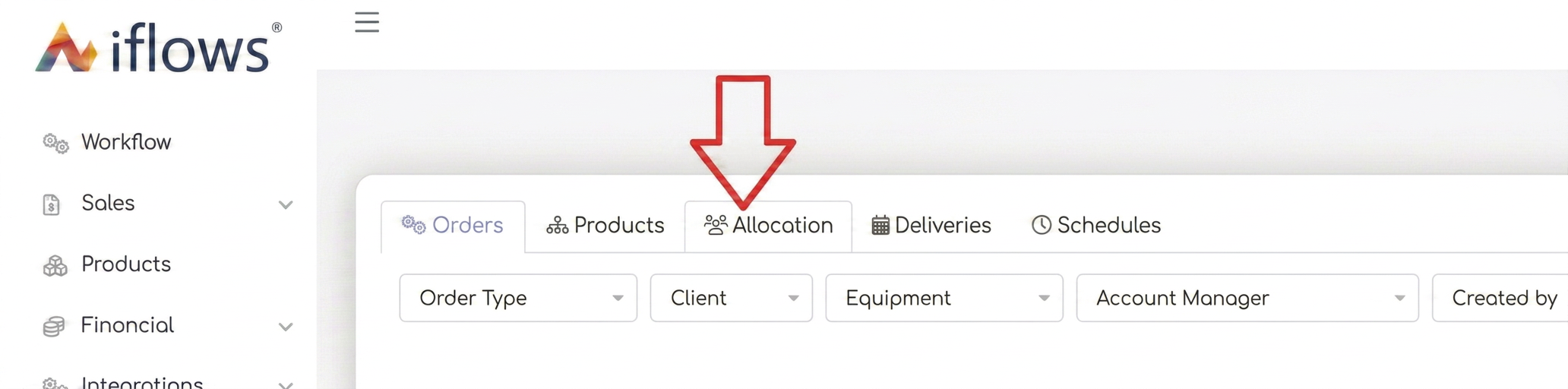
- Choose the desired stage: In the workflow, identify the order and the stage where you want to allocate an employee. If the stage hasn't been taken yet, click on it, at which point a pop-up will open allowing you to designate users for this stage.
- Allocate the employee: In that pop-up, enter the name of the employee(s) who will handle that stage. You can choose a single employee or several, depending on your needs.
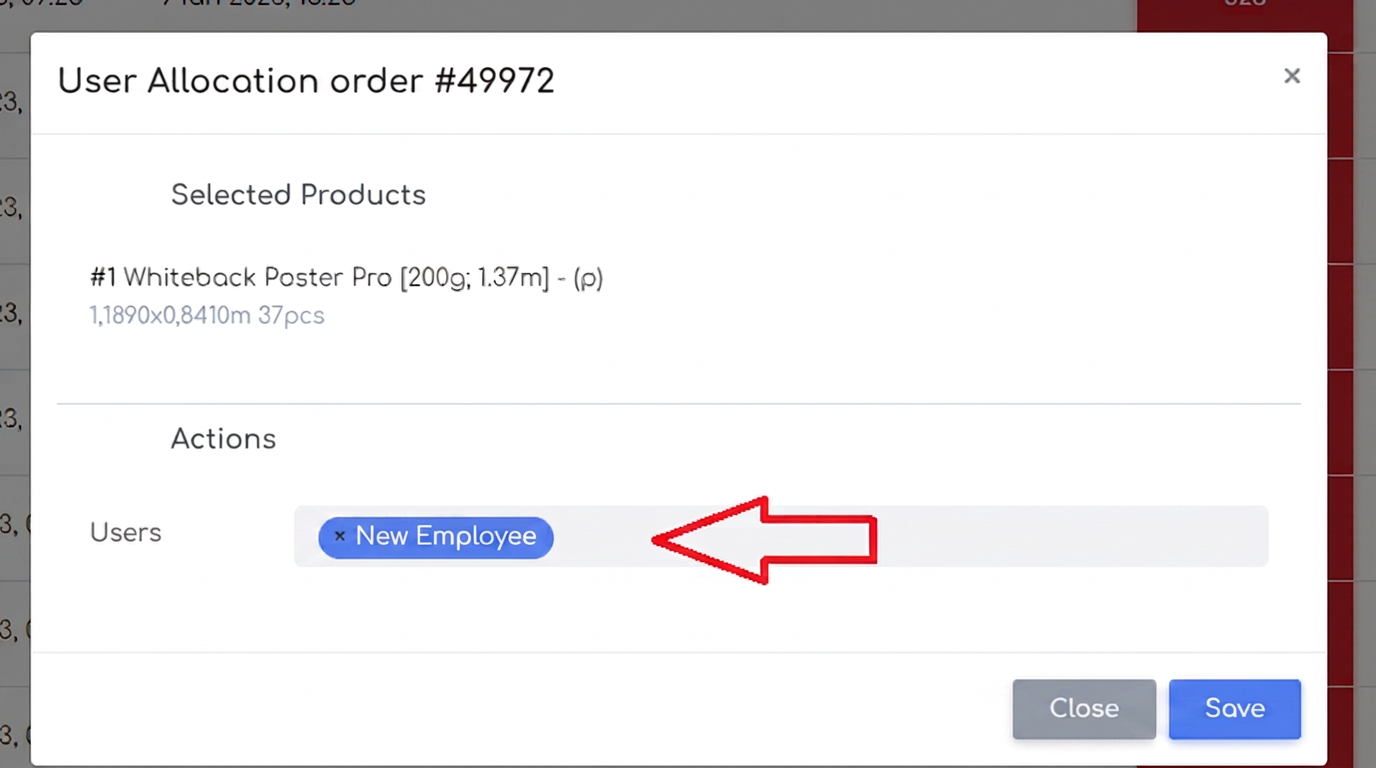
- Save changes: After selecting the desired employee, click the Save button to complete the process.
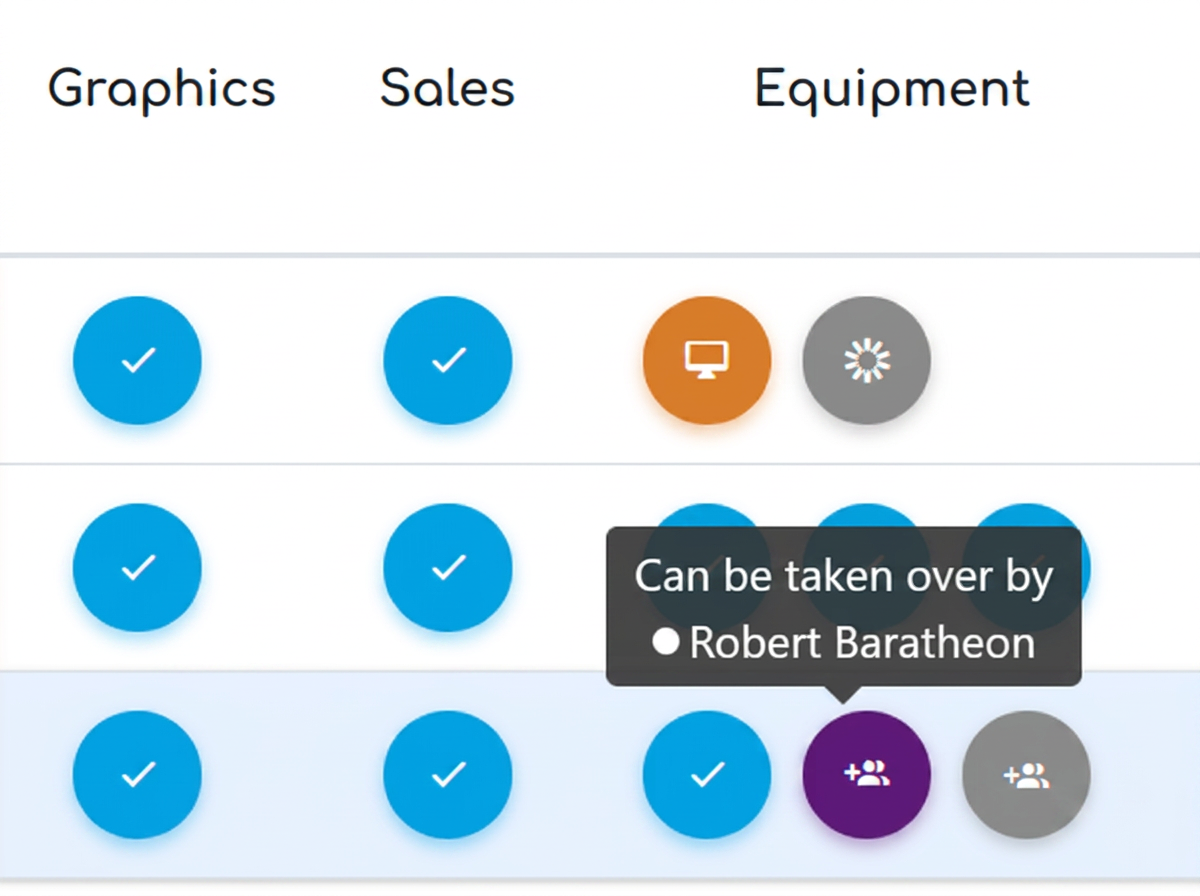
- Allocation confirmation: After saving, the symbol next to the stage will be updated to indicate that a user has been allocated. If you hover your mouse over that symbol, a tool tip will appear showing the name of the employee responsible for the task.
Note: If an employee has been allocated to a specific stage of an order, no one else will be able to take over that stage. The system displays a clear error message when another user tries to access or take over that task. The allocation function thus guarantees that only the designated person will manage the stage until its completion.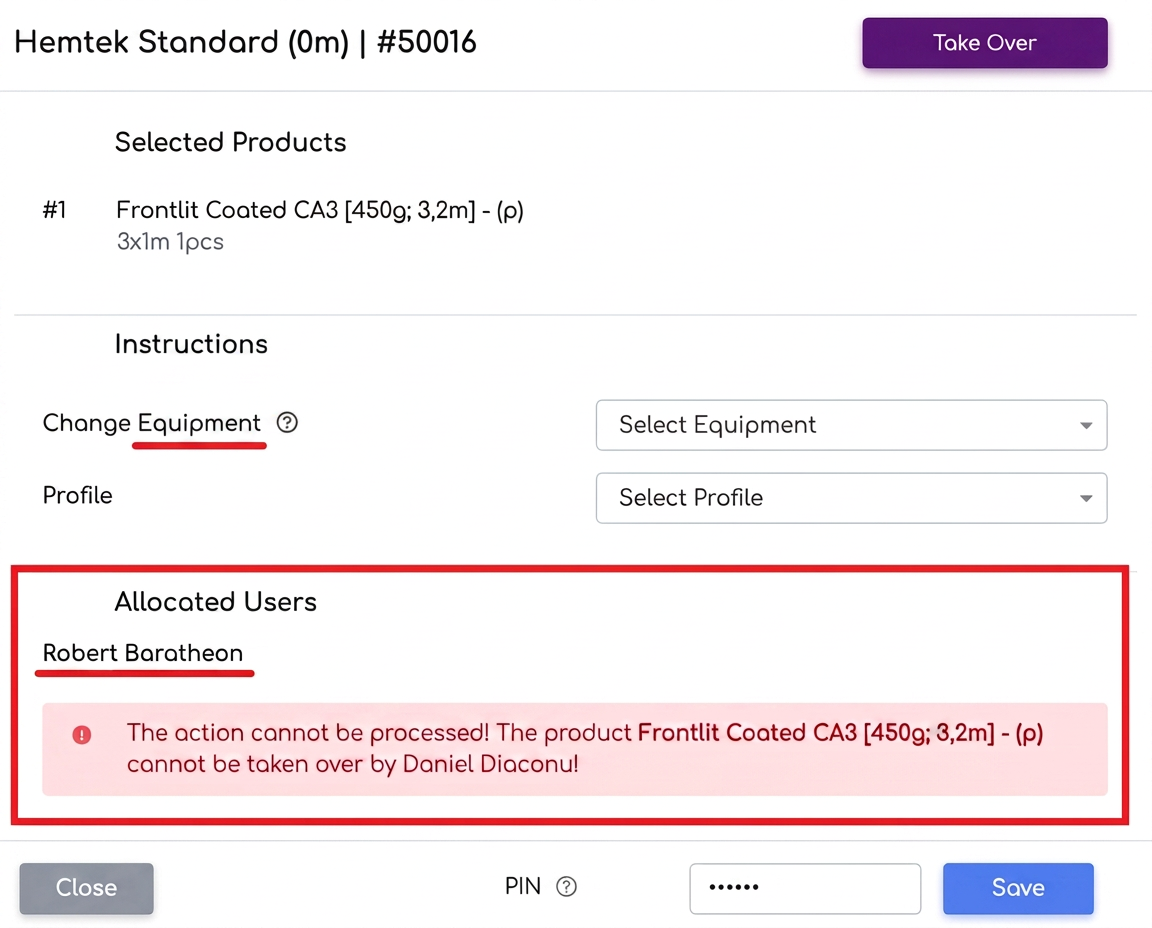
For a visual demonstration, we recommend watching the dedicated video tutorial: User Allocation and Help a Colleague Tutorial.