
This situation almost always occurs when an employee starts time tracking on a workflow stage / task but forgets to stop it at the end of the day or upon completing the activity.
The iflows system is designed to count time continuously from the moment a task is picked up until it receives the stop command (completion or pause). If this command is not given, the timer will run uninterrupted, leading to the accumulation of 24 hours per day and distorting productivity reports.
The good news is that iflows allows you to identify exactly where the error occurred and correct it manually.
Step-by-Step Guide: Identification and Resolution in iflows
Part 1: Identifying the Problem
Step 1: Access the Employee Report
- From the left menu, navigate to .
Step 2: Filter and Analyze Data
- Select the relevant time period (e.g., current month).
- Click Search and scroll down to the detailed table.
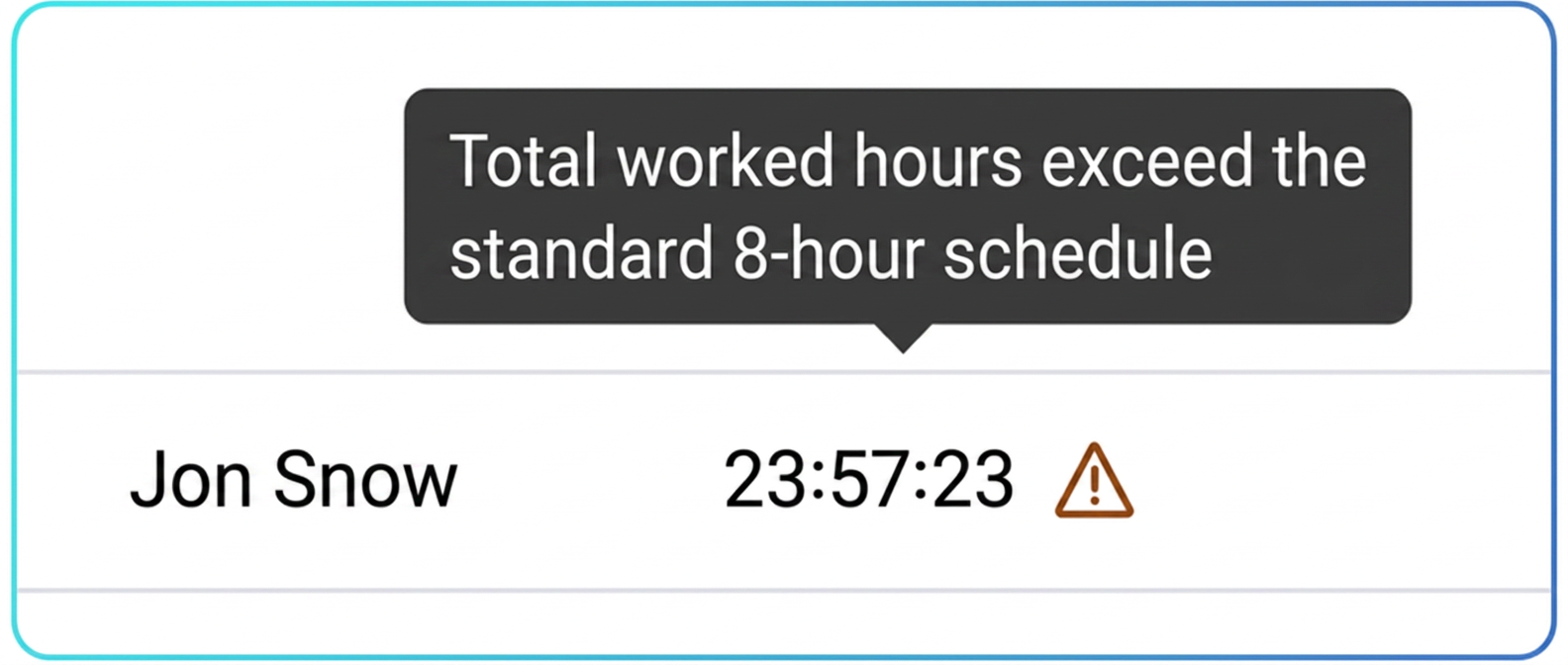
- Look for employees with abnormal values in the Hours Worked column. A value of 23:59:59 is a clear signal of an unstopped time entry.
Step 3: Identify the Problematic Order
- Once you have found the employee with issues, stay on the same page (Employee Report).
- Add an additional filter by selecting the employee's name from the Employee list.
- Change the Report Type from Monthly (which is the default) to Daily.
- Click Search again.

Step 4: Find the Task in the Activity Chart
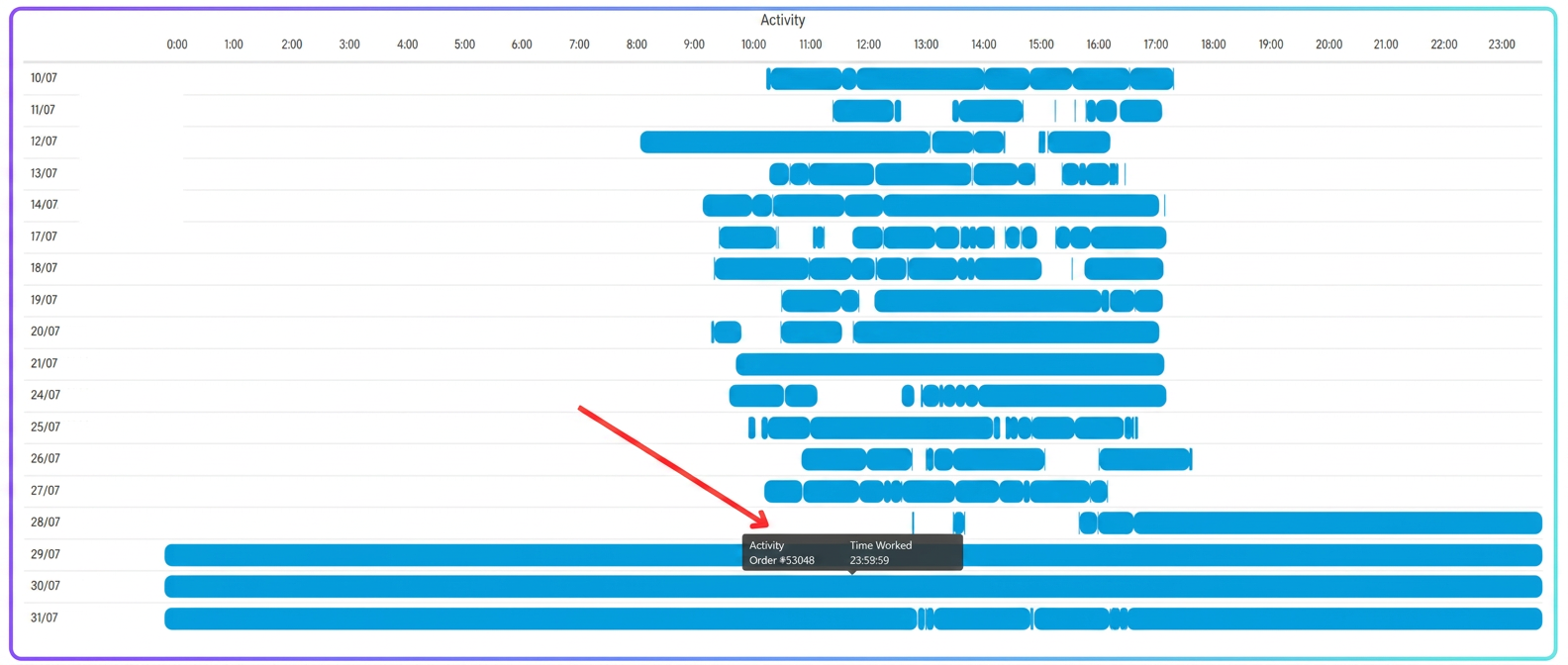
- Scroll down to the chart named Activity. You will notice long blue bars covering the entire day for dates with erroneous time entries.
- Hover your mouse cursor over one of these long bars. An information box will appear indicating exactly which order the time tracking remained active on (e.g., Activity: Order #1234).
Now you have precisely identified the employee, the order, and the task causing the problem.
Part 2: Resolving the Problem
Step 1: Stop the Active Time Tracking
- Important: Before you can edit the time, the task must be closed. The responsible employee must go into the Workflow and press the button corresponding to the stage to complete / or pause it. Only after the activity is officially ended will iflows display the option to edit the time.
Step 2: Navigate to Orders
- From the left menu, go to .
Step 3: Search for and View the Order
- Use the search field to find the order by the number identified previously (e.g., 1234).
- In the results list, click on the eye icon (Order Details) to open it.
Step 4: Find and Edit the Time Entry
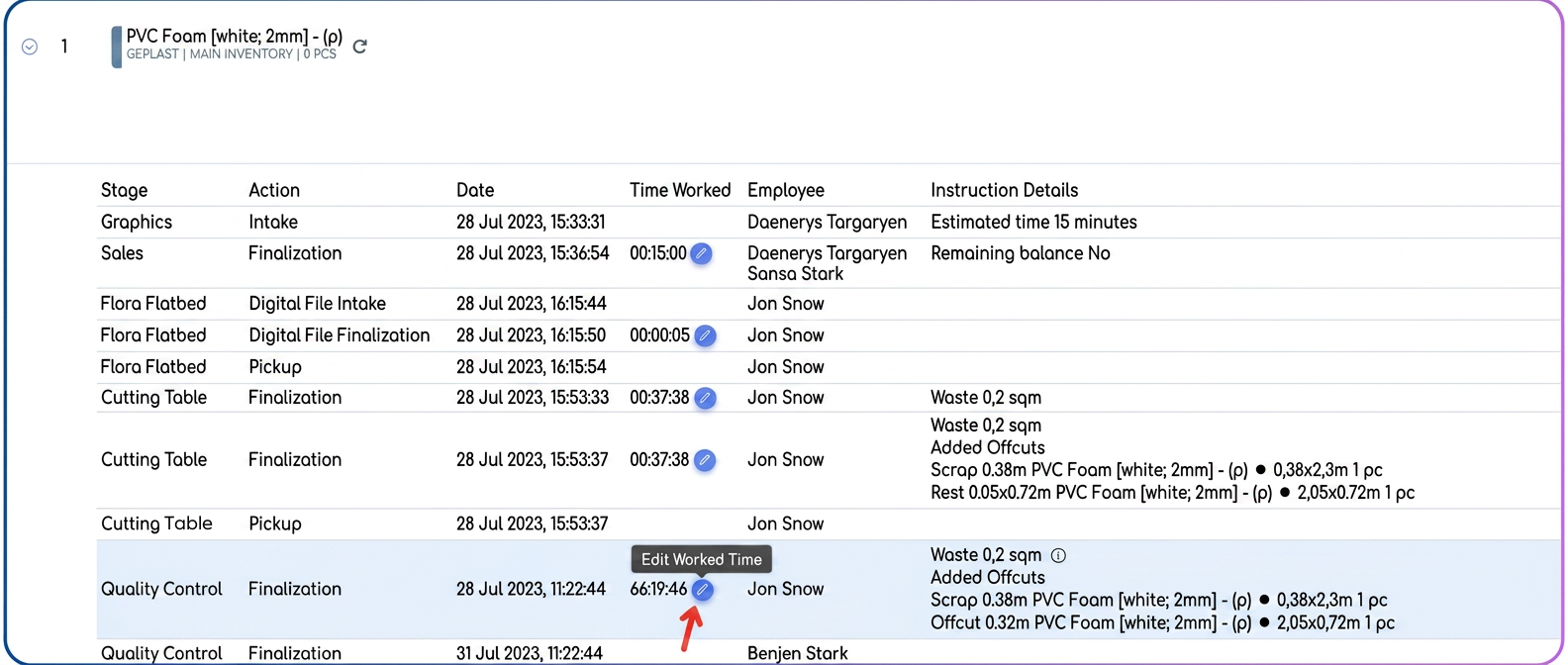
- On the order details page, scroll and expand the product sections to see the time tracking history.
- Find the line corresponding to the erroneous time entry. Now that the task is completed, a pencil icon (Edit Working Time) will appear next to the time.
- Click on this pencil.
Step 5: Correct the Time and Save
- A window will open where you can manually enter the actual time spent by the employee on that task (e.g., 2 hours).
- After entering the correct value, press Save.
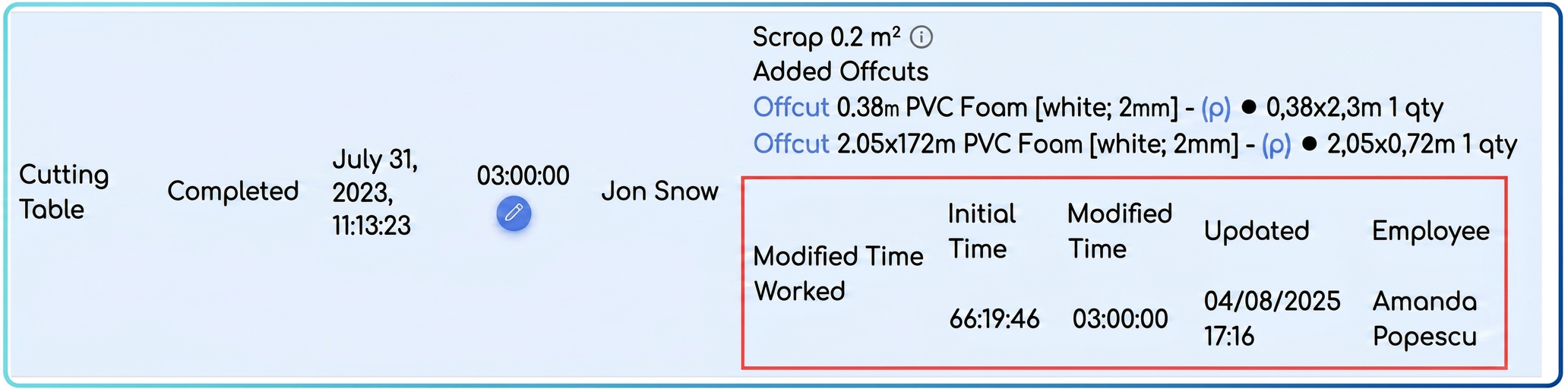
Done! The time entry has been corrected. The reports in iflows will now update with the correct information, reflecting real productivity.
Prevention - How to Quickly Check Active Time Tracking
To avoid the accumulation of erroneous hours, managers or supervisors can perform a quick check at the end of each workday. This process takes less than a minute and ensures all time tracking has been stopped correctly.
Step 1: Access the Workflow
- From the left menu, navigate to Workflow.
Step 2: Filter for Tasks "In Progress"
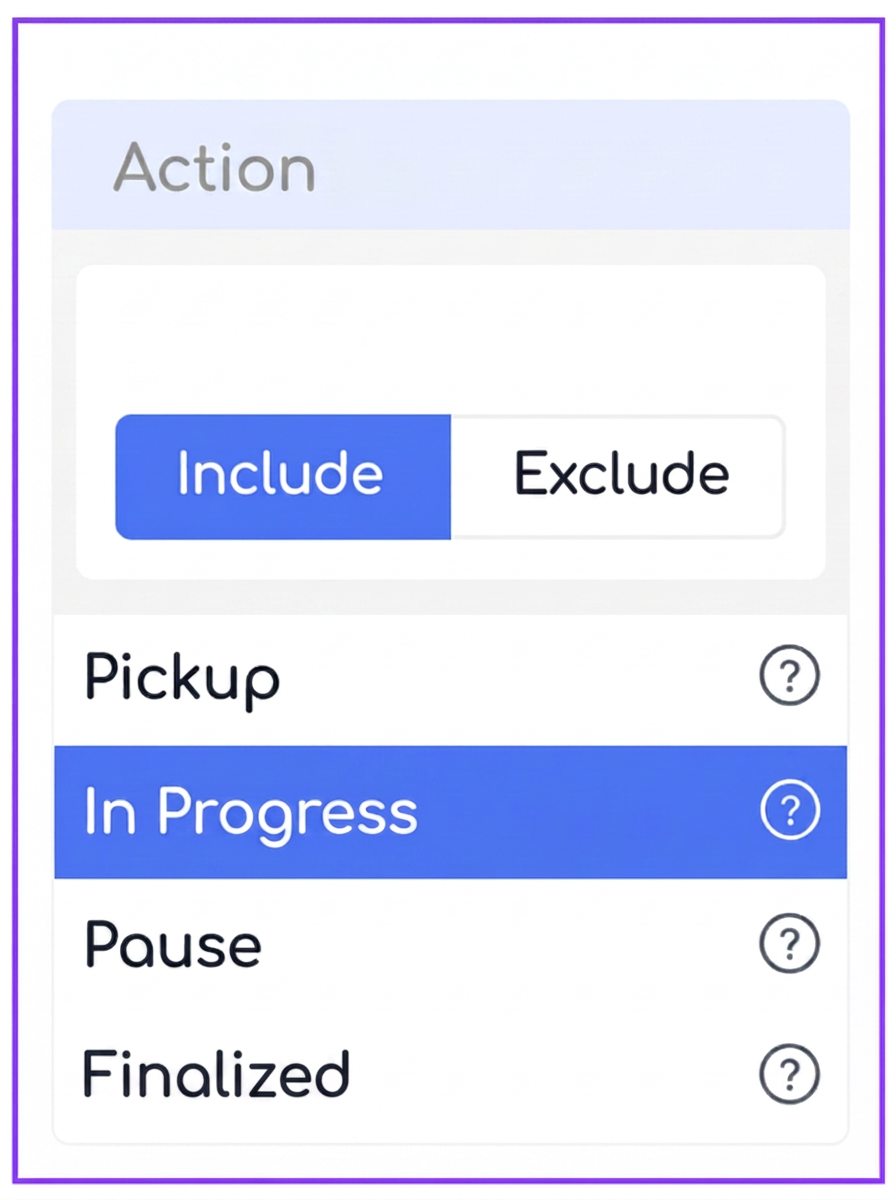
- At the top of the table, you will see several filtering options. Find the Action filter.
- Click on Action and select the In Progress option from the list.
- Press the Search button.
Step 3: Analyze the Results
- The iflows system will now display only orders that have at least one active stage (meaning an employee is still clocked into that stage).
- To see exactly who is working and on what, you can do two things:
- Quick identification: Look at the stage buttons. Those with an orange figure symbol indicate an active task.
- Detailed identification: Expand the order (by clicking the arrow to the left of the order number) to see exactly which product/task is active and which employee is clocked in. When you hover over the active stage, the name of the person operating it will appear.

Step 4: Take Action
- If at the end of the day you find stages still "In Progress", it means those employees forgot to stop their time tracking.
- You can contact them directly and ask them to complete or pause the stage to stop the timer. This ensures that the next day's reports will be correct, without needing further manual corrections.