
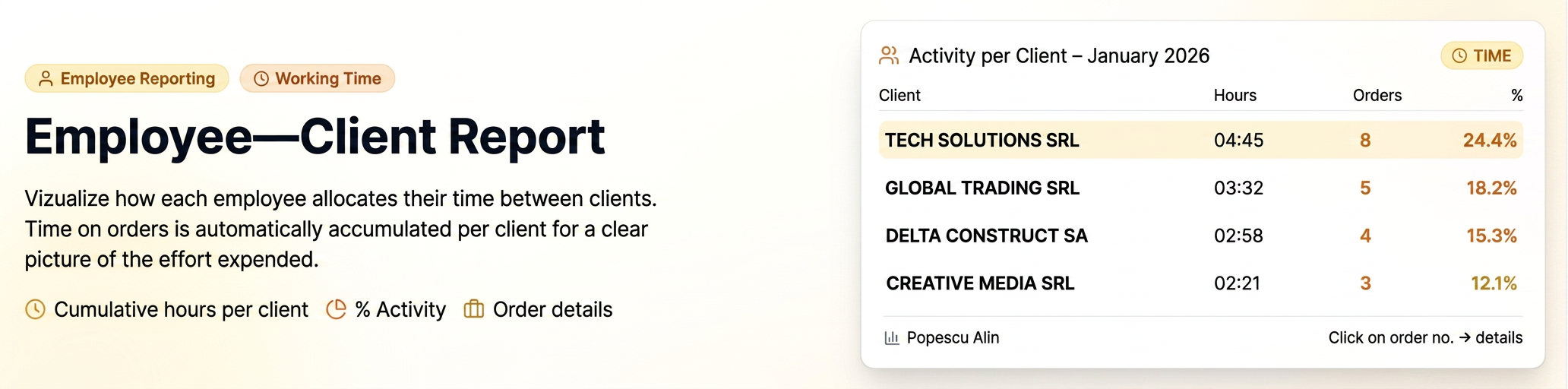
This report provides a clear view of how each employee allocates their effort and time among the clients in the portfolio. It is the ideal tool for understanding which partners request the most team resources.
🎯 Calculation logic: Summing times per client
The system analyzes all interventions of an employee within a calendar month. If an employee worked on several different orders for the same client, working times are automatically added up, providing you with a cumulative total per client, not just per order.
1. Viewing the Report
To generate this analysis, the following criteria must be met in the reporting module:
- Access Reports -> Employees.
- Use the top filters to select a specific Employee or an entire Department.
- Mandatorily select the "Monthly" report type.
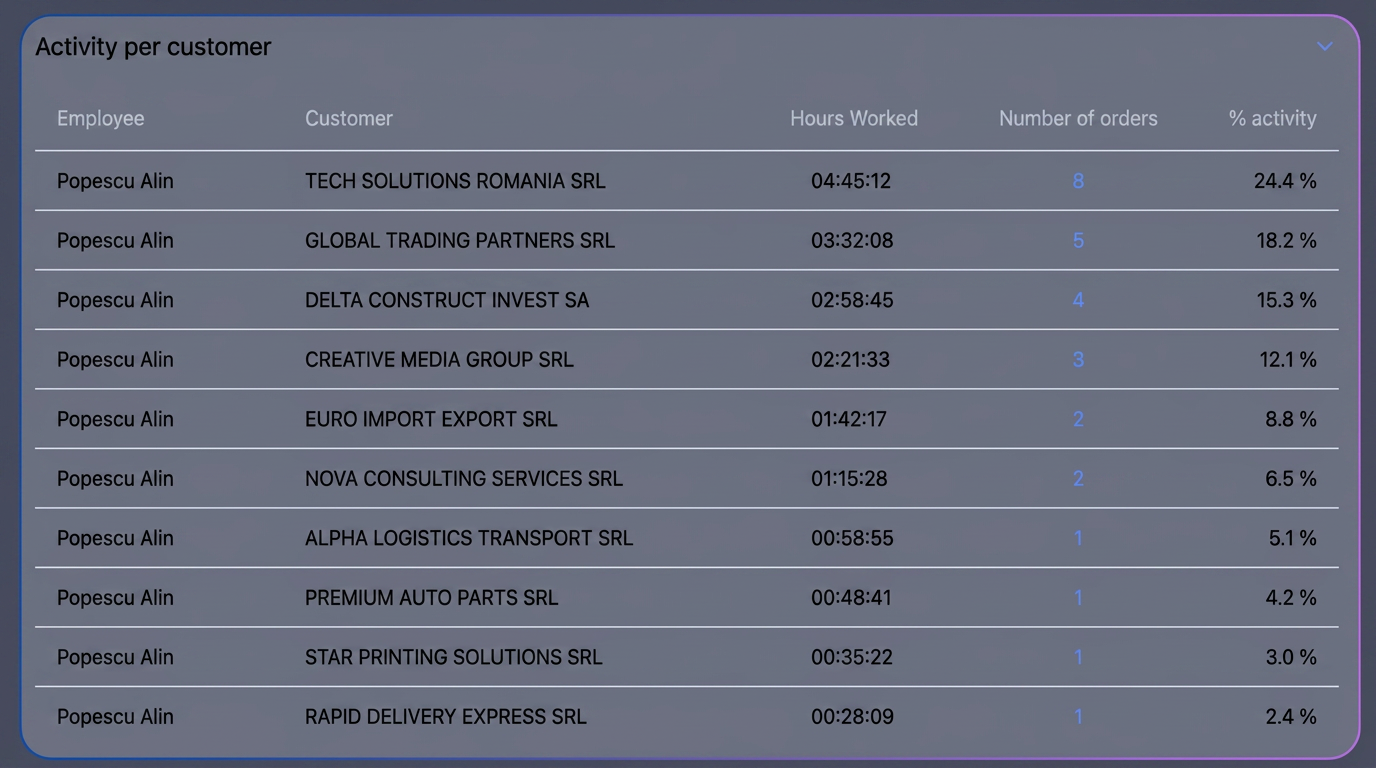
- The "Activity per client" table will be displayed at the bottom of the page.
2. Data Structure and Performance Indicators
The table centralizes employee efficiency using the following parameters:
- Employee: The name of the person whose activity is being analyzed.
- Client: The name of the beneficiary.
- Hours worked (hh:mm:ss): The total cumulative time the employee spent working for this client (sum of all hours from all their orders in that month).
- No. orders: Total number of different client orders on which the employee recorded activity.
- % Activity: The share of time allocated to this client out of the total hours worked by the employee in the selected month.
3. Project Detailing
If you want to see exactly which orders make up the total time displayed for a client:
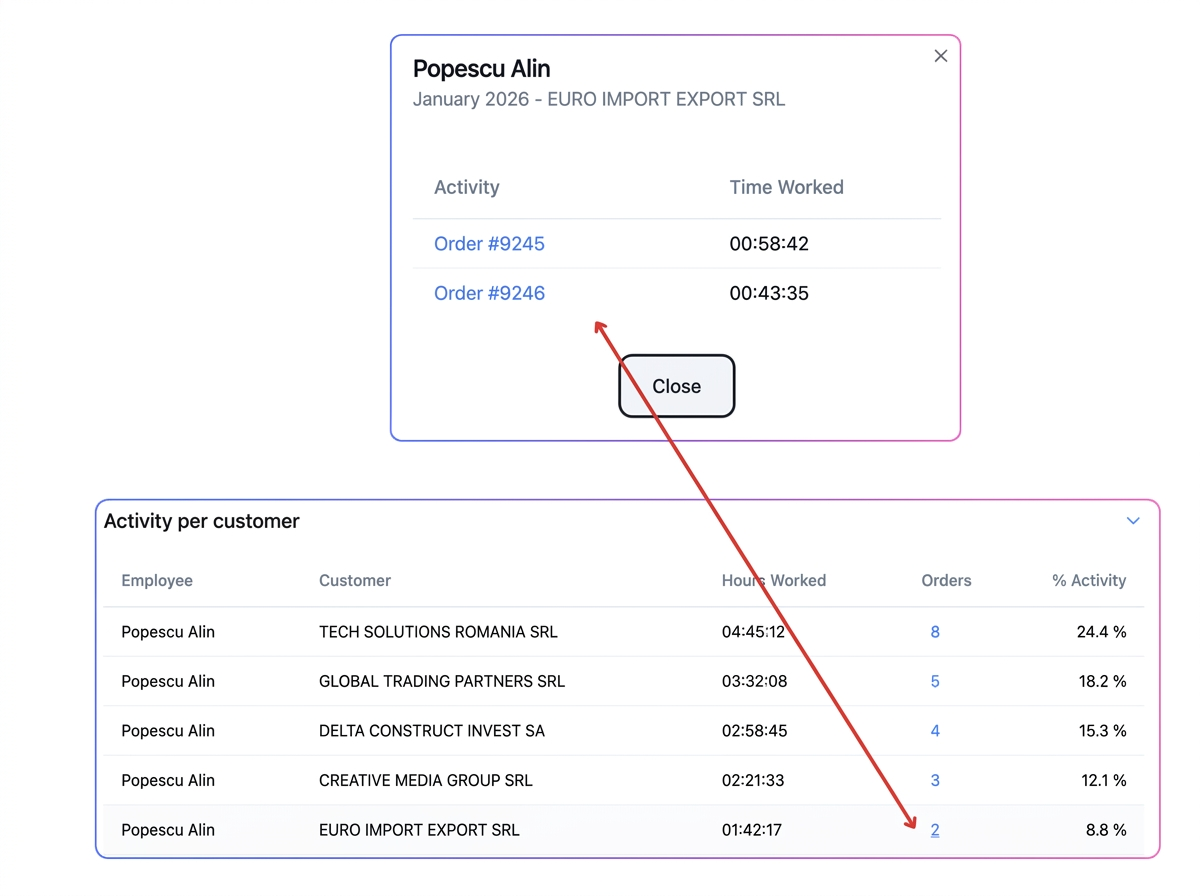
- Interaction: Click on the blue number in the "No. orders" column.
- Result: A pop-up window will open listing each individual order and the work time allocated to it by the employee (e.g., Order #9245 - 00:58:42).
- Navigation: You can click on the order number in the pop-up to directly open the technical sheet for that order.
4. Workspace Management (Collapsible Tables)
Since detailed reports can generate long lists, the interface allows for visual organization of the page:
- Both the "Activity per client" table and the "Activity per orders" table are equipped with a Collapse function.
- By pressing the control arrow in the upper-right corner of each table, you can "fold" the sections you don't need at that moment, keeping the screen clean and focused on relevant data.
💡 Practical analysis example
If you notice that an employee has an % Activity of 50% on a single client, even though they worked on 10 different orders for them, the report confirms that this client represents half of the employee's monthly effort. This helps you make informed decisions or redistribute tasks within the team.