
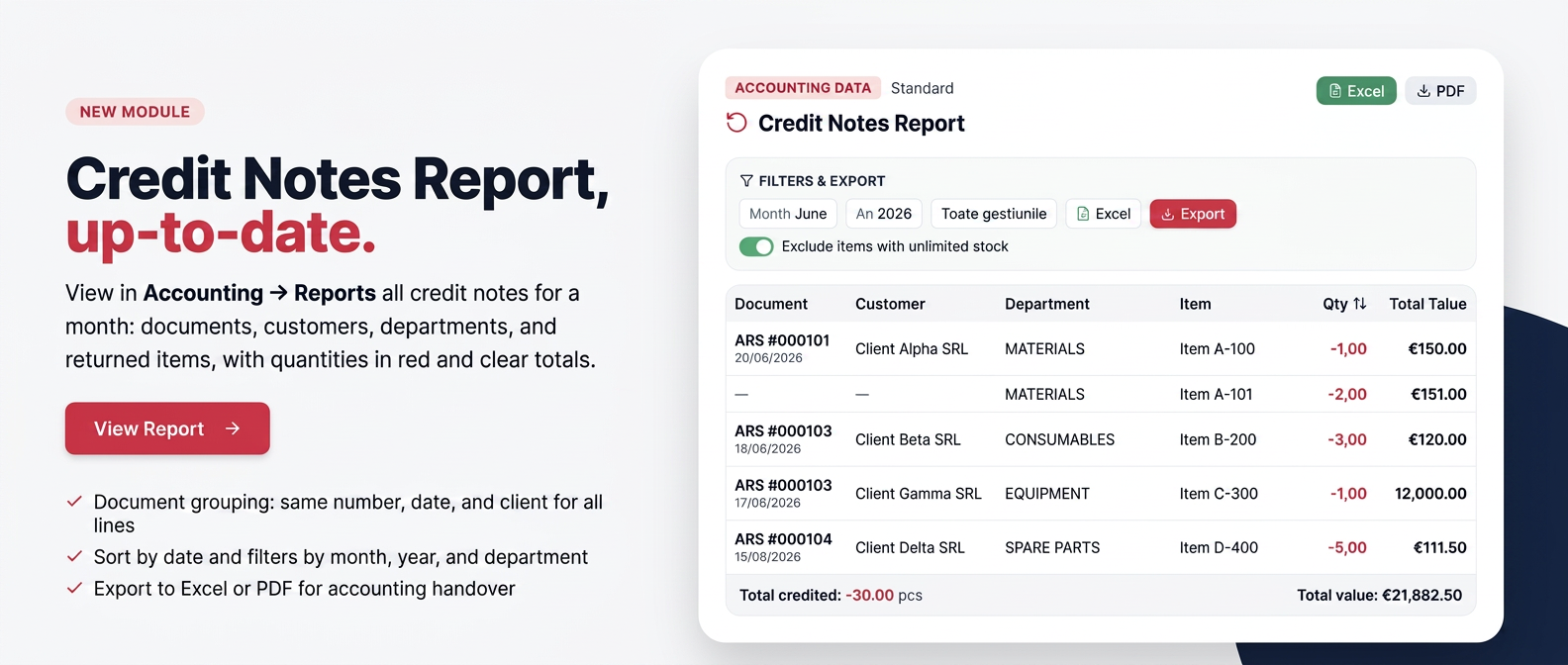
1. Overview
The Reversal Report shows you, for a selected month, all reversals performed — the lines through which stock outflows were canceled or returned. It is useful for tracking returns and stock corrections within a month and for submitting the status to accounting.
For each reversal, the document number and date, client, warehouse, reversed item, quantity, stock unit value, and total value are displayed. Totals for quantity and reversed value appear below the table.
The report is part of the Accounting Data section and can be downloaded in Excel or PDF format.
2. How to access
From the main menu, open Financial, then Accounting Data. In the Standard section, look for the Reversal Report card and press Open. To return to the list of reports, use the Back arrow in the upper left corner.
3. Generating and downloading the report
At the top of the page, in the Filters and Export area, choose the period and, if you wish, the warehouse:
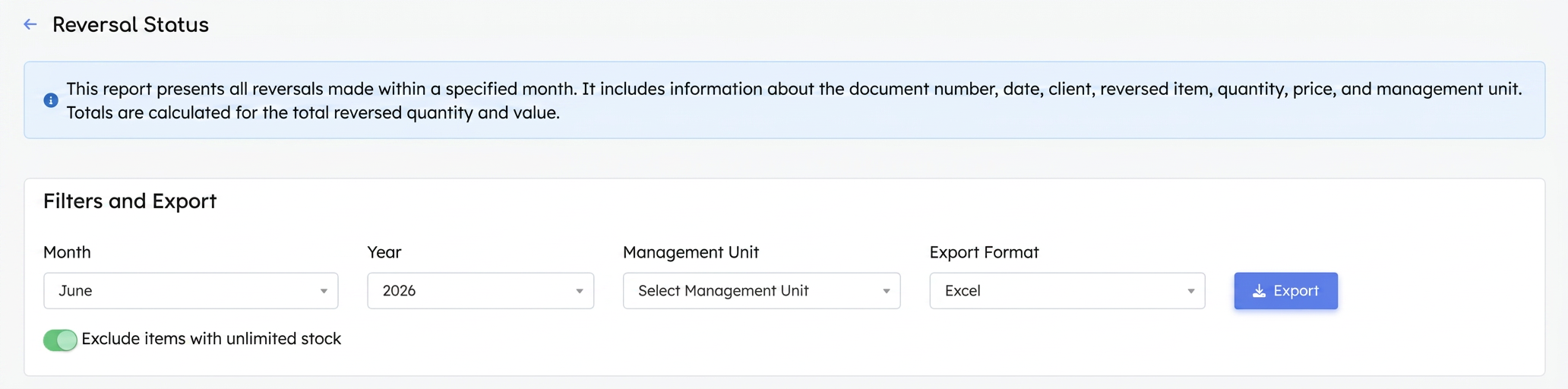
Filters and export area.
- Select the Month and Year for which you want the reversals.
- Under Warehouse, choose a specific warehouse or leave the field blank for all warehouses.
- Under Export Format, choose Excel or PDF.
- Press Export. The file will download in the chosen format.
Important: The Exclude items with unlimited stock toggle is active by default, so items with unlimited stock (usually services or items not managed in stock) do not appear in the report. If you want to include those as well, deactivate the toggle before exporting.
4. What the report contains
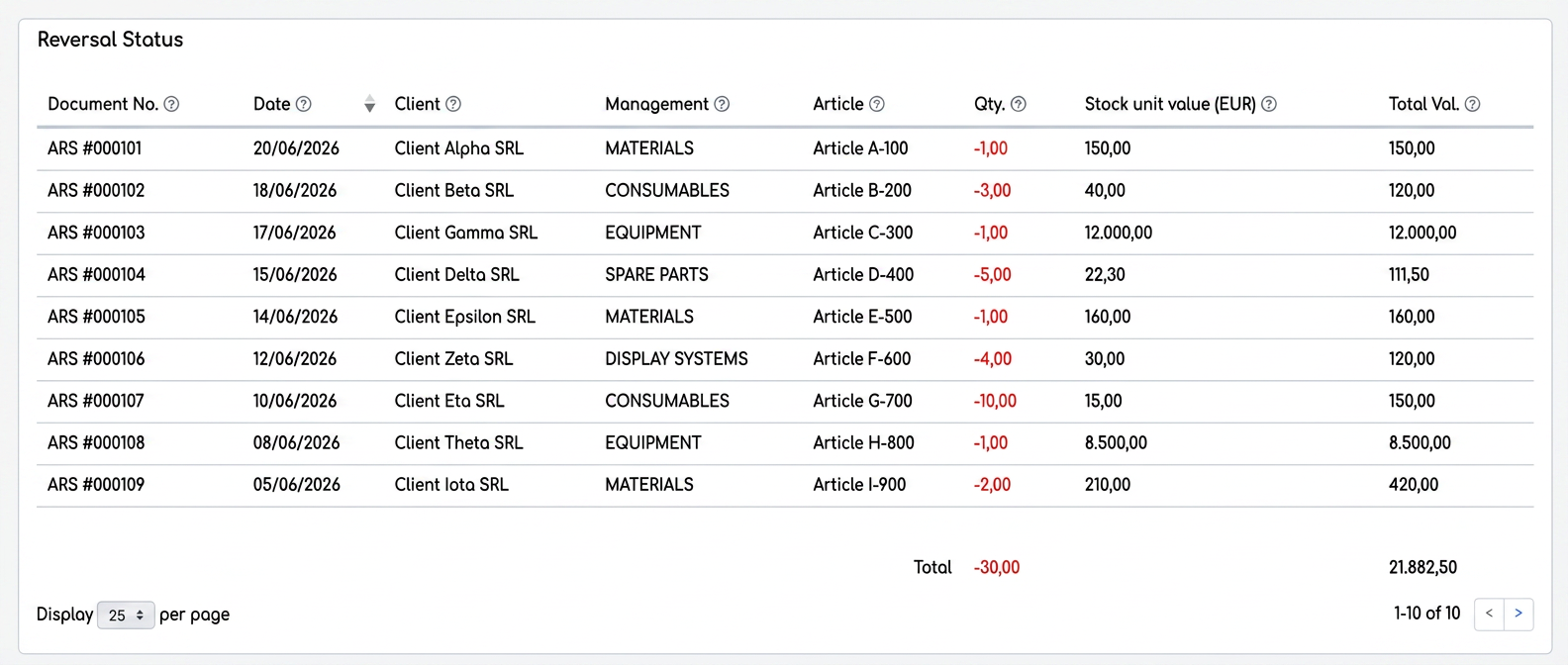
Example of a report, with reversals from one month.
Each row is a reversed line. You can see the document (number and date), client, warehouse and item, reversed quantity, stock unit value, and total value. The quantity appears with a minus sign (being a reversal), while the total value is displayed as a positive number. The last row contains the totals for quantity and reversed value.
5. Grouping lines by document
A reversal document can contain multiple items. In the report, each item appears on its own row, but the document's common information — number, date, and client — is displayed only once, on the first row of the group. Subsequent rows from the same document leave these columns blank and display only the warehouse, item, and their own values.
Thus, if you encounter a row without a document number, date, and client, this is not an error: the line is part of the document displayed immediately above. Practically, all consecutive rows until the next document number belong to the same reversal document.
6. Report columns in detail
Each row represents a reversed line. The meaning of the columns is as follows:
| Column | What it displays |
| Doc. No. | The reversal document number (displayed once per document) |
| Date | Document date (displayed once per document) |
| Client | The client for whom the reversal was made (displayed once per document) |
| Warehouse | The warehouse from which the item was reversed |
| Item | Name of the reversed item |
| Qty. | The reversed quantity, displayed with a minus sign and highlighted in red, being a canceled outflow |
| Stock unit value (EUR) | The item's stock unit cost at the time of reversal (stock value, not selling price) |
| Total Val. | Total value reversed on the line, calculated as such |
Note: Quantity appears negative (reversal), while the total value is positive. Below the table, the totals row sums the quantity (negative result) and the total reversed value; totals respect the applied filters.
7. Sorting by date
You can order the reversals by clicking on the Date column header. A first click sorts them in one direction (ascending/descending), and another click reverses the order; an arrow next to the column name indicates the current sorting direction.
Sorting affects the entire document, not just the displayed page, and the grouping of lines by document is preserved: items remain together under their respective document.