
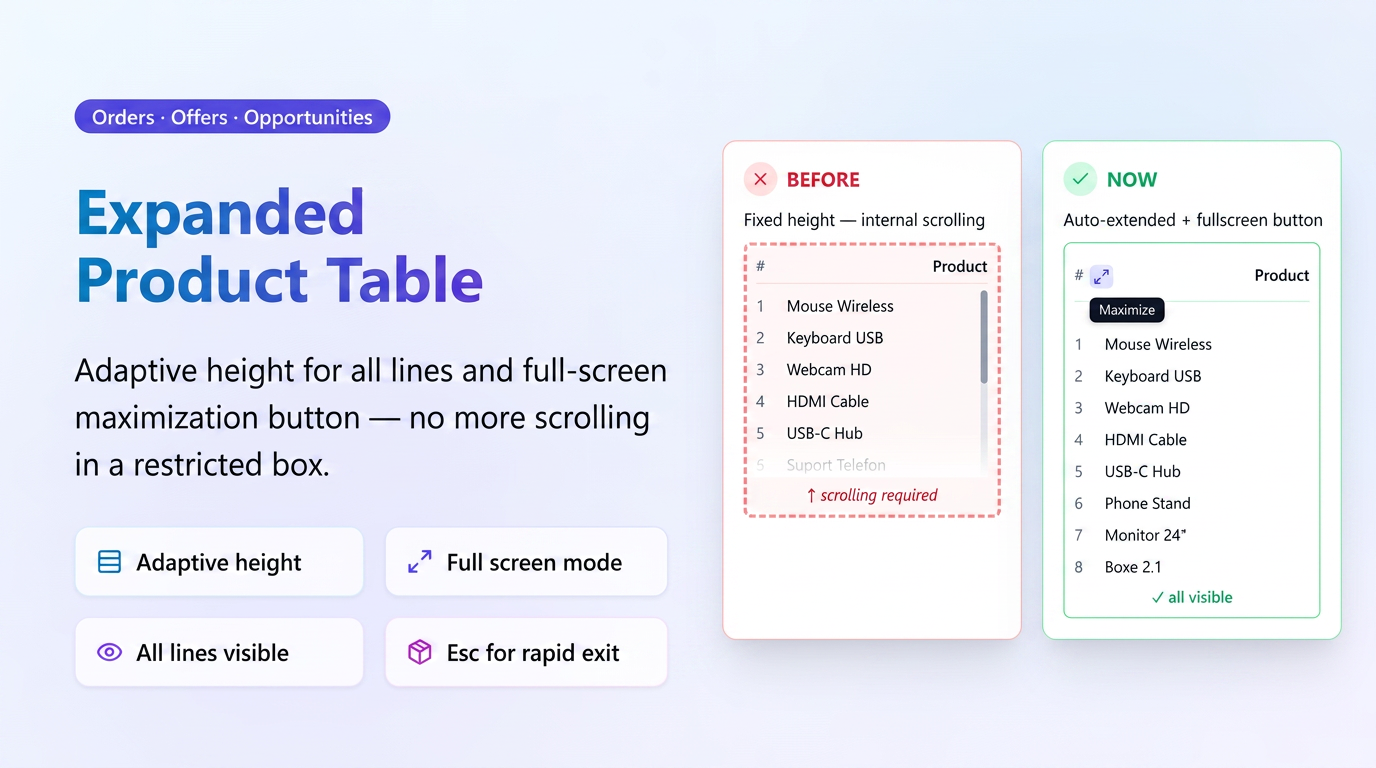
The product table in orders, offers, and opportunities has been optimized for more efficient line management. Now the table automatically expands vertically based on the number of products, eliminating the fixed-height area and limited scrolling.
Additionally, a fullscreen maximize button is available that displays the table across the entire screen surface, providing more space for editing and verification.
Where is it available?
The optimization is active in all sales documents containing a product table:
📦 Orders📋 Offers🎯 Opportunities
Features;
↕️Adaptive height
The table lengthens automatically according to how many products it contains, without scrolling in a restricted area. All lines are visible simultaneously.
👁️Overview
See more lines at a glance, making it easier to verify and edit products without scrolling back and forth.
⛶Fullscreen expansion
The "Maximize table" button displays the table on the full screen, hiding surrounding elements for more space.
Step 1 — Normal view (automatically expanded table)
When you open an offer, order, or opportunity with multiple products, the table expands automatically vertically. There is no longer a fixed-height scroll area — all products are displayed directly on the page.
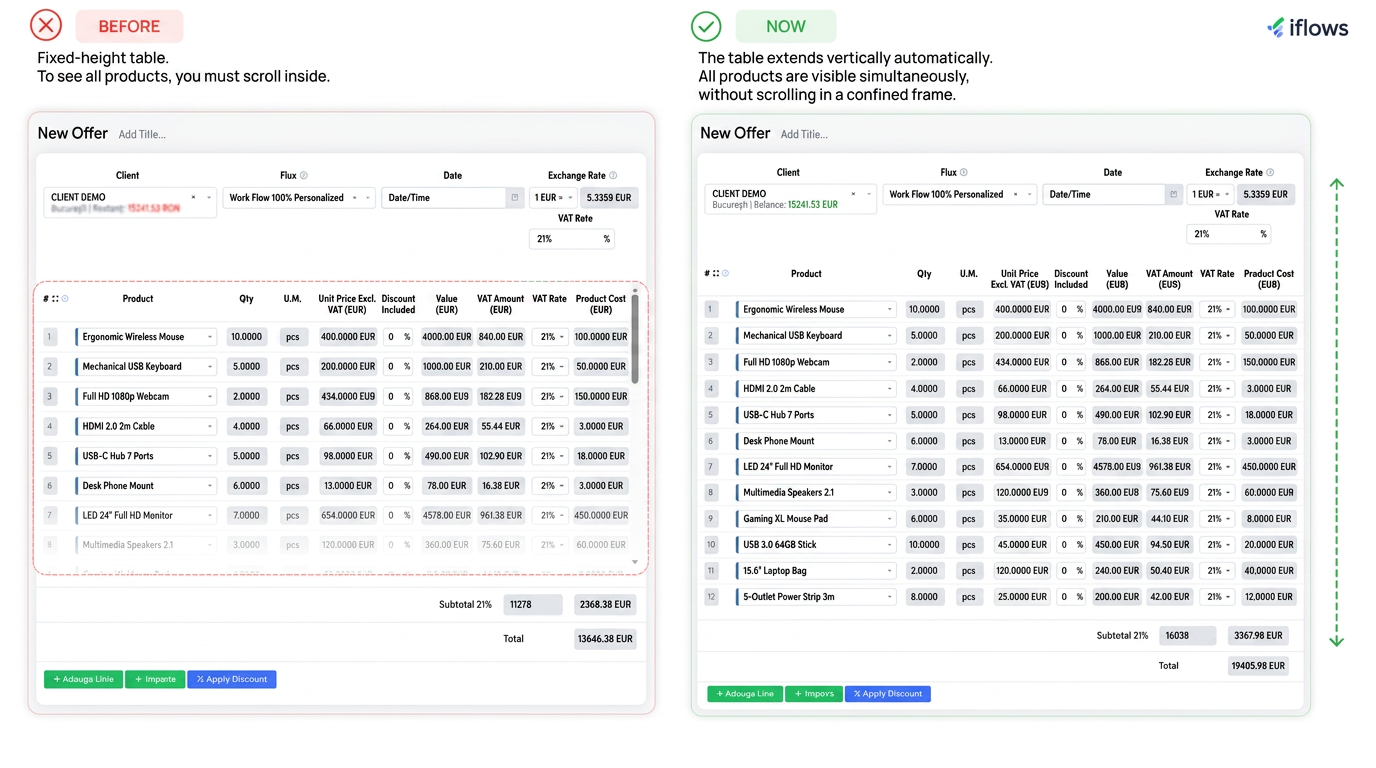
💡 Before vs. Now: Before this optimization, the product table was displayed in a fixed-height frame, and to see all products you had to scroll inside that frame. Now, the table expands freely on the page, just like any other section of the document.
Step 2 — The "Maximize table" button
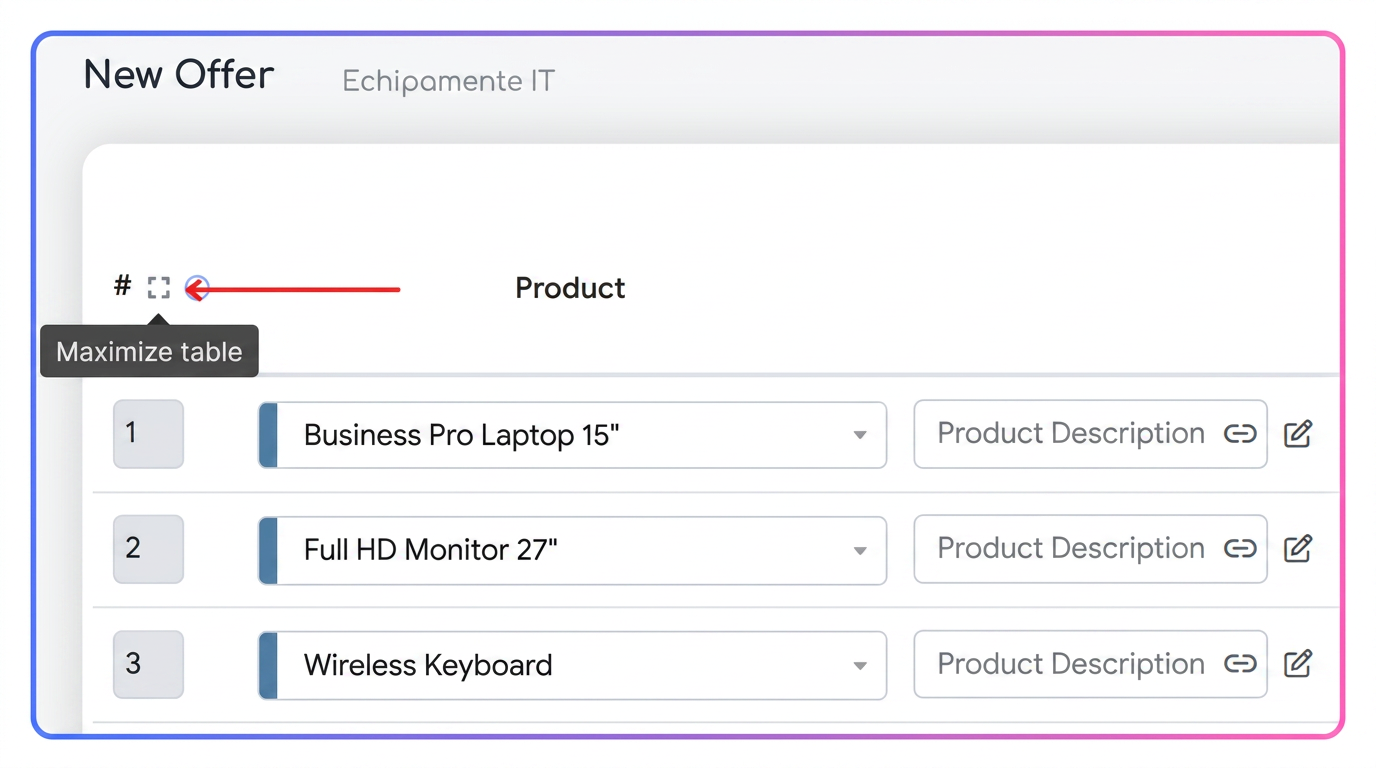
In the header of the product table, next to the numbering column (#), is the maximize button. When hovering the cursor over it, the "Maximize table" label appears.
Step 3 — Fullscreen mode
After pressing the button, the table occupies the entire screen surface. The side menu, page header, and all other elements are hidden, leaving all available space for the product table.
⚠️ Warning: In fullscreen mode, you cannot access the rest of the page (top fields, specifications, etc.). This is dedicated exclusively to viewing and editing the product table.
Step 4 — Exiting fullscreen mode
To return to the normal document view, you have two options:
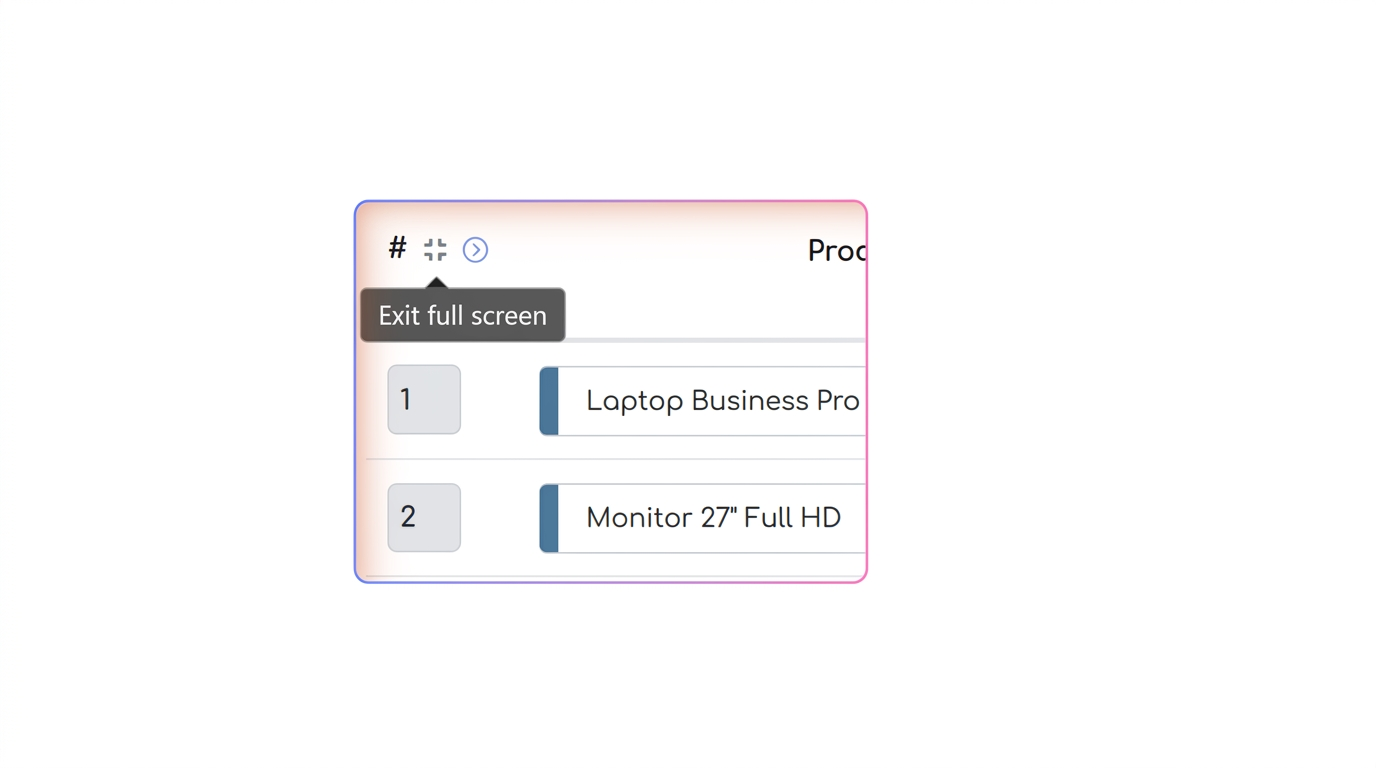
Press the maximize button again
The same button ⛶ in the table header will deactivate the mode upon the second press. The button is also visible in fullscreen mode, in the top left corner of the table.
or
Press the Escape key
The Escape key on your keyboard immediately closes fullscreen mode and returns to the normal document view.
After pressing Escape or the ⛶ button, the document returns to the normal view with the table extended vertically and all page elements visible.
💡The optimization is particularly useful when working with orders or offers that contain many product lines. With the extended table and fullscreen mode, you can quickly verify all products without losing the document context.