
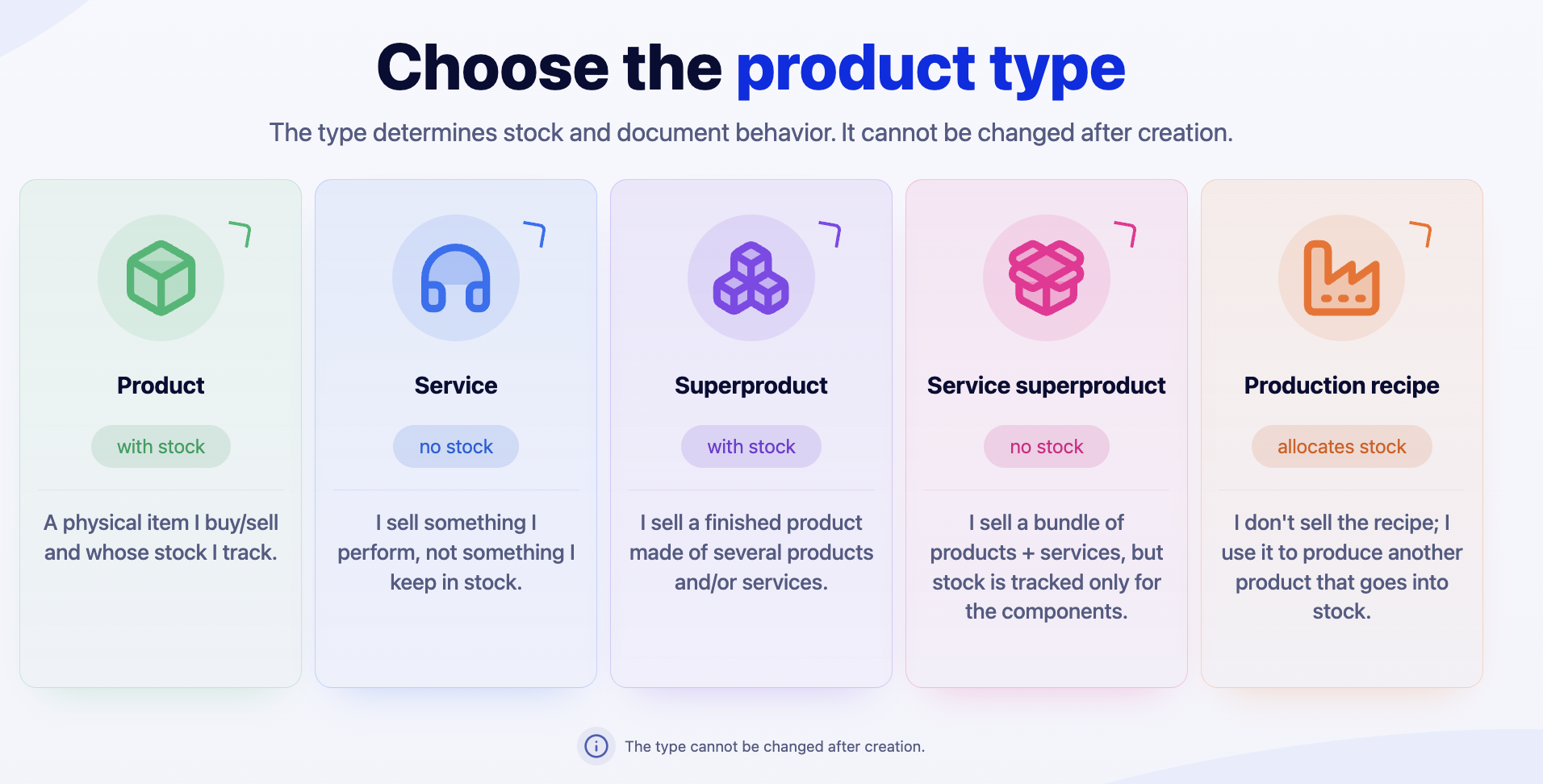
1. In brief
Each product now has a type, chosen only once, upon creation: Product, Service, Superproduct, Service Superproduct, or Production Recipe. The type determines which fields appear on the product page, whether the product has a warehouse and stock, if it has components, which stock operations are allowed, and what validations are performed on documents.
Until now, a product's behavior was the result of several settings that could be changed at any time: its components, "Unlimited Stock," "Allocate Finished Product Stock," and "Deactivate Product." Now, these settings are replaced by the product type and archiving, with clear rules for each type. This change affects everyone who works with products, stock, purchases, production, and sales documents.
| Before | Now | |
|---|---|---|
| Type of product | Resulted from components and "Unlimited Stock"; could be changed at any time | Product Type, chosen at creation; can no longer be changed |
| Product without stock | The "Unlimited Stock" switch | The Service and Service Superproduct types |
| Production into another product's stock | Superproduct with "Allocate Finished Product Stock" | The Production Recipe type, with the Finished Product field |
| Phasing out | "Deactivate Product," without stock checking | Archive / Unarchive, with checks; a product with stock cannot be archived |
| Product page | Fields displayed based on components and "Unlimited Stock" | Only fields valid for the type; new section: Additional Options |
| Product code | Unique by code + warehouse | Unique by code + warehouse + supplier |
| Products list | The "Superproduct / Standard Product" filter, the "Deactivated" filter | The Product Type filter and column, the Archived filter |
| Stock page | All products, same actions | Only Product, Superproduct, and Production Recipe; actions depend on the type |
| Bulk editing | Nine windows, applied to any product | Six windows; each field applies only to the appropriate types |
| Documents | A Superproduct could be saved without components | A Superproduct must have components, and some types must have at least one with stock |
Importing and exporting products are described separately, in the Products — importing and exporting the product catalogue from an Excel file (Reconfiguration) documentation.
2. Where to find it
→ + Add Product — the Choose the product type window.
— the Product Type filter and column, the Archived filter, the Archive / Unarchive actions, and the selection bar for bulk editing.
— only the Product, Superproduct, and Production Recipe types, with actions depending on the type.
Product search in Orders, Quotes, Opportunities, Proforma Invoices, GRNs, and Supplier Orders — the + Add Product button.
3. Before you begin
Creating products requires the add permission for products. Archiving, unarchiving, and bulk editing require the modify permission. There are no new permissions.
Choose the type carefully: it cannot be changed after creation.
For manufacturing with a Production Recipe, the My Company setting must be configured ().
After the update, check the types automatically assigned to existing products (see "After the update: what to check").
4. Product Types
| Type | Description (from the selection window) | Badge |
|---|---|---|
| Product | Individual item, with stock management. | with stock |
| Service | Labor, consulting, subscription, or other services provided. No stock management. | no stock |
| Superproduct | Product composed of a recipe of components—products and services. Upon invoicing, a consumption note for the components and a production note are generated. | with stock |
| Service Superproduct | Package of services and products, without its own stock. Components with stock are removed from the warehouse individually, via a consumption note. | no stock |
| Production Recipe | Internal manufacturing recipe. It is produced to stock, based on an internal order, and the resulting quantity automatically enters the stock of the specified finished product, which is then sold. | allocates stock |
What each type allows:
| Product | Service | Superproduct | Service Superproduct | Production Recipe | |
|---|---|---|---|---|---|
| Own warehouse and stock | Yes | No | Yes | No | No; the output enters the Finished Product's stock |
| Components | No | No | Optional | Optional | Mandatory, minimum one |
| Sales documents | Yes | Yes | Yes, with components | Yes, with components | Yes, with components |
| GRN | Yes | Only on lines without warehouse management | No | No | No |
| Supplier Orders | Yes | Yes | No | No | No |
| Stock Page | Yes | No | Yes | No | Yes |
| Workflow | Yes | Yes | Only the components | Only the components | Only the components |
| Equipment | Yes | Yes | No | No | No |
| eMAG | Yes | Yes | Yes | Yes | No |
| Archiving | Yes, without stock | Yes | Yes, without stock | Yes | No |
Superproduct or Service Superproduct?
Both types have components and are sold as a single item. There is one essential difference: a Superproduct becomes a stock item in its own right, while a Service Superproduct is only a commercial bundle, with no stock of its own. Despite its name, a Service Superproduct is not limited to services: it can also include physical products.
| Superproduct | Service Superproduct | |
|---|---|---|
| What you sell | A finished product made of several components | A bundle of products and services |
| Components | Yes | Yes |
| Component with stock required | Yes, at least one | No |
| Own stock | Yes | No |
| What happens to the components on invoicing | They are consumed (consumption note) and the superproduct is obtained (production note) | Components with stock leave the warehouse directly (consumption note) |
| What appears in the warehouse | The superproduct, as a finished product | Only the components |
Example 1 — Superproduct. "Complete electrical panel" has the components enclosure, fuses, relays, cables and assembly labour. On invoicing, the components are consumed and the finished product "Complete electrical panel" is obtained, with its own stock: components → production → Complete electrical panel.
Example 2 — Service Superproduct. "Surveillance system installation package" contains 4 cameras, 1 NVR, cable, installation and configuration. The client buys a single package, but your warehouse holds cameras, NVRs and cable, not "packages"; installation and configuration are services. On invoicing, the cameras, the NVR and the cable leave stock individually, via a consumption note. The package has no stock of its own.
How to choose. Ask yourself: "Does the product I sell exist as such in stock?"
- Yes → Superproduct: you sell a finished product made of several components and track its own stock.
- No → Service Superproduct: you sell a bundle of products and services, and stock is tracked only for the components.
For internal manufacturing to stock, before the sale, use a Production Recipe (see the section "Creating and using a Production Recipe").
5. Adding a product
Step 1. Open and press + Add Product. The Choose the product type window opens, with the subtitle "The type determines the stock and document behavior. It cannot be changed after creation." Each of the five types has its description and badge: with stock, no stock, or allocates stock.
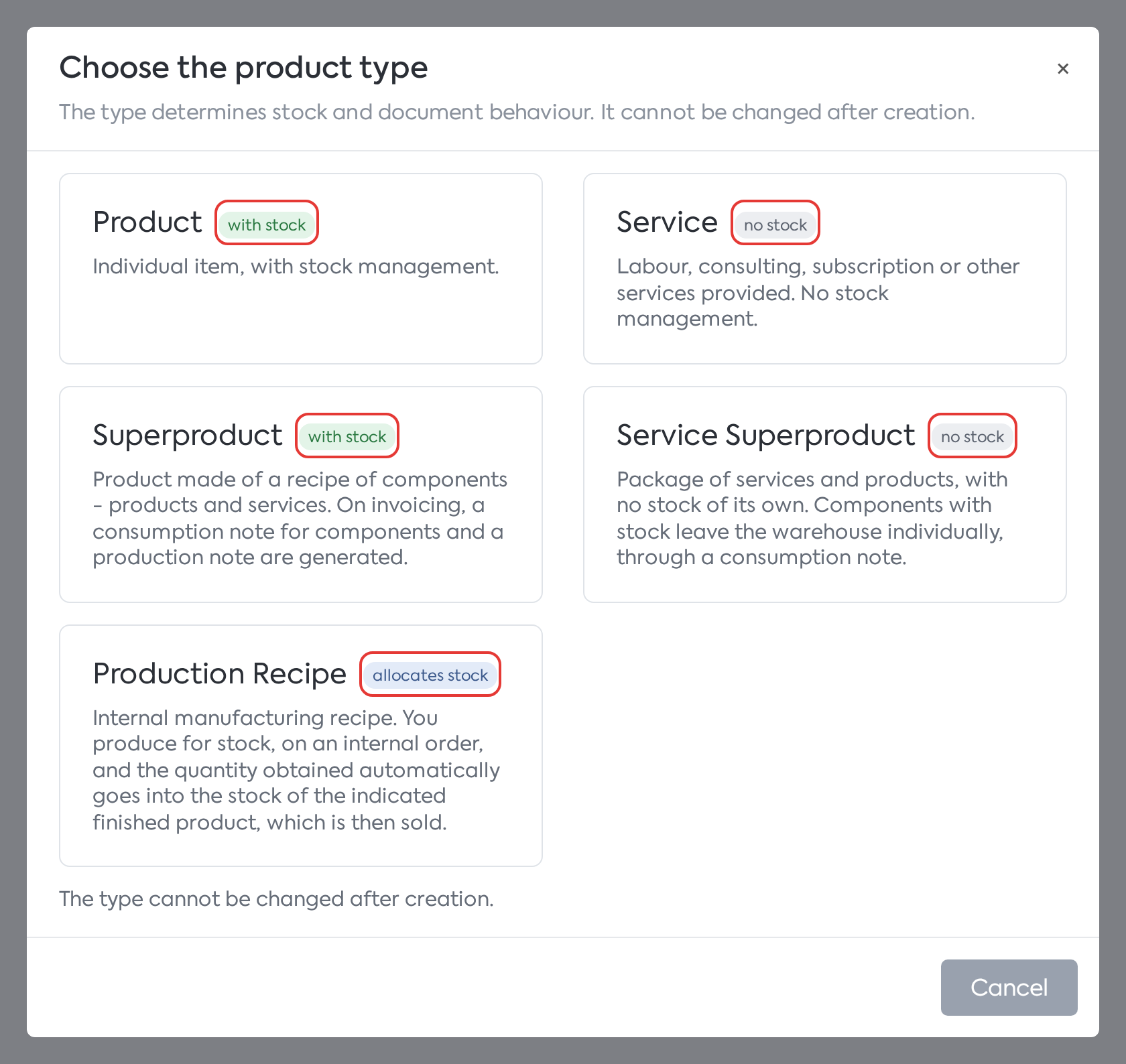
The Choose the product type window: the five types, each with its description and a with stock, no stock, or allocates stock badge.
Step 2. Press the card for the desired type. The form for the chosen type opens, with the title New Product, New Service, New Superproduct, New Service Superproduct, or New Production Recipe. The type appears on the first row of the Name section, with its badge, and cannot be modified.
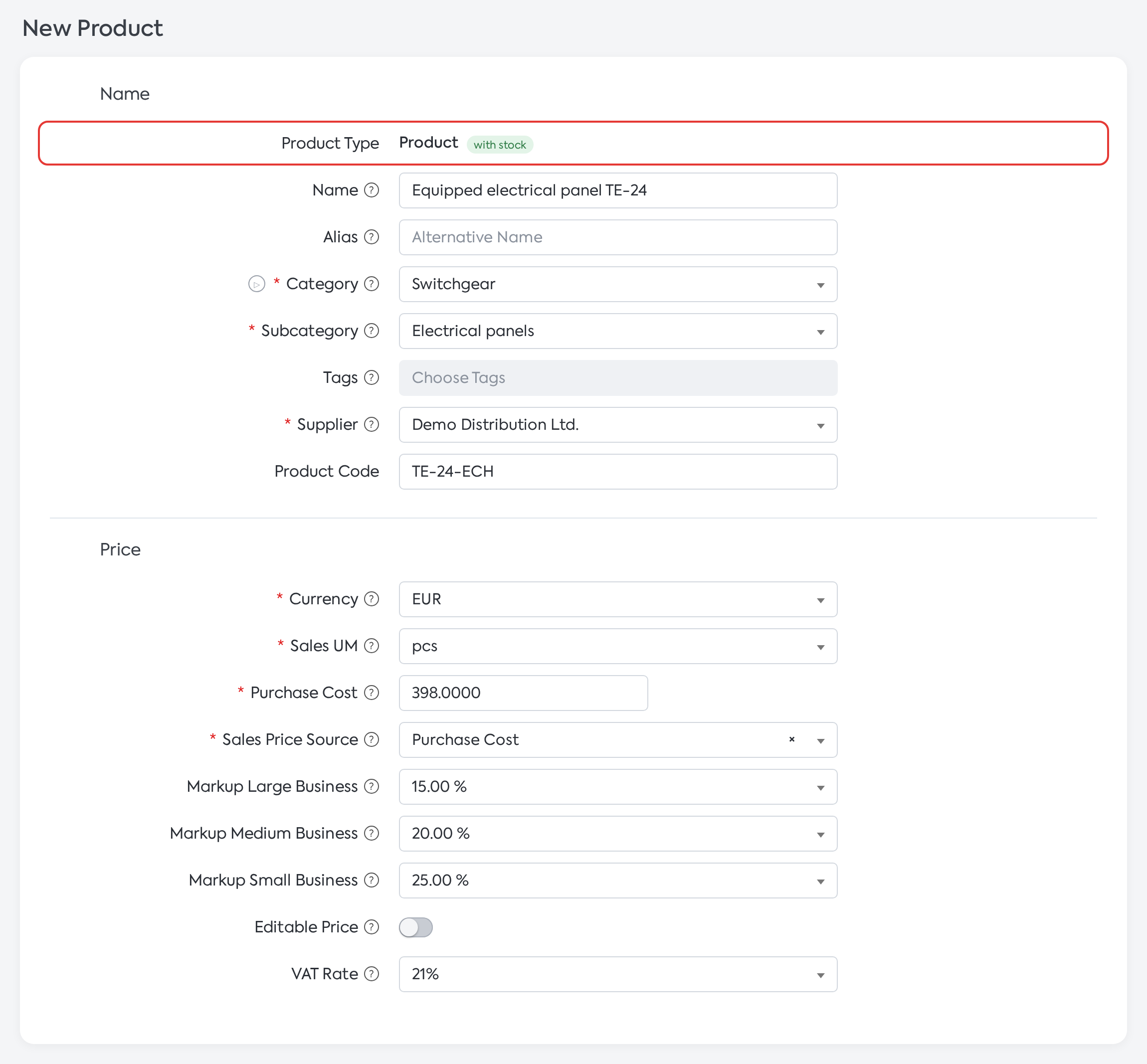
New Product form: the Product Type row, displayed for information only, and the Name and Price sections.
Step 3. Fill out the form (see the following sections) and press Save.
Note: the selection window can only be closed with Cancel or the × button, not by clicking outside of it or by pressing the Esc key.
The same window appears when you press + Add Product from the product search in Orders, Quotes, Opportunities, Proforma Invoices, GRNs, and Supplier Orders. The form remains open if saving encounters errors, and the created product is automatically added to the document row. As before, Invoices and Delivery Notes do not have this button.
Warning: the type can no longer be changed after creation — neither in the form, nor through bulk editing, nor by import. To use a different type, create a new product. Clone Product preserves the source product's type, without showing the selection window.
6. Filling out the product sheet
The form and the details page have a new, section-based structure:
| Section | What it contains |
|---|---|
| Name | Product Type (display only), Name, Alias, Category, Subcategory, Tags, Supplier, Product Code |
| Components | Only for composite types, visible from the start, with the new Import button |
| Price | Currency, Sales UM, Sales Price Source, Fixed Price, Editable Price, VAT Rate; Purchase Cost and markups only for Product and Service |
| Stock | Only for Product, Superproduct, and Production Recipe, with the fields applicable to the type; without Unlimited Stock, dimensions, and weight |
| Additional Options | New section, which replaces "Workflow": Accounting Account, Account Name, CPV Code, Notes, Show in Client Account, Recommended Product, Exclude from Workflow, Dimensions UM, Dimension, Weight, Width Autocomplete, Use equipment |
| Custom fields, Details | As before (description, images, files) |
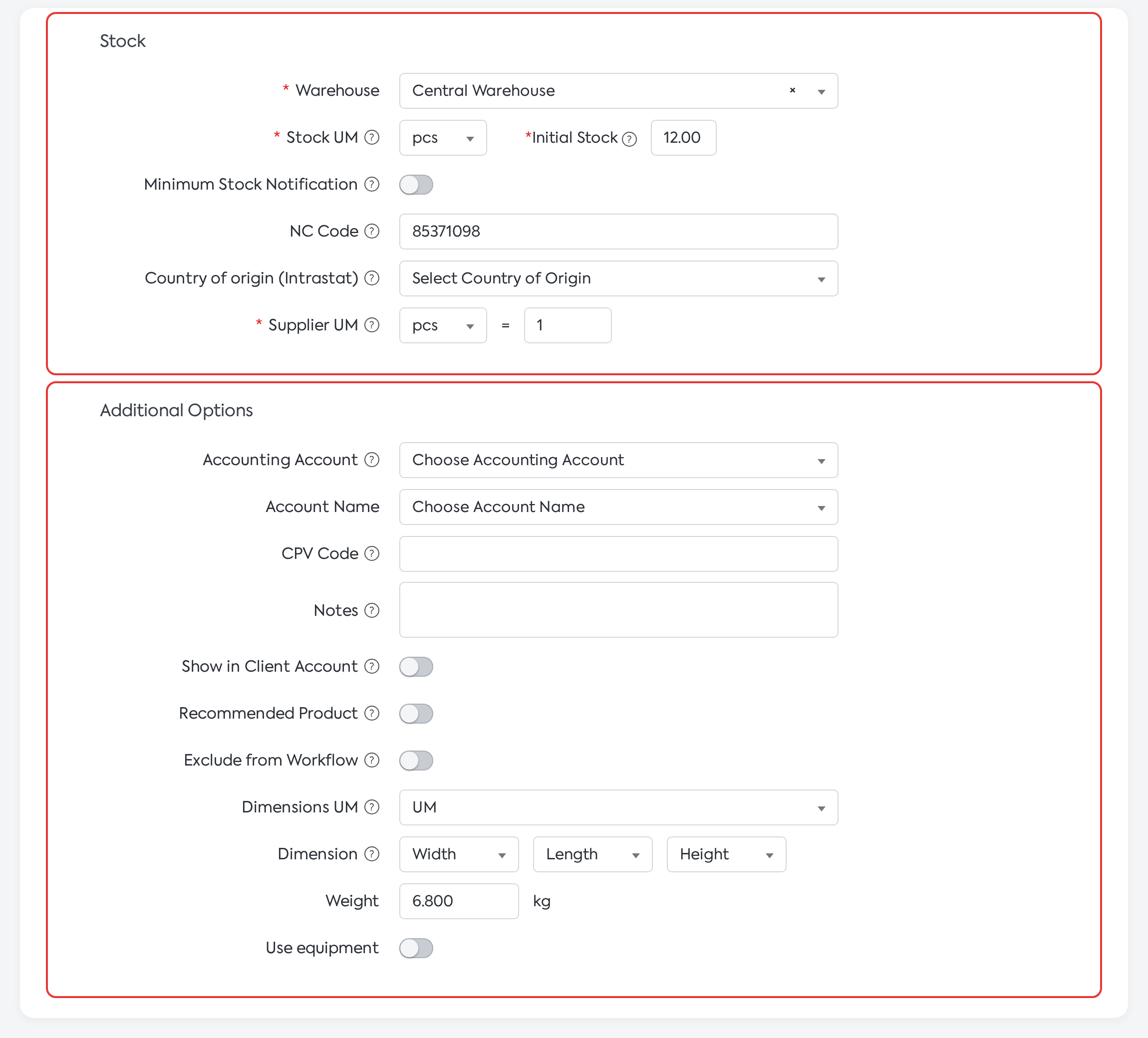
The Stock and Additional Options sections for the Product type.
Fields displayed according to type (● = appears, — = does not appear):
| Field | Product | Service | Superproduct | Service Superproduct | Production Recipe |
|---|---|---|---|---|---|
| Name, Alias, Category, Subcategory, Tags, Supplier, Product Code | ● | ● | ● | ● | ● |
| Components | — | — | ● | ● | ● |
| Currency, Sales UM, Sales Price Source, Fixed Price, Editable Price, VAT Rate | ● | ● | ● | ● | ● |
| Purchase Cost, Large / Medium / Small Business markups | ● | ● | — | — | — |
| Warehouse, Stock UM | ● | — | ● (Stock UM = Sales UM) | — | — |
| Initial Stock (only on creation), Minimum Stock Notification, Minimum Stock, Maximum Stock, Automatic Order, Send E-mail, Supplier UM | ● | — | — | — | — |
| NC Code, Country of origin (Intrastat) | ● | — | ● | — | — |
| Finished Product | — | — | — | — | ● |
| Accounting Account, Account Name, CPV Code, Show in Client Account, Recommended Product | ● | ● | ● | ● | — |
| Notes | ● | ● | ● | ● | ● |
| Exclude from Workflow, Dimensions UM, Dimension, Width Autocomplete, Use equipment | ● | ● | — | — | — |
| Weight | ● | ● | ● | ● | — |
| eMAG (if the integration is active) | ● | ● | ● | ● | — |
| Custom fields, Details | ● | ● | ● | ● | ● |
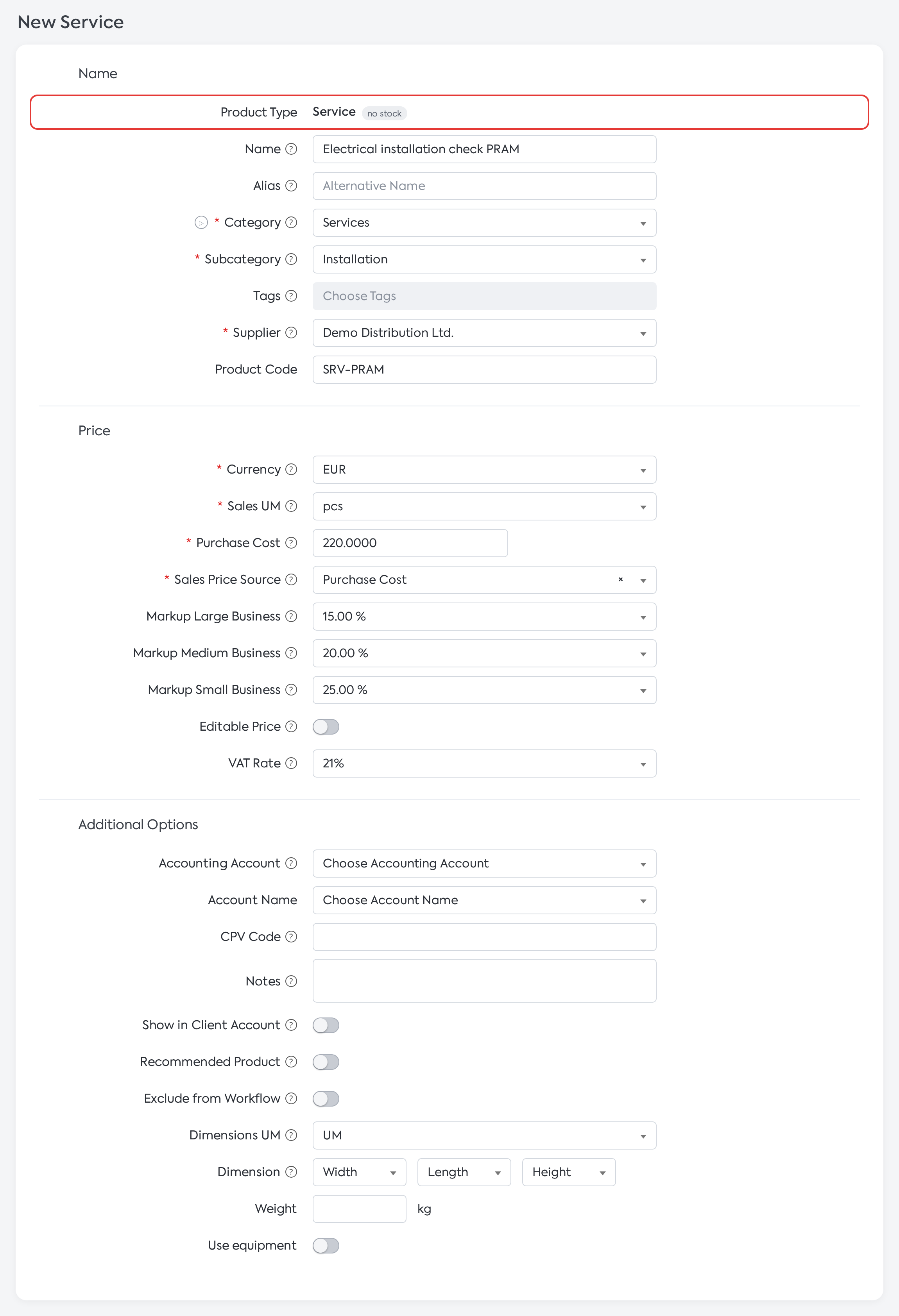
New Service form: after Price, the Additional Options section follows directly, without the Stock section.
Fields that do not apply to the type are no longer displayed. Existing values are kept, except for those automatically corrected when saving from the form.
Automatic values and completions:
Warehouse is mandatory for Product and Superproduct.
Superproduct Quantity is implicitly 1 for composite types. If you leave it blank when creating the product, it saves as 1; when editing, the previous value is kept. A blank Supplier UM conversion is saved as 1.
For Superproduct and Production Recipe, the Stock UM (and Supplier UM) is the same as the Sales UM.
For composite types, Exclude from Workflow is automatically enabled, and Use equipment is automatically disabled.
Sales Price Source offers: for Product and Service — Purchase Cost, Last Purchase, Fixed Price; for composite types — Associated Product Sales Price Source, Fixed Price, Associated Product Purchase Cost.
Width Autocomplete is kept only if a width is chosen and the Sales UM is for length or area (m, m², etc.). Otherwise, the option is automatically disabled upon saving.
Every time you save from the form, the platform corrects fields that are incompatible with the type. For example, a warehouse left on a service is cleared, and for types with no stock, the minimum stock notification and automatic order are reset.
When cloning, in addition to the stock, Minimum Stock Notification, Minimum Stock, Maximum Stock, Automatic Order, and Send E-mail are reset.
If the product has no code and a product with the same name, warehouse, and supplier already exists, the message "A product with this name, warehouse, and supplier already exists. To keep the same name, add a Product Code!" appears.
7. Adding components
The Components section appears for Superproduct, Service Superproduct, and Production Recipe.
Step 1. Fill in the Superproduct Quantity (the quantity obtained from the recipe; default is 1).
Step 2. Click + Add Product for each component and select it in Associated Product. Fill in Pieces and, for products by area or length, Width and Length.
Step 3. For a long recipe, click + Import and upload the components from an Excel file, through the same window used for importing document lines.
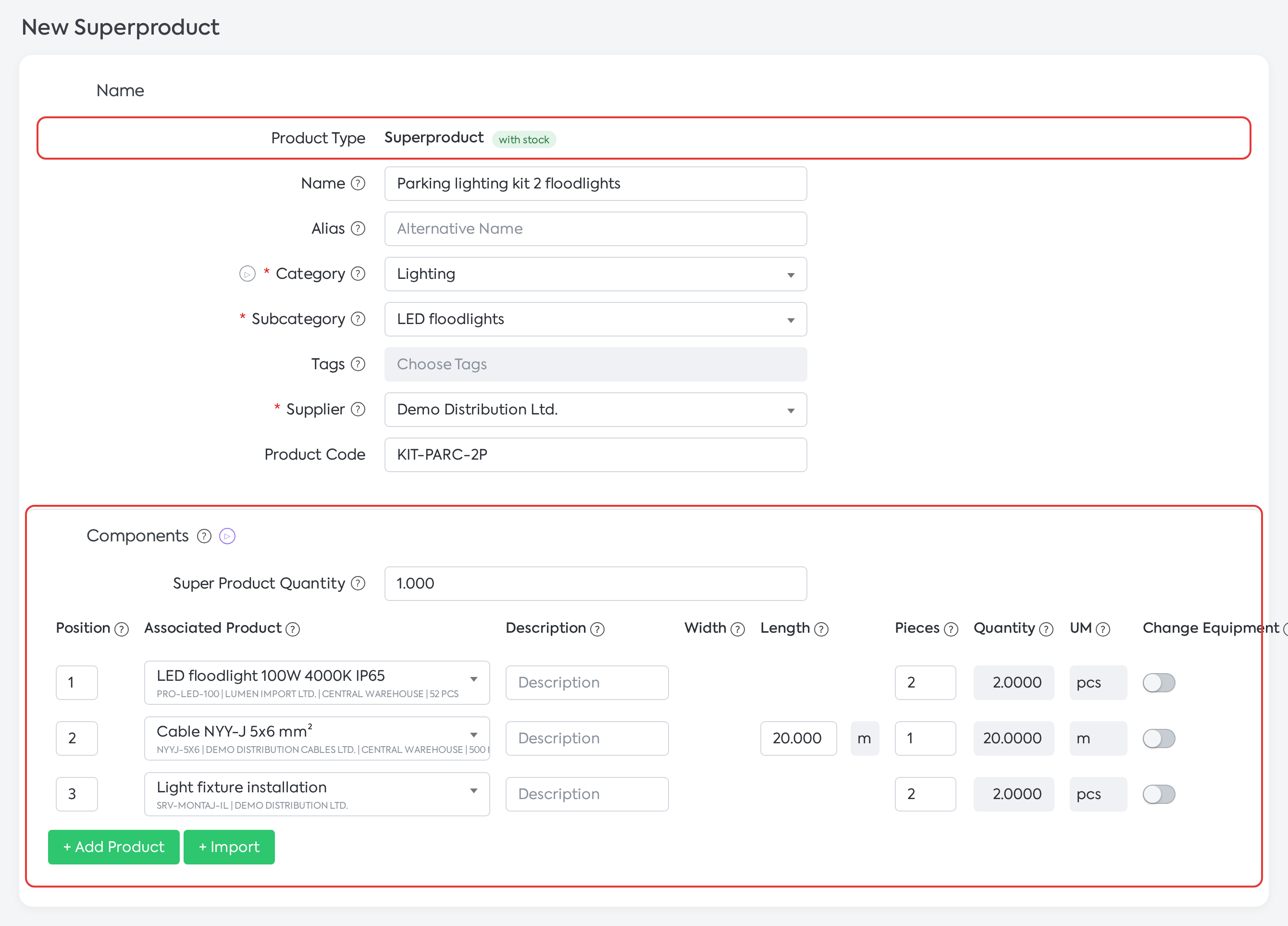
New Superproduct: Superproduct Quantity and the components, with the Add Product and Import buttons.
Step 4. Click Save.
Upon saving, the platform checks the following:
| Message | When it appears |
|---|---|
| "Warehouse is mandatory" | Product or Superproduct without a warehouse |
| "A Production Recipe must have at least one component." | Production Recipe with no components |
| "The components must include at least one product with stock (Product or Superproduct)." | A Superproduct with components, but none with stock, or a Production Recipe without a component with stock. A Superproduct with no components can be saved. |
| "The value must be greater than 0!" | A component has a quantity of 0; saving is blocked |
| "A product cannot contain itself as a component." | The product is selected as its own component |
| "Archived Product" | A component is archived (previously, "Deactivated Product") |
8. Creating and using a Production Recipe
The Production Recipe type replaces the old Superproduct with "Allocate Finished Product Stock" and is used for in-house manufacturing for stock.
Step 1. Press + Add Product and choose Production Recipe.
Step 2. Fill in the Name and the other fields, then add the components: at least one component is required, and at least one must be a product with stock.
Step 3. In the Stock section, choose the Finished Product—the product whose stock will be increased by the manufactured quantity—and press Save.
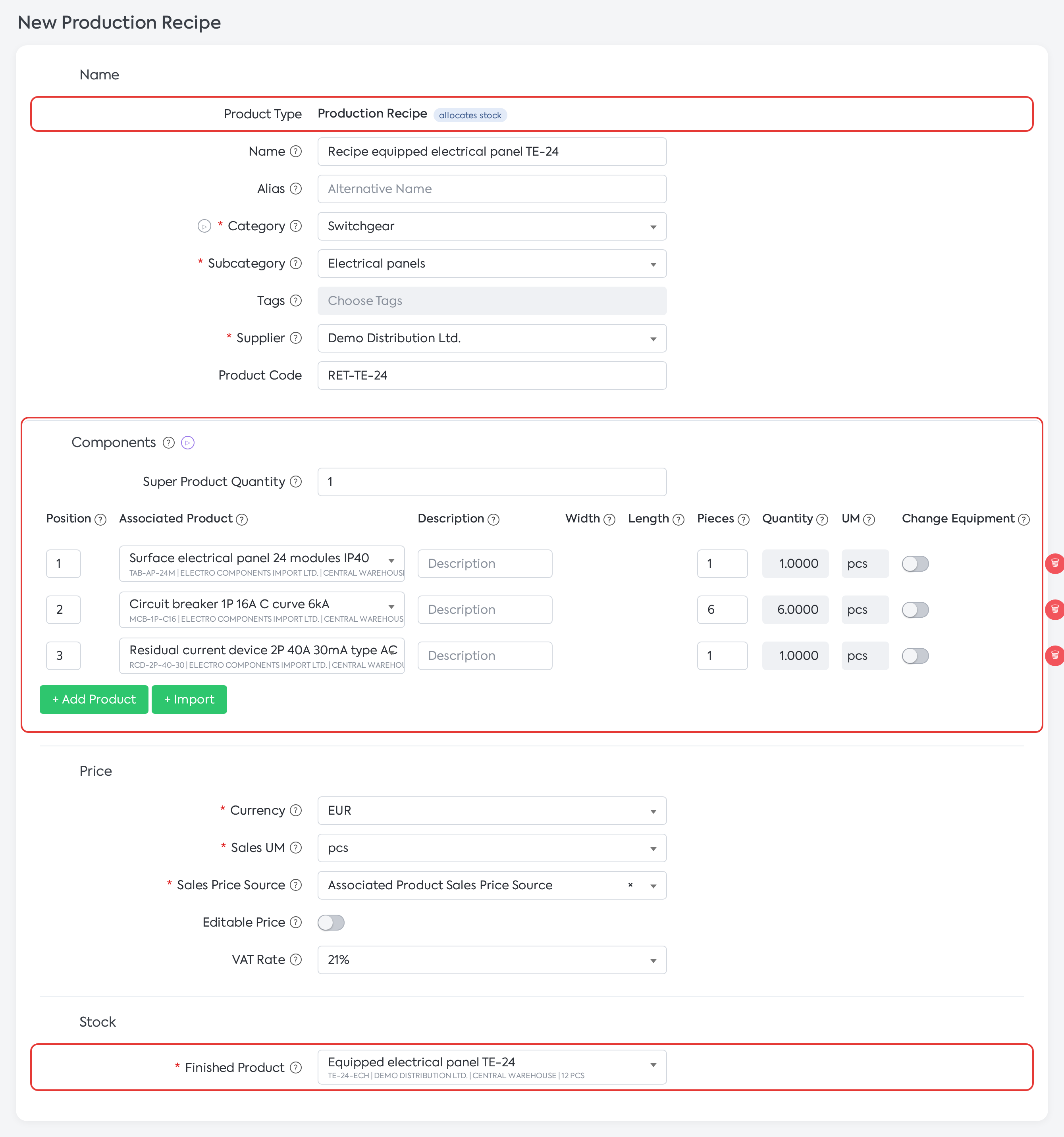
New Production Recipe: components and the Finished Product, which is the product whose stock is increased by the manufactured quantity.
| Field | What to fill in | Mandatory |
|---|---|---|
| Finished Product | A product of the Product type, unarchived, with a Stock UM equal to the recipe's Sales UM, which is not the finished product of another recipe. It cannot be the recipe itself and cannot be one of its components at the same time. | Yes |
Messages from the Finished Product field:
| Message | What it means |
|---|---|
| "The Finished Product is mandatory for a Production Recipe" | The field is not filled in |
| "The Finished Product must be a simple Product (with stock)." | The chosen product is not a Product type |
| "The Finished Product is already associated with: …" | The chosen product is already the finished product of another recipe |
| "The recipe cannot have itself as the finished product." | The recipe itself was chosen |
| "Stock cannot be allocated to a product associated with the superproduct!" | The chosen product is also a component of the recipe |
| "The stock unit of measure of the associated product must be the same as the superproduct's …!" | The Stock UM of the finished product differs from the recipe's Sales UM |
Manufacturing:
Step 4. Add the recipe to an internal order, with the client set to My Company ().
Step 5. The components go through the workflow.
Step 6. After they are finalized, the produced quantity is added to the Finished Product's stock: either via a Production Handover Note, if notes are active (the Consumption Note / Production Note setting), or otherwise directly.
Note: When an order requires a larger quantity of the finished product than is available in stock plus the quantity already in production, the platform suggests an automatic production order ("Automatic order for the following Superproduct?"). The suggestion only appears if My Company is set and only for active (unarchived and not deleted) recipes.
A recipe does not have a Warehouse, Accounting Account, Show in Client Account, Recommended Product, or an eMAG section.
A recipe cannot be archived. When it is deleted, the finished product is released and can be associated with another recipe.
A clone of a recipe keeps the same finished product; upon saving, a different finished product must be chosen.
9. Archiving and unarchiving products
Archiving replaces the "Deactivate Product" option.
Step 1. Press Archive on the product's row in the list, on the details page, or in the selection bar.
Step 2. Confirm in the Archive Product window ("Are you sure you want to archive this product?"). At the end, the message "Product ... has been archived" will appear.
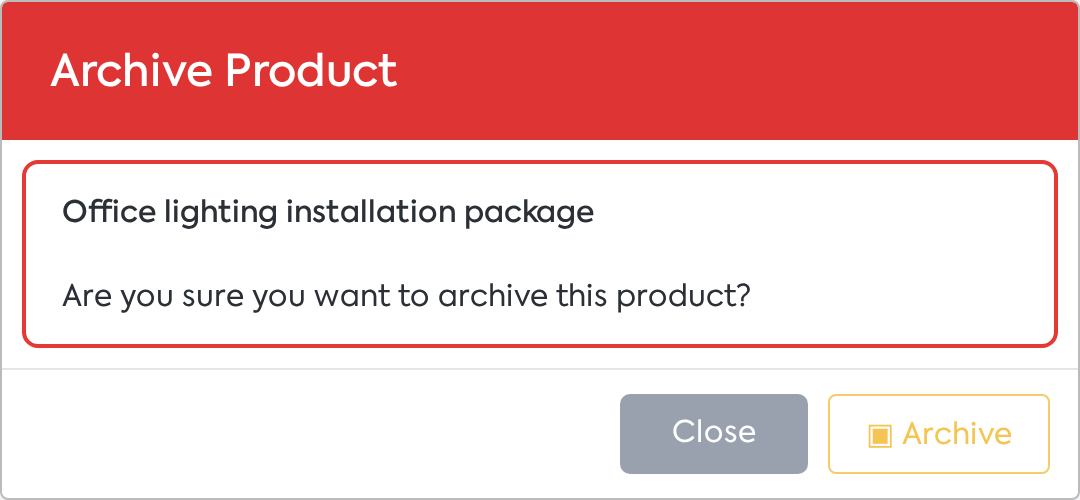
Archive Product window, with the confirmation message.
If archiving is not allowed, the window displays the reason, and the Archive button is inactive.
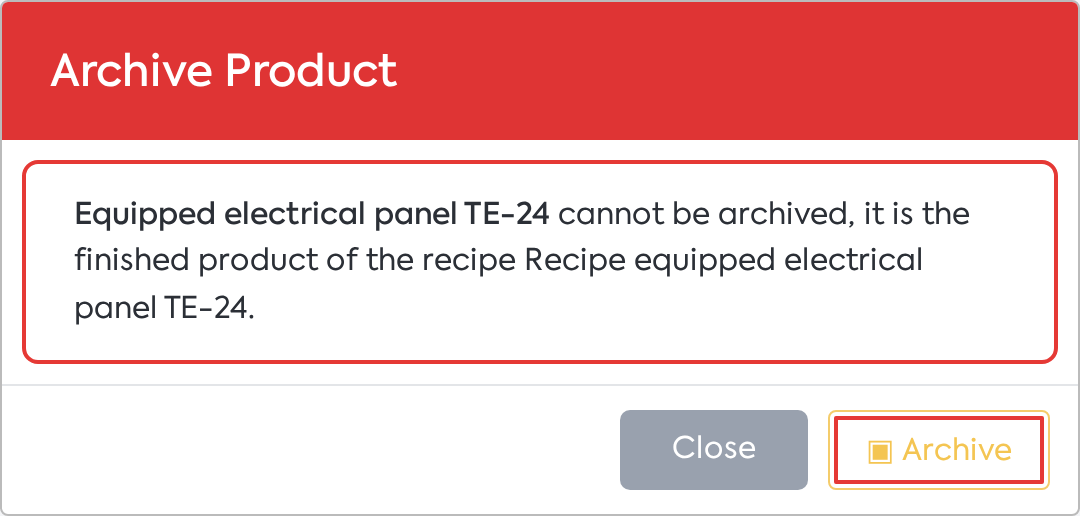
The finished product of a recipe cannot be archived: the window displays the reason, and the Archive button is inactive.
Step 3. To bring the product back into use, press Unarchive (on its row, on the details page, or in the selection bar) and confirm in the Unarchive Product window ("Are you sure you want to unarchive this product?"). Unarchiving has no other checks.
Reasons why archiving is blocked:
"... cannot be archived, Production Recipe type products cannot be archived."
"... cannot be archived, it has stock, work in progress stock, or reserved stock." (for types with stock)
"... cannot be archived, it is the finished product of the recipe ..."
"... cannot be archived, it is used in:", followed by unfinished orders, undelivered supplier orders, or the superproducts in which it is a component, with links.
Bulk archiving, from the selection bar, requires confirmation in the Archive Products window ("Are you sure you want to archive the selected products?").
If the selection contains a Production Recipe, the message "Production Recipe type products cannot be archived:", with a list of them, appears, and nothing is archived.
Otherwise, the archiving may be partial: "N products have been archived.", with the reason for each product that could not be archived.
Bulk unarchiving is done from the Unarchive Products window and ends with the message "N products have been unarchived.".
10. The product list and the Product Type filter
Step 1. In , open Filter Options (the icon next to Search / Clear).
Step 2. In the Filters section, check Product Type and press Save. The check adds both the filter and the column.
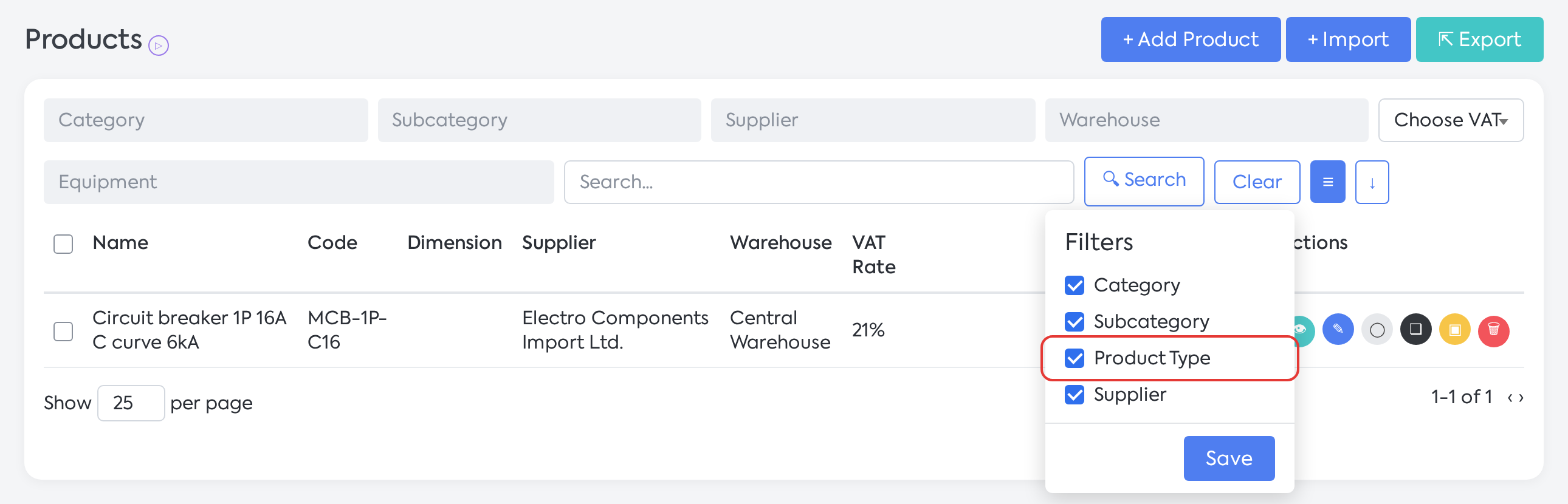
Filter Options: checking Product Type activates the filter and the column.
Step 3. In the Product Type filter, choose one or more types and press Search.
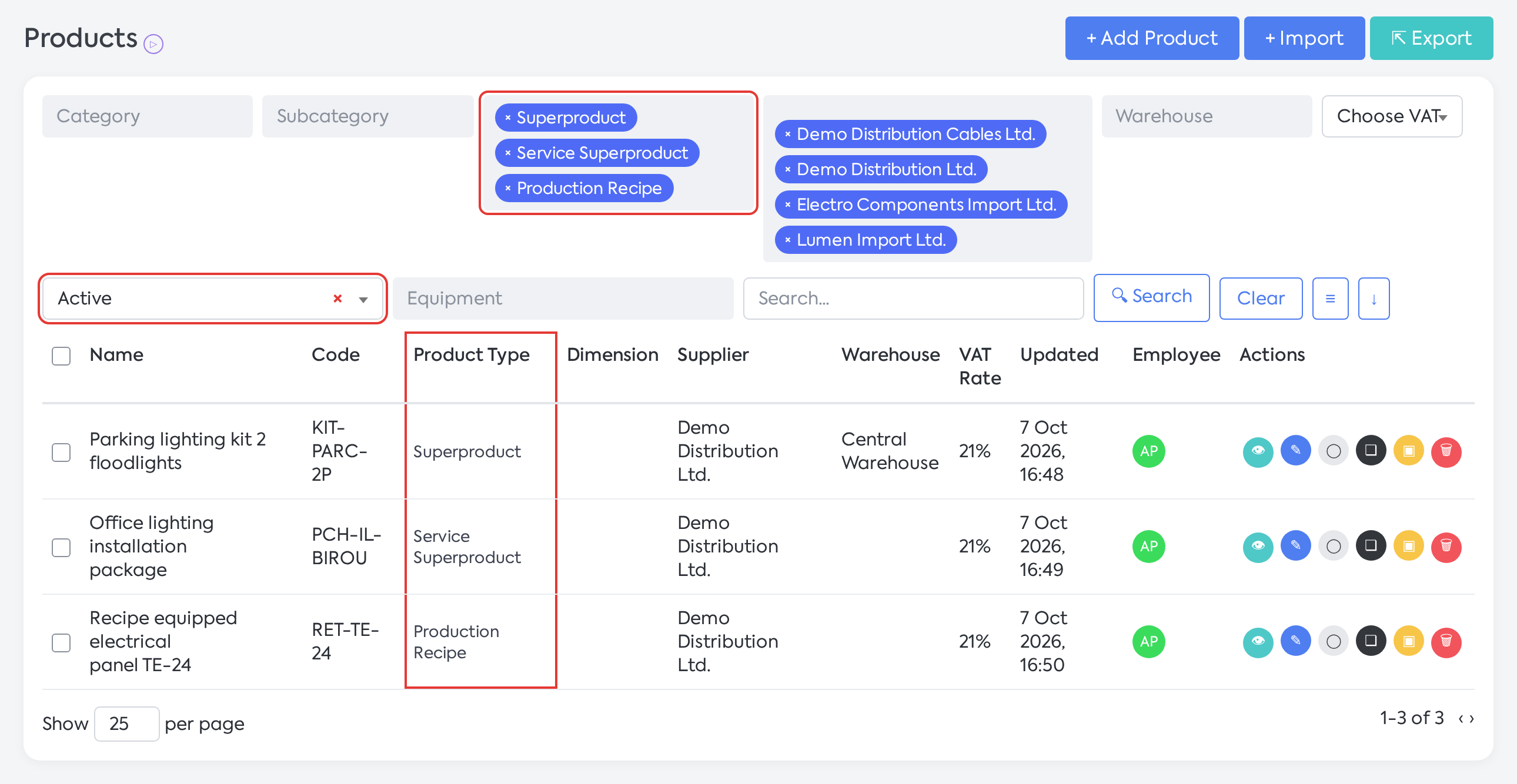
List filtered by composite types, with the Product Type column and the archive filter set to Active.
The Archived filter (formerly "Deactivated") has the options Active / Archived. Once added, it defaults to Active. Without this filter, the list also displays archived products.
The row actions are Product Details, Edit Product, Tags, eMAG, Clone Product, Delete Product, and, newly added, Archive or Unarchive. They depend on permissions: Delete Product requires the deletion right, and Clone Product requires the add right. The eMAG action only appears for products marked for eMAG.
A product that is the finished product of a recipe cannot be deleted ("... cannot be deleted, it is the finished product of recipe ..."); during bulk deletion, such a product is skipped. The advance payment product set in and products active in eMAG cannot be deleted either.
Export produces a file in the format of the General import template (see the import and export documentation).
11. Stock Page
On the page, only the Product, Superproduct, and Production Recipe types are displayed; services and service superproducts no longer appear. Recipes appear with the "Unlimited Stock" status, without a warehouse and without their own stock. The Product Type filter offers these three types, and the "Deactivated" filter is now called Archived.
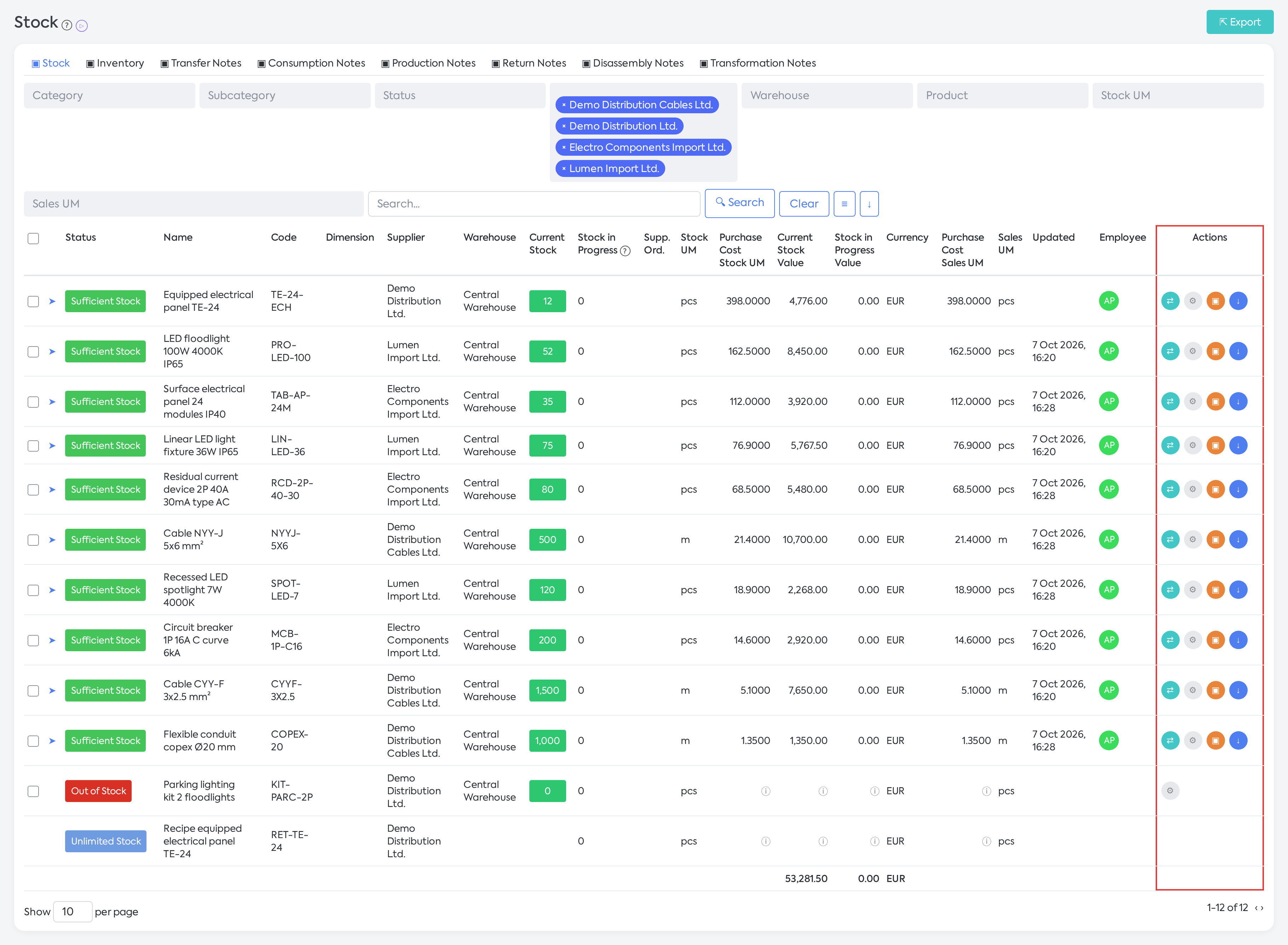
Stock page: services and service superproducts do not appear, and the row actions depend on the type.
The row actions depend on the type:
| Transfer | Transformation | Inventory | Export Stock History | |
|---|---|---|---|---|
| Before, any product | ● | ● | ● | ● |
| Product | ● | ● | ● | ● * |
| Superproduct | — | ● | — | ● * |
| Production Recipe | — | — | — | Usually does not appear (the recipe has no stock movements) |
* Export Stock History appears only if the product has a stock history and you have the rights to view the history and to export.
Bulk actions allow for mixed selections:
The checkbox for selecting all rows only checks simple products. Superproducts and recipes are checked individually.
Transfer is inactive if the selection contains a Superproduct or if the products are in different warehouses ("Action unavailable! The selected products belong to different warehouses."). When transferring, the product in the receiving warehouse is searched for by code and supplier.
Inventory is inactive if the selection only contains Superproducts ("Inventory is only allowed for products with stock."). For a mixed selection, Superproducts are omitted, with the message "The following products cannot be inventoried and have been omitted: ...", and if no products remain, the message "No product from the selection can be inventoried." appears.
Supplier Order is hidden if the selection contains a Superproduct.
A Superproduct without components cannot be transformed ("The Superproduct ... has no defined components; add components before transformation.").
Exporting from Stock (Export) no longer includes archived products and production recipes.
12. Bulk Editing
Step 1. In , check the products. The selection bar appears at the bottom, with the number of products for each type: Product, Service, Superproduct, Super Serv. and Recipe.
Step 2. If you want to work with only one type, press its counter (“Keep only in selection: …”). Only products of that type will remain in the selection.
Step 3. Press the button for the desired window: Organization, Price, Stock, Settings, Equipment or Tags. The buttons are icons, and their names appear on mouseover. An inactive button explains the types to which it applies, for example “Stock applies only to: … Restrict the selection to these types (click on a chip to the left of the bar).”.
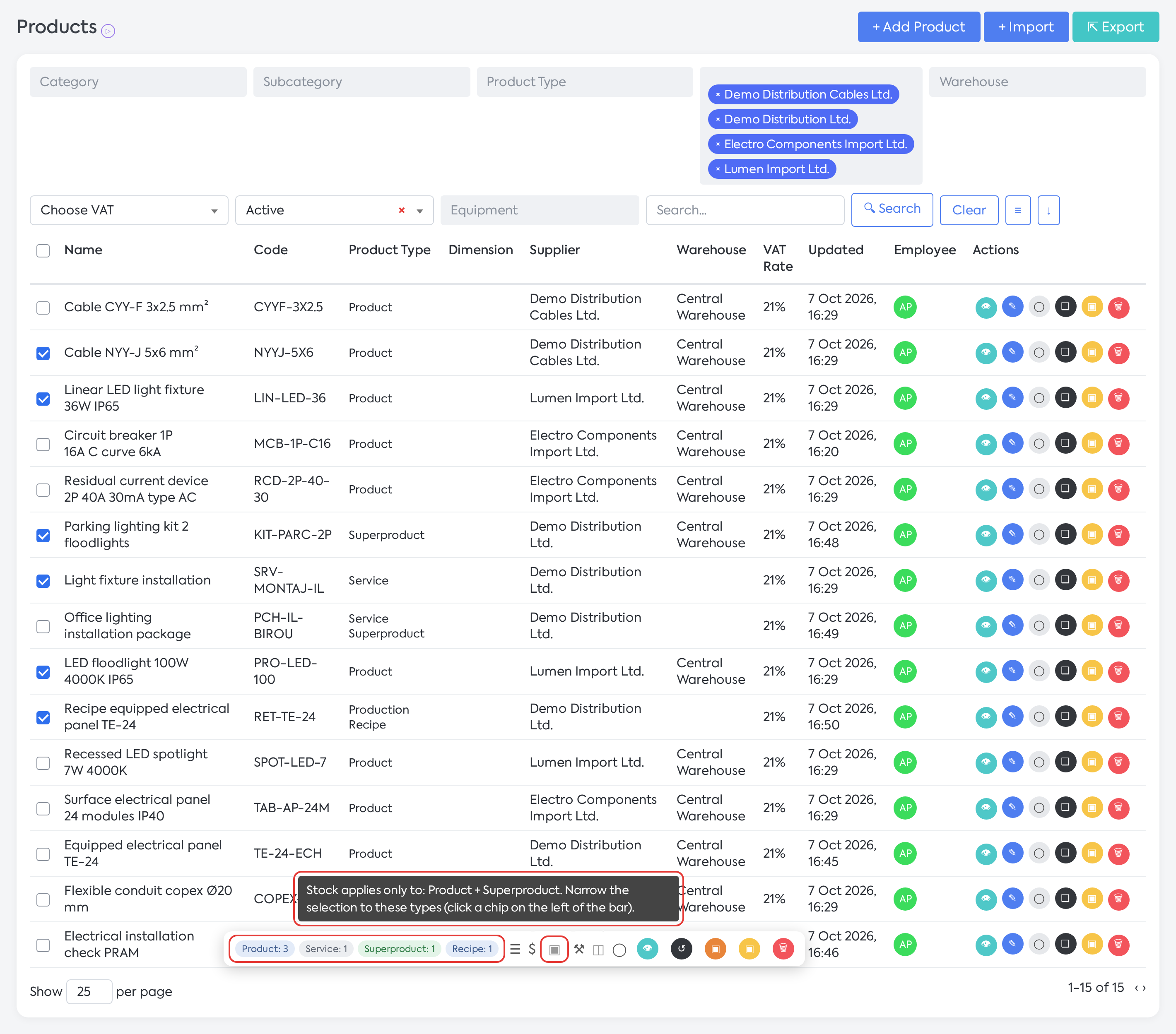
Selection bar: the counters per type and the explanation for the Stock button, inactive for the current selection.
The selection bar also has Selection Details (displays the type of each product as well), Reset Selection, Generate Document, Delete Products and, depending on the status of the selected products, Archive and Unarchive.
Step 4. In the Edit Selected Products window, fill in only the fields you want to change (an empty field will not be modified) and apply. At the end, the message “The changes have been applied to all N selected products.” or “The changes have been applied to X of N selected products.” appears, with a list of the unapplied fields.
In a mixed selection, a field that does not apply to all types remains visible but inactive, with a note about the types it applies to (for example “only Product + Service”). The window also displays the note “The deactivated fields do not apply to the product types in the current selection…”.
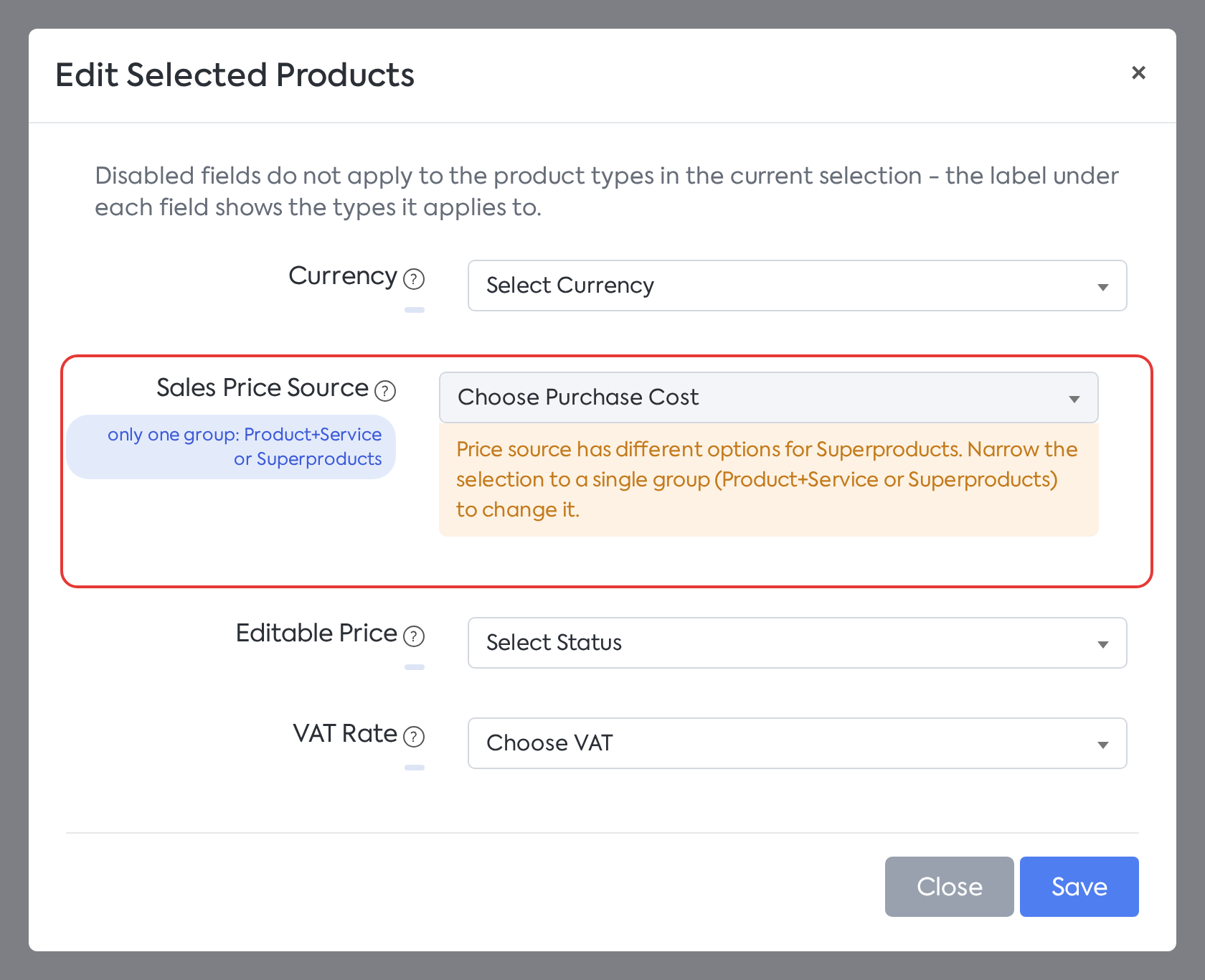
Editing the price for a mixed selection: Sales Price Source is inactive, with a note about the group it applies to.
| Window | Fields | Applies to |
|---|---|---|
| Organization | Category, Subcategory, Supplier | All types |
| Price | Currency, Sales Price Source, Fixed Price, Editable Price, VAT Rate | All types; Sales Price Source only if the selection contains a single group: either Product and Service, or composite types |
| Price | Large / Medium / Small Business Markup | Product, Service |
| Stock | Warehouse, Country of origin | Product, Superproduct |
| Stock | Minimum Stock Notification, Minimum Stock, Maximum Stock, Automatic Order, Send E-mail (new in bulk editing) | Product |
| Settings | Accounting Account, Show in Client Account, Recommended Product | All types, except Production Recipe |
| Settings | Exclude from Workflow, dimensions (Width, Length, UM) | Product, Service |
| Settings | Product Description | All types |
| Equipment | Use equipment (Activate / Deactivate) and the list of equipment | Product, Service |
| Tags | Tags | All types |
Rules:
Stock is active only if the selection contains only Product and/or Superproduct, and Equipment only if the selection contains only Product and/or Service.
For Price, in a mixed selection, Sales Price Source has the note “only a single group: Product+Service or Superproducts”.
The fields are cleared every time the window is opened.
Tags: the chosen tags completely replace the existing tags of the selected products.
Product Description overwrites the existing description.
resets the minimum and maximum stock and stops the automatic order. Minimum Stock, Maximum Stock, and Automatic Order only appear when Minimum Stock Notification is set to Activate, and Send E-mail only appears when Automatic Order is set to Activate.
Fixed Price applies only together with the “Fixed Price” source, requires a value (“Fill in the Fixed Price to be able to use the Fixed Price price source.”), and sets the markups to 0%. Markups only appear with the Purchase Cost or Last Purchase source.
Leaving Equipment empty does not change anything (previously, it would deactivate the equipment for all products). Activate replaces the existing equipment list and deactivates Exclude from Workflow. Deactivate deletes the equipment associated with the selected products, after a warning; if one of the products has equipment used in the workflow, the message “Warning!” appears and nothing is applied.
Warehouse / Supplier: if the move would create a duplicate (code + warehouse + supplier; for products without a code, name + warehouse + supplier), the warehouse or supplier is not changed for that product, while the other fields are applied. The “Warning!” window shows the number of omitted products.
13. What you'll see next
-
On the product page: the Product Type row, with the type's badge, and only the fields applicable to that type. On the details page, the "Deactivate Product" row is replaced by the Archived row (checkmark or X), with the explanation "When active, the product cannot be used in documents".
-
In the product list: the Product Type column and filter (after activation), the Archived filter, and the Archive / Unarchive actions.
-
In Stock: only the Product, Superproduct, and Production Recipe types, with the actions appropriate for each type.
-
On documents: the new checks for superproducts and the "Archived Product" message for archived products.
14. Rules and limits
Uniqueness of code and name
The code is unique for the code + warehouse + supplier combination: "A product with this code, warehouse, and supplier already exists.". Two products can have the same code in the same warehouse if they have different suppliers. Previously, the code was unique for the code + warehouse combination.
The name (checked only for products without a code) is unique among products without a code in the same warehouse and from the same supplier. Previously, it was unique throughout the entire catalog.
Validations on documents
On quotes, orders, opportunities, proforma invoices, invoices, and delivery notes:
A line item with a Superproduct, Service Superproduct, or Production Recipe without any component lines blocks saving: "… the super product … must include at least one child product!".
A line item with a Superproduct or Production Recipe without any component "with stock" blocks saving: "… the super product … must include at least one product with stock in its components!". The rule does not apply to Service Superproducts.
Invoices and delivery notes do not have a button to add components. A superproduct without components in the catalog (or a Superproduct with only services in its recipe) cannot be added directly to an invoice or delivery note. Add it to an order or quote, where components are added using Add Line.
The search for component lines does not return archived products or composite types.
Archived products
They can no longer be selected on documents—including, now, on GRNs, supplier orders, transformations, transfers, as a Finished Product, and on component lines.
They block saving existing documents that contain them ("Archived Product").
They remain visible in Products and Stock and can be filtered using Archived; they do not appear in the client account.
They do not appear in the export from the Stock page.
Purchasing, workflow, and integrations
Composite types cannot be selected on GRNs; only Product and Service types can be selected on supplier orders. The automatic supplier order can only be configured for the Product type.
Composite types are always excluded from the workflow; only their components go through the workflow.
eMAG: A Production Recipe cannot be published. An eMAG order containing a superproduct without components or without a component with stock will no longer be imported and will remain as "Only Registered".
e-Invoice (generating the order from an auto-invoice): the product is searched by code or name, under the supplier from the invoice. If the supplier from the invoice is not recognized, a unique match by code or name from any supplier is accepted. If there is no unique match, a new product of the Service type is created in the "Auto-invoice" category and subcategory.
Public forms reject superproducts without components or without any component with stock.
Transition to the new mechanism
Upon update, existing products were automatically assigned a type:
| Existing configuration | Assigned type |
|---|---|
| No components, Unlimited Stock off | Product |
| No components, Unlimited Stock on | Service |
| With components, Unlimited Stock off, with warehouse | Superproduct |
| With components, no warehouse or with Unlimited Stock on | Service Superproduct |
| Superproduct with "Allocate Finished Product Stock" filled in, which respects the new rules | Production Recipe |
Superproducts with "Allocate Finished Product Stock" (including those with Unlimited Stock on) became Production Recipes if they met the new rules: their own stock is 0, they have a valid finished product, the same unit of measure, only one superproduct per finished product, and a code that is not duplicated by another product.
For the resulting recipes, the fields that do not apply to the type were cleared: warehouse, Accounting Account, Show in Client Account, Recommended Product, the eMAG option, and the minimum stock and automatic order settings.
Superproducts with allocation that did not meet these rules kept their type and did not become recipes. For these cases, please contact the support team.
Deactivated products became archived. The "Deactivated" filter became Archived and remains active for those who were using it; the old "Superproduct / Standard Product" filter has been removed.
15. After updating: what to check
Activate the Product Type filter and column and check the type of each product. If a product has been assigned the wrong type between Superproduct, Service Superproduct, and Production Recipe, contact the support team. Between Product and Service, create a new product of the correct type.
Check the superproducts whose recipe contains only services. As a Superproduct, they can no longer be saved with this recipe and are blocked on documents. Add a component with stock or empty the recipe; if the product should be a Service Superproduct, contact the support team.
Check the archived products (formerly deactivated) that still have stock. They can no longer be used on documents and do not appear in the export from Stock.
Check the production recipes resulting from the old finished product allocations. For superproducts with allocation that did not become recipes, contact the support team.
16. Settings and permissions
-
There are no new permissions or settings.
-
Creating products (including the choose product type window) requires the permission to add products.
-
Archiving, unarchiving, and bulk editing require the permission to edit products.
-
The existing My Company setting () is required for internal orders with a Production Recipe and for the automatic production order proposal.