
1. In short
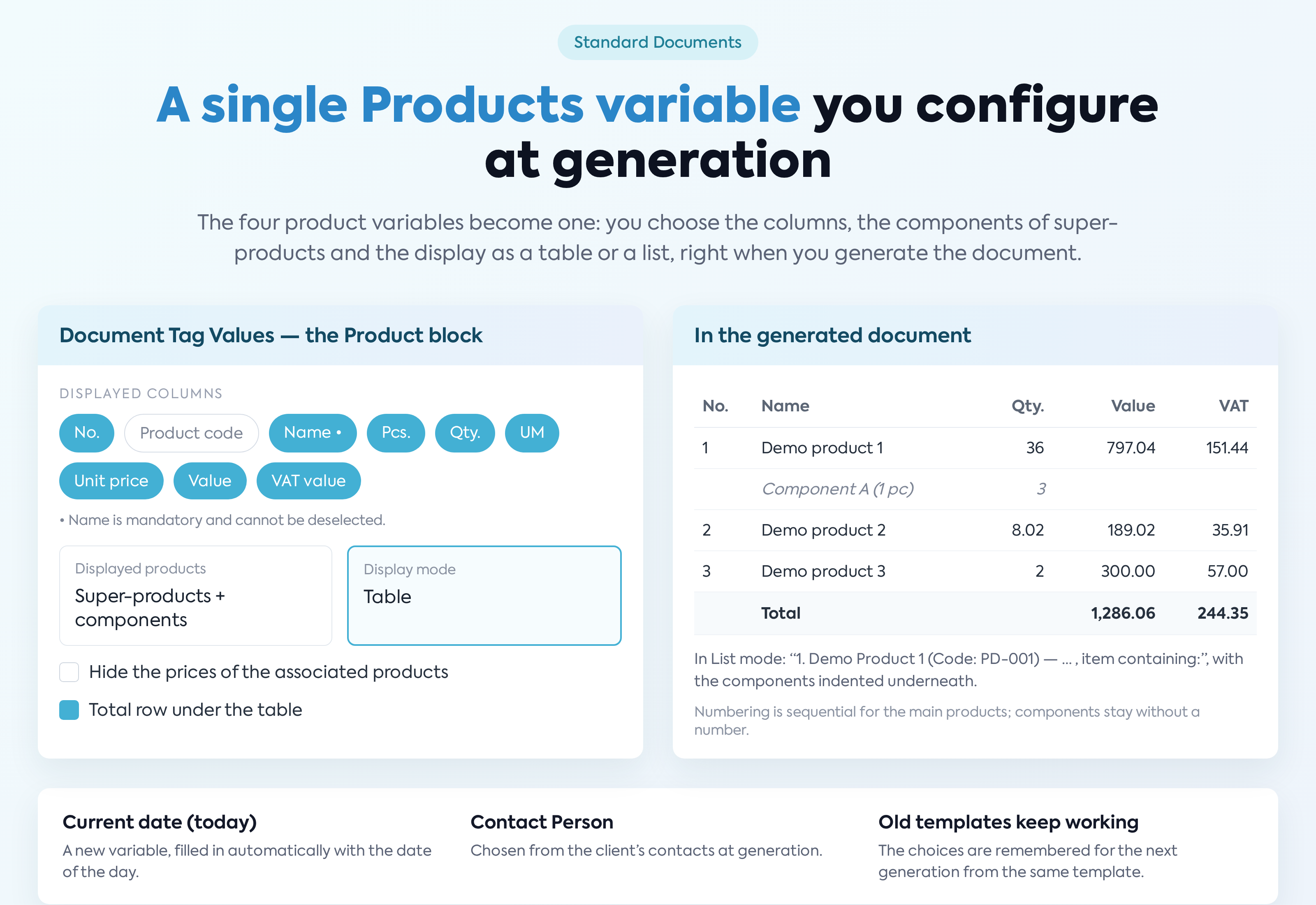
The four product variables in standard templates (Products, Products without Association, Products with Prices, Products with Prices without Association) are replaced by a single Products variable, configurable at every generation: the displayed columns, the inclusion of super-product components, the display as a table or a list and the additional options. Two new predefined variables appear — Current date (today) and Contact Person — and the choices made at generation are remembered for the next generation from the same template. Product numbering in the table is corrected.
Standard Documents — a single Products variable, configurable at generation: displayed columns, super-product components, table or list.
The feature is used by those who create standard templates and by those who generate documents from them; a single template can now produce the product table in the desired form, without separate “with prices” or “without association” templates.
2. Where to find it
- → the template editor → the Variable Fields panel
- → generating a new document → the Document Tag Values window (opens automatically)
- generating standard documents directly from quotes, orders, invoices and clients → the Document Tag Values window
3. Before you start
- To edit templates and generate documents you need the existing Standard Documents permissions (add / edit); for consultation, the view permission.
- The Product block appears only if the template contains a product variable and the section is Quote, Order or Invoice.
4. Inserting the variables into the template
Step 1. Open and create a new template or open an existing one for editing (Quote, Order or Invoice section).
Step 2. In the Variable Fields panel, find the new and the renamed variables:
- Current date (today) — in the Predefined Fields group, for all sections; it is filled in automatically at generation with the date of the day (dd/mm/yyyy), with no intervention.
- Contact Person — in the Predefined Fields group; at generation it is chosen from the client’s contact persons, and only the name is inserted in the document.
- Source document date — the new name of the Date variable in the Document Details group (the date of the quote, order or invoice).
- Products — the only product variable in the Document Details group (Quote, Order, Invoice sections), described as “Configurable list of products (columns, super-products, table or list)”.
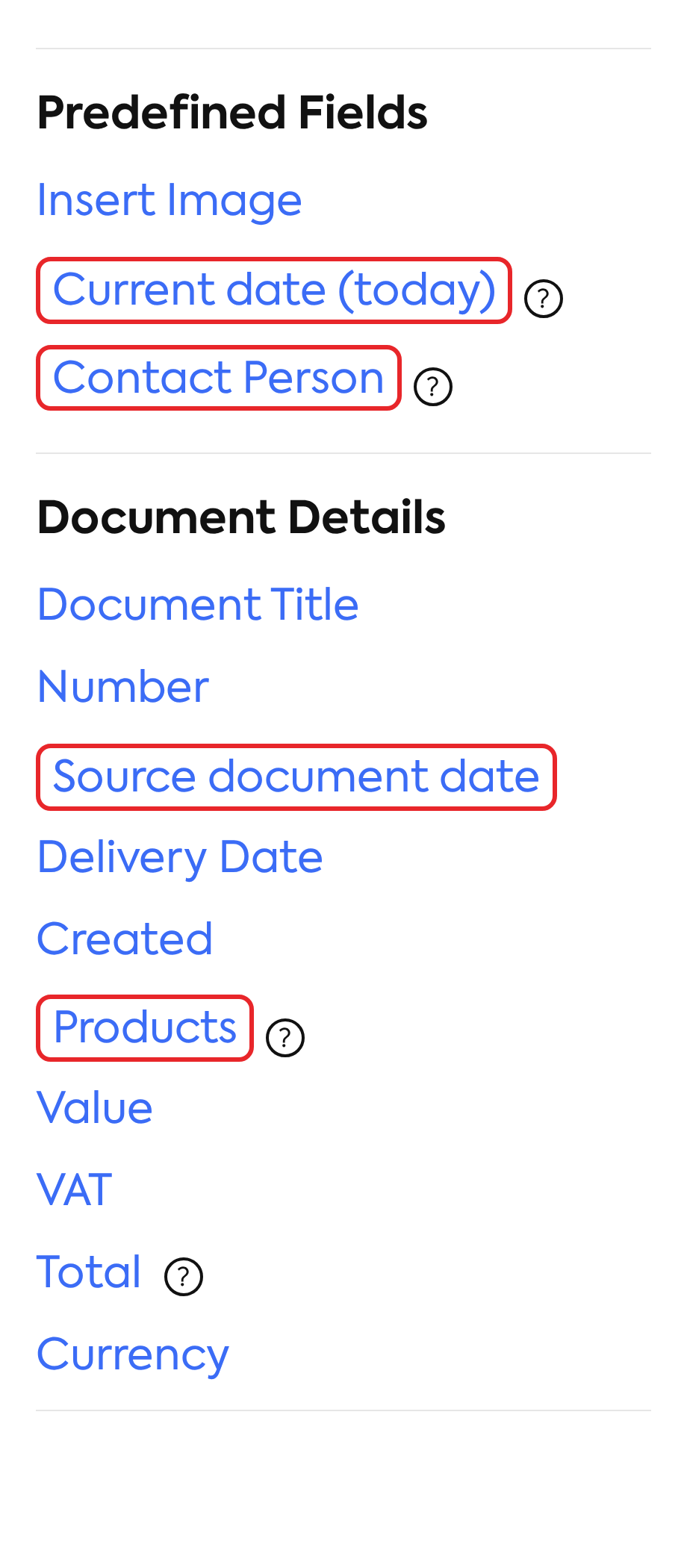
The Variable Fields panel: Current date (today), Contact Person, Source document date and the single Products variable.
Step 3. Place the cursor in the template content and press the variable you want (Products, Current date (today), Contact Person) to insert it.
Step 4. Save the template.
5. Configuring the Product block at generation
Step 1. Generate a new document from the template (from or directly from the quote, order or invoice you want). The Document Tag Values window opens automatically.
Step 2. In the Product block, configure the options below. The choices apply to all the product variables in the document.
| Field | What you fill in | Mandatory |
|---|---|---|
| Displayed columns | Toggle buttons: No., Product code, Name, Pcs. (only for Quote and Order), Qty., UM, Unit price excl. VAT, Value, VAT value. All selected by default. | Yes — Name cannot be deselected |
| Displayed products | Only super-products (default) / Super-products + components. Shown only if the source document contains super-products with components. | No (has a default value) |
| Display mode | Table (default) / List. | No (has a default value) |
| Hide the prices of the associated products | Checkbox: the components appear only with name and quantities. Visible only if there are super-products and at least one price column is selected. | No |
| Total row under the table | Checkbox: the total for Value and VAT value. Visible only in Table mode. | No |
| Product Name | Name (default) / Alias / Description. The list appears immediately under the Product block. | No (has a default value) |
Note: the Name button cannot be turned off (it stays selected when pressed). If at Apply there is no valid column selection, the platform shows “Select at least one column. Name is mandatory.”.
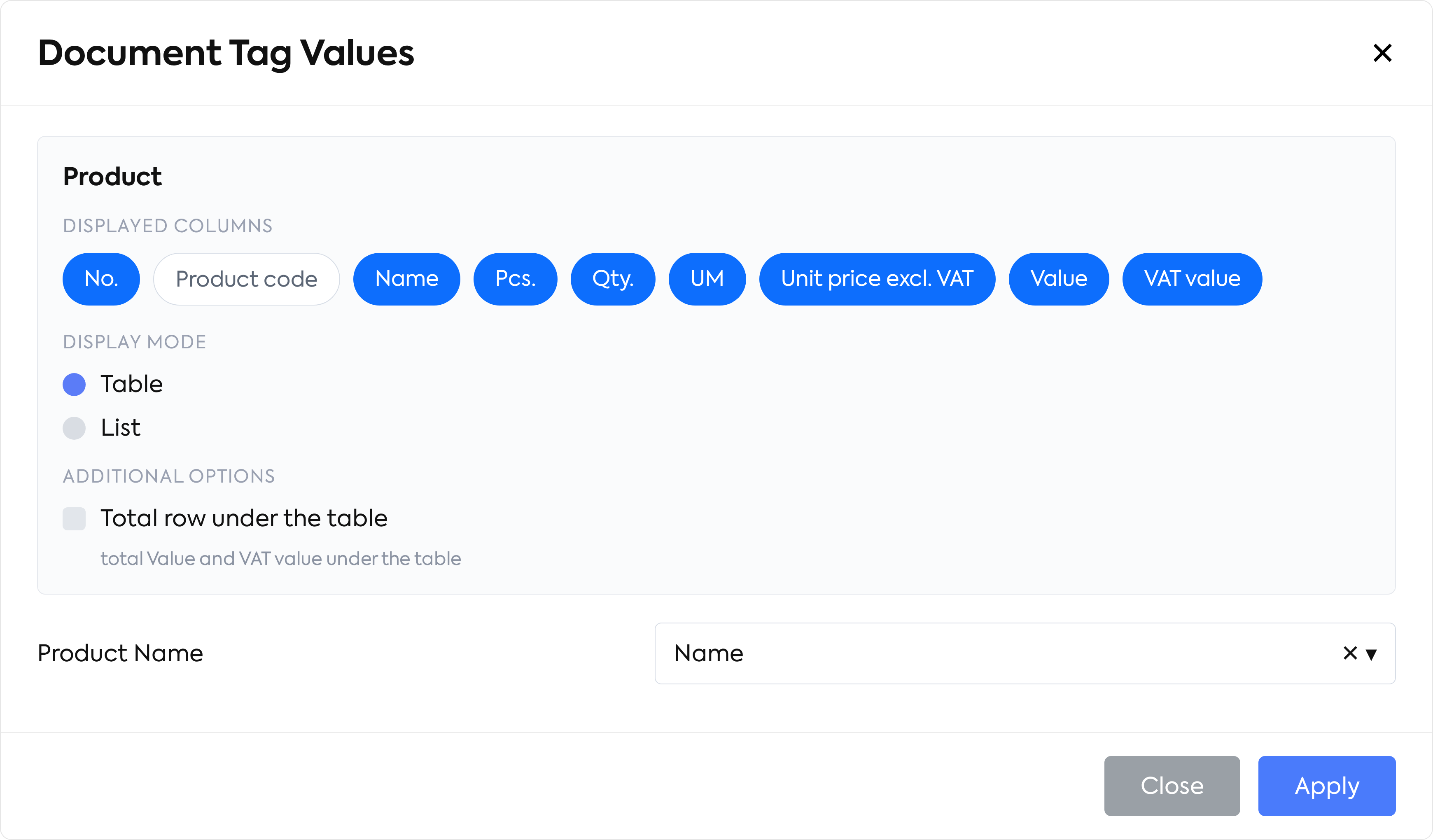
The Document Tag Values window, with the Product block: displayed columns, displayed products, display mode and additional options.
Step 3. Fill in the rest of the window: the new Contact Person field (the client’s contact persons, in the format “First name Last name - Role”, optional) and the existing fields (bank, payment method, delivery address, custom fields, images).
Step 4. Press Apply. The platform builds the product table or list and replaces the variables in the document.
Note: on error the message “The products could not be generated.” appears.
Note: the configuration of the Product block is remembered per user and per template — at the next generation from the same template, on the same computer and browser, the window opens with the latest choices. The contact person is remembered per user and per client. The memory is local, in the browser: it is not synchronised between computers and is not saved on the server.
6. The result in Table mode and in List mode
Table mode
Step 1. Open the document generated with Display mode: Table. The table has a header with the chosen columns and one row per product, with the font of the variable in the template. No. is sequential (1, 2, 3 …) only for top-level products; the component rows have an empty number. The total row appears only if at least one of the Value / VAT value columns is selected and it sums only the top-level products.
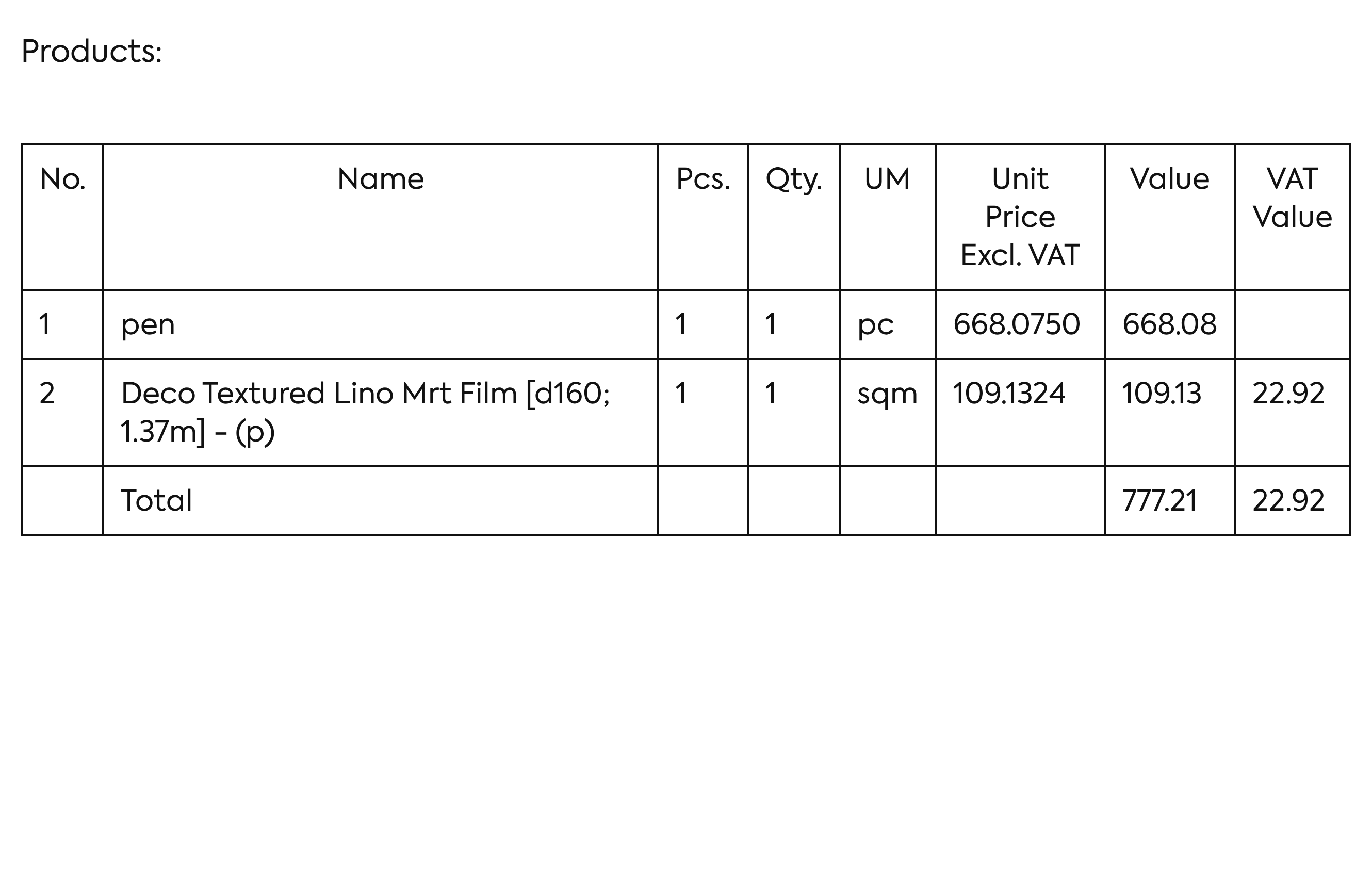
The generated document in Table mode: sequential numbering for the top-level products, the component without a number and the total row.
Note: previously the line number from the source document was used, which left gaps when the components were hidden.
List mode
Step 2. Open the document generated with Display mode: List. There is one line per top-level product, of the form “1. Name (Code: …) — 2 pcs — 10 m — Unit price: … — Value: … — VAT: …”, with the elements corresponding to the chosen columns (empty values are omitted). With Super-products + components, the super-product line ends with “, item containing:”, and the components appear underneath, indented and preceded by “–”, with no current number.
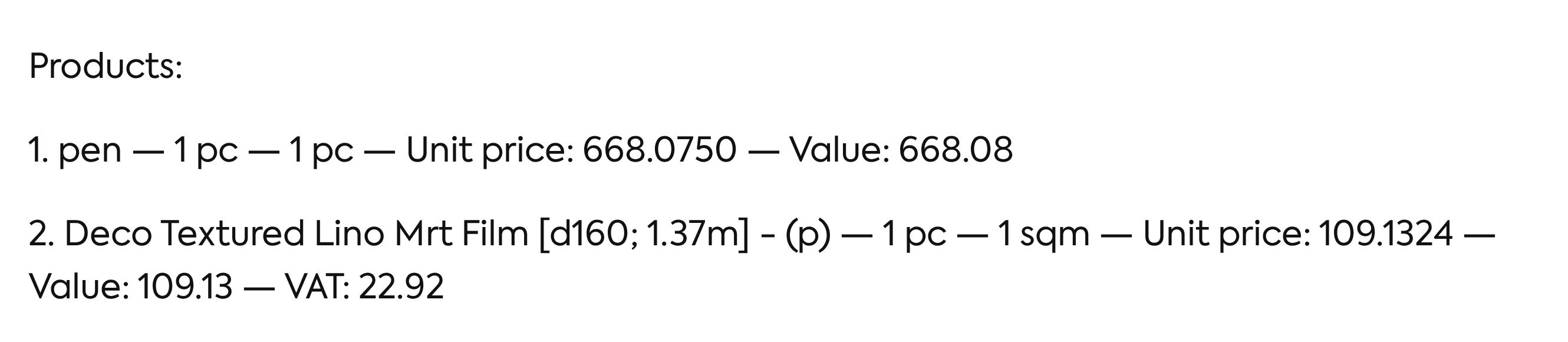
The generated document in List mode, with a super-product and its components indented underneath.
7. What happens to the old templates
Step 1. Generate a document from an existing template that contains one of the old variables (for example Products with Prices without Association). The template keeps working, without changes.
Step 2. In the Document Tag Values window the same Product block opens, with a proposal that reproduces the old variant (all of them without Product code, in Table mode):
| Old variable | The proposal in the Product block |
|---|---|
| Products | the columns without prices, Super-products + components |
| Products without Association | the columns without prices, Only super-products |
| Products with Prices | the columns with prices, Super-products + components |
| Products with Prices without Association | the columns with prices, Only super-products |
Step 3. Change the proposal if you want and press Apply.
Note: the default values of the block are the ones in chapter 5, overwritten by the remembered configuration or by the old variant of the variable.
8. What you see afterwards
- In the Variable Fields panel: the Current date (today), Contact Person, Source document date variables and the single Products variable.
- In the Document Tag Values window: the Product block (columns, displayed products, display mode, additional options, product name) and the Contact Person field.
- In the generated document: a table or a list of products according to the configuration, sequential numbering for the top-level products, a total row (only in Table mode), the date of the day in place of the Current date (today) variable and the name of the contact person.
9. Rules and limits
- The Product block appears only if the template contains a product variable and the section is Quote, Order or Invoice; the choices apply to all the product variables in the document.
- Name cannot be deselected; on an invalid column selection the message “Select at least one column. Name is mandatory.” appears.
- Pcs. is available only for Quote and Order.
- Displayed products appears only if the source document contains super-products with components; Hide the prices of the associated products only if there are super-products and at least one price column is selected; Total row under the table only in Table mode.
- The total row appears only if at least one of the Value / VAT value columns is selected and it sums only the top-level products.
- No. is sequential for the top-level products; components have an empty number.
- The choices are remembered locally, in the browser (per user and per template; the contact person per user and per client); they are not synchronised between computers and are not saved on the server.
- Templates with old variables keep working, with a proposal that reproduces the old variant.
- Previously generated documents are not changed; the sequential numbering may change the look of the tables compared with old generations from the same template.
- On a generation error the message “The products could not be generated.” appears.
10. Settings and permissions
There are no administrative settings. The default values are the ones described in chapter 5, overwritten by the remembered configuration or by the old variant of the variable. The permissions remain the existing ones on Standard Documents:
- add / edit — for templates and generation;
- view — for consultation.
11. Impact in other modules
- / Orders, Invoices, Clients: when standard documents are generated directly from these modules, the same Document Tag Values window opens, with the Product block and the Contact Person field.
- : previously generated documents are not changed.