
At a glance
The product import from file has been redesigned for the new product types. The import page offers five file templates, each with a PDF guide, and supports .xlsx, .xls, and .csv files. The platform recognizes existing products by ID or by code, warehouse, and supplier. Before importing, you can see errors, warnings, and lines to confirm. At the end, a result page shows how many products were created, updated, failed, or skipped.
The product list export now has the same format as the General import template and includes the ID for each product. This makes it easy to bulk update prices, categories, codes, or settings: Export → modify in Excel → Import.
| Before | Now | |
|---|---|---|
| File templates | A single template, with the header translated into the user's language | Five templates (General, Product, Service, Superproduct, Service Superproduct), each with a PDF guide |
| Supported formats | .xlsx | .xlsx, .xls, and .csv |
| Product type | The “Unlimited Stock” column | The Product Type column, mandatory for new products |
| Identifying existing products | Code + warehouse; without code, name + warehouse | ID; without ID, code + warehouse + supplier; without code, name (only among products without a code) |
| Changing the code, warehouse, supplier | The code and warehouse could not be changed; the supplier was overwritten | All three can be changed, on rows that have an ID |
| Empty cell on update | The yes/no columns would become “no” | The value remains unchanged in all columns |
| Column mapping | The Reset mapping button | For a different mapping, stop the import and start a new one |
| Before import | Only errors | Errors, warnings, and lines to confirm |
| End of import | Return to the product list | Result page: Created, Updated, Failed, Skipped |
| Negative values | The sign was removed | Rejected in the Purchase Cost, Fixed Price, Initial Stock, and Initial Stock Unit Book Value columns |
| VAT Rate | Optional (the default rate was used) | Mandatory for new products |
| Superproducts | Could not be created via import | Can be created, without a recipe |
| Non-existent categories, suppliers, warehouses | Created automatically, without a warning | Created automatically, with a warning; any that remain unused are deleted at the end |
| List export | Without ID, translated header | General template format, with ID, header in Romanian |
Where to find it
— the Import Products page, with the Upload · Mapping · Analysis · Result steps.
— the list export, in the General template format.
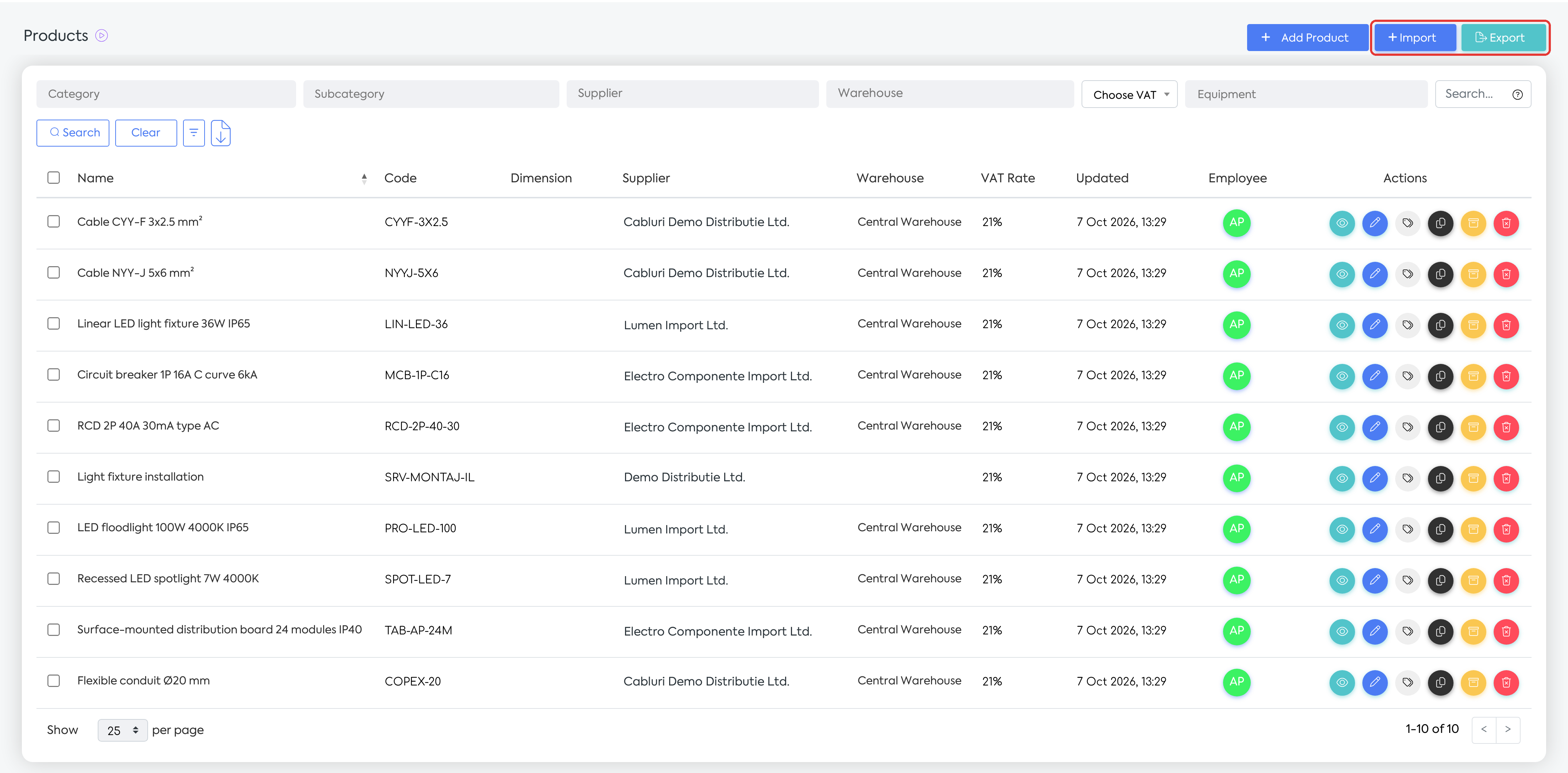
: the Import and Export buttons.
Before you start
Importing requires the permission to add products. Exporting requires both the permission to add products and the Export Lists permission; the Export button only appears if you have both.
Read the Products — choosing the product type and the new product page documentation: the type of each new product must be specified in the file.
The units of measure, currencies, VAT rates, and equipment used in the file must already exist in the platform.
For mass updates, start with the file exported from the platform: it contains the ID for each product.
Importing products from a file
Step 1. Open and click Import. The Import Products page opens, at the Upload step.
Step 2. In the 1. Download a template section, choose the appropriate template. Click Download sample file for the Excel file and, if you wish, Download guide for the PDF guide, with the mandatory fields and import rules.
| Template | What it's used for | Columns |
|---|---|---|
| General — all types | All types in the same file; recommended for bulk updates and for re-importing an export | All 38 columns |
| Product | Items with stock management | All 38 columns |
| Service | Services, without stock | 30 columns, without warehouse and stock management |
| Superproduct | Composite products, with their own stock; the recipe is configured in the platform | 23 columns |
| Service Superproduct | Packages without their own stock; the components are configured in the platform | 20 columns |
Step 3. Fill in the file. Delete the demonstration rows from the template; otherwise, the "Demo" products from the example will also be created. You can also upload your own file (e.g., the list received from a supplier): its columns can be matched in the next step.
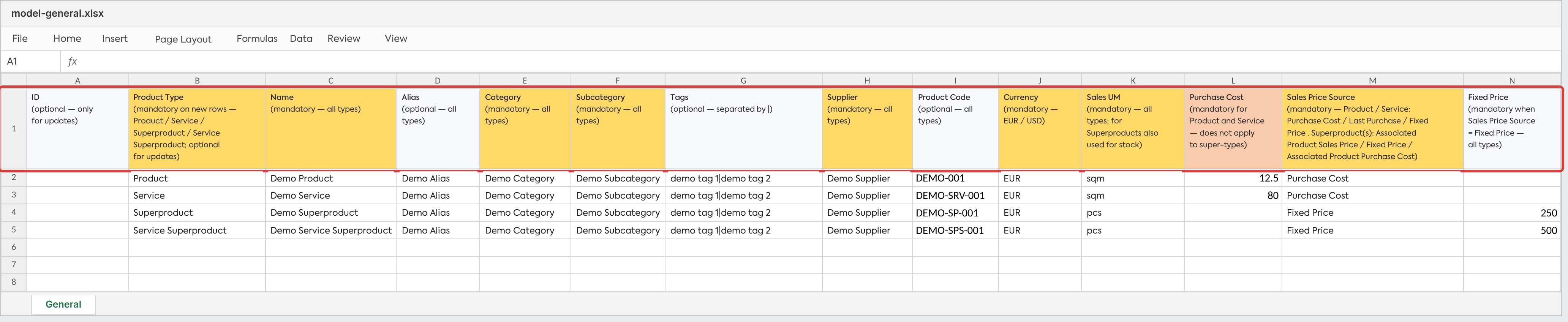
The General template open in Excel: the header is colored by column type, and each header cell explains the column's rule.
Step 4. In the 2. Upload the file section, drag the file into the Drag the file here area or choose it from your computer, then click Continue.
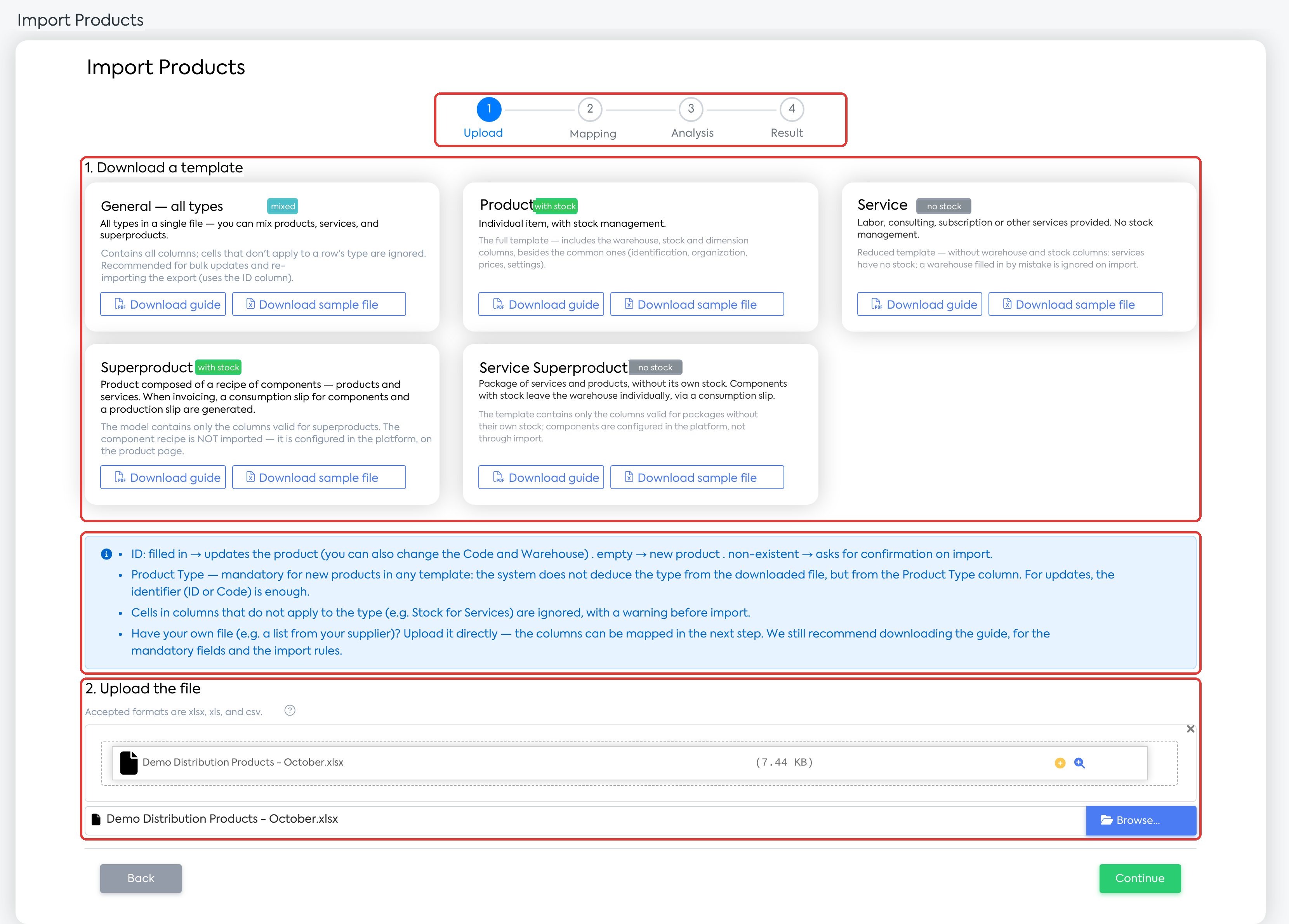
The Upload step: the five templates, the box with the main rules, and the file chosen for import.
Step 5. At the Mapping step, for each iFlows field, check the corresponding column from your file or choose “— do not import —”. Columns are automatically recognized by name. The title shows how many fields are mapped, and the yellow box lists the unmapped columns from the file, which will be ignored. Click Continue.
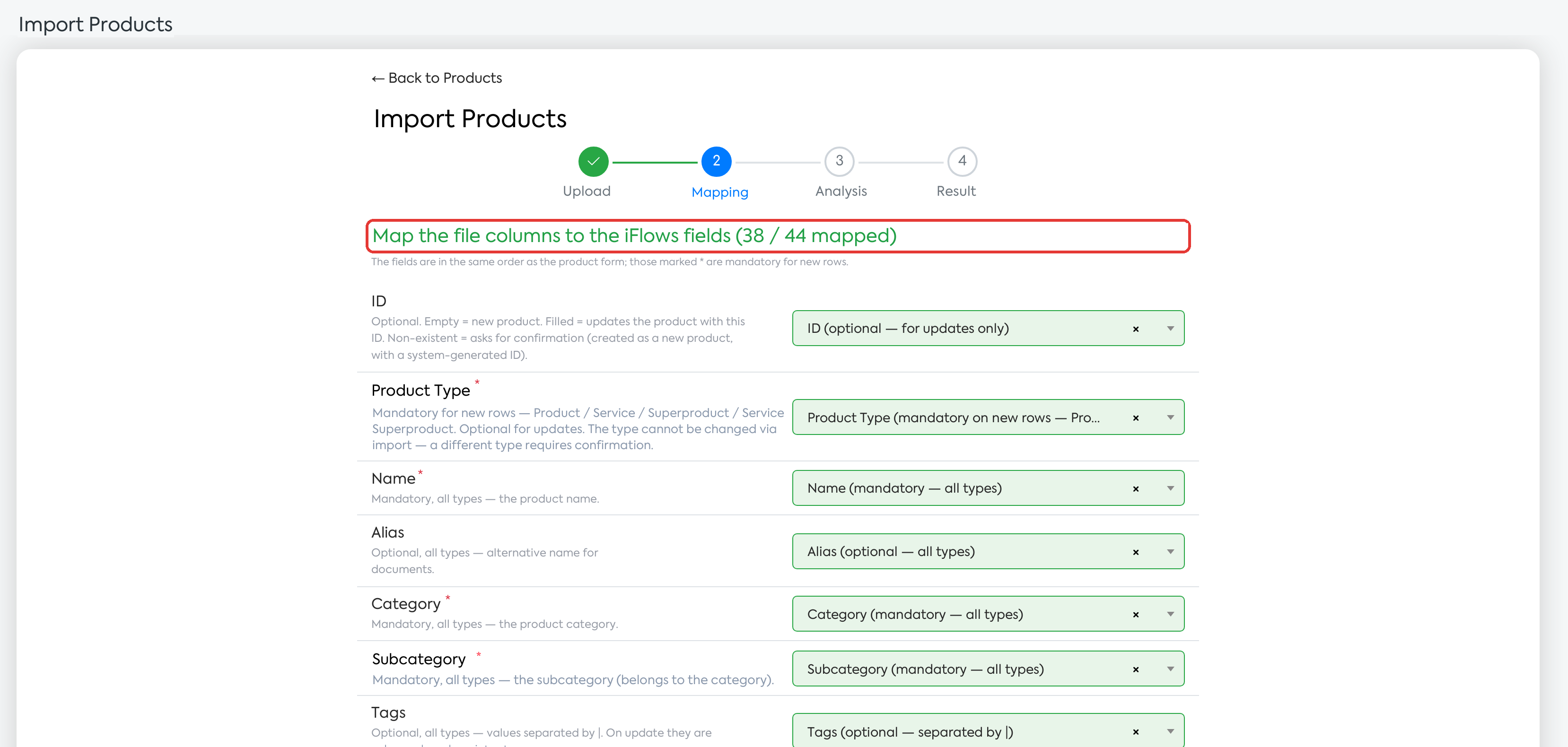
The Mapping step: the title shows how many iFlows fields were automatically mapped (38 out of 44).
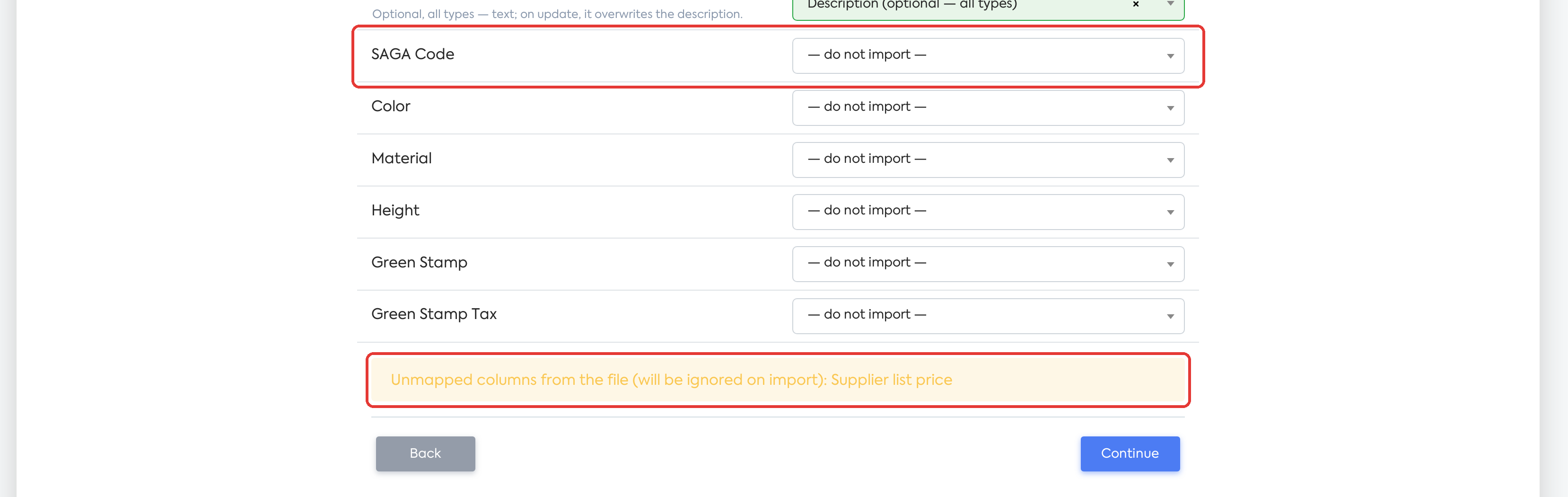
Fields without a column in the file remain on “— do not import —”; the yellow box shows the column from the file that will not be imported.
Important: The Back button on the Mapping page stops the import. The ← Back to Products link does not stop it: the import remains active, and you cannot start another one until you click Stop or until 24 hours have passed.
Step 6. At the Analysis step, wait for the verification to finish. The Processed Lines, Products to be imported, and, if any, Lines with Errors, Lines with Warnings, and Lines to confirm counters will appear, followed by their corresponding tables.
“Products with errors cannot be imported. The lines contain incorrect values!” — lines with errors are not imported. The message appears in the cell of the incorrect field.
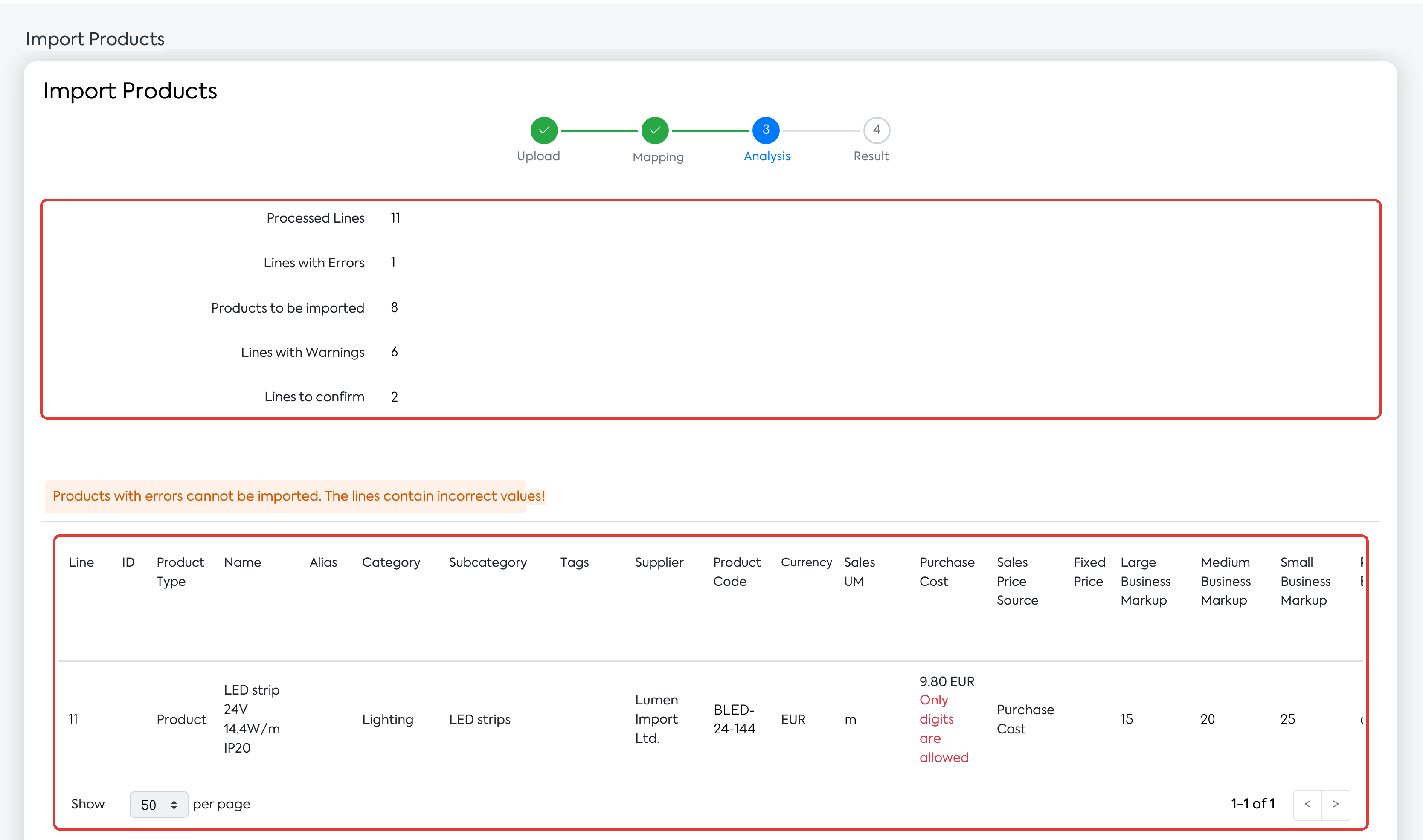
The Analysis step: the counters and the line with an error; the message appears in the cell of the incorrect field (here, a cost written as text).
“The lines below contain ignored values. The products will be imported.” — warnings do not block the import.
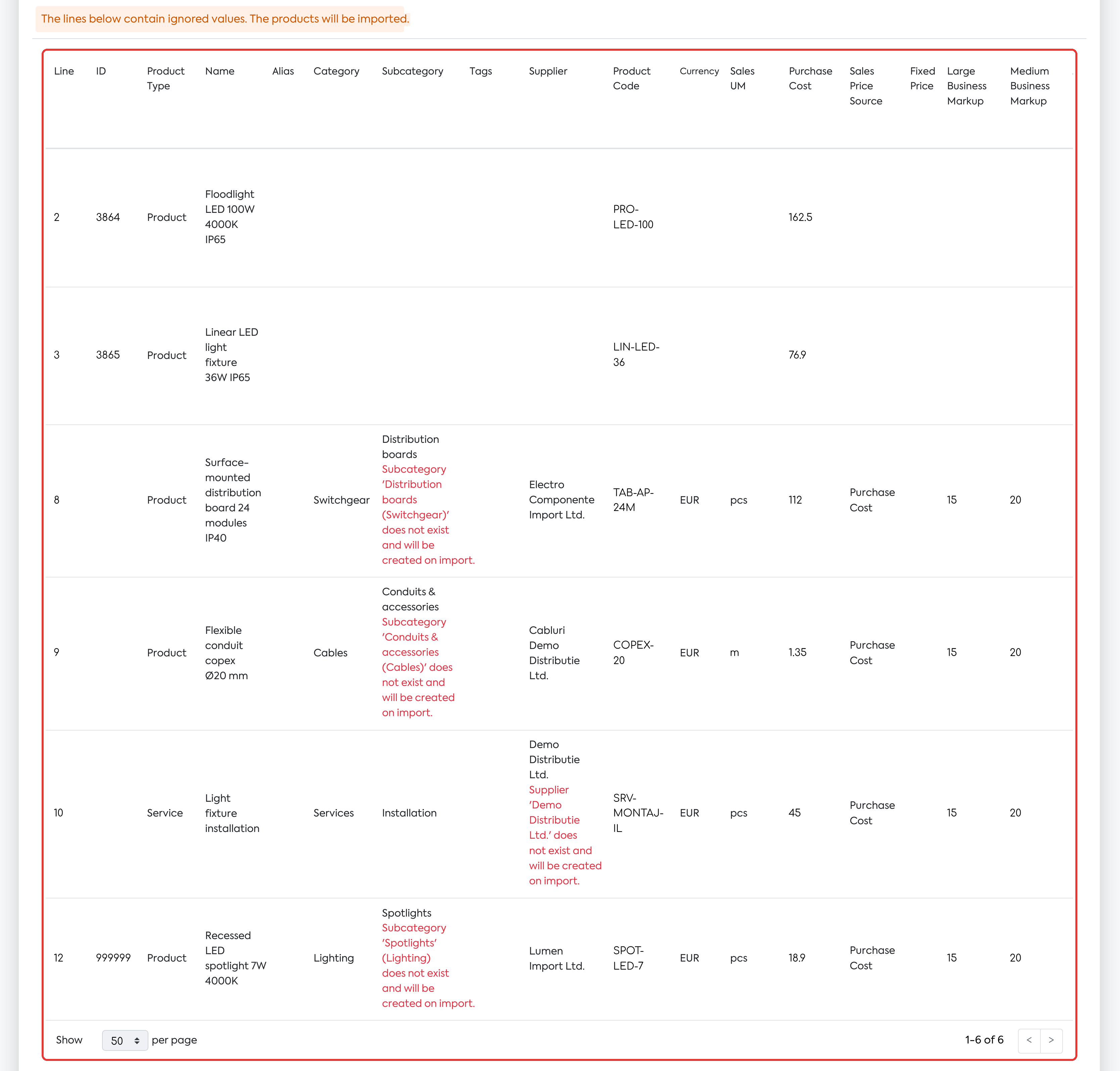
Lines with warnings: non-existent subcategories and suppliers will be created upon import, and values that do not apply are ignored.
Step 7. In the “Confirm the lines below to import them. Unchecked lines will be skipped.” table, uncheck the rows you do not want to import in the Confirm column (e.g., a non-existent ID or a type different from the existing product). Unchecked lines will become “Skipped”.
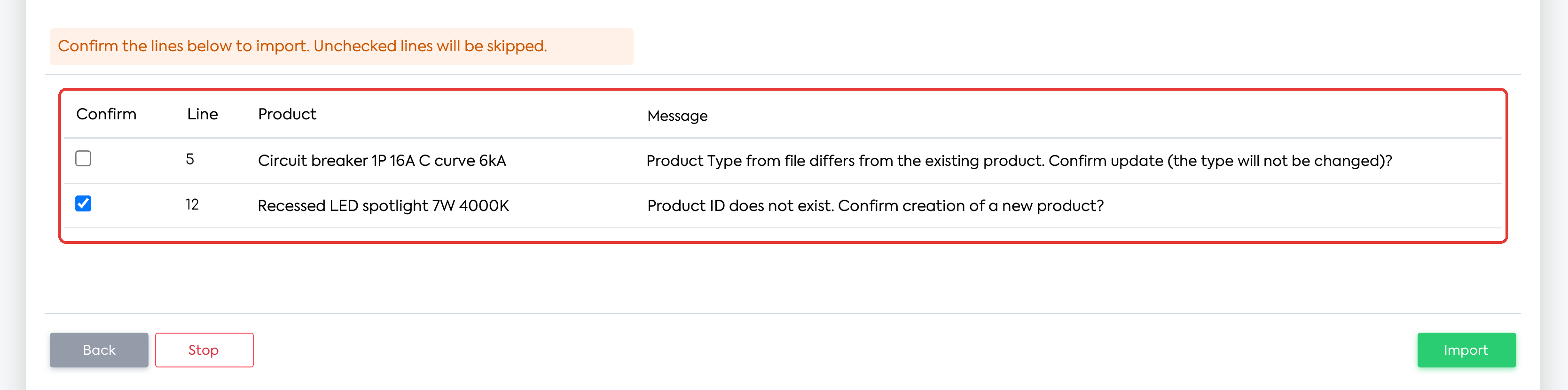
Lines to confirm: the line with a type different from the existing product is unchecked and will not be imported; the product with a non-existent ID will be created.
Step 8. Click Import (or Stop to cancel). If the import modifies the stock of existing products, the “The stock of the following products will be modified!” page appears first, with the Product, Current Stock, and Import File Stock columns. Click Import to confirm.
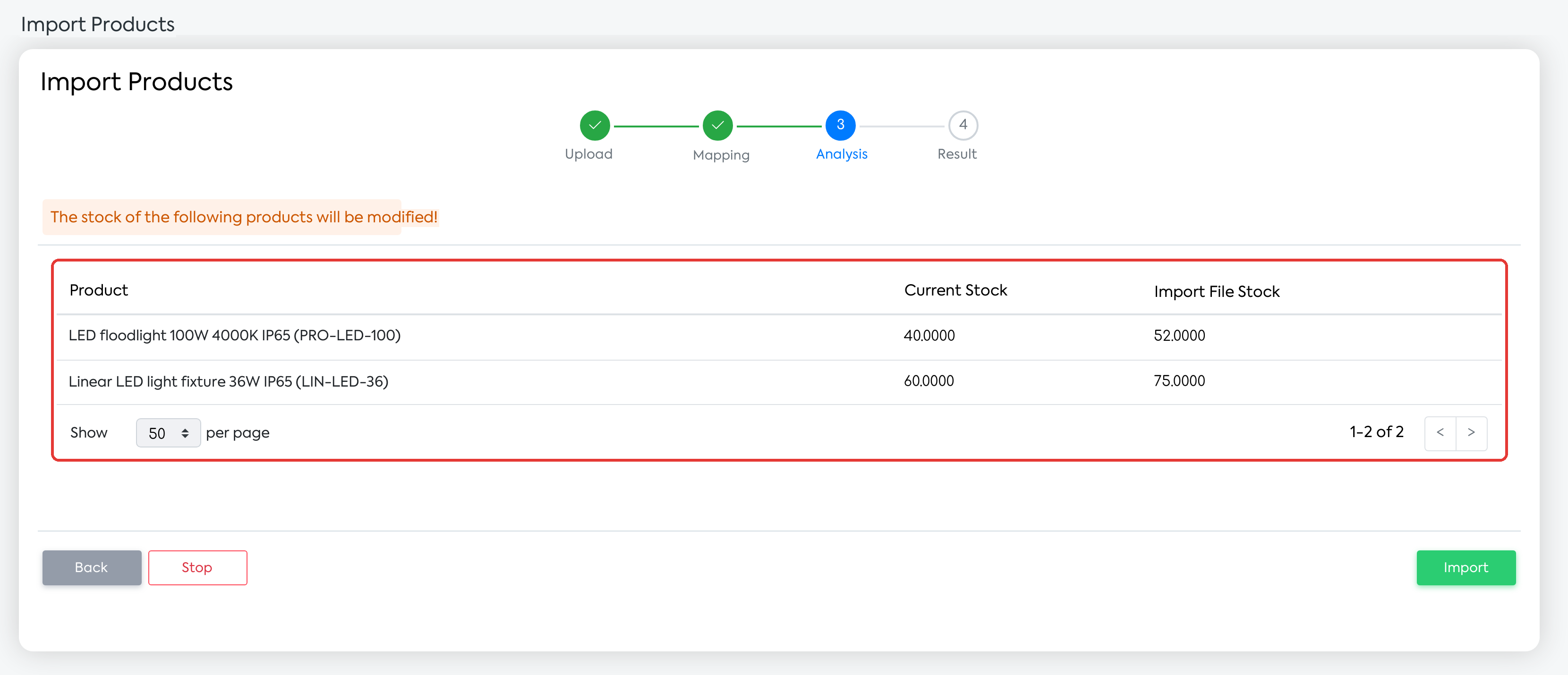
Confirming the stock modification, showing the current stock and the file stock, before the import.
Step 9. At the Result step, check the counters and the failed lines, then click New import or Back to Products.
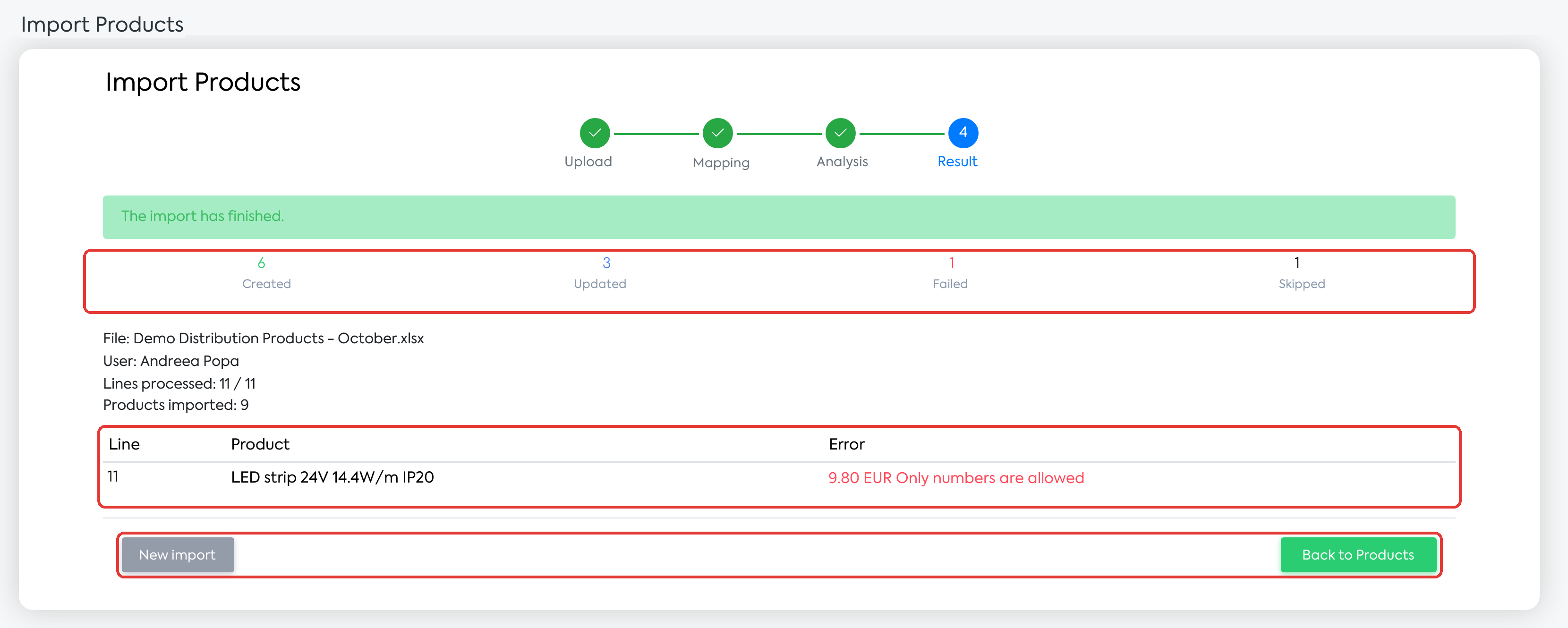
The Result step: 6 products created, 3 updated, 1 failed, and 1 skipped, with the error for the failed line.
Note: The analysis runs in the background, and the page can be closed. Return to Import Products and click Continue on the Import in progress card. As long as the analysis is running, the Back button leads to the product list; on the analysis results page, it leads to the import start page. In both cases, the import remains active.
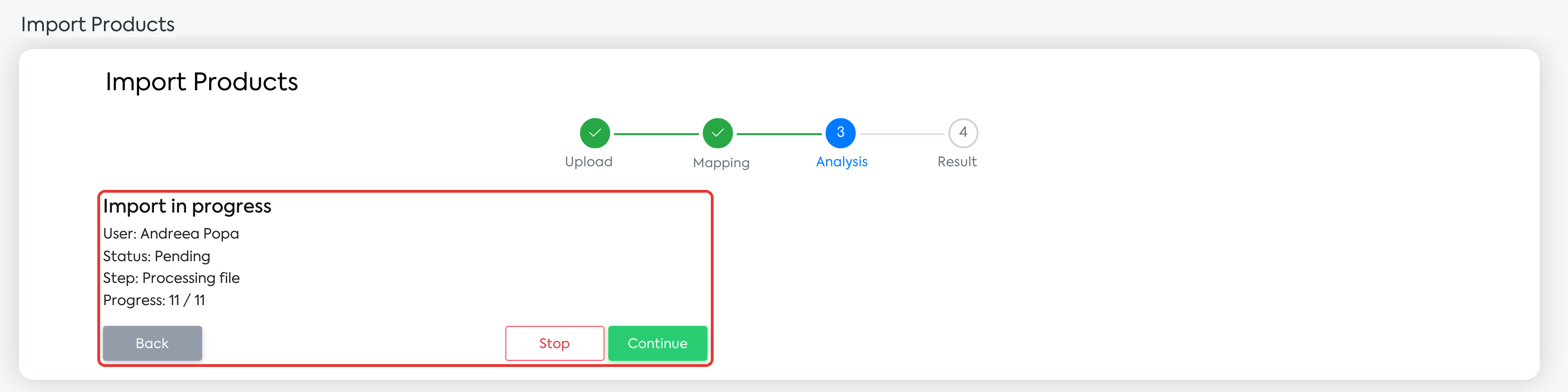
The Import in progress card, showing the user, status, step, progress, and the Back, Stop, and Continue buttons.
Bulk update via export and re-import
Step 1. In , filter the list as needed (the export respects the filters) and press Export.
Step 2. Open the file in Excel and only modify the columns you want to update (for example, the prices). Do not delete the ID column. Delete the Production Recipe type rows.
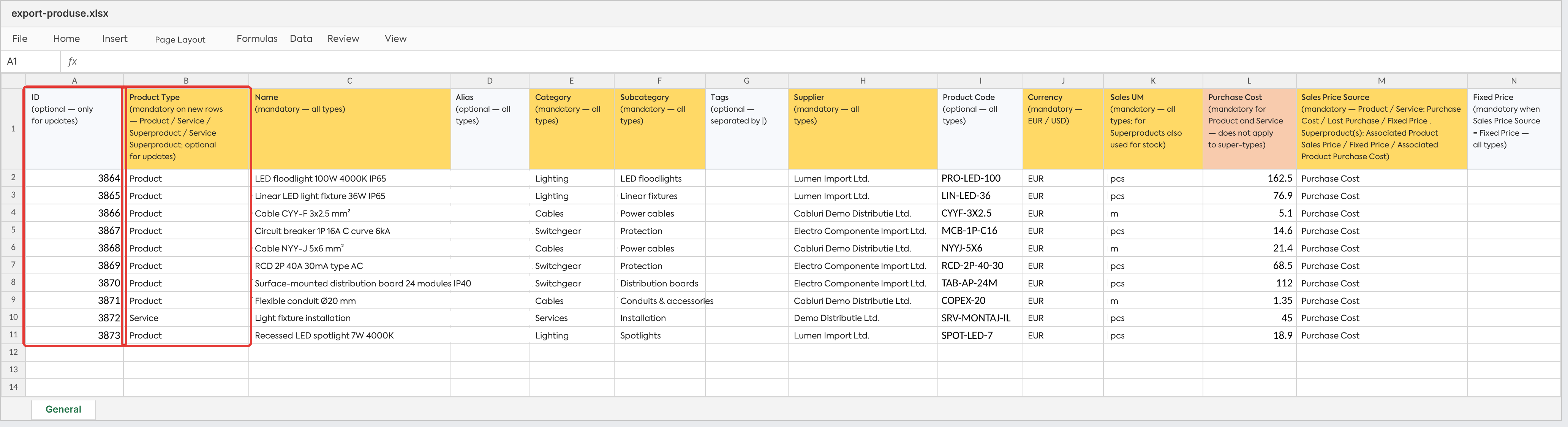
The exported file: the ID column is in the first position and Product Type in the second; products created during the import received new IDs.
Step 3. Start the import (Import) and upload the file. The header is in Romanian, so the columns are mapped automatically.
Step 4. At the Mapping step, choose "— do not import —" for Initial Stock and for any other column you do not want to overwrite.
Step 5. Continue with the analysis and import, as described above.
Important: if you leave Initial Stock mapped and the stock has changed after the export, the import will propose reverting it to the value in the file. Similarly, any value modified in the platform after the export is overwritten with the one from the file, if the cell is filled in. The Description is exported without formatting and is overwritten on re-import.
File Columns
All columns are optional when updating an existing product. The columns marked as mandatory must be filled in for rows that create new products. In the templates, the header is color-coded: yellow for columns that are mandatory for all types, orange for those that are mandatory only for certain types, and white or light gray for those that are optional or mandatory only under certain conditions.
| Column | Mandatory for new product | Applies to | Notes |
|---|---|---|---|
| ID | No | All | Empty = new product; filled in = updates the product with that ID |
| Product Type | Yes | All | Product, Service, Superproduct, Service Superproduct; does not change the type of an existing product |
| Name | Yes | All | Formerly “Product Name” |
| Alias | No | All | |
| Category, Subcategory | Yes | All | If it doesn't exist, it is created (with a warning) |
| Tags | No | All | Separated by "|"; they are added to the existing tags |
| Supplier | Yes | All | Part of the product's identification; if it doesn't exist, it is created (with a warning) |
| Product Code | No | All | Part of the product's identification; on rows with an ID, it changes the code |
| Currency | Yes | All | An active currency |
| Sales UM | Yes | All | An existing unit of measure |
| Purchase Cost | For Product and Service | Product, Service | Number greater than or equal to 0 |
| Sales Price Source | Yes | All | Product, Service: Purchase Cost / Last Purchase / Fixed Price; composite types: Associated Product Sales Price Source / Fixed Price / Associated Product Purchase Cost (the price is 0 until the recipe is completed, with a warning) |
| Fixed Price | If the source is Fixed Price | All | Number greater than or equal to 0; for Product and Service, markups become 0 |
| Large / Medium / Small Business Markup | For Product and Service, with Purchase Cost or Last Purchase source | Product, Service | Percentage, without "%" |
| Editable Price | Yes | All | yes / no |
| VAT Rate | Yes | All | An active rate; it was previously optional |
| Warehouse | For Product and Superproduct | Product, Superproduct | If it doesn't exist, it is created (with a warning) |
| Stock UM | For Product | Product | If Sales UM is pcs, Stock UM can only be pcs; for Superproduct, it is automatically taken from Sales UM |
| Initial Stock | No | Product | Number greater than or equal to 0; for existing products, a different stock level requires confirmation and registers a stock movement |
| Initial Stock Unit Book Value | No | Product | Number greater than or equal to 0; only for new products, it is ignored on update |
| Minimum Stock, Maximum Stock | No | Product | A value above 0 activates the minimum stock notification; if Maximum Stock is greater than 0, Minimum Stock cannot exceed it |
| NC Code | No | Product, Superproduct | |
| Dimensions UM, Width, Length | Dimensions UM, when Sales UM or Stock UM is for length or area; Width and Length in certain combinations (e.g., Stock UM pcs and Sales UM m or sqm) | Product, Service | Formerly "Dimension UM / Width / Length"; Width and Length with a value of 0 or negative are ignored |
| Weight (kg) | No | Product, Superproduct | Kilograms per 1 Stock UM, up to 3 decimal places |
| Accounting Account | No | All | Formerly "Stock Accounting Account" |
| CPV Code | No | All | |
| Show in Client Account, Recommended Product | No | All | yes / no |
| Exclude from Workflow | No | Product, Service | Is automatically active for composite types; becomes "no" when Equipment is filled in |
| Use equipment, Equipment | No | Product, Service | The equipment is written separated by "|", after the alias (or after the name, if the equipment does not have an alias), and must be active. The list replaces the product's equipment and automatically enables Use equipment. "no" for Use equipment deletes the associated equipment; the row is rejected if the product has equipment in unfinished orders |
| Description | No | All | Formerly "Details"; rewrites the description |
| Custom fields | No | — | At the end of the file; a value in a field that is not displayed for the product's category is flagged as an error |
What you see afterwards
The Result page displays “The import has finished.” (or “The import has not finished.”), the Created, Updated, Failed (including rows rejected during analysis), and Skipped counters, then the file, user, number of processed lines, and number of imported products.
The failed lines table has the Line, Product, and Error columns and displays the first 200 lines. If there are more, the message “Only the first failed lines are displayed.” appears.
The Last import card on the import page displays Status, User, Imported products, Created, Updated, and Failed.
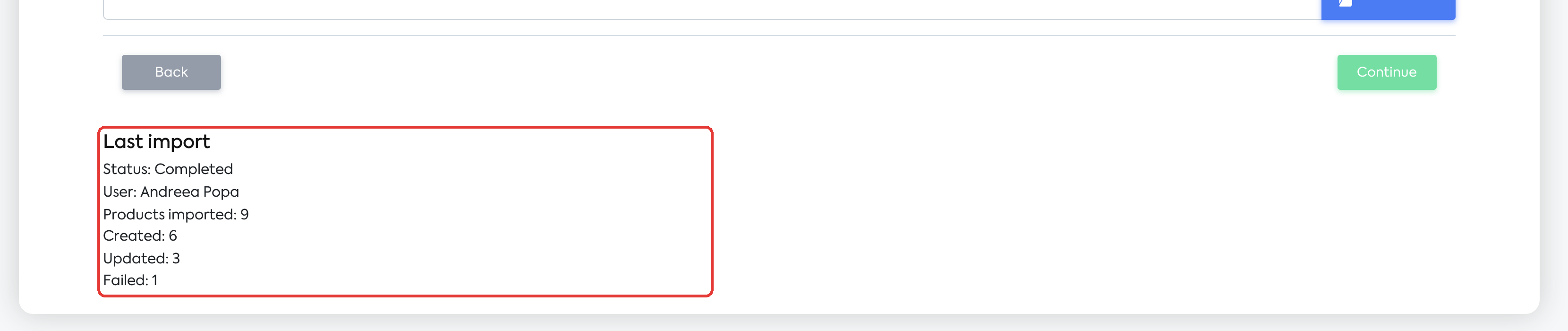
The Last import card, on the import page.
The user who started the import receives a notification:
– upon completion: “Product import finished. Created: X, updated: Y, failed: Z.”;
– when stopped: “Product import has been stopped. Products already imported: X.”;
– on failure: “Product import has failed.”.
If you stop the import yourself before the analysis, no notification is sent.
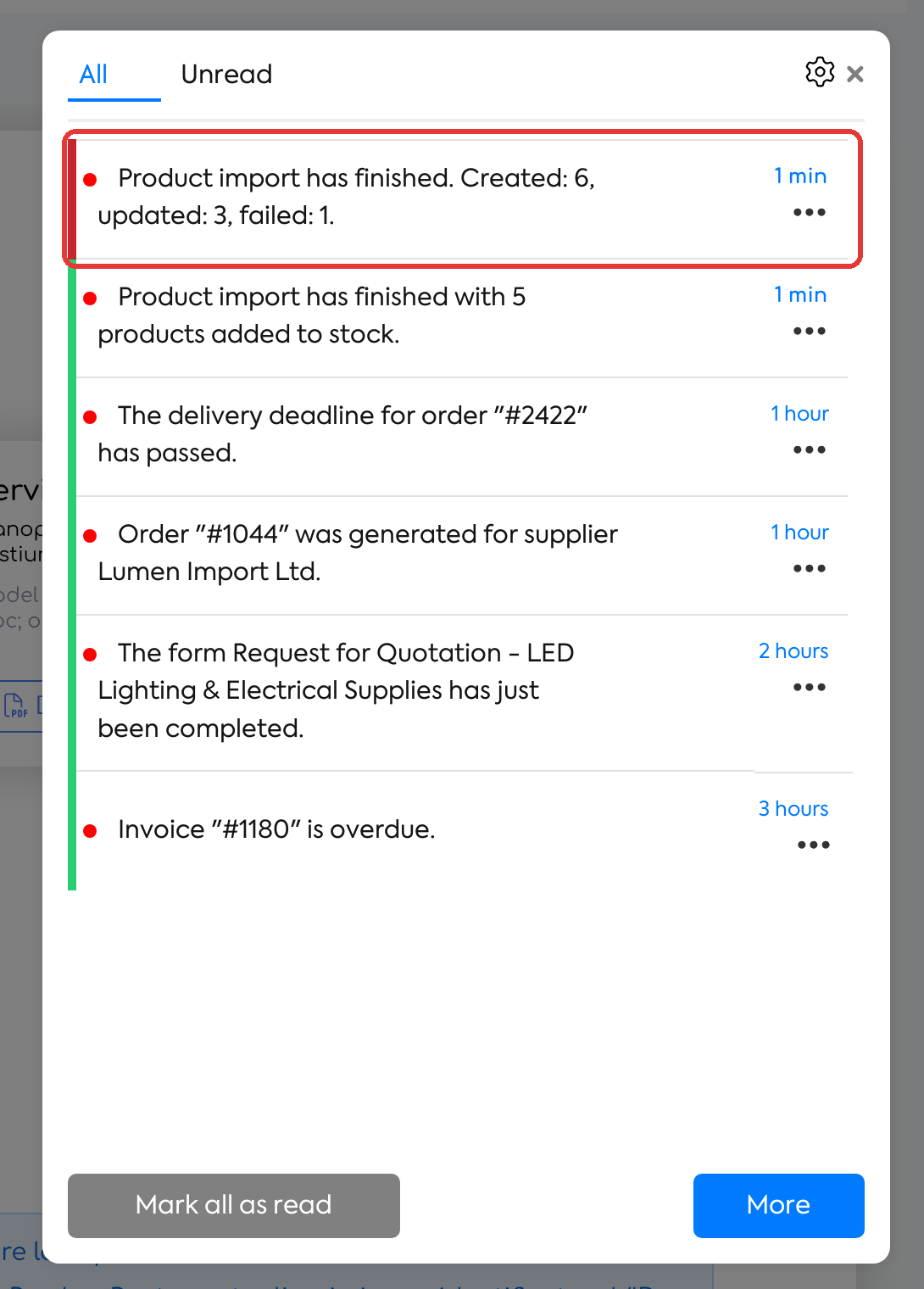
The notification received upon import completion, with the number of created, updated, and failed products.
Created and updated products appear in the product list; confirmed stock movements appear in the stock history.
Rules and limits
The file
.xlsx, .xls, and .csv formats (the “;” or “,” separator and the encoding are detected automatically), maximum 20 MB.
The header on the first row, data from row 2; only the active sheet of the .xlsx file is read (for .xls, the first sheet).
Reading stops after 10 consecutive empty rows. Columns after 10 consecutive empty header cells are not read.
Possible messages during upload:
– “The file must be an .xlsx, .xls, or .csv workbook.”
– “The file must be an .xlsx workbook.” (the file has the .xlsx extension, but the content does not match)
– “The file is empty.”
– “The file is too large.”
– “The file is not a valid Excel workbook.”
– “The CSV file could not be read. Save it as UTF-8 or Windows-1252 and try again.”
– “A product import is already in progress.”
– “This field is required” (you clicked Continue without choosing a file).
Mapping and analysis
Columns are recognized without case or diacritical sensitivity, including old names and forms with the Romanian definite article (e.g., “Denumirea”, “Categoria”). Text written in the header after “(” or on a new line is ignored: for example, “Cota TVA (21/11)” is recognized as “VAT Rate”.
Short, ambiguous names (“Cod”, “Stoc”, “UM”) must be mapped manually. A file column can be selected only once.
Unmapped mandatory fields are marked in red but do not block proceeding; the affected new rows will show an error during analysis. Unmapped columns are listed in the yellow box and are ignored.
After the Mapping step, the mapping can no longer be changed: for a different mapping, stop the import (Stop) and start a new one.
Examples of warnings:
– “The field does not apply to this product type and was ignored.”
– “The code will change from X to Y”
– “The stock will change from X to Y upon import (a stock movement is recorded).”
– “The value '10,5' was interpreted as 10.5”
– a category, supplier, or other new value that is not used by any other product: “… is not used by any product. Check the spelling.”
– the price is 0 until the recipe is completed; markups become 0; Stock UM is taken from Sales UM
– “The warehouse is ignored for non-stocked products.”
– Minimum Stock or Maximum Stock above 0 automatically activates Minimum Stock Notification
– on update rows, a non-numeric value in a numeric column: “Only digits are allowed”.
Decimals: a comma followed by one or two digits is a decimal separator; followed by three or more digits, it is a thousands separator (“10,555” becomes 10555).
Lines to confirm: “Product ID does not exist. Confirm creating a new product?” and “Product Type from file differs from the existing product. Confirm update (the type will not change)?”. The lines are checked by default. The Products to be imported counter does not include them, although they are imported if they remain checked.
Identifying existing products
For each row, the platform searches for the product in this order:
ID is filled in — the product with that ID is updated. The code, warehouse, and supplier can be changed, if the new combination does not belong to another product. If the ID does not exist, the row asks for confirmation to create a new product (which receives a new ID). However, if the code or name belongs to another product, the row is flagged as an error, with the correct ID suggested. A row without a code and without a name is flagged with “Product ID … does not exist.”.
Without ID: Product Code + Warehouse + Supplier. The Warehouse only matters for stocked types and only if it is filled in. The Supplier restricts the search only if it is filled in. For Service and Service Superproduct, the search is only performed among products without a warehouse.
Without ID and without code: Name (+ warehouse + supplier), only among products without a code. If the name belongs to a product with a code, the row gets the error “A product with this name and Product Code (#X) already exists. Fill in the Product ID or Product Code.”.
No match — a new product is created; Product Type is mandatory.
On rows without an ID, the code, warehouse, and supplier identify the product: a different value means a different product. For example, a Service type row with the code of a stocked Product creates a new service with the same code. On these rows, the product's code and warehouse are not modified, and the supplier from the file is filled in only if the product did not have a supplier.
When a code belongs to multiple products, the message indicates what needs to be filled in (the supplier, warehouse, type, or ID).
Duplicate rows in the file are imported only once: the first row; the others receive an error. Rows are considered duplicates if they have the same ID (“Duplicate Product ID in file”), the same code + warehouse + supplier combination, the same name + warehouse + supplier combination (“A product with the same name… already exists in the file”), or if they target the same product via both ID and code.
What is modified on update
Only filled cells in mapped columns are written. An empty cell does not modify the existing value in any column; a field cannot be cleared via import.
Exceptions: Tags are added to the existing ones; Equipment replaces the product's list; Description is completely overwritten; a different Initial Stock records a stock movement, after confirmation.
Product Type and the recipe of superproducts are never modified via import.
An invalid value is an error on a new row; on an update row, it is a warning, and the field remains unchanged. Negative values are rejected in the Purchase Cost, Fixed Price, Initial Stock, and Initial Stock Unit Book Value columns.
Creating new products
Product Type is mandatory; new rows from files in the old format (without this column) are rejected. Updates also work with old files, with one exception: if the supplier in the file differs from the product's supplier, the product is no longer found, and the row is treated as a new product and rejected.
The values in the Product Type column can also be written in the interface language of the user who starts the import.
Superproducts and Service Superproducts are created without a recipe; components are then added from the product page, including with the Import button in the Components section.
Production recipes cannot be imported: “The Production Recipe type cannot be imported. These items are created from the platform.”.
Empty yes/no cells mean “no”, and empty stock fields mean 0.
Non-existent categories, subcategories, suppliers, and warehouses are created during analysis, with a warning. Tags, accounting accounts, and markup values are created without a warning. At the end, new categories, subcategories, suppliers, warehouses, and tags that remain unused are automatically deleted.
Units of measure, currencies, VAT rates, and equipment are never created.
The import process
Only one product import can run at a time. The Import in progress card displays the user, status, step, and progress, with the Back, Stop, and Continue buttons. Continue and Stop are available to any user with import permissions.
Stop can be pressed at any time; already applied rows remain applied, and the rest become “Skipped”.
An import left at the mapping or analysis stage for more than 24 hours without confirmation is stopped automatically, and the user receives a notification.
The error report is only visible on the screen; it cannot be downloaded.
Export
The exported file (export-produse.xlsx, General sheet) has the format of the General template: 38 columns, with ID in the first column and Product Type in the second, followed by “Status eMAG” (if the integration is active) and the custom fields.
The header is in Romanian, regardless of the interface language. Cells that do not apply to the product type remain empty. The export respects the list filters.
Your own files and macros that use the product export must be adapted to the new format: column order and names, the ID column in the first position, without “Unlimited Stock”.
Settings and permissions
Importing requires the add permission for products, as before.
Exporting requires the add permission for products and the Export Lists permission.
There are no new permissions or settings.