
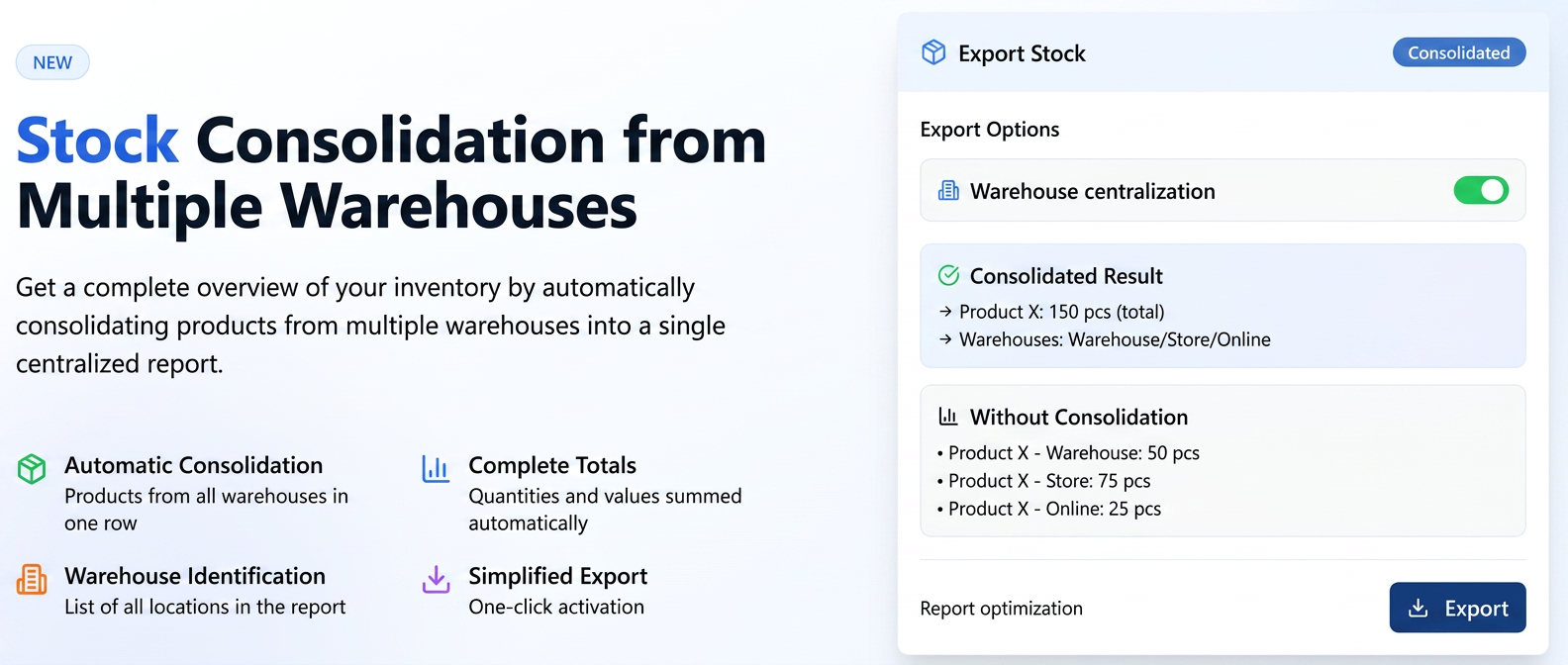
This functionality meets the need for a consolidated overview of stocks, especially when the same product is found in multiple management units (warehouses, shops, etc.).
Using the management centralization option, the system will automatically merge all entries for the same product into a single row in the exported report. Thus, you directly obtain a total value of the stock and its valuation.
Step-by-step user guide
To export a centralized stock report by management units, follow the steps below.
- Navigate in the main menu to the Products section, then select Stocks.
- In the top-right corner of the screen, press the green Export button.
- In the window that opens, titled Export Stocks, you will notice the Centralize management units option.
- Activate this option by clicking the toggle. It will turn green, indicating that the centralization function is active.
- Select the desired export profile and press the Export button.
The generated file will contain the consolidated data.
Important aspects:
- Operating conditions: For the system to merge data correctly, it is essential that products in multiple management units have the same product code and the same unit of measurement.
- Export result: In the exported file, products will be displayed on a single row. The columns for quantity and value will reflect the total sum from all management units, and in the Management Unit column, all units where the product is located will be listed, separated by "/" (e.g.: Central Warehouse / Unirii Shop).
- Limitation: This centralization option has no effect on Stock Movements type reports.
Related articles
Export Stock Movement History per ProductTutorialsProducts — importing and exporting the product catalogue from an Excel file (Reconfiguration)Tutorials“Stock Difference” Column in Products > StocksTutorialsCustom export based on applied filters (Stocks Page)TutorialsHow do we enter and deduct from stock 150g paper sheets measuring 45x64cm, which are then cut to 45x32cm to print 2 flyers of 29.7x21cm?Forum