The described scenario involves three distinct levels:
- Initial stock: 150g paper, 45 × 64 cm format (large sheet)
- After cutting: 150g paper, 45 × 32 cm format
- Final product: 29.7 × 21 cm flyers, obtained at 2 flyers / 45 × 32 cm sheet
Note: In your case, when configuring products, sales/stock MU (Measurement Unit) is managed exclusively by piece. The dimensions (45×64, 45×32, 29.7×21) are only used in the product names for operational clarity.
Solutions available in the platform
Step 1: Product Transformation (recommended for detailed traceability)
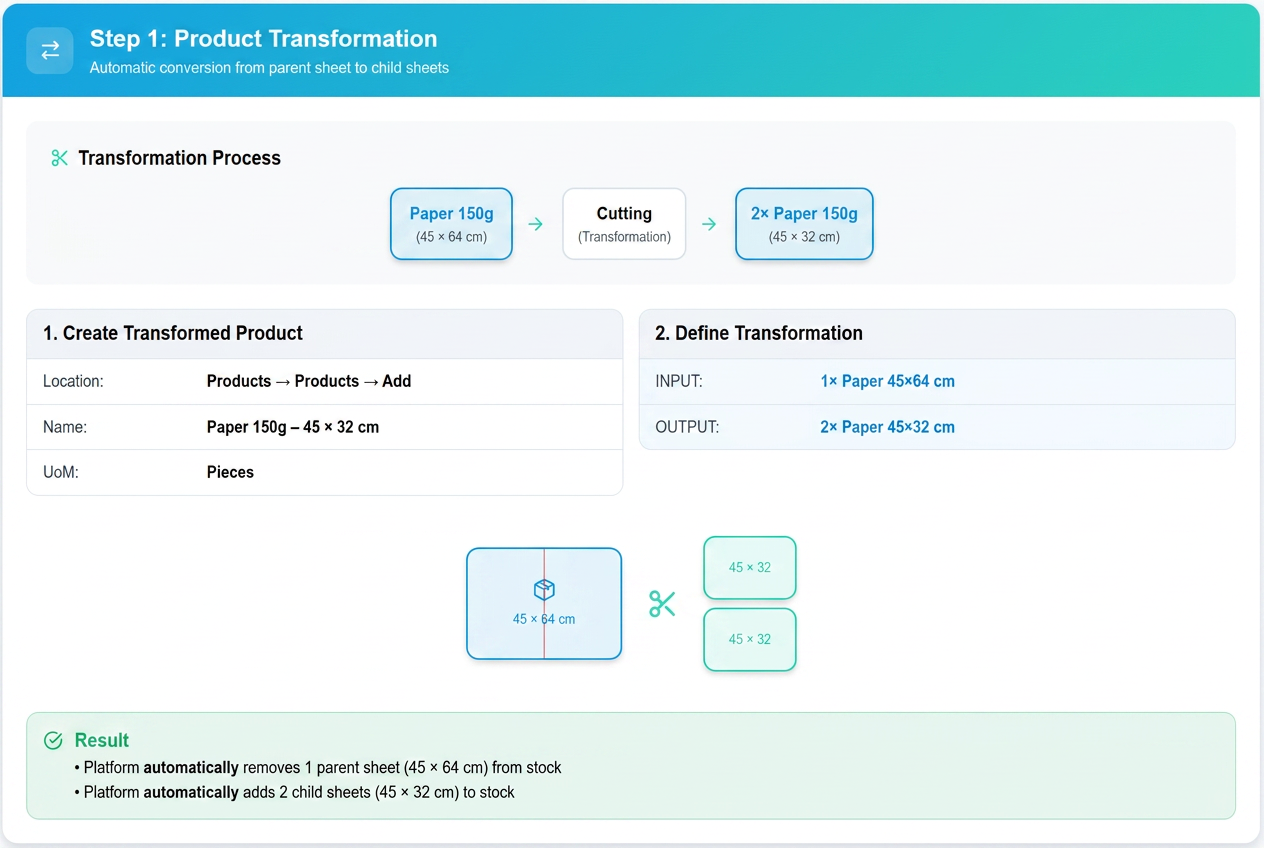
1. Creating the transformed product
- New product in iFlows: 150g Paper – 45 × 32 cm
2. The transformation process
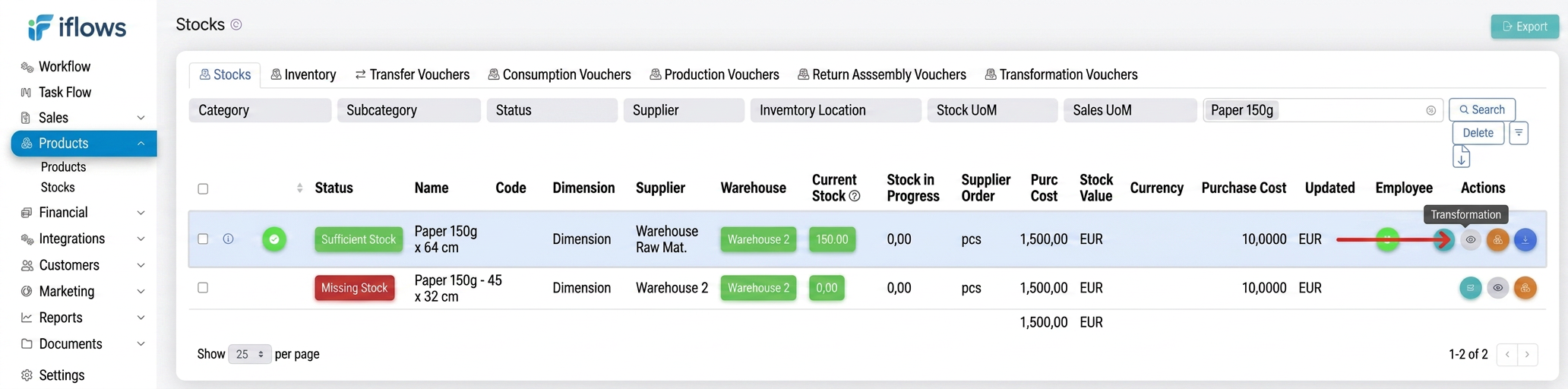
- Go to
- Identify the product:
- 150g Paper – 45 × 64 cm
- Next to the product, click the Transformation action
- In the transformation window:
- Stock Out
- Product: 150g Paper – 45 × 64 cm
- Quantity: 1 piece
- Stock In
- Product: 150g Paper – 45 × 32 cm
- Quantity: 2 pieces
- Stock Out
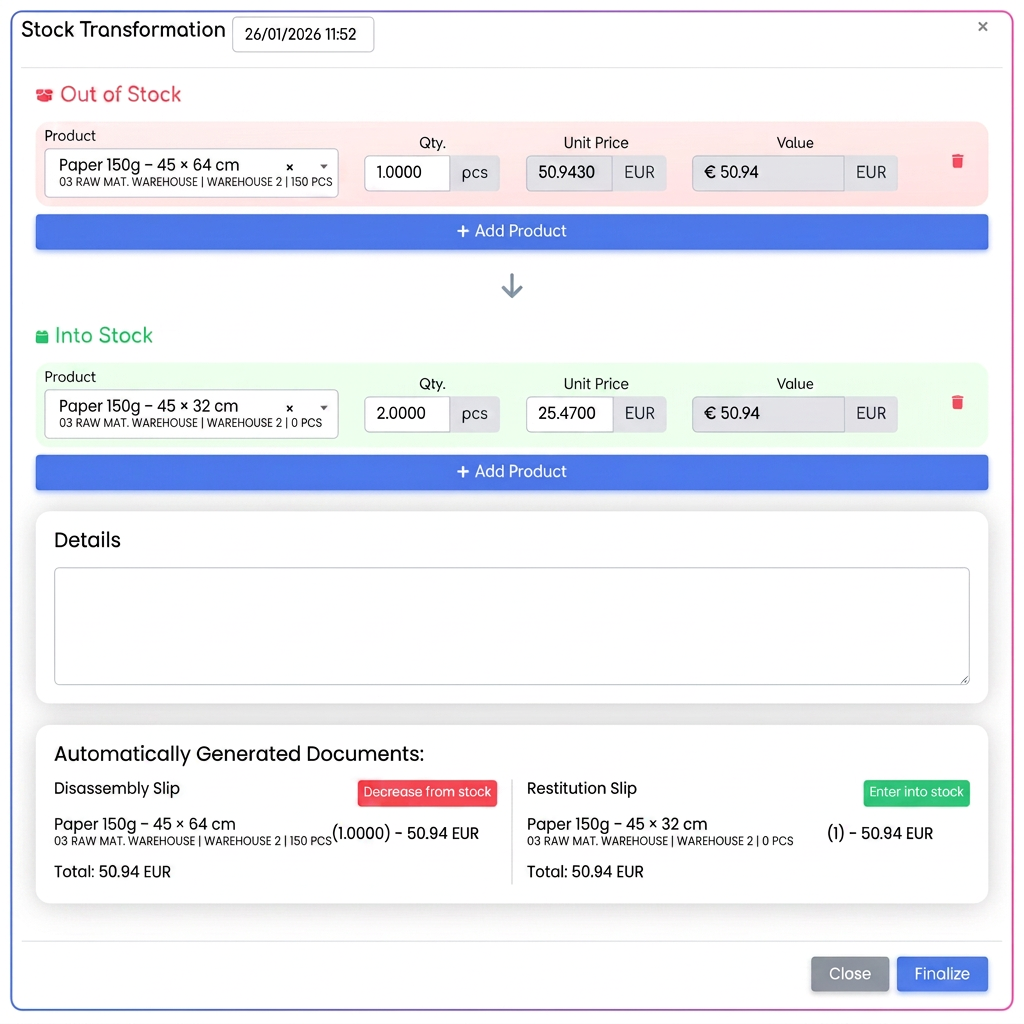
- Follow the 1 : 2 transformation ratio (one large sheet → two resulting sheets)
- Finalize the transformation
Automatic system result:
- 1 piece of 45 × 64 cm paper is deducted
- 2 pieces of 45 × 32 cm paper are added
- Total value is automatically redistributed
- Internal documents are automatically generated:
- Bon de dezansamblare (Disassembly slip - exit)
- Bon de restituire (Return slip - entry)
- Proces verbal de transformare (Transformation report)
Summary:
- Input: 150g Paper – 45 × 64 cm (E.g.: quantity: 1)
- Output: 150g Paper – 45 × 32 cm (E.g.: quantity: 2)
Step 2: Creating the "Flyer" Super Product
- Create the super product
- Navigation:
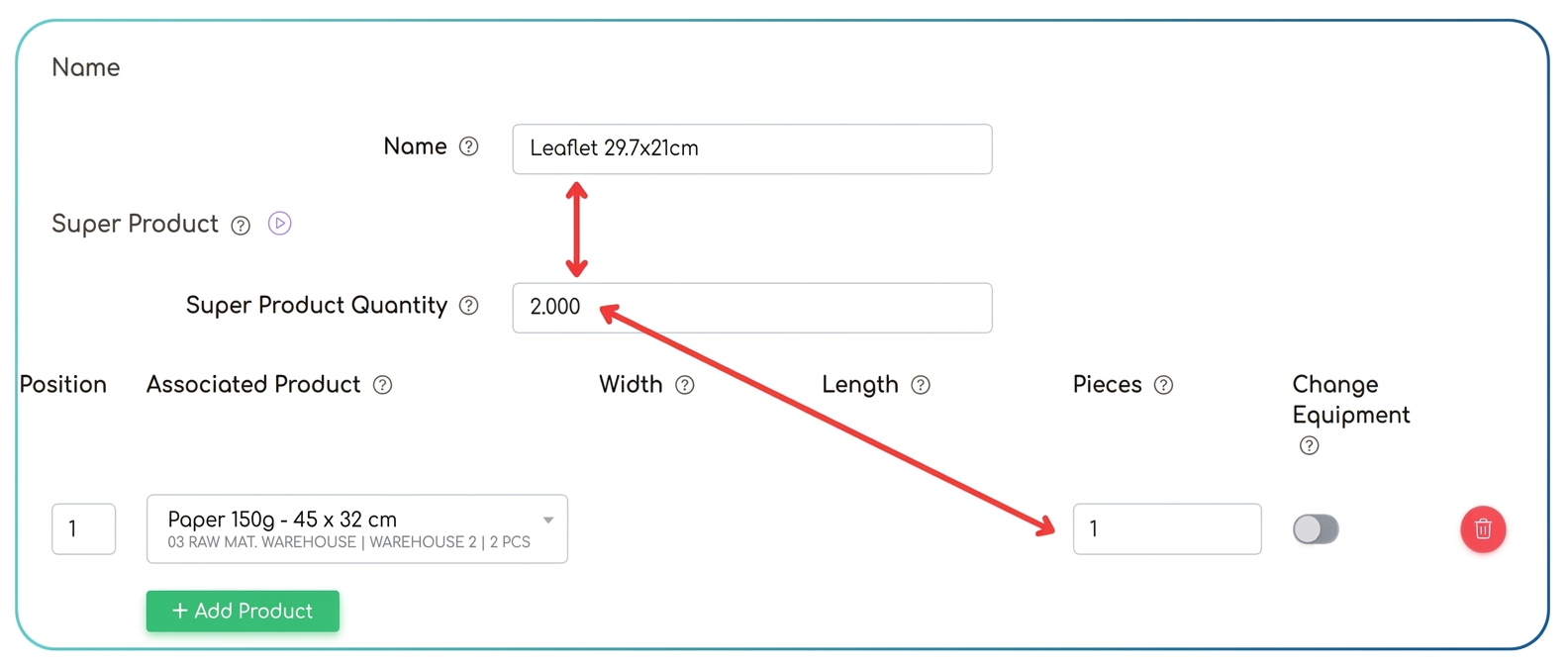
- Name: "Flyer 29.7×21cm"
- MU: pieces (both stock and sale)
- Check: "Super Produs" (Super Product)
- Super Product Quantity: 2 (for 2 flyers)
- Add the associated raw material
- In the super product edit form, "Associated Products" section
- Product: "150g Paper – 45 × 32 cm"
- Quantity: 1 (1 piece of paper for 2 flyers)
- MU: pieces (both stock and sale) – do not add the dimension except in the title
- Save the association
- Verify configuration
- Super product: "Flyer 29.7×21cm"
- Super Product Quantity: 2
- Associated product: "150g Paper – 45 × 32 cm"
- Associated quantity: 1
- Result: for 2 flyers, 1 piece of 45×32cm paper is consumed
Step 3: Adding to an order
- Open the order
- Navigation: edit an existing order
- Add the super product
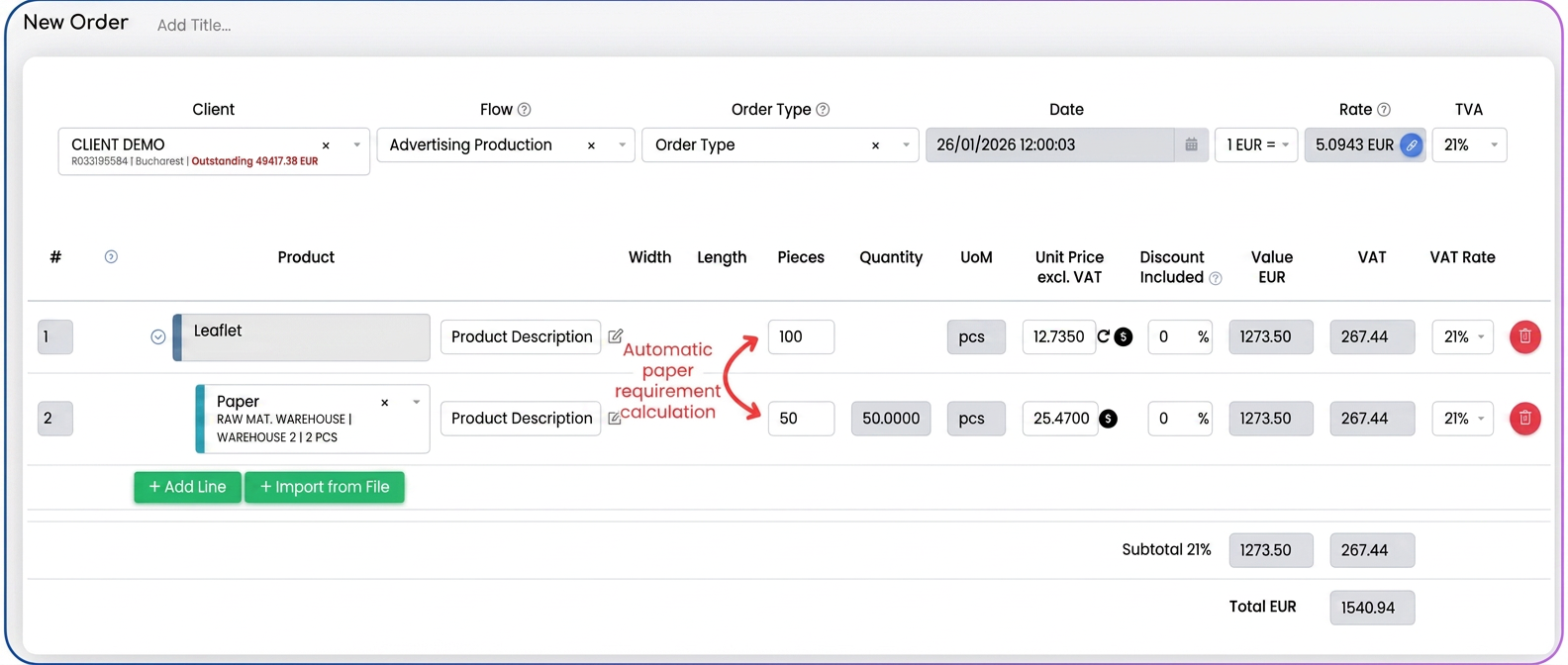
- In the order lines table, click on "Add product"
- Select: "Flyer 29.7×21cm"
- Pieces: number of flyers (e.g., 100)
- The system automatically adds the child line with the raw material
- Check the generated lines
- Parent line (super product):
- Product: "Flyer 29.7×21cm"
- Pieces: 100
- Description: "Flyer 29.7×21cm - 150g Paper"
- Child line (automatic):
- Product: "150g Paper – 45 × 32 cm"
- Pieces: 50 (automatically calculated by the system)
- The system calculates: for ×32cm paper
- Check stock
- The system checks the availability of 50 pieces of "150g Paper – 45 × 32 cm"
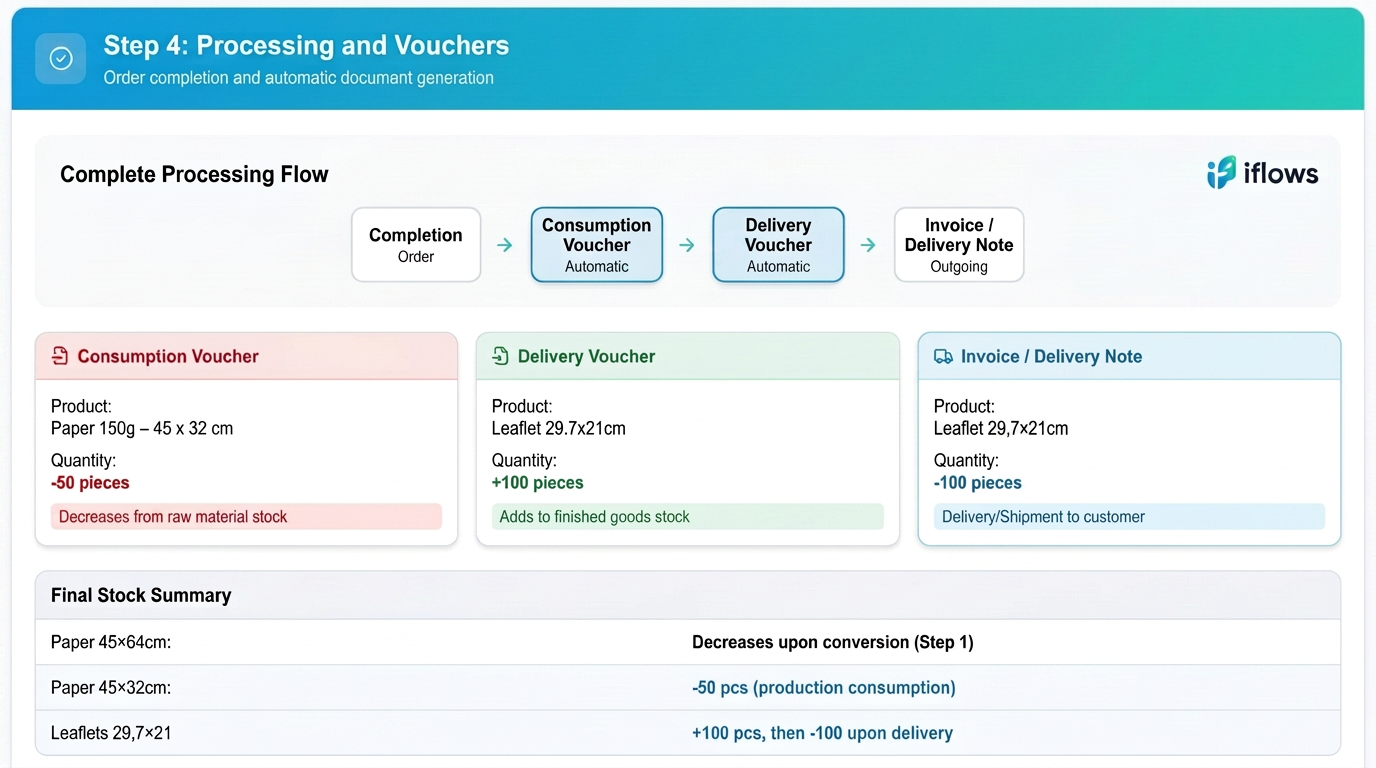
Step 4: Processing the order and generating slips
- Finalizing the order
- When all order lines are finalized in the workflow and the order receives the "Finalized" status, the system automatically processes the stock.
- Generating the consumption slip (automatic)
- When the order is finalized, the system automatically generates the Bon de consum (Consumption slip)
- The consumption slip contains:
- Product: "150g Paper – 45 × 32 cm"
- Quantity: 50 pieces
- Action: the system automatically deducts 50 pieces of 45×32cm paper from stock
- Generating the delivery slip (automatic)
- When the super product is finalized, the system automatically generates the Bon de predare (Production/Delivery slip)
- The delivery slip contains:
- Product: "Flyer 29.7×21cm"
- Quantity: 100 pieces (finished product)
- Action: the system automatically adds 100 flyers to management (finished product stock)
- Exit from management via invoice/notice
- When the invoice or shipping notice is created for the order:
- The system automatically deducts the finished product from management
- For 100 flyers invoiced/shipped → 100 flyers are deducted from stock
- Finished product stock is automatically updated