
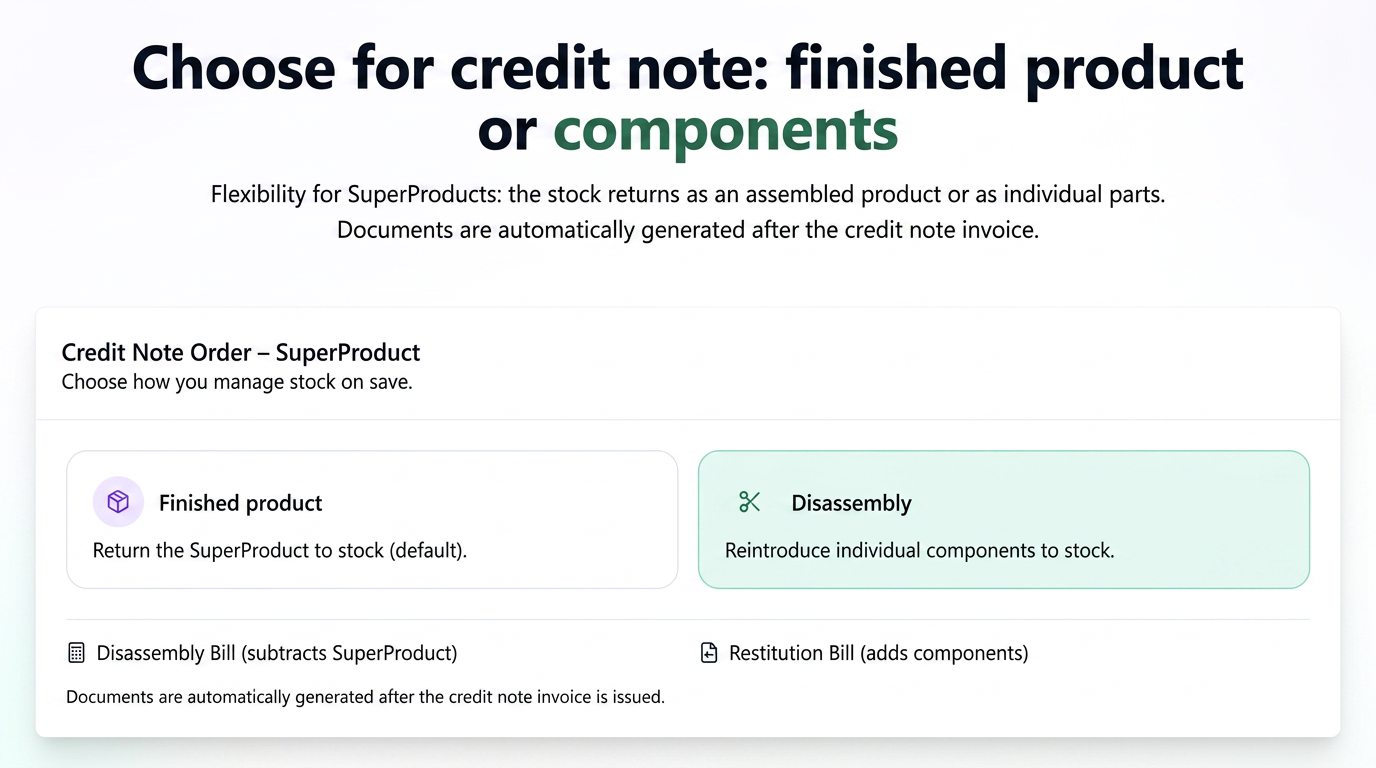
A SuperProduct is a finished product composed of a recipe of several components (raw materials or other products). When a customer returned a SuperProduct (for example, a chair) and a credit note (storno) order was generated, the finished product (the chair) was returned to stock. This flow is perfectly logical for production activities, where you would not disassemble the chair into legs, screws, and seat to re-enter them into production.
The Disassembly on Credit Note function was created to provide flexibility in two key situations:
- Production with Recoverable Components: Certain products, although assembled, can be easily disassembled to recover valuable components.
- Example: A company assembles a custom PC system (SuperProduct) from individual components (motherboard, processor, RAM, case). If the system is returned, it is much more useful to re-enter the separate components into stock, which can be reused in other configurations, rather than having an already assembled PC system in stock.
- Selling Bundles or Kits: Many businesses use SuperProducts to group items that are not physically modified.
- Example: A "Christmas Gift Pack" (SuperProduct) containing a bottle of wine, a box of chocolates, and a greeting card. Upon return, you can return each individual item to stock, not the "pack" as such.
- The new function allows you to choose at each reversal whether you want to return the finished product or its components to stock.
Prerequisites: Setting Permissions
To be able to use this functionality, users must have the necessary permissions to generate the related stock documents.
- Navigate to Financial > Employees.
- Access the Permissions tab.
- Identify the Access Level you want to modify (e.g., "Sales Consultant") and click on the Edit Access Level icon (the blue pencil).
- In the pop-up window, in the search field, type "bon" (slip).
- Ensure you have the View, Add, Edit permissions enabled for the following documents:
- Bonuri Dezansamblare (Disassembly Slips)
- Bonuri Restituire (Restitution Slips)
- Save changes.
The Disassembly on Credit Note Process: Step by Step
Suppose we have a completed and invoiced order that contains a SuperProduct. The customer wishes to make a return.
Step 1: Generating the Credit Note Order
- Navigate to Sales > Orders.
- Find the original order you wish to reverse.
- Click on the Generate Document icon and select Comandă Storno (Credit Note Order).
Step 2: Choosing the Disassembly Option upon Saving
- The system will create a new credit note order, with products and quantities in negative.
- Scroll to the bottom of the page and click the Save button.
- At this point, a pop-up window will appear asking how you want to manage the stock for the returned SuperProduct.
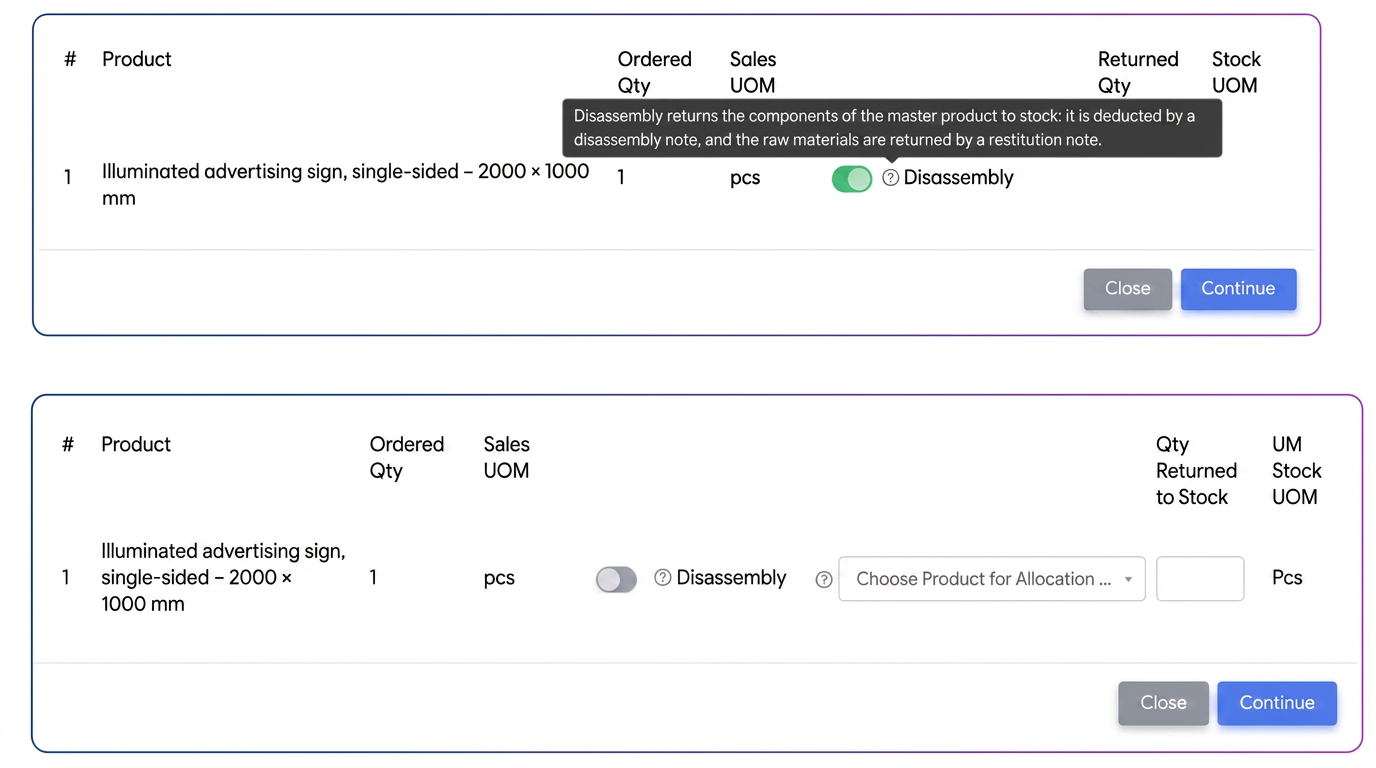
Here you have two clear options:
- Option 1 (Default): Returning the SuperProduct to stock. If you don't check anything, the system will return the finished product to stock. This is the right option for products where disassembly is not possible or desired.
- Option 2: Disassembly. To use the new function, activate the "Disassembly" toggle. Select this option if you want to return the individual components to stock.
- After activating the "Disassembly" option, click the Continue button.
Note: After saving the credit note order: Stock movements (disassembly and component restitution) will not occur until the credit note invoice is generated. Once the credit note invoice has been issued, iflows will automatically generate two management documents in the background:
Step 3: Checking Automatically Generated Documents
After saving the credit note order with the disassembly option, iflows will automatically generate two distinct management documents in the background:
A. Disassembly Slip:
- What does it do? Deducts the SuperProduct (finished product) from stock. It is "disassembled" to release the components.
- Where to find it? Navigate to Products > Stocks and access the Bonuri Dezasamblare (Disassembly Slips) tab.
B. Restitution Slip:
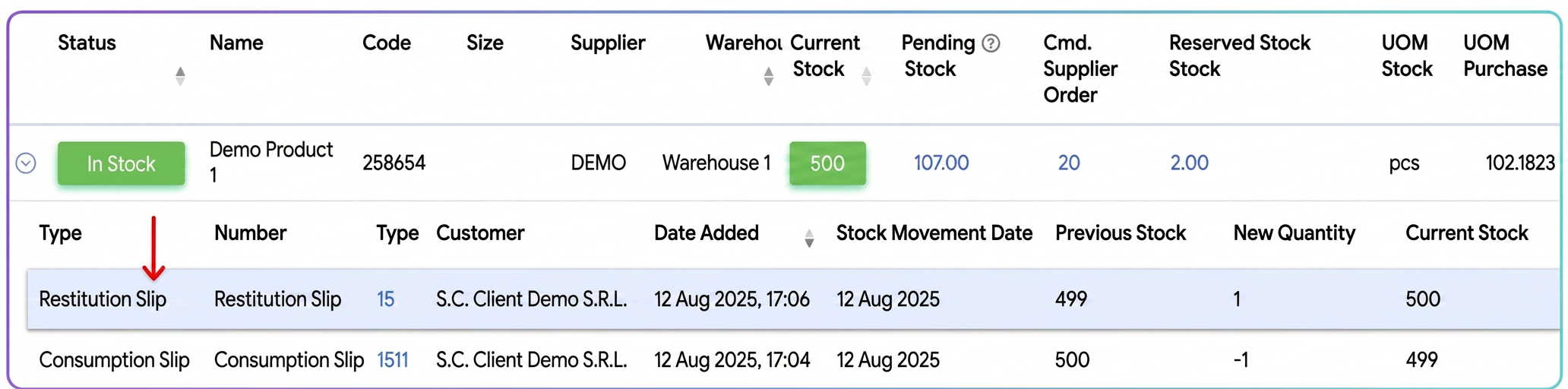
- What does it do? Re-enters into stock all components that were part of the SuperProduct's recipe.
- Where to find it? Navigate to Products > Stocks and access the Bonuri Restituire (Restitution Slips) tab.
Step 4: Checking Stock History
To get final confirmation that the process worked correctly:
- Navigate to Products > Stocks.
- Search for one of the components that was part of the SuperProduct.
- Click on the history icon on the product line.
- In the movement history, you will see a new entry of type "Bon de Restituire" (Restitution Slip), which added the quantity back into the available stock.
Note:The disassembly function only applies to products for which stock is managed. Therefore, the SuperProduct involved in the reversal process must not be set to "Unlimited Stock". The system must be able to deduct the SuperProduct from stock in order to add the components back.