
This optimization brings increased flexibility when importing product lines (items) into documents such as Offers and Orders, using the "Import from File" function. Now, it is no longer necessary for your Excel or CSV file to have specific column names or a specific order matching that of iflows.
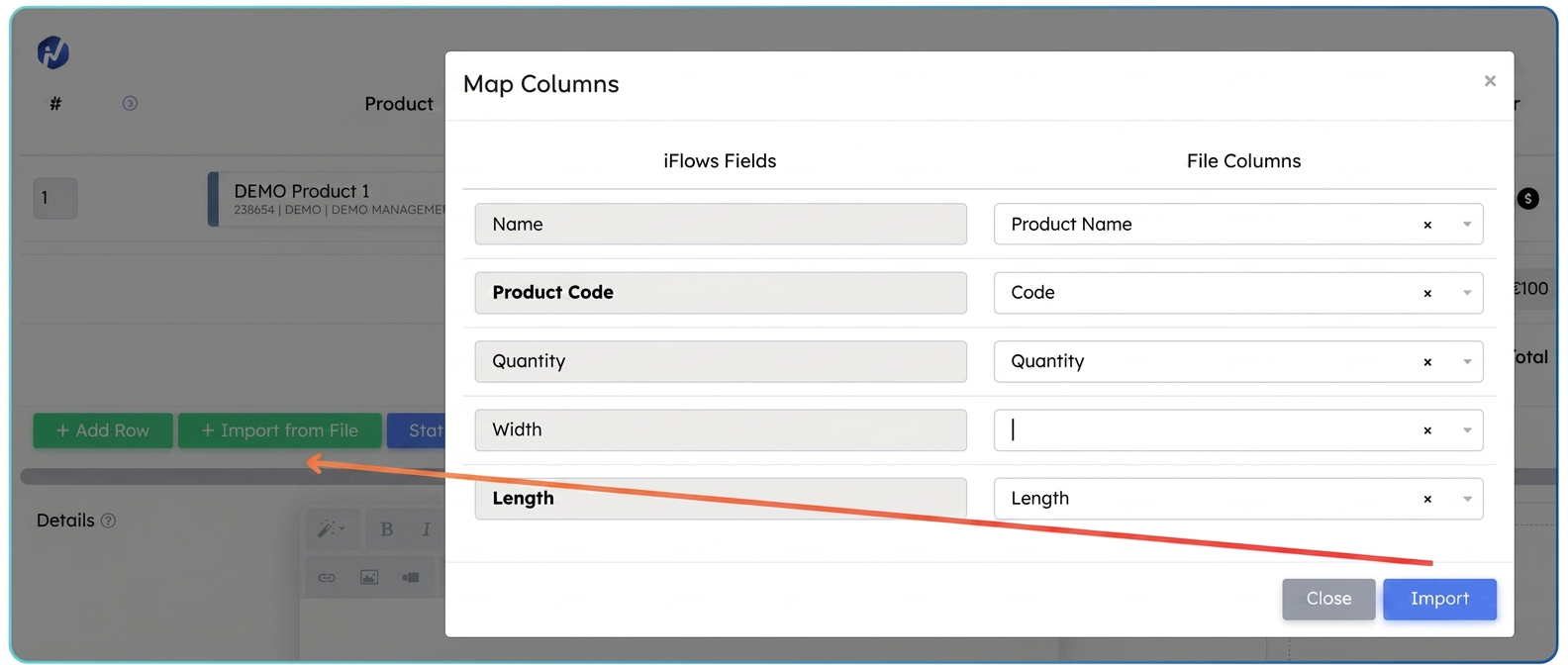
Upon selecting the file for import, a new intermediate window called "Column Mapping" will appear. Here you can quickly and intuitively associate (map) the columns from your file (File Columns) with the corresponding fields in iflows.
This eliminates the need to manually edit files before importing, saving precious time and reducing the risk of errors, being particularly useful when working with exports from other software applications (e.g., production programs, configurators).
User Guide:
- Open or create a new document where you want to import product lines (e.g., New Offer, Existing Order).
- In the product/line addition section, locate and press the + Import from File button.
- Select the Excel file from your computer containing the product lines to be imported.
- NEW: After selecting the file, the "Column Mapping" pop-up window will appear.
- In this window:
- On the left column (iflows Fields) you can see the standard and custom fields available in iflows for document lines.
- On the right column (File Columns), for each relevant iflows field, select from the dropdown list the corresponding column name from your file. For example:
- If you have a column named "Product Name" in your file, select it next to the iflows field "Name".
- Once you have completed the desired column mapping, press the Import button in the pop-up window.
- The product lines from the file will be added to the current document, using the data from the columns specified through mapping.
- Verify the imported lines and continue editing/saving the document.