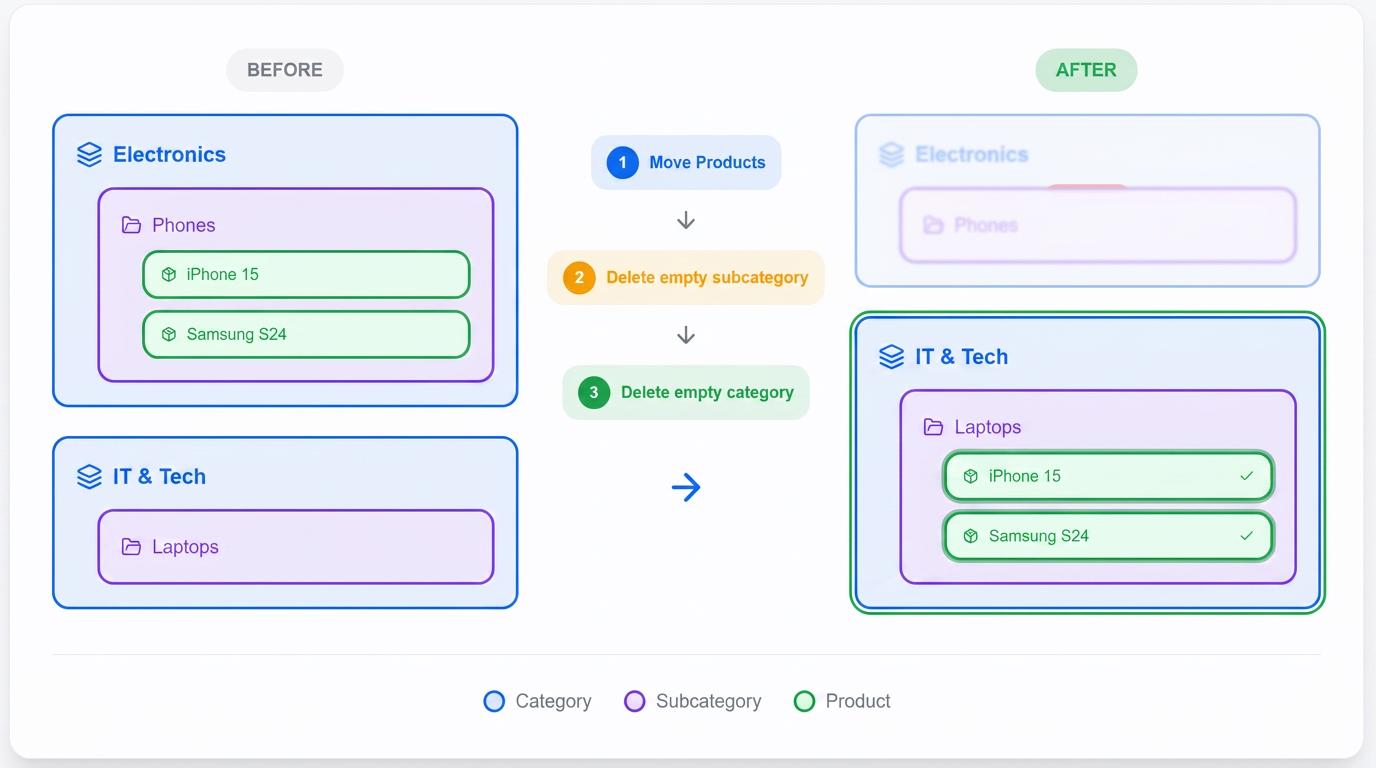
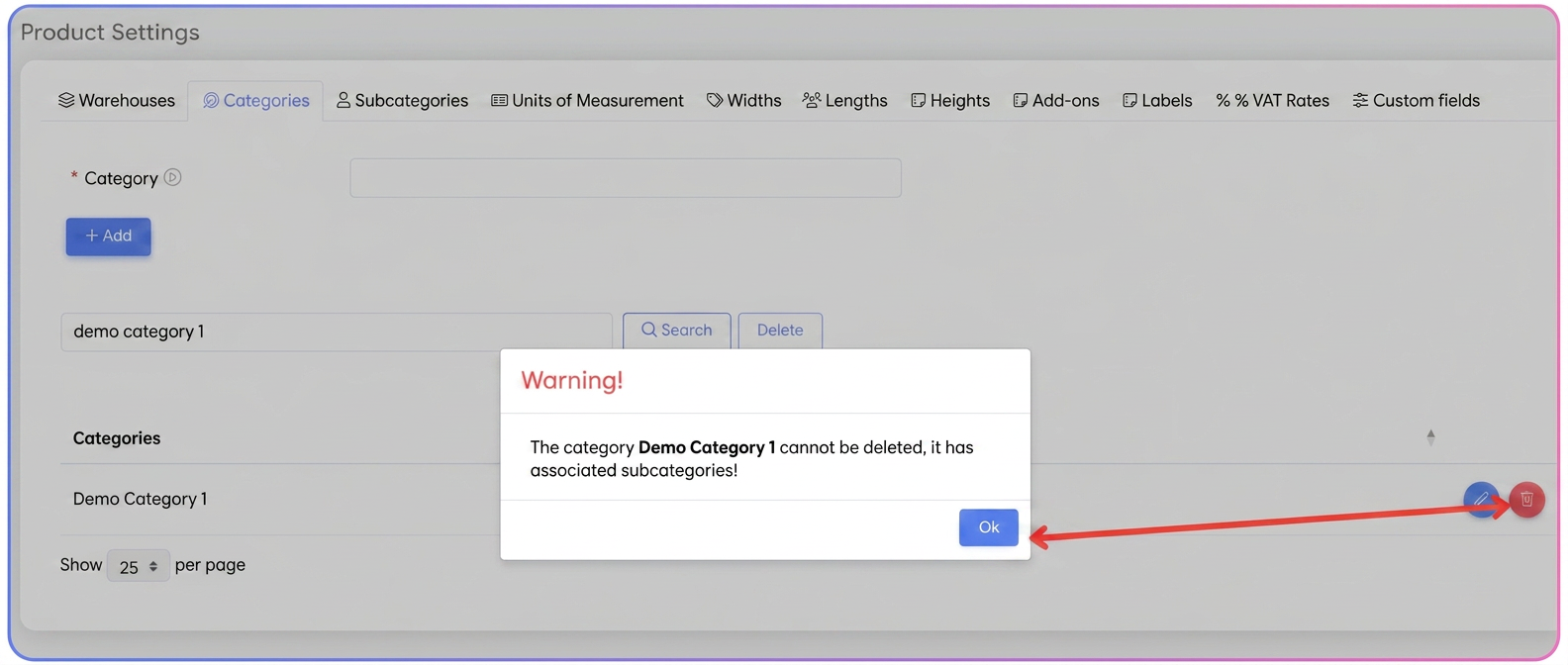
In iFlows, information is organized hierarchically: Category > Subcategory > Product. This hierarchy is protected by a "safety brake" that prevents accidental data deletion. You cannot delete a Category if it still has associated Subcategories or Products.
I. Modifying (Renaming) – The Fastest Solution
If your goal is simply to change the organization, renaming is preferable to deletion, as it does not require moving products.
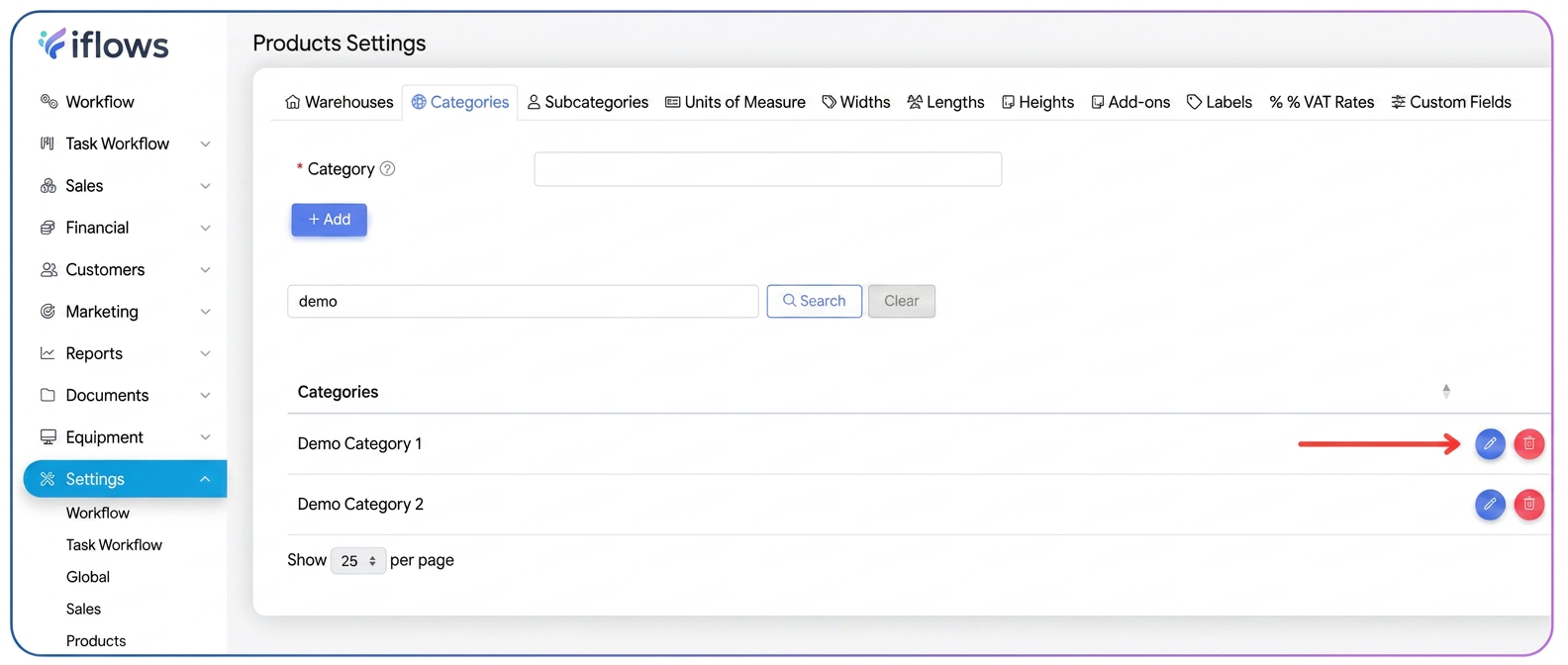
- How to proceed: Go to Product Settings > Categories. Identify the category and click on the blue icon (pencil).
- What happens behind the scenes after you modify the name: The system changes the label in the database. All products that were in "Category A" will now instantly appear under the "New Name" without you having to modify each product individually.
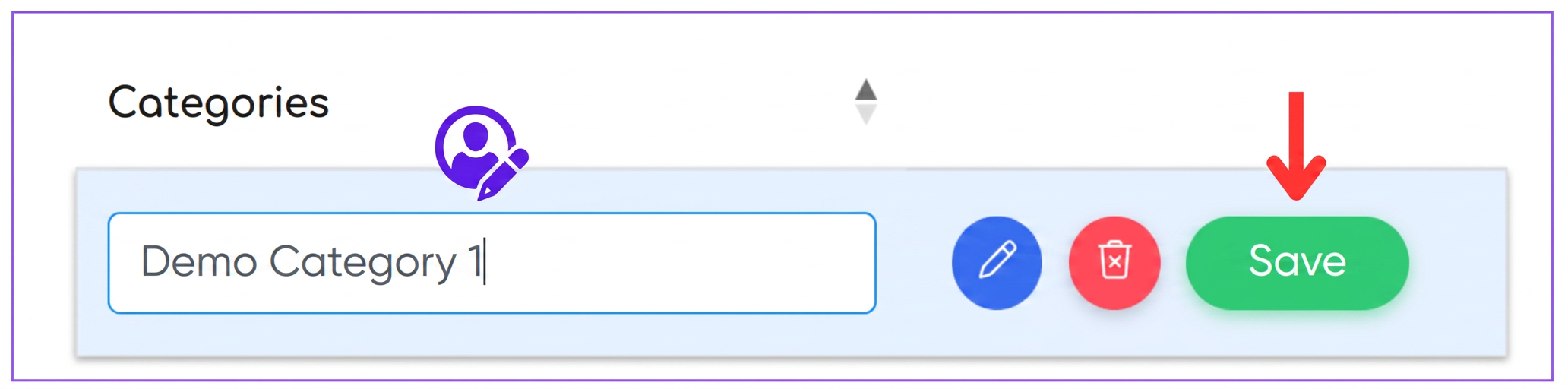
- Problem solution: If you made a mistake in a name or want to change titles, use the edit function rather than deleting and re-creating the category.
- Note: After editing the category name, save and exit the page; do not migrate immediately to subcategories.
II. Why do I get an error during deletion? (Validation Logic)
When you click "Delete" (the red X) and the alert message appears, the system performs a real-time check:
- Check Category: "Does it still have any attached subcategories?" -> If YES, stop deletion.
- Check Subcategory: "Does it still have any associated products (active or inactive)?" -> If YES, stop deletion.
The Goal: Preventing "orphan products" (products that would be left without any category, making them impossible to filter or manage correctly in reports).
III. Complete Deletion Procedure
If you want to permanently remove a structure, follow these steps:
Step 1: Identifying and Moving Products (Bulk Solution)
You don't need to enter each product individually. We use the Bulk Edit function.
- Go to the Products module.
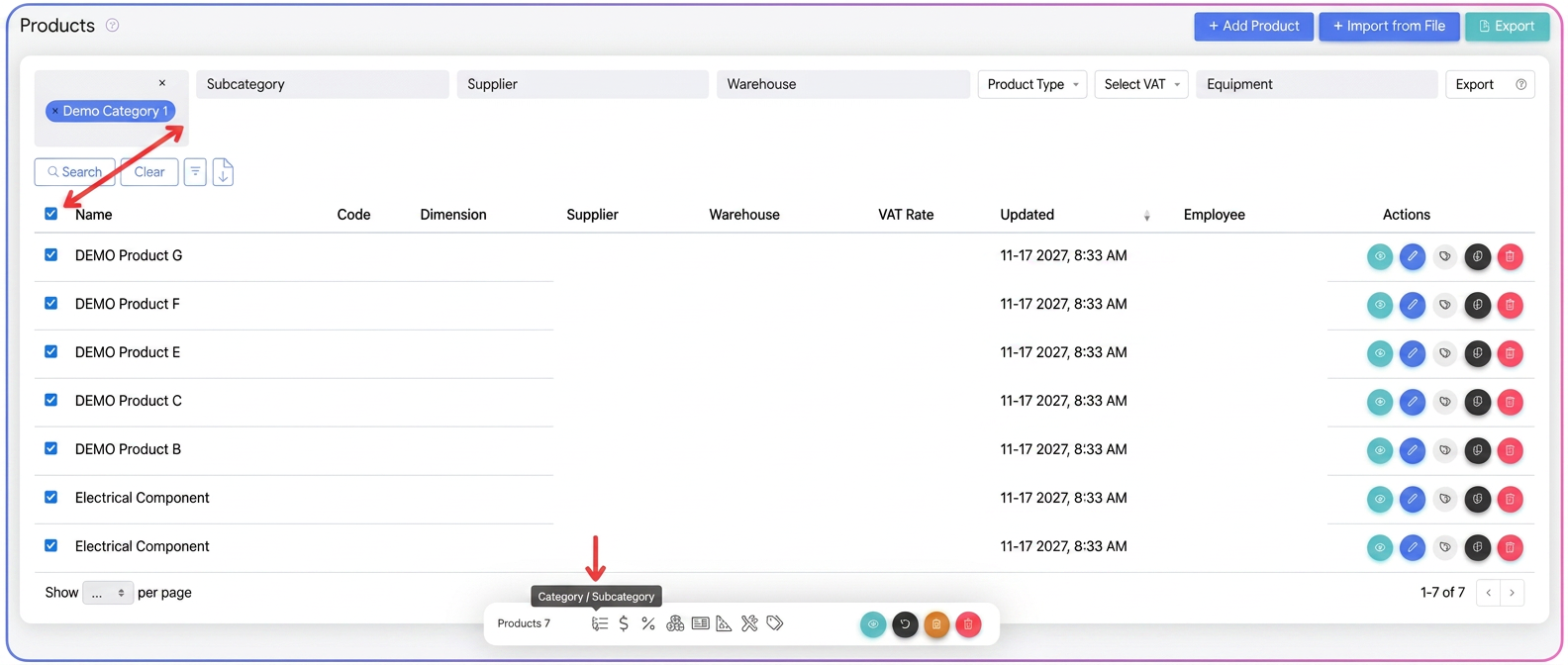
- Filtering: Use the "Subcategory" filter to see exactly which products are blocking the deletion.
- Selection: Check the top box (next to the table header) to select all products on the page. Note: If you have multiple pages, make sure you process them all.
- Bulk Action: Click on the categories icon.
- Edit Window: Here you must choose a new Category AND a new Subcategory.
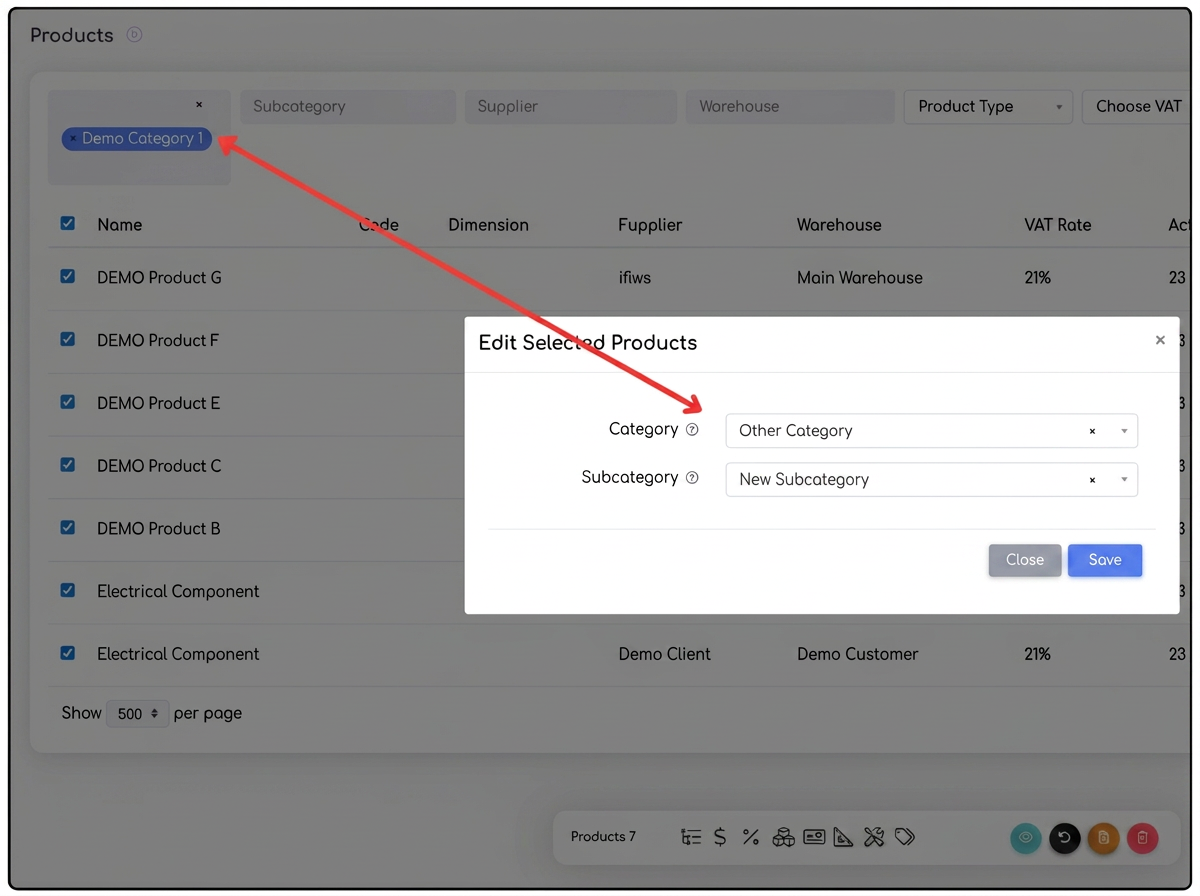
- Press Save. At this point, the old subcategory is now "empty".
Step 2: Deleting the Subcategory that is no longer needed
- Go to Product Settings > Subcategories.
- Search for the name of the subcategory you just emptied.
- Click on the red X and then the confirmation button.
- Possible problem: If you still receive an error, it means there are products in the Archive or products that are not visible in the current filter but are still associated with that subcategory.
Step 3: Deleting the Category
- Once all subcategories within a category have been deleted, go to the Categories tab.
- Now you can delete the main category without any restrictions.
IV. Common Problems and Solutions
1. "I moved the products, but the subcategory still won't delete."
- Explanation: There are likely inactive products or products you cannot see due to a filter.
- Solution: Go to the product list, reset all filters, and search by subcategory. Check if products exist in all warehouses.
2. "I want to combine two categories into one."
- Solution: Do not delete anything yet. Go to products, filter Category A, use "Bulk Edit" and move them all to Category B. Only then delete Category A (which is now empty).
3. "The delete button is inactive or missing."
- Explanation: You might not have administrator rights (write/delete permissions) or the category is a predefined system category that cannot be removed.