
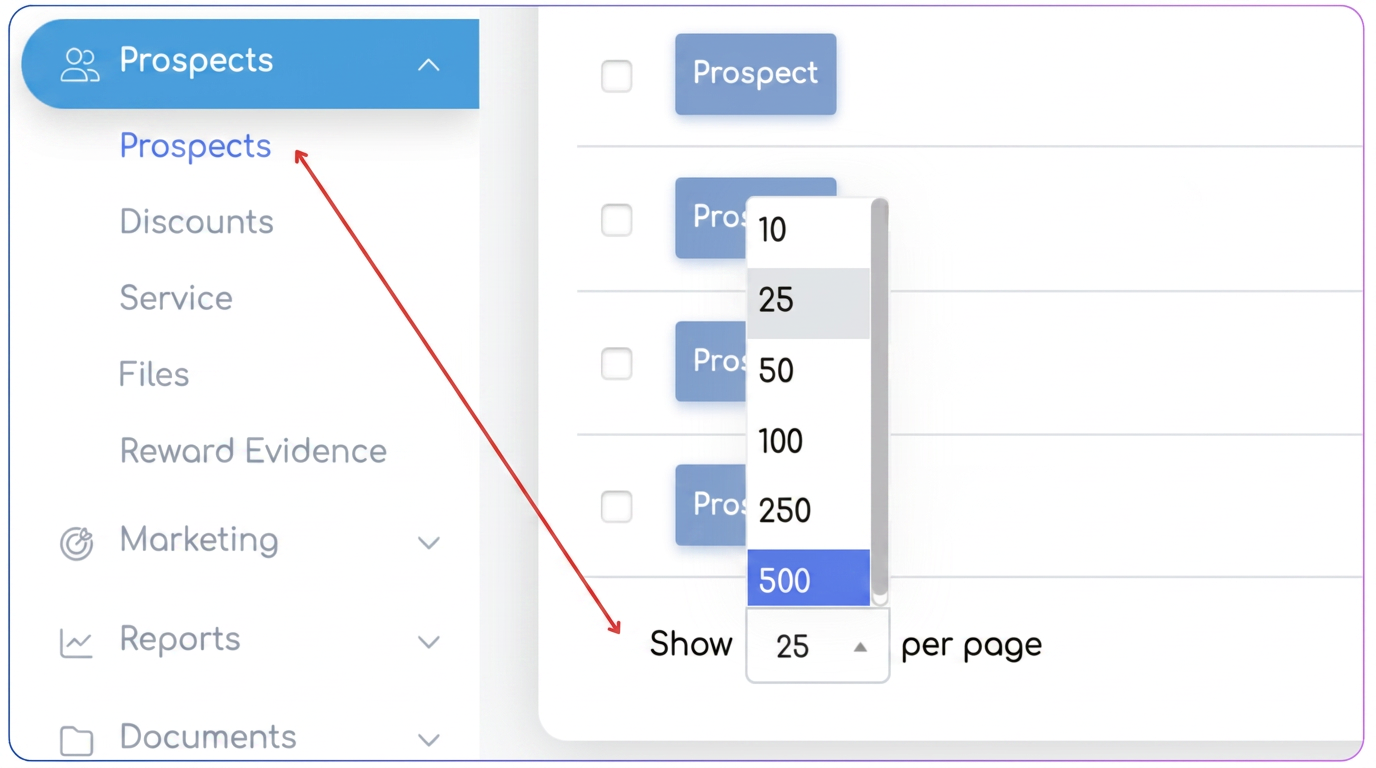
1) Open the client list
-
Go to: (main list).
2) Display the maximum number of clients per page
-
At the bottom of the list (pagination), select the maximum number of clients/page (e.g., 500).
The goal is to reduce the number of pages on which you must repeat the selection.
Note: bulk activation applies to selected clients. If you have multiple pages, repeat steps 3–5 for each page.
3) Select all clients on the page (quick selection)
-
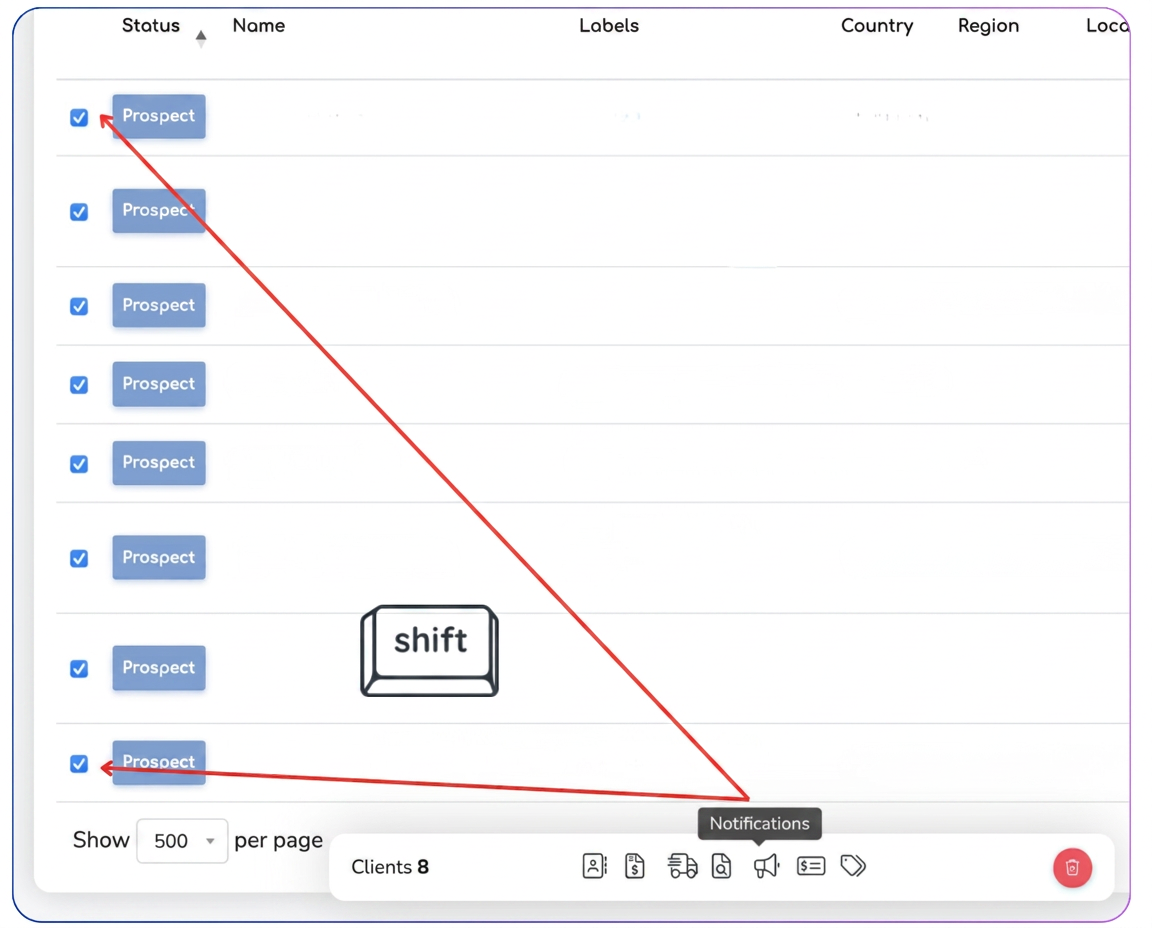
Check the last client on the page.
-
Go to the first client on the page and perform a range selection using the keys:
-
Select the last client's box.
-
Hold down Shift and click the checkbox of the first client.
Result: the entire range (all clients on the page) is selected.
4) Open the bulk actions menu ("floating menu")
After selection, a floating menu appears with actions for the current selection.
-
From the floating menu, choose the option: Notifications (the 5th option, according to the current menu).
5) Activate "Email marketing"
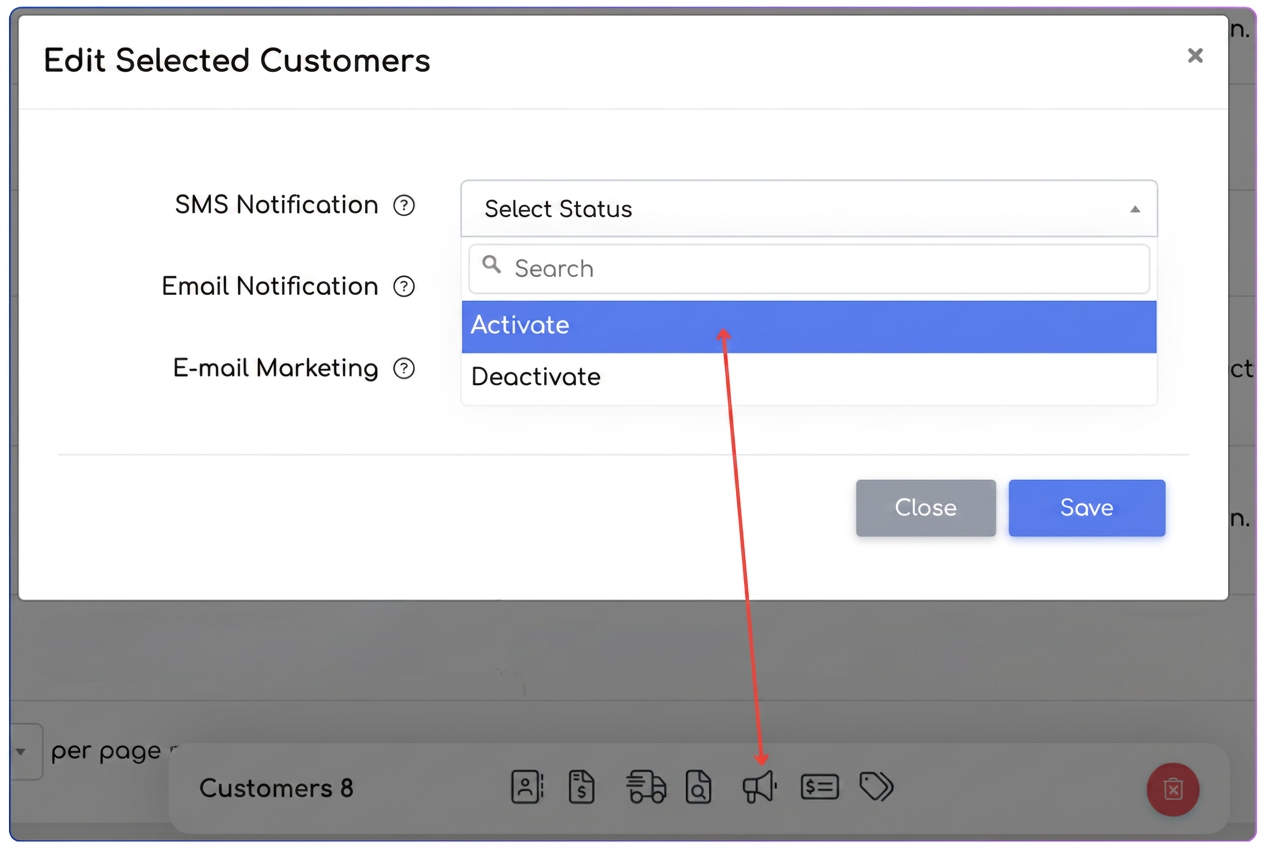
In the notification settings area, you will usually see options such as:
-
SMS Notification
-
Email Notification
-
Email Marketing
-
Select the action Activate for Email Marketing.
-
Optionally, activate the other two (SMS / Email) if this is your internal policy.
-
Save / Confirm the action.
6) Repeat for the next page (if applicable)
-
Go to the next page.
-
Repeat steps: .
Note: Why is "Email marketing" not activated by default for all clients?
Because the iflows platform is used by organizations with different communication policies, and activating marketing communications requires a legal basis (usually explicit consent). For this reason, the Email marketing option is not activated by default.
Frequently Asked Questions
1. If I activate "Email marketing", will emails be sent automatically to clients?
No.
Activating the Email marketing option only allows the inclusion of the client in marketing communications.
Emails are sent only when you explicitly initiate a campaign or communication action.
2. Does activating "Email marketing" affect the sending of offers or documents?
No.
For sending offers, invoices, or other operational documents, the Email Notification option is relevant, not Email marketing.
The two options are independent and have different purposes.
3. What is the difference between "Email Notification" and "Email marketing"?
-
Email Notification – allows sending operational emails (offers, documents, activity-related notifications).
-
Email marketing – allows sending commercial or informative communications (newsletters, announcements, campaigns).
4. What happens if I activate Email marketing for a client without consent?
Technically, the system will allow the emails to be sent.
Legally, the responsibility for GDPR compliance belongs to the organization using the platform.
Recommendation: activate this option only for clients for whom consent exists.
5. Can I later deactivate Email marketing for one client or for several?
Yes.
You can:
-
deactivate the option individually, from the client file;
-
or in bulk, using the same procedure described in the tutorial, by selecting the Deactivate option.
6. Can I activate Email marketing for only a portion of the clients?
Yes.
Bulk selection applies only to selected clients, not to all clients in the system.
You can select:
-
a subset from a page;
-
filtered clients (e.g., by county, labels, client type).
7. What happens if I forget to activate this option and try to send a campaign?
That specific client will not be included in the mailing.