
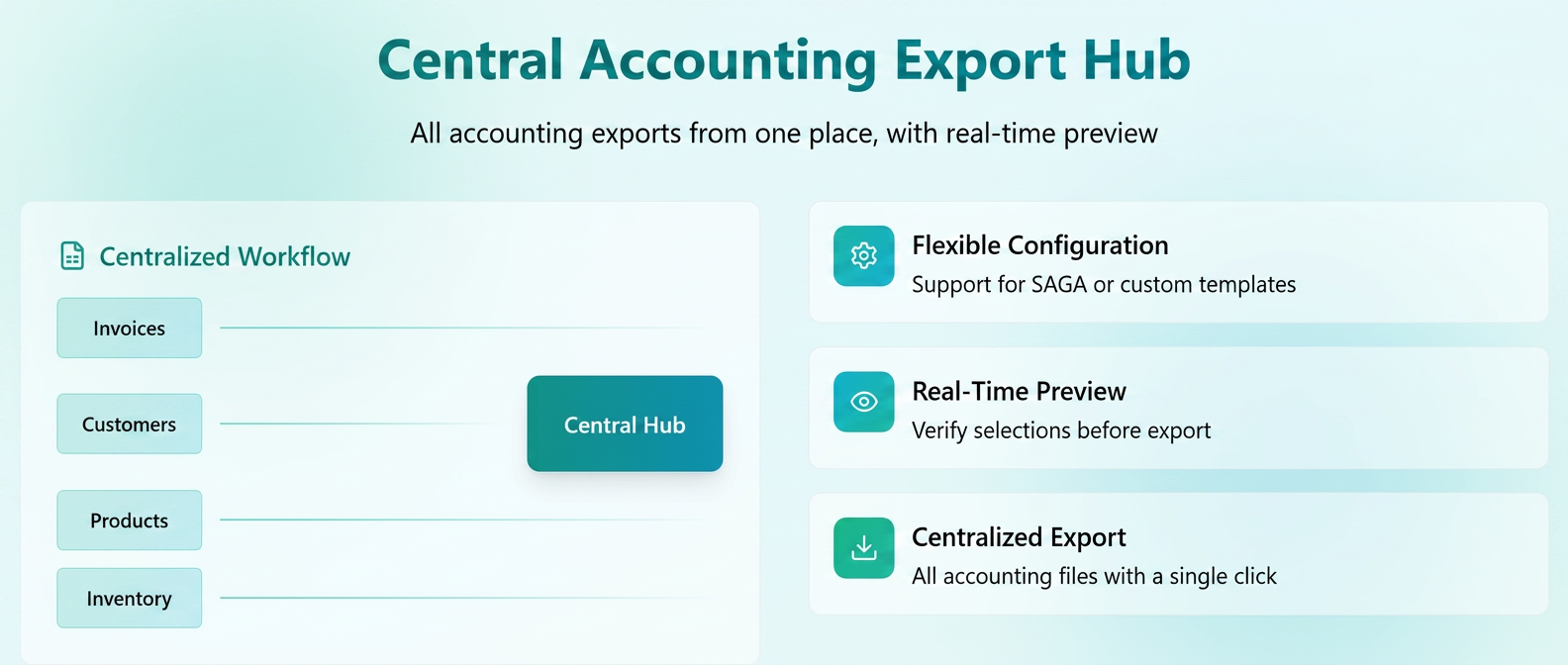
A Unified Accounting Export Center has been introduced, a completely new interface that allows generating and downloading all accounting files from a single location.
The purpose of this optimization is the complete centralization of accounting documents — so that users no longer have to navigate through each section (Invoices, Customers, Products, Stocks, etc.) to export them separately.
Additionally, the functionality can be implemented for compatibility with the SAGA program, but it is equally useful for companies using other accounting systems through support for custom templates.
Part I – Activation and Configuration
1. Activating the export center
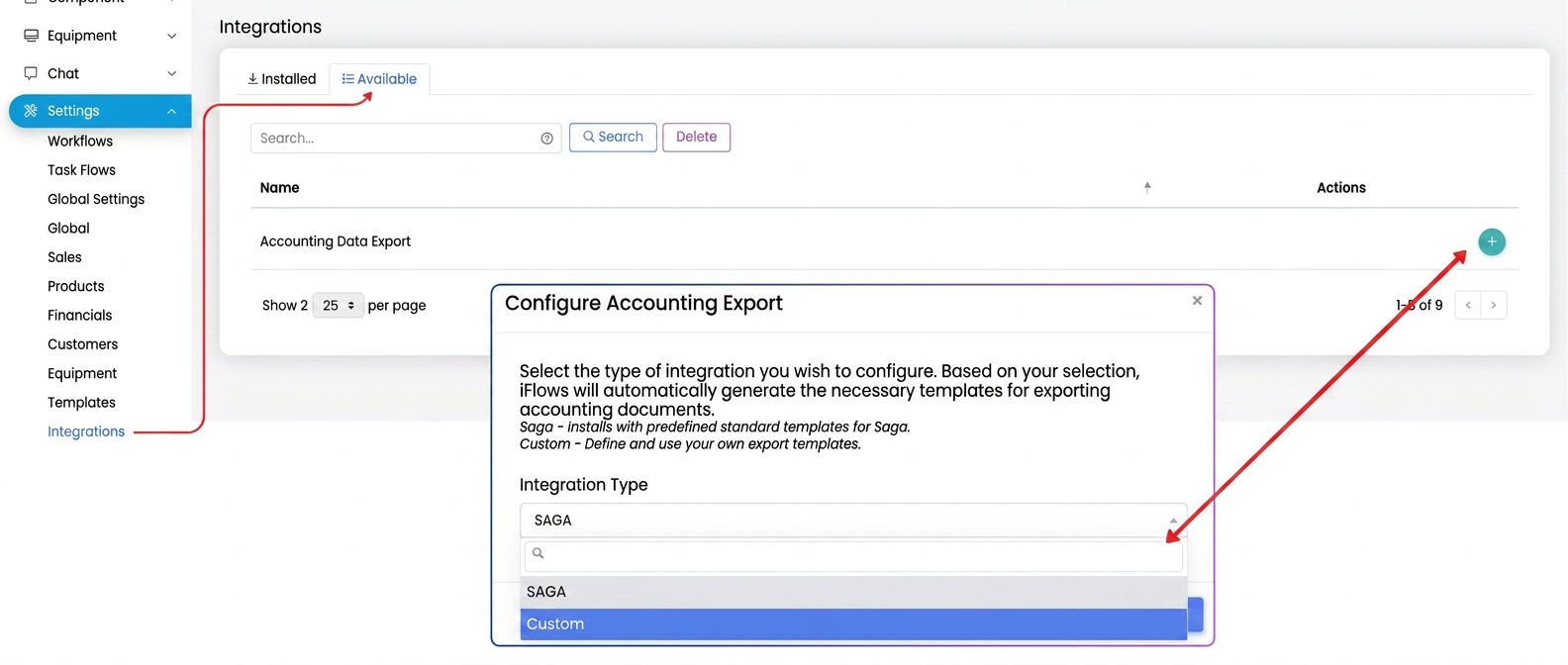
1️.Go to the menu .
2️.Open the "Available" tab and select the "Accounting Data Export" option.
3️.A configuration window will open where you must choose the export type:
- SAGA – automatically installs a set of standard templates, configured for direct import into the SAGA application.
- Custom – allows using your own templates previously defined in .
4️.Select the desired option and finalize the installation.
After installation, the new section will appear in the main menu:
Part II – Using the export center
🔸 Interface structure
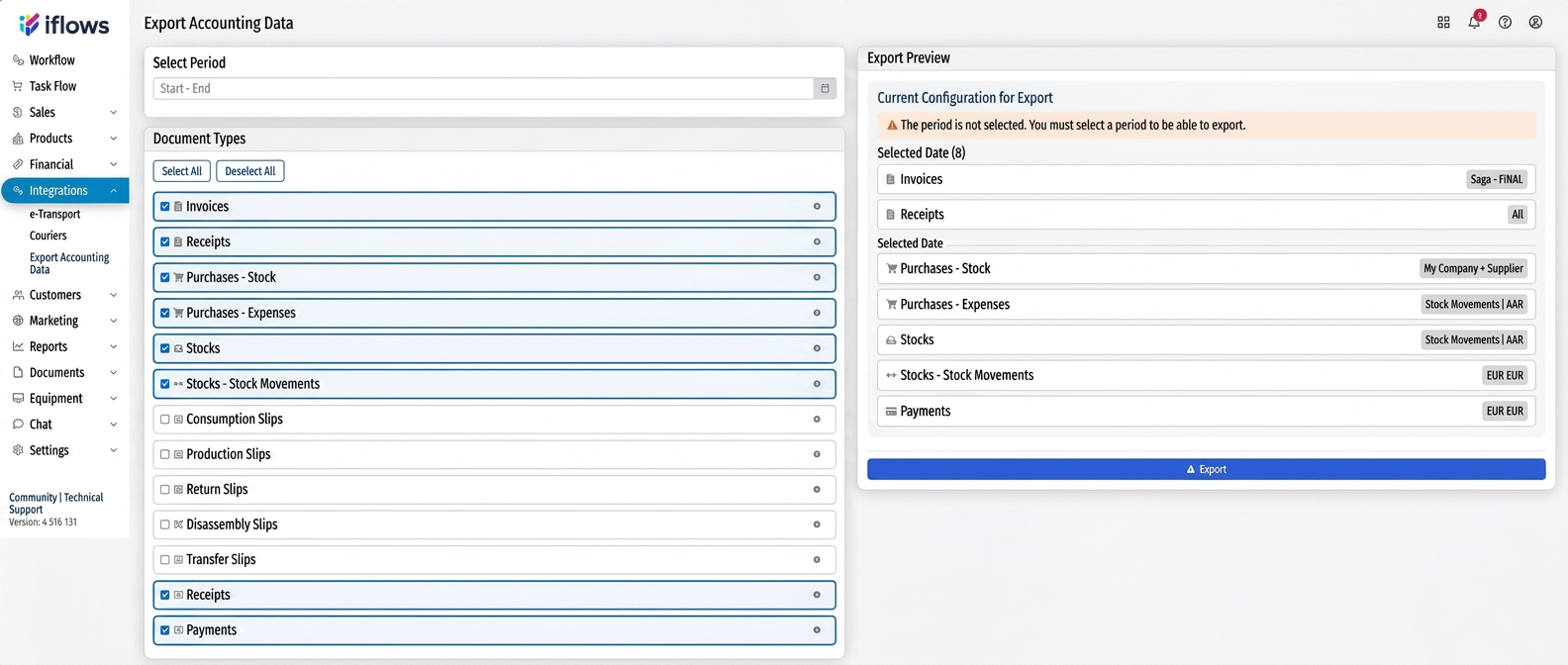
The page is divided into two areas:
- Left: the selection area (period, document type, export templates).
- Right: the Export Preview area, which displays the selections made in real-time, allowing you to verify everything before generating the files.
🔸 Workflow steps
1️.Select the accounting period – choose the desired interval (month, quarter, year).
2️.Choose document types – check the categories for export (Invoices, Customers, Products, Stocks, Suppliers, Payments/Receipts, etc.).
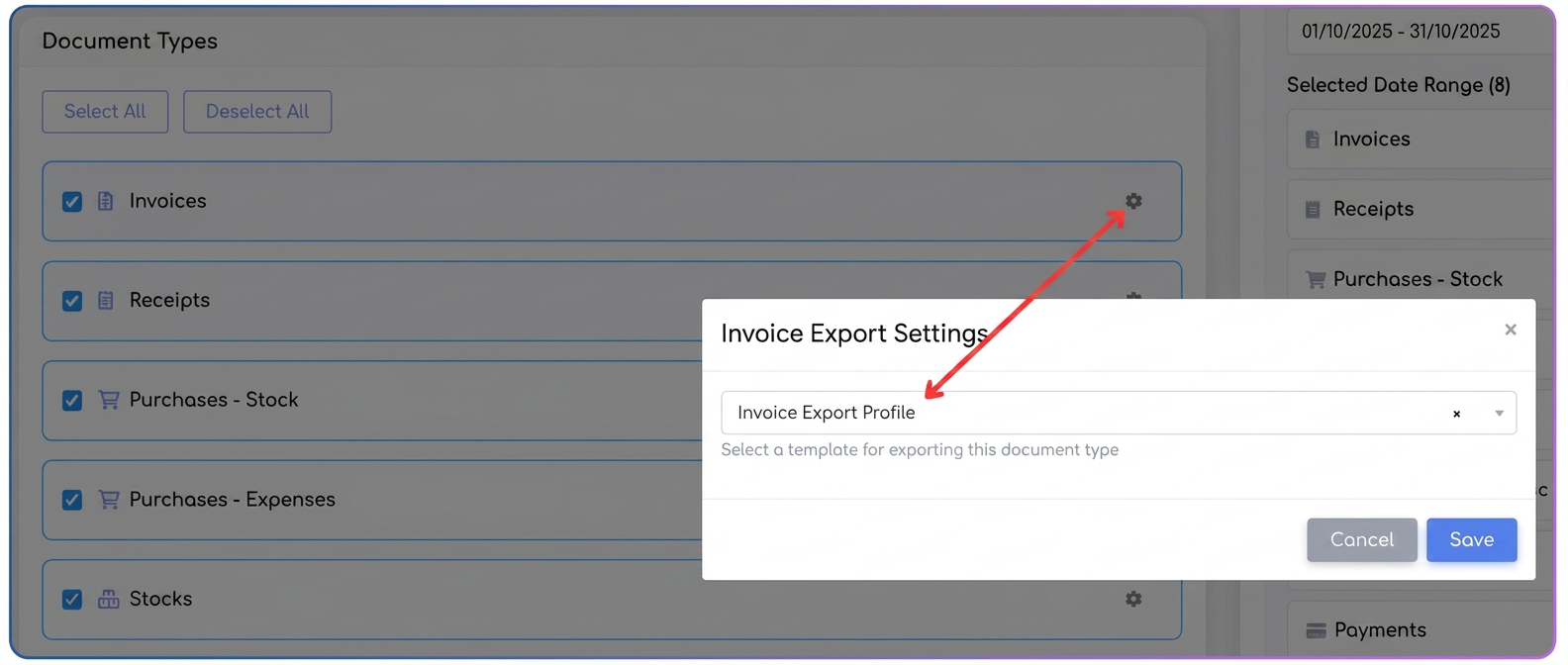
3️.Choose the template for each document:
- Press the ⚙️ icon next to each category.
- Select the desired template. If the SAGA integration is activated, the system automatically suggests the corresponding template.
- For other accounting applications, you can select your own template created in .
4️.Press "Export" – the platform generates a .zip archive file containing distinct folders for each document type, ready for import into SAGA or another accounting system.
Part III – Flexibility and advanced usage
- Predefined SAGA templates:
Upon activation, the system automatically installs templates compatible with the SAGA import structure for:
Invoices, Products, Customers, Suppliers, Stocks, Purchases, Payments, and Receipts. - Custom templates:
Users can create their own templates in , adapted to other accounting software (Mentor, FGO, ContaNet, etc.) and can combine them freely during export. - Mixed use:
Data generated through SAGA templates and custom templates can be included simultaneously in the same export. - Preference retention:
The system automatically saves the last selections (period, document types, templates), so the next export is done instantly, without reconfiguration.
Note for customers with SAGA integration:
In order for the SAGA system to recognize products upon import, it is mandatory for each item to have a product code. In iFlows the code is not mandatory, but in SAGA it is, which is why discrepancies may appear between the two systems.
In practice, two frequent situations arise:
- The product has no code in iFlows, but has a code in SAGA.
- The product has a code in iFlows, but the accountant entered the product in SAGA with a different code.
To prevent these problems, the SAGA integration automatically creates the SAGA CODE field in iFlows, intended for the exact mapping of products between the two systems.
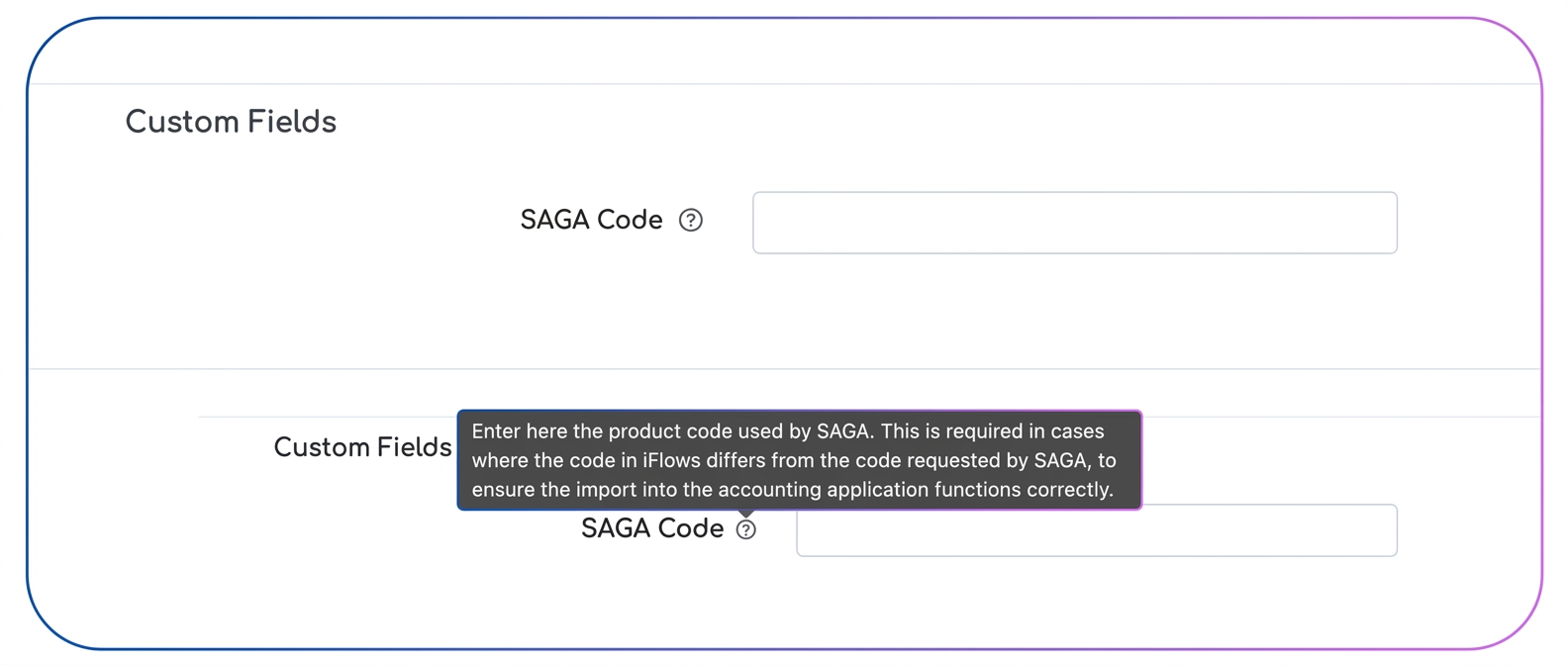
If the export does not recognize certain products, there are two correct options for remediation:
a) The user enters the exact SAGA codes into iFlows
The user must request the list of official SAGA codes from the accountant and fill them in the SAGA CODE field for each product.
b) The accountant adjusts the codes in SAGA to match those in iFlows
In the situation where the organization already has an established internal product code system in iFlows, the accountant can modify the products in SAGA so that the codes are identical. In this way, the mapping is maintained consistently from iFlows to SAGA.
Regardless of the variant, the main condition is that the same product must have the same code in both systems, either by filling in the SAGA CODE field in iFlows or by aligning the codes directly in SAGA.