
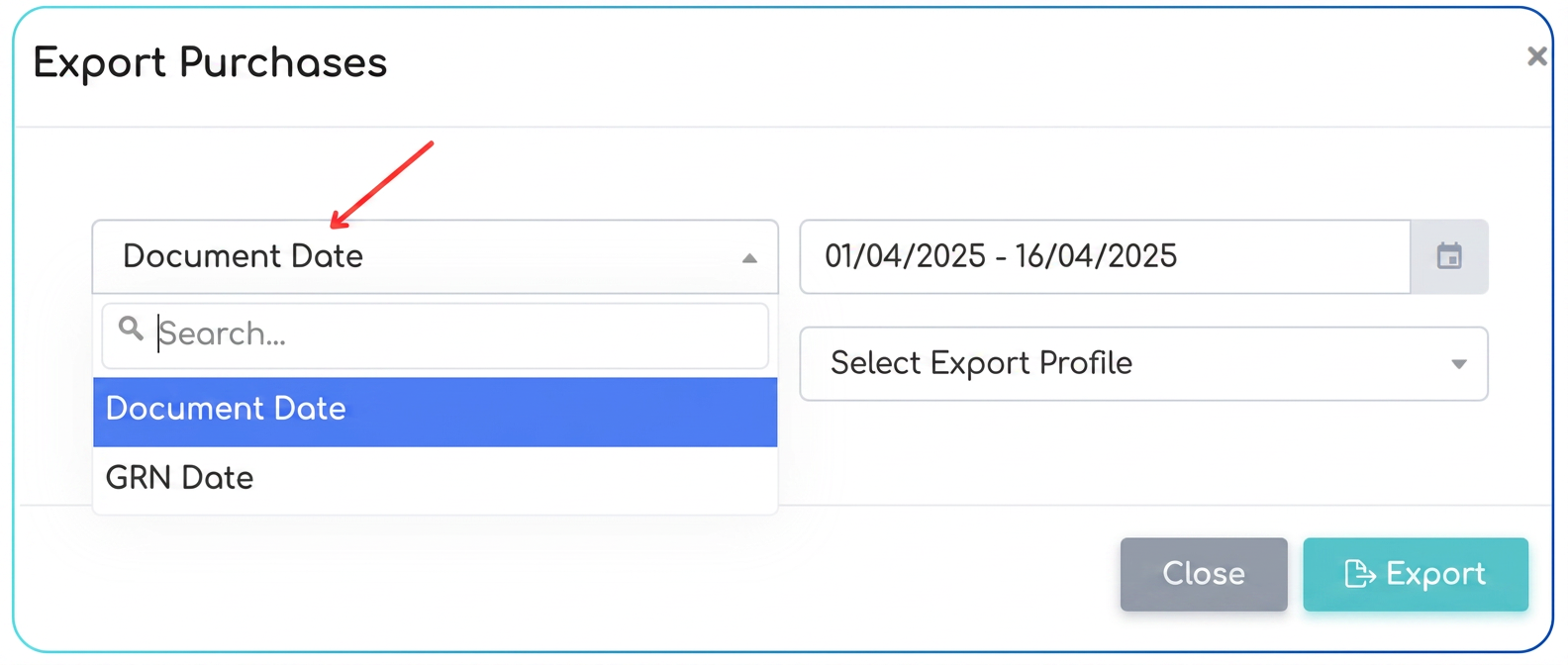
This optimization adds significant flexibility to the data export process in the section. When you initiate an export, in the "Export Purchases" pop-up window, you now have the possibility to choose which date criterion you wish to filter records by for the selected period.
A new dropdown field allows you to choose between:
- Document Date: By selecting this option, the date range chosen in the calendar field will apply to the purchase document date (the supplier invoice date). The export will include all purchases whose document date falls within the specified range.
- NIR Date: By selecting this option, the chosen date range will apply to the date of the Nota de Intrare Recepție (NIR - Reception and Inspection Note), which corresponds, in the case of stock purchases, to the date the goods actually entered inventory (now set at the NIR level, according to the previous optimization). The export will include purchases whose NIRs have a date within the specified range.
This option is particularly useful for generating reports tailored to different needs: you can export purchases from a specific financial period (based on the invoice date) or you can export goods receptions from a specific operational period (based on the NIR date).
User Guide:
- Navigate in the main menu to .
- Press the "Export" button (usually located at the top-right of the list).
- The "Export Purchases" pop-up window will open.
- Locate the first dropdown field in this window (located above the date selection field). This is the new selector for the date criterion.
- Click on this dropdown and choose the desired filtering criterion:
- Select "Document Date" if you wish to filter the export based on the purchase document date (supplier invoice).
- Select "NIR Date" if you wish to filter the export based on the date on the Nota de Intrare Recepție (stock entry date).
- In the calendar field to the right, select the desired date range. This range will now apply according to the criterion chosen in step 5.
- Select the "Export Profile" you wish to use.
- Press the "Export" button in the pop-up window.
- The generated file will contain the purchase records filtered according to the date criterion (Document Date or NIR Date) and the selected range.