
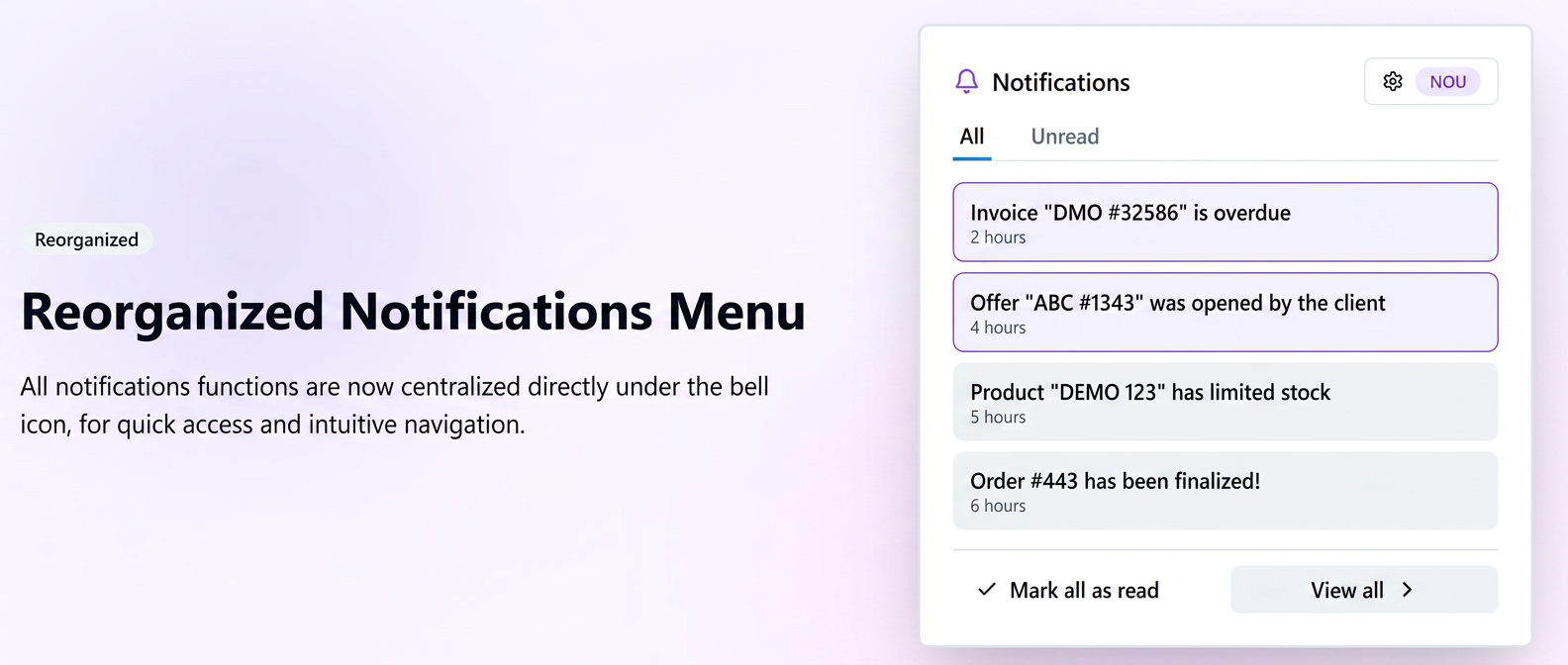
For more intuitive navigation and quick access to important information, the notifications menu has been moved. All extended functions (full view, configuration, marking notifications) have been centralized directly under the 🔔 Bell icon in the main bar, eliminating the need for a separate section in the menu.
How to access
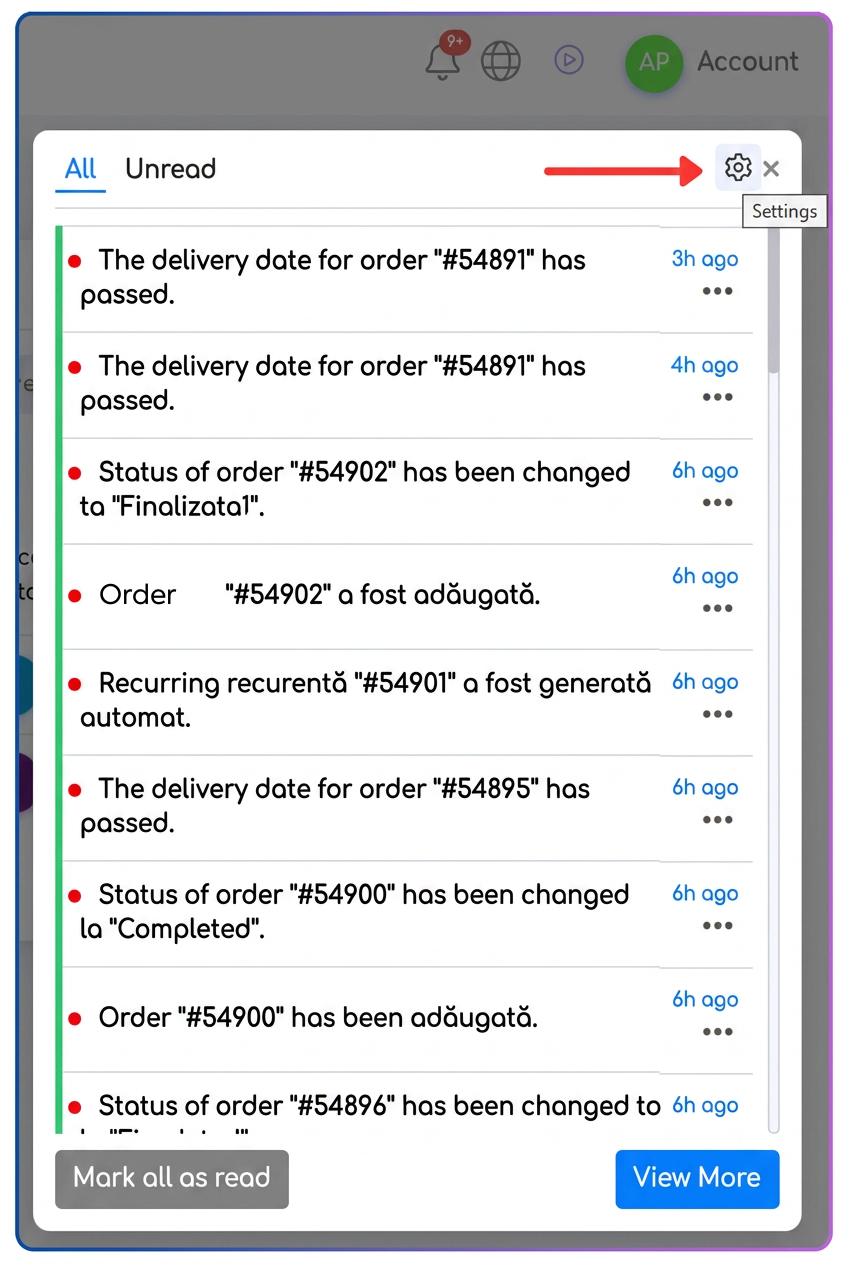
1️.Access the notification center: Click on the bell icon in the top bar of the application to open the recent notifications panel.
2️.Viewing notifications:
The panel displays two tabs by default:
- All – the complete list of the most recent notifications;
- Unread – quick filtering for messages that require attention.
3️.Quick options available in the panel:
- NEW: Settings: directly access the page where you can choose which types of notifications you wish to receive.
- 📄 View more: opens the full notification history page.
- ✔️ Mark all as read: allows for a quick reset of the notification badge.
Related articles
Differentiated notifications by delivery method (Email/SMS)TutorialsPush NotificationsTutorialsHow to send automated SMS notifications upon order shipmentTutorialsActivating and Customizing Overdue Invoice NotificationsTutorialsI noticed in the settings that there are notifications sent to the customer upon offer expiration, which I have enabled, but these are not sent to me as well, like the offers are.Forum