
Below is a detailed description of how to configure and customize SMS delivery notifications:
1. Adding the "Delivery Details" instruction to the workflow
-
: In this section, edit the desired workflow.
-
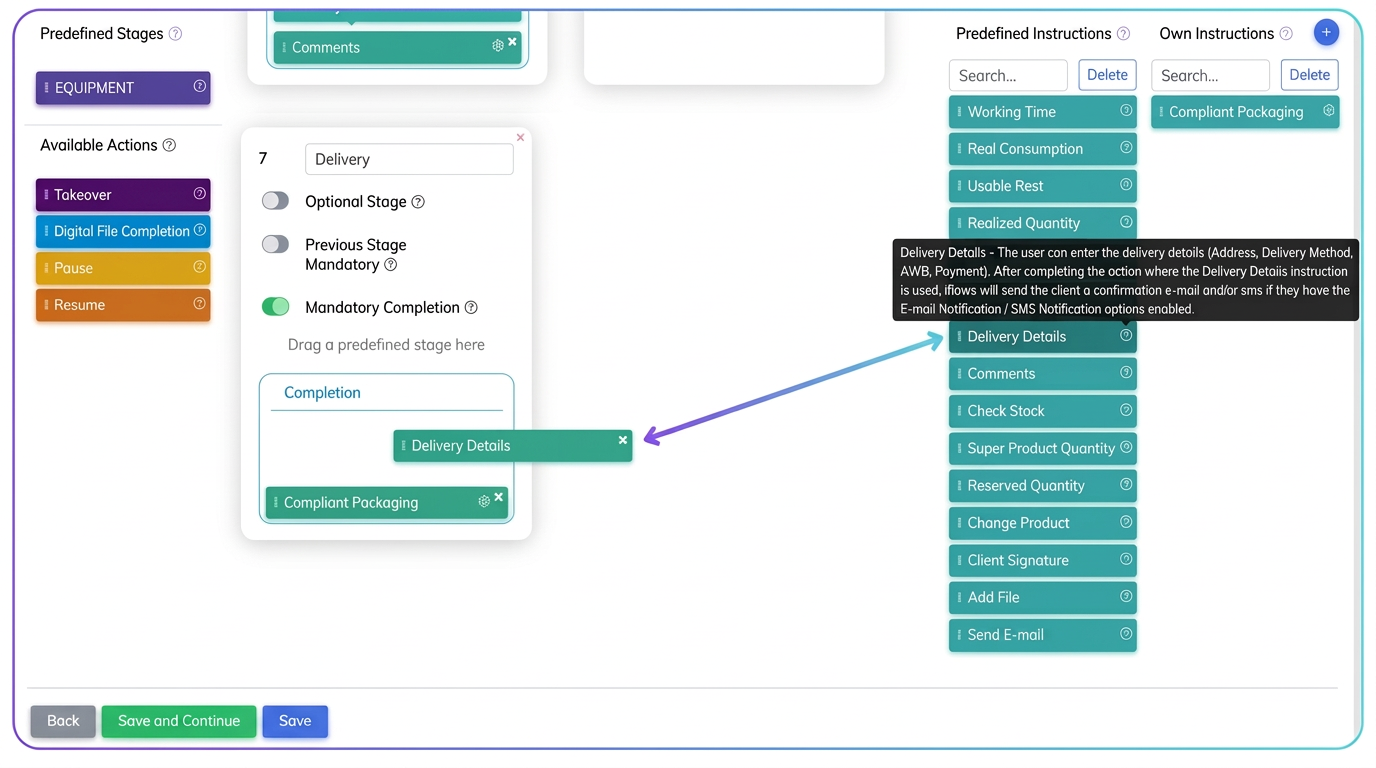
Locate the "Predefined Instructions" column
- On the right side, you will see the list of available predefined instructions.
- Find the instruction "Delivery Details" (which will allow the completion of the address, AWB details, delivery method, payment, etc.).
-
Drag the instruction into the desired stage
- Choose the workflow stage where you want the notification to be generated for the customer (SMS and/or email).
- For example, in the final stage, you can add "Delivery Details" so the system sends an SMS with the shipping information.
2. Enabling "SMS Notification" for customers
-
Access the customer list
- By going to Customers, select the customer for whom you want to enable SMS notifications.
-
Edit the customer
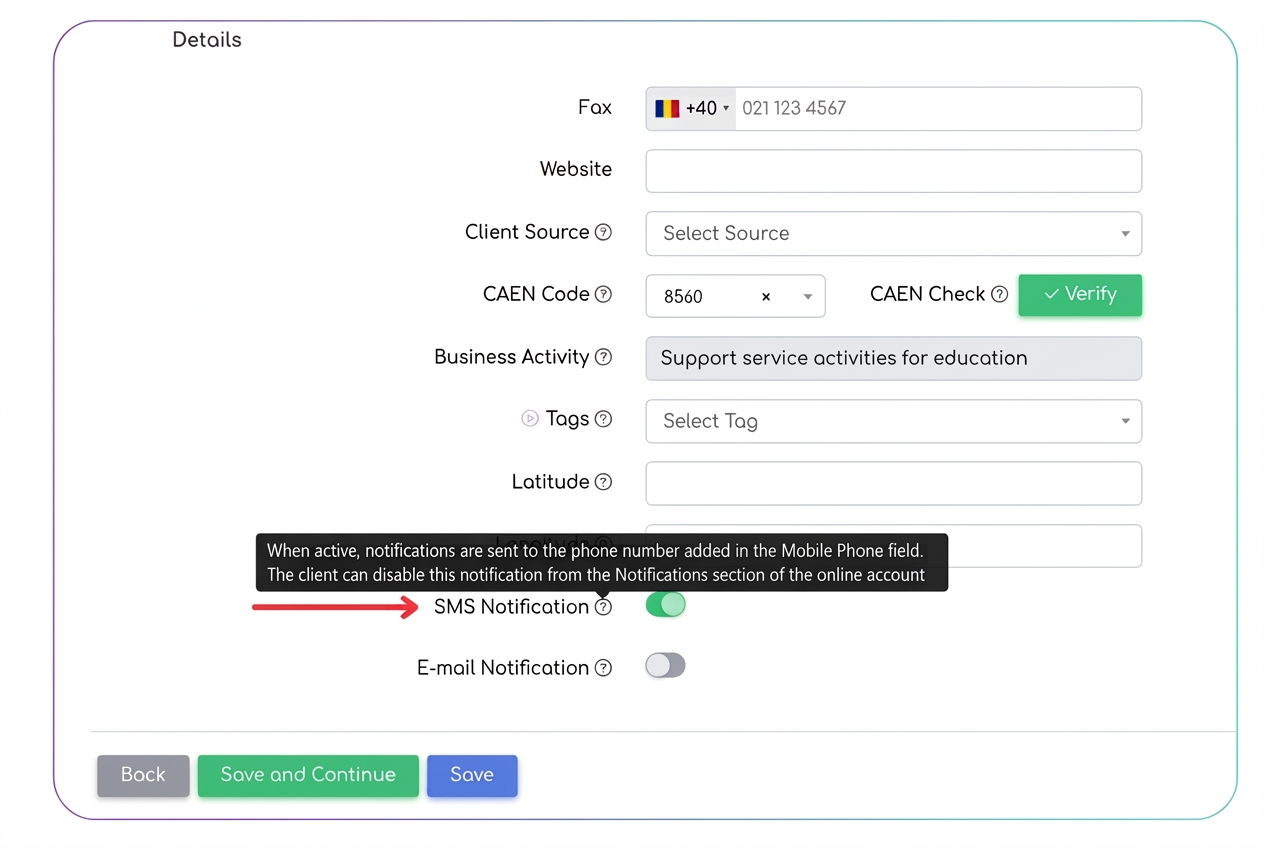
- In the customer details, at the bottom (or in the "Details" section), you will find the "SMS Notification" option.
- Ensure the toggler (switch) is active (it appears as an ON/OFF button).
-
Enter the correct phone number
- SMS notifications will be sent to the number specified in the "Mobile Phone" field.
3. Customizing the SMS template
-
-
Edit the template: "order_finalized"
-
Enter the text and use variables
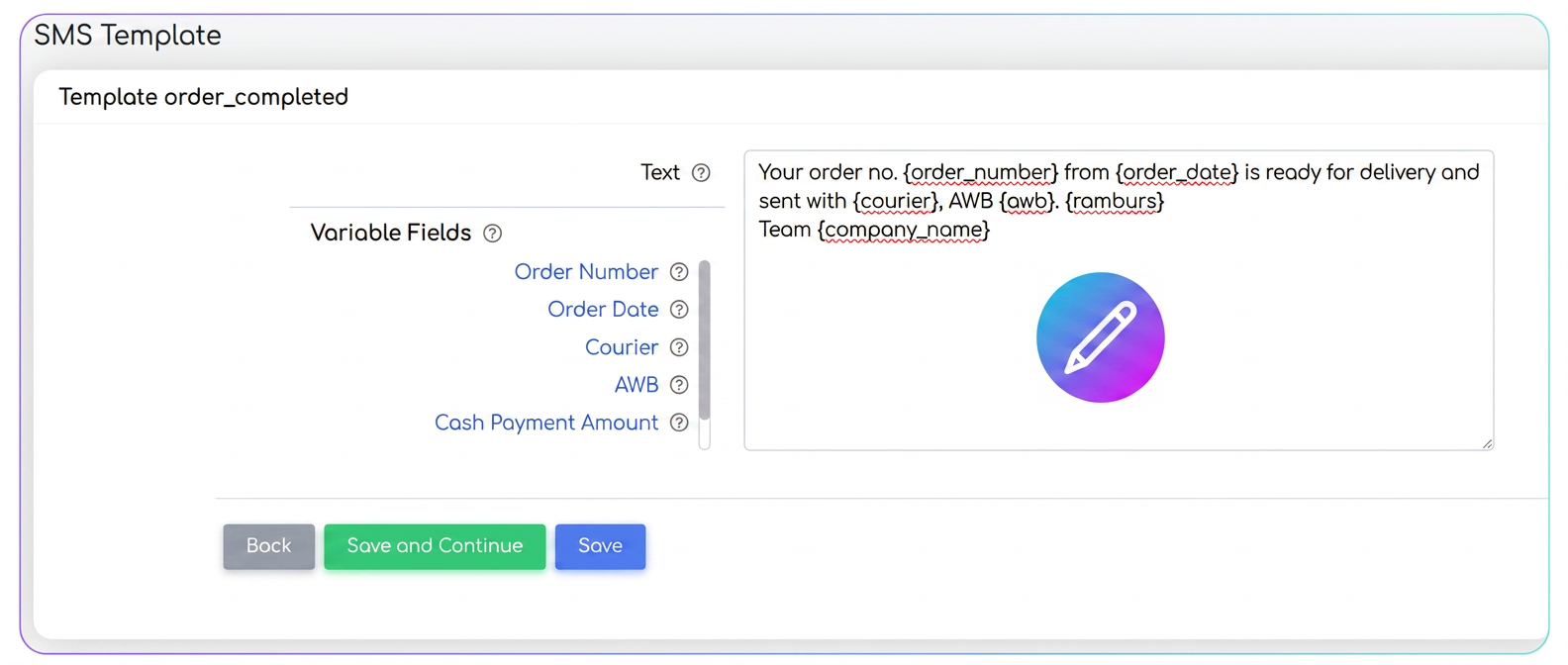
- On the left side, a list of "Variable Fields" appears (e.g.:
{order_number},{order_date},{courier},{awb},{company_name}, etc.). - By clicking on the variable name, it will be automatically inserted into the text as
{variable}. - When sending the SMS, the platform automatically replaces these fields with the corresponding data from the system (order number, order date, AWB, etc.).
- On the left side, a list of "Variable Fields" appears (e.g.:
-
Save and confirm
- After adjusting the text and inserting the necessary variables, click on "Save".
- This will update the template so that the SMS contains the desired wording and data.
Simple example of an SMS template
Your order no. {order_number} from {order_date} is ready for delivery and will be sent via {courier}, with AWB {awb}. {ramburs}
The {company_name} team
order_numberis replaced by the actual order number,order_datewith the order date,courierwith the courier's name,awbwith the AWB number,rambursdisplays the cash-on-delivery amount (if applicable),company_namedisplays your company name, according to the data entered in the platform.
Related articles
I noticed in the settings that there are notifications sent to the customer upon offer expiration, which I have enabled, but these are not sent to me as well, like the offers are.ForumNotifications Menu ReorganizationTutorialsDifferentiated notifications by delivery method (Email/SMS)TutorialsPush NotificationsTutorialsActivating and Customizing Overdue Invoice NotificationsTutorials