
How to configure automatic sending of notifications for overdue invoices in iflows:
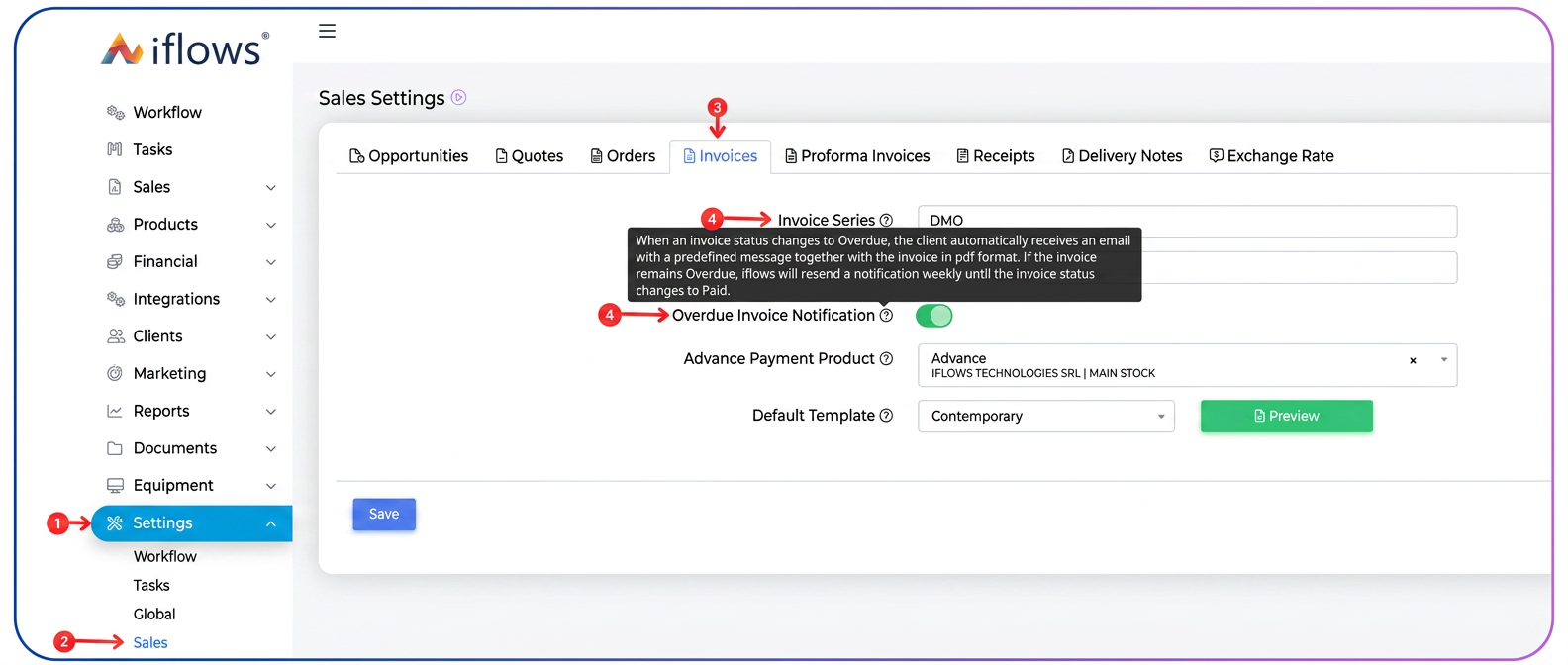
- Accessing Sales Settings
- From the main menu, select Settings.
- In the sub-menu list that appears, choose Sales.
- Navigating to the Invoices section
- At the top, you will see several tabs: Opportunities, Offers, Orders, Invoices, etc.
- Click on the Invoices tab.
- Activating notifications for overdue invoices
- Identify the option Overdue Invoice Notification. This allows for the automatic sending of an email to the client whenever an invoice enters the "Overdue" status.
- Toggle the switch to the "On" position.
- How overdue invoice notifications work
- When an invoice changes to "Overdue" status, the client will automatically receive an email with a predefined message and the invoice in PDF format.
- If the invoice remains overdue, iflows resends the notification periodically (weekly) until the invoice status changes to "Paid" or another final status.
Below is the procedure for customizing the "Overdue invoice notification" email template in iflows, so you can adapt the message sent to clients:
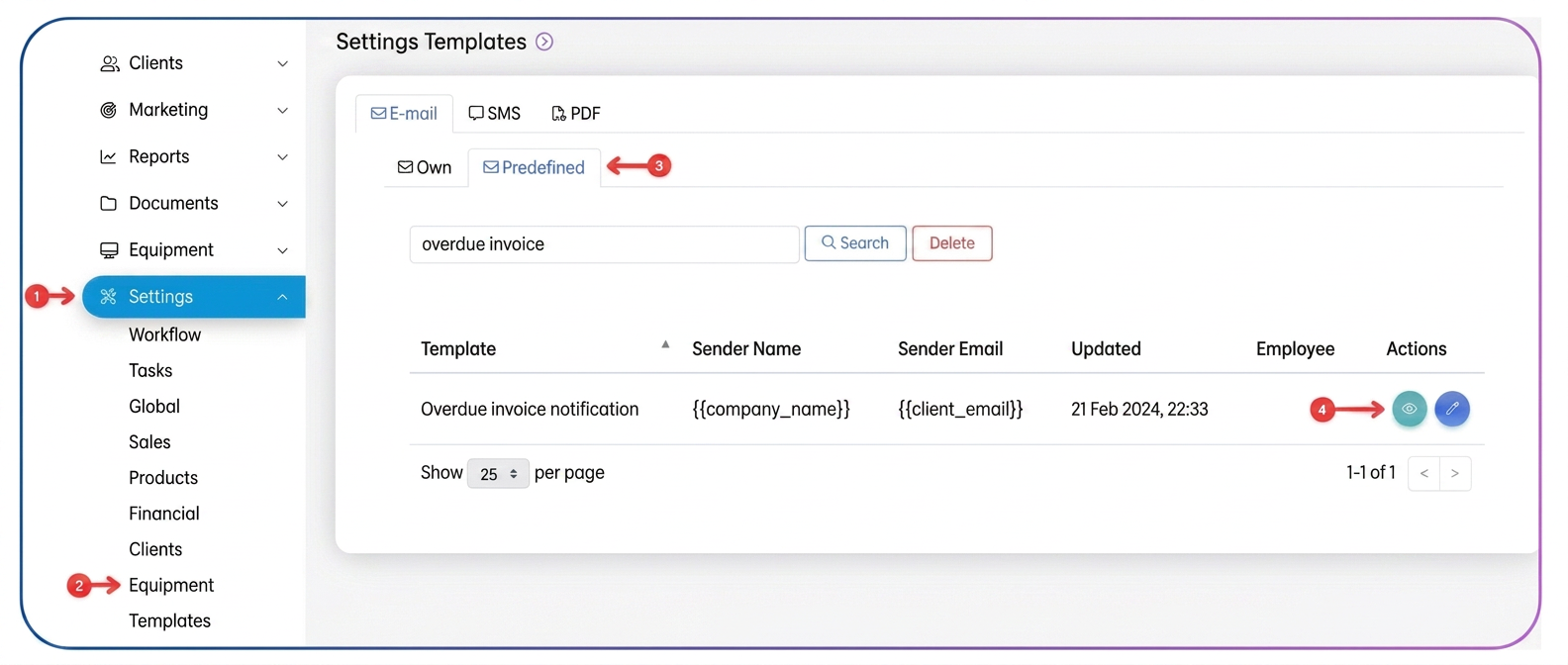
- Accessing Template Settings
- From the main menu, select Settings.
- In the sub-menu list, choose Templates .
- Selecting the Template Type
- In the "Template Settings" interface, you will notice three tabs: Email, SMS and PDF.
- Choose the Email tab.
- Identifying the predefined template
- From the available options, click on Predefined .
- In the search field, enter "overdue invoice notification" or scroll through the list until you find Overdue invoice notification.
- Viewing and editing content
- To examine the current content of the template, click the Preview button ("eye" icon).
- To modify the text, select the Edit button.
- Personalizing the message
- You can adjust the message entirely.
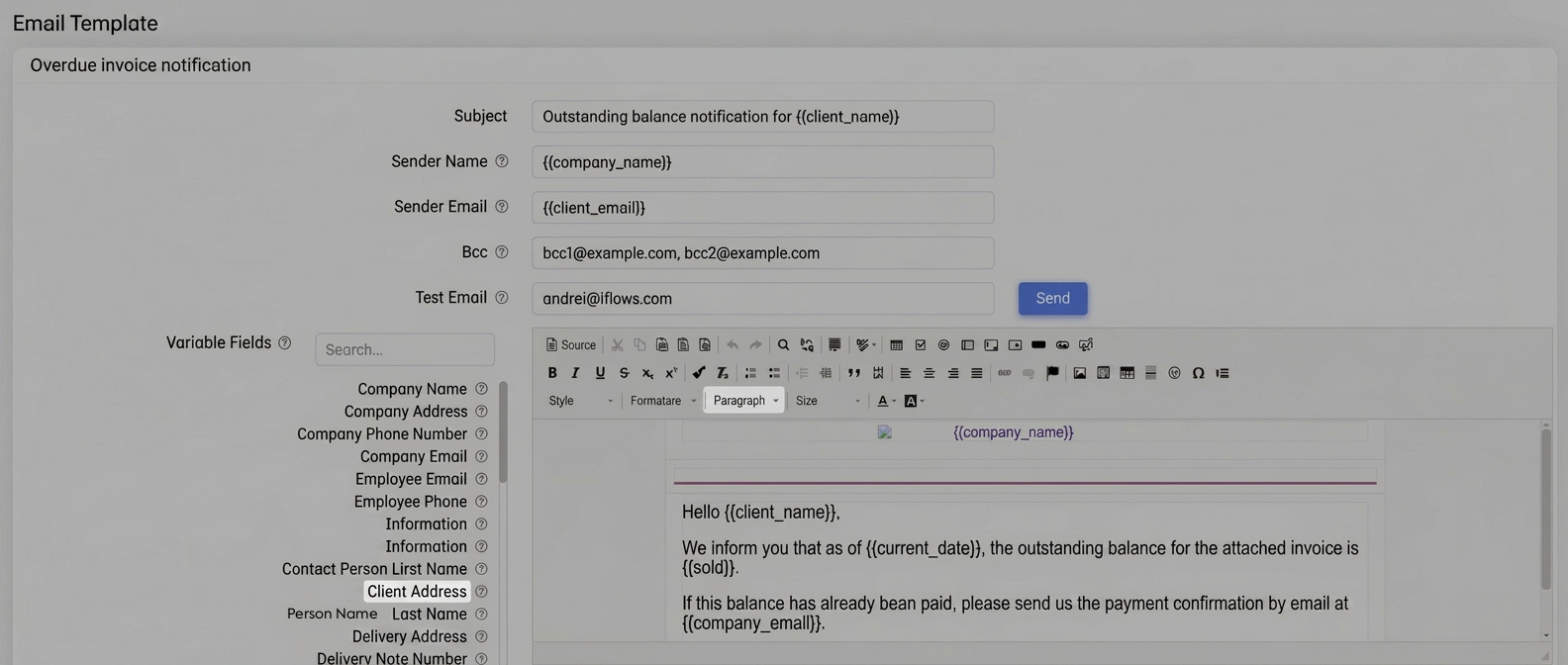
After completing these steps, the new text will be automatically used when iflows sends notifications regarding overdue invoices, thus ensuring that the message reflects exactly how you want to communicate with your clients.
Related articles
Overdue Invoice Notification: advanced funnelTutorialsHow to edit the email text accompanying the invoiceTutorialsHow can I configure invoice upload notifications for e-Factura to be sent to a specific accounting department email address?ForumInvoices: New Column: Overdue DaysTutorialsAdvance Invoice StatusTutorials