
1. General Overview
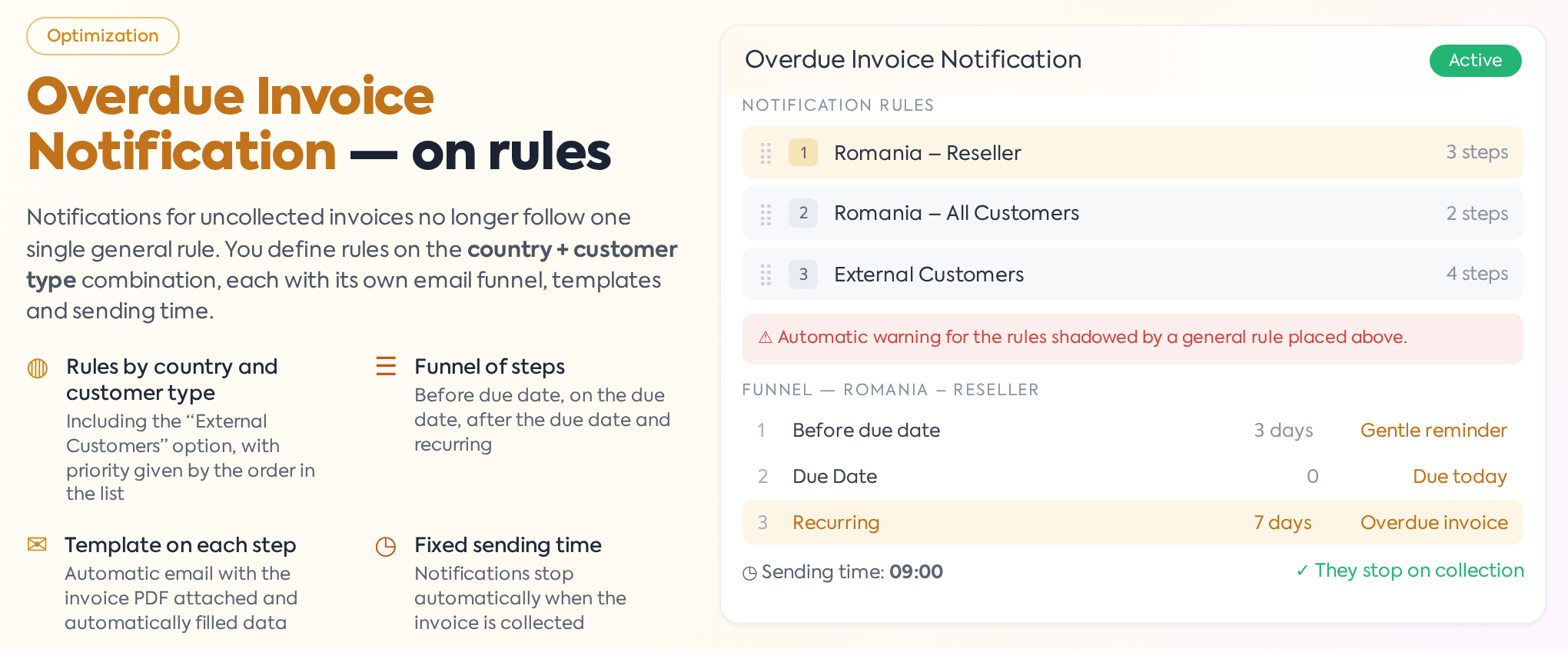
Overdue Invoice Notification is the function through which the platform automatically sends emails to customers for unpaid invoices: before the due date, on the due date, and after it has passed. With this update, notifications no longer operate under a single general rule, but based on a list of rules defined by the country + customer type combination. Each rule has its own step funnel — a sequence of emails scheduled around the due date — its own email template for each step, and its own sending time.
The function is used by finance and sales teams that track collections and want follow-ups with customers to be handled automatically, differentiated by markets and customer categories. It links directly to the Invoices modules (statuses, due dates, and balances), Customers (country, customer type, and email notification agreement), and the email templates in the Invoices section.
It is accessed from the main menu at , Invoices section, General tab — the Overdue Invoice Notification option.
2. Activating the function
The function is turned on via the Overdue Invoice Notification switch. When the switch is active, the Notification Rules area appears below it, with the list of configured rules and the add button. For the activation or deactivation to be saved, press Save at the bottom of the settings page.
If the notification is active but there are no rules in the list, the platform maintains the behavior from before the update: customers with overdue invoices automatically receive a reminder email once a week using the standard template until the invoice is paid.
When switching to the new mechanism, platforms that already had notifications active automatically receive a rule called Default Rule, which preserves the previous behavior: it applies to all customers, sends an email on the Due Date, and then repeats it every 7 days at 09:00 using the standard notification template. This rule can be edited, reordered, or deleted like any other. Because the default rule has all countries checked, it appears in the list as "Afghanistan +253 – All Customers"; this is normal behavior, not a display error.
3. List of notification rules
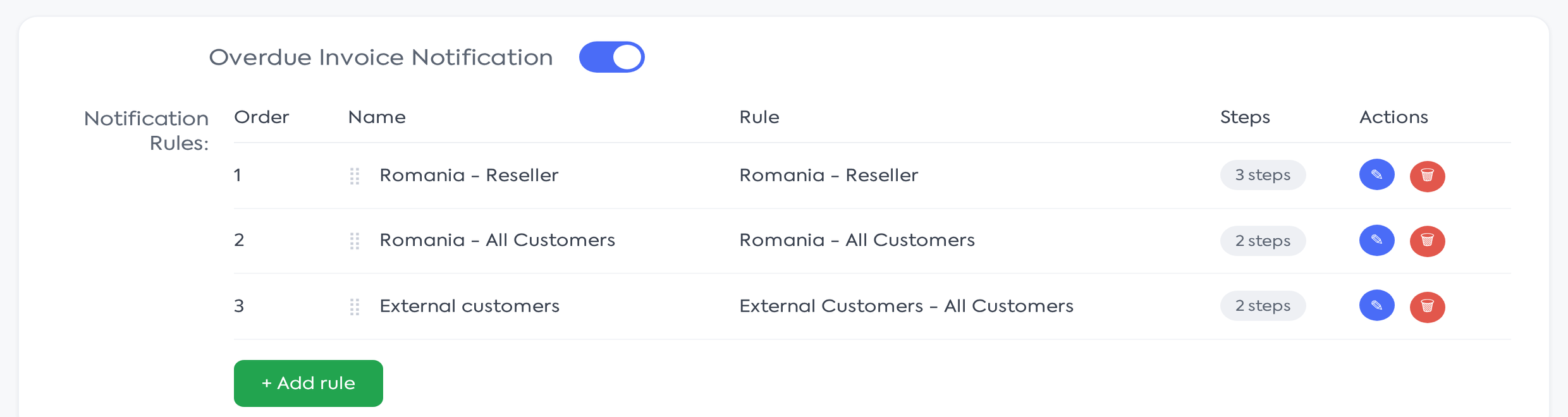
The activated setting, with the list of notification rules.
The list displays the rules in order of priority, one per row, with the following information:
- Order — the position of the rule in the list; position 1 has the highest priority.
- Name — the name given to the rule upon creation.
- Rule — the application criteria: countries (or External Customers) and customer type. When multiple values are selected, the first one is displayed followed by the number of remaining ones (e.g., "France +2 – All Customers"); the full list appears when hovering over the text.
- Steps — the number of steps in the rule's funnel.
- Actions — the Edit (opens the edit window) and Delete buttons.
Rules are reordered via drag & drop by pulling the handle to the left of the name. The new order is saved immediately without any further confirmation button and changes the application priority. Deletion requires confirmation ("Are you sure you want to delete this rule?"). When no rules exist, the list displays the message "No rules configured. Add the first rule to customize notifications.". The + Add rule button opens the creation window.
4. Adding and editing a rule
Creation and editing use the same window ("Add new rule" and "Edit rule", respectively), with the subtitle "Configure notifications for a country and customer type combination". The fields are:
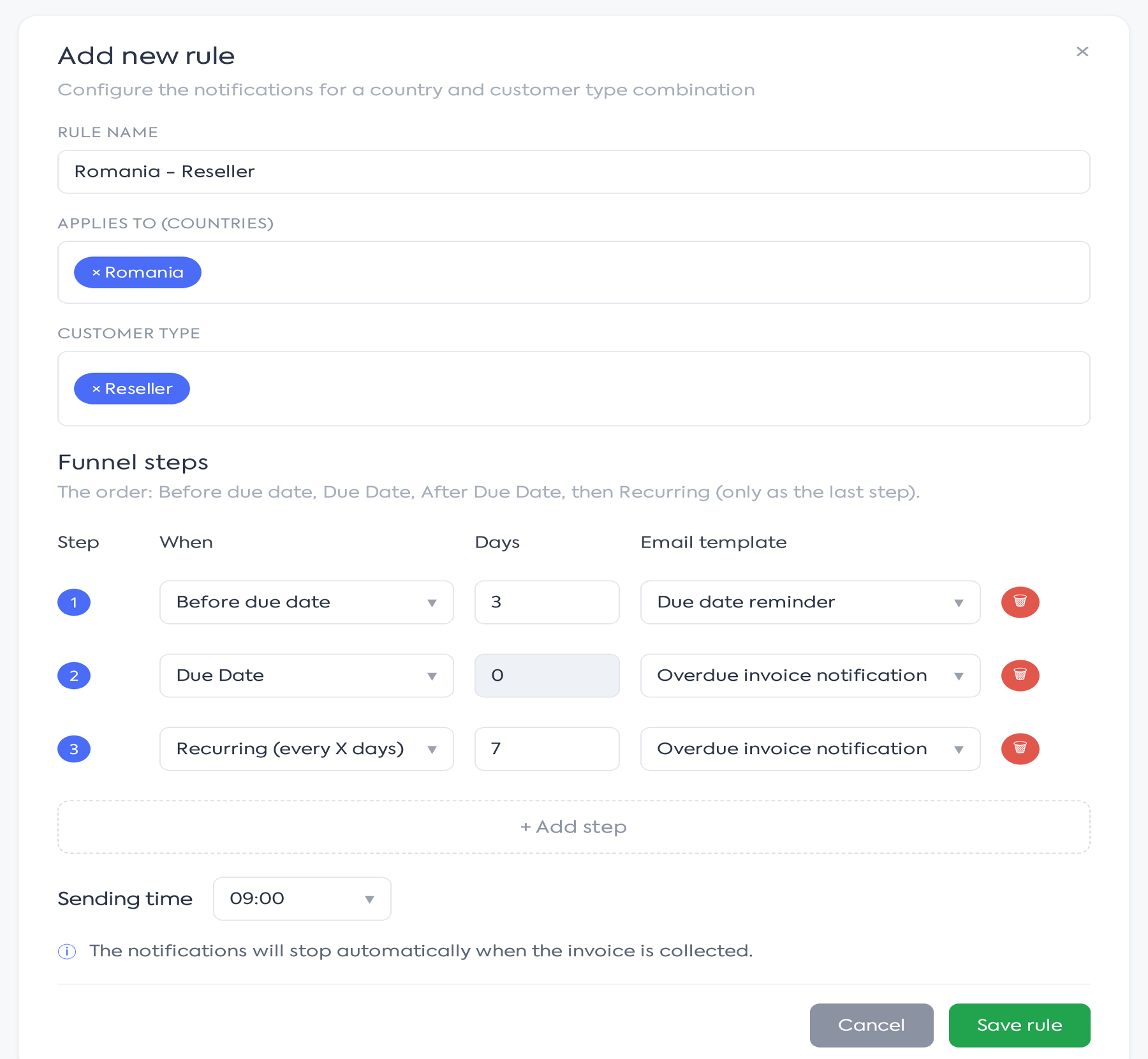
The rule creation window, with the step funnel.
- Rule Name — the name under which the rule appears in the list (e.g., "Romania – Reseller"). Mandatory field.
- Applies to (Countries) — multi-choice selector. The first option in the list is External Customers — all customers whose country differs from the platform's country — followed by the full list of countries. You choose either one or more countries, or External Customers; combining them is not allowed ("Choose either countries or external Customers, not both."), and the lack of any selection blocks saving ("Select at least one country or external Customers.").
- Customer Type — multi-choice selector. If left empty, the rule applies to all customers (All Customers). Options are the active customer types in the platform: End Customer, Reseller, Public Institution, plus custom types defined in the customer settings.
Important: To cover all customers, do not manually select all countries from the list. Use two rules: one for your country (e.g., Romania) and one for External Customers — together they cover all customers, and the rules remain easy to manage.
Funnel steps
The central area of the window defines the email sequence. Each step occupies a row with the columns Step (sequence number), When (sending moment), Days, and Email Template. Available moments are:
- Before due date — the email is sent the specified number of days before the invoice due date.
- Due Date — the email is sent on the due date; the Days field is locked at 0.
- After Due Date — the email is sent the specified number of days after the due date has passed.
- Recurrent (every X days) — the email repeats every X days after the previous step, as long as the invoice remains unpaid. Requires at least 1 day between sends.
Steps must follow chronological order: Before due date, Due Date, After Due Date, then Recurrent. The window enforces the order on the fly: moments that would violate it appear disabled in the list, and an explanatory message is displayed when trying to select them. There can only be one Recurrent step, only in the last position and never the first; after a Recurrent step, the + Add step button becomes unavailable ("You cannot add steps after a recurrent step.").
A new step is added with + Add step and comes pre-filled with common values (3 days for steps before or after the due date, 7 days for the recurrent step), which can be modified. Each step must have an email template chosen from the templates list in the Invoices section (managed at ); without a template, saving is blocked ("Each step must have an email template."). A step is removed using the delete icon on the row, and the rule must contain at least one step ("Add at least one step to the funnel.").
Sending time and saving
Sending time — the hour at which the rule sends its emails, at a fixed hour (00:00–23:00); the default value is 09:00. Below this field, the window displays the informative message "Notifications will stop automatically upon invoice payment." — stopping upon payment is standard behavior, not an option. Saving is done with Save rule; Cancel closes the window without changes. Completion errors appear at the top of the window.
5. Rule order and matching logic
For each customer with eligible invoices, the system selects a single rule: the first one in the list, from top to bottom, that matches the country + customer type combination. Once a match is found, the rules below it are ignored for that customer — rules do not accumulate.
- A customer matching a specific rule (e.g., "Romania + Reseller") located above a general rule ("Romania + All Customers") will trigger the specific rule; the general one will apply to other customers in Romania.
- A customer for whom no specific rule exists will trigger the first general rule that covers them.
- A customer who does not match any rule receives no notifications — there is no default fallback behavior.
External Customers covers any customer whose country, filled in the customer file, differs from the platform's country. Since order decides the winning rule, moving a rule higher in the list gives it immediate priority. Matching is based on the exact country name in the customer file compared to the platform's country list: if the country is written differently or left blank in the customer file, the customer matches no rule and receives no notifications.
6. Shadowed rule warnings
Because a general rule placed too high can "catch" all customers before a specific rule below it, the platform automatically displays a warning above the list whenever one rule completely covers another located further down. The message names both rules and the targeted country:

Warning for a rule shadowed by another above it.
The warning also covers cases where the External Customers rule stands above a rule for a specific foreign country (e.g., Italy): the country rule would never apply. Warnings do not block saving or reordering — they are purely informative and disappear when the order is corrected.
7. Sending notifications
Notifications are sent automatically, daily, at the time set for each rule. Each eligible invoice receives its own email with the invoice PDF attached; the content uses the template of the current step, where the platform automatically fills in the customer name, date, and outstanding amount with the invoice currency. The platform constantly checks invoices and triggers each rule within minutes after its scheduled time, using the platform's local time. If the platform is off at that exact moment, remaining steps are sent at the next check on the following day.
For an email to be sent, several conditions must be met simultaneously:
- the invoice has a due date, is not canceled, and is not fully paid — there is an outstanding balance;
- the customer has the E-mail Notification option active in their file;
- the customer has the Primary E-mail field completed — the notification is sent to this address;
- the customer matches one of the configured rules.
Each invoice follows its own progress in the funnel: a sent step is not repeated. If the scheduled day for a step has passed (e.g., the invoice was issued late or the rule was added later), the remaining step is sent at the next check, with one exception: Before due date steps are no longer sent once the due date has passed — the customer does not receive "advance" reminders for an already overdue invoice. The Recurrent step repeats every X days from the last send as long as the invoice remains unpaid.
Notification is done per invoice, not per customer: a customer with three overdue invoices receives three separate emails, one for each invoice, without grouping into a summary.
For partially paid invoices, only the remaining balance appears in the email, in the invoice currency; no currency conversion is performed and invoices in different currencies are not summed.
If generating the invoice PDF fails, the email is still sent, but without the attachment.
Full payment of the invoice definitively stops notifications for it. Sent emails appear in the email history on the invoice page.
8. What happens when you modify rules
Invoices already in a funnel maintain their progress, and changes to rules influence it as follows:
- Editing a rule's steps — progress does not reset. An invoice that has already received two steps continues from the third step, even if the steps have been replaced in the meantime. If the new rule has fewer steps than those already sent, the invoice receives nothing further from that rule.
- Reordering rules — if an invoice thus falls under another rule, its funnel restarts from the first step, as progress is kept separately for each rule.
- Deleting a rule — progress for invoices in its funnel is lost; if another rule takes over those customers, notifications restart from the first step.
- Changing a customer's country or type — the customer moves to the rule corresponding to the new combination and starts from its first step. If they later return to the original rule, they continue from where they left off.
9. Impact on other modules
- Invoices — the Overdue status updates automatically when the due date is passed, and sent notifications are visible in the email history of each invoice. Sent emails are also found in the customer file, in the Communications tab, with subject, recipient, date, and status; those that could not be delivered remain marked with an error status. History is kept for one year.
- Customers — the country, customer type, E-mail Notification option, and Primary E-mail field in the customer file determine which rule applies and if emails are actually sent.
- Templates — steps use the email templates from the Invoices section (); a template used in a notification step cannot be deleted while it is in use.
10. Permissions
Configuring notifications and rules requires the "Can See Sales Settings" permission, the same one that gives access to the granted at the access level from the administrator rights have it by default. There is no separate permission for rules: anyone who enters , modify, reorder, and delete rules.