
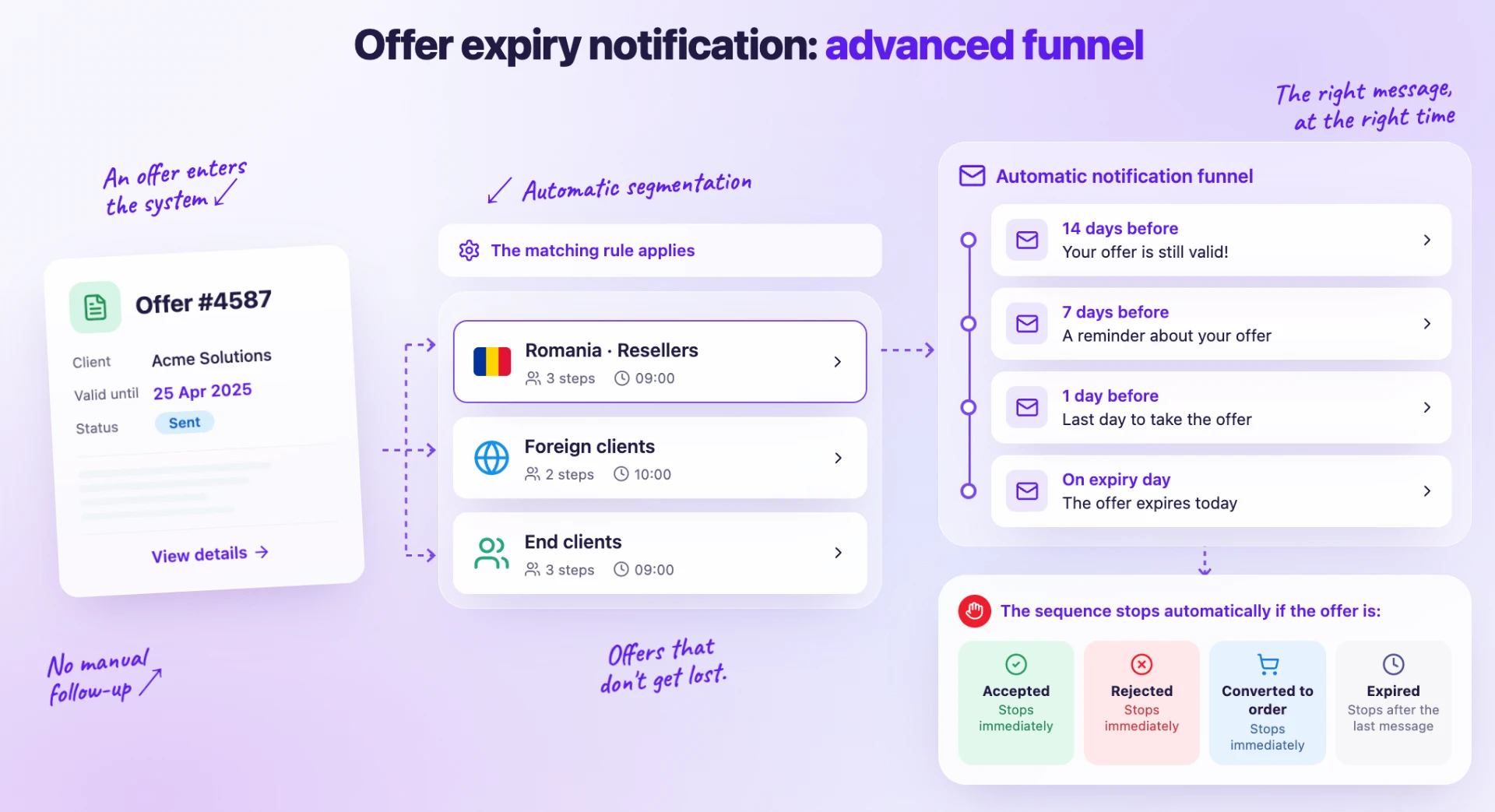
1. In short
Quote expiration reminders become a sequence of automated emails, configurable by country and client type. Define rules with one or more steps. For example, resellers in Romania receive reminders 14, 7, and 1 day before expiration, while international clients receive an email 7 days before and one on the expiration day. Each step has its own email template, and each rule has its own sending time.
The client is reminded of the quote at the right times, without manual intervention. The reminders are only sent for quotes already sent from iFlows and stop automatically when the quote is accepted, rejected, converted into an order, or expires. The feature is configured by administrators and used by sales teams.
| Before | Now | |
|---|---|---|
| Configuration | "Expiration Notification" checkbox and a number of days | "Expiration Notification" switch and rules by country and client type |
| How many emails | Just one, N days before expiration | Any number of "X days before" steps and, optionally, one "on the expiration day" step |
| Template | Only the "Quote expiration notification" template | Any template from the Quote section, chosen for each step |
2. Where to find it
, the Quotes tab, General sub-tab — the Expiration Notification switch and the Notification Rules section.
, the Quote section — the templates used in the rule steps.
On the quote, the Communications tab and the history in the Details tab — the sent reminders.
3. Before you begin
You need access to Sales Settings. To prepare the templates, you also need access to the e-mail template settings.
Prepare the e-mail templates in the Quotes section. You can also use the predefined template “Quote expiration notification”.
Check the Country and Client Type fields in the client files: the rule is chosen based on them. The country must be written exactly as in the country list. Clients without a country do not receive reminders.
If the notification was enabled before the update, you will already find the “Default rule” in the list (see “Rules and limits”).
4. Activating reminders
Step 1. Open , the Quotes tab, General sub-tab.
Step 2. Turn on the Expiration Notification switch (the last one in the list). The Notification Rules section will appear below it.
Step 3. Add at least one rule (next chapter).
Step 4. Press Save at the bottom of the page. The switch is only saved with this button. The rules are saved separately, when each rule's window is saved, even if you don't save the page.
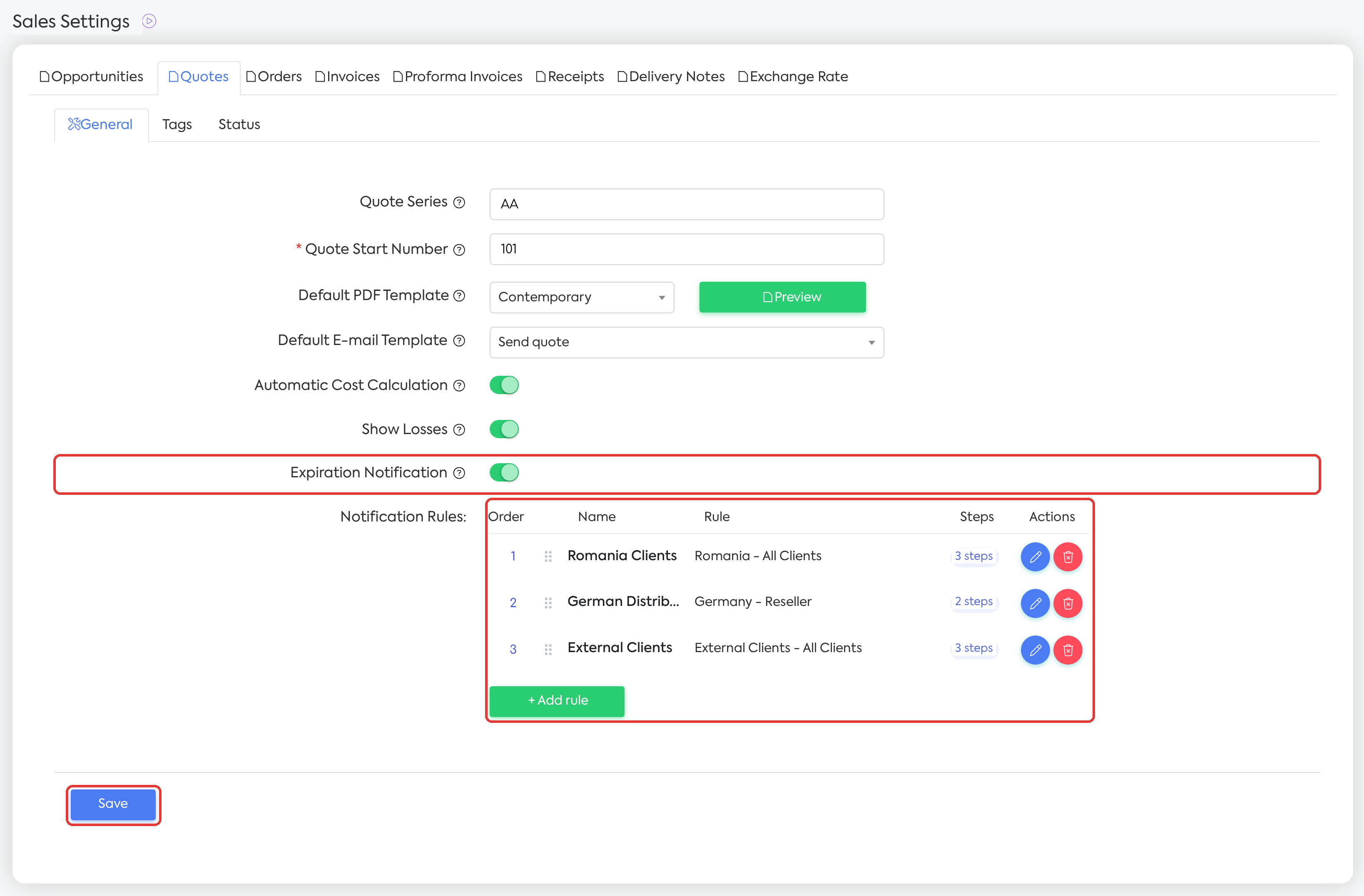
: Expiration Notification on and three rules in the Notification Rules list.
Note: if the switch is on and there are no rules, the page will not be saved (even when you modify other quote options). The message "Add at least one notification rule." will appear under the switch. With the switch off, no reminders are sent, and the rules remain saved.
5. Adding a rule
Step 1. In the Notification Rules section, click Add rule. The Add new rule window opens.
Step 2. Fill in the rule's data:
| Field | What to fill in | Required |
|---|---|---|
| Rule name | The name displayed in the list, for example, "Romania - Reseller". | Yes |
| Applies to (countries) | One or more countries, or the External Clients option (clients whose country is different from Romania). Countries cannot be combined with External Clients in the same rule. | Yes |
| Client type | One or more active types: End Client, Reseller, Public Institution, and your own custom types. Blank = all clients. | No |
Step 3. Configure the steps in the Funnel steps section. The rule starts with a pre-filled step (7 days before). Add steps with Add step and delete them with Delete step from the row. For each step, fill in:
| Field | What to fill in | Required |
|---|---|---|
| When | "X days before expiration" or "On expiration day". | Yes |
| Days | The number of days before the quote's validity date (minimum 1). For "On expiration day", the value is 0. | Yes |
| Email template | A template from the Quote section (custom or predefined). | Yes |
Step 4. Choose the Sending time (only fixed hours, 00:00–23:00; default 09:00).
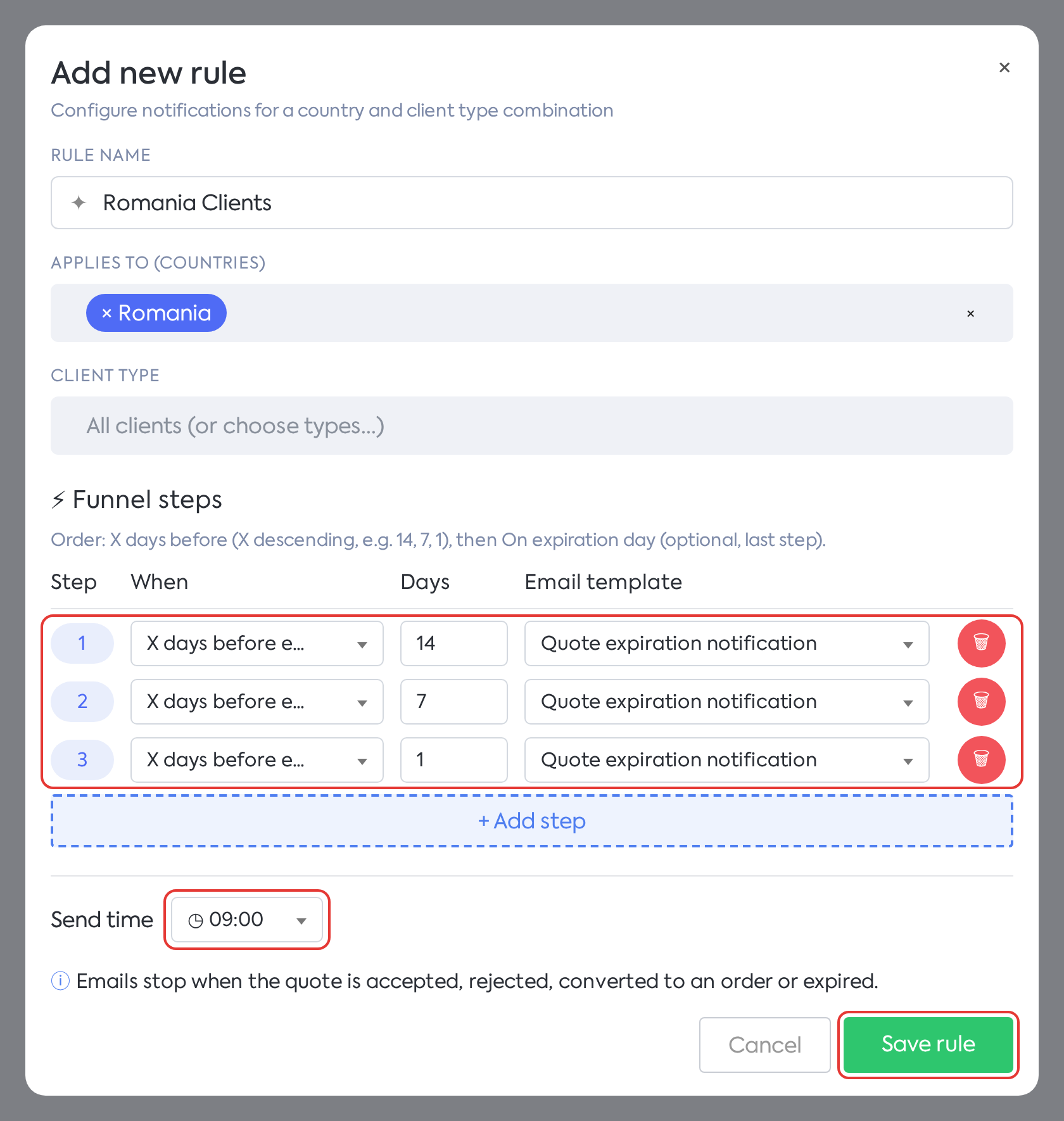
Rule for clients from Romania: three steps, at 14, 7, and 1 day before expiration, sent at 09:00.
Step 5. Click Save rule. The rule is saved immediately and appears in the list, with the countries, client types, and number of steps.
Rules for steps:
the "X days before" steps are sorted in descending order by the number of days (e.g., 14, 7, 1). Each new step starts with 7 days, so adjust the value;
the "On expiration day" step is optional, can exist only once, and must be the last one. After it, the Add step button becomes inactive;
the rule must have at least one step.
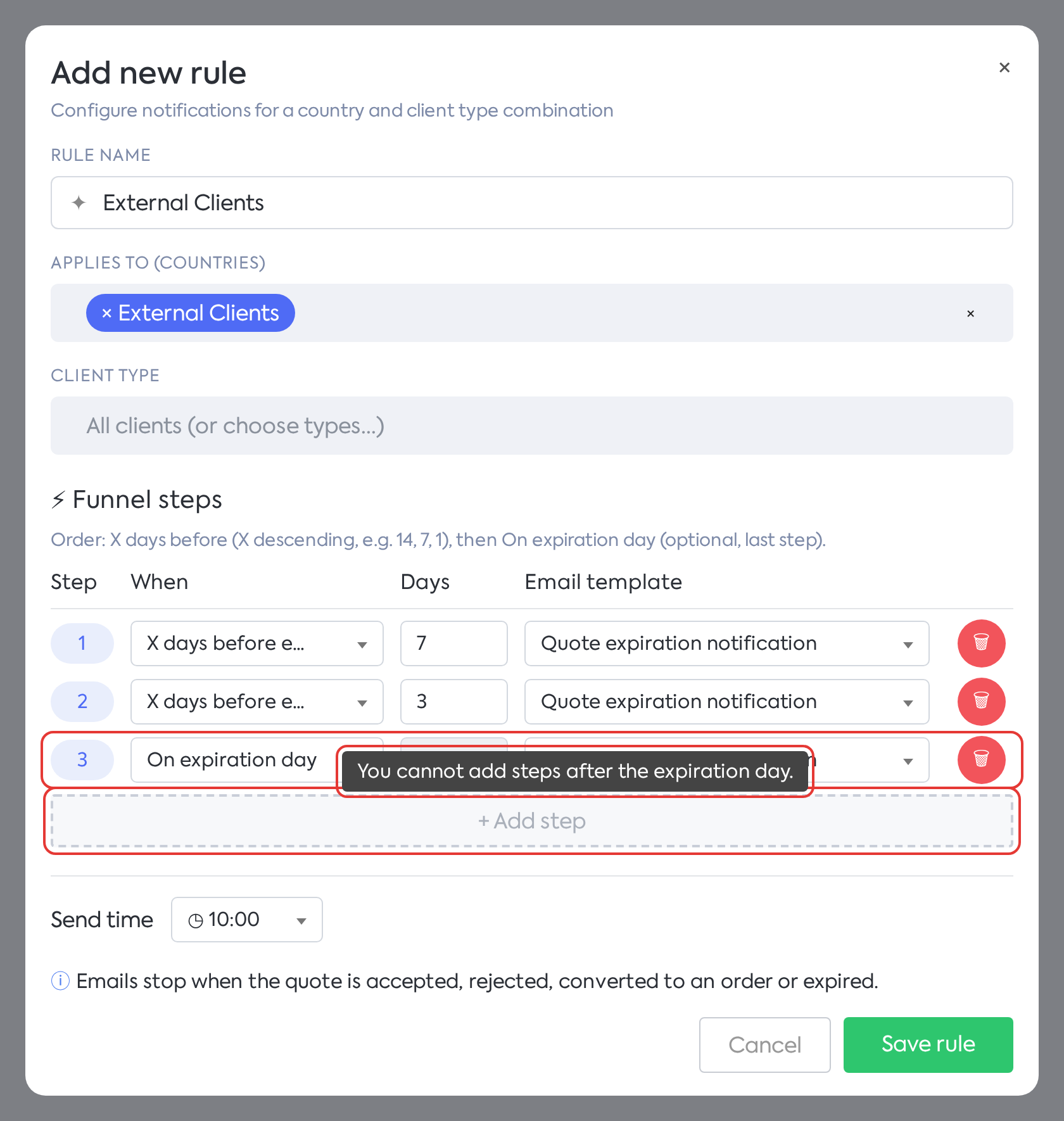
Rule for external clients: after the On expiration day step, no more steps can be added.
The window also displays the stop rule: "Emails are stopped when the quote is accepted, refused, converted into an order, or expired."
If the data is incorrect, the window displays a message and the rule is not saved. Examples:
"Choose either countries or External clients, not both.";
"Each step must have an email template.";
"The steps before expiration must be sorted in descending order by the number of days (e.g., 14, 7, 1).";
"The step on the expiration day must be the last one in the funnel.".
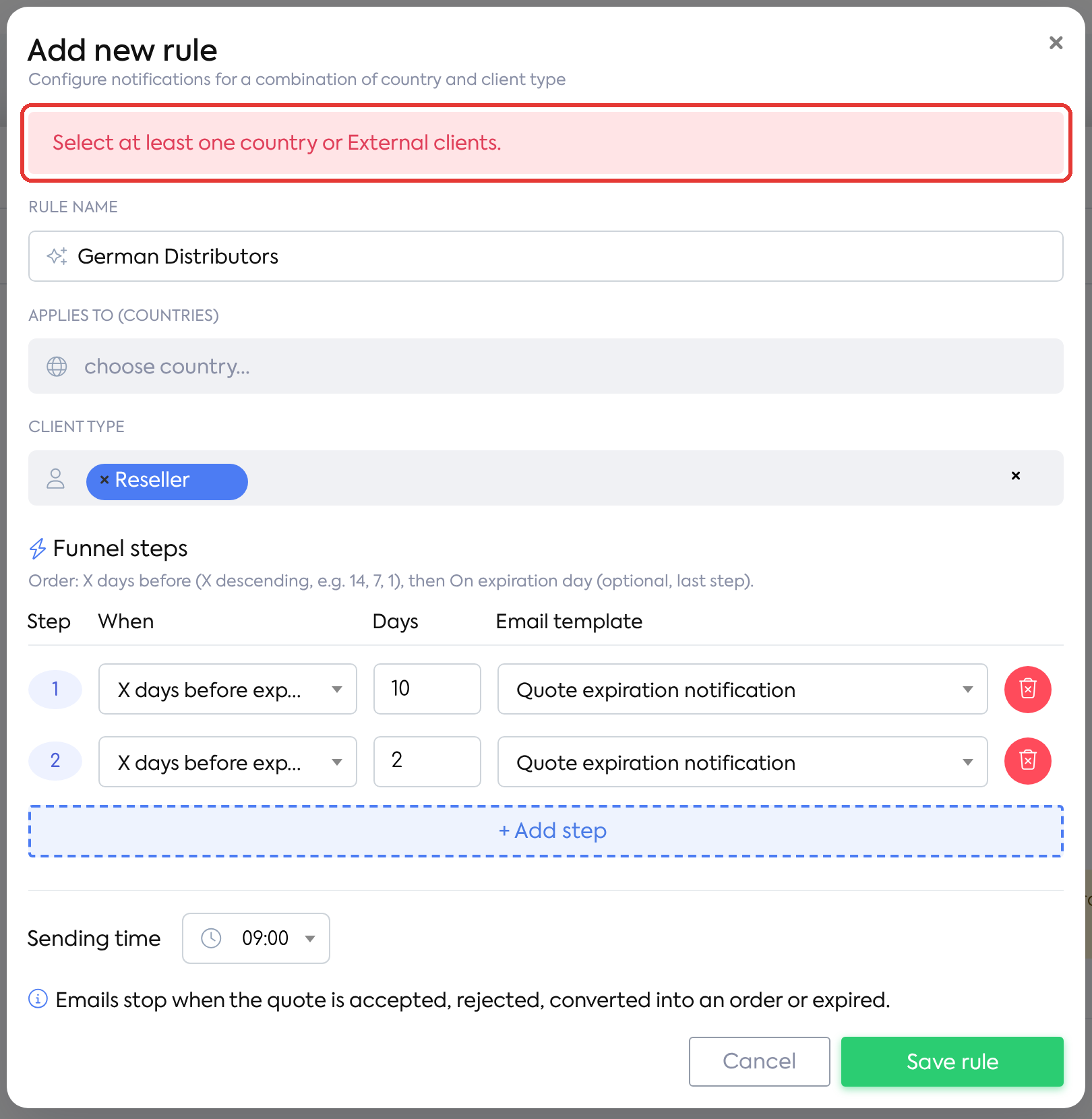
The rule is not saved without a country or External Clients: the message appears at the top of the window.
6. Rule Order and Modification
Step 1. To change the priority, drag the rule's row by the handle on the left (Drag to reorder). The new order is saved immediately; the top rule has priority 1.
Step 2. To modify a rule, press Edit (the pencil icon). The Edit rule window will open, with the same fields.
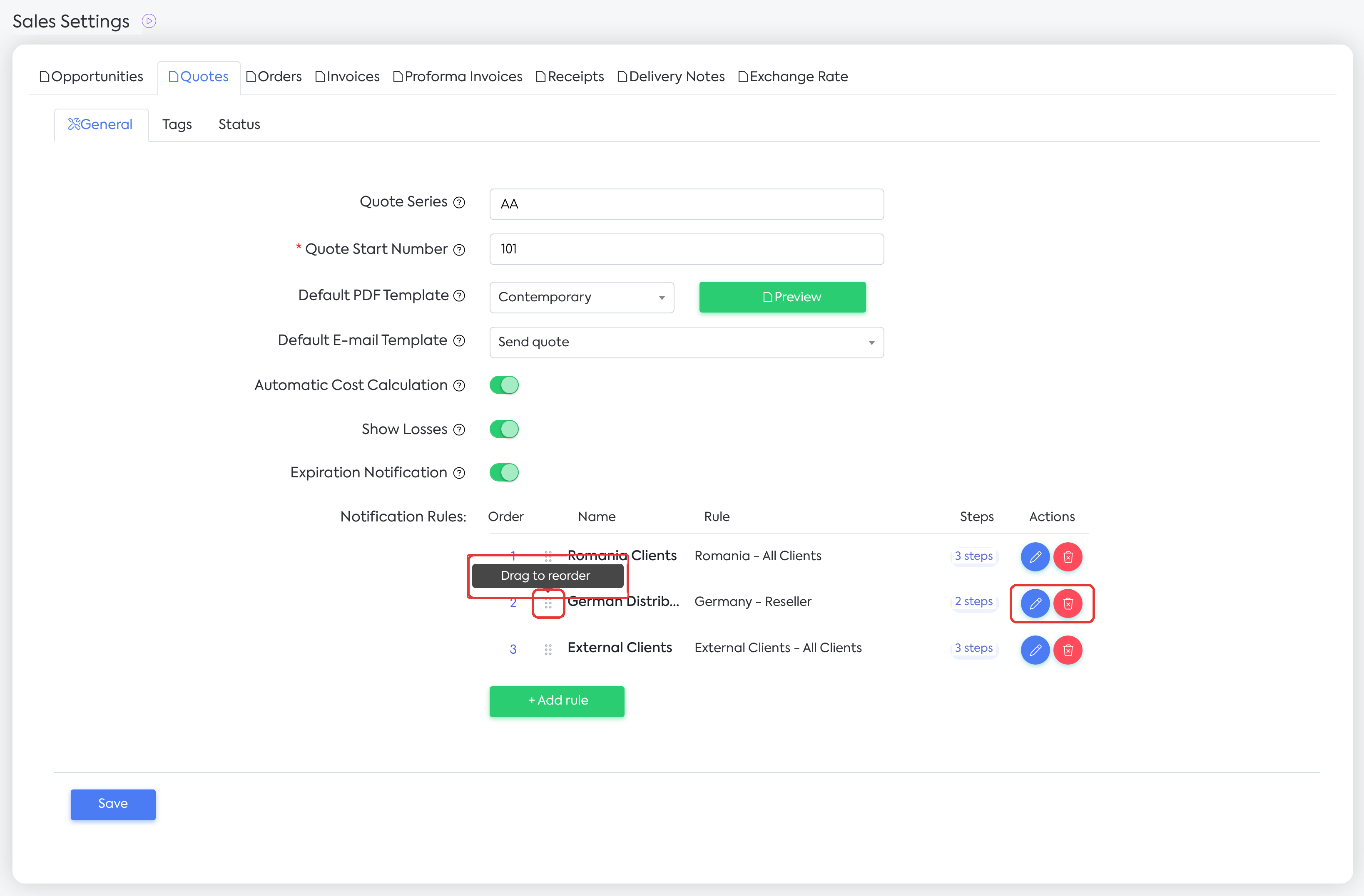
Reordering rules: the handle to the left of the name and the Edit and Delete actions.
For each quote, the first matching rule is applied, from top to bottom. If a higher rule already covers all the clients of a rule below it, a warning appears above the list, such as “"X" will not apply: "Y" is above it and already covers all clients from Z. Move "X" higher.”
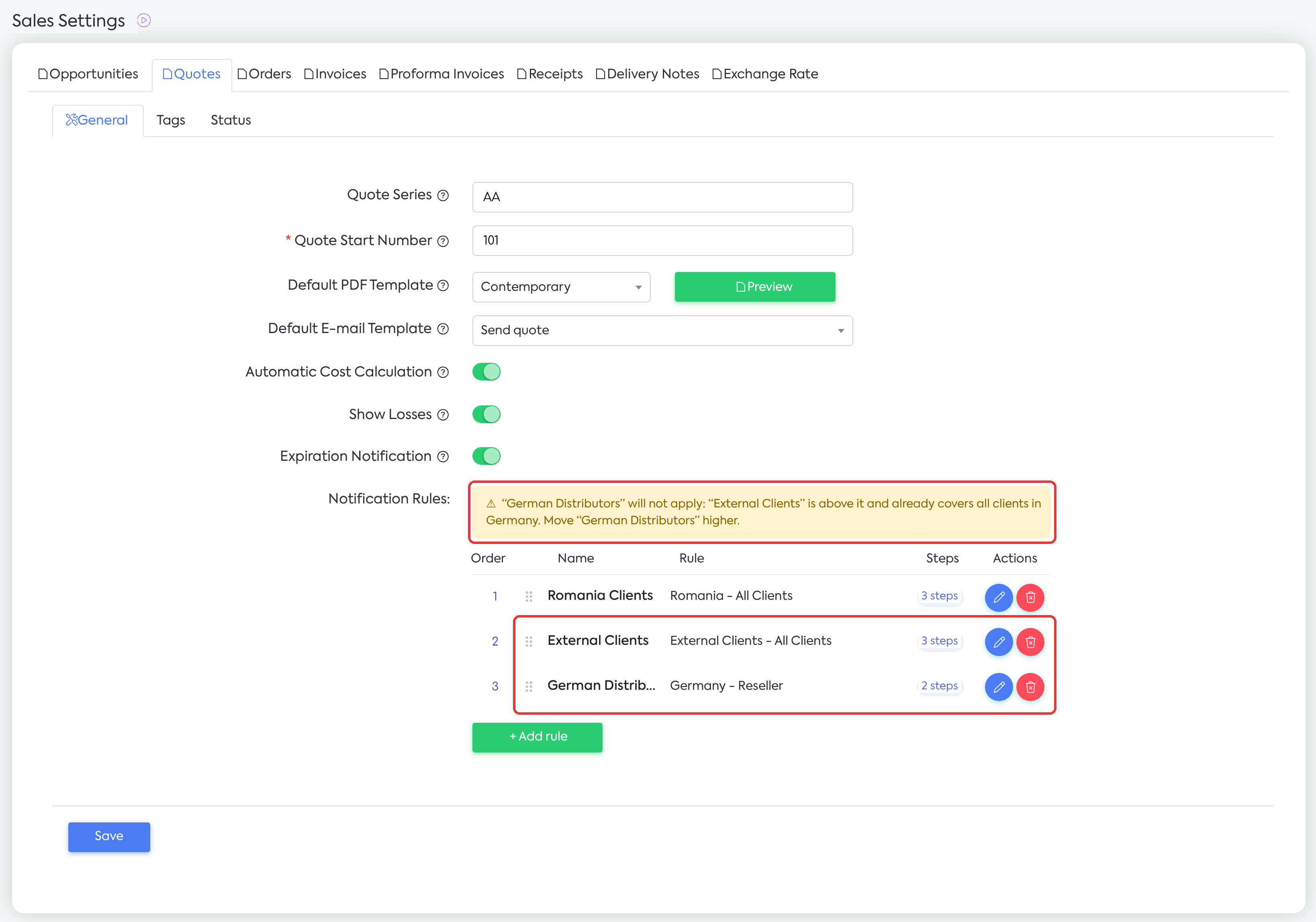
The “German Distributors” rule, moved under “External Clients”, will not apply: the warning indicates what needs to be moved higher.
Step 3. To delete a rule, press Delete (the trash icon) and confirm in the Delete rule window.
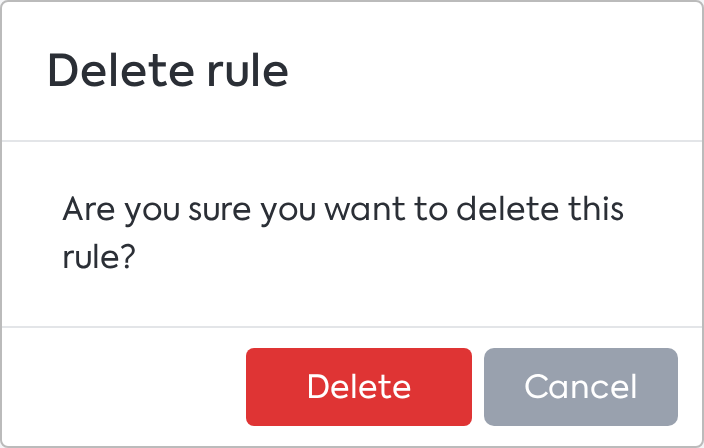
Confirming the deletion of a rule.
Note: A rule cannot be deactivated separately; it can only be deleted. To stop all reminders, turn off the Expiration Notification switch and press Save. If you delete the last rule while the switch is on, nothing will be sent, and the page will not save until you add a new rule or turn off the switch.
7. What happens next
The reminder is sent, using the step's template and with the quote's PDF attached, to all addresses that have received an email from the quote. These include the client, the colleagues you sent the quote to, and the addresses that received previous reminders. Each address receives a separate email.
The employee who last sent the quote (or the person responsible for the quote) receives a copy, also as a separate email.
If the template contains the Accept / I Want Details / Refuse buttons, the client can respond directly from the reminder, and the response changes the quote's status. After Accept or Refuse, the reminders stop; after I Want Details, they continue.
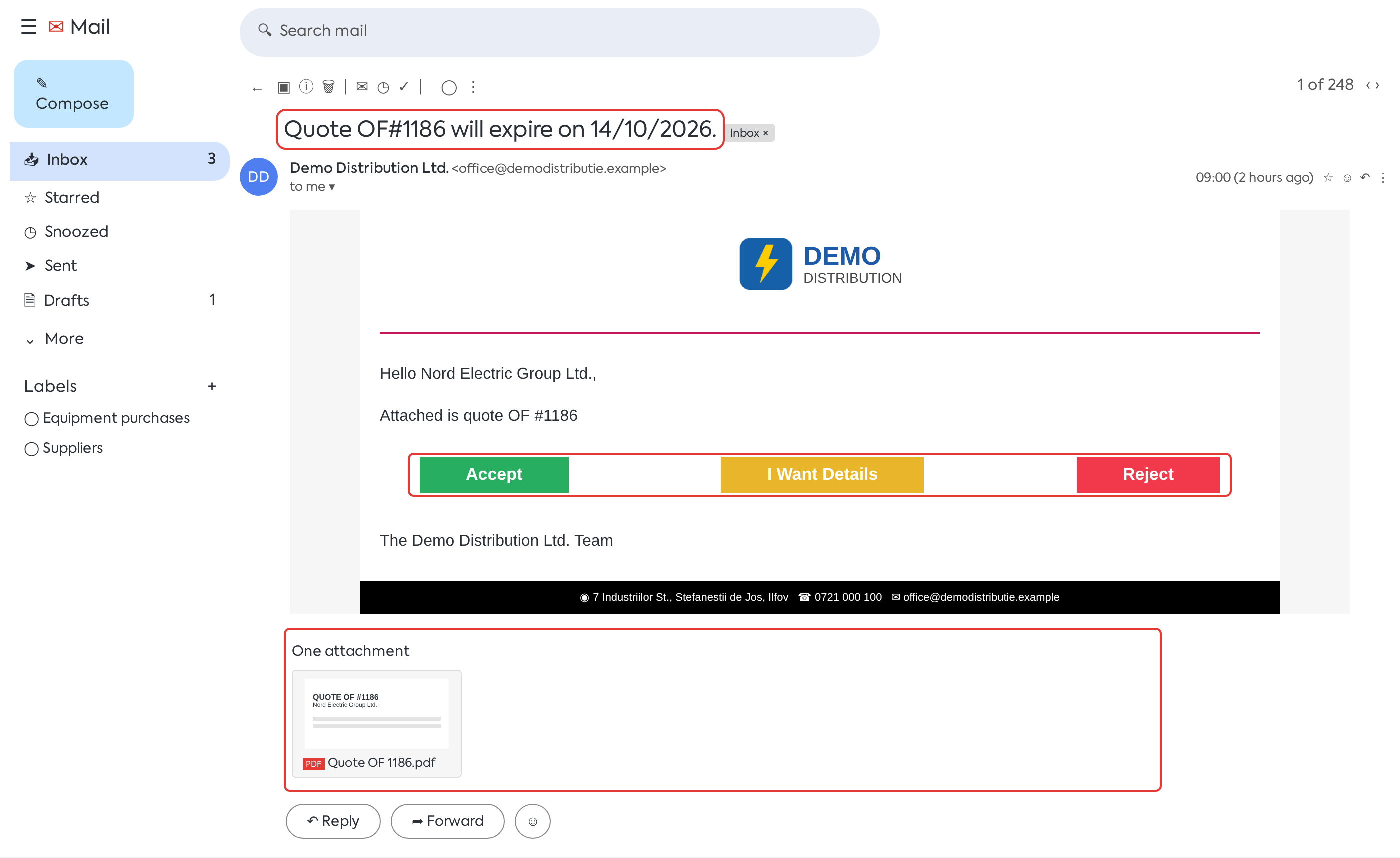
The reminder received by the client 7 days before expiration: the quote's PDF is attached, along with the response buttons.
The reminders appear on the quote in the Communications tab, with the status of each email. The tab displays emails from the last 365 days.
In the history on the Details tab, the reminder appears as "Email sent by iFlows … to …".
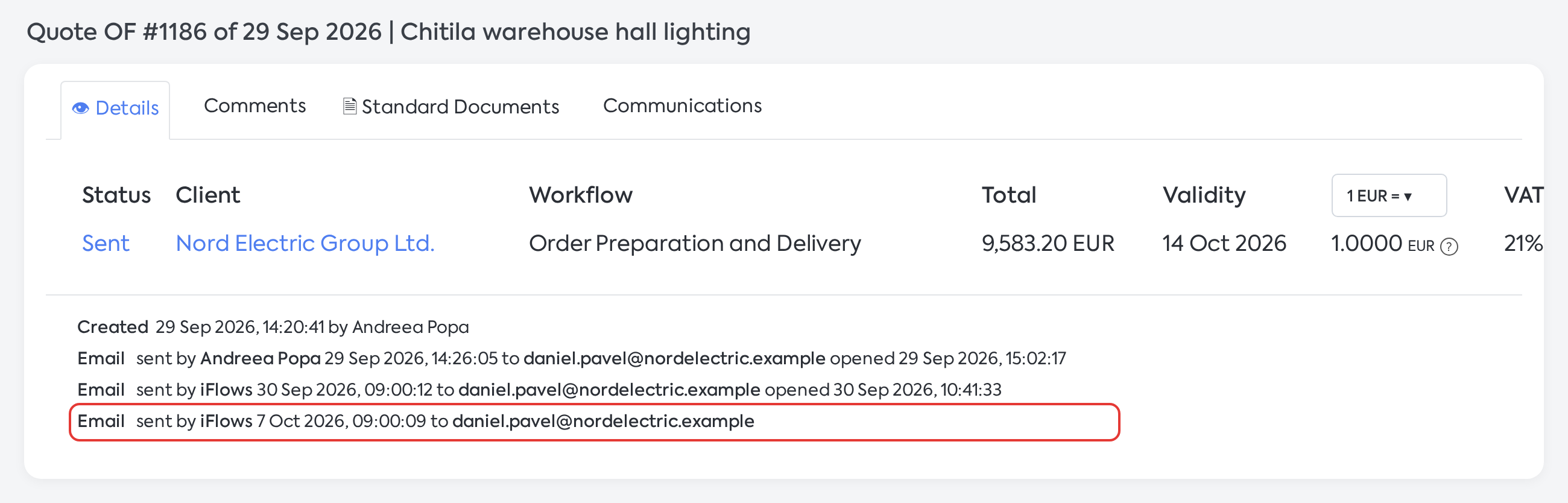
Quote history: reminders sent by iFlows 14 and 7 days before the validity date.
8. Rules and limits
Which quotes receive reminders
A quote receives reminders only if all conditions are met:
the Expiration Notification switch is on;
the quote has been sent at least once from iFlows;
the quote has a validity date and a client;
the quote is not expired and has the status New, I Want Details, Negotiation, Postponed, or a custom status. Quotes that are accepted, rejected, converted into an order, or have insufficient stock do not receive reminders;
the client matches a rule, according to the Country and Client Type fields in their file. Each client has a type (default Final Client).
How they are sent
Each step is sent on the validity date minus the number of days for that step. The “On the expiration day” step is sent exactly on the validity date. The emails are sent at the rule's set time, within the first few minutes after the hour.
A quote receives at most one email per day for the same rule. If the quote moves to another rule on the same day, it can receive a second email. Manually sent emails are not taken into account.
A step that has been sent is not repeated. If multiple unsent steps are due (for example, the quote was issued with a short validity period), only the most recent one is sent.
When the validity is extended, steps already sent are not repeated, and the remaining ones are rescheduled based on the new date.
When editing a rule, quotes that have already received at least one reminder for that rule do not retroactively receive steps whose date has passed. Quotes that have not yet received any reminders will receive the most recent due step at the rule's next scheduled hour.
Deleting a rule and creating another, changing the country or client type, or a reordering that moves the quote to another rule restarts the sequence from the beginning: the quote can again receive the most recent due step.
As before, the quote is automatically marked as expired on the night after its validity date.
If the client uses the buttons in the email after the validity date, for the next 7 days they will see the message “The quote has expired!”.
Important: in the template text, use the quote's validity date, not a fixed text like “7 days left,” because a step might be sent later than its initial scheduled time.
Reminders do not change the quote's status.
Reminders are sent regardless of the client's notification preferences.
You cannot configure: recipients, the channel (only email is sent), post-expiration steps, and filters on the quote's status or stage.
Email templates
A template used in a notification step (quote expiration or overdue invoices) cannot be deleted or archived. The platform displays the message “This template is used in notification rules (quote expiration or overdue invoices) and cannot be deleted or archived.”
The “Quote Expiration Notification” template is located in the Quote section, so it also appears in the quote's Send E-mail window and in the Default Email Template list.
Transitioning to the new mechanism
If you had expiration notifications turned on before the update, the platform automatically created a “Default Rule”: all countries, all clients, time 09:00, and a step with the old number of days (or “On the expiration day,” if the number was 0), using the “Quote Expiration Notification” template. You can modify it or supplement it with new steps and rules.
The “Default Rule” includes the countries that existed at the time of the update. Countries added to the catalog later are not automatically included; add them to the rule, if necessary.
If the “Quote Expiration Notification” template was archived, the default rule was not created. No reminders will be sent, and the page cannot be saved until you add a rule or turn off the switch.
9. Settings and permissions
Configuration requires access to Sales Settings; there are no new permissions.
Templates are managed at , in the Quote section; this requires access to e-mail template settings.
The default values for a new rule are: a sending time of 09:00 and a first step of "7 days before expiration".