
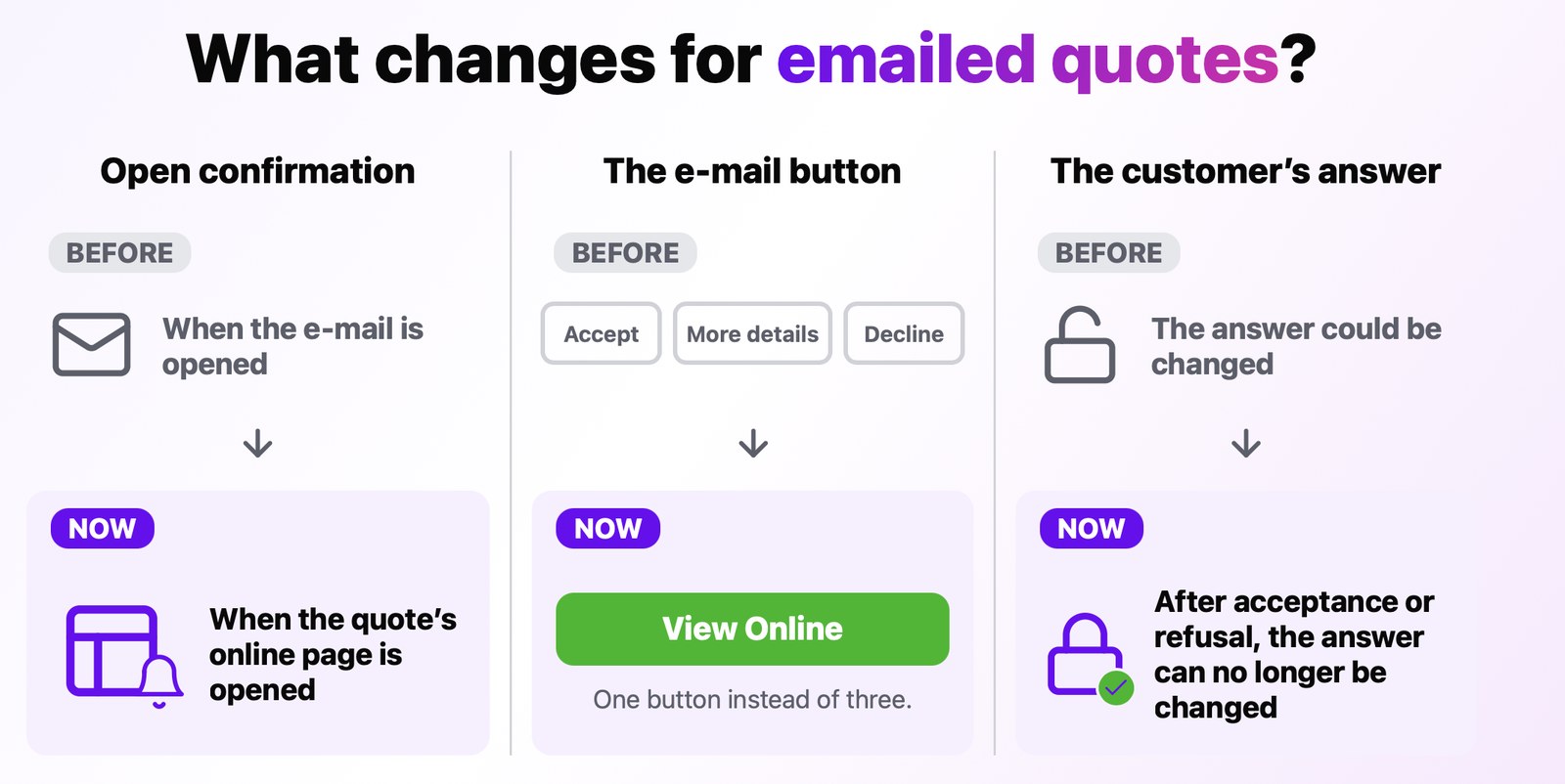
The client now receives the quote with a single, clear button, View Online, instead of the three Accept, I Want Details and Reject buttons. On the online page, the client sees the quote and answers from there. If the quote has already been accepted or rejected, the answer can no longer be changed. In addition, a quote shows as opened only when the client has actually opened its page, so the opened mark and the open notification are more reliable.
The result
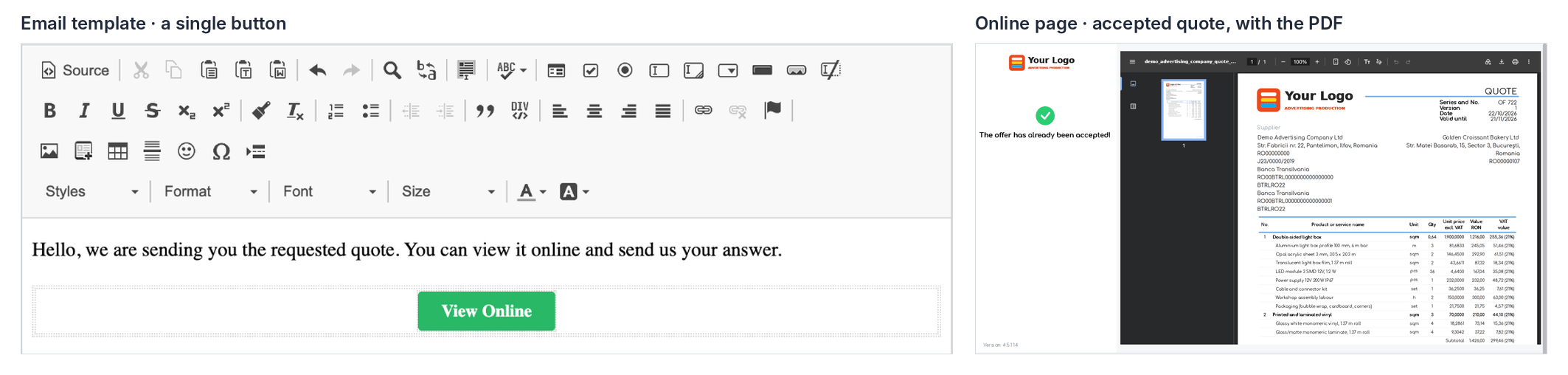
The View Online button in the template, and the online page of an already accepted quote, with the quote PDF.
Before you start
- Email templates are found in . There are no new settings or permissions.
- Templates saved before the update keep their old buttons until you edit them.
Steps
Step 1. Open an email template from the Quote section. In the Variable Fields list, click Accept/Reject Offer. The View Online button is inserted into the text. The Request Signature variable inserts the same button.
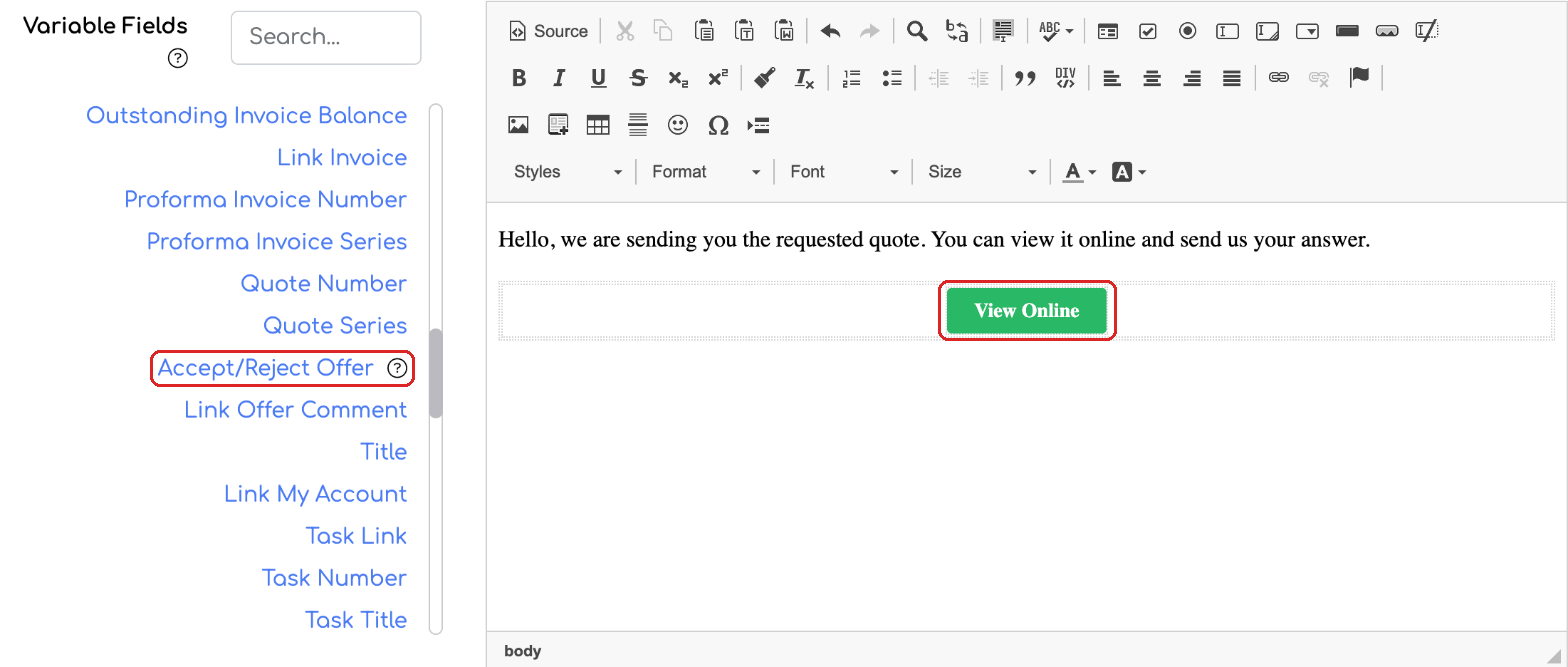
The Accept/Reject Offer variable now inserts the View Online button.
Step 2. If an older template still has the Accept, I Want Details and Reject buttons, edit it: delete the buttons, insert the variable again and save the template.
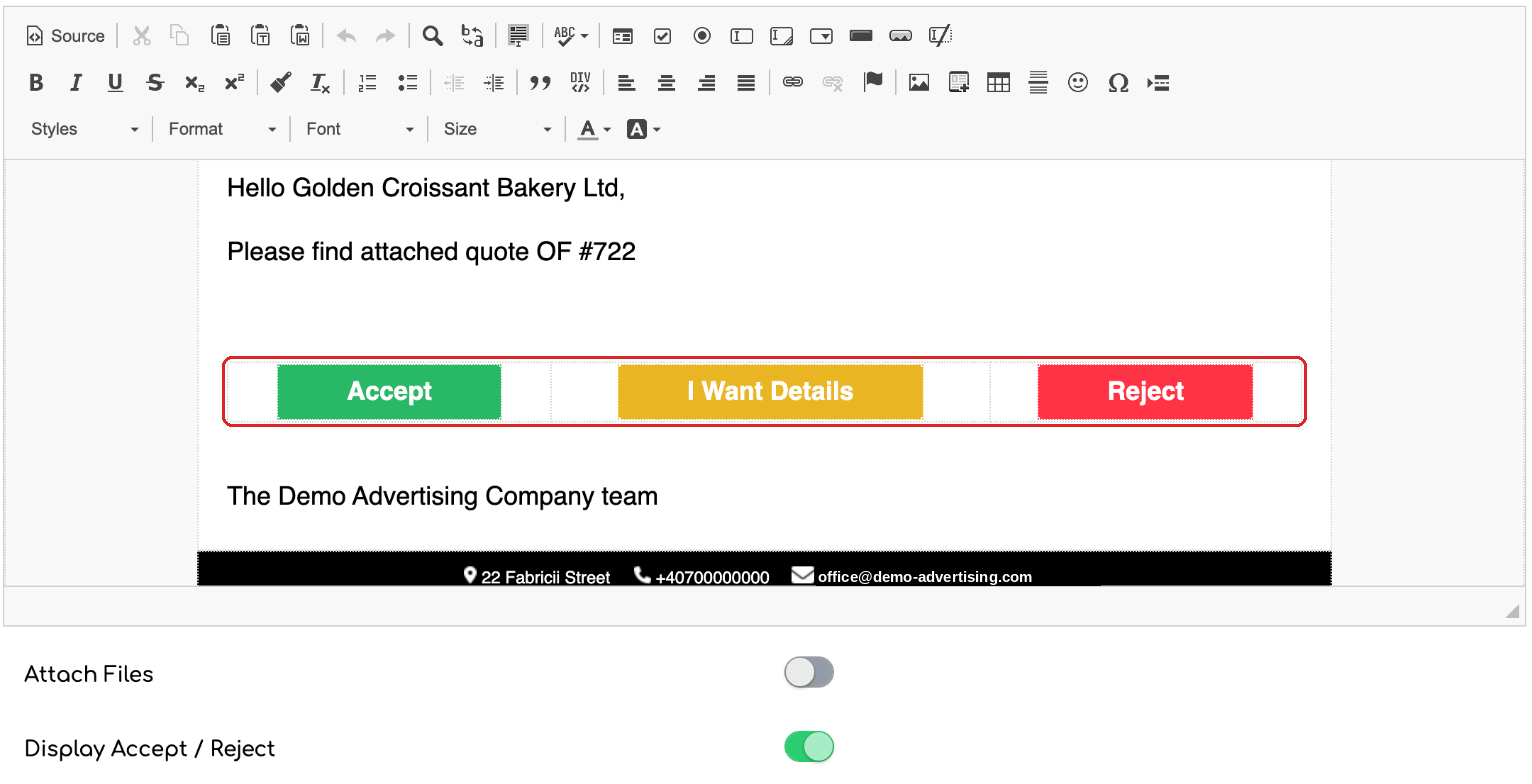
A previously saved template, with the old buttons.
Step 3. When you send the quote, in the Send Email window, the Display Accept / Reject switch decides whether the View Online button appears in the email. If you turn it off, the button is removed from the message that is sent.
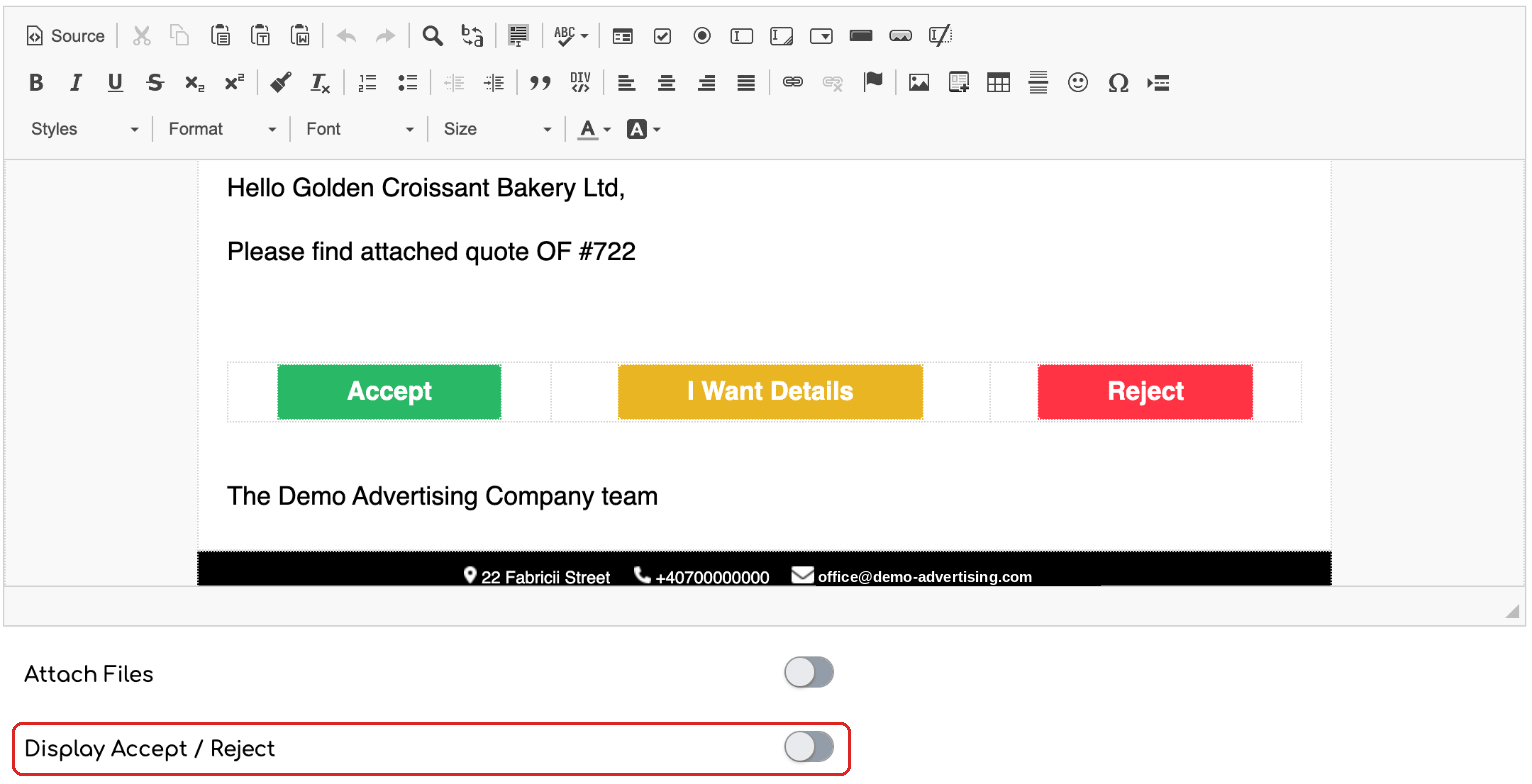
The Display Accept / Reject switch in the sending window.
Step 4. The client clicks View Online and lands on the quote page. If the quote has already been accepted (or turned into an order) or rejected, the client sees the quote PDF and a message saying the quote has already been accepted or rejected, and can no longer change the answer.
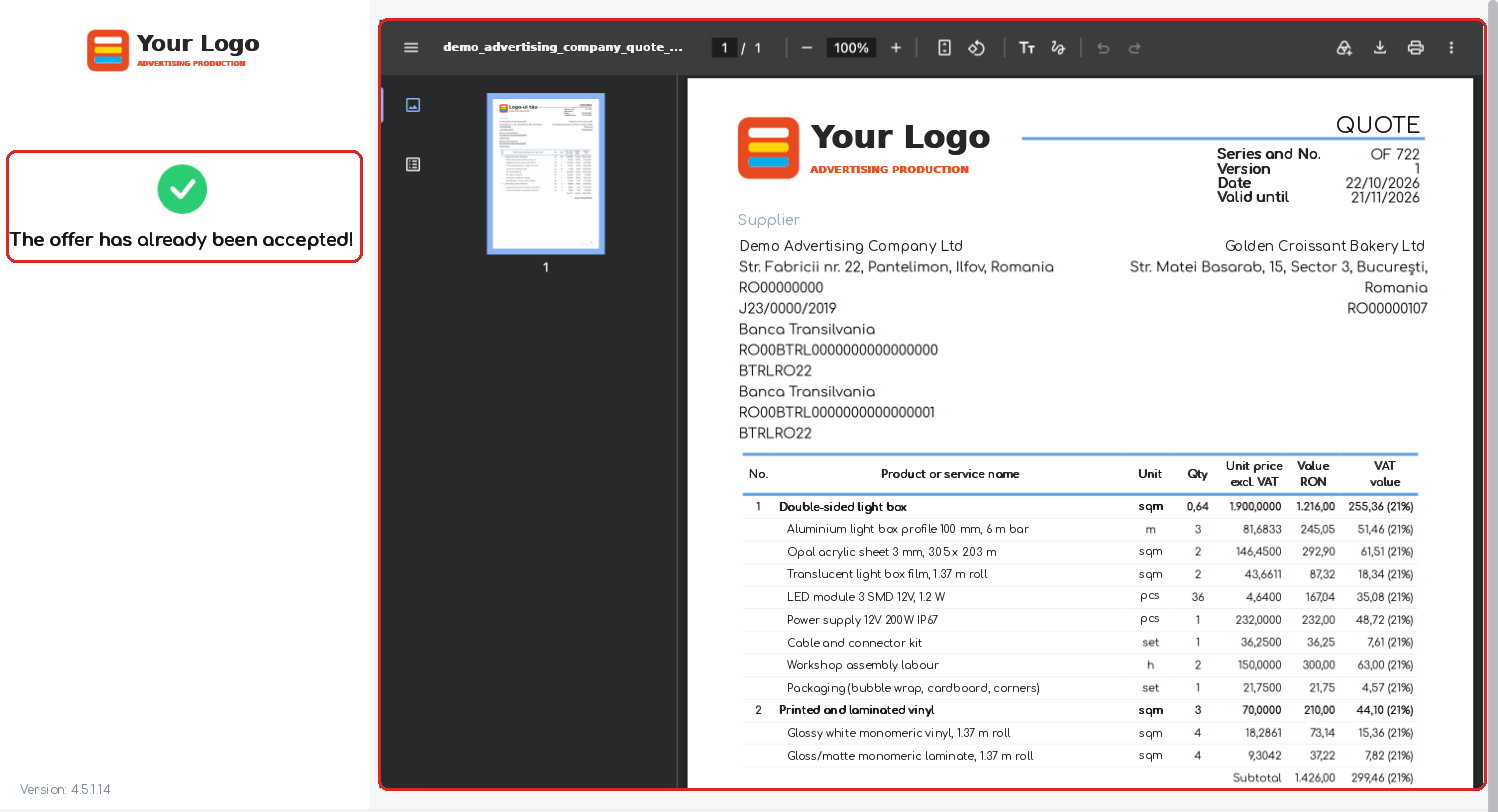
The online page of an already accepted quote: the message and the quote PDF.
Step 5. On the quote page, the Email row shows when the email was sent. The “open” mention, with date and time, appears only after the client opens the quote's online page.
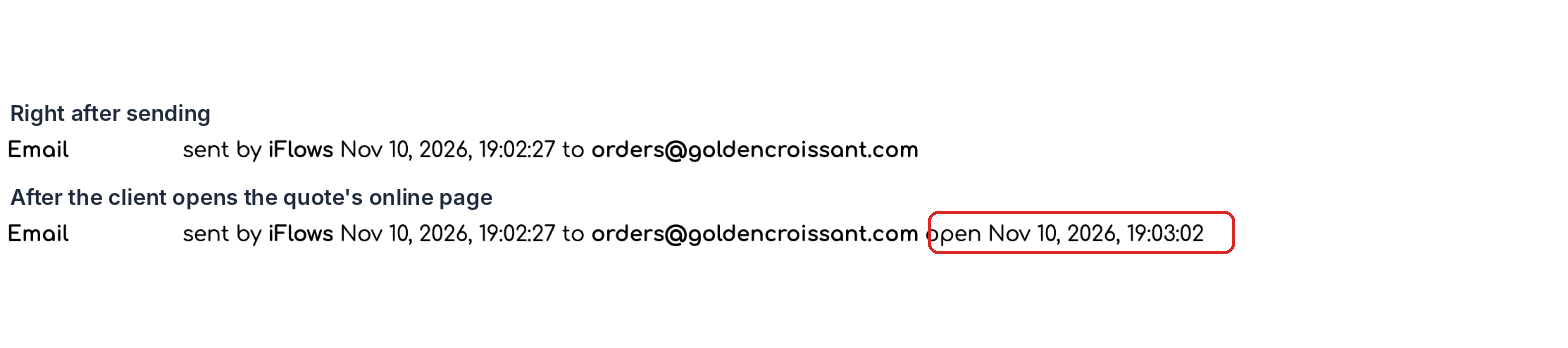
The same email, before and after the client opened the quote's online page.
Step 6. At the same moment you receive the notification “The client opened quote … sent by email.”, if it is enabled in your notification preferences.
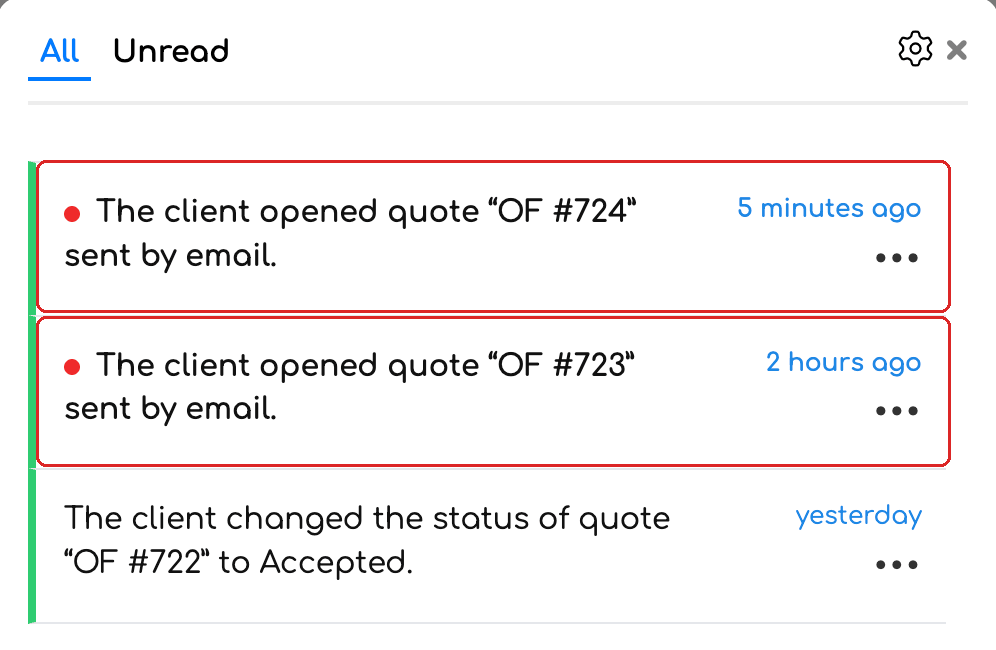
Notifications received when the client opens the quote.
Good to know
- A quote is marked as opened only when the client opens the quote's online page.
- A new quote, a new version or a cloned quote starts as not opened. Editing the quote no longer clears the opened mark.
- The default WhatsApp templates for quotes and standard documents also use the View Online button.
Frequently asked questions
The client says they opened the quote, but iFlows does not show it as opened.
A quote shows as opened only after the client opens the online page, from the View Online button. Opening the email or the attached PDF does not mark the quote.
Does the quote link expire?
After the quote validity date, the page shows a message that the quote has expired for another 7 days, after which the link no longer works. An expired quote is no longer marked as opened.
The client accepted the quote by mistake. Can they go back?
Not from the online page: the answer given there can no longer be changed. If needed, change the quote status in iFlows.
I edited an old template and the old buttons still appear.
Delete the old buttons from the text, insert the Accept/Reject Offer variable again and save the template.