
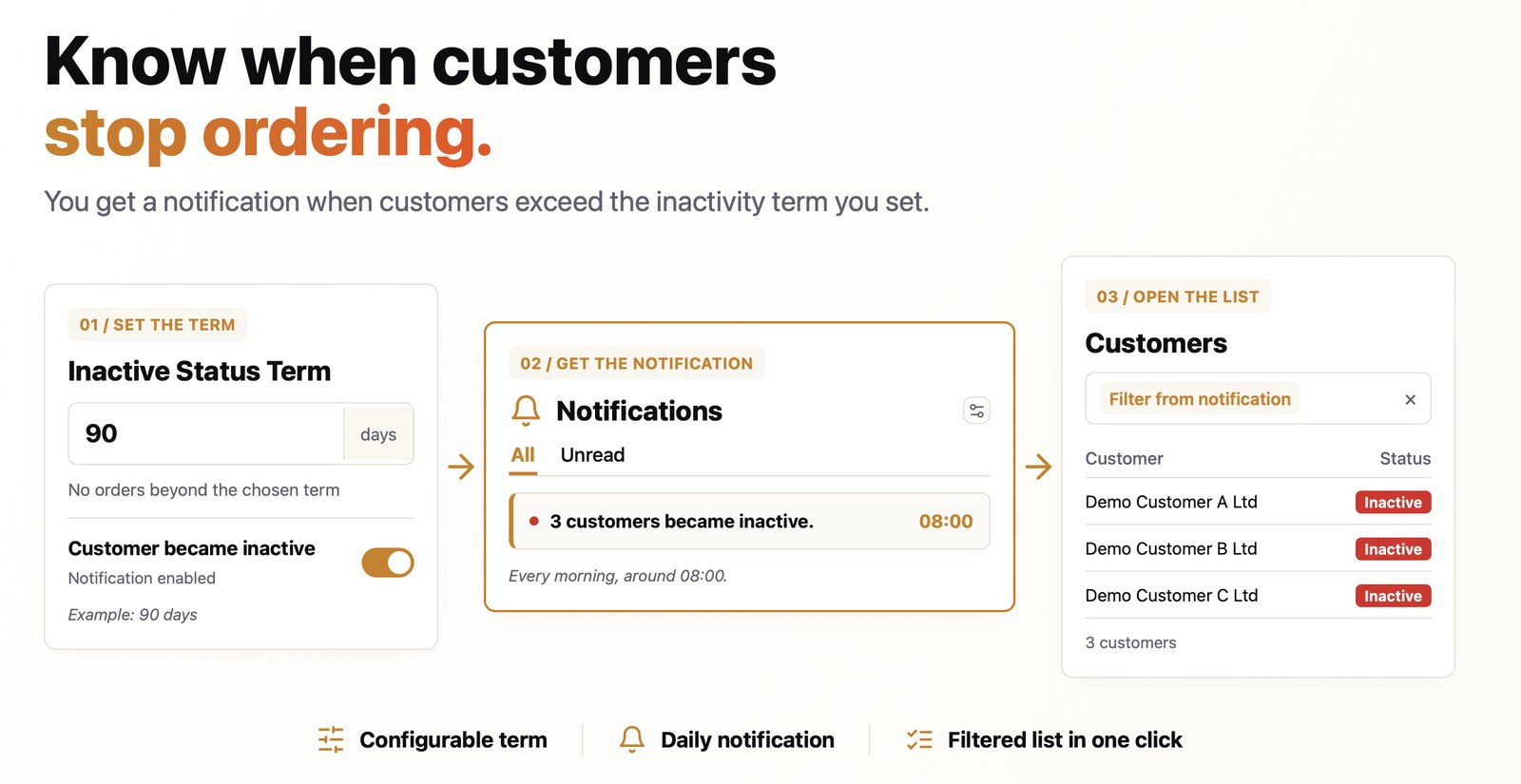
The sales team can now find out every morning which clients have automatically moved from Active to Inactive, that is, have exceeded the number of days without orders set for them. The notification arrives directly in iFlows, with a link to the client record or to the list of those clients. This way, clients who stop ordering no longer go unnoticed and you can reach out to them while the relationship is still active.
The result
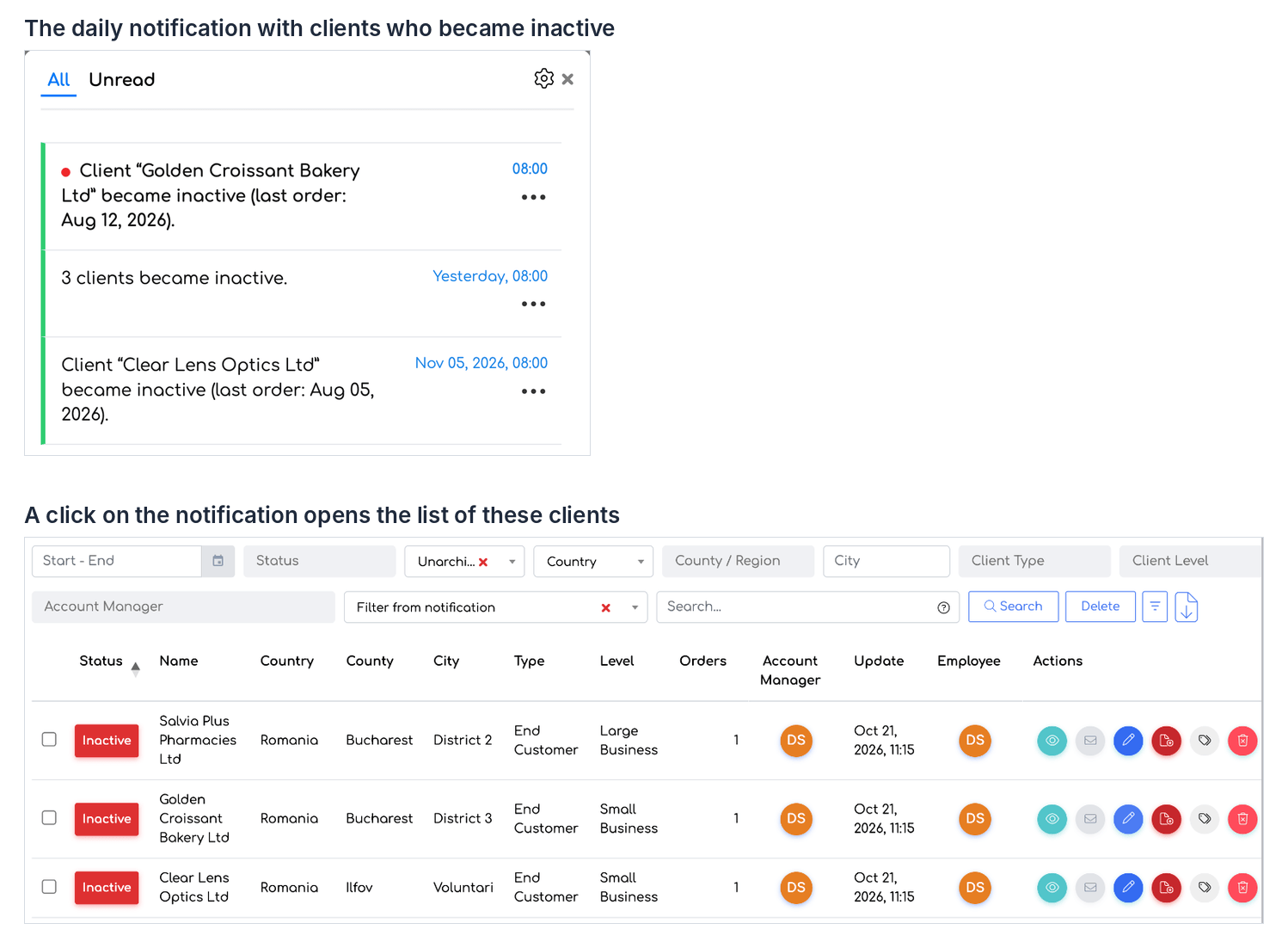
The “Client became inactive” notifications and the client list opened from the notification.
Before you start
- A client becomes inactive automatically only if the Inactive Status Term field is filled in (the number of days without orders). The default value is 0, meaning disabled: the client never becomes inactive automatically.
- The notification can be received by administrators and active employees with the Clients right. There are no new permissions.
Set the inactivity term
Step 1. For a single client, open the client record, click Edit and fill in Inactive Status Term (for example 90 days). Save.
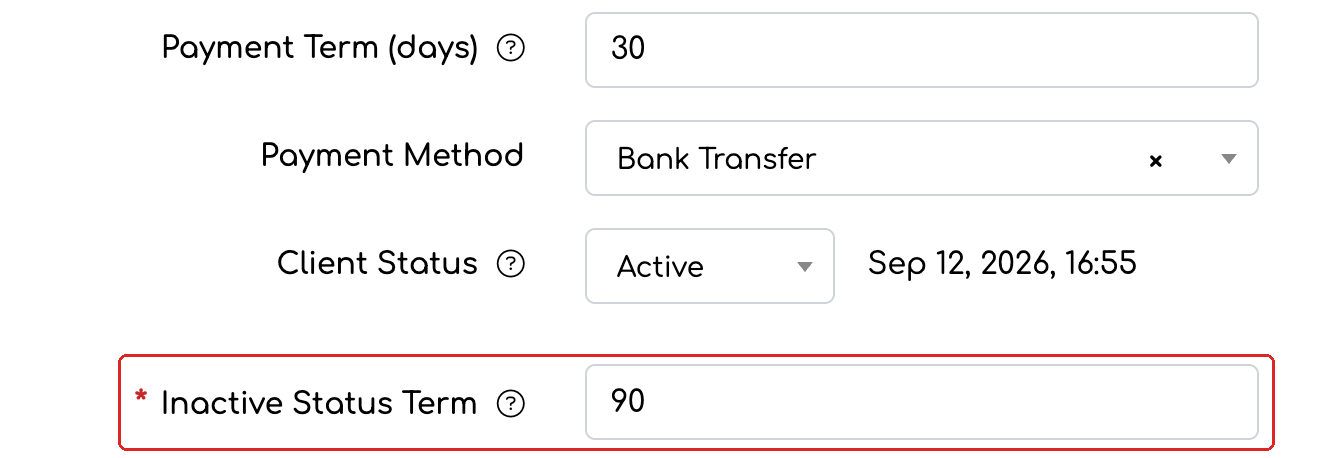
The Inactive Status Term field in the client record.
Step 2. For several clients at once, select them in the Clients list. In the bar that appears at the bottom, click the Invoicing icon.
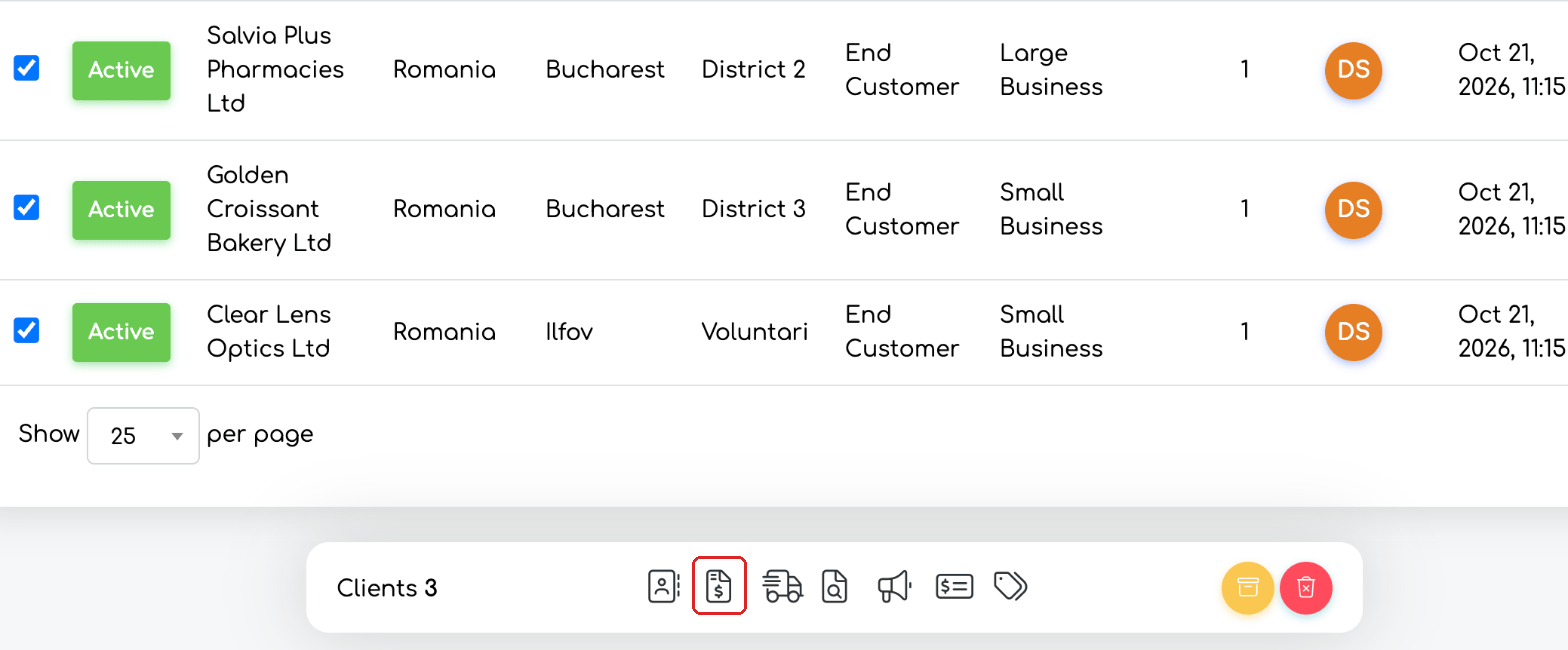
The selected clients and the Invoicing icon in the action bar.
Step 3. In the Edit Selected Clients window, fill in Inactive Status Term and click Save. Fields left empty are not changed.
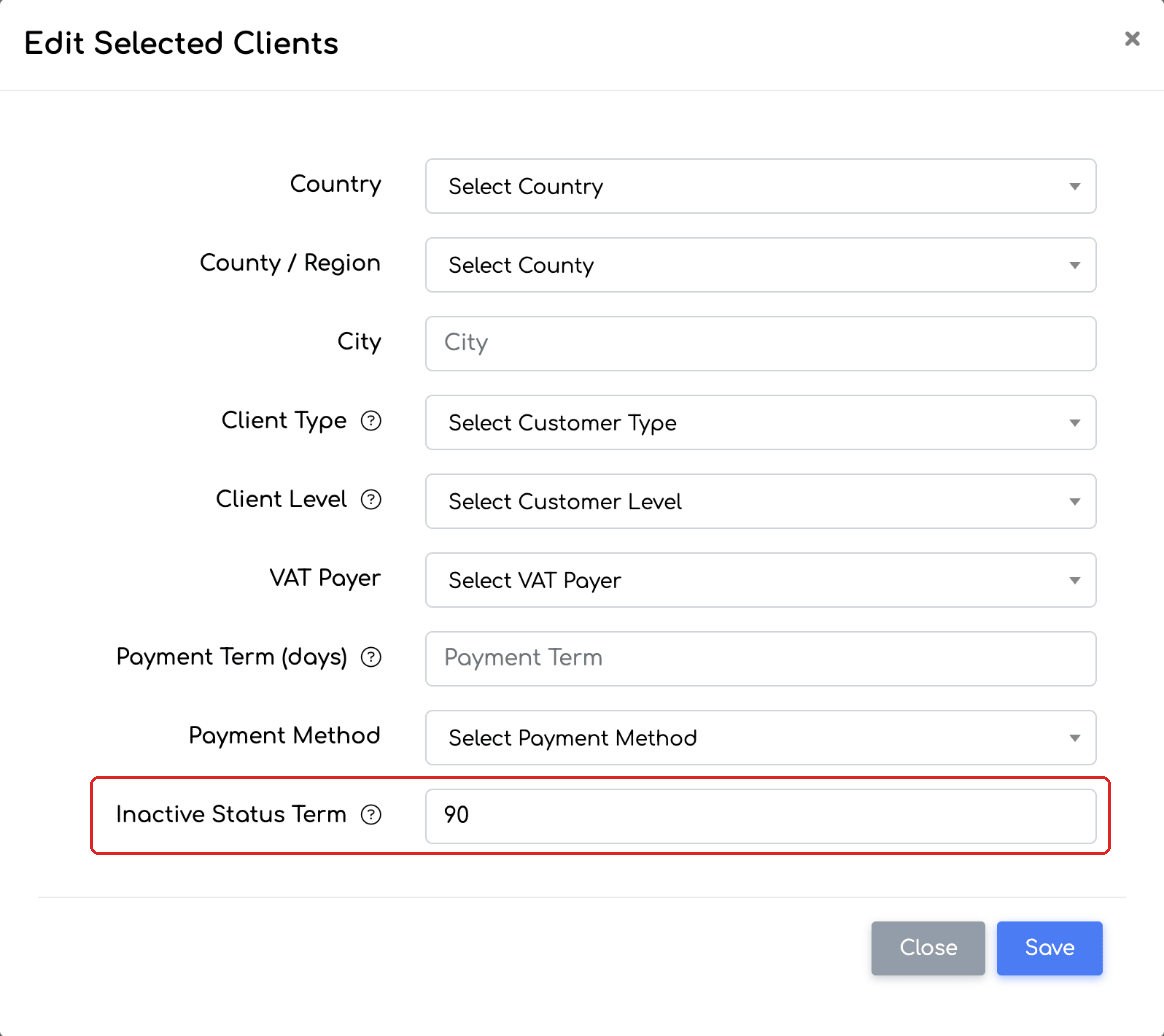
Inactive Status Term, set for all selected clients.
Turn on the notification
Step 4. Open the notification bell and click the Settings icon (the gear). The notification preferences page opens, on the Current Account tab.
Step 5. In the Clients category, turn on the Client became inactive switch (off by default).
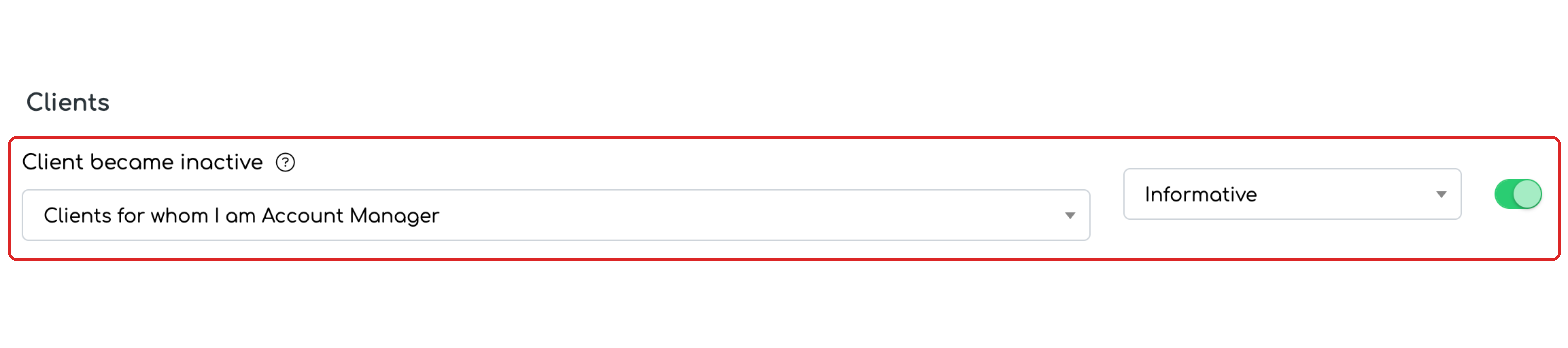
The Client became inactive notification, turned on.
Step 6. Choose which clients you receive the notification for: Clients for whom I am Account Manager (default) or All customers.

Choosing the clients you receive the notification for.
What you receive
Step 7. Every morning, around 08:00, the notification bell shows the clients who have become inactive since the previous notification:
- for a single client: “Client «X» became inactive (last order: date).” — a click opens the client record;
- for several clients: “N clients became inactive.” — a click opens the client list, filtered to these clients only.
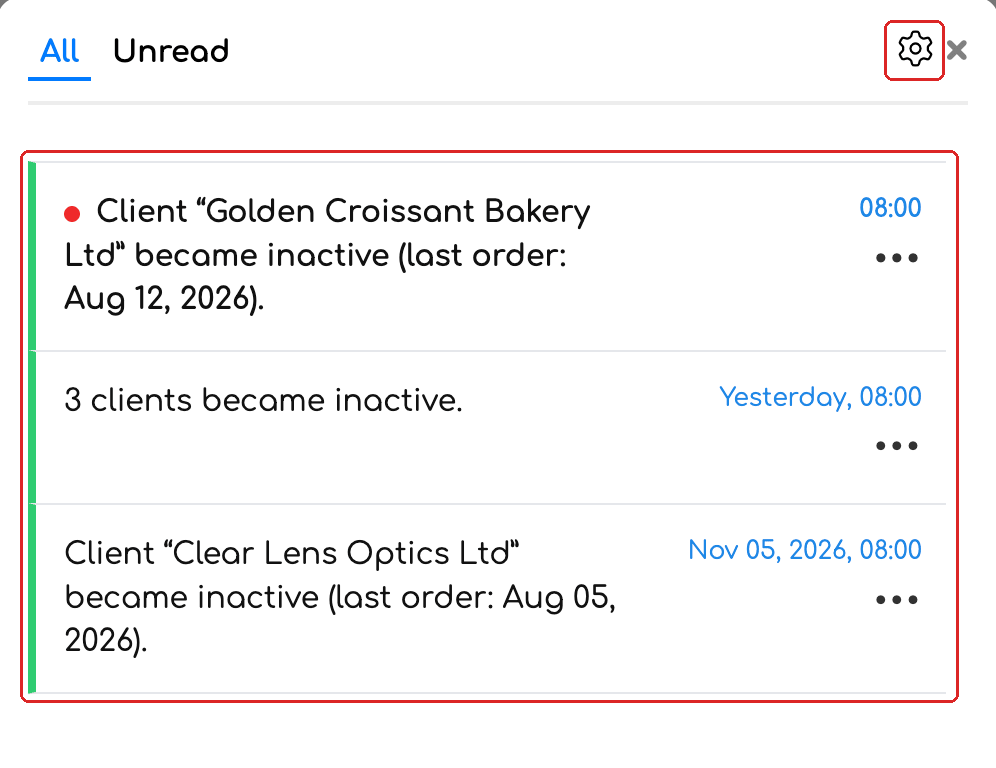
Notifications in the bell; the gear opens the notification preferences.
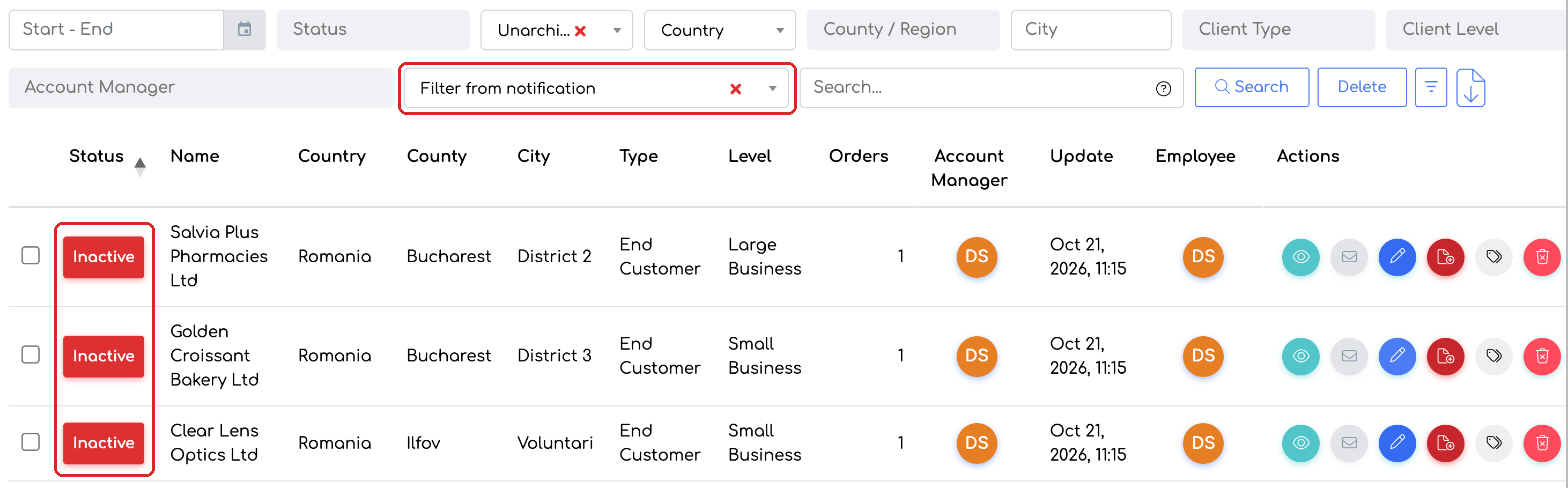
The client list opened from the notification, with the “Filter from notification” filter.
Tip: to return to the full list, clear the “Filter from notification” filter (x).
Good to know
- A client becomes inactive automatically when more days have passed since the last order than the value in Inactive Status Term.
- Clients set to Inactive manually and archived clients are not included in the notification.
- The notification appears in the application and as a browser notification, if enabled. No email is sent.
- If an inactive client places a new order, their status becomes Active again.
Frequently asked questions
I turned on the notification and I don't receive anything.
Check three things: the clients have Inactive Status Term filled in (the value 0 means disabled); the notification is set for the right clients (by default only those for whom you are Account Manager); and some clients have become inactive since the previous notification.
Do quotes or invoices also count as activity?
No. The term is calculated from the date of the client's last order.
Do I also receive the notification by email?
No. The notification appears in the application and, if enabled, as a browser notification.