
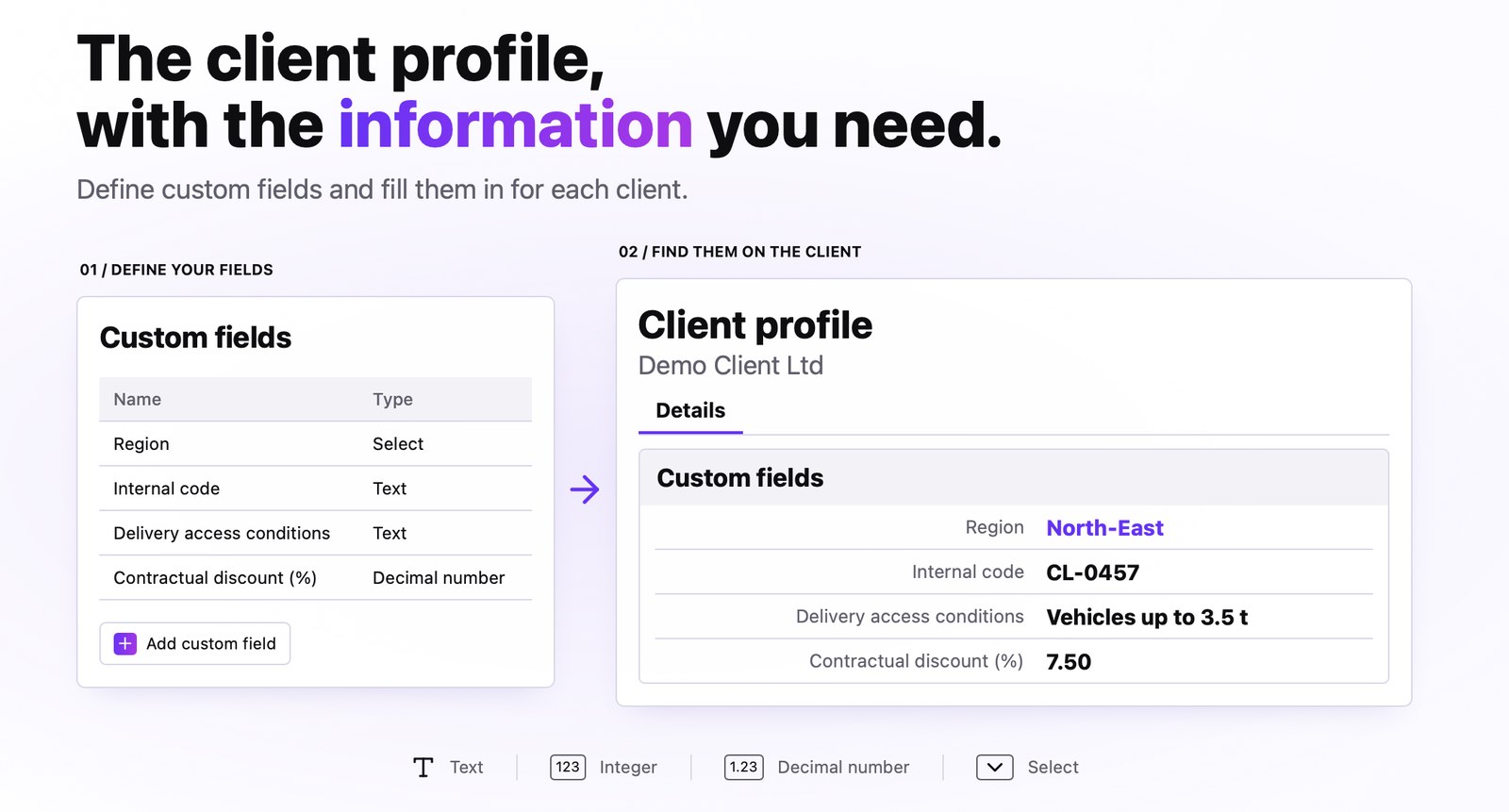
In addition to the standard client data (tax ID, address, contacts), you can now define your own fields that matter to your company: the sales region, the internal code from other records, the number of client locations or the contract discount. You fill them in once for each client and find them in the client record, in client import and export, in the PDFs of sales documents and in Standard Documents.
The result
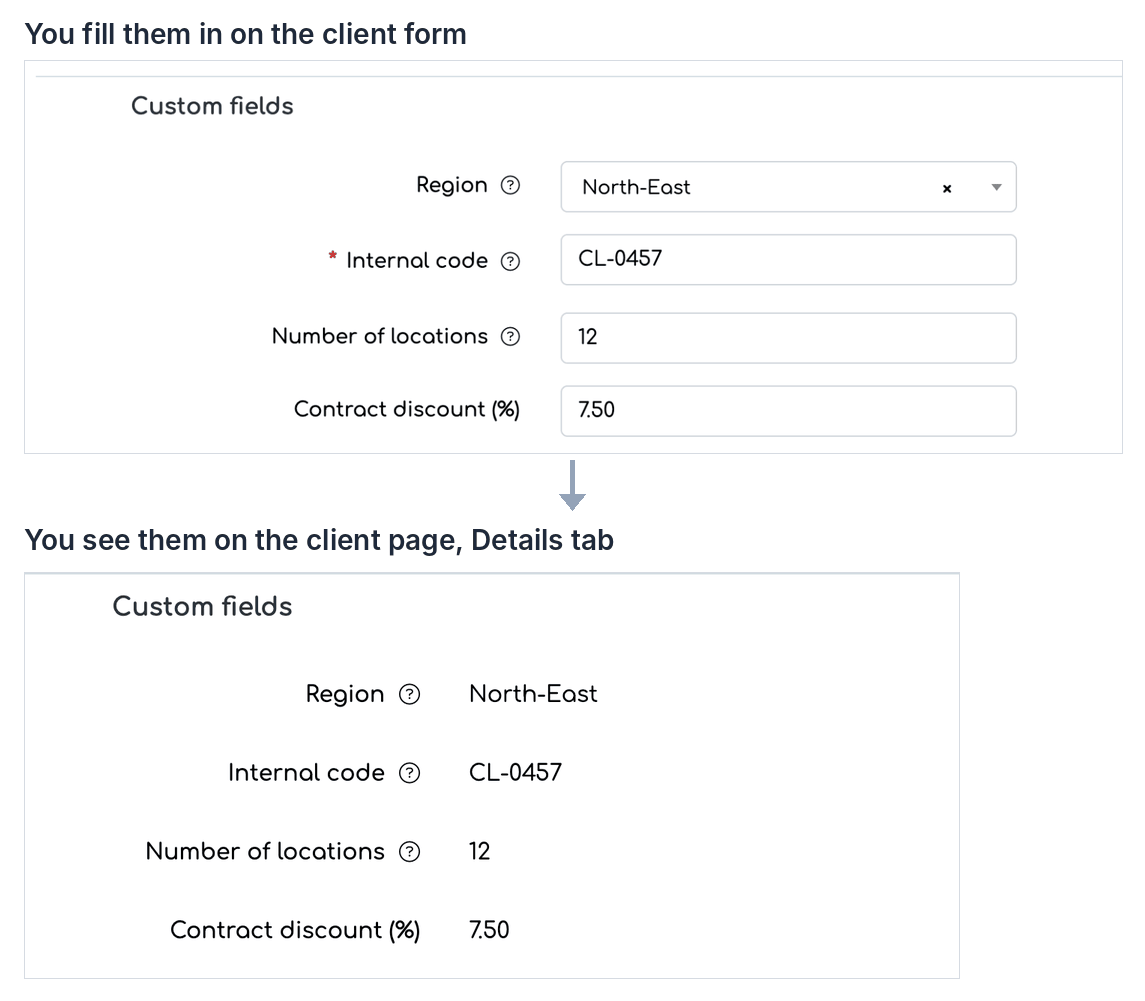
Custom fields in the client form (top) and in the client record, Details tab (bottom).
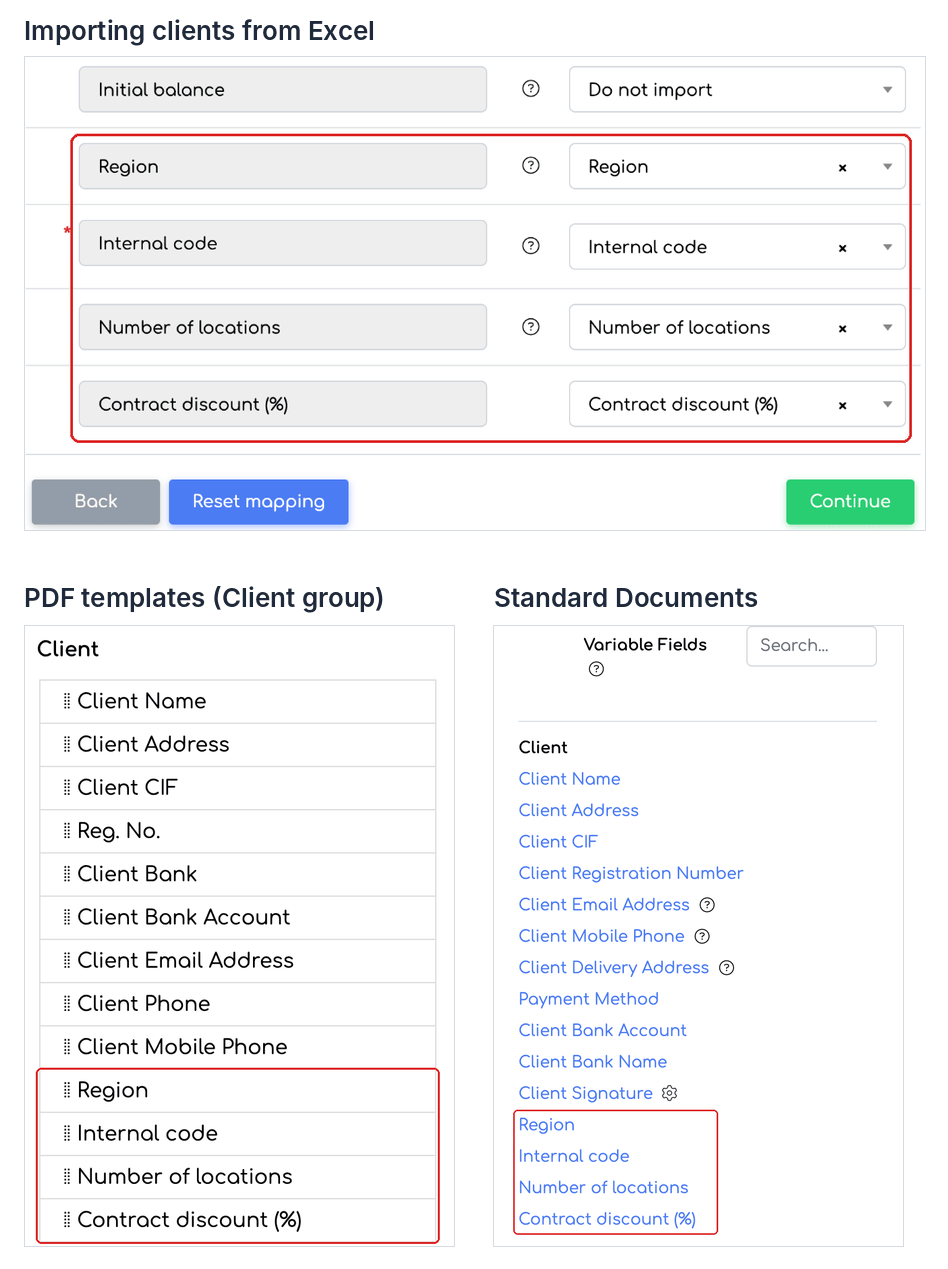
The same fields in the Excel import, in PDF templates and in Standard Documents (marked in red).
Before you start
- Fields are defined by an administrator or by a user with the new permission Client custom fields (Settings, General group), with the View, Add, Edit and Delete rights. The right depends on “Client Settings” and is enabled from the access level editor.
- To fill in the values for a client, the existing client editing rights are enough.
- You can define up to 50 active fields.
Define the fields
Step 1. Open , the Custom fields tab, and click Add custom field.
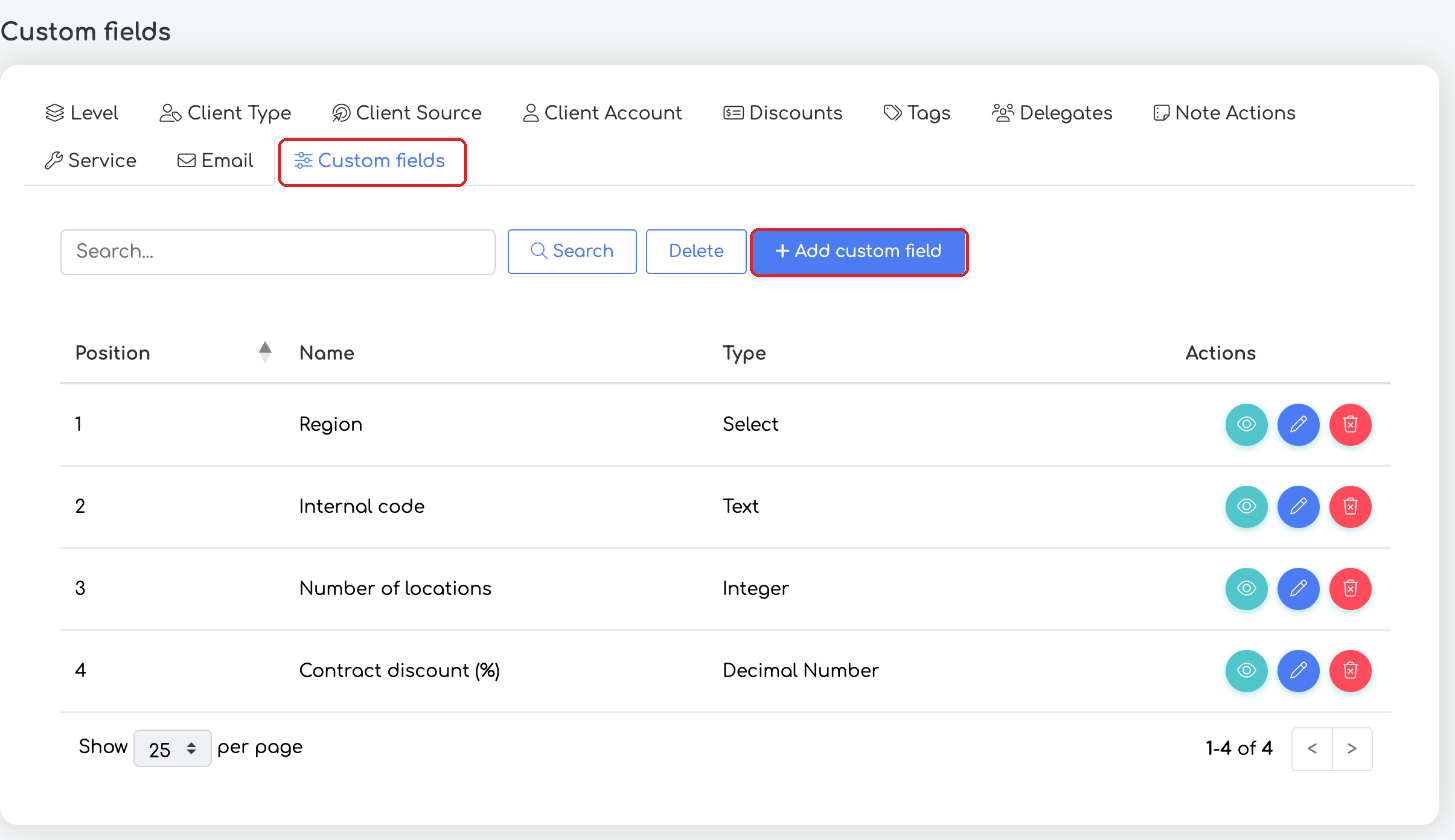
, Custom fields tab: the list of defined fields and the add button.
Step 2. In the New Custom Field window, fill in:
- Field Name — the field name, up to 50 characters, unique. Required.
- Field Help — an explanatory text, shown as a (?) sign next to the field in the client form, the client record and the Excel import.
- Field Type — Text, Integer, Decimal Number or Select. The type cannot be changed after the first save, so choose it carefully.
- Decimals — only for Decimal Number; between 1 and 6, default 2.
- Required Field — if enabled, the field must be filled in when saving the client.
- Position — the order of the field in the form, the client record and the export. Required.
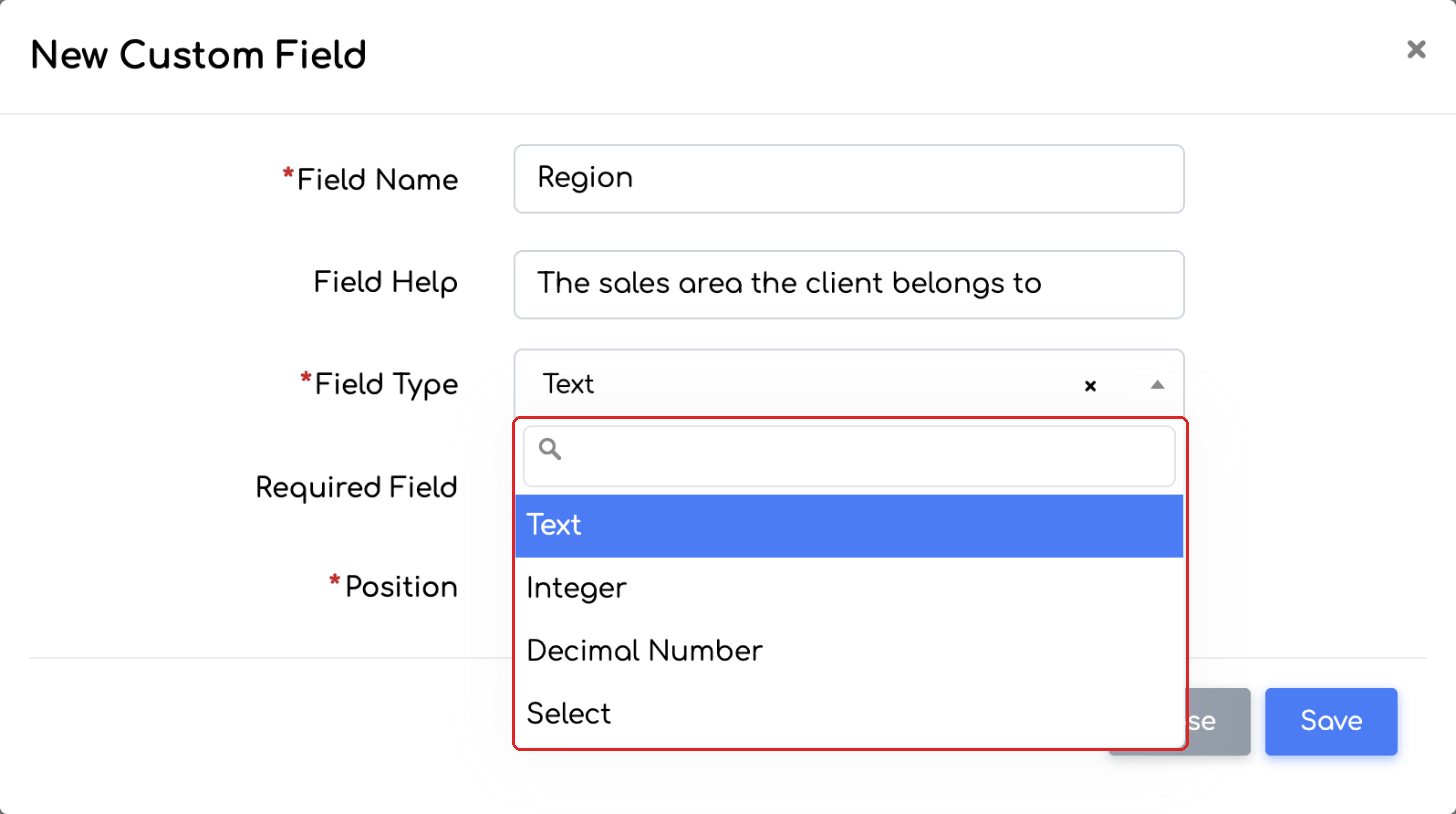
The four available field types.
Step 3. For a Select field, add the possible values with Add Option. At least one option is required. Then click Save.
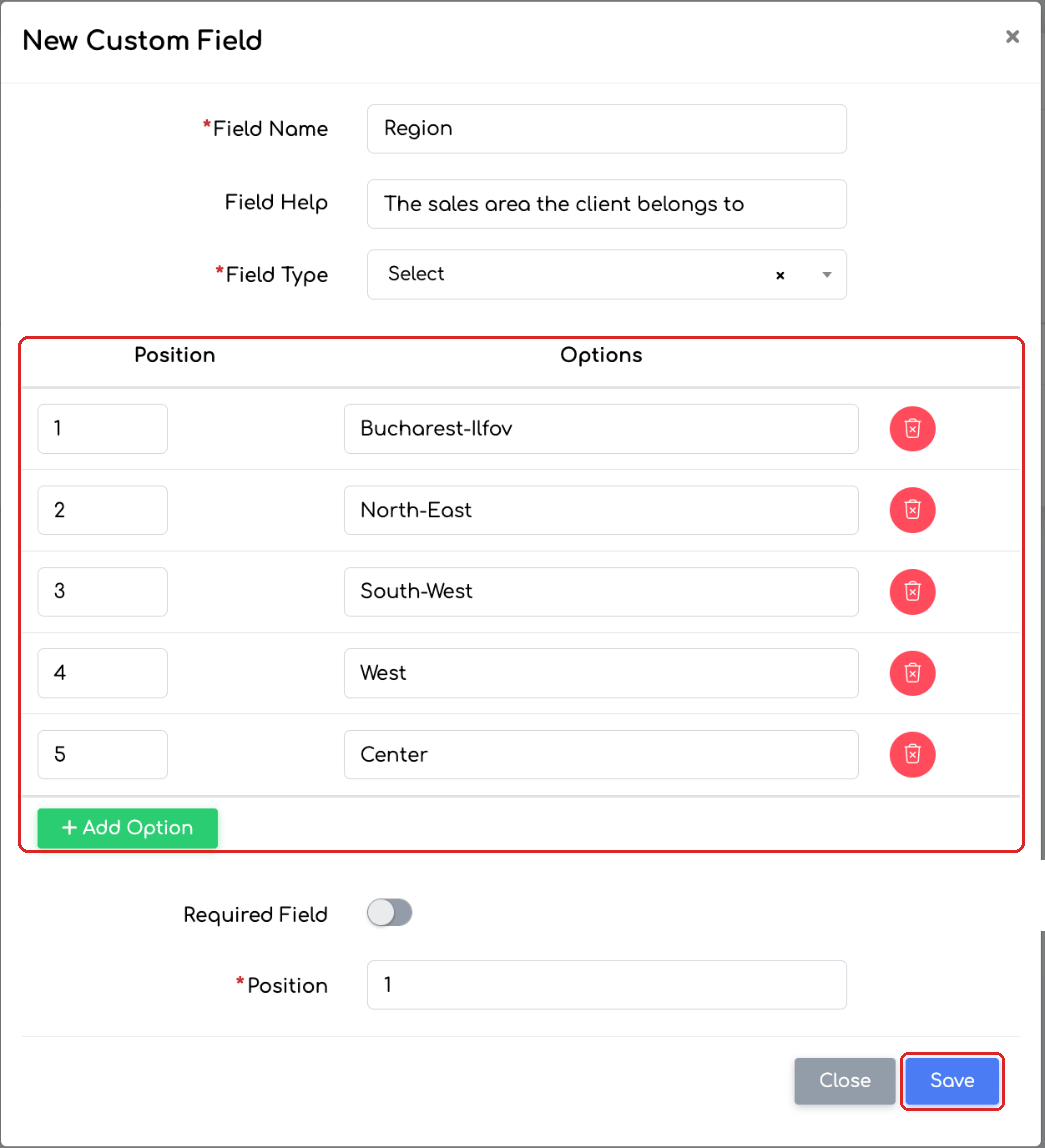
The “Region” field, of type Select, with five options.
Fill in the fields for a client
Step 4. Open the client for editing. The Custom fields section appears between “Delivery” and “Details”. Fill in the values and save the client.
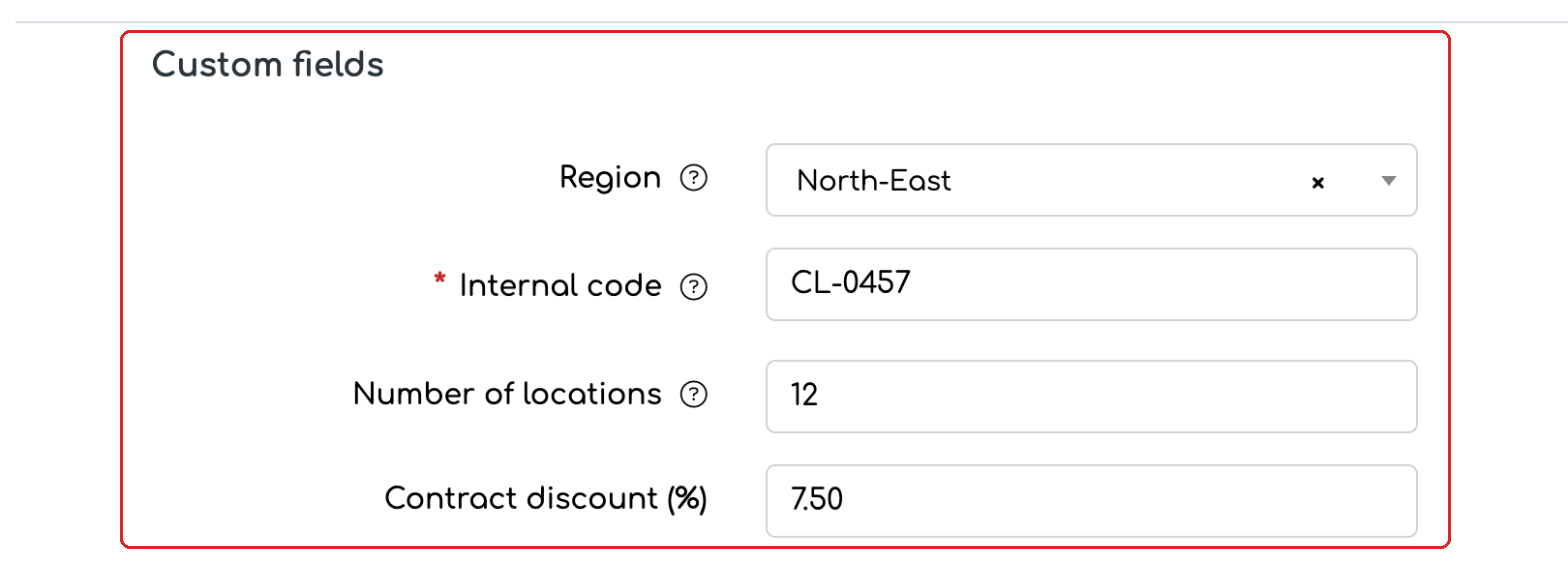
The Custom fields section in the client form.
- Select fields are chosen from a searchable list (“Select Option”).
- Decimal Number fields accept a comma or a period and follow the set number of decimals; Integer fields accept digits only.
- Clearing a field deletes the saved value.
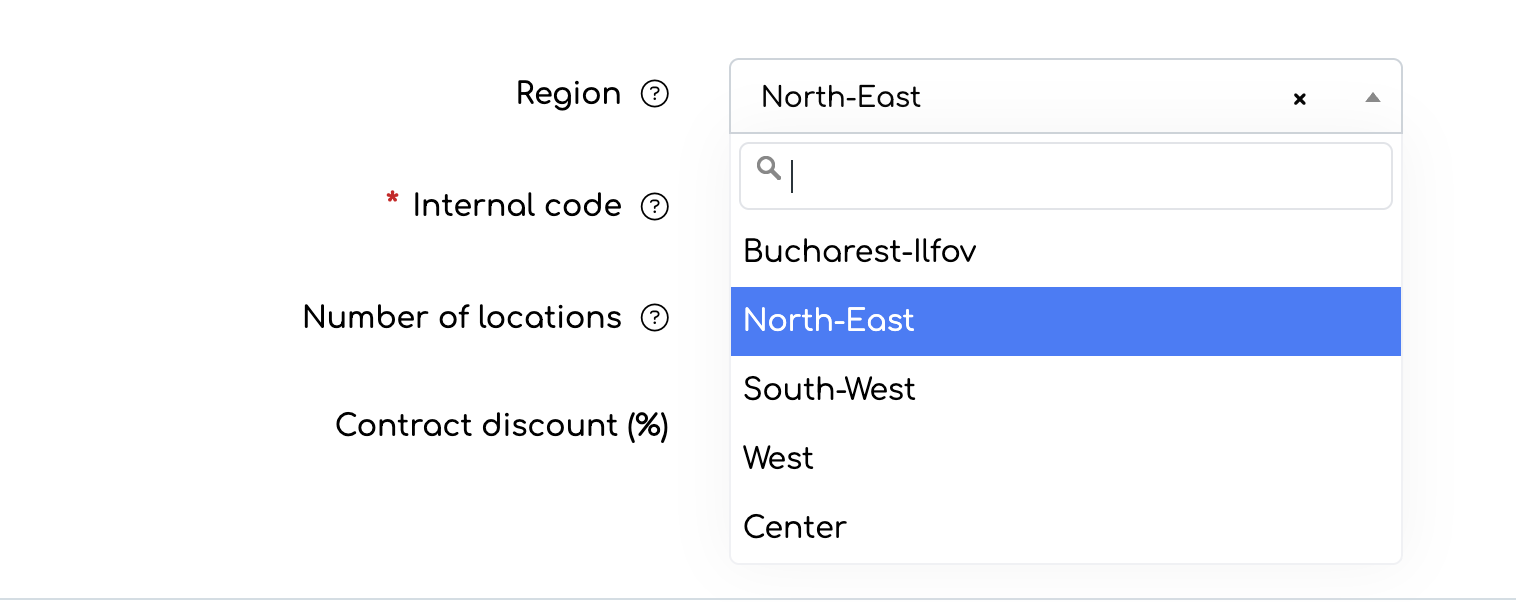
A Select field is filled in from the list of defined options.
Note: The section also appears in the quick new-client window in quotes, orders, invoices, proformas, delivery notes and opportunities, so the fields can be filled in right when the client is created.
See the values in the client record
Step 5. In the client record, on the Details tab, the values appear in the Custom fields section.
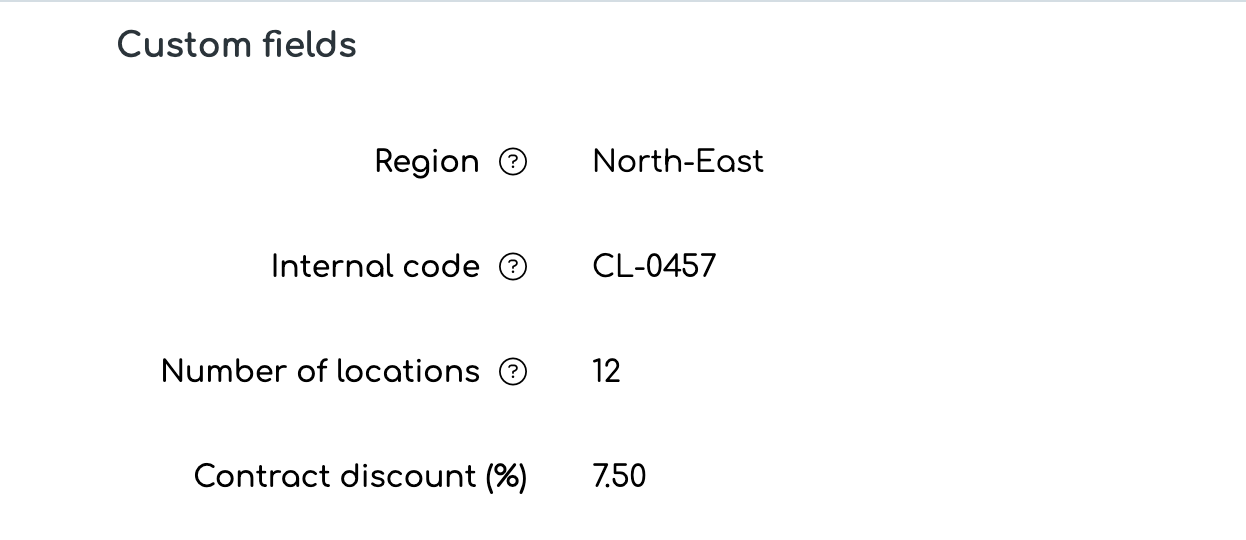
Client record, Details tab: the custom field values.
Importing clients from Excel
In import, export, PDF templates and Standard Documents, custom fields appear automatically, in the order set by Position. No additional setting is needed.
Step 6. In Clients, click Import from File, choose the file and click Continue.
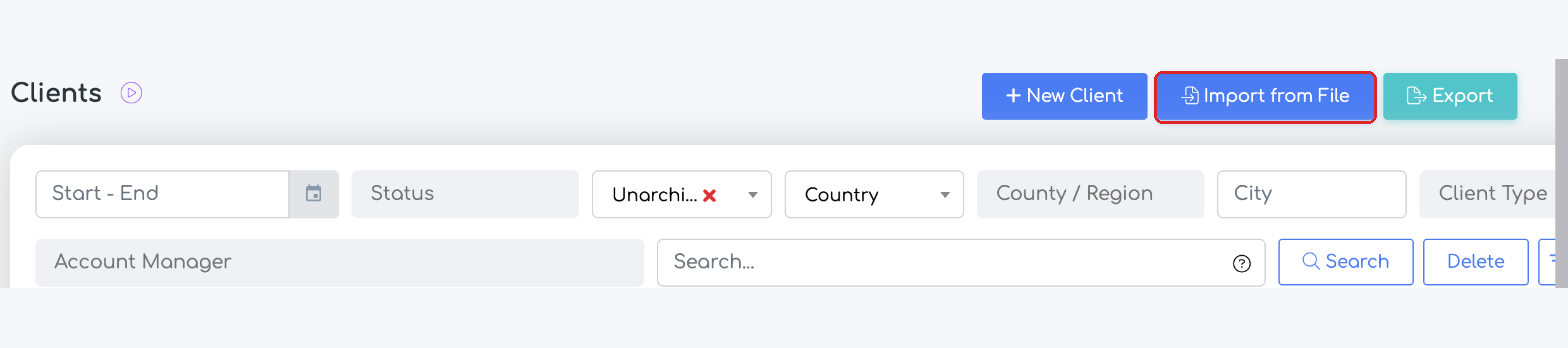
The Import from File button in the client list.
Step 7. When mapping the columns, each custom field appears on a separate row, after the standard fields. If the file has a column with the same name, it is matched automatically; otherwise, choose it from the list. The (?) sign shows the help text defined for the field.
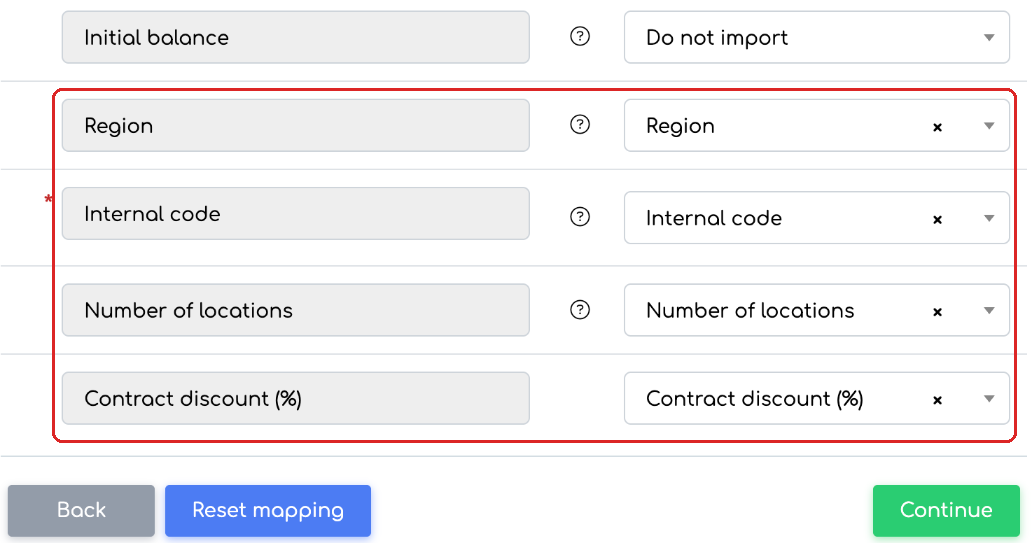
Column mapping in the client import: custom fields, matched automatically.
- When creating a new client, fields marked as required must be filled in the file.
- When updating an existing client, an empty cell keeps the value already saved.
- For Select fields, the value in the file must be identical to one of the defined options.
Exporting the client list
Step 8. In the client list, click Export. In the Excel file, each custom field appears as a separate column, after the standard columns.
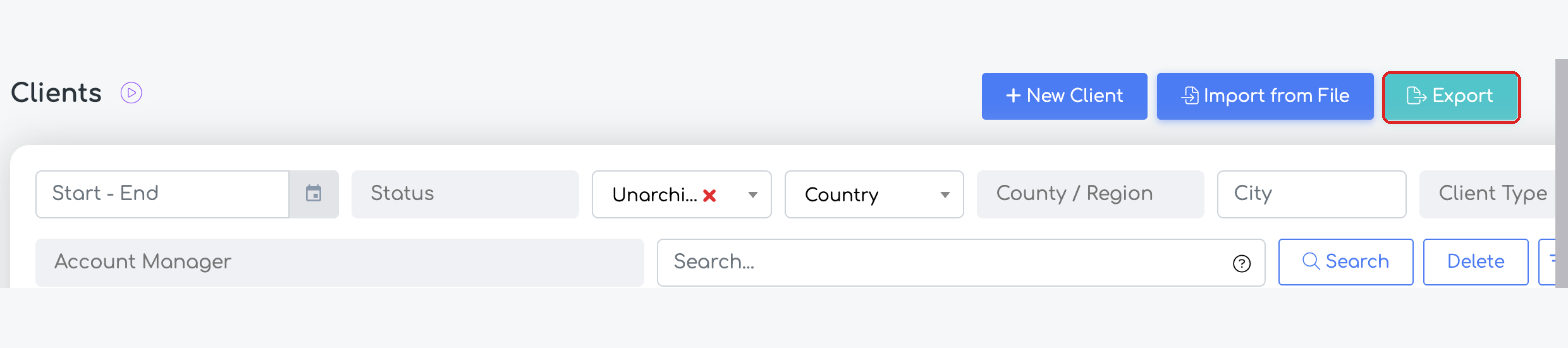
The Export button in the client list.
PDF templates for sales documents
Step 9. Open , the PDF tab, and edit or create a Quote, Order, Proforma, Invoice or Delivery Note template. The custom fields appear in the Client group on the left. Drag them into the template, in the desired area, and save.
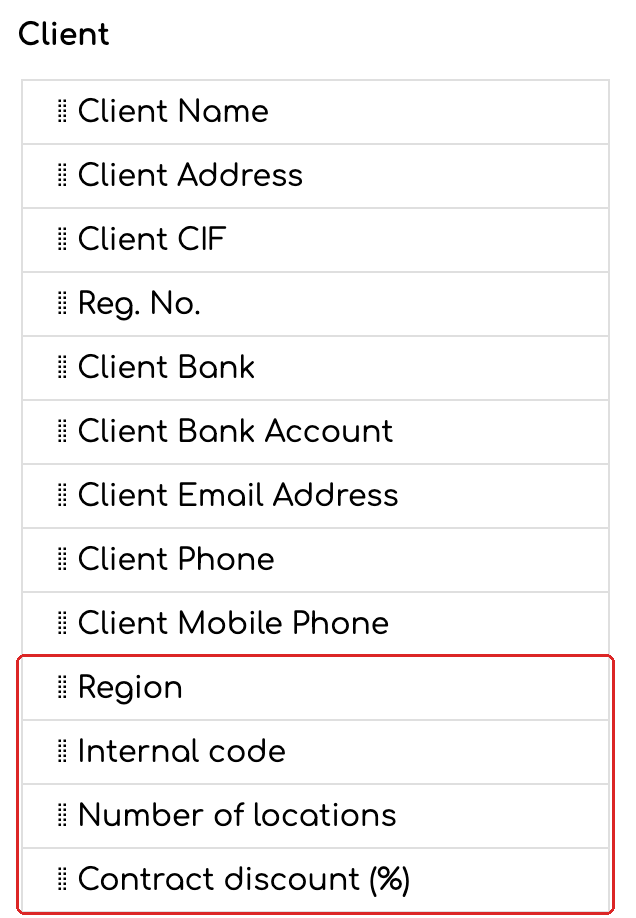
The Client group in the PDF template editor, with the custom fields at the end.
Note: The generated document prints the value filled in for that client. The fields are not available in supplier order templates.
Standard Documents
Step 10. In the Standard Document editor, the Variable Fields list has, in the Client section, one variable for each custom field. Click a variable to insert it into the document at the cursor position.
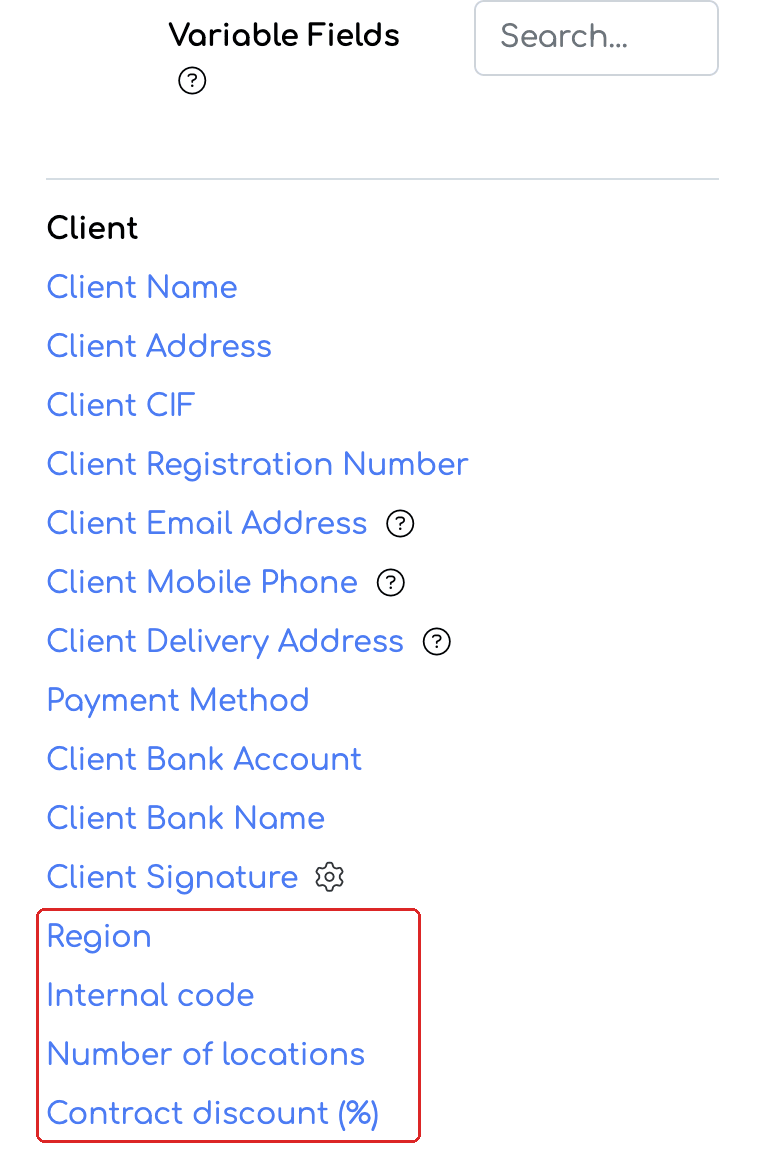
Variable Fields in the Standard Documents editor, Client section.
Good to know
- If an option of a Select field is removed, clients that had it keep it, shown as “Removed option”.
- Deleting a field requires confirmation. If active clients have filled it in, the window warns that the information will be removed from the client records and from all documents where it appears, that the action is irreversible, and shows up to 10 clients using the field. After deletion, the name can be reused.
- If you delete a custom field, it also disappears from import, export, PDF templates and Standard Documents.
Frequently asked questions
I chose the wrong type for a field. How do I change it?
The type cannot be changed after saving. Create a new field with the correct type, then move the values: export the client list, copy the values into the new field's column and import the file. Finally, you can delete the old field.
Can I define custom fields for products or suppliers too?
The fields in this tutorial are for clients only. Products have their own custom fields, defined separately.
What happens to clients that had an option I deleted?
They keep their value, shown as “Removed option”.
On import, the value of a Select field was not picked up. Why?
The value in the file must be identical to one of the options defined for the field. Check the spelling in the file against the list of options in .
I left a cell empty on import. Was the client's value deleted?
No. When updating an existing client, an empty cell keeps the value already saved.
Why can't I find the fields in the supplier order template?
Client custom fields are available only in sales document templates: quote, order, proforma, invoice and delivery note.