
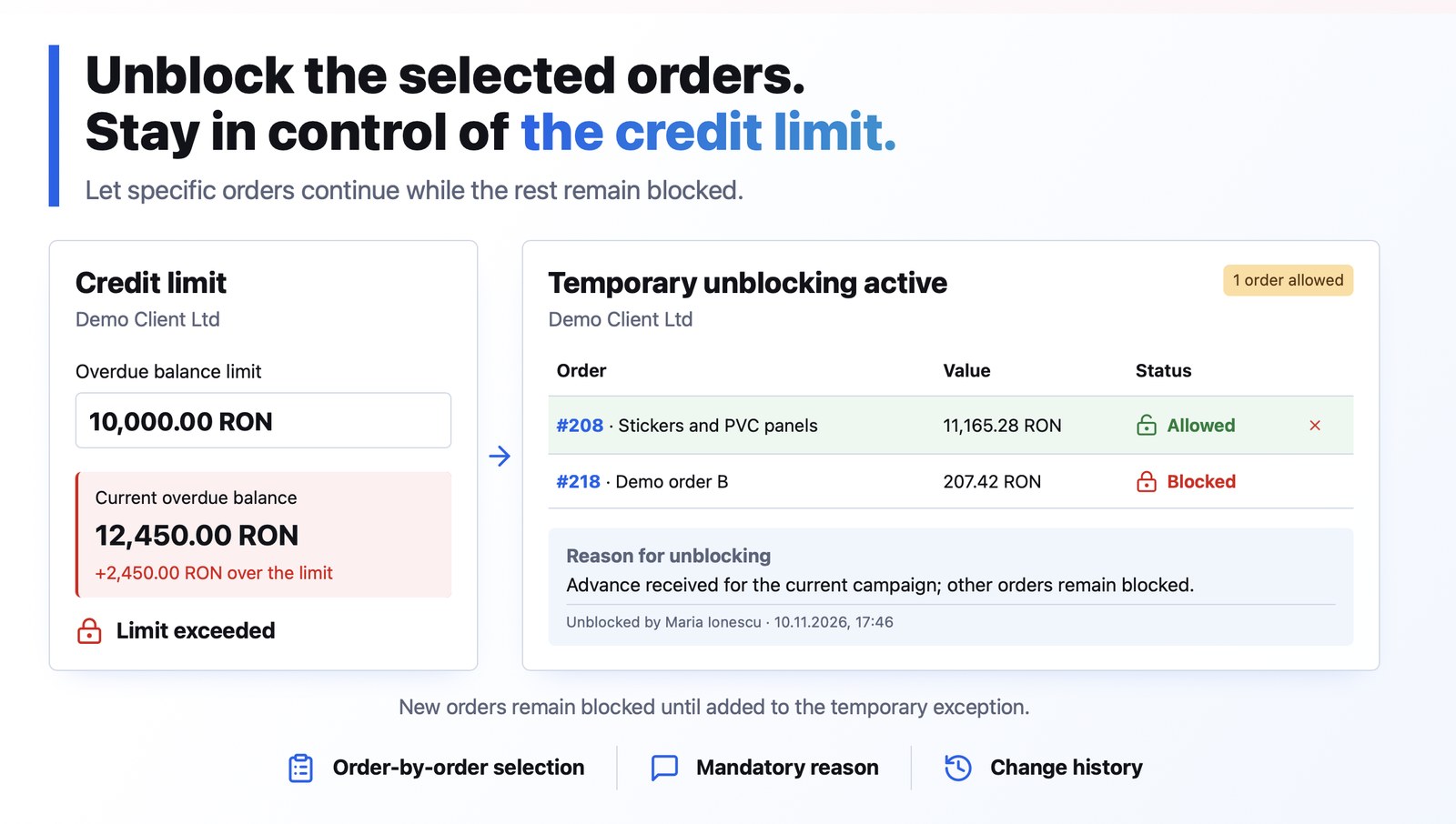
A client blocked for debts does not have to stop all activity. You can temporarily unblock only the orders for which you received an advance or a guarantee, while the rest stay blocked. The balance limit page now also shows the client's current value next to each limit, so you can see right away which limit is exceeded and by how much. Every block and unblock is kept in the history, with the reason and the person who made it.
The result
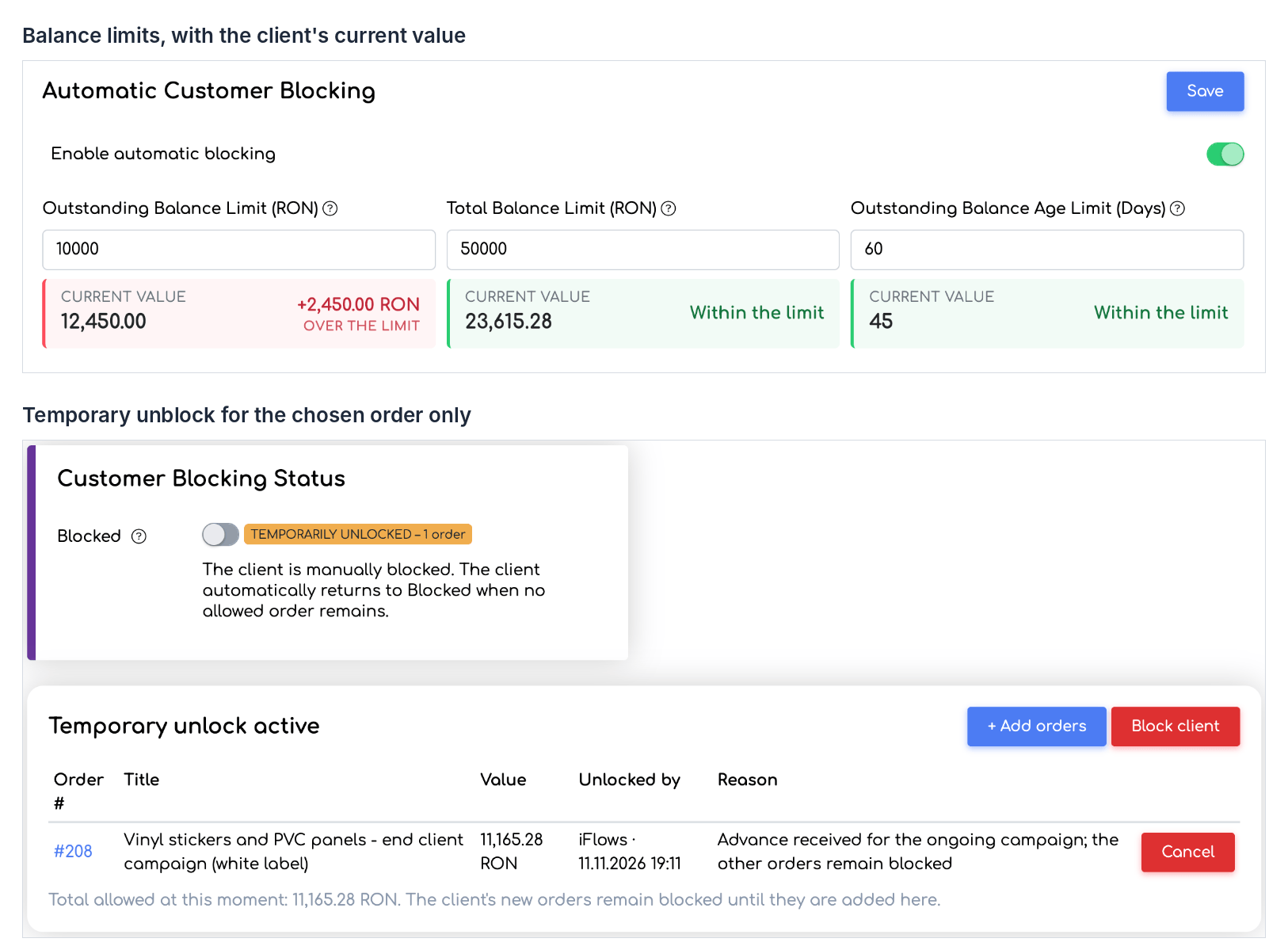
The limits with the client's current value and an active temporary unblock for a single order.
Before you start
- Open the client record and go to the Sold Limit tab.
- The temporary unblock is used for a blocked client (blocked manually or automatically, by exceeding a limit).
- To block and unblock you need the existing client limits right (Edit). There are no new permissions.
- The unblock window shows the client's open orders. Prepare the reason for the unblock; the field is required.
Steps
Step 1. In the Automatic Customer Blocking section, turn on Enable automatic blocking and fill in one or more limits: Outstanding Balance Limit, Total Balance Limit and Outstanding Balance Age Limit (Days). Below each field you see the client's current value: green with “Within the limit” or red with the amount by which the limit is exceeded. Click Save.
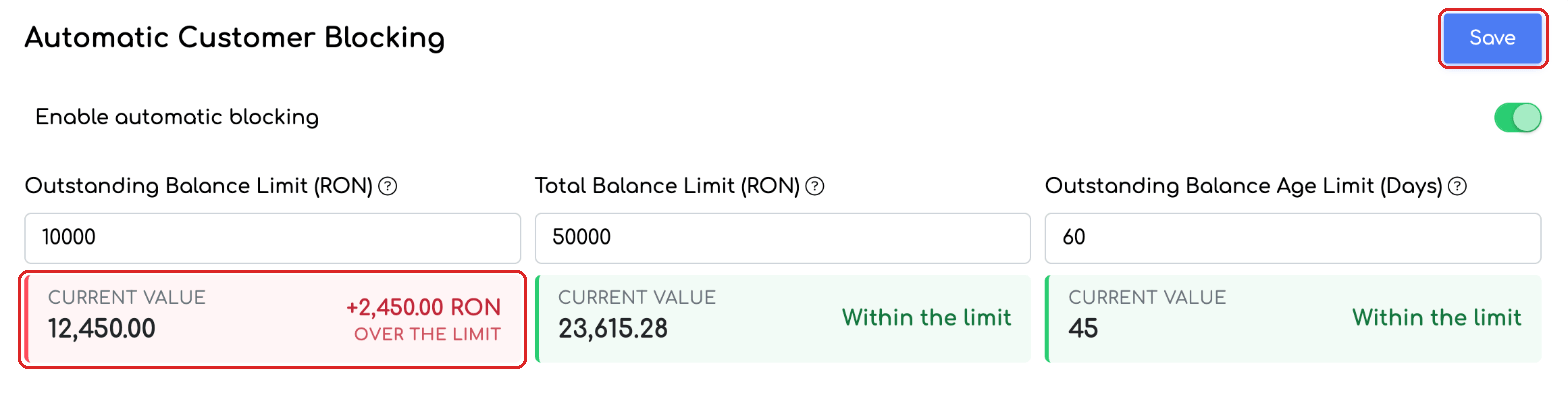
The client's current value, shown below each limit.
Step 2. When the client is blocked, in the Customer Blocking Status section turn off the Blocked switch. The Unblock client window opens. Choose Temporary unlock – only for the orders selected below.
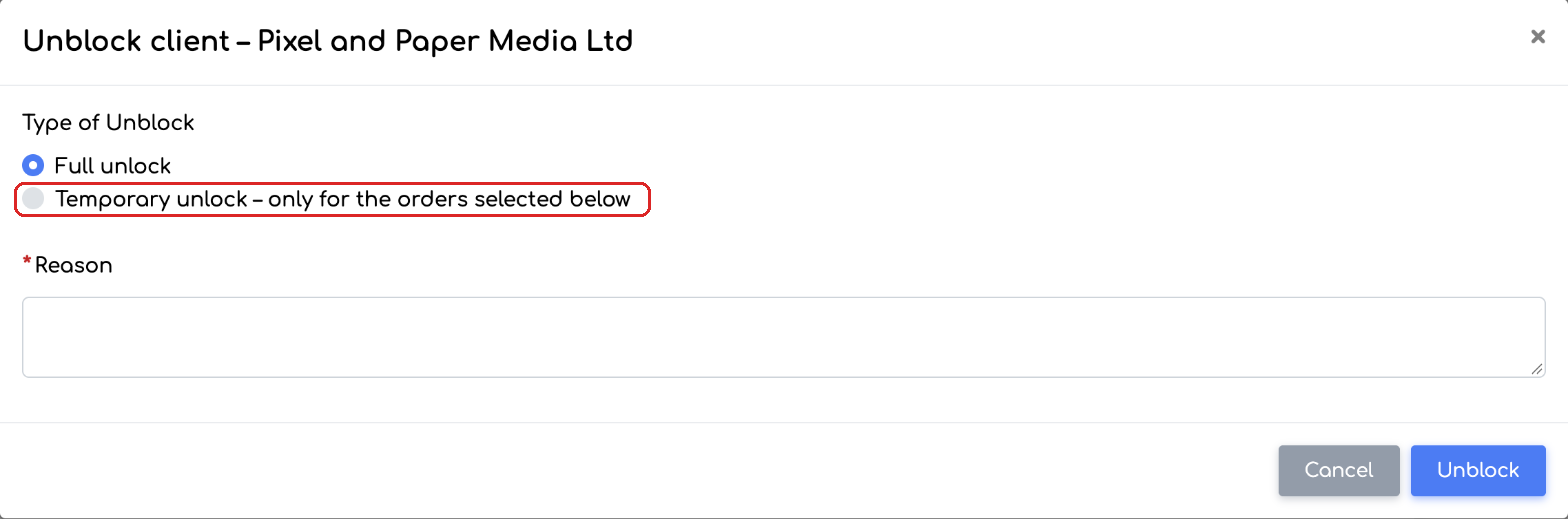
The two types of unblock: full or temporary.
Step 3. Check the orders that may continue. You can search by number or title, and below the list you see the number of selected orders and their total value. Fill in the Reason and click Unblock for N orders.
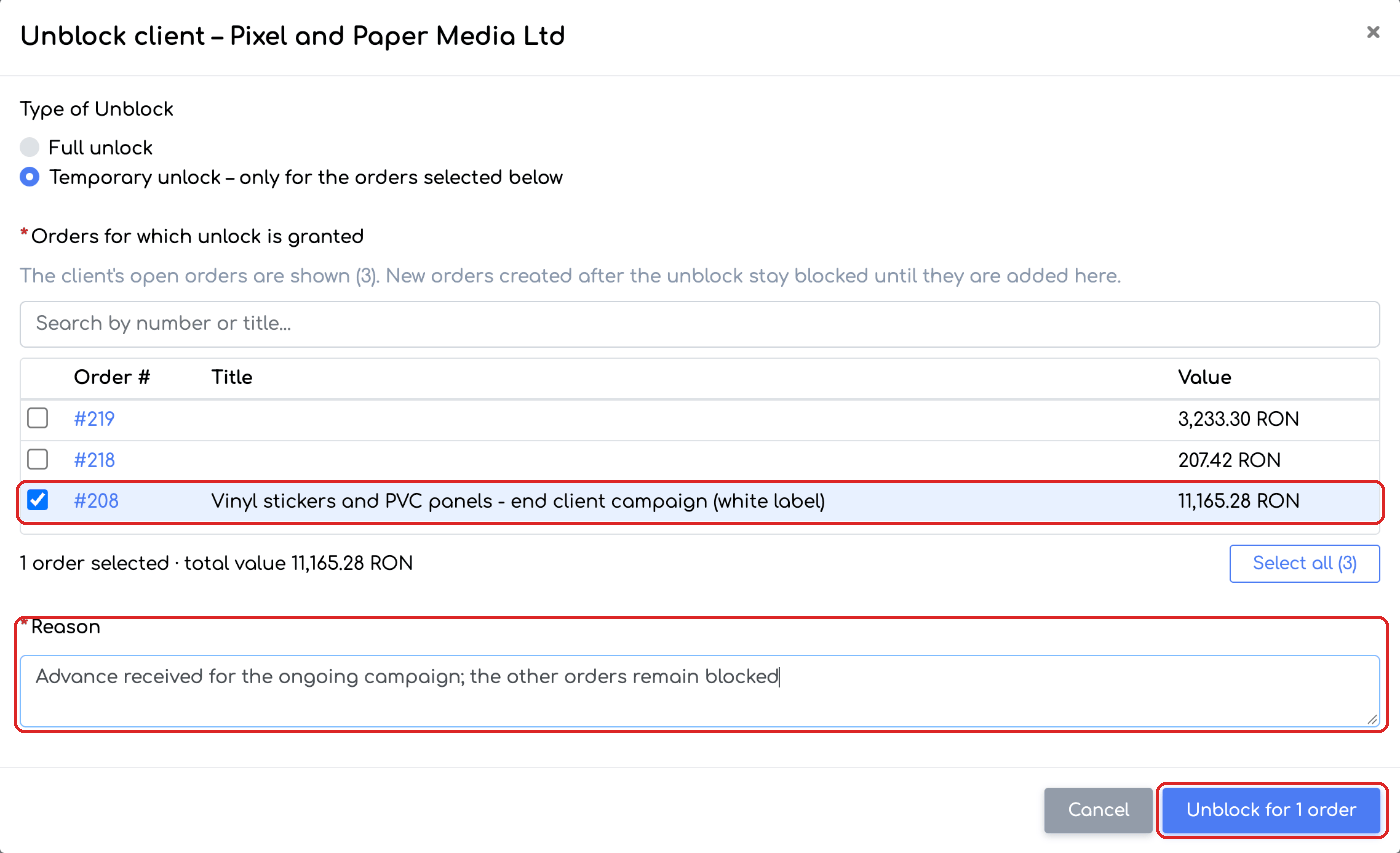
Temporary unblock only for order #208, with the reason filled in.
Step 4. The status becomes TEMPORARILY UNLOCKED – N orders and the Temporary unlock active section appears. Here you see the allowed orders, their value, who unblocked them and the reason. The Cancel button on a row removes the order from the unblock, and Block client cancels the unblock for all orders.
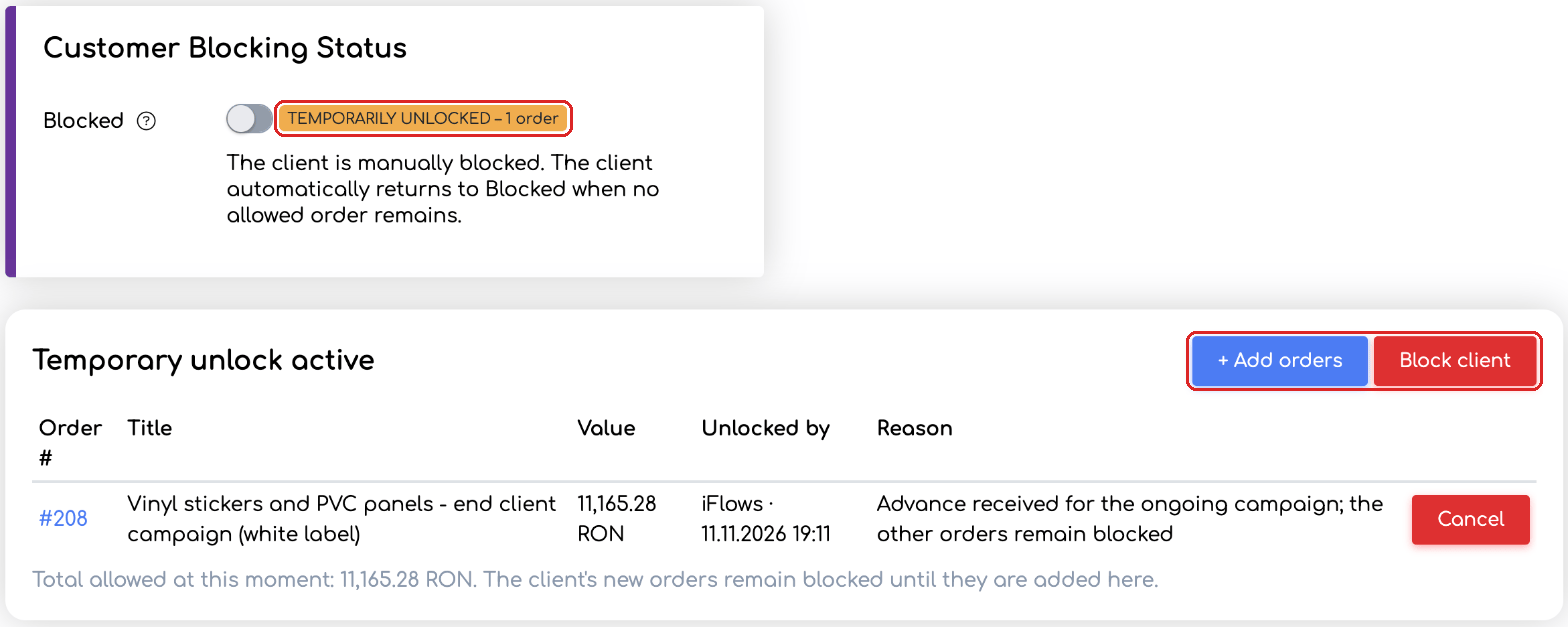
The client stays blocked, except for order #208.
Step 5. To allow one more order, click + Add orders. Orders that are already allowed are marked “already allowed”. Check the new orders, fill in the reason and click Add.
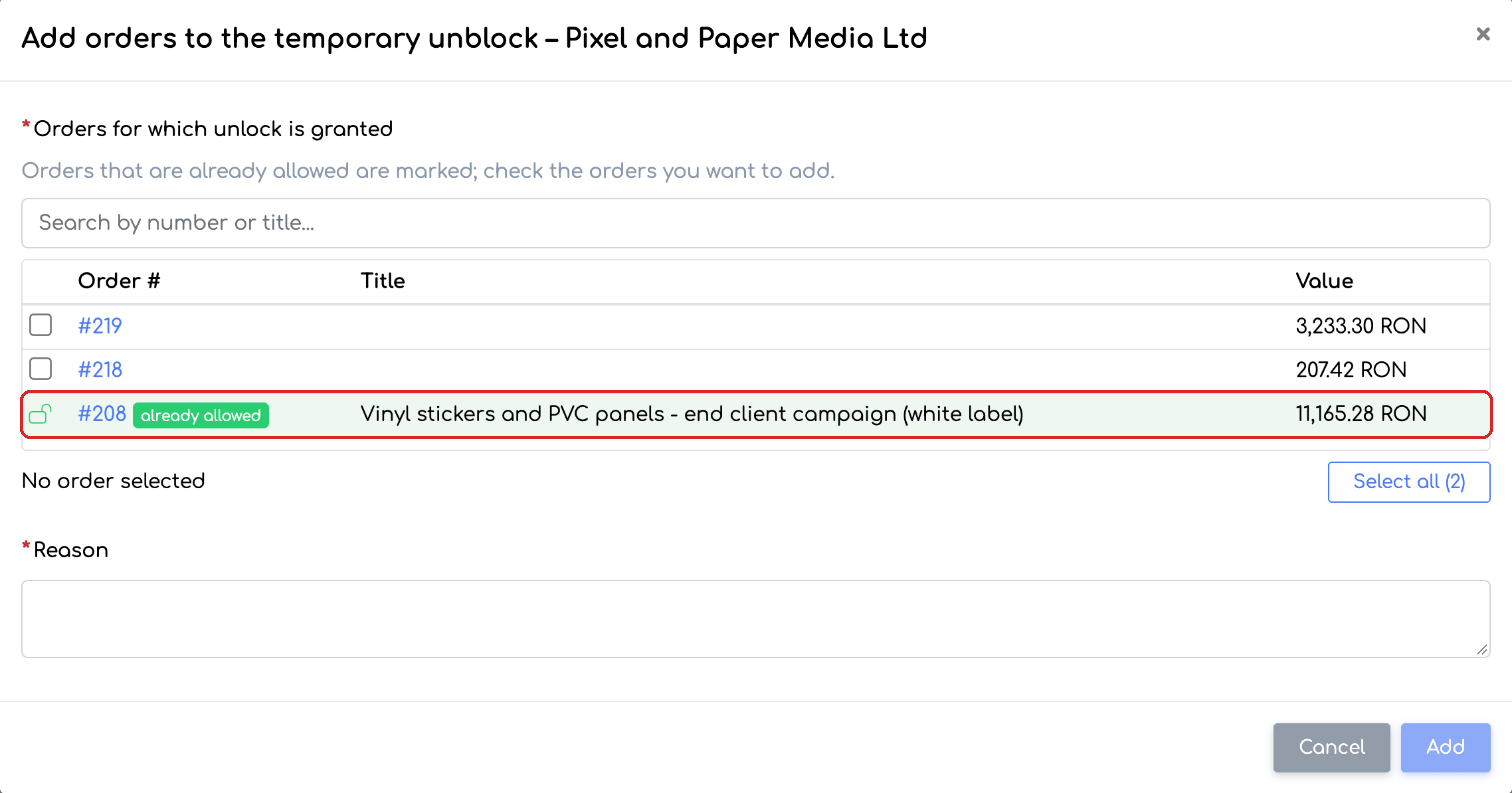
Adding an order to the existing unblock.
Step 6. The Limits History section keeps every block, temporary unblock and cancellation, with the orders involved, the reason, the date and the employee.
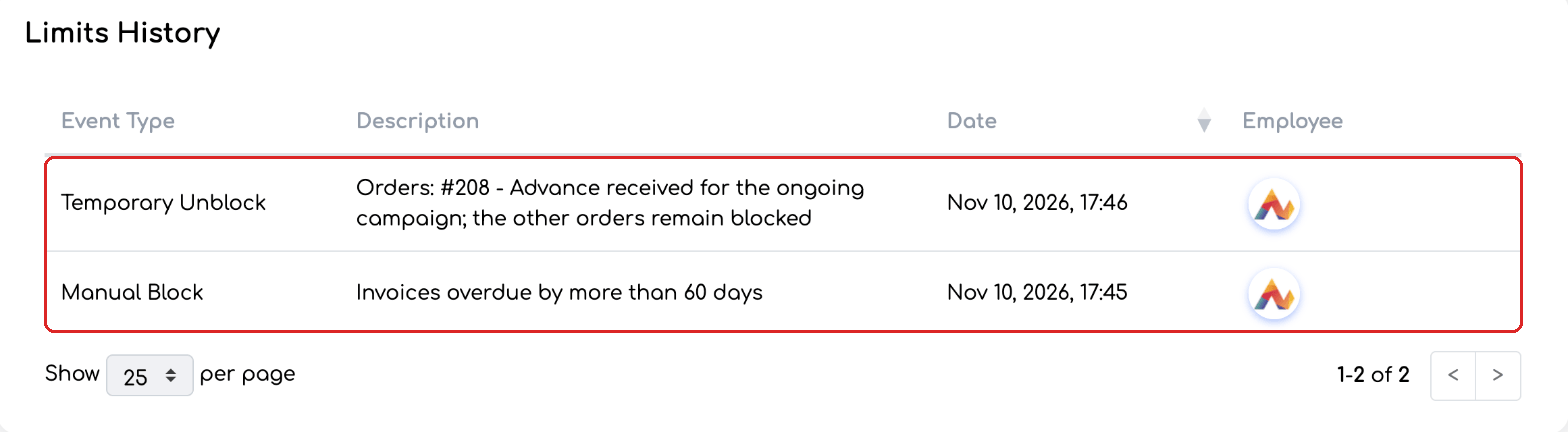
The history of blocks and temporary unblocks.
Good to know
- Orders created after the unblock stay blocked until you add them to the temporary unblock.
- An order leaves the list on its own when it is completed, cancelled or deleted.
- While the limits are exceeded, only the temporary unblock can be chosen in the unblock window.
- In the Workflow, taking over and resuming are allowed only for the orders in the list, and the red limit triangle appears only on the orders that are not covered.
- Temporary unblocks made before the update were moved automatically to the new list.
- The client automatically returns to Blocked when no allowed order remains.
- To remove the block completely, choose Full unlock in the same window (only when the limits are no longer exceeded).
- If you enable several limits, the client is blocked as soon as any of them is exceeded. If you fill in only one limit, only that one counts.
- The reason is required for every block, unblock and addition of orders.
Frequently asked questions
The client has paid. Why is it still blocked?
The balance is calculated from the invoices and receipts recorded in iFlows. When the limits are no longer exceeded, a client blocked automatically is unblocked at the next check. You can request the check immediately by clicking Save in the Automatic Customer Blocking section; a confirmation message shows that the client was unblocked.
What exactly is blocked?
In the Workflow, the client's orders can no longer be taken over or resumed. On stages that have only the Complete action configured, the orders cannot be completed either.
Am I notified when a client is blocked?
There is no notification for blocking. The block appears in the Limits History, and in the Workflow the client's orders are marked with the red triangle.
The client has a new order, but it shows as blocked.
Orders created after the temporary unblock stay blocked. Add them with + Add orders.