
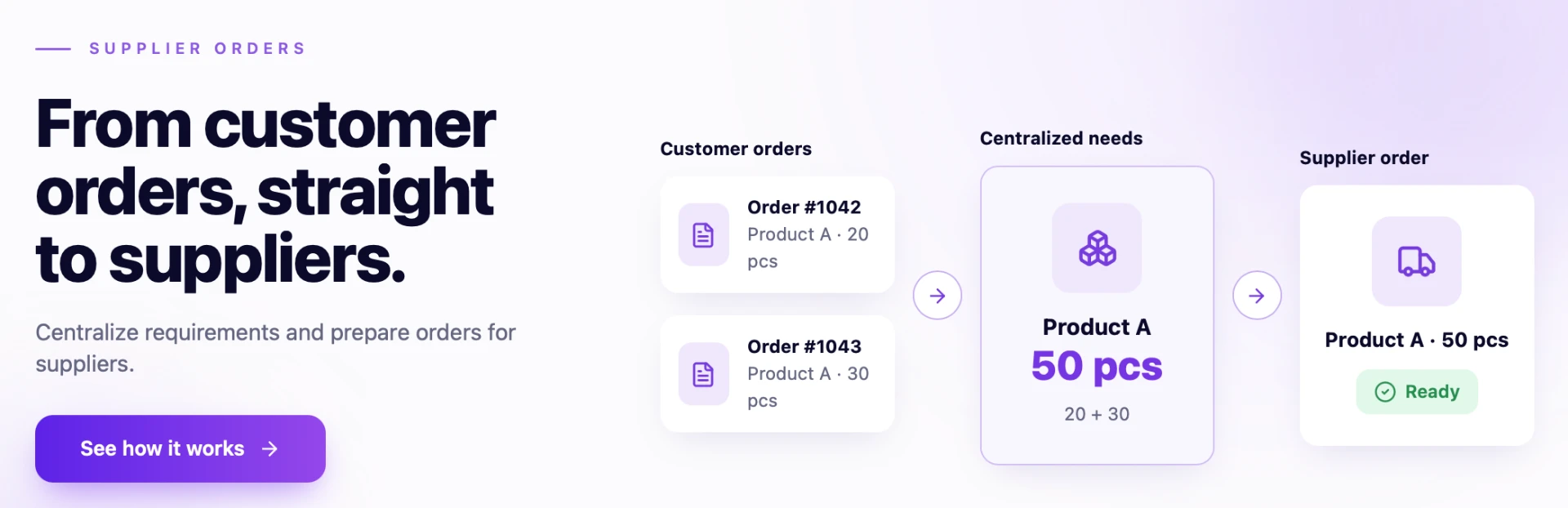
In short
The Supplier Order button in the Generate Document window no longer creates orders automatically for all products. It now opens the "Generate supplier order" window, where you choose the suppliers, products and quantities and see, before generating, what has already been ordered and the value of each order. You can start from a single order or from several orders of the same client.
The feature helps you avoid duplicate orders to suppliers, order partially, use decimal quantities (kg, m) and exclude services.
| Before | Now | |
|---|---|---|
| Supplier Order | Created the orders immediately, without confirmation | Opens the selection window |
| Items included | All lines, including services | Only the ticked items; services are excluded by default |
| Quantity | Fixed, rounded to a whole number even for kg or m | Proposed and editable; decimals for fractional units |
| Quantities already ordered | Not taken into account | Shown, with links; only the difference is proposed |
| Value | Not visible before generating | Per row, per supplier and total |
| Tags | Not copied | Optional, via Copy tags |
Where to find it
- — the Generate Document button on the order row → Supplier Order.
- , with one or more orders of the same client ticked — the selection bar at the bottom → Generate Document → Supplier Order.
- The order page — the menu.
Generating supplier orders from the Stock page and automatic orders at minimum stock remain unchanged.
Before you start
- You need the add right on Supplier Orders. There are no new permissions.
- Check the Supplier and Supplier UoM fields (with the conversion) in the product file. Products without a supplier or without a valid conversion cannot be ordered from the window.
- To combine several orders, they must belong to the same client.
Generating supplier orders
Step 1. From a single order: press Generate Document on the order row and then Supplier Order.
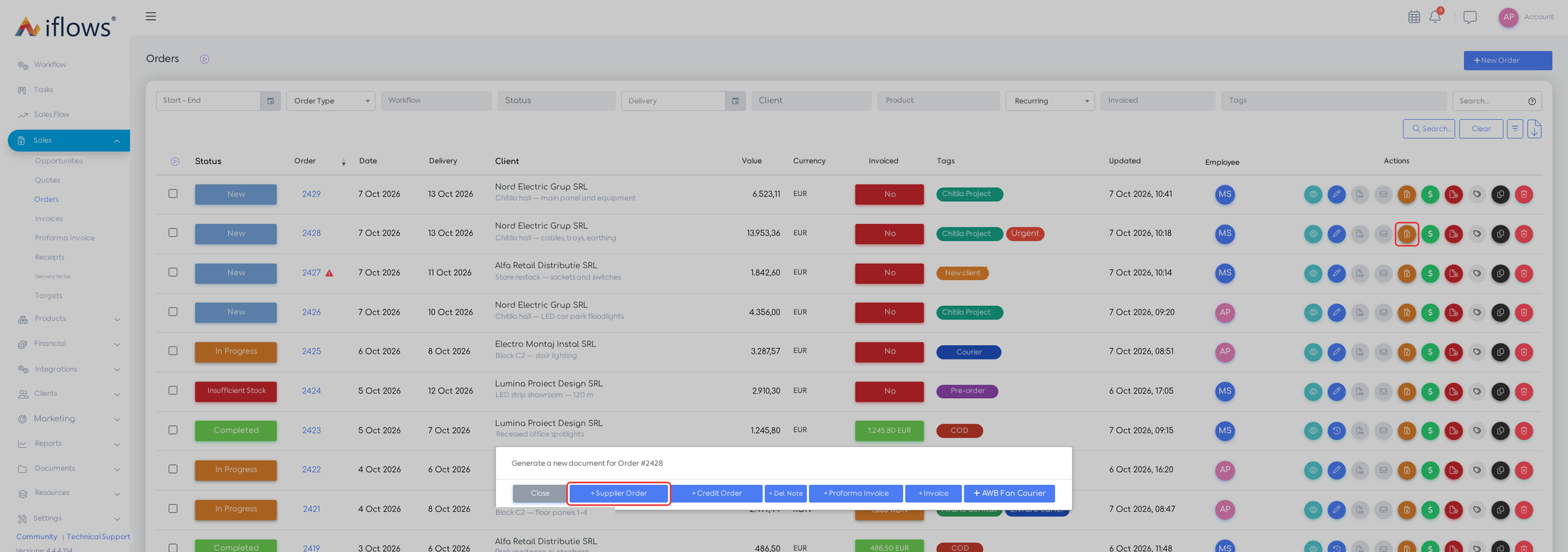
The Generate Document window for order #2428 and the Supplier Order button.
From several orders: tick the client's orders in the list. The selection bar appears at the bottom; the orange Generate Document button appears only if all ticked orders belong to the same client. Press it, then Supplier Order.
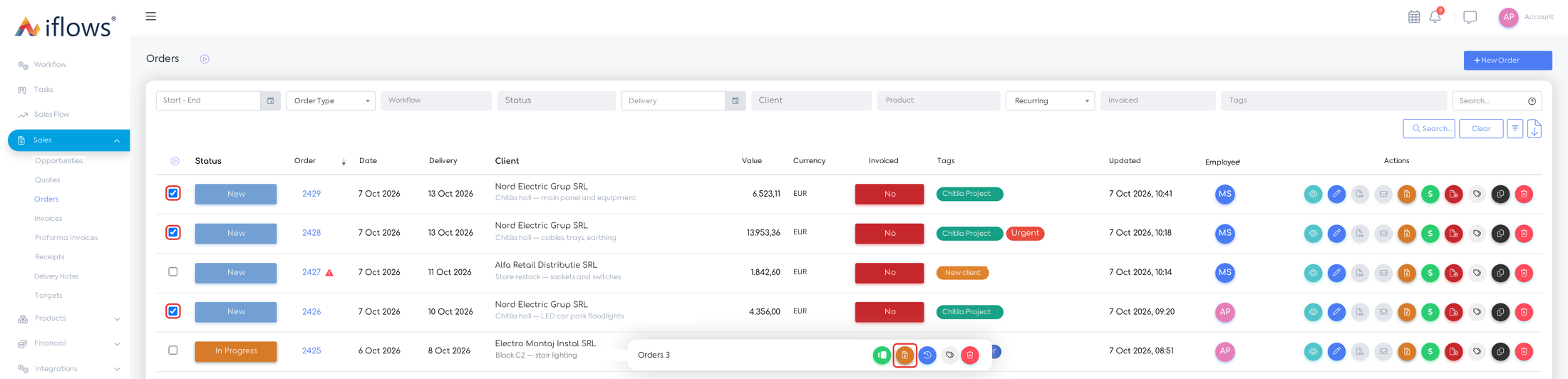
Three orders of the same client ticked and the Generate Document button in the selection bar.
Step 2. The "Generate supplier order" window opens. Under the title you see the orders, the client and the number of lines in the orders. Items are grouped by supplier, with the proposed quantity and the value.
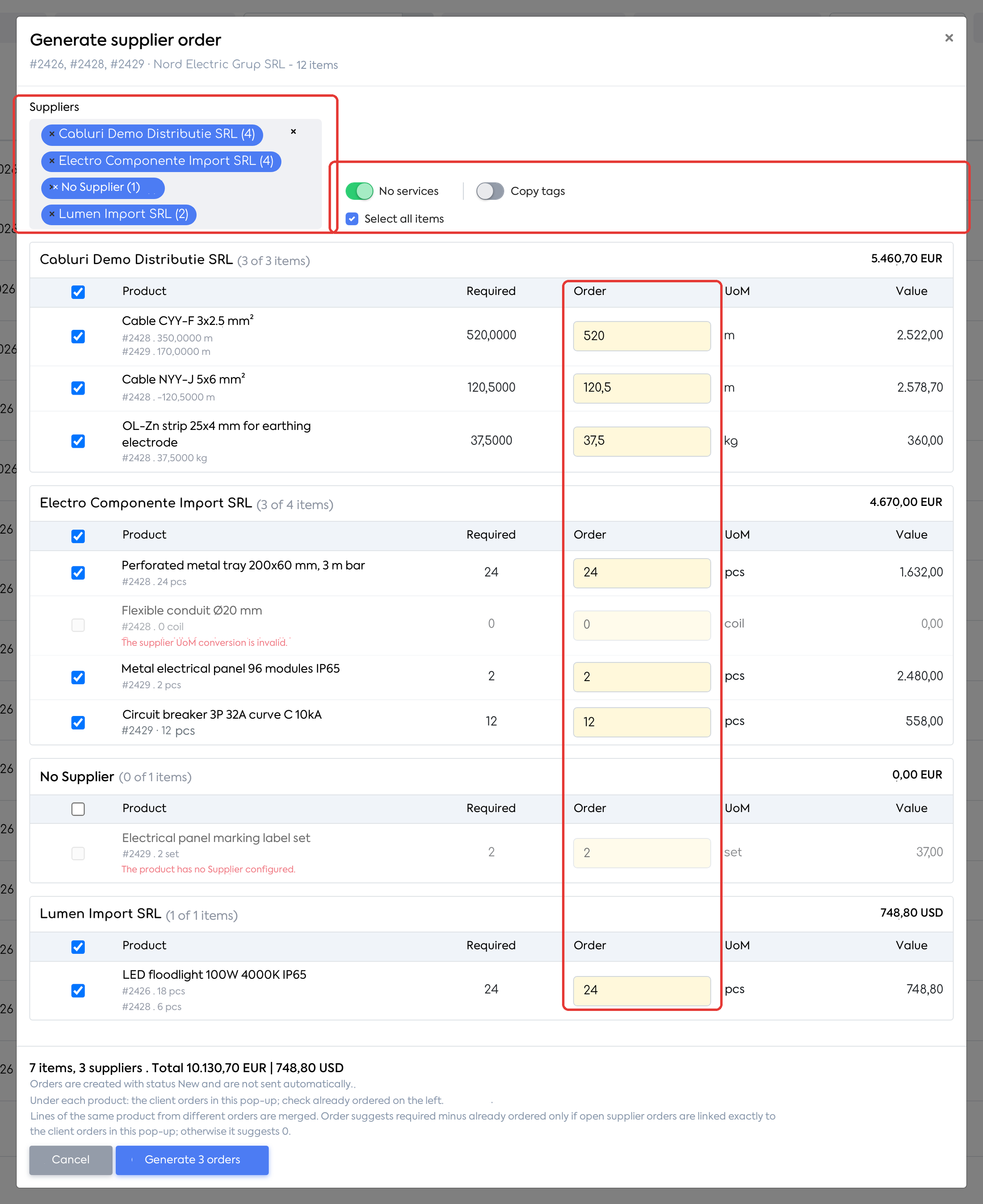
The items of the three orders, grouped by supplier, with the required quantity, the proposed quantity and the value.
| Option | What it does | Default |
|---|---|---|
| Suppliers | Choose the suppliers you generate orders for; each shows its number of items. A supplier removed from the list gets no order. | All suppliers |
| No services | On: items that are not of type Product (for example services) are not shown. Off: they appear unticked and can be ordered manually. | On |
| Copy tags | Copies the tags of the client orders onto the supplier orders; shown only if at least one order has tags. | Off |
| Select all items | Ticks or unticks all visible items. | — |
| Column | Content |
|---|---|
| Product | The name; below it, the quantity on each client order, the quantity already ordered and links to the existing supplier orders |
| Required | The quantity in the client orders, in the supplier's unit of measure |
| Order | The quantity to be ordered; editable field with a yellow background |
| UoM | The supplier's unit of measure |
| Value | Quantity × unit price, in the supplier's currency |
The same product present on several lines or in several orders appears on a single row, with the required quantity added up.
Step 3. Adjust the items: untick the products you are not ordering now and change the quantity in the yellow Order field. A quantity greater than 0 typed on an unticked row ticks it automatically. If you want the tags of the client orders to be copied, turn on Copy tags. Subtotals and the total are recalculated.
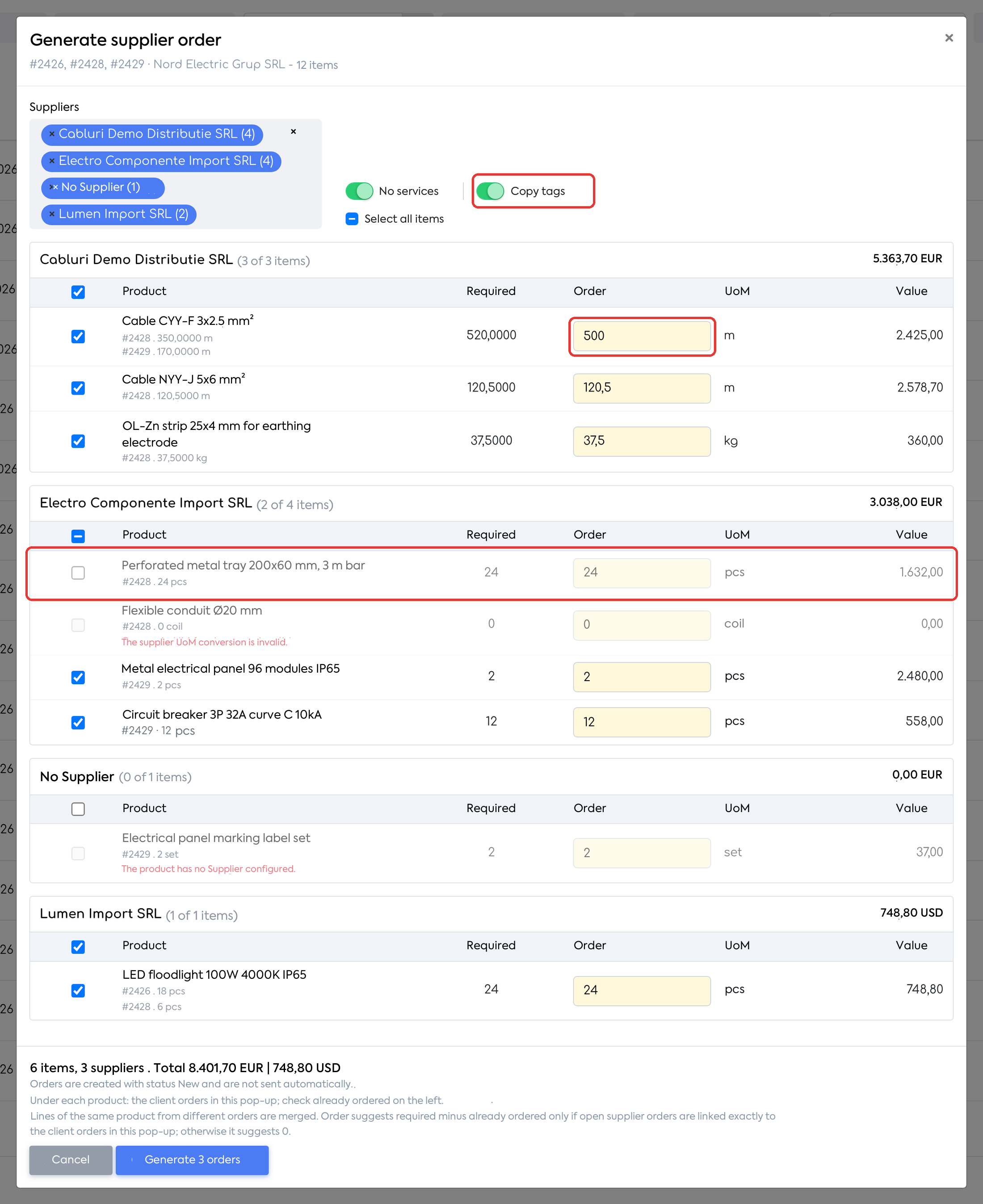
Cable quantity reduced to 500 m, the cable tray excluded and Copy tags turned on.
Step 4. Check the footer: the number of items and suppliers and the total (per currency, if the suppliers use different currencies). Press Generate N orders, where N is the number of suppliers with ticked items.
Step 5. The message "Supplier Orders created: …" appears, with a link to each order — one for each supplier.
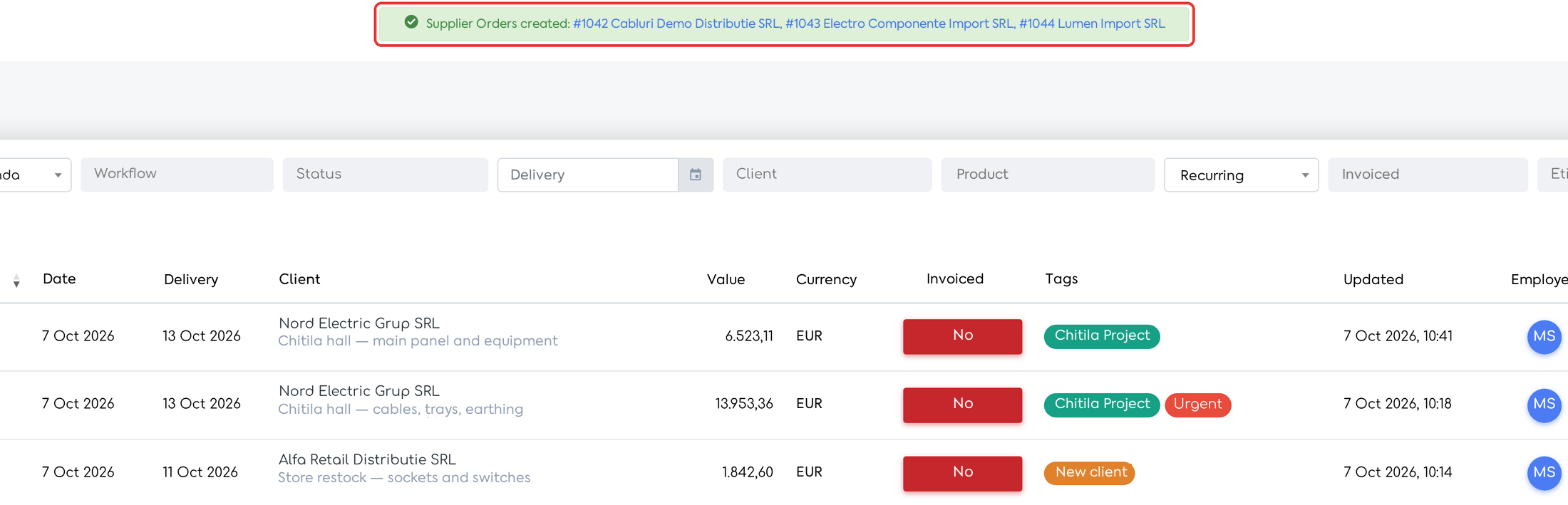
Three supplier orders created, one per supplier.
Note: orders are created with status New and are not sent automatically to suppliers. The Generate N orders button is inactive if no item is ticked or if a ticked row has quantity 0 (marked in red).
Items that cannot be ordered
- A product without a supplier appears in the "No Supplier" group, inactive, with the message "The product has no Supplier configured.". Fill in the supplier in the product file and reopen the window.
- A product with a missing or 0 supplier UoM conversion appears inactive, with the message "The supplier UoM conversion is invalid.".
- With No services off, services appear unticked, under their supplier; you can tick them if you want to order them.
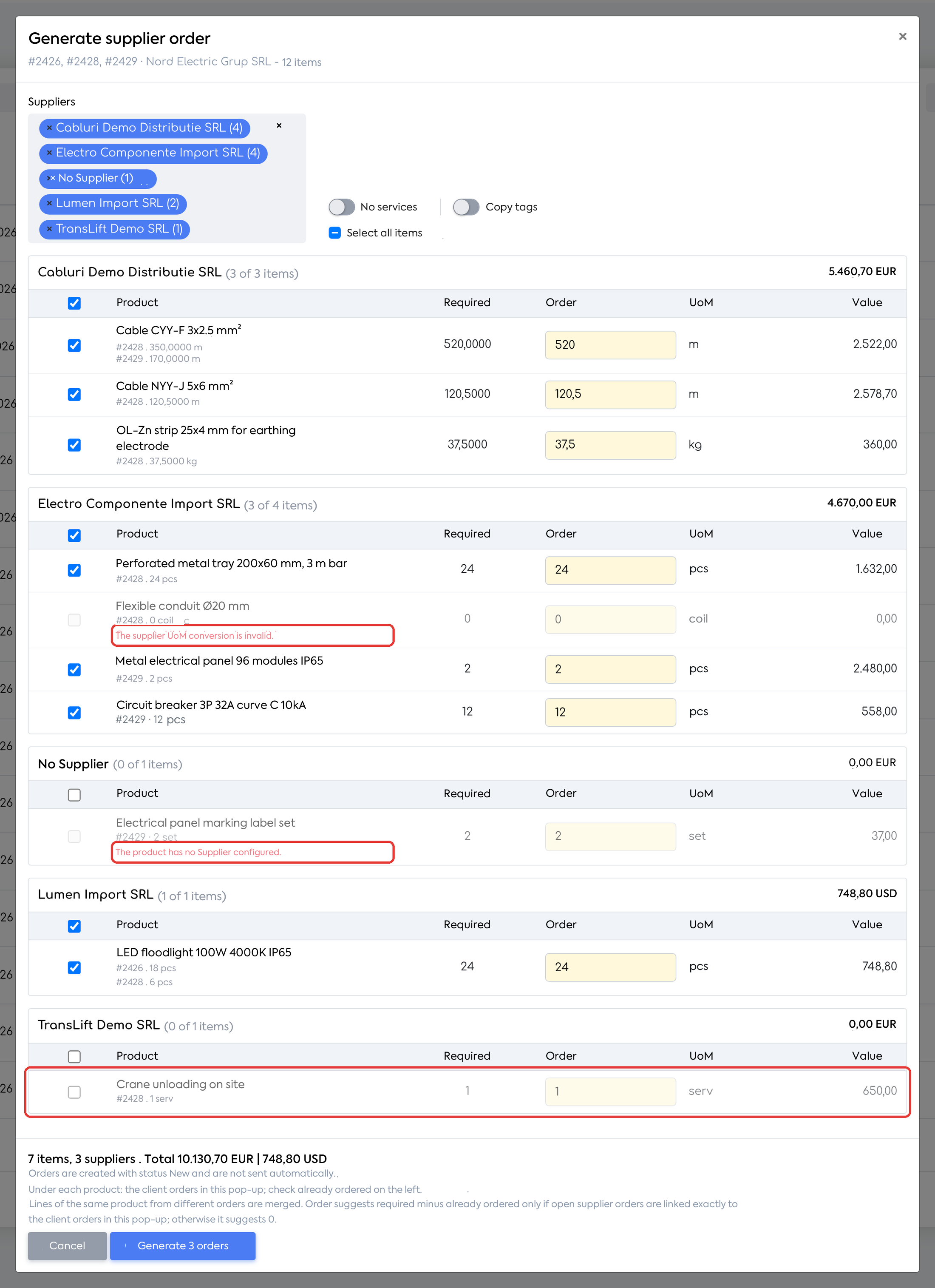
A product without a supplier, a product with an invalid conversion and a service shown with No services turned off.
A new generation for the same orders
Step 1. Reopen for the same orders.
Step 2. Products ordered in full appear unticked, with "Already ordered: …" and the link to the existing order. Partially ordered products propose only the difference, and those excluded last time propose the full required quantity. Generate only what is left.
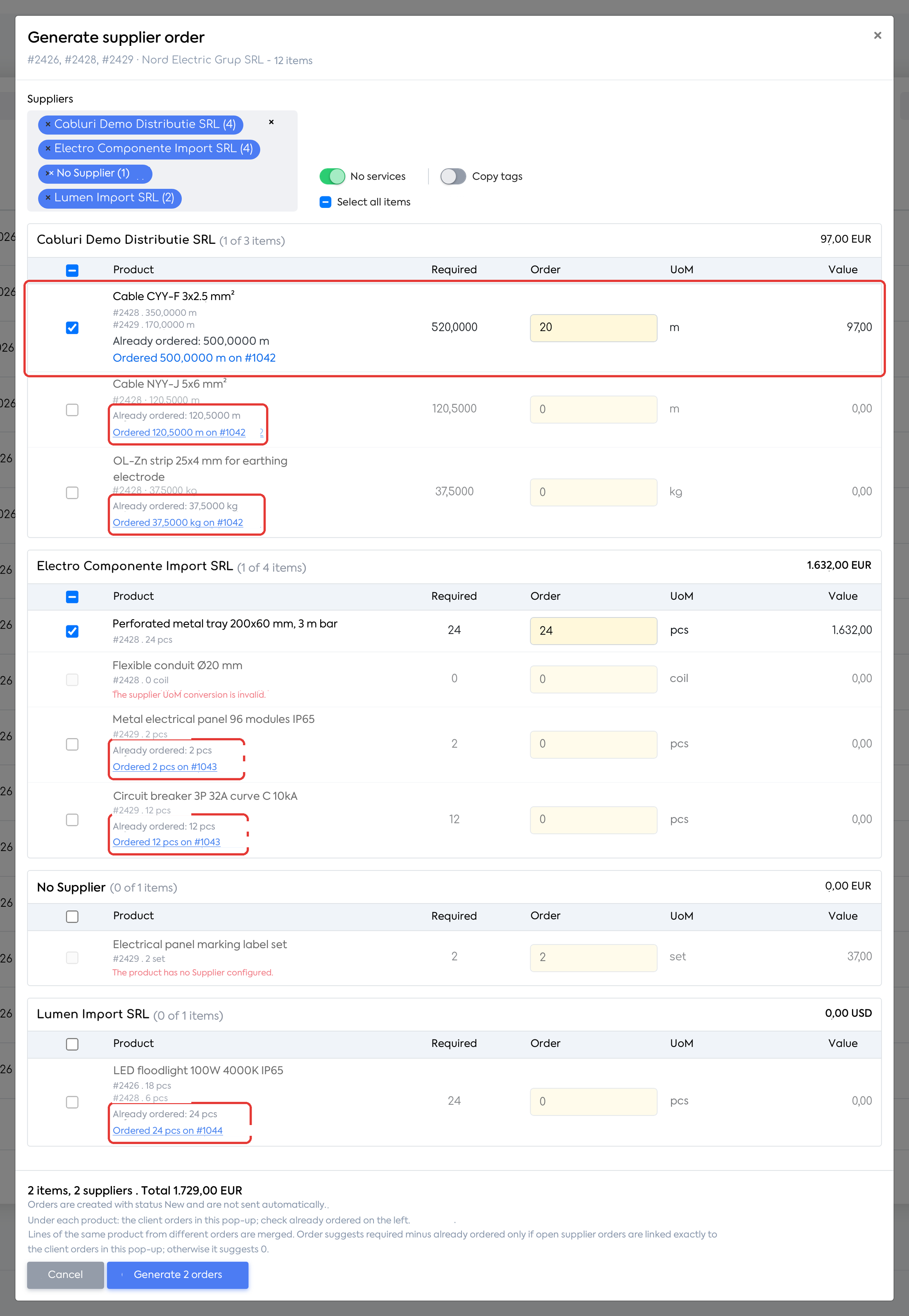
When reopened, only the remaining 20 m of cable and the cable tray excluded last time are proposed.
What you see afterwards
Each supplier order created has:
| Field | Value |
|---|---|
| Status | New; the order is not sent automatically to the supplier |
| Supplier | The supplier from the product file |
| Date, Delivery date | The generation date; delivery = generation date + the supplier's delivery term, if filled in |
| Currency, rate, VAT | The supplier's currency and VAT rate (otherwise the defaults) and the exchange rate of the day |
| Transport cost, PDF template | From the supplier file, if filled in |
| Clients, Orders | The client and the client orders the items come from |
| Items | The product, the quantity in supplier UoM and stock UoM, the price and the value; the line description from the client order |
| Tags | The tags of the source orders, if Copy tags was turned on |
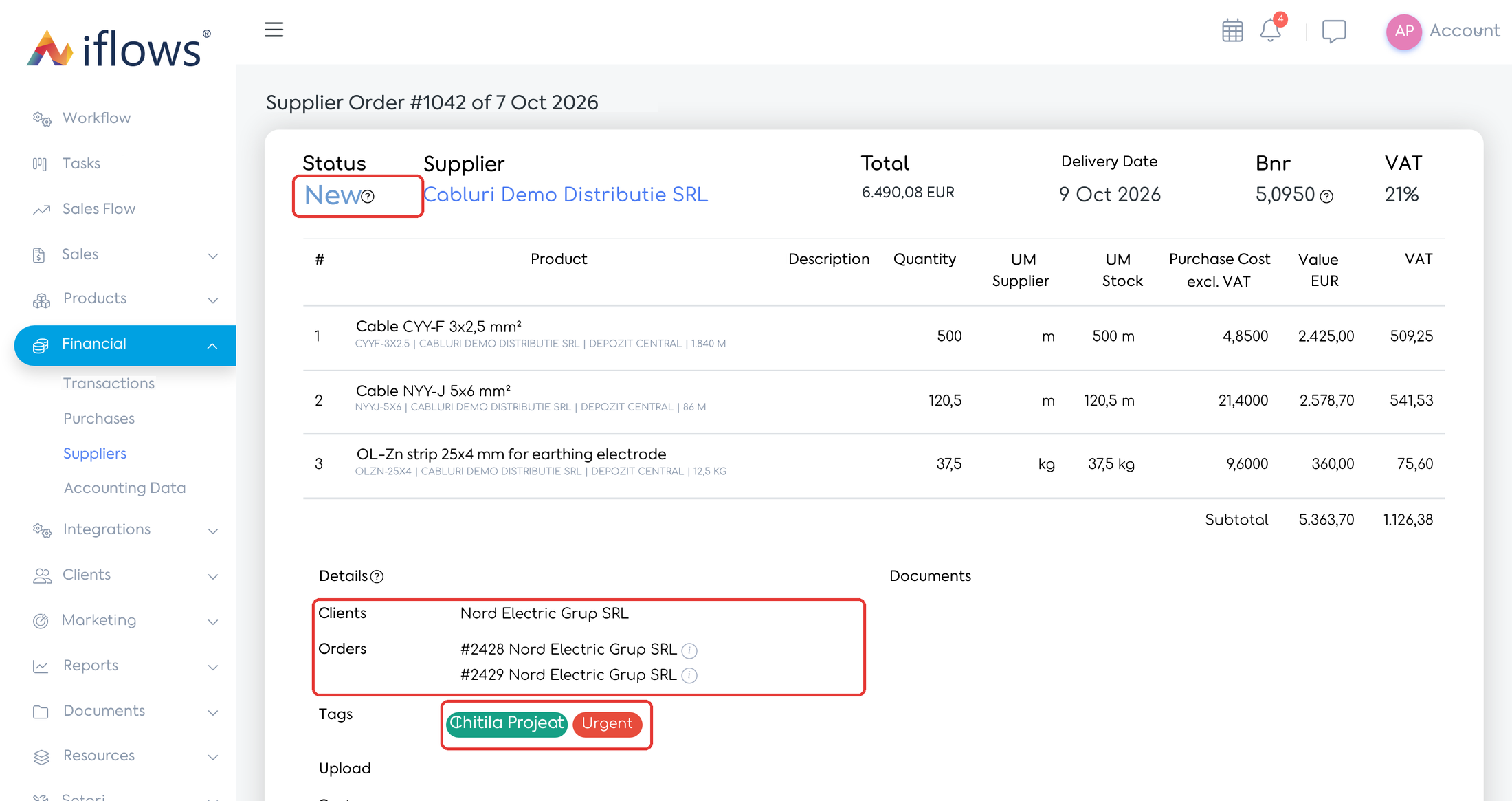
Supplier order #1042: status New, linked to orders #2428 and #2429, with the tags copied.
In the client order, the Associated Documents tab shows the supplier orders generated from it (after reloading the page).
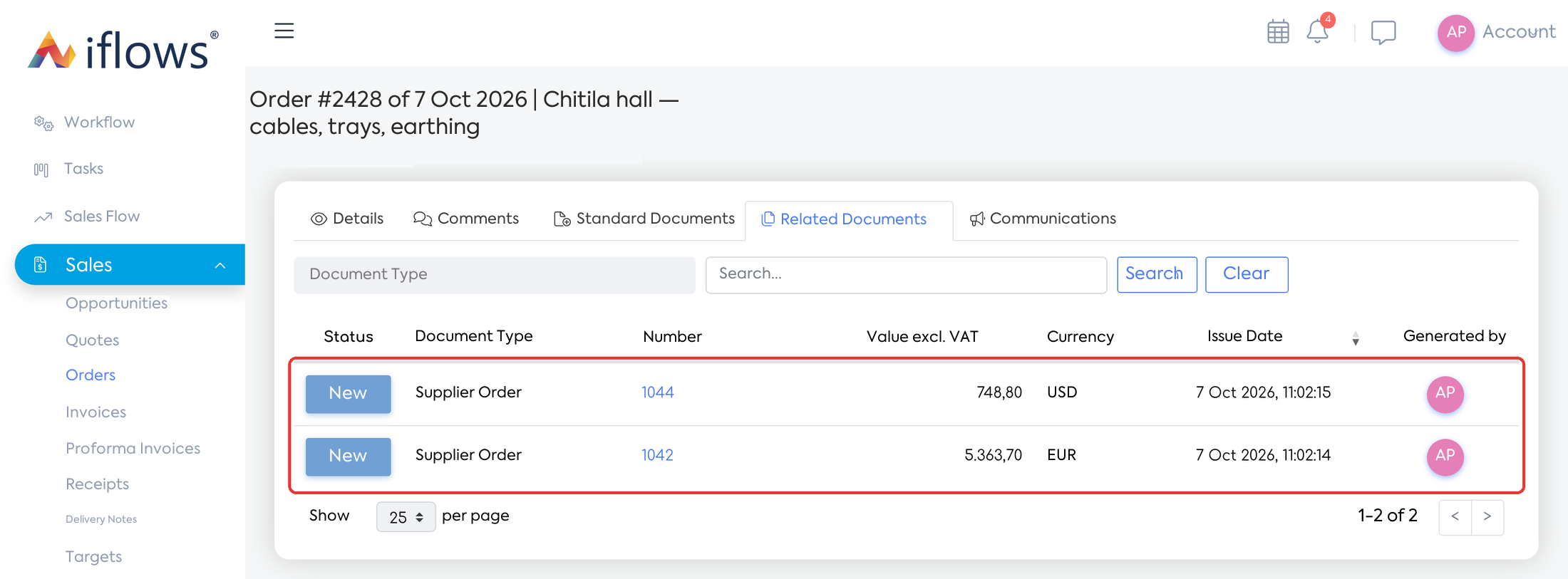
Order #2428: the supplier orders that contain items from it.
Rules and limits
- Required — the sum of the product's lines in the selected orders, converted to supplier UoM with the Supplier UoM Conversion from the product file. Existing stock and reservations are not taken into account.
- Already ordered — the quantity in supplier orders that are not Delivered or Cancelled, that contain the product and are linked to the client orders. A partially delivered order is counted in full. Supplier orders created manually without a link, those from Stock and the automatic ones at minimum stock are not deducted.
- Order — the required quantity minus the quantity already ordered (minimum 0), rounded up to whole pieces for piece-type units and with up to 4 decimals for other units.
- Value — calculated with the product's last purchase price (goods receipt), converted to supplier UoM; if the product has no purchases, with the stock unit price. The price can be changed later, on the supplier order.
Warning: the quantity already ordered is deducted only if the existing supplier orders are linked to exactly the same client orders as in the window; otherwise 0 is proposed and the quantity is filled in manually. For example, if you generated a common supplier order for orders A and B, and the window is opened only for A, the common products are proposed with 0.
- Super-products do not appear as their own row; their components appear instead, each under its supplier.
- Lines from cancelled orders are not taken into account.
- Generation is all or nothing: if saving one order fails, no order is created, and the message names the supplier and the products concerned.
- The window does not show available stock and does not let you choose another supplier, the warehouse or the delivery term.
- Tags are copied only once, at generation; each supplier order receives only the tags of the orders its items come from. If the tag does not exist for supplier orders, it is created automatically, with the same colour.