
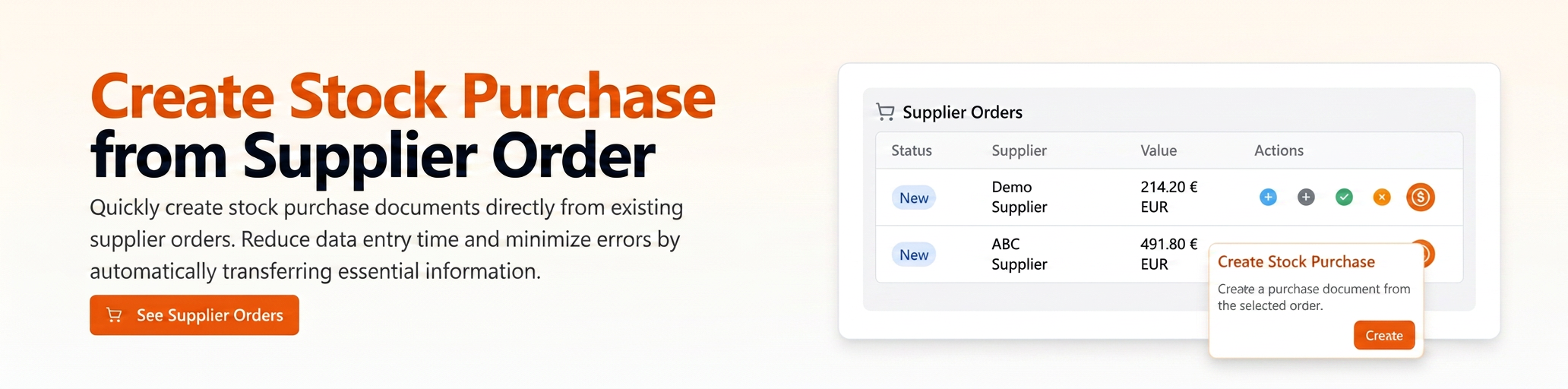
This optimization provides a quick way to create a Purchase document (stock type, also generating the related NIR) directly from an existing Supplier Order. By adding a new action button to the supplier order list, you can initiate a purchase creation that will automatically pull relevant information from the selected order.
The main benefit is reduced data entry time and minimized errors, as essential details are automatically transferred:
- The Supplier is pulled from the original order.
- Product lines (items, quantities, and potentially prices) are copied from the order directly into the NIR (Nota de Intrare-Receptie - goods received note) generation section of the new purchase.
You will only need to manually fill in the information specific to the invoice/document received from the supplier (which did not exist on the initial order), such as: document type (defaulted to Stock Purchase), document series and number, date and maturity date, as well as final financial details (currency, VAT, values).
User Guide:
- Navigate in the main menu to .
- Ensure you are on the "Orders" tab.
- Identify in the list the specific supplier order for which you have received the goods/invoice.
- In the "Actions" column next to that order, locate and click on the new dedicated "Create Stock Purchase" icon (the orange icon).
- Upon clicking the button, the form for a new Purchase will open automatically.
- You will notice that the following fields are already pre-filled with data from the selected Supplier Order:
- Supplier.
- Product lines in the "Generate NIR" section (including product, ordered quantity – note, you will likely adjust the received quantity here).