
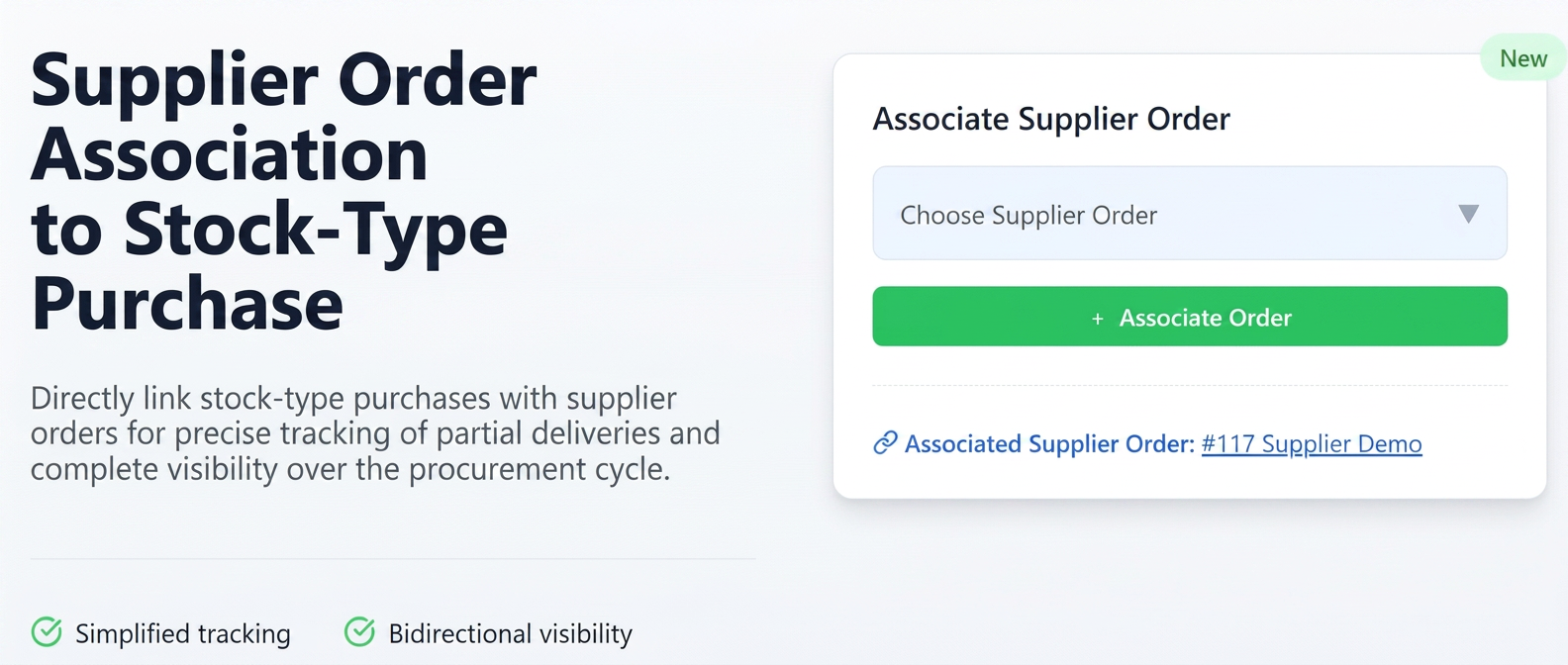
This optimization introduces the possibility to directly link a stock purchase (registered in ) to the corresponding Purchase Order. By adding a dedicated "Associate Purchase Order" field in the purchase document, you can select and associate the original order placed with the supplier.
The main benefit is improved tracking of partial deliveries. For example, if you ordered 10 units of a product through a Purchase Order, but you receive and register a Purchase for only 4 units, associating the two documents allows you to quickly see that the respective Purchase covers only part of the initial Purchase Order, facilitating the tracking of remaining quantities to be delivered.
The link is visible in both directions:
- In the Purchase: An "Associated Purchase Order" field is displayed with a direct link to that order.
- In the Purchase Order: In a dedicated section for associated documents, the purchase (or purchases) linked to that order will be listed, including the purchase number, creation date, and the responsible employee.
User Guide:
A. Associating a Purchase Order with a Purchase:
- Navigate to .
- Create a new purchase (+ New Purchase) or open an existing purchase for editing, ensuring it is of the Stock type.
- In the purchase creation/editing form, locate the new section/field "Associate Purchase Order".
- Press the + Associate Order button (if necessary to display the selection field) or click directly on the "Choose Purchase Order" dropdown.
- Search for and select from the list the purchase order you wish to associate with this purchase. (The list will likely be filtered to show orders from the same supplier).
- After selection, the order will appear in the field. You can remove the association using the red icon (trash can) next to it, if necessary.
- Complete the rest of the purchase details and Save the document.
B. Viewing the Link:
- From the Purchase:
- Open the detailed view (View) of a purchase that has an associated purchase order.
- Observe the field "Associated Purchase Order" (placed under the main details, before the product lines). This will display the order number and supplier, functioning as a link that you can click to navigate directly to that Purchase Order.
- From the Purchase Order:
- Navigate to the Finance – Suppliers – Orders section.
- Open the detailed view of a Purchase Order to which you have associated a purchase.
- Identify the "Documents" section.
- In this section, you will see the associated purchase (or purchases) listed, along with the Purchase Number, its Creation Date, and the Employee who created it.