
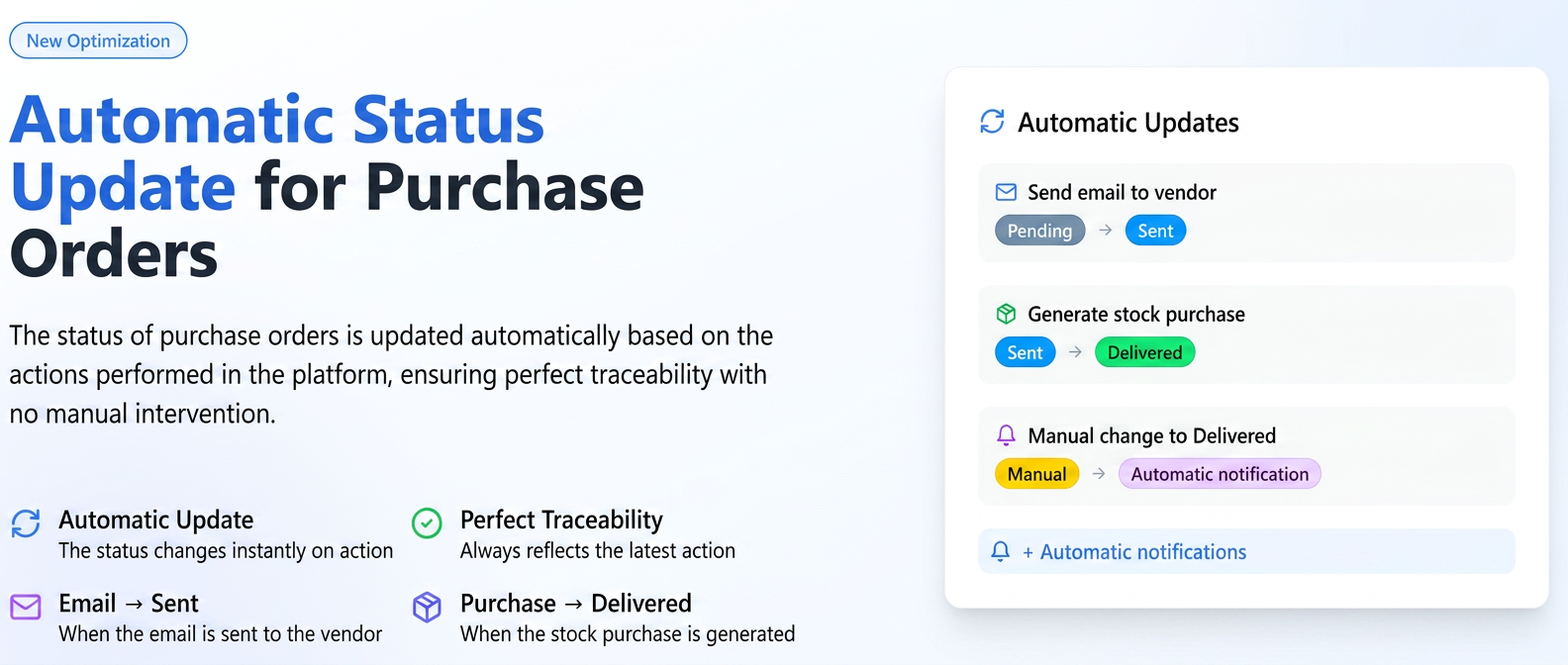
The status of purchase orders is now automatically updated based on the actions you perform in the platform. This optimization ensures that order statuses always reflect the latest action without requiring manual intervention.
- When sending an email to the supplier directly from the order, its status will automatically change to Sent.
- When you generate a stock purchase starting from a purchase order, the order status will automatically update to Delivered.
- If you manually change the status of an order to Delivered, an automatic notification will be sent to the relevant users.
Step-by-step guide for use:
Scenario 1: Automatic status change to "Sent"
- Navigate to the Financial module from the main menu and select Suppliers.
- Access the Orders tab.
- Next to the desired order (with "New" status), click on the email icon (Send E-mail).
- In the window that opens, check the details and press the Send button.
- After sending the email, you will notice that the order status has automatically updated to Sent.
Scenario 2: Automatic status change to "Delivered" when generating a purchase
- Follow steps 1 and 2 above to reach the purchase orders list.
- Next to the order for which you received the goods (with "Sent" status), click on the Create Stock Purchase icon.
- You will be redirected to the form for creating a new purchase, which will be pre-filled with data from the purchase order.
- Complete the remaining mandatory fields (e.g., Document Series, Document Date, etc.) and press Save.
- Once the purchase has been saved, the status of the original purchase order will automatically update to Delivered.
Scenario 3: Notification upon manual status change to "Delivered"
This workflow is useful when a purchase order is associated with an internal sales order and you want to notify the team that the goods have arrived.
- Access the desired purchase order.
- Click the Actions button and select the Change Status option.
- In the window that appears, select the Delivered status and press Save.
- At this point, a notification will be generated automatically, informing the relevant users that the respective purchase order has been delivered and mentioning the internal orders associated with it.