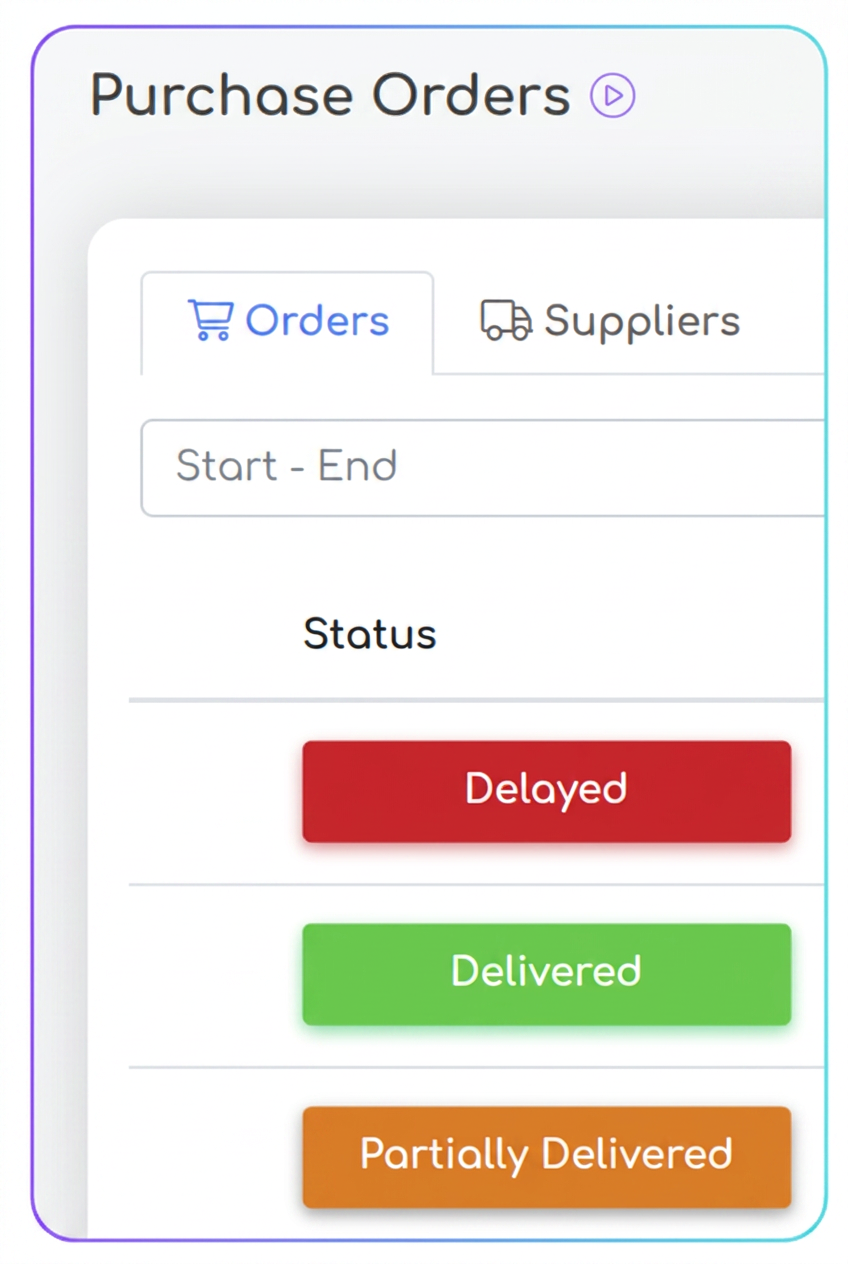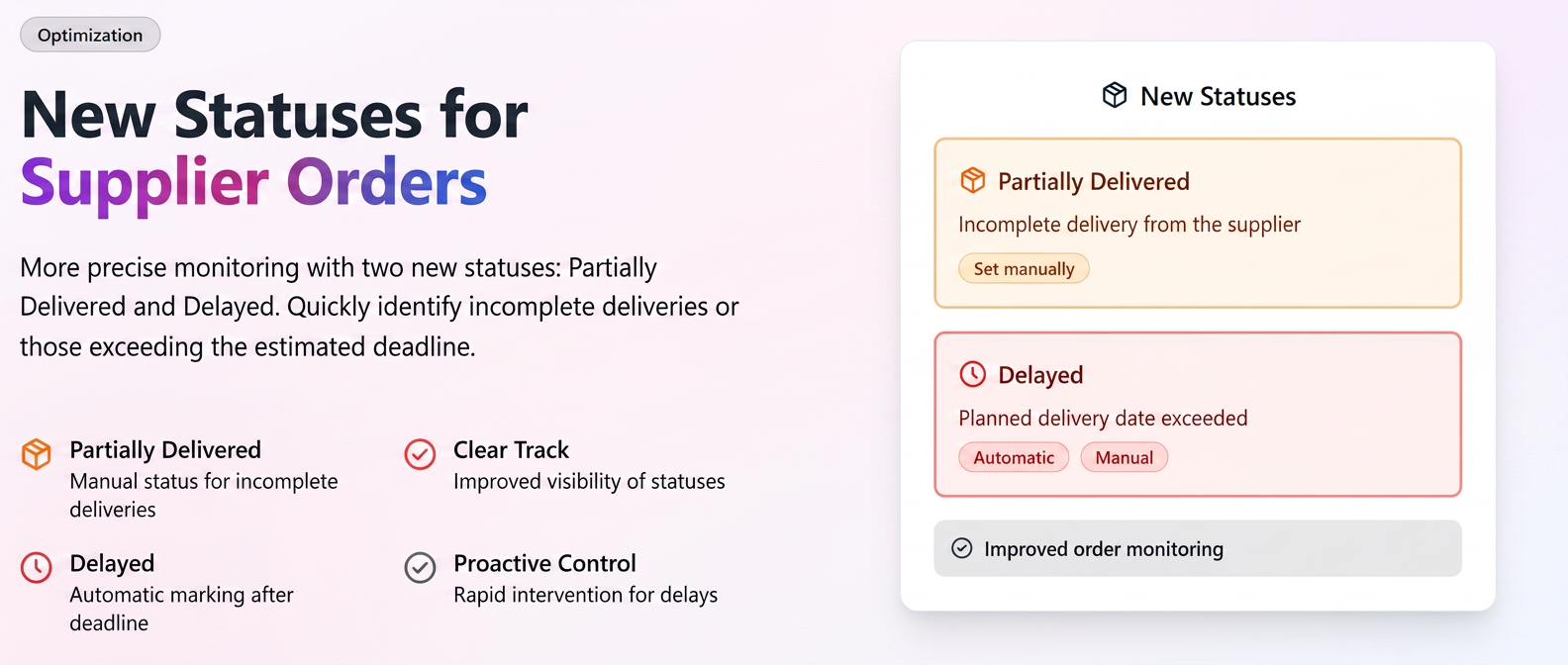
To provide a clearer overview and better control over the procurement process, we have introduced two new statuses in the purchase orders section: Partially Delivered and Delayed.
These additions allow for more precise monitoring of each order's stage, facilitating the quick identification of incomplete deliveries or those exceeding the estimated deadline.
1. "Partially Delivered" Status
This status is designed for situations where you receive only a portion of the ordered goods from the supplier. It helps you maintain a clear record of orders that have not yet been fully fulfilled.
- Identification color: Orange
- Setting method: Manual
How to use it?
The "Partially Delivered" status is activated exclusively manually. When you receive an incomplete delivery and generate the NIR (Nota de Intrare și Recepție - Goods Received Note) for the items received, follow these steps to update the order:
- Navigate to the Financial -> Suppliers -> Purchase Orders section.
- Open the corresponding order.
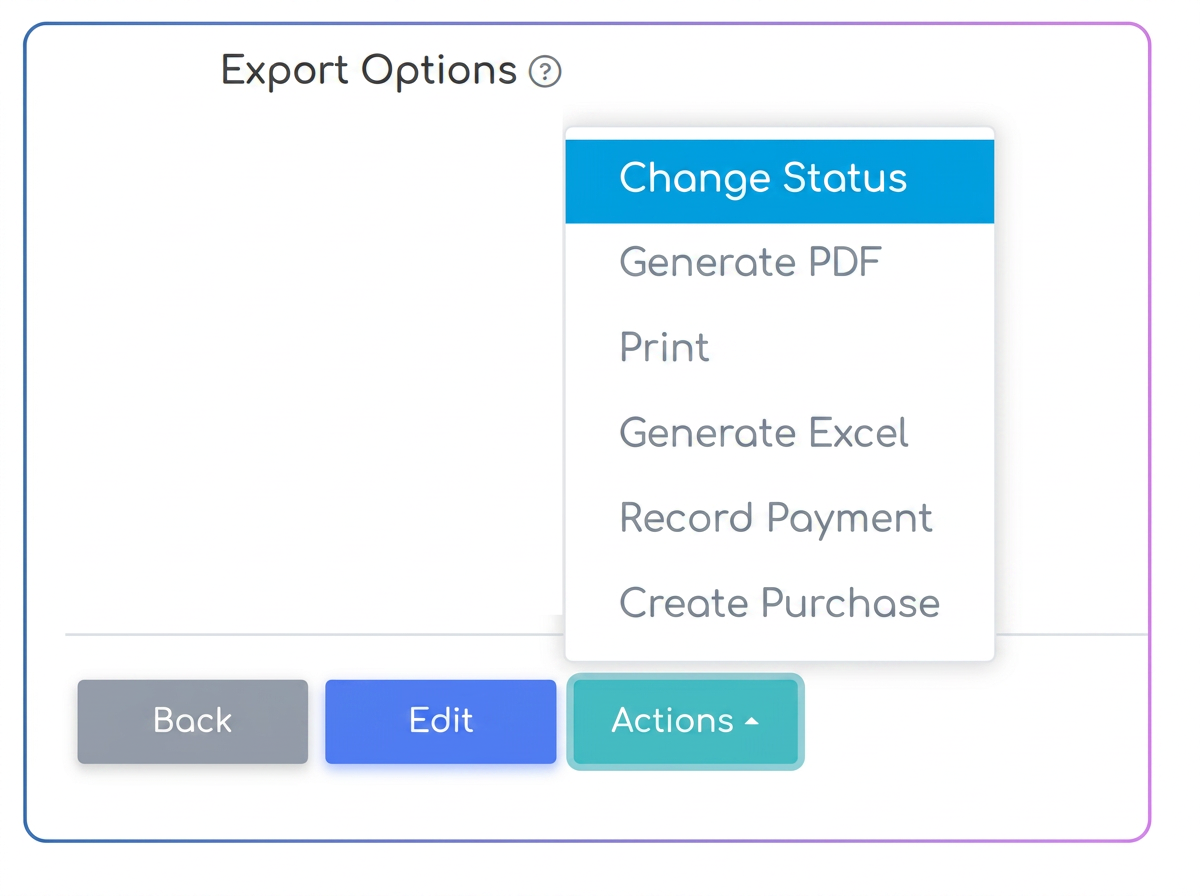
- Access the Actions -> Change Status menu.
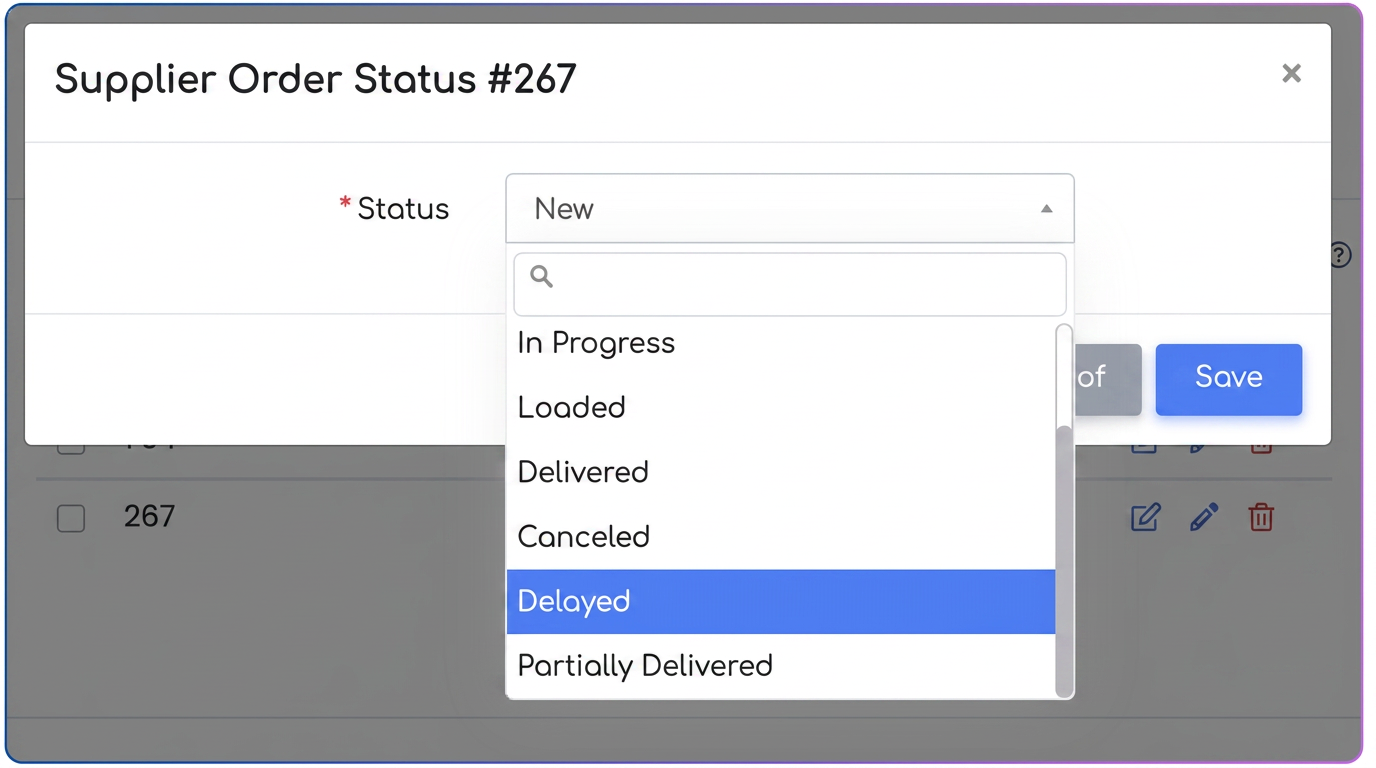
- From the displayed list, select the "Partially Delivered" status and save the change.
The order will remain in this status until you receive the remaining products and switch it to the "Delivered" state.
2. "Delayed" Status
This status is essential for drawing attention to orders that have not been delivered by the supplier by the agreed date, allowing you to intervene proactively.
- Identification color: Red
- Setting method: Automatic and Manual
How does the automatic setting work?
The iflows platform will automatically mark an order as "Delayed" if two conditions are met simultaneously:
- The current date has exceeded the "Delivery Date" specified in the order.
- The order status is still an intermediate one (e.g., Sent, In Progress) and has not been marked as "Delivered" or "Partially Delivered".
Manual Setting
Similar to the other statuses, "Delayed" can also be set manually if you wish to mark an order as having issues before the deadline. The process is identical:
- From within the order, access the Actions -> Change Status menu.
- Select the "Delayed" option and save.