
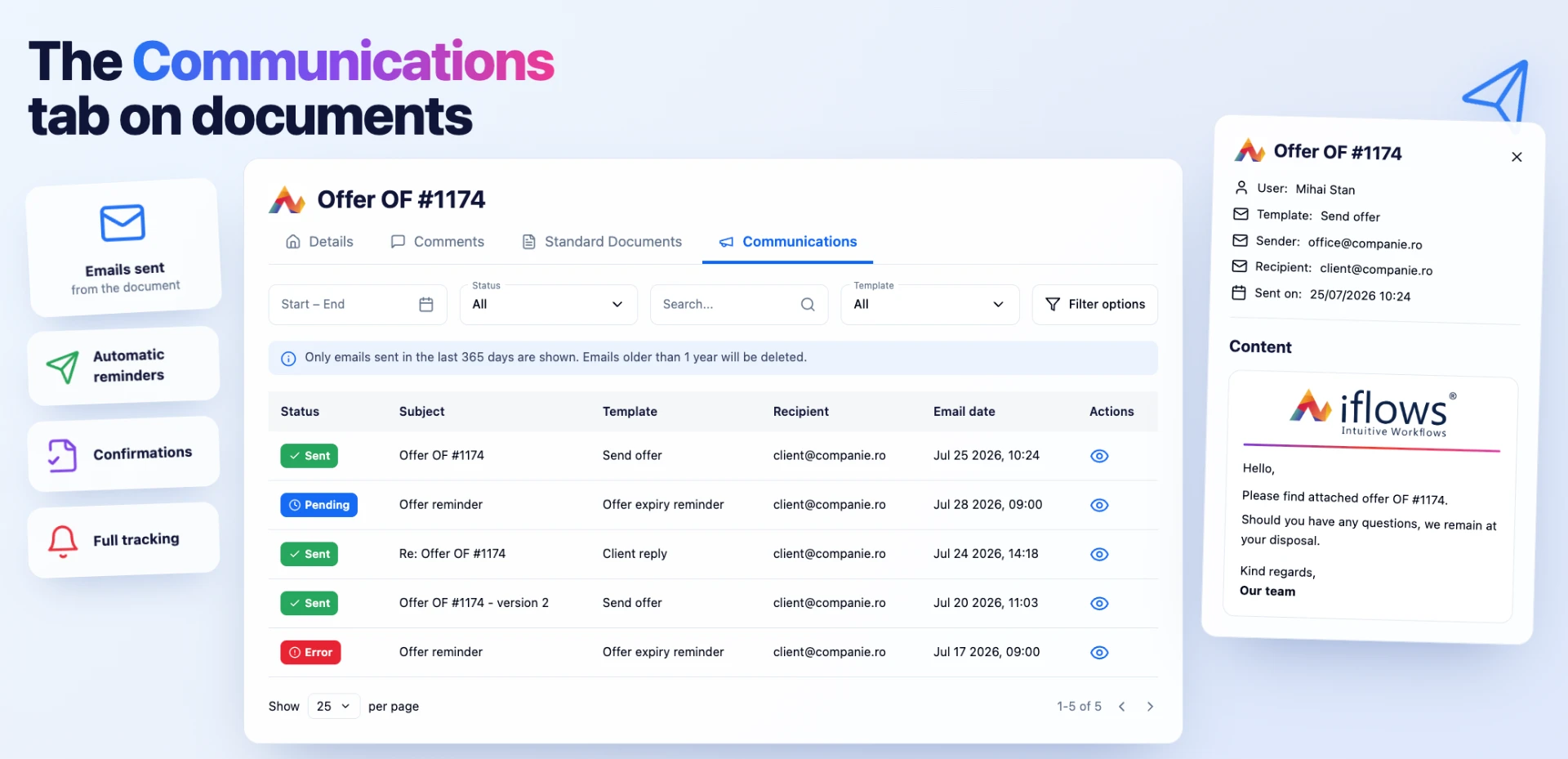
In short
Opportunities, quotes, orders, invoices and proforma invoices have a new tab, Communications. Here you see the emails sent to the customer about that document, both those sent manually from the document and those sent automatically by the platform: overdue invoice reminders, automatically issued invoice, online payment confirmation, shipping confirmation and quote expiration reminders.
For each email you see the status, subject, template, recipient and date. The content opens in a details window.
Until now, these emails could only be seen at the customer level, mixed in with those of all documents. Now the answer to the question "what did the customer receive for this document?" is right there in the document. The feature is useful to sales agents, the billing team, and those tracking payments.
Where to find it
The Communications tab (megaphone icon) is the last one in the document's tab bar:
| Document | Tab bar |
|---|---|
| Opportunity | Details · Comments · Communications |
| Quote | Details · Comments · Standard Documents · Communications (each quote version has its own list) |
| Order | Details · Comments · Standard Documents · Associated Documents · Communications (all order types) |
| Invoice | Details · Standard Documents · Communications |
| Proforma Invoice | Details · Communications |
Before you start
The tab appears automatically after the update; there are no settings to turn on.
You need the view permission on Operational Emails (Marketing category) and the view permission on the document type (Opportunity, Quotes, Orders, Invoices or Proforma Invoices). Administrators have access by default.
Viewing a document's emails
Step 1. Open the document, for example a quote, and click the Communications tab. Above the list, the note "Only emails sent in the last 365 days are shown. Emails older than 1 year will be deleted." appears.
Step 2. Read the list. The columns are Status, Subject, Template, Recipient, Email Date and Actions. The most recent emails appear first, 25 per page; you can sort by any column.
| Status | What it means |
|---|---|
| Sent (green) | The email has been sent. |
| Pending (blue) | The email is in the sending queue; the platform is sending it or retrying sending it. |
| Error (red) | The email could not be sent. Check, for example, whether the recipient's address is correct. |

The Communications tab of quote OF #1174: the emails sent from the quote and the expiration reminders, with each one's status.
Step 3. To narrow down the list, use the filters, then click Search. Clear empties the filters.
Start - End — the period, with quick options (Today, Yesterday, Last 7 Days, Current Month, etc.) or Custom; confirm with Apply.
Status — Sent, Pending or Error.
Search... — by subject or recipient.
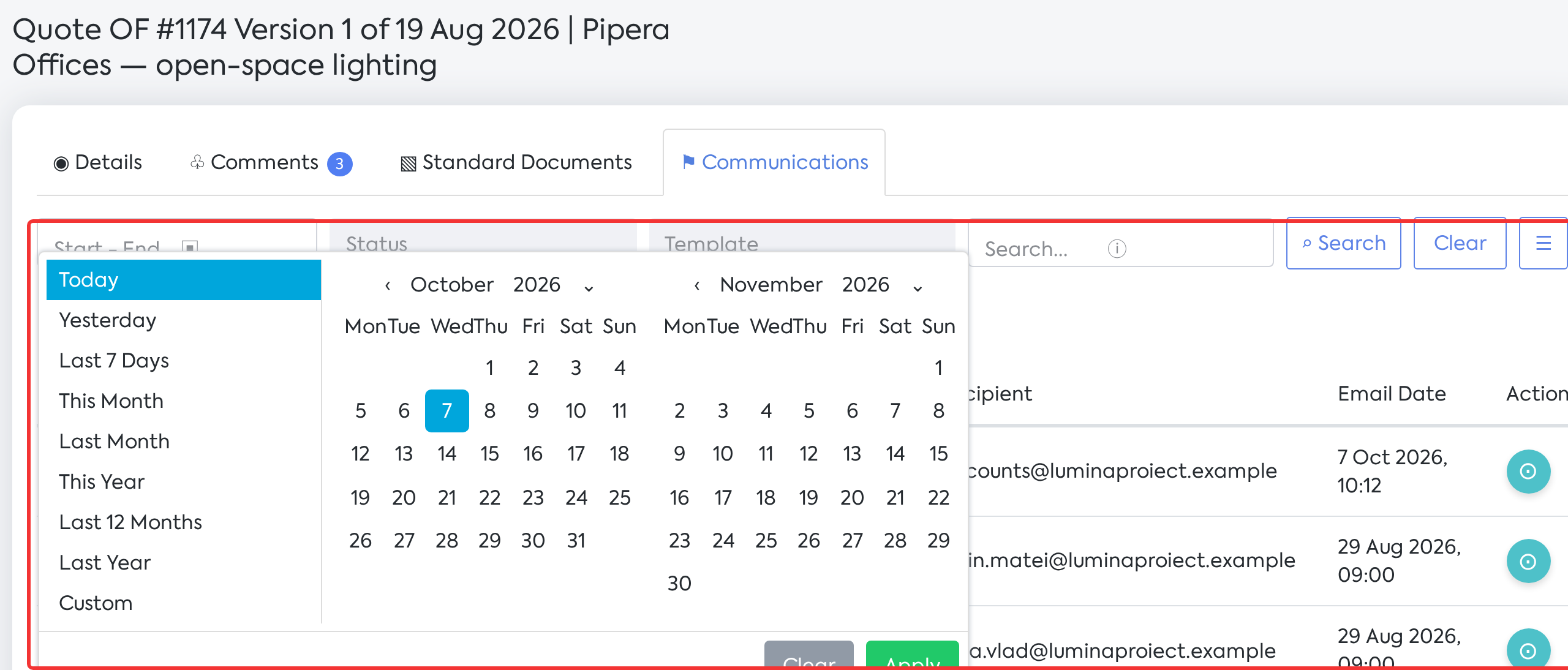
The Start - End filter, with the quick period options, the Status filter and the search by recipient.
Template — type part of the template name, then select it from the list. With Include you only see the emails sent with that template, and with Exclude you hide them (for example, expiration reminders). The Status filter has the same Include / Exclude option.
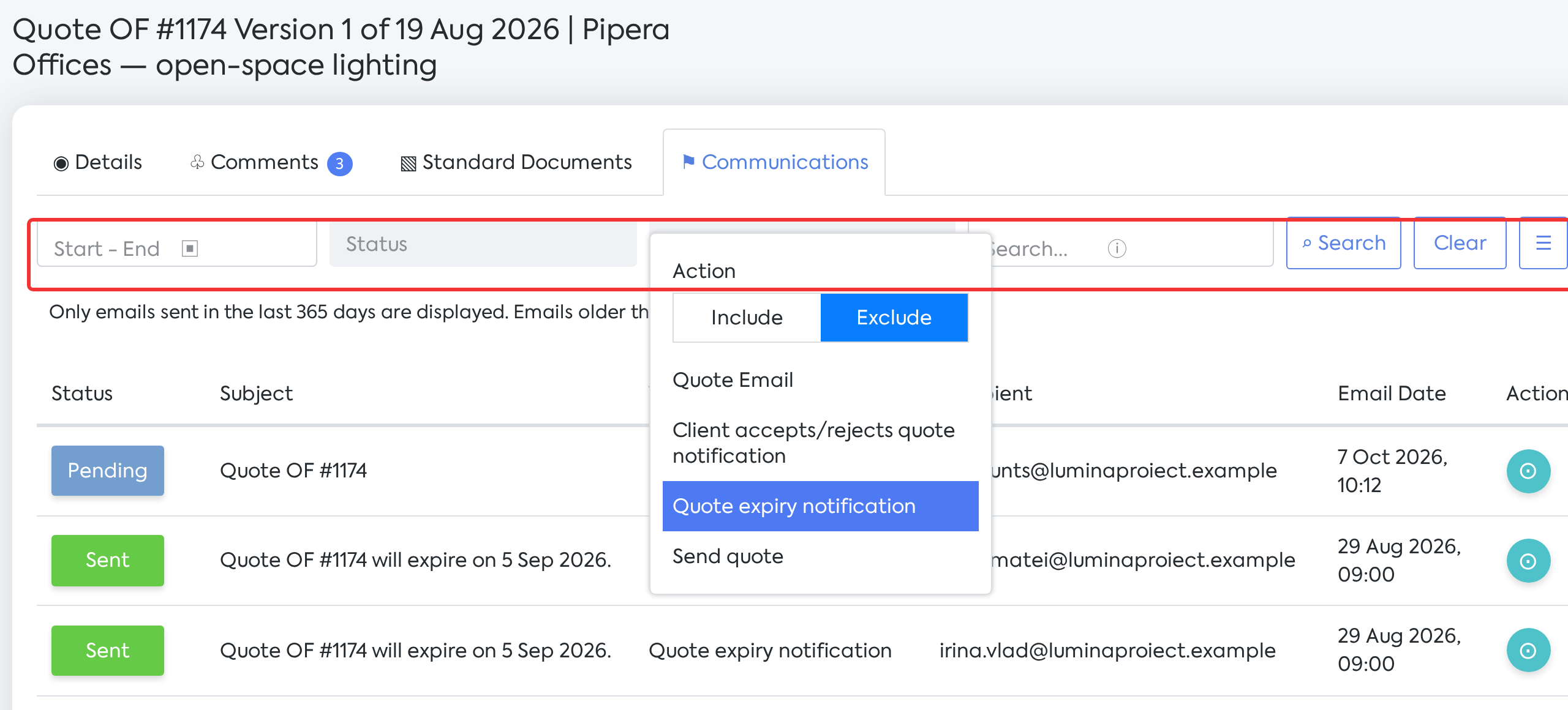
The Template filter with the Exclude option: the quote's expiration reminders are removed from the list.
From Filter Options (the button on the right) choose the displayed filters and click Save. The choice applies to the Communications tab of all documents and to the customer's Operational Emails list.
Step 4. Click Email Details (the eye icon) on the email's row. The window's title is the email's subject and it shows User (who sent the email), Template, Sender, Recipient, Send Date, and, in the Content section, the email's content. Click Close to close the window.
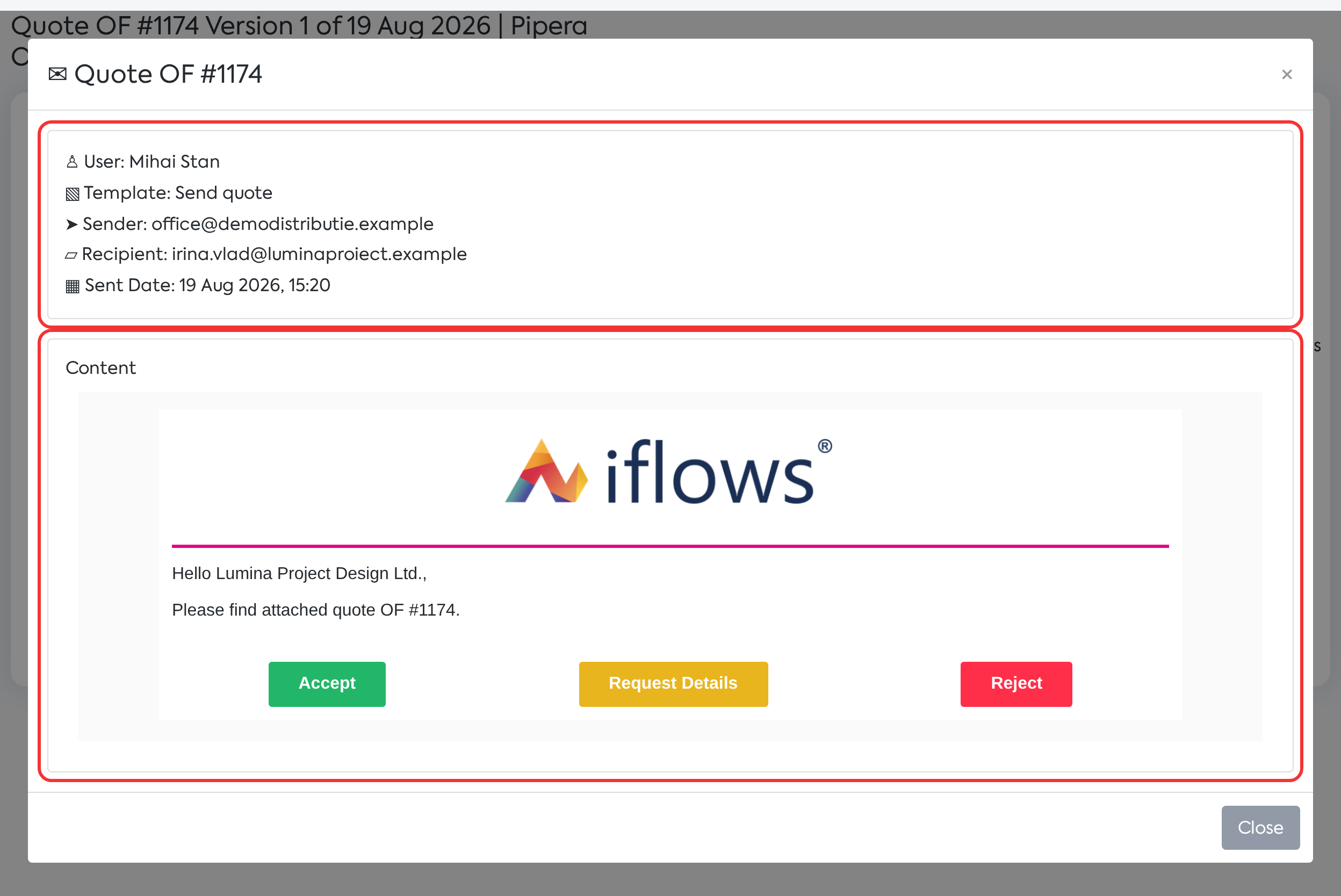
The Email Details window: the sending data and the content of the email with the quote.
Examples on the other documents
On the invoice you see the payment reminders, the automatically issued invoice and the online payment confirmation:
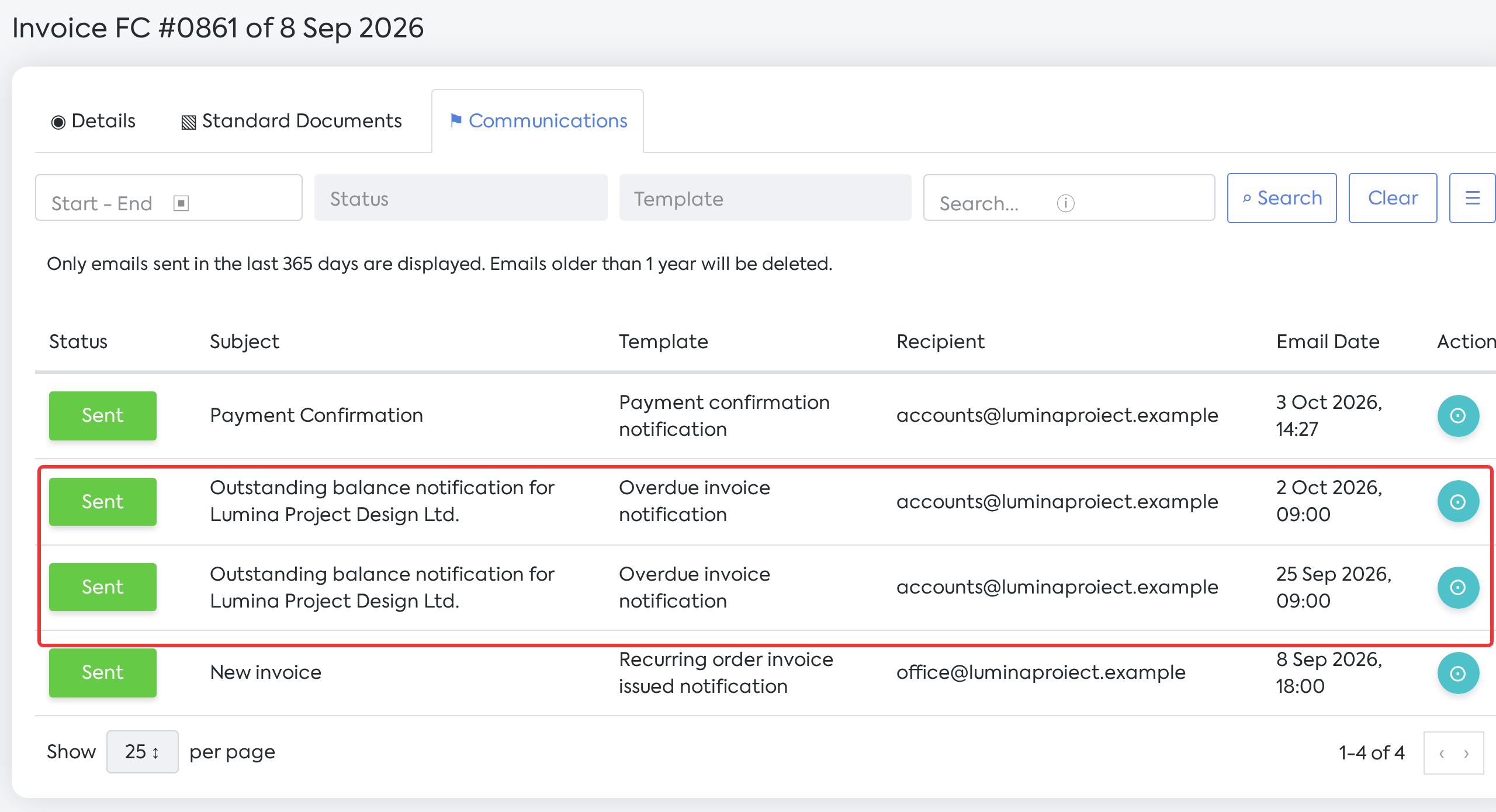
Invoice FC #0861: the automatically issued invoice, two overdue balance reminders and the payment confirmation.
On the order you see the emails sent from the order, from the workflow stages, and the shipping confirmation:
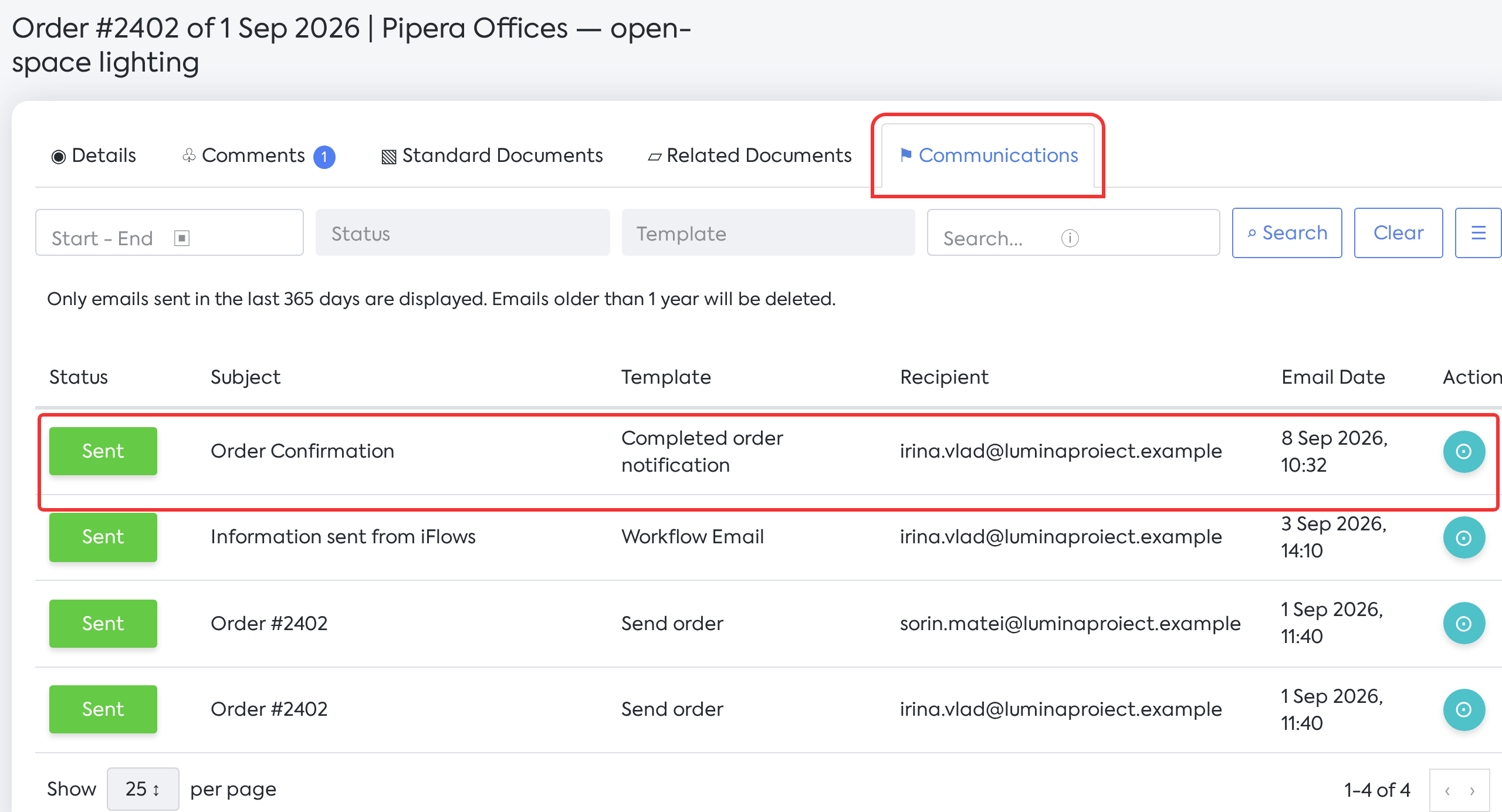
Order #2402: the order sent to the customer, the email from the workflow, and the shipping confirmation.
On the proforma invoice, the Communications tab appears next to Details:
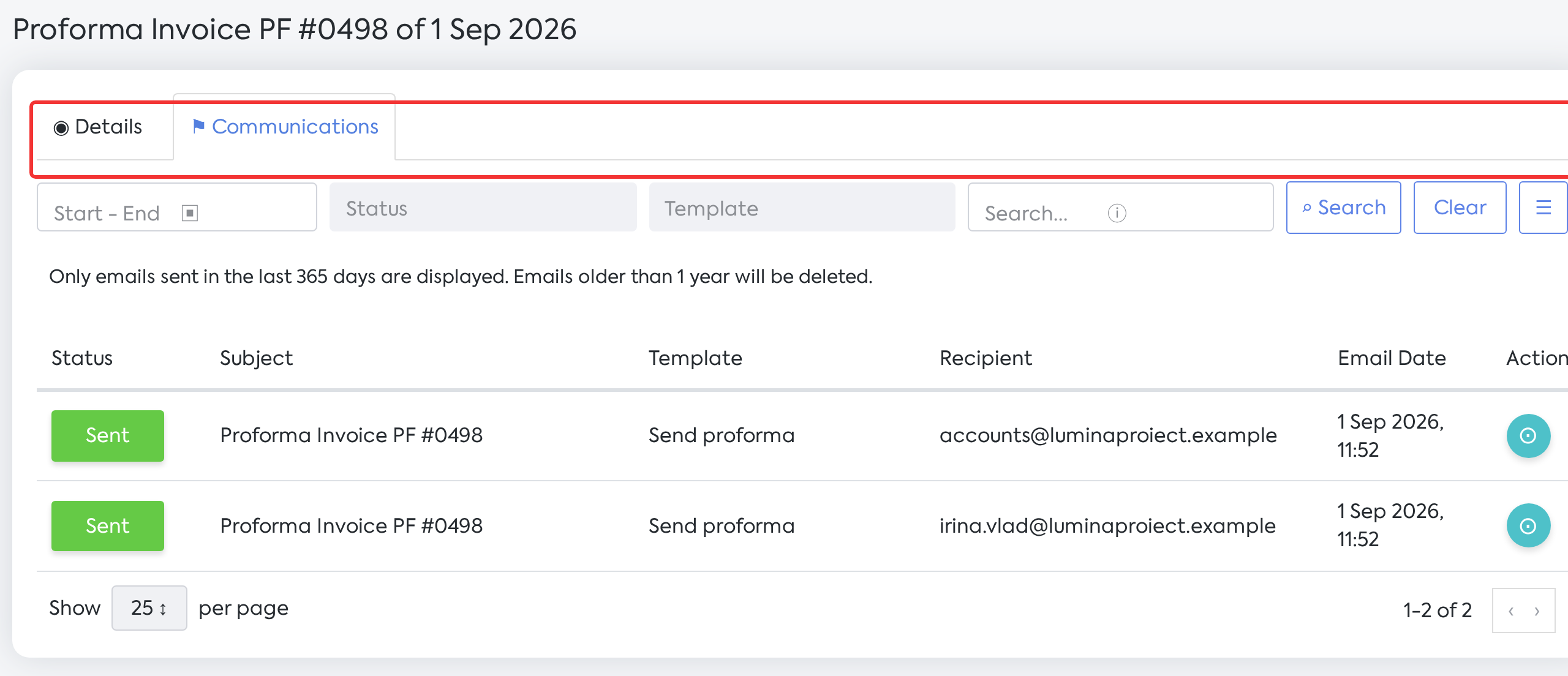
Proforma invoice PF #0498, with the Details · Communications tab bar.
On the opportunity you see the emails sent from the opportunity:
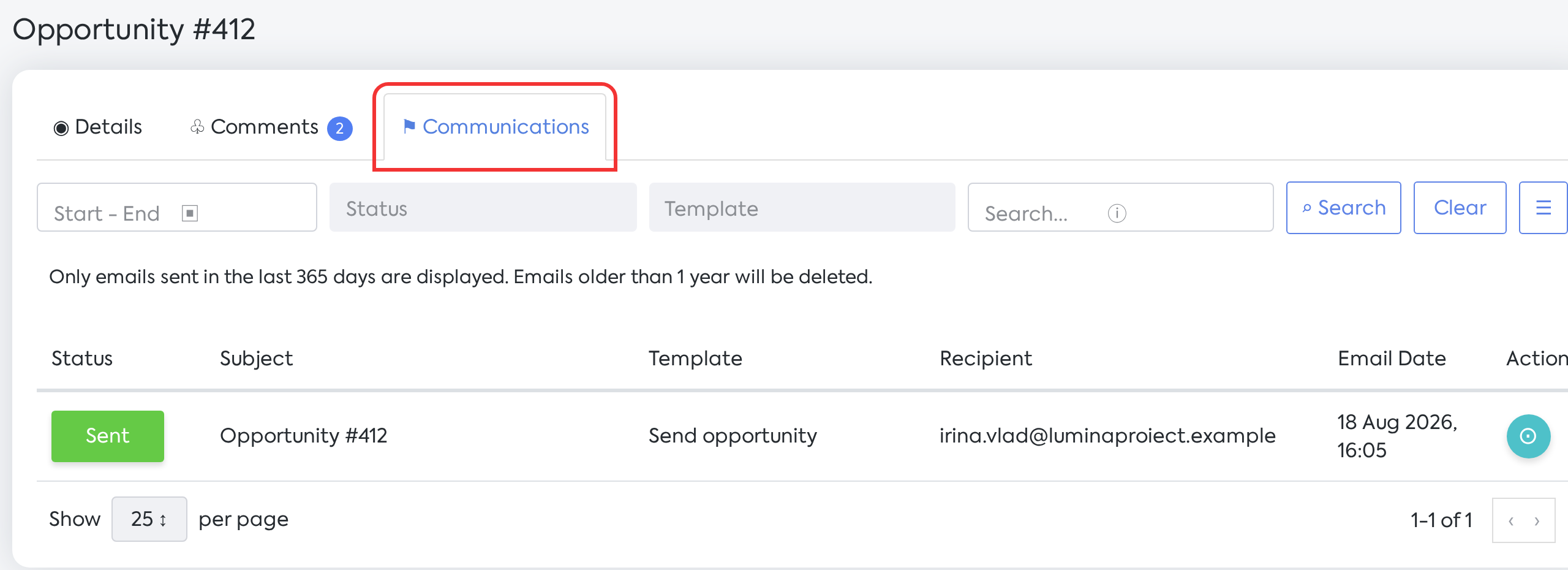
Opportunity #412: the email sent to the customer from the opportunity.
What emails appear
The emails addressed to the customer appear, i.e. to their email address and their contact persons:
| When it is sent | Appears on | |
|---|---|---|
| Send Email from document | Manually, by the user | The document it was sent from |
| Email from a workflow stage | When the stage is saved | Order |
| Service report sent by email | Manually | The associated order of type "Service Order" |
| Overdue invoice reminder | Automatic (notification rules or the weekly notification) | Invoice |
| Invoice issued — recurring orders | When automatically invoicing orders with "Send Invoice by Email" | Invoice or Proforma Invoice |
| Invoice issued — Multiple Invoicing | When invoicing, with the "Send Email" option; it is sent to the customer's main email address | Invoice |
| Online card payment confirmation | On payment collection | Invoice |
| Shipping / delivery confirmation (AWB) | When the delivery stage in the workflow is saved, to the selected contacts | Order |
| Quote expiration reminder | Automatic, according to the reminder rules | Quote |
Note: overdue invoice reminders, the invoice issued for recurring orders, and the payment confirmation are only sent to contact persons who receive financial notifications. If a contact does not receive these notifications, the email is not sent to them and does not appear in the list.
Rules and limits
SMS messages, WhatsApp messages, calls, campaigns, and marketing email flows do not appear in the list.
Emails sent from the Standard Documents tab do not appear in the document's Communications tab.
The tab does not appear on delivery notes, receipts, supplier orders and standard documents.
The list does not allow resending, deleting or exporting emails, and does not show attachments, copy addresses (CC/BCC), or the reason for the Error status.
The "opened at …" information remains in the sending history on the document's Details tab.
Email Date and Send Date represent the moment the email entered the sending queue.
For automatic emails, the subject is filled in at the moment of sending; while the email is pending, the Subject column may be empty.
All emails from the documents' Communications tab also appear on the customer, in .
Emails sent before the update: those sent manually from documents, those from workflow stages, and quote expiration reminders were automatically associated with the documents. The other automatic emails appear on documents only if they were sent after the update; older ones remain visible on the customer, in Operational Emails.
Settings and permissions
There are no new settings. The tab is visible to users who have at the same time:
the view permission on Operational Emails (Marketing category);
the view permission on the document type: Opportunity, Quotes, Orders, Invoices or Proforma Invoices.
Administrators have access by default.