
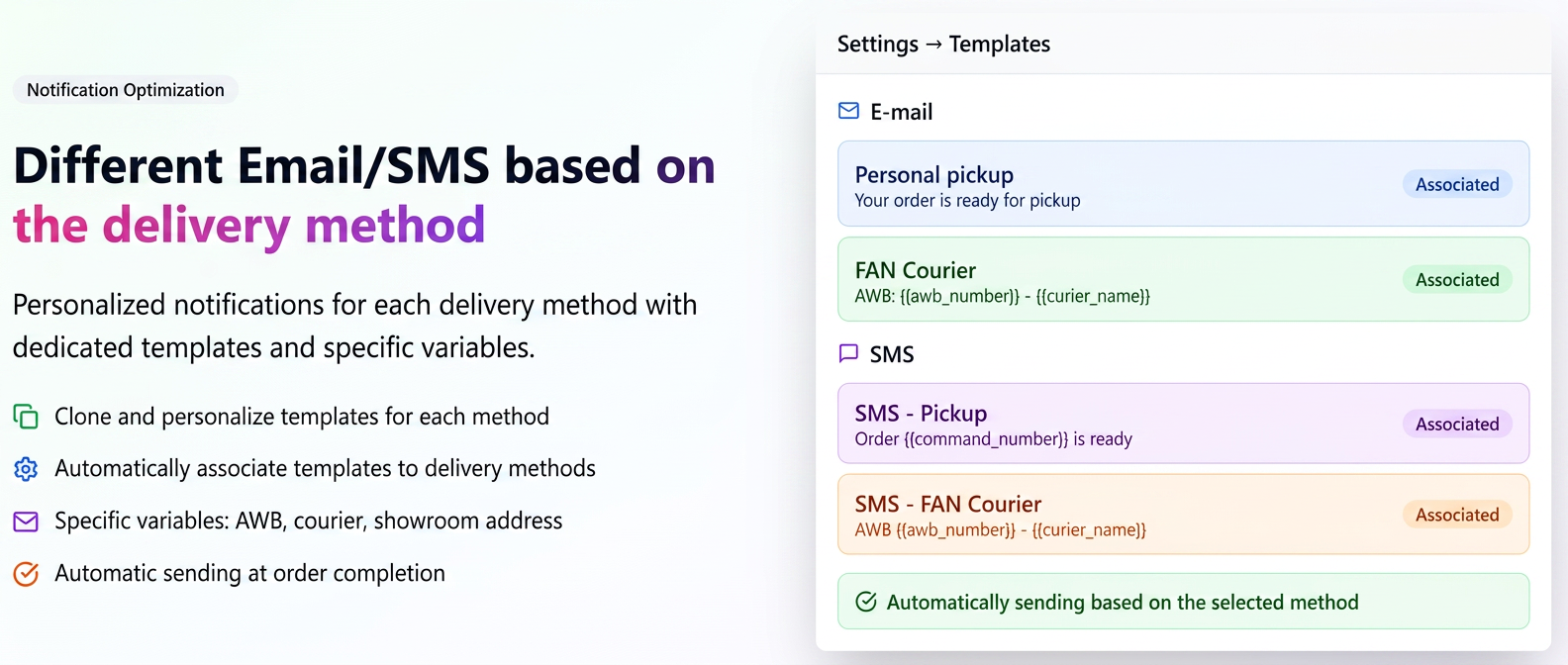
This functionality allows sending personalized notifications (email and SMS) based on the delivery method selected at checkout.
Thus, for each delivery method (e.g.: Courier, Personal pickup), you can create or clone dedicated templates that include specific variables and messages (AWB and courier for shipping, showroom address for personal pickup).
Step-by-step guide:
Step 1. Accessing the templates
- Go to .
- Select the Predefined tab.
- Look for the “Completed order notification” template.
Step 2. Cloning the existing template
- Next to the template, click the “Clone” action.
- An editable copy of the template will open automatically.
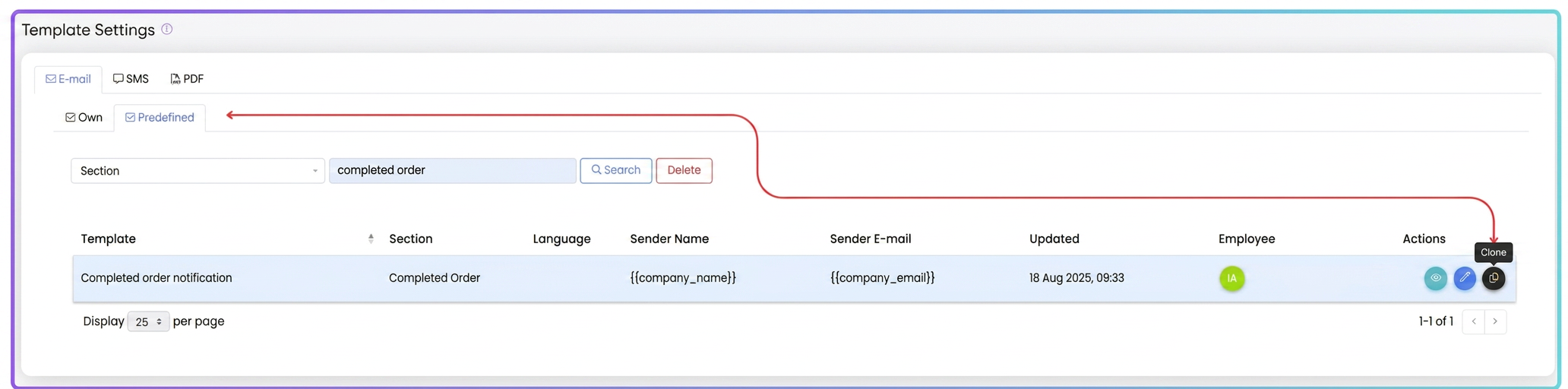
Note: This is the optimal variant to maintain the design and basic structure (logo, footer, styles). Alternatively, you can create a completely new template.
Step 3. Personalizing the template
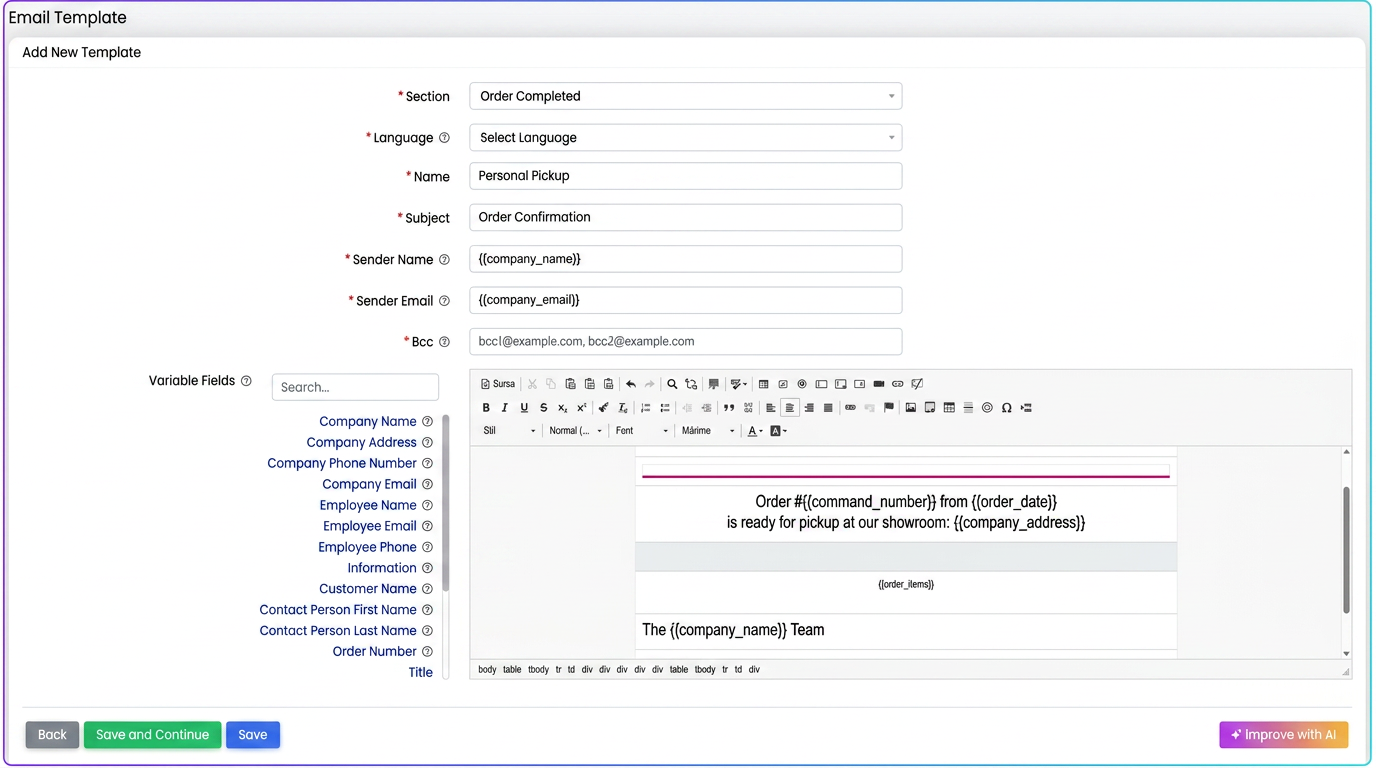
- Under Name, enter a suggestive title (e.g.: Personal pickup or Delivery via Fan Courier).
- Under Subject, set a clear title (e.g.: “Your order is ready for pickup from the showroom”).
- In the email body, modify the text for the respective scenario and use the available variables (e.g.:
- {{command_number}}, {{order_date}}, {{company_address}} for personal pickup;
- {{awb_number}}, {{curier_name}}, {{order_items}} for courier delivery).
Creating / cloning SMS templates
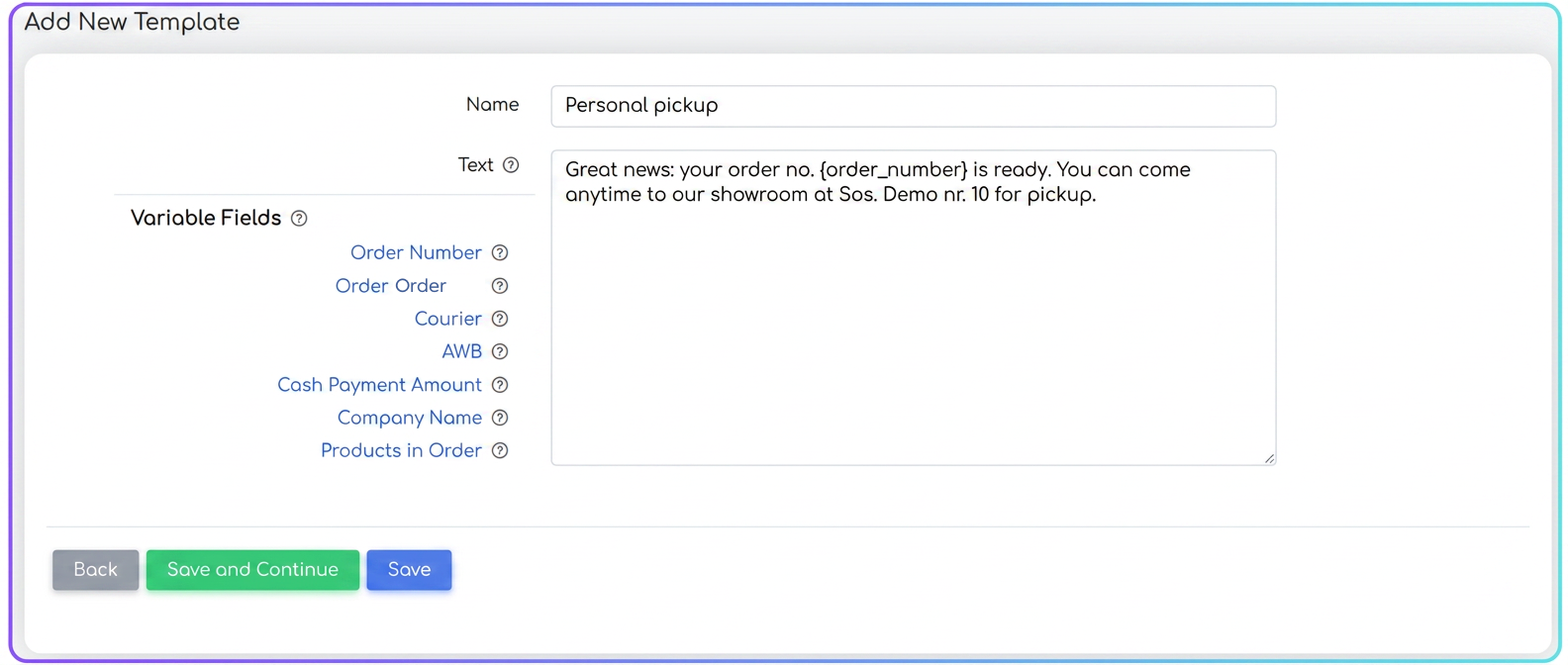
- Access .
- Choose “+ New SMS Template” or “Clone” an existing template.
- Name it (e.g.: “SMS – FAN Courier”, “SMS – Pickup”).
- Write a concise message (max. 160–306 characters, depending on settings), using the available variables (e.g.: Order Number, Courier, AWB).
- Save.
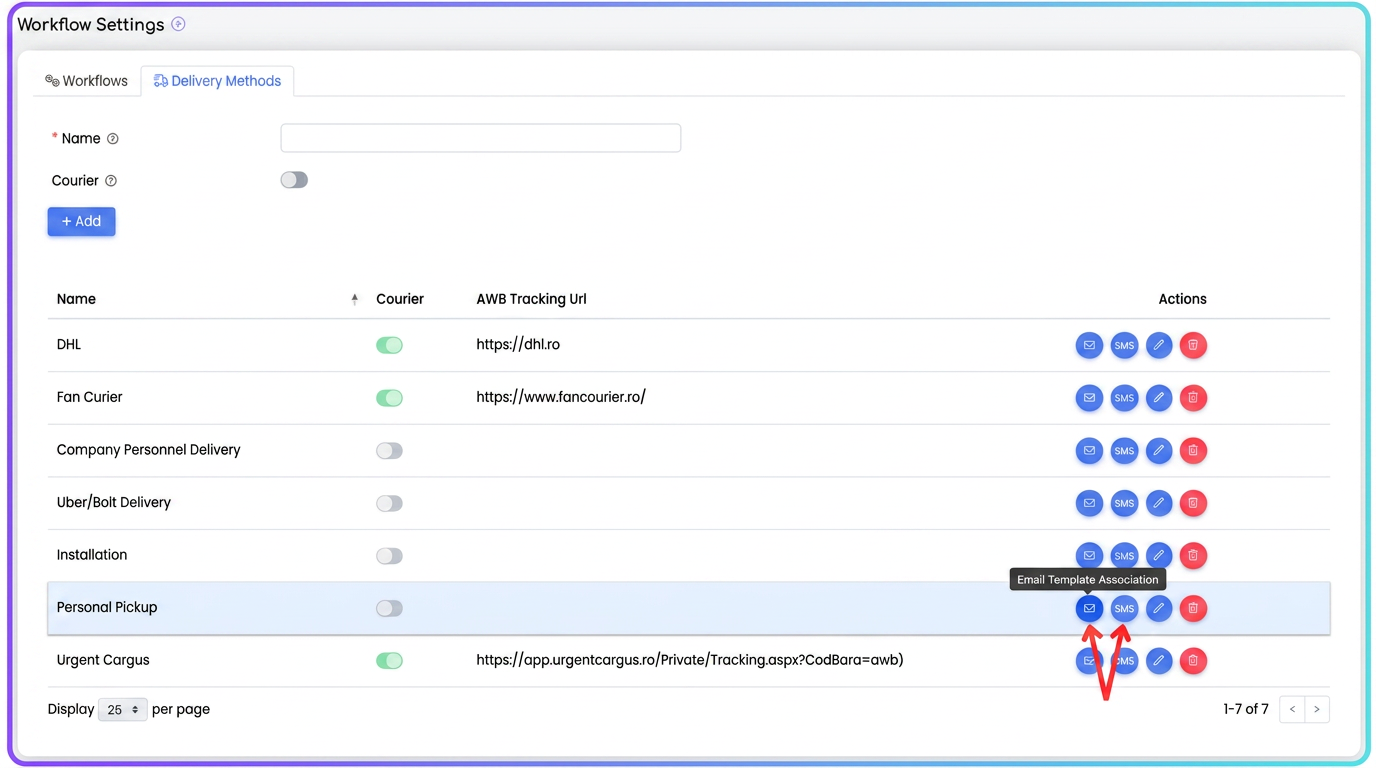
Step 3 — Associating templates with delivery methods
- Go to .
- For each method (e.g.: FAN, GLS, Personal pickup):
- Click “Associate Email template” → select the dedicated template and Confirm.
- Click “Associate SMS template” → select the dedicated template and Confirm.
Sending notifications at the delivery/completion stage
In the workflow, at the “Delivery/Completion” stage, the user completes the Delivery Details instruction.
- When the Delivery Method is selected (e.g.: Courier, Personal pickup, etc.), the system checks the notification template associated with that method.
- Upon clicking the Finish button, the platform automatically sends the email and SMS corresponding to the chosen delivery method to the customer.
Thus:
- If Personal pickup was selected, the customer receives the message with the showroom address and pickup instructions.
- If a Courier was selected, the customer receives the message with the AWB, courier name, and shipping details.
Clarifications
1. Can I still use the default “Completed order” template?
Yes. If you do not create or associate personalized templates for delivery methods, the system will continue to send the default template.
2. Can I associate the same template with multiple delivery methods?
Yes, you can use a single template (email or SMS) for multiple methods if the message is relevant to all of them.
3. What happens if I choose a delivery method but have no template associated with it?
The generic “Completed order” template will be sent. However, if you associated a template with a delivery method and then deleted it, the email/SMS will not be sent.
4. Can I enable/disable SMS sending?
Yes. Edit the customer and disable/enable SMS notification. You can also do this in bulk for all customers from the customers menu – select all customers and in the floating menu you have the “Notifications” option.
5. Can I use images, logos, and HTML design in email templates?
Yes, the template editor supports HTML and images.