
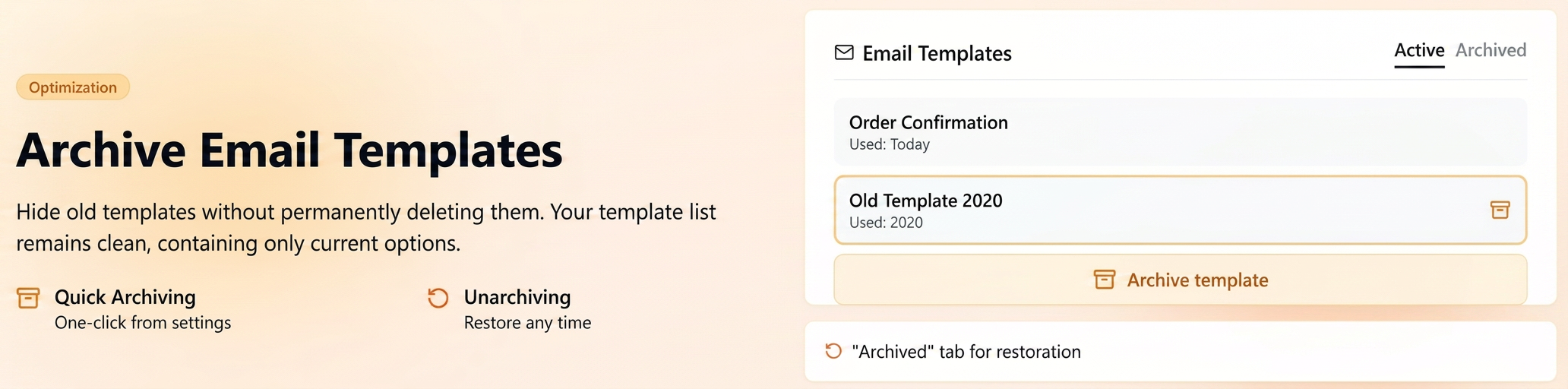
This functionality allows you to hide templates that are no longer frequently used, without deleting them permanently.
This way, the list of templates available when sending emails remains clean and relevant, containing only current options, while old templates can be kept in the archive for future reuse.
How to use
🔸Archiving a template
- Navigate to .
- Next to the desired template, click the 🗑️ (trash can icon).
- In the window that opens, select the “Archive (Recommended)” option.
- The template will be automatically moved to the new “Archived” tab and will no longer appear in the selection lists when sending emails.
🔸 Unarchiving a template
- On the same page (), access the “Archived” tab.
- Identify the desired template and click the “Unarchive” option.
- The template returns to the list of active templates and can be used immediately.