
1. What are templates in iFlows and why are they useful?
In iFlows, email communications can be managed automatically or semi-automatically using templates. These are predefined message models to which variables (e.g., customer name, order number) or additional text can be added. The main advantages are:
- Efficiency: You no longer need to rewrite the same message every time.
- Consistency: All emails have a unified professional structure.
- Flexibility: You can customize the template with information specific to each client or project.
Predefined templates and custom templates
- Predefined templates:
- They come already configured in iFlows and are used automatically in certain contexts (example: "Send offer" from the Offers section, "Send invoice" from the Invoices section).
- They ensure standardized communication for frequent processes, such as sending an offer, an order, or an invoice.
- Custom templates:
- Can be created by users for situations not covered by predefined templates.
- Can be used whenever you need a message adapted to the context (e.g., special communications, additional information regarding a project).
- Can be sent "freely" from several areas of the platform, for example, from the Clients section or from the workflow, using the "Send email" instruction.
2. The role of the {{informatii}} variable
When you create or edit a template, you can insert the {{informatii}} variable exactly where you want custom text to appear later. The purpose of this variable is to allow you to insert additional information at the moment of sending the email, without modifying the entire structure of the template.
How it actually works:
- Creating your own template:
- Access .
- Create a new template (or edit an existing one) and include {{informatii}} in the message body.
- Content example:
Dear {{contact_firstname}} {{contact_lastname}},
We are sending you the following information:
{{informatii}}
Sincerely,
Demo Team
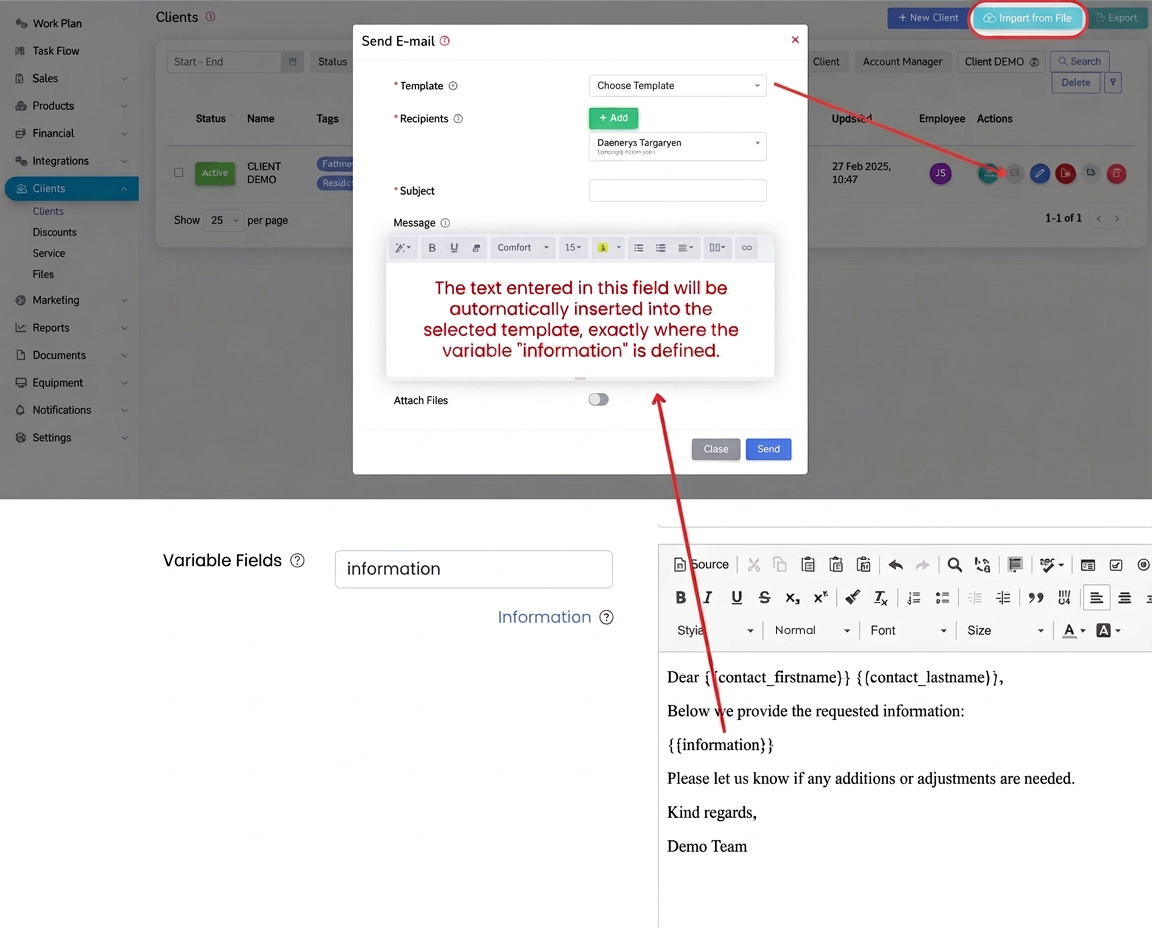 Sending the message with additional text:
 - For example, from the Clients section, click on the send email icon next to the desired client.
- Choose the custom Template that contains {{informatii}}.
- In the "Message" field that appears (pop-up window), enter the additional text you wish to send.
- By pressing the "Send" button, that message is automatically inserted where the {{informatii}} variable was placed in the template.
3. Practical example
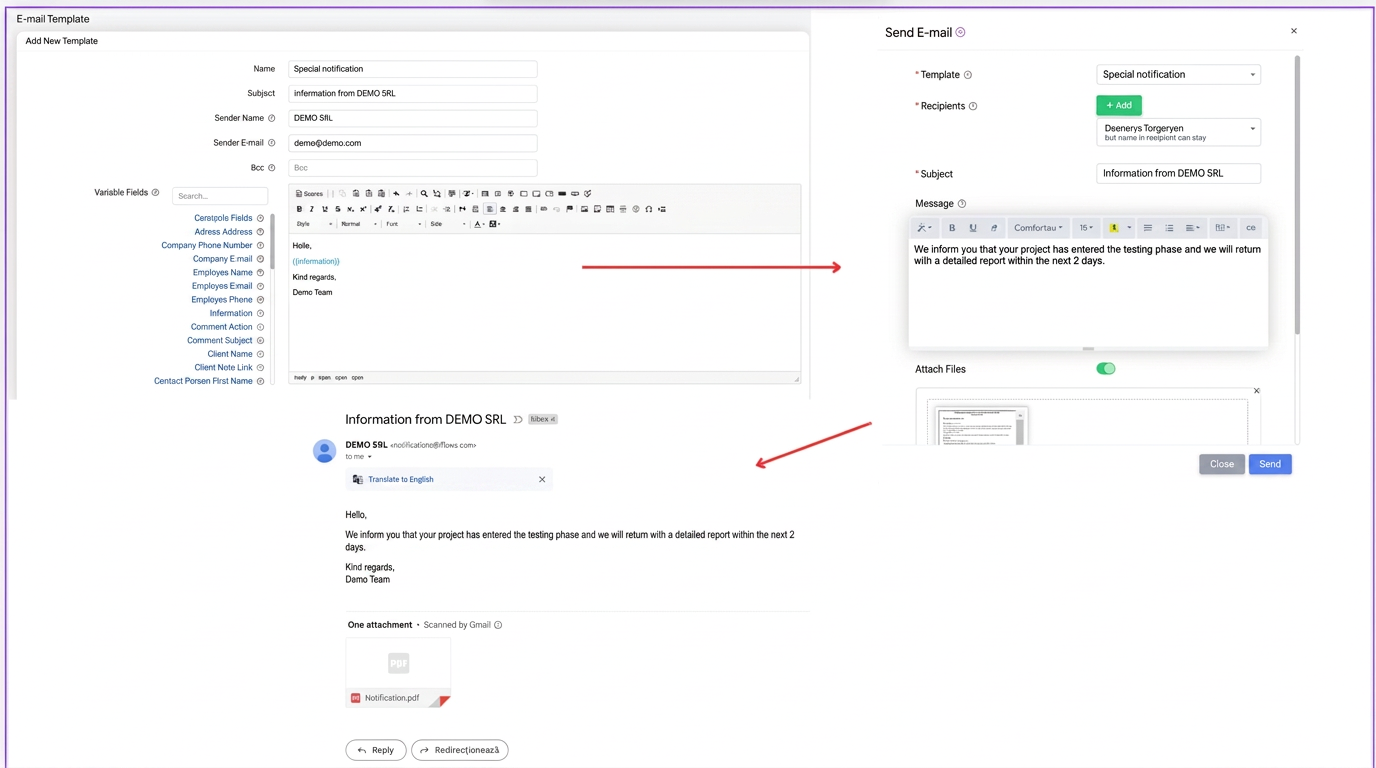
Suppose you created a custom template titled "Special Notification", which contains the text:
Hello,
{{informatii}}
Sincerely,
Demo Team
- From the Clients section, select a client and click on the email icon.
- Choose the "Special Notification" template.
- In the "Message" field, enter the additional content, for example:
"We inform you that your project has entered the testing phase and we will return with a detailed report in the next 2 days." - The final email received by the client will be:
Hello,
We inform you that your project has entered the testing phase and we will return with a detailed report in the next 2 days.
Sincerely,
Demo Team
4. Benefits of creating custom templates
- Maximum adaptability: iFlows offers predefined templates, but it is impossible to anticipate all situations. Personal templates allow you to respond quickly to various specific needs of your business.
- Time saved: You no longer draft every email from scratch. Keep a standard content and only change the details in {{informatii}}.
- Coherence: All transmitted messages remain in the same professional format, regardless of context.
- Automation: Combined with iFlows workflows, custom templates reduce the time spent on administrative tasks, allowing you to focus on important aspects of projects.
5. Video resources
For additional information, we recommend the following tutorials:
- Tutorial (min. 2:34) – email template configuration and use.
- Automatic email dispatch within the workflow