
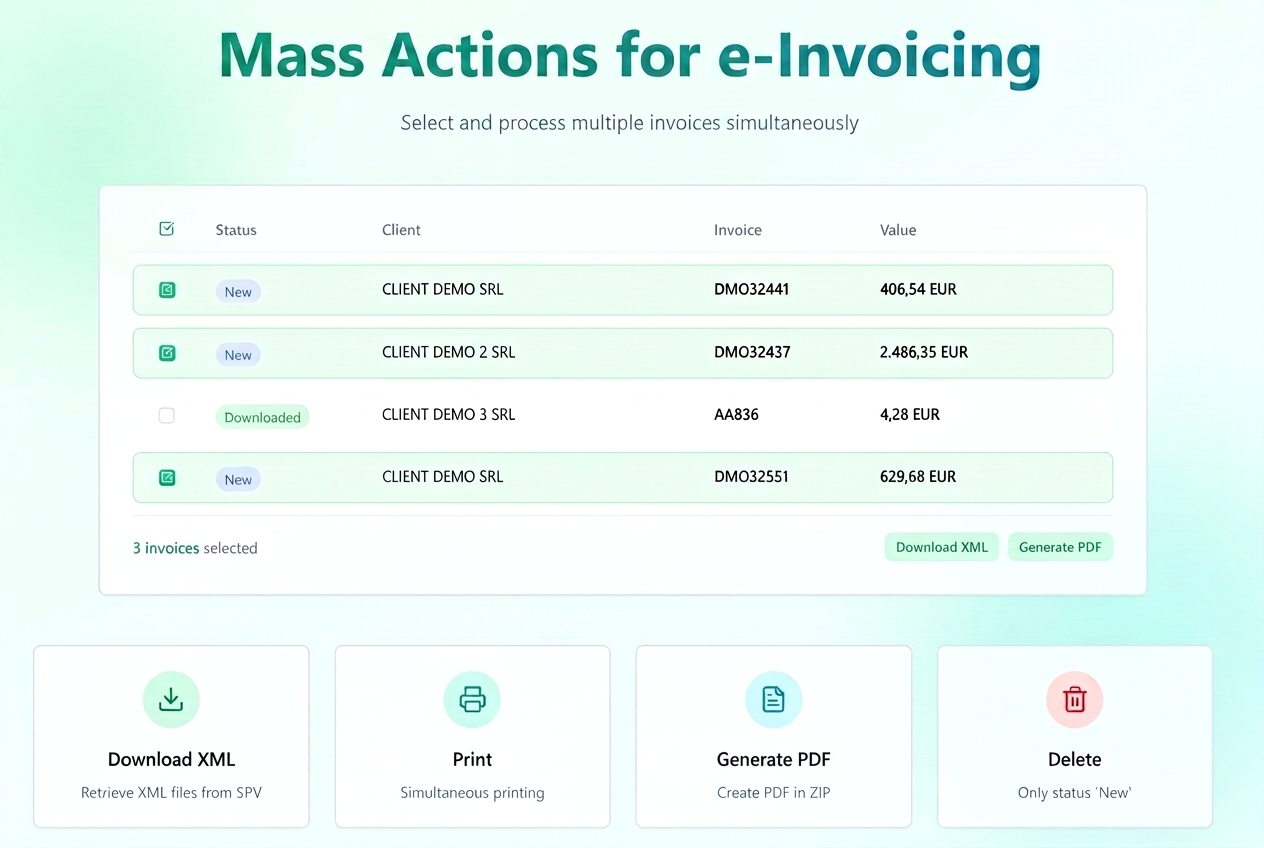
Bulk actions have been introduced in the dedicated e-Factura modules.
Users can now select multiple invoices simultaneously and apply a common action without repeating the operation for each document individually.
Availability
The functionality is active in the following sections:
- Sent Invoices:
→ e-Factura Tab module - Received Invoices:
Financial → Purchases → e-Factura module
Available bulk actions
After selecting multiple documents, the following actions can be performed simultaneously:
| Action | Description | Effect |
| Download | Automatically retrieves XML files from SPV for all selected documents. | Saves e-Factura files locally. |
| | Opens a preview window for simultaneous printing of the selected invoices. | Allows multiple printing. |
| Generate PDF | Instantly creates PDF files for all checked invoices. | PDFs are downloaded locally in an archived file (ZIP). |
| Delete | Removes selected documents from the list. | Irreversible action, only available for invoices with "New" status. |
How to use
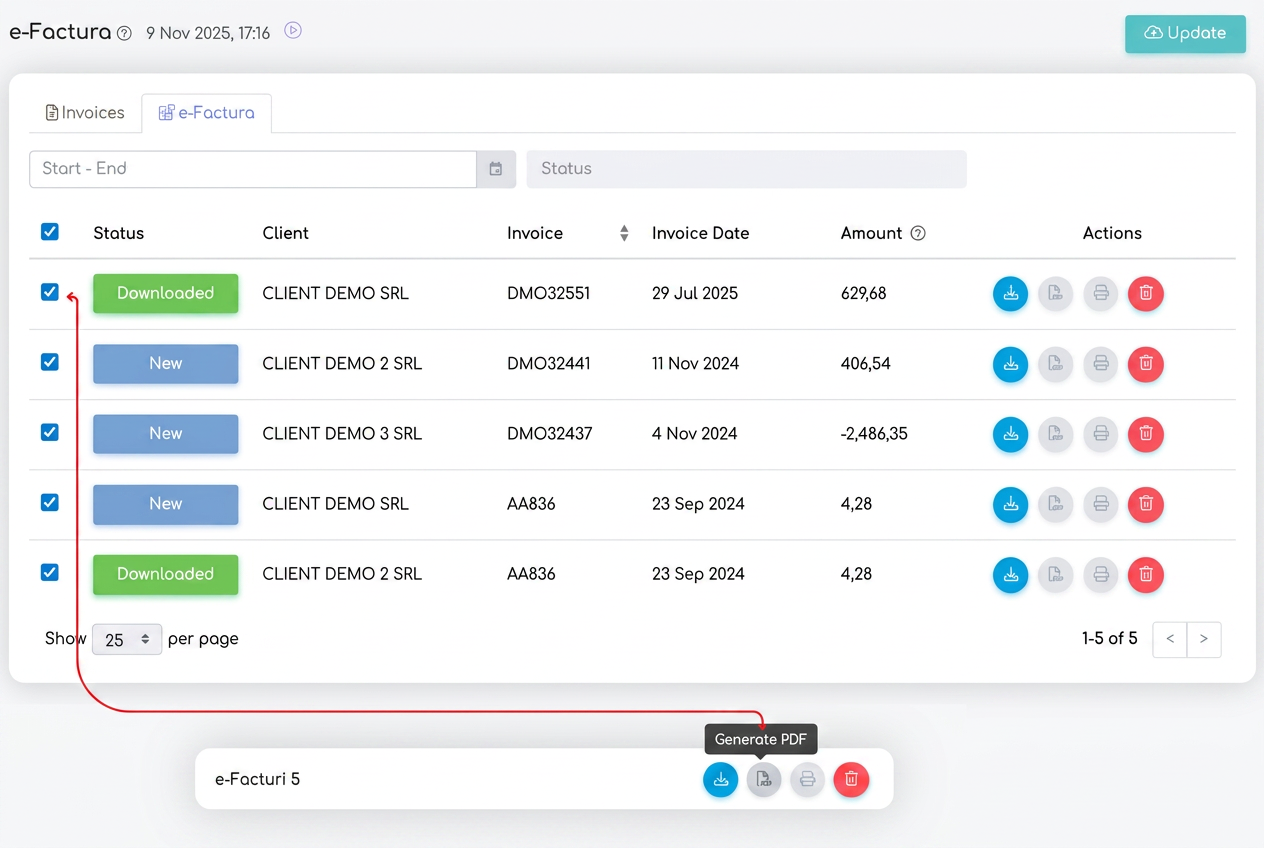
- Navigate to one of the e-Factura tabs (Sent Invoices or Received Invoices).
- Use the selection boxes (checkboxes) on the left side to mark the desired invoices.
- After selecting at least one document, the bottom bulk actions bar becomes active.
- Choose the desired action — for example, "Generate PDF" — to apply it to all selected invoices simultaneously.
Usage examples
- Select all invoices from a specific period to download them in bulk.
- Select invoices with "New" status to download them simultaneously in PDF format.
- Select multiple redundant documents for quick deletion.
⚠️ Rules and limitations
- Actions apply only to invoices visible on the page; for a larger volume, use the "Show X per page" function.
- Invoices with "Downloaded" or "Sent" status cannot be deleted.
- In the case of massive actions (over 100 documents), processing is done sequentially and may take a few seconds.