
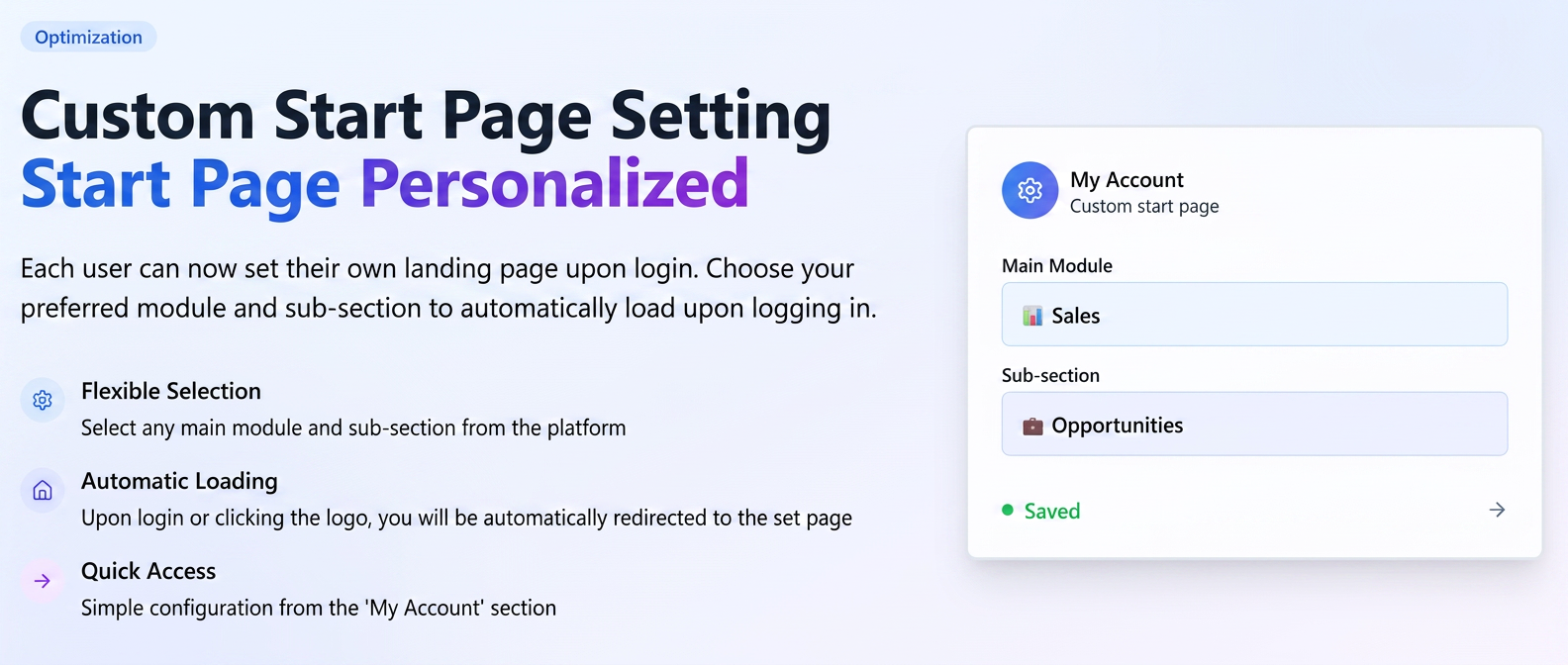
Each user can now set their own landing page upon login or when accessing the main page of the platform.
By default, when logging in, the iflows platform redirects users to the "Workflow" section. The new functionality allows for the selection of any main page or sub-page within the platform as a starting point. Thus, if your daily activity focuses on a specific area (e.g., Offers, Clients, Opportunities, Orders), you can set that section to load automatically upon accessing the platform.
How to use?
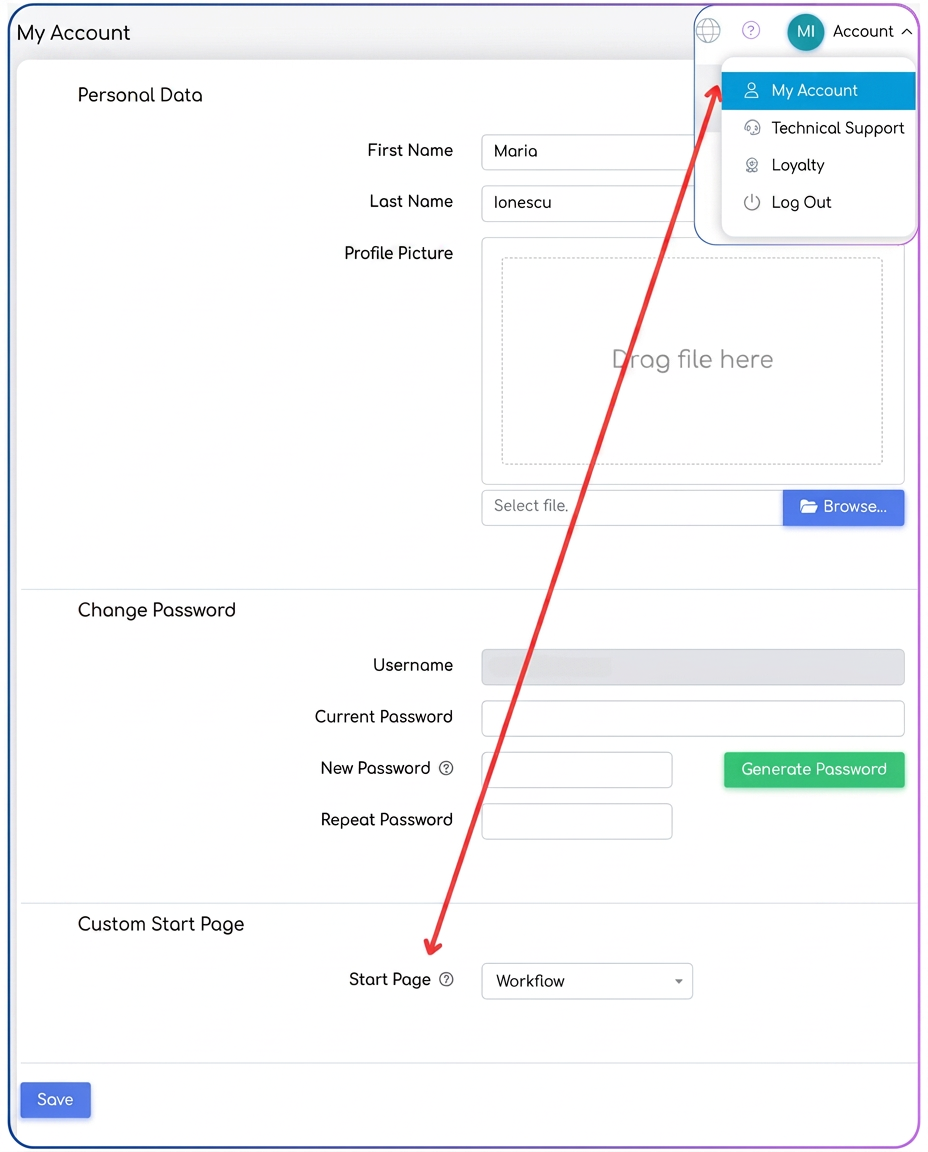
- Access account settings: Click on the profile icon in the top-right corner and select the "My Account" option.
- Locate the customization section: Scroll down to the section titled "Custom Home Page".
- Select the desired page:
- You will find two drop-down menus. The first menu allows you to choose the main module (e.g., Sales, Finance, Reports, Clients, etc.).
- After selecting a main module, the second menu will update to allow you to choose a specific sub-section (e.g., Opportunities, Invoices, Executive Summary).
- Save changes: Press the "Save" button to apply the new setting.
Behavior
- Upon your next login to the platform or when accessing the main link (e.g., companyname.iflows.com), you will be automatically redirected to the set page.
- Additionally, clicking on the iflows logo in the top-left corner will now take you to your custom home page instead of the default one.
Important: This setting only applies when accessing the platform's base URL. If you access a direct link to a specific invoice or offer (e.g., a link saved in bookmarks), you will be directed to that specific page, bypassing the home page setting.