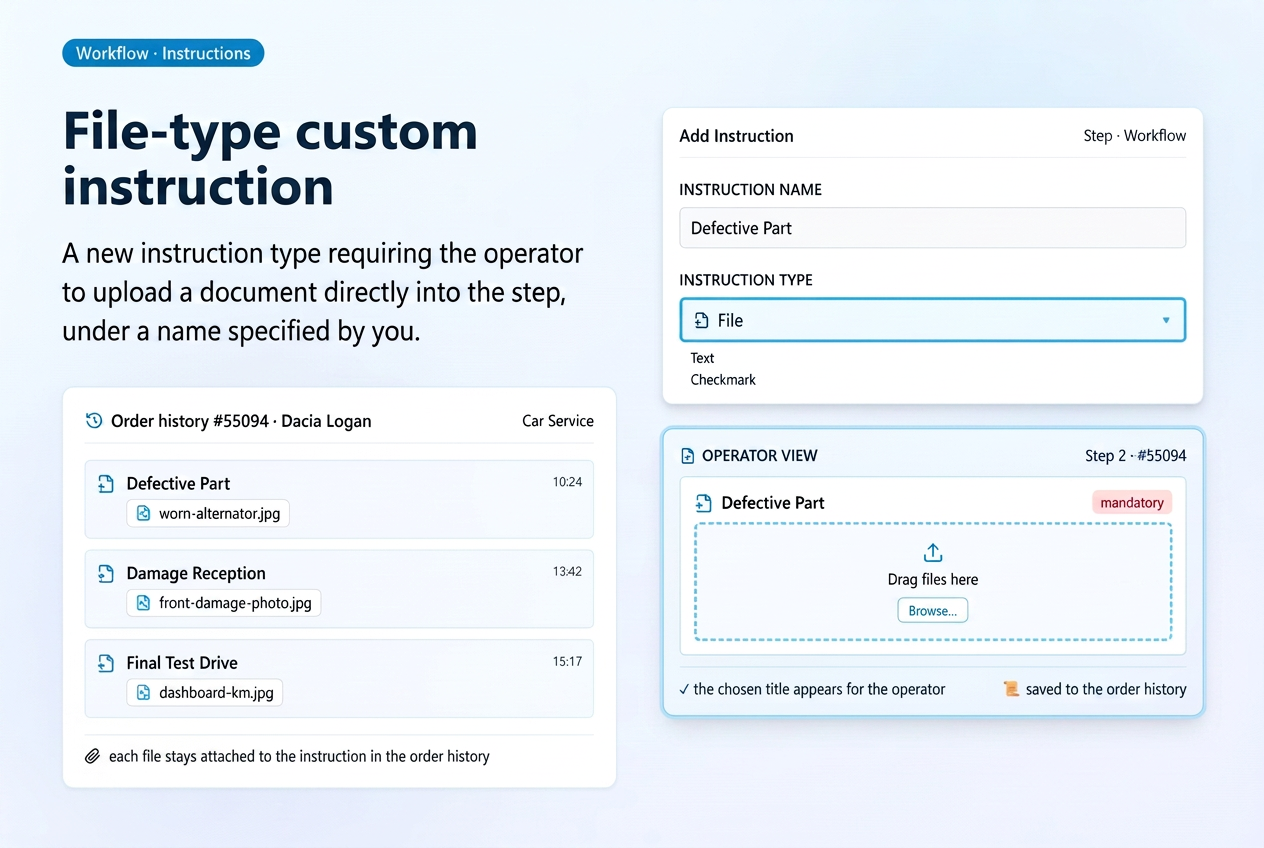
In the custom workflow instructions, you now have a new type of instruction: File. This allows you to request a document upload directly within a stage, under a name you define (for example, Upload delivery note or Attach certificate).
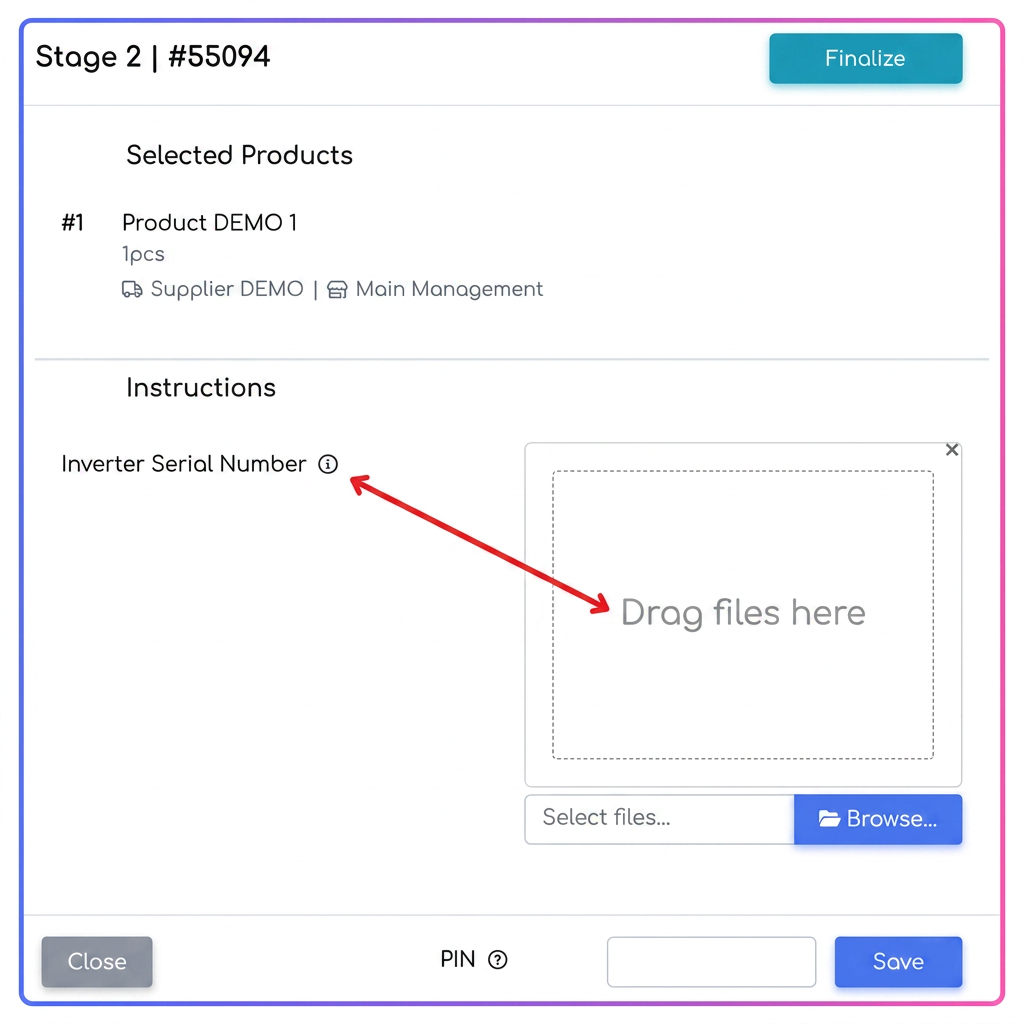
For the operator navigating the flow, the upload works the same as the Add File option, but the instruction displays the title chosen during configuration, making it clear which document is being requested.
Features
- New instruction type — File is available alongside the other instruction types.
- Custom title — the name you set appears for both the operator and in the order history, so it is clear exactly which file is required.
- Familiar upload — the operator uploads the file just like with Add File, with the same validations and messages.
- Respects the mandatory/optional rule — if the instruction is marked as mandatory, the stage cannot be completed without the uploaded file, just like with other types.
How to use
The File type is chosen when adding or editing a custom instruction in the Add Instruction window within the workflow stage.
- Complete Instruction Name — enter the title under which you want the instruction to appear.
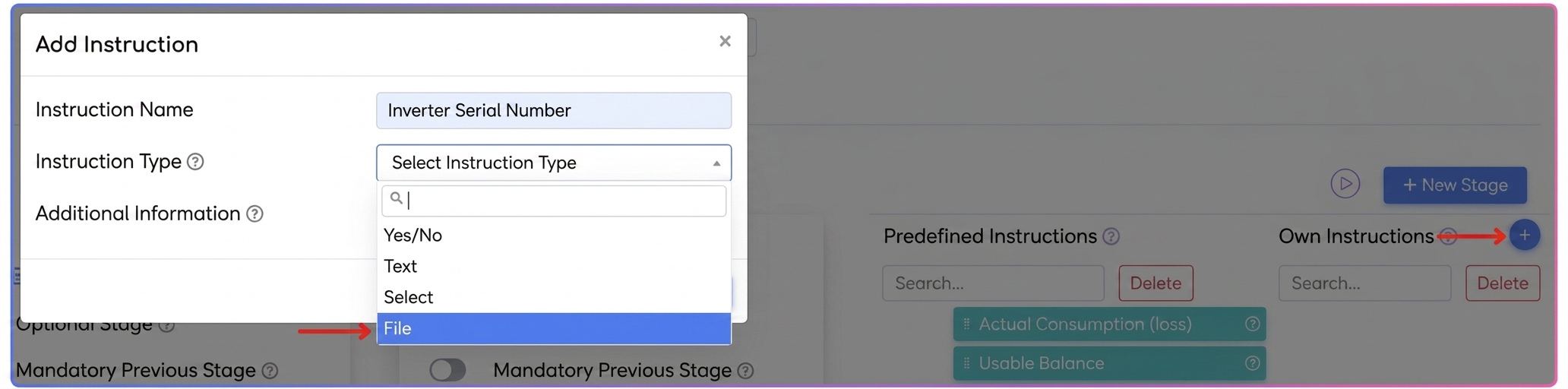
- In Instruction Type select File from the list of available types.
- Save the instruction — it will appear in the stage, ready to receive a file.
During execution, the operator sees the instruction with the set title and uploads the requested document. The file then remains available in the order history.