
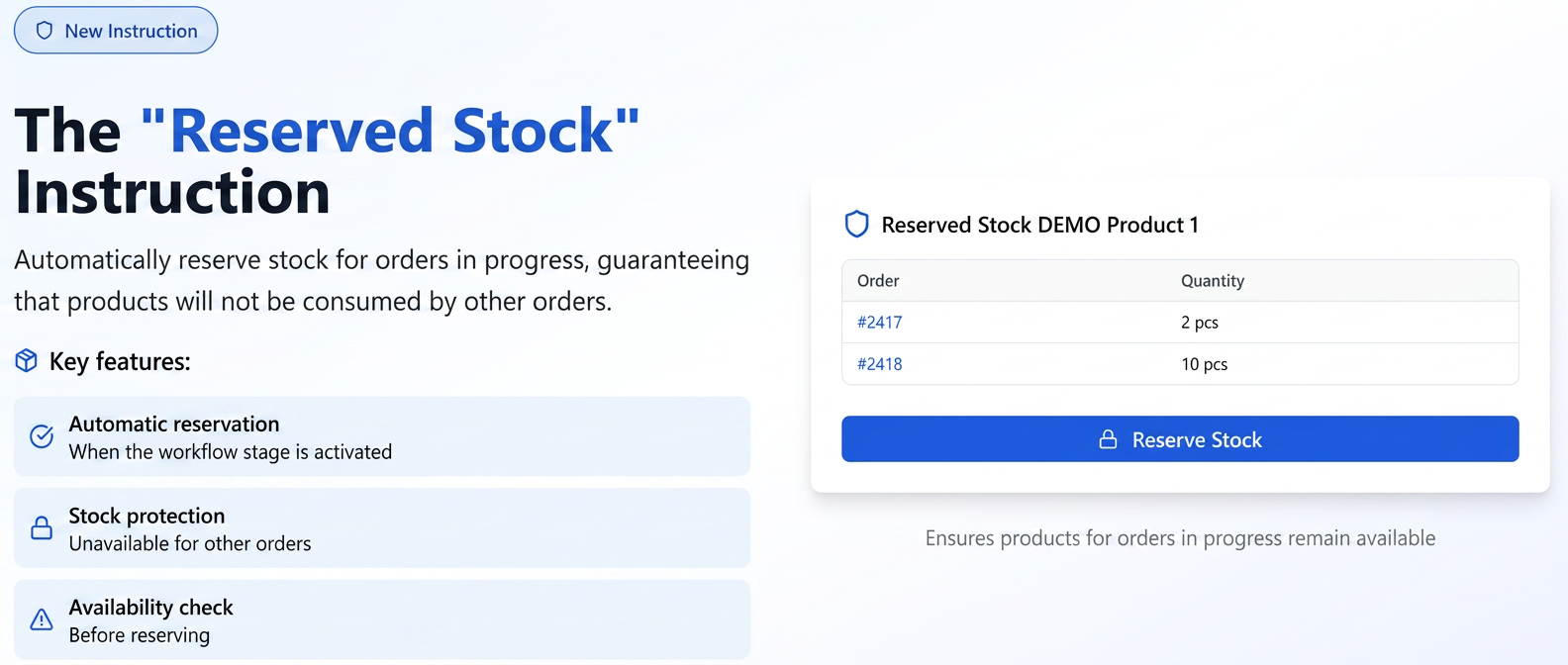
The “Reserved Stock” instruction is an automated action that can be added to any stage of a workflow. Upon activating that specific stage (for example, when taking over an order), the system checks the stock availability for the products in the order. If the stock is sufficient, the required quantity is automatically reserved for that specific order.
Once the stock is reserved, it becomes unavailable for allocation to other orders, even if it is still physically in the warehouse. This ensures that products for an order in progress will not be accidentally consumed by other orders.
Step 1: Activating the Instruction in the Workflow
- Navigate to the left menu to Settings and select Workflow.
- Identify the workflow you want to modify and click on the Edit icon (the blue pencil).
- On the right side of the screen, in the Predefined Instructions section, you will find the instruction named “Reserved Stock”.
- Click on it and, while holding down, drag and drop it into the desired stage and action within the workflow. For example, you can place it in the Goods Preparation stage, under the Pickup action. This means the stock will be reserved as soon as an operator takes over the order for processing at this stage.
- After adding the instruction, press the Save button at the bottom of the page.
Step 2: Order Processing and Automatic Reservation
- No additional action is required from the operator. Once an order enters the workflow and is processed in the stage where you added the instruction (e.g., it is picked up), the system will automatically execute the stock reservation.
Step 3: Viewing Reserved Stock
To check what quantity of a product is reserved, follow these steps:
- Navigate to the left menu to Products and select Stocks.
- Activating the Column: To view the reserved quantity, it is necessary to activate the corresponding column. Click on the table's filter icon (the funnel icon) on the right side of the header and check the “Reserved Stock” option.
- Once activated, the Reserved Stock column will display the total quantity reserved for each individual product.
- Reservation Details: By clicking on the numerical value in the “Reserved Stock” column, a pop-up window will open. This will detail exactly which orders have active reservations for that product and the quantity associated with each.
Insufficient Stock Condition:
If an order contains a quantity of products greater than the available stock, the system will not allow the completion of the stage and will display a warning message. This prevents situations where an order is processed without having the necessary stock to fulfill it.
Difference between “Stock in Progress” and “Reserved Stock”
To fully understand the benefits of the new functionality, it is important to distinguish between the Reserved Stock column and the pre-existing Stock in Progress column.
- Stock in Progress (Informational): This value represents the total quantity of product needed to fulfill all orders that are currently active in the workflows. It is a general indicator of current demand, but it does not physically block the stock. Essentially, it shows you how much stock you would need if all orders were processed simultaneously.
- Reserved Stock (Control and Guarantee): This value represents the quantity of product that has been effectively blocked for specific orders following the execution of the “Reserved Stock” instruction. This stock is guaranteed for those orders and can no longer be allocated to other orders, thus preventing overselling.
Practical example:
Suppose you have 100 units of a product in the current stock.
- Order #1 comes in for 10 units. Stock in Progress becomes 10.
- Order #2 comes in for 20 units. Stock in Progress becomes 30 (10+20). Reserved Stock is still 0.
- An operator takes over Order #1 and moves it to a stage that has the “Reserved Stock” instruction. Now, Reserved Stock becomes 10.
- The actual available stock for new orders is now 90 (100 - 10), even though Stock in Progress shows a total demand of 30.
Warning: This control mechanism also applies to products that have no stock recorded in the system (zero stock). If you attempt to process an order containing such a product in a stage where the “Reserved Stock” instruction is active, you will not be able to advance in the workflow with that product. You will be blocked at that stage until the stock for the product in question is updated.