
Youtube Link: https://www.youtube.com/watch?v=3Mw5avWD9qA&t=51s
Strategic plans lose their value if they are not translated into concrete steps.
The Objectives management function connects the plan and execution: you set the target, and the platform shows you in real time the team's progress, who is contributing, and where acceleration is needed.
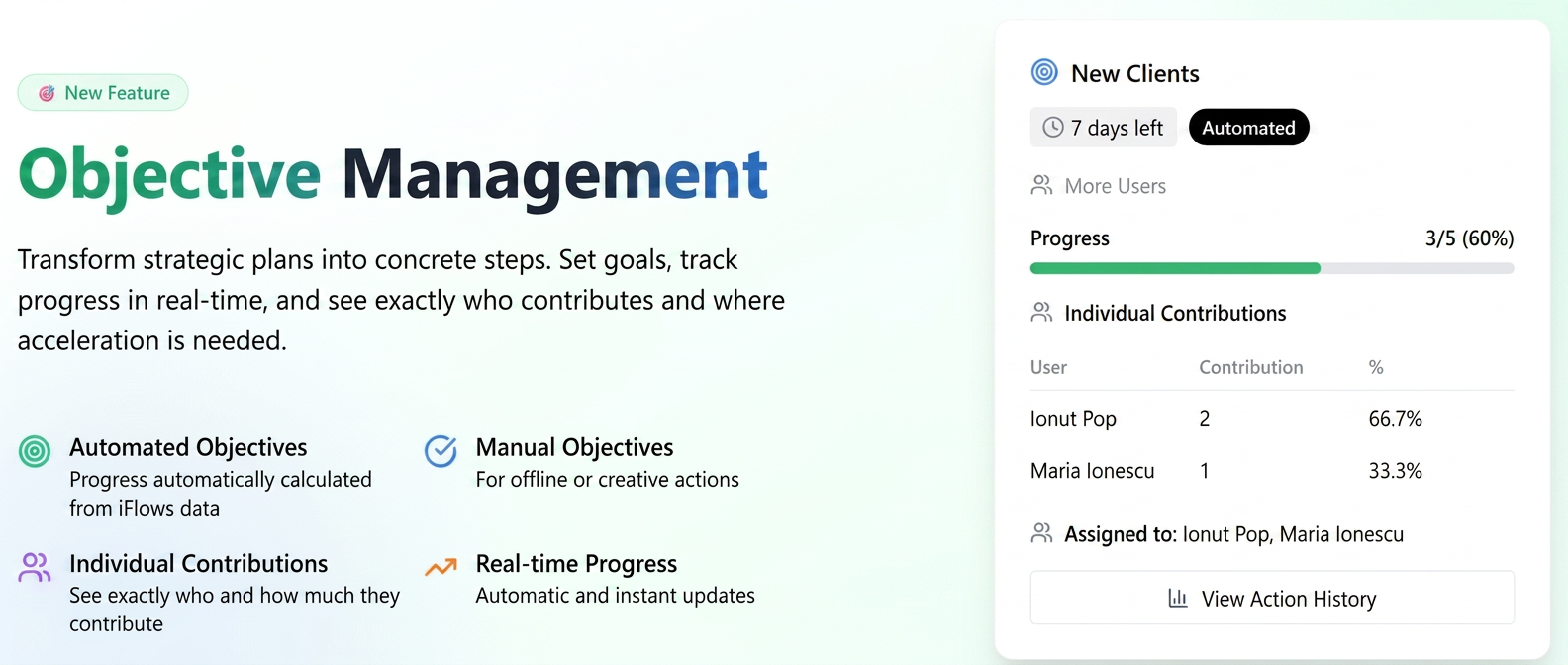
To better understand how it works, let's take an example of a simple objective: obtaining 5 new clients in one week.
There are two types of objectives
- Automated – the platform calculates progress automatically from already recorded events (e.g.: new clients, calls, visits, offers, orders). No manual update is required.
- Manual – for actions that do not have a data source in iFlows (e.g.: "taking 5 photos for social media"); progress is entered manually.
In our scenario, because the goal is to obtain 5 new clients within a 7-day interval, we will create an automated objective.
1) Creating the automated objective
- From the Objectives module, select .
- Objective type: New clients (thus, the system will automatically count each added client who has placed a new order for the first time within the selected interval).
- Target value: 5 (represents the desired number of new clients).
- Duration: 7 days (the time interval in which the objective must be achieved).
2) Establishing the assignment level
- Individual – if the target is intended to be tracked for a single sales agent.
- Multiple users – if a common target is desired for all sales agents, highlighting individual contributions.
- Per company (global) – if the objective is general, and any user who adds a new client can contribute to its achievement.
3) Configuring advanced settings
- Start date: a future date can be set to activate the objective; until that date, it will appear in the "Pending" section.
- Recurring objective: if the automatic repetition of the target weekly is desired, the system will generate a new instance of the objective every 7 days.
- Visibility:
- Public – visible to all users.
- Private – visible only to the creator and assigned users. (Note: "Per company" objectives cannot be set as Private.)
- Count only unique contributions: if this option is activated, the system will count only distinct clients; multiple actions on the same client will not increase progress.
- Completion criterion:
- At the expiration of the period – the objective remains active for the entire 7-day duration, even if reached earlier, and can exceed 100% (e.g.: 10 clients instead of % progress).
- Upon reaching the target – the objective automatically closes at the moment 5 new clients are registered.
- Filter by client type: you can choose to count only certain clients in the progress, for example End customers, Resellers or Public institutions, depending on the company strategy.
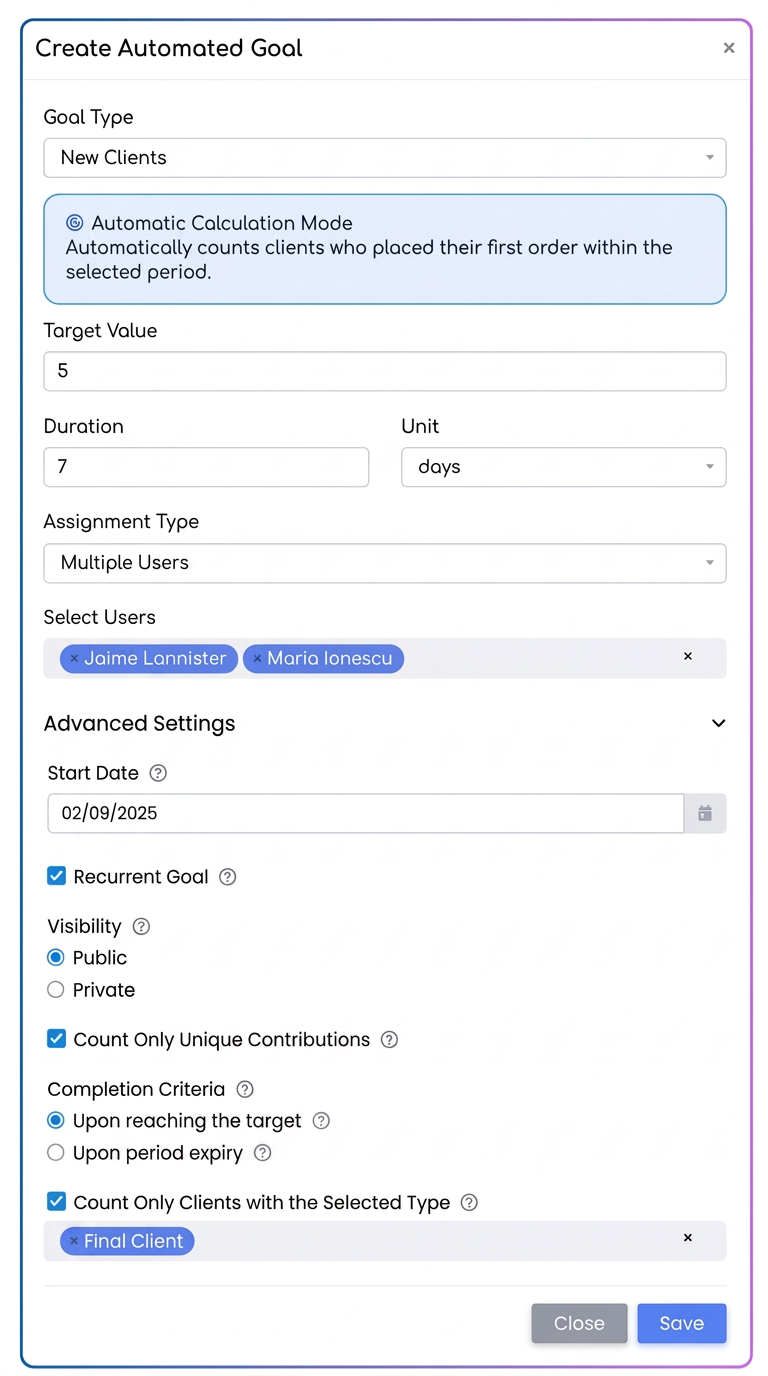
We mention that depending on the objective type, there may be more advanced settings, such as: Count only clients with selected labels
4) The result
After saving, the objective appears in the Active list (or in Pending, if a future date was set).
As the defined actions are completed, progress is updated automatically and is visible in two ways:
- On the objective card – percentage and numerical progress (e.g.: 3/%).
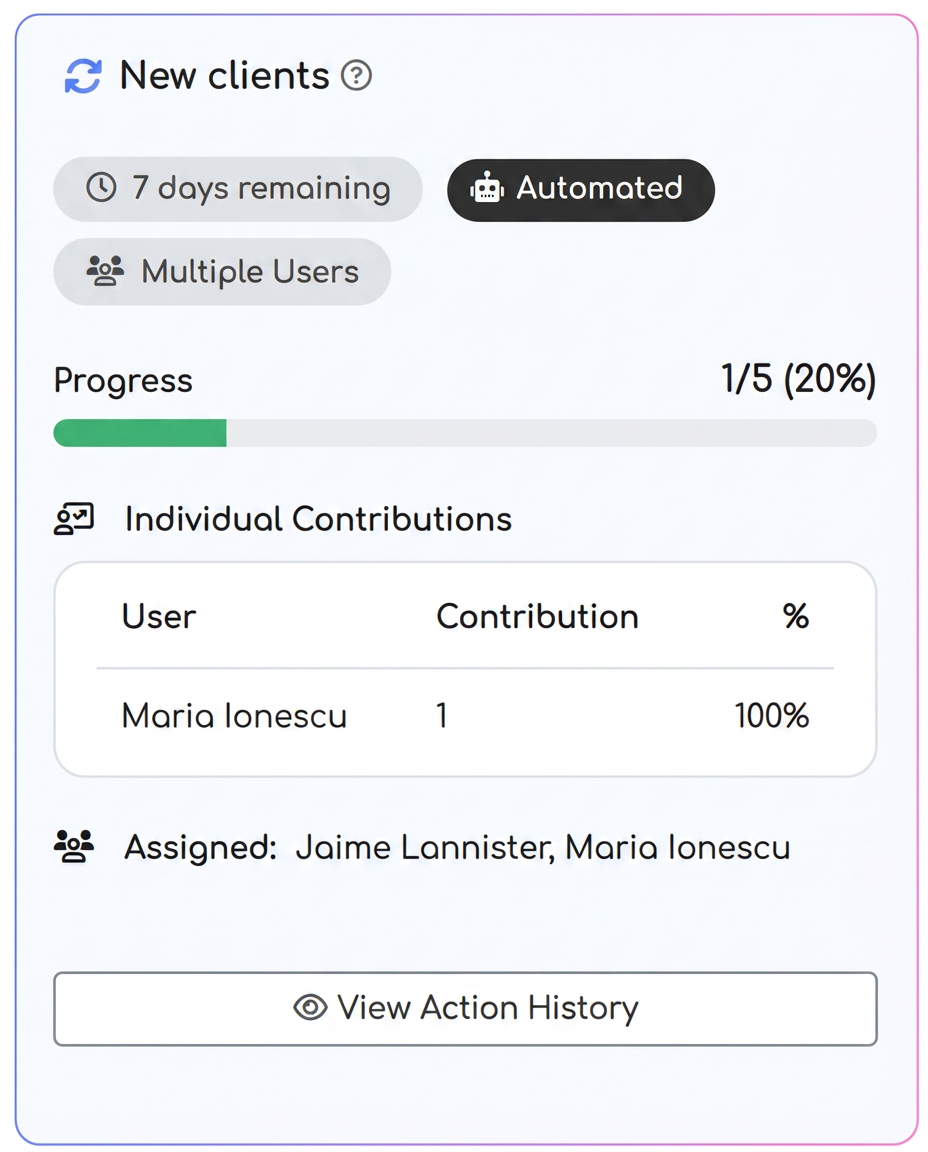
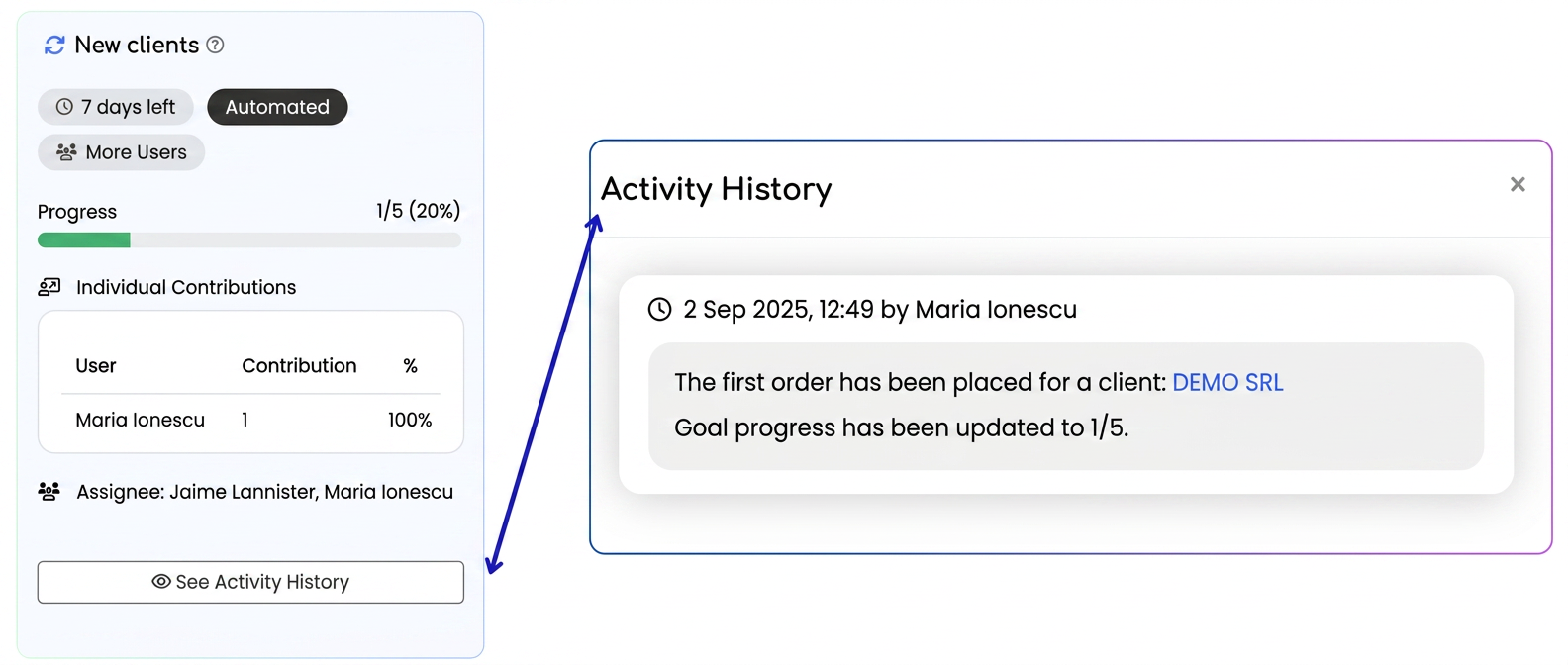
- In the action history – a detailed list of events that contributed to the objective.
How the objective is finalized
- If the criterion "Upon reaching the target" was set: the objective closes automatically as soon as 5 new clients have been reached.
- If the criterion "At the end of the period (7 days)" was set: the objective remains active for the entire duration and can exceed the target. If 10 new clients are obtained instead of 5, the card will be visibly marked with "Above standard".
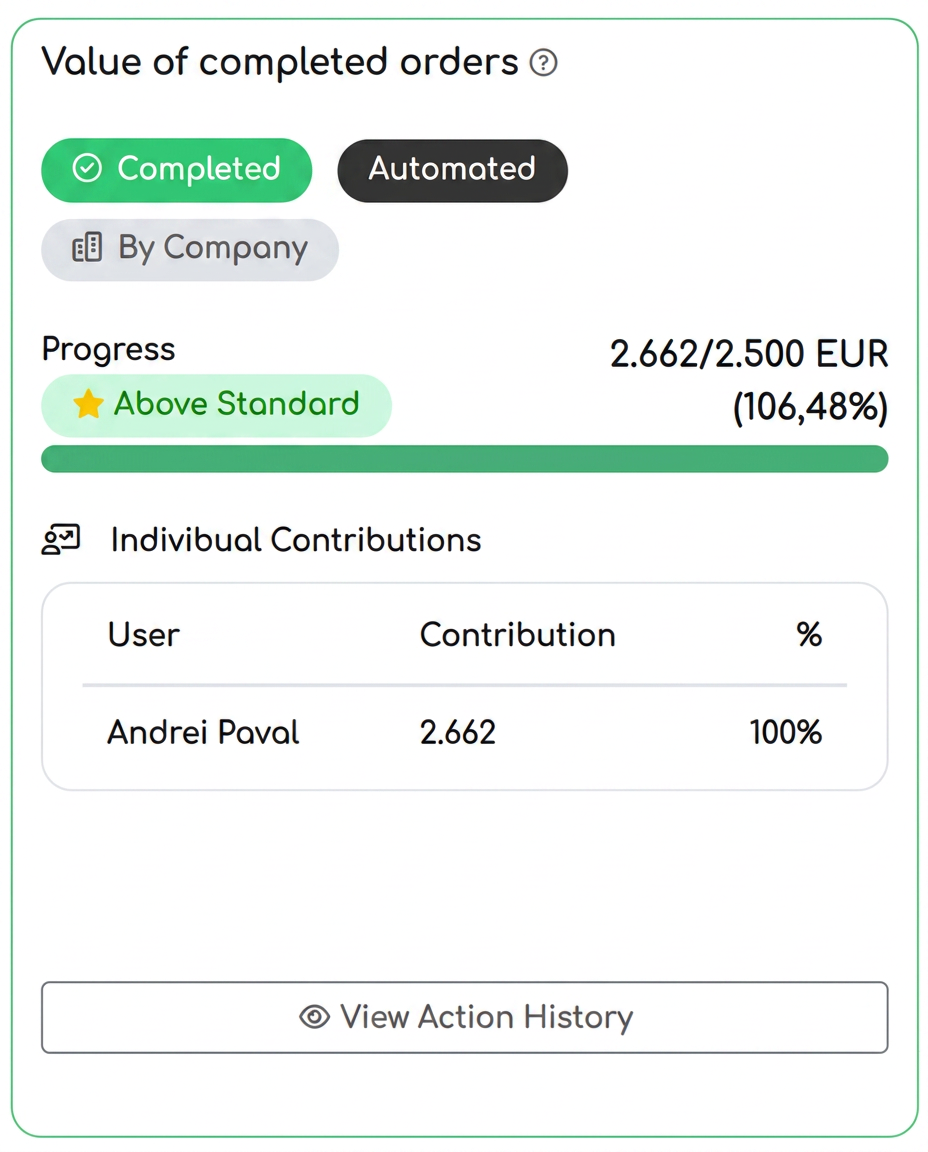
List of automated objectives and calculation method
- Client visits performed – Calculation method: automatically counts "client visit" actions entered in client notes, within the established period.
- Telephone calls made – Calculation method: automatically counts "telephone call" type actions from client notes, in the chosen interval.
- Commercial offers sent – Calculation method: automatically counts commercial offers generated and sent from the Offers module, in the specified period.
- Offer → order conversion rate – Calculation method: calculates the ratio between the number of new orders generated from offers and the total number of sent offers, expressed as a percentage.
- New orders obtained – Calculation method: automatically counts orders entered and confirmed in the system, in the defined period.
- New leads – Calculation method: automatically counts how many new clients with the status Lead were created in the database, in the selected period.
- Reduction of the average sales cycle – Calculation method: automatically calculates the average of the differences (in days) between the offer generation date and the order date.
- Reactivation of inactive clients – Calculation method: automatically counts inactive clients who placed a new order in the selected period.
- New clients – Calculation method: automatically counts clients who placed their first order in the chosen period.
- Value of finalized orders – Calculation method: automatically calculates the total value of orders finalized in the chosen period.
- Receipts – Calculation method: automatically calculates the total value of receipts from the selected period, converting the amounts to the default currency for invoices, based on the exchange rate set in the platform.
Manual Objectives
What are manual objectives?
Manual objectives are those objectives for which progress cannot be tracked automatically in the platform, because the desired action does not have a data source in iFlows. In this case, progress is entered manually by users.
Typical examples:
- "Create 5 social media posts"
- "Participate in 3 networking events"
- "Organize 2 internal team trainings"
- "Prepare 4 promotional video materials"
When are they used?
- When the objective relates to offline or creative-procedural activities that are not automatically recorded in iFlows.
- When monitoring specific or complementary commercial initiatives (marketing, training, partnerships, etc.) is desired.
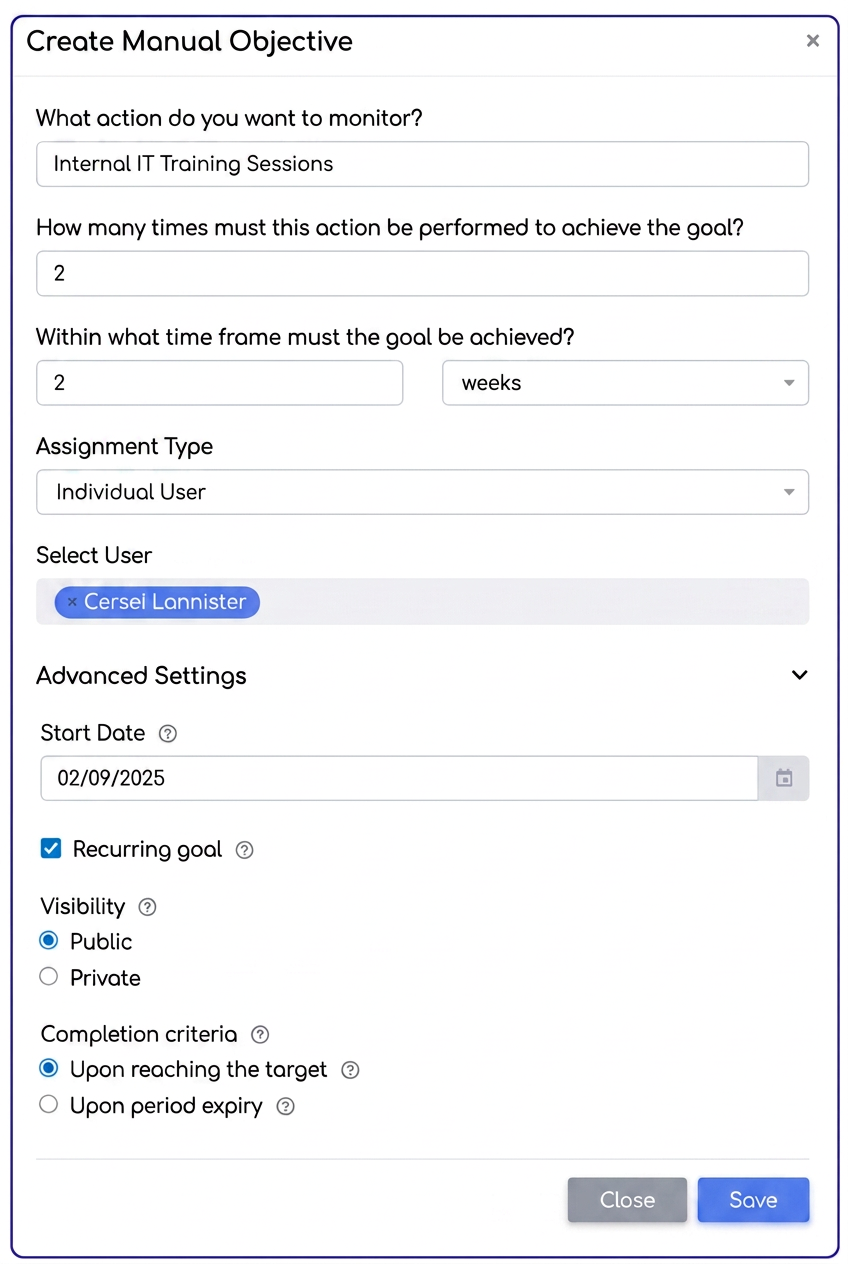
Creating a manual objective
- From the Objectives module, select .
- Complete the fields:
- What action do you want to monitor? – the name of the objective (e.g.: Social media posts).
- How many times should this action be performed? – target value (e.g.: 5).
- In how much time should the objective be achieved? – duration (e.g.: 14 days).
- Assignment type: Individual, Multiple users or Per company.
- Configure Advanced Settings (start date, recurrence, visibility, completion criterion).
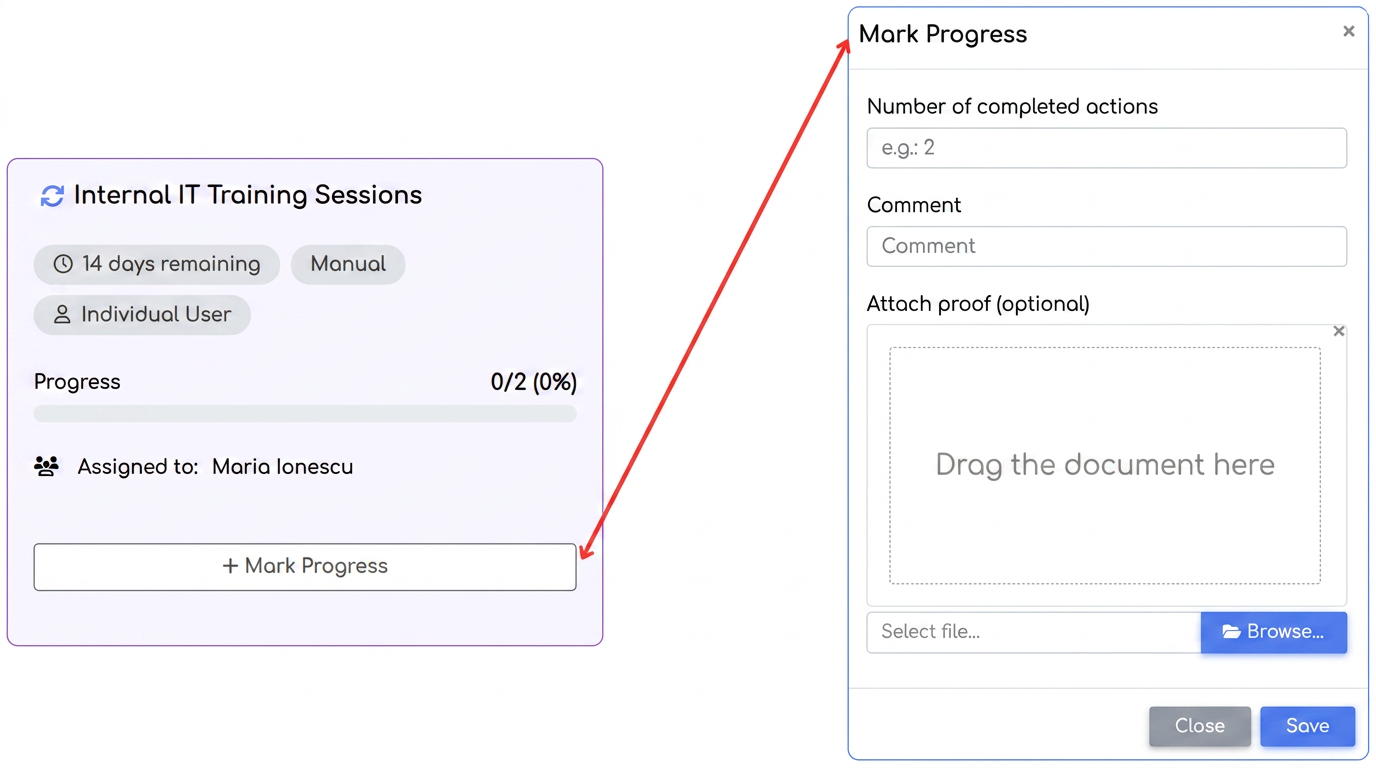
Viewing the manual objective
The following information appears on the objective card:
- Type (Manual), remaining period, and assignment level.
- Progress bar and achieved value (e.g.: 0/%).
- Assigned user or team.
- The "+ Mark Progress" button, used to manually update achievements.
Marking progress (manual update)
When pressing the "Mark Progress" button, a window opens where the following are entered:
- Number of completed actions – e.g.: 2 posts created.
- Comment (optional) – e.g.: Posts were scheduled for Facebook and LinkedIn.
- Attach proof (optional) – files, documents, screenshots, etc., as support for the reported progress.
After saving:
- The objective progress is updated (e.g.: 2/%).
- The update appears in the objective history for traceability (you can see who marked the progress, when, and what actions they declared).
How the manual objective is finalized
- If the "Upon reaching the target" criterion is set, the objective automatically closes as soon as the value is reached (e.g.: 5/5 posts).
- If "At the expiration of the period" is set, the objective remains open until the end, even if the target was reached earlier. Thus, values above 100% can also be recorded (e.g.: 7/%).
📌 Conclusion: Manual objectives complete the Objectives Management module, allowing the tracking of any type of activity, whether or not direct data exists in the platform. Progress is entered simply through the "Mark Progress" function, ensuring transparency and visibility over actions that matter to the organization.
Editing objectives
Which objectives can be edited
- ✅ Can be edited: objectives in the Active and Pending tabs.
- ❌ Cannot be edited: Finalized and Missed objectives (these remain only for consultation and analysis).
How to access editing
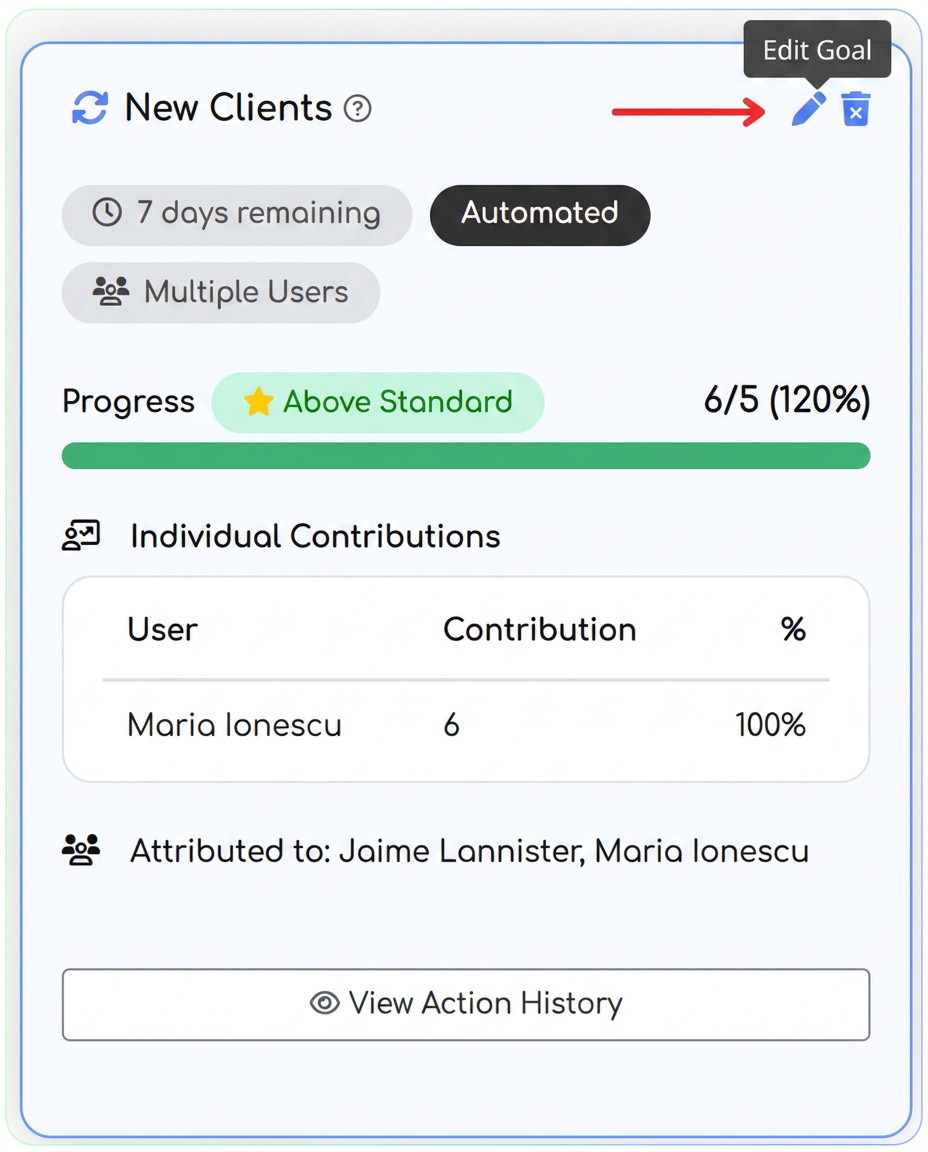
- Position the cursor over the objective card.
- In the top-right corner, the Pencil icon ("Edit Objective") appears.
- Press the pencil → the "Edit Objective" window opens.
What can be edited
In the editing window, the following can be modified:
- Target value – e.g.: from 5 to 10.
- Duration + time unit – e.g.: .
- Assignment type – Individual, Multiple users, Per company.
- Assigned users (if Multiple users is set).
- Advanced settings:
- Start date (editable ONLY for pending objectives).
- Activating/deactivating recurrence.
- Visibility (Public/Private).
- Option Count only unique contributions.
- Completion criterion (Upon reaching the target or At the expiration of the period).
- Additional filters: Client type (End customer, Reseller, Public institution) or Labels.
ℹ️ The objective type (e.g.: "New clients", "Telephone calls") cannot be changed during editing.
Editing recurring objectives
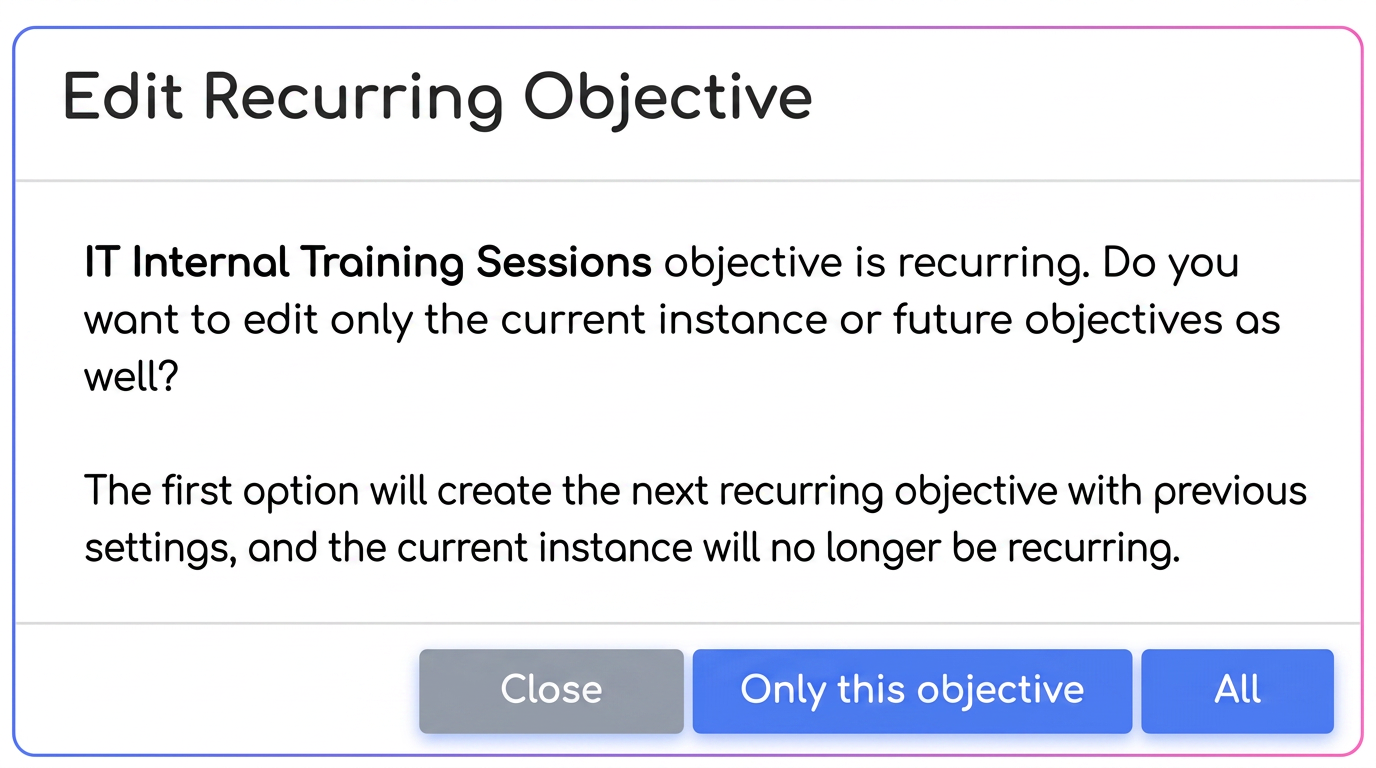
If the objective is recurring, an additional window appears during editing with the question:
"Do you want to edit only the current instance or also future objectives?"
Available options
- Only this objective
- Changes apply exclusively to the current instance.
- This will no longer be recurring, but the following instances will be created with the previous settings.
👉 Useful for temporary adjustments (e.g.: smaller target only during a holiday week).
- All
- Changes apply to the current instance and all future instances.
👉 Useful for permanent changes (e.g.: new target, team change).
- Close
- Cancel editing without saving changes.
Tabs in the Objectives Management module
The module is structured into four tabs, each representing a distinct stage in the life of an objective.

1) Active Objectives
- Contains objectives that are currently in progress.
- Displays progress in real time, both as a percentage and numerically.
- Each card displays essential details: objective type (Automated/Manual), remaining period, assignment level (Individual/Company/Team), individual contributions, and the button for accessing action history.
- In the case of manual objectives, users can add progress through the "Mark Progress" function.
2) Pending Objectives
- Includes objectives that have been created but for which a future start date has been set.
- These are not yet active but are already configured and ready to start on schedule.
- When the start date is reached, they automatically move to the Active tab.
3) Missed Objectives
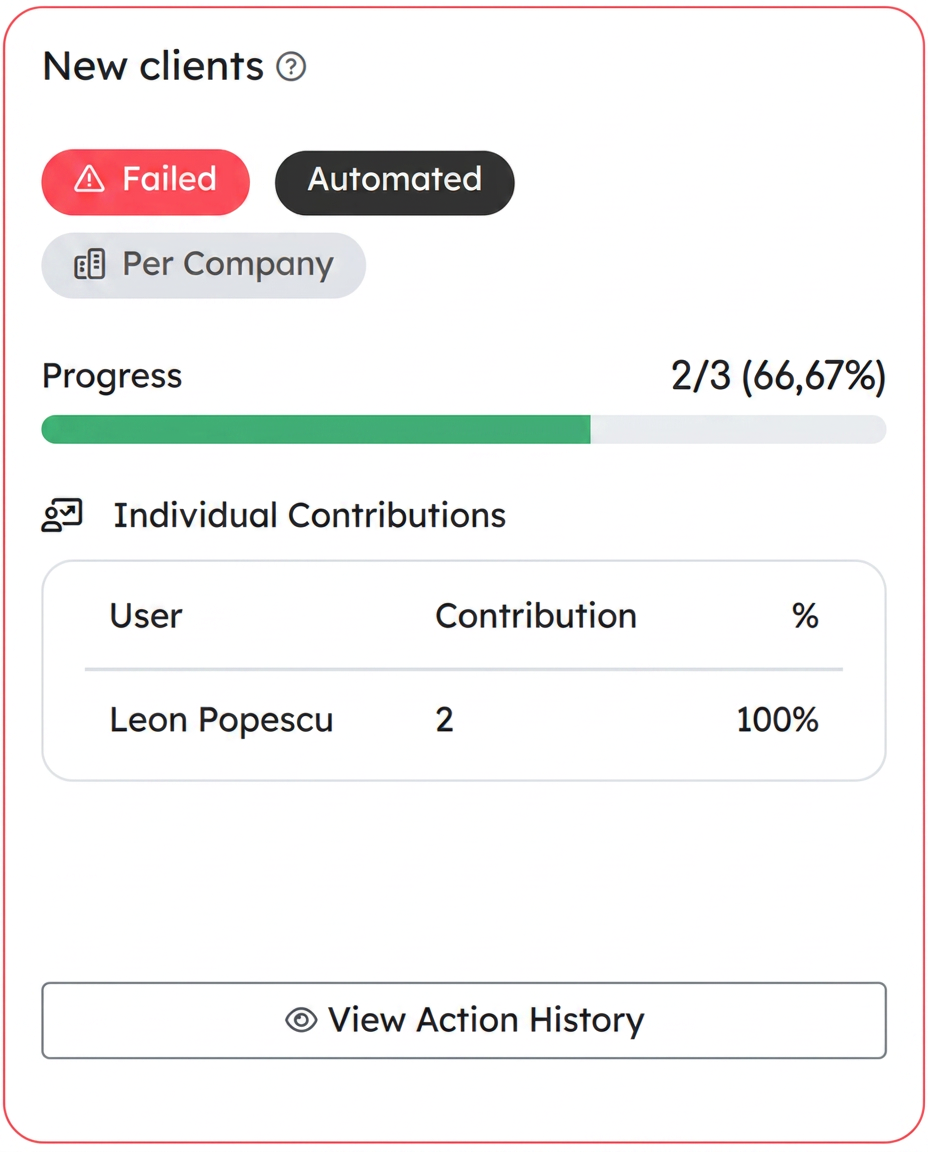
- This is where objectives that were not fulfilled in the allocated period end up.
- Cards are visibly marked in red and show the final progress achieved (e.g.: 3/%).
- Action history remains available for analysis, so that the reasons why the objective was not achieved can be identified.
4) Finalized Objectives
- Includes objectives that were closed either because the target was reached or because the period expired.
- They can be of two types:
- Finalized (100%) – the objective reached exactly the target value.
- Above standard – the objective exceeded the target value within the allocated period (e.g.: 10/%).
- Each card remains accessible for future consultation and reporting.
Filtering and sorting bar in the Objectives Management module
Above the lists of objectives, there is a dedicated area for searching, filtering, and sorting. This helps users quickly find relevant objectives and order them according to desired criteria.
1) Search
- The "Search..." field allows entering keywords to quickly identify an objective.
- Objectives can be searched by name or description.
2) Filtering by responsible person
- The "Responsible Person" field offers the possibility to filter objectives assigned to a specific user.
3) Sorting
The drop-down menu on the right allows sorting objectives by preset criteria:
- Deadline – orders objectives based on the final term (useful for prioritizing the most urgent ones).
- Progress – sorts based on the percentage completed (e.g.: those closest to completion at the top).
- Date added – orders objectives by when they were created (useful for chronological tracking).
Direction button (up/down arrow icon) – allows changing the display order:
- Descending (↓) – objectives closest to the term, with the greatest progress or the most recent ones appear first.
- Ascending (↑) – objectives with the furthest term, lower progress or the oldest ones appear first.
Individual contributions
On each objective card, there is a section dedicated to Individual Contributions.
- Displays the list of users participating in the objective and the percentage of each one's contribution.
- Example: for an objective of 10 calls, if User A made 6 calls and User B made 4, the system will display: A – 60%, B – 40%.
👉 Utility: provides clear visibility over individual performance within collective objectives (Multiple users or Per company).
See Action History
The "See Action History" button opens a detailed progress log.
- It displays: action date and time, user who performed the action, client involved and how progress was updated (e.g. "2//5").
- It is available for both automated and manual objectives (where it shows who marked the progress manually and what proof they attached).
Integrated statistics and reports
Data from objectives are centralized and displayed in the Executive Summary as widgets:
- Number of Finalized objectives
- Number of Missed objectives
- Number of Above standard objectives
- Comparisons against the previous period (e.g. "+15% finalized objectives compared to last month").
Validation of objective overlapping
When saving a new objective, the system checks if an objective of the same type already exists for the same user over an overlapping period.
- If so, it displays an error message and does not allow saving.
- Example: two "Telephone calls" type objectives cannot be created for the same agent for the same month.
User roles and access to objectives
Access is controlled through the Objectives permission, configured in:
.
- View – allows viewing objectives.
- Add – allows creating new objectives.
- Edit – allows modifying existing objectives.
- Delete – allows removing objectives.
🔎 Possible Questions
1. Who can create objectives?
- Only users with the permission, set in .
2. Can I edit an objective after it has been created?
- Yes, if the permission exists.
- However, for recurring objectives, the system asks if the edit applies only to the current instance or also to future ones.
3. What happens if I delete an objective?
- It is removed from the list and from reports.
- Therefore, the Delete permission should only be granted to administrators to avoid data loss.
4. How are "New clients" and "New leads" counted? What is the difference?
- New clients – recorded when a client places their first order.
- New leads – counted when a client with the Lead status is added to the CRM database, regardless of whether they made orders subsequently.
5. If the same client is visited twice, how is it counted?
- It depends on the "Unique contributions" setting:
- Activated → repeated visits to the same client count only once.
- Deactivated → every visit is counted.
6. Can I combine filters (e.g. only "End" clients + with "VIP" label)?
- Yes, if both the client type filter and the labels filter are set.
- In this case, the progress counts only the clients who meet both conditions.
7. What happens if a recurring objective overlaps with another?
- The system validates and does not allow overlaps for the same objective type, assigned to the same user, for the same period.
8. Can I mark progress manually in an automated objective?
- No. In automated objectives, progress is calculated exclusively from iFlows data.
- Manual progress is only marked for manual objectives.
9. How is "Above standard" calculated?
- If the objective has the completion criterion "At the expiration of the period" and the progress exceeds 100%, the system marks the card with the "Above standard" indicator.
10. If an objective is set as "Private", who can see it?
- Only the creator and the assigned users.
- Note: for "Per company" objectives, the "Private" option is not available.
11. What role do the "Comment" and "Proof" fields play for manual objectives?
- Comment → explains the progress (e.g.: "2 posts were made on Facebook and LinkedIn").
- Proof → attach justificatory files.
12. Can I set objectives on custom periods (not just weekly/monthly)?
- Yes, the duration is completely flexible (in days, weeks, months), depending on what is entered during configuration.
13. What happens if the start date is set in the future?
- The objective appears in the "Pending" tab and automatically moves to "Active" on that date.