I have added a new employee to the iFlows platform, but they are reporting that they cannot view or access the 'Forms' section.
1 Answer
iflows·01.09.2025
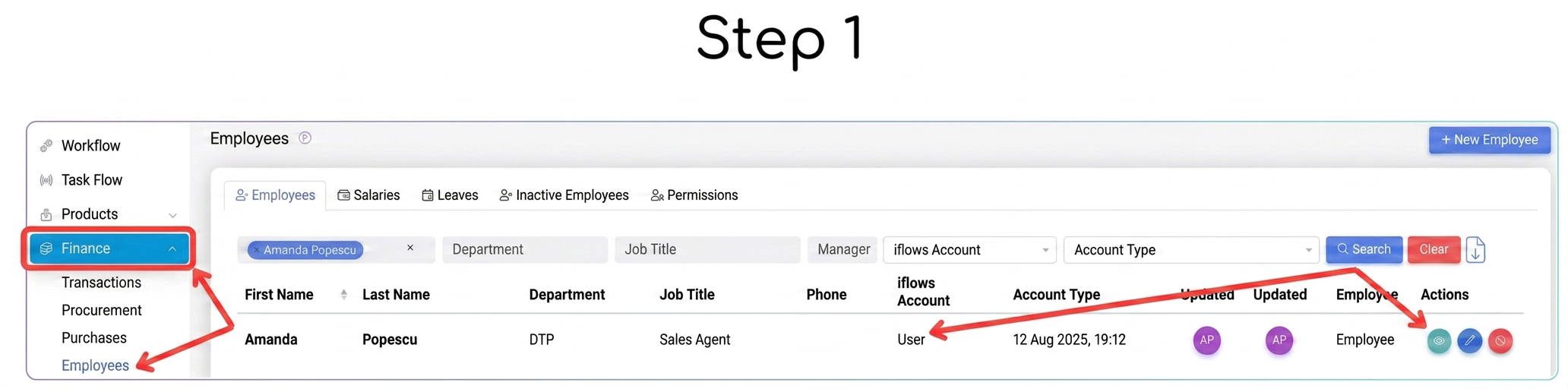
Official answerStep 1: Verify the Employee and User Status
Navigate in the main menu to Financial -> Employees. Search the list for the employee you wish to grant access to. It is very important to ensure that in the "Account Type" column, the employee has the status of "User" and not "Operator", as operators have limited functionalities and cannot access all modules.
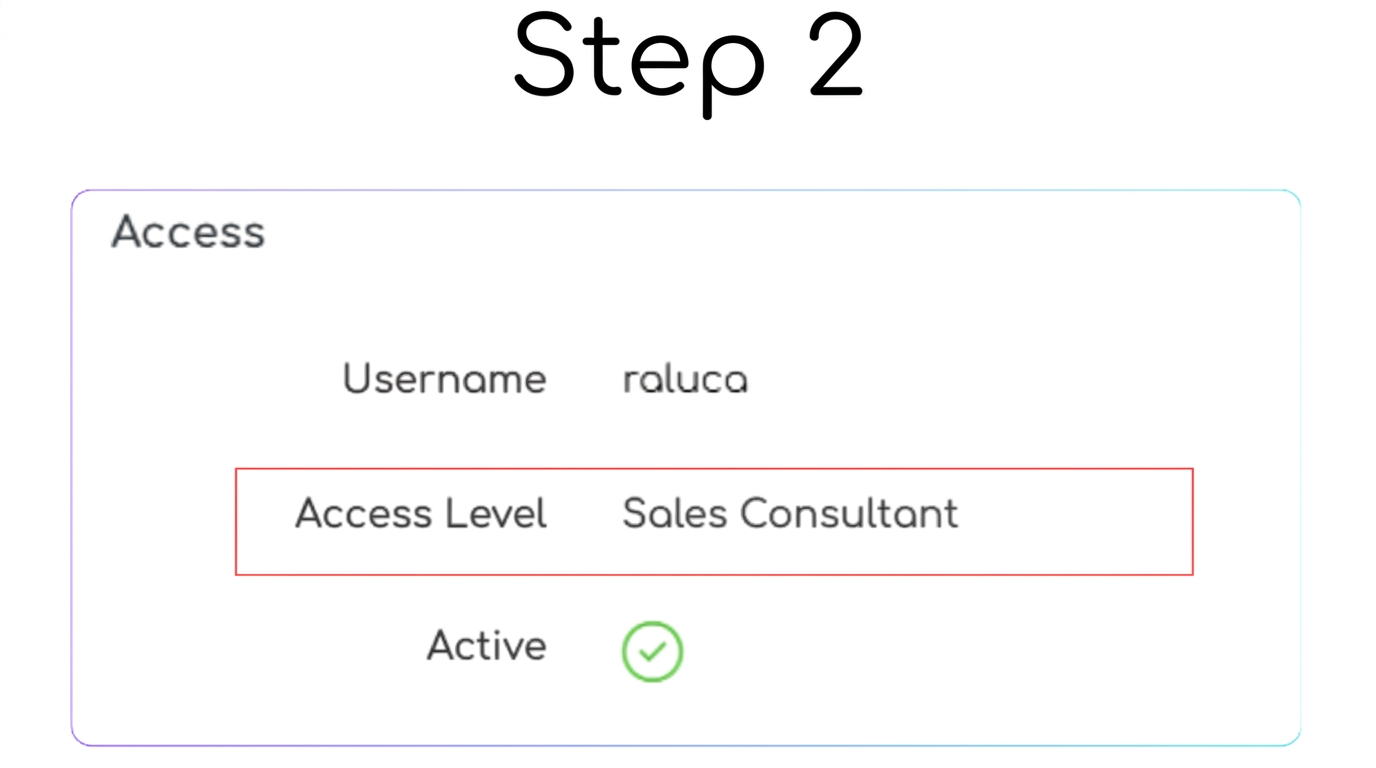
Step 2: Identify the Access Level
Click on the view/edit button next to the employee. On the details page, scroll down to the "Access" section and identify the "Access Level" assigned to them (for example: Sales Consultant).
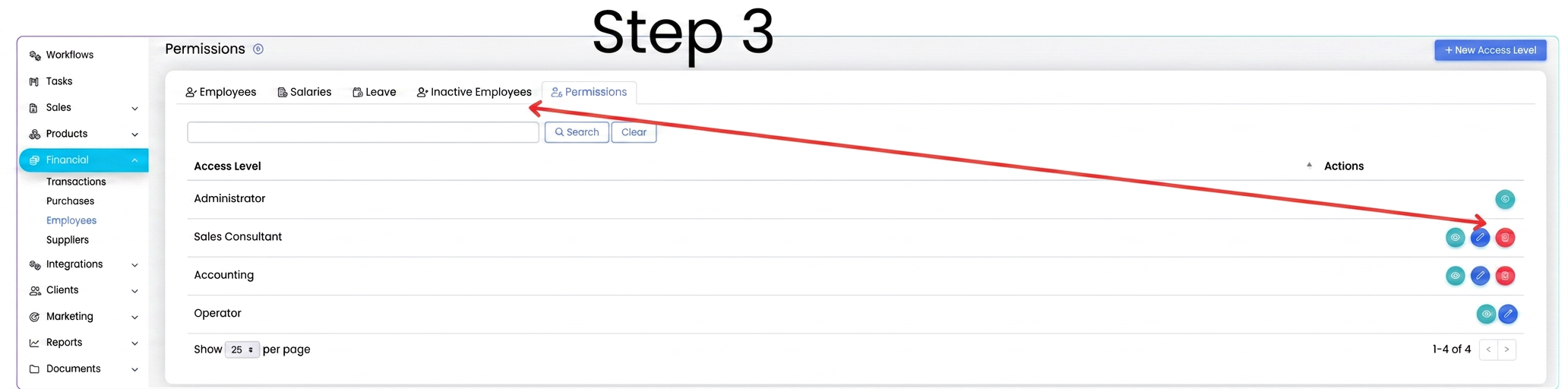
Step 3: Edit Access Level Permissions
Return to Financial -> Employees and select the "Permissions" tab. Search the list for the access level you identified in the previous step (in our example, Sales Consultant) and click on the edit button (blue icon).
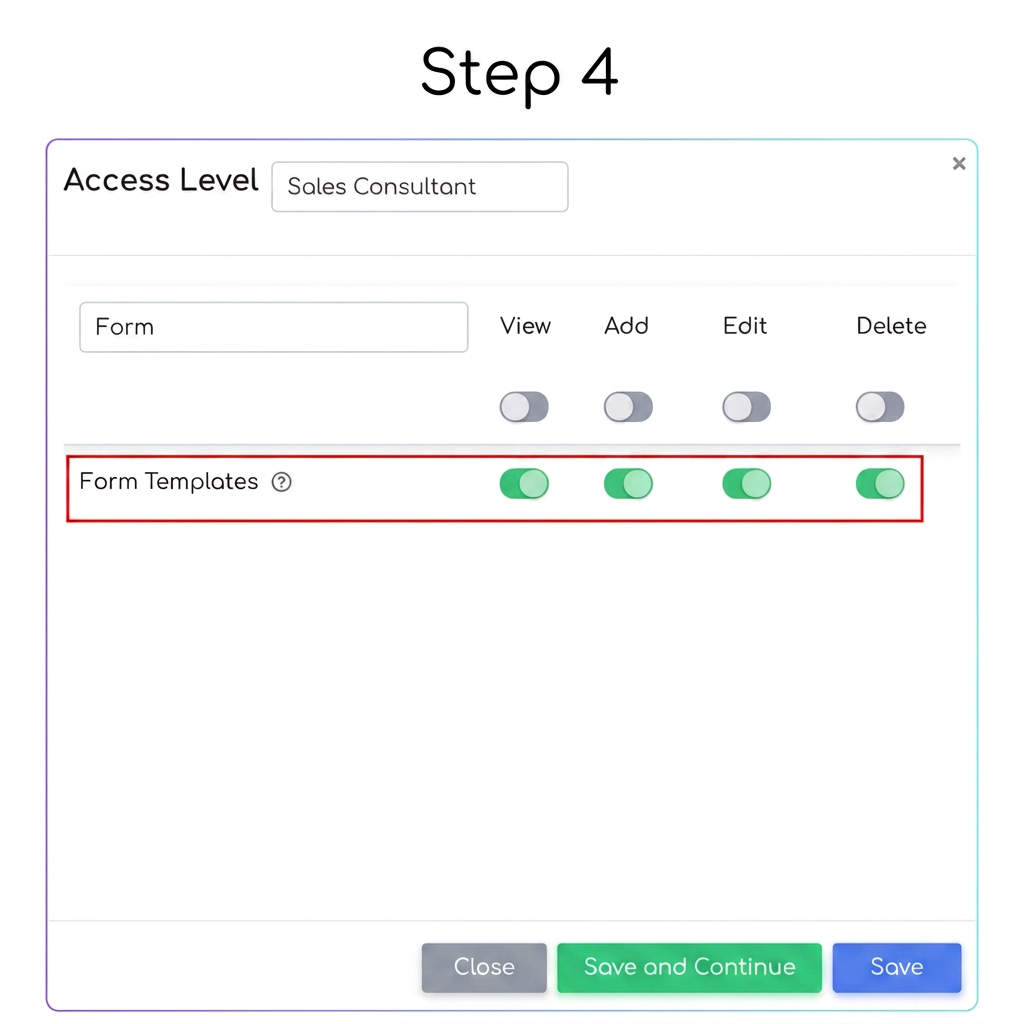
Step 4: Enable the Desired Permissions
In the window that opens, search the list for the "Form Templates" functionality. Activate the toggles next to it to grant the necessary permissions: View, Add, Edit, Delete, depending on your needs. Finally, press "Save".