Step 1: Access the Products section
- In the left menu, navigate to Products.
Step 2: Filter products by the VAT rate you want to change (only if necessary)
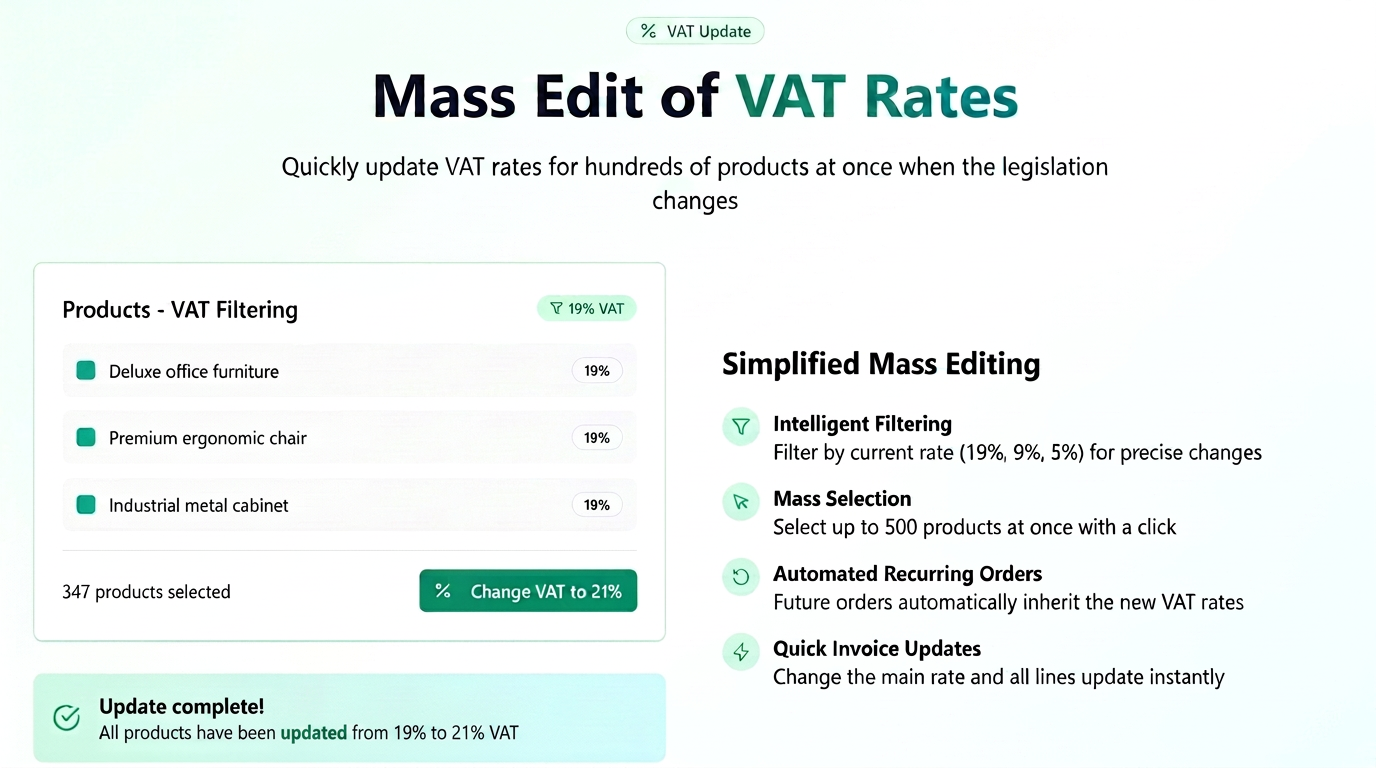
Note: If all products in your account had a single VAT rate (e.g., 19%) and now all will switch to a single new rate (21%), you can skip the filtering step. Go directly to Step 3, select all products on each page, and change their rate directly.
For situations where you have products with different VAT rates (e.g., 19%, 9%, and 5%) that you need to modify separately, follow the filtering steps below:
- Click on the filter options button (the icon with three horizontal lines/sliders).
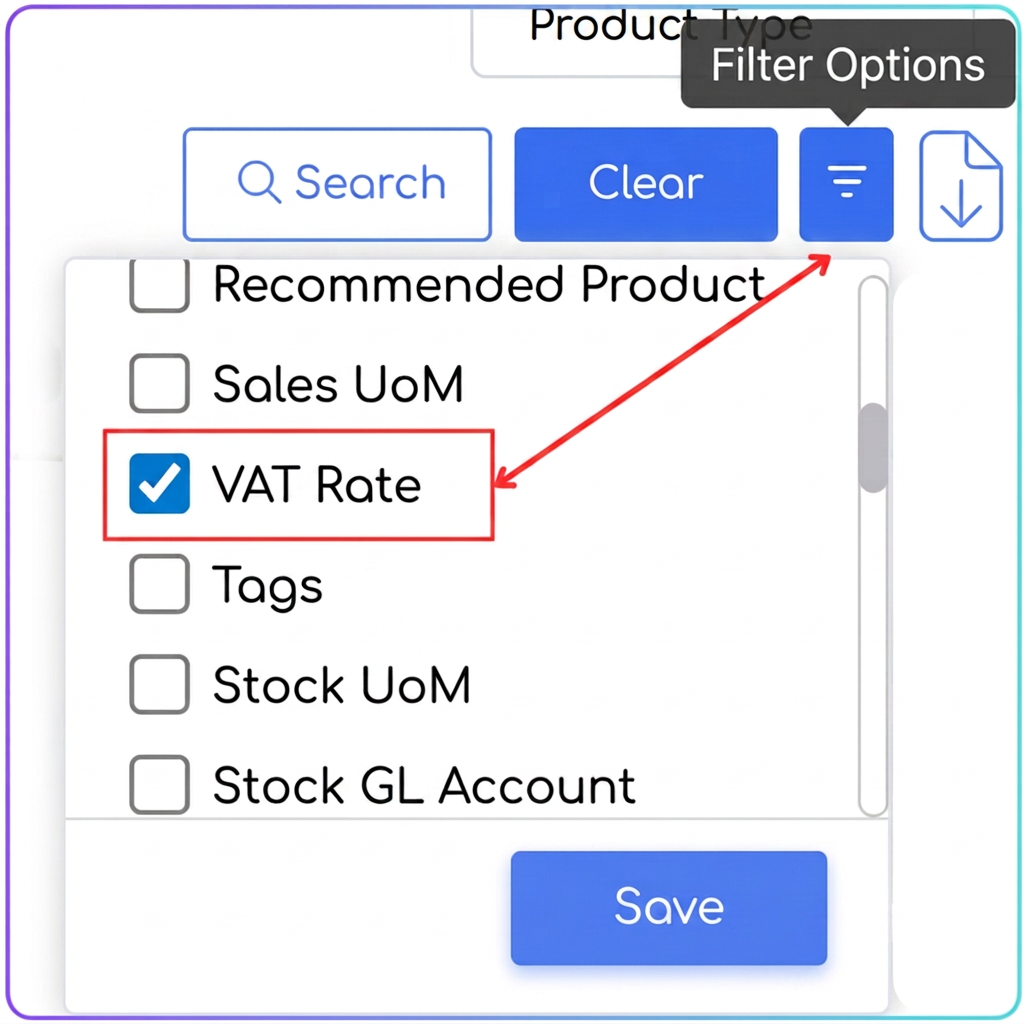
- In the filter list, check the box for VAT Rate and press Save.
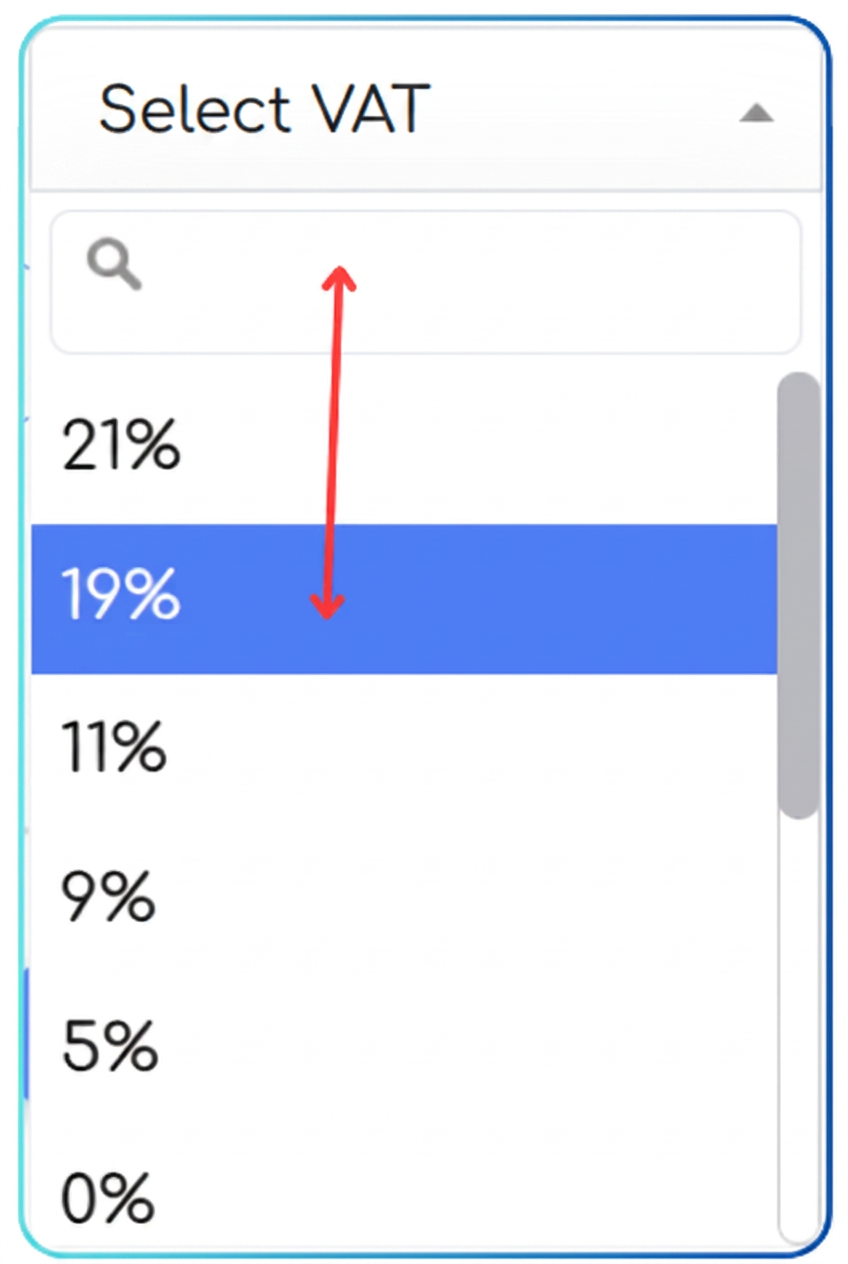
- In the filter bar, click on Choose VAT and select the rate you want to modify (e.g., 19%).
Step 3: Increase the number of items displayed per page
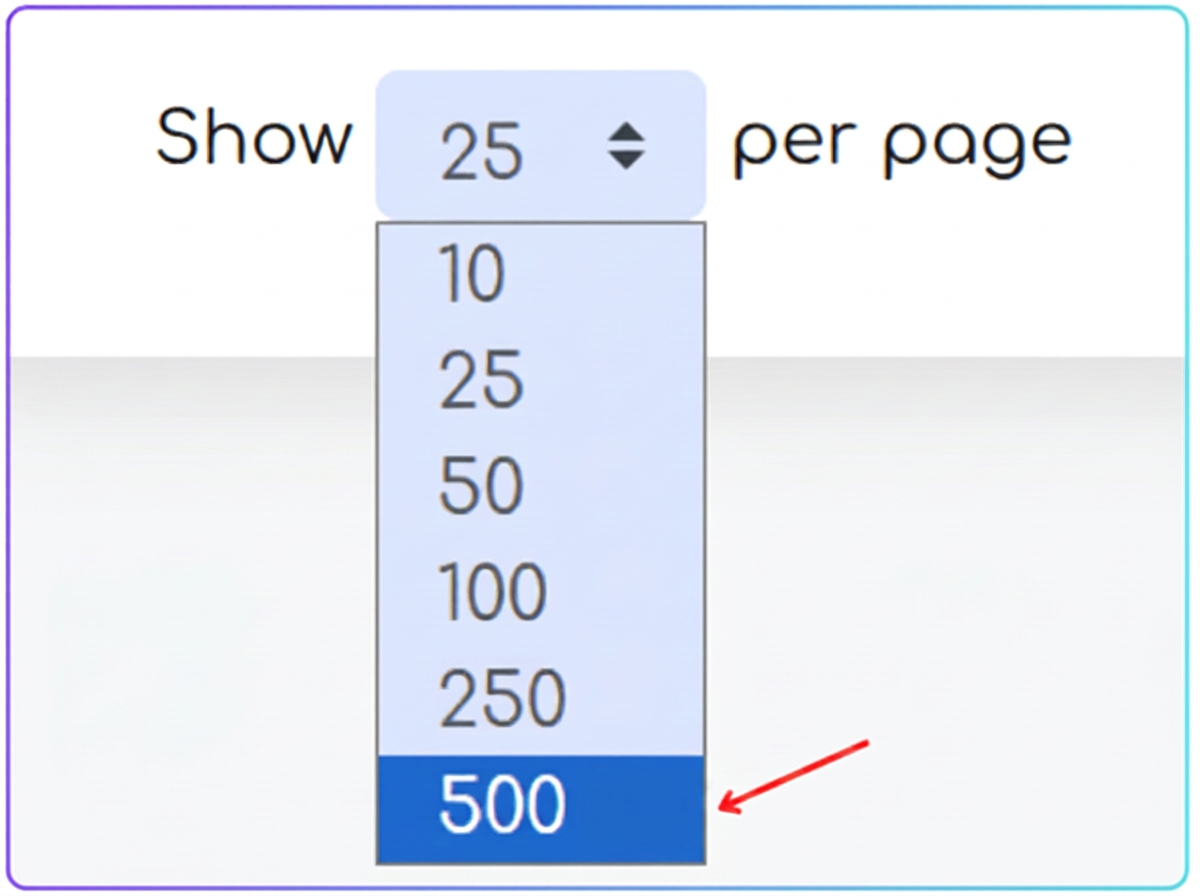
- Scroll to the bottom of the table and change the number at "Show" to the maximum value, 500, to work more efficiently.
Step 4: Select products
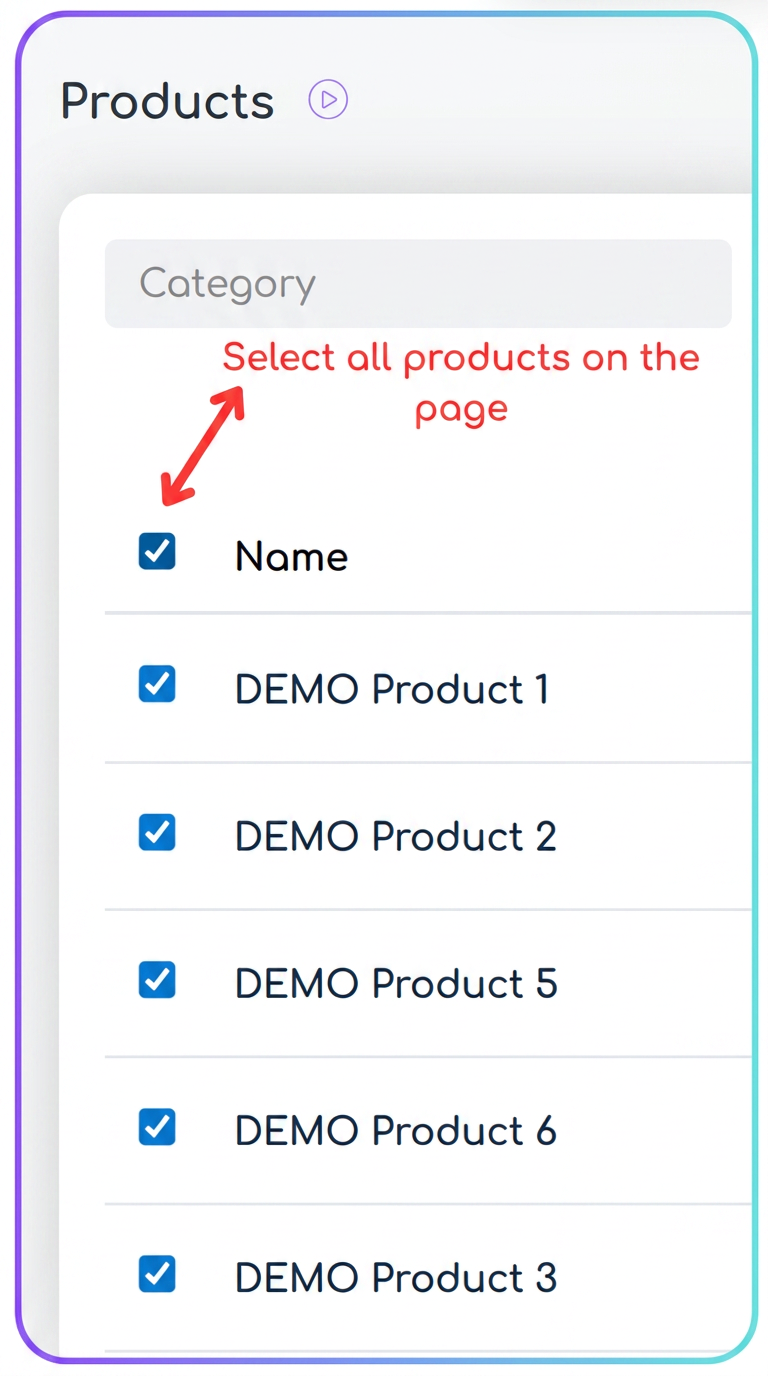
- Click the main selection box (to the left of the "Name" column) to select all 500 products on the page.
Step 5: Open the bulk editing tool
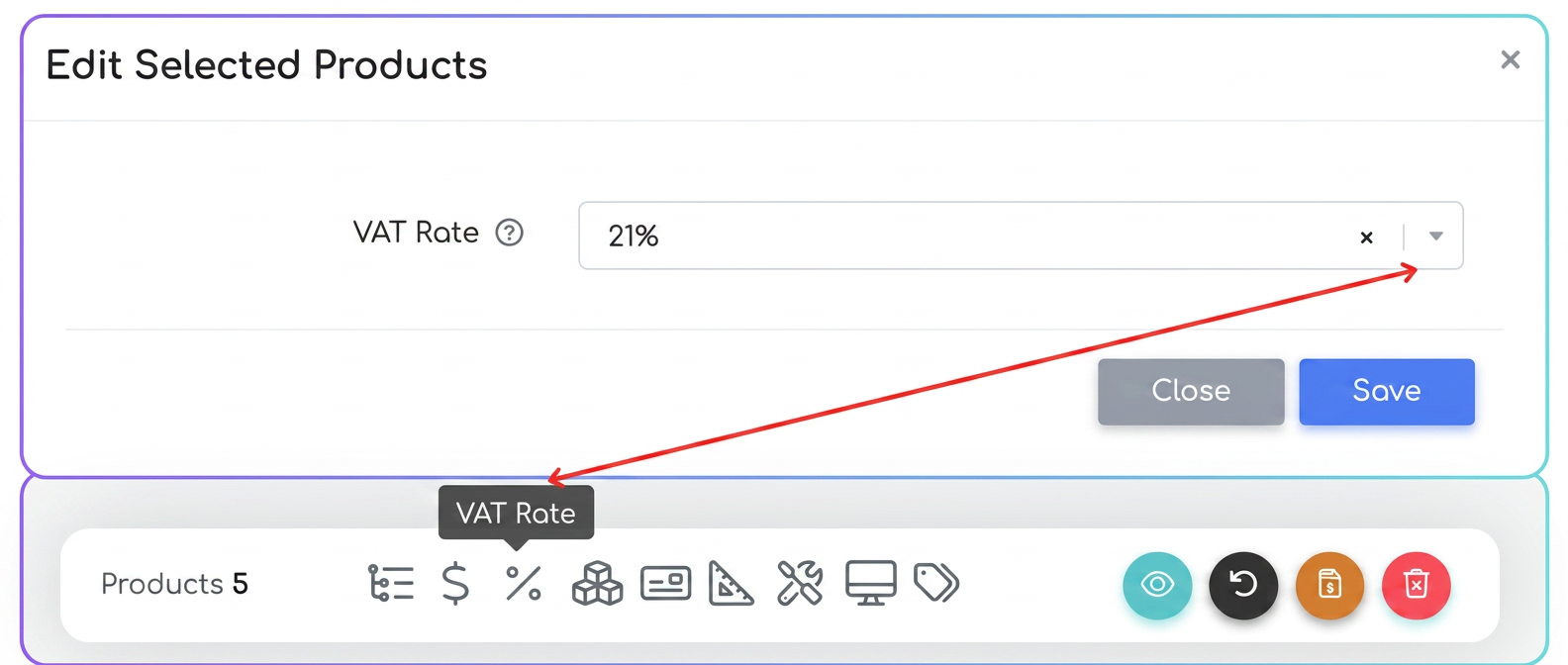
- In the floating action bar that appears at the bottom, click the "VAT Rate" icon (the percentage symbol %).
Step 6: Set the new VAT rate
- In the pop-up window, under "VAT Rate", select the new corresponding rate for the filtered products (21%)
- Press the blue Save button.
Step 7: Repeat the process for each VAT group
Once you have completed one transition (e.g., 19% -> 21%), repeat the entire process for the next category.
Example for 9% rates:
- Change the Choose VAT filter to display products with 9%.
- Analyze the list:
- If all 9% products transition to 11%, follow steps 4-6 and select the 11% rate at the end.
- If some transition to 11% and others to 21%, you must separate them. You can use an additional filter (e.g., Category) or you can manually select only the products going to 11%, modify them, then manually select those going to 21% and modify those.
- Repeat the same logic for products with a 5% rate, if applicable.
How can I verify if I have modified all products?
After completing the updates, you can use the "VAT Rate" filter to check if there are any products left with old rates (19%, 9%, 5%). If no results appear, it means the changes were successfully applied.
If I have offers, orders, or proformas with the old rate, are they automatically updated?
No. Documents already created (offers, proformas, orders) will keep the initially saved rate. We recommend manually updating the rates directly in the document if they will be used after August 1st.
Deactivating Old VAT Rates
After August 1st, 2025, and after you have finished updating all products, it is recommended to deactivate the old VAT rates (19%, 9%, 5%) to avoid their accidental selection in new documents and to simplify menus.
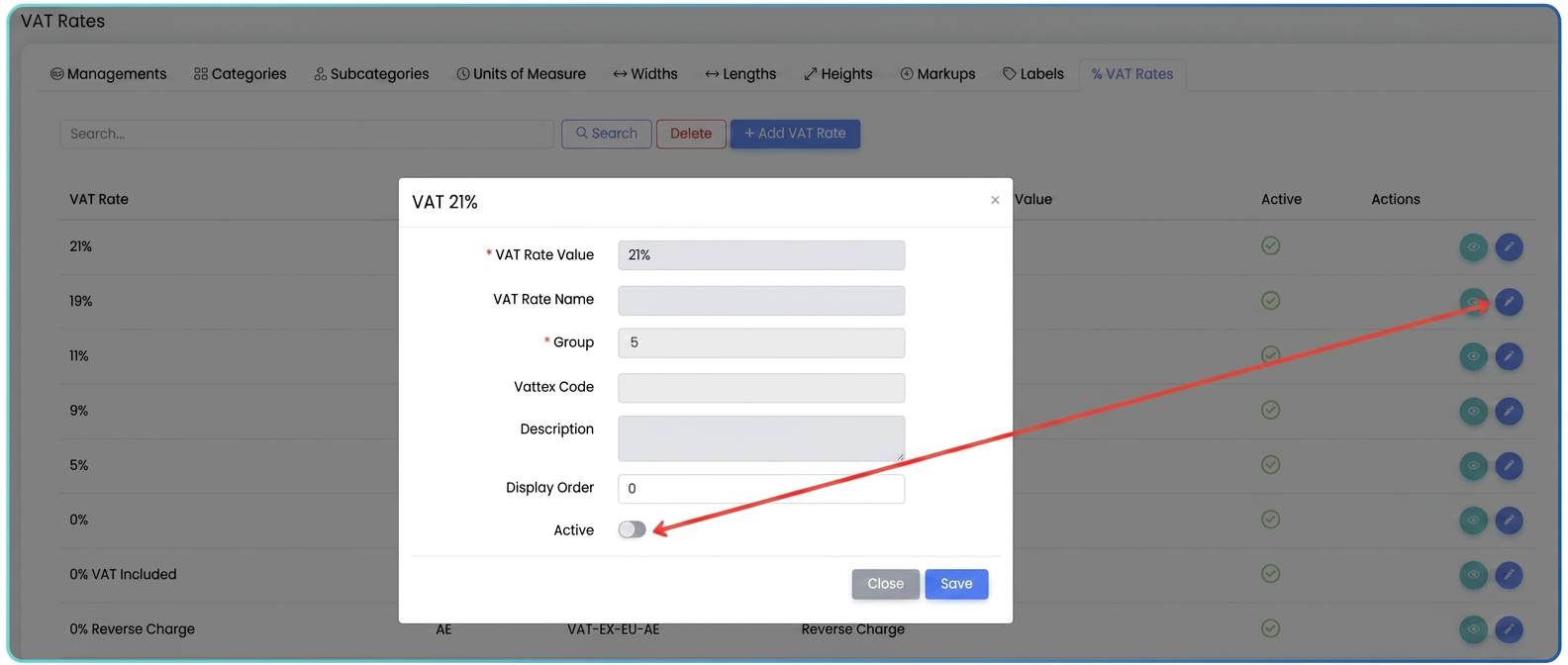
- Navigate to Settings > Products > VAT Rates.
- Identify the VAT rate you want to deactivate (e.g., 19%).
- Next to it, click on the Edit icon (the pencil).
- In the window that opens, click the switch (toggle) next to the Active option to move it to the inactive position.
- Press Save.
Note: After deactivating an old VAT rate, it will no longer be selectable in new documents or when adding products. However, for documents already created, that rate will remain visible in views and PDFs. If there is a document in progress (e.g., order) that uses a deactivated rate (e.g., 19%) and you wish to edit it, upon saving you will be required to choose an active rate, as the deactivated one will no longer be available.
What happens to recurring orders?
You will not need to edit recurring orders.
The rule is simple: recurring orders generated after August 1st will automatically take the new VAT rate, directly from the product file.
How does it work?
When the system regenerates a recurring order, it does not copy the data from the previous order, but adds the products to the order again, taking the current VAT rate associated with each individual product from the Products section.
Practical scenario:
- You have a recurring order set to generate monthly for a client.
- In July, the order was generated with a product that had a 19% VAT rate.
- You followed the tutorial above and changed that product's VAT rate to 21%.
- Result: The recurring order generated in August will automatically take the product with the new 21% rate, without any further intervention from you.
Conclusion:
Your priority is to ensure the product database is updated with the new VAT rates. Once this step is complete, automated modules in iflows, such as recurring orders, will function correctly, applying the new values automatically.
Special Warning: Invoicing orders created before August 1st
An important aspect to keep in mind is the management of orders already created in the system with the old rate (e.g., 19%), but which you will transform into invoices after August 1st.
Important rule: When you transform an order (created before August 1st) into an invoice, iflows will take the VAT rate exactly as it was saved on the order, and will not recalculate it based on the new rate in the product file.
This means that although you updated the products to 21%, the invoice generated from the order will initially still have 19% VAT.
The good news is that you don't have to manually edit every product line. iflows offers a quick method to update all VAT rates on the invoice in one go.
What to do?
If the delivery of goods or provision of services takes place after August 1st, follow these steps to apply the correct VAT rate to the invoice:
- Generate the invoice from that order, as usual.
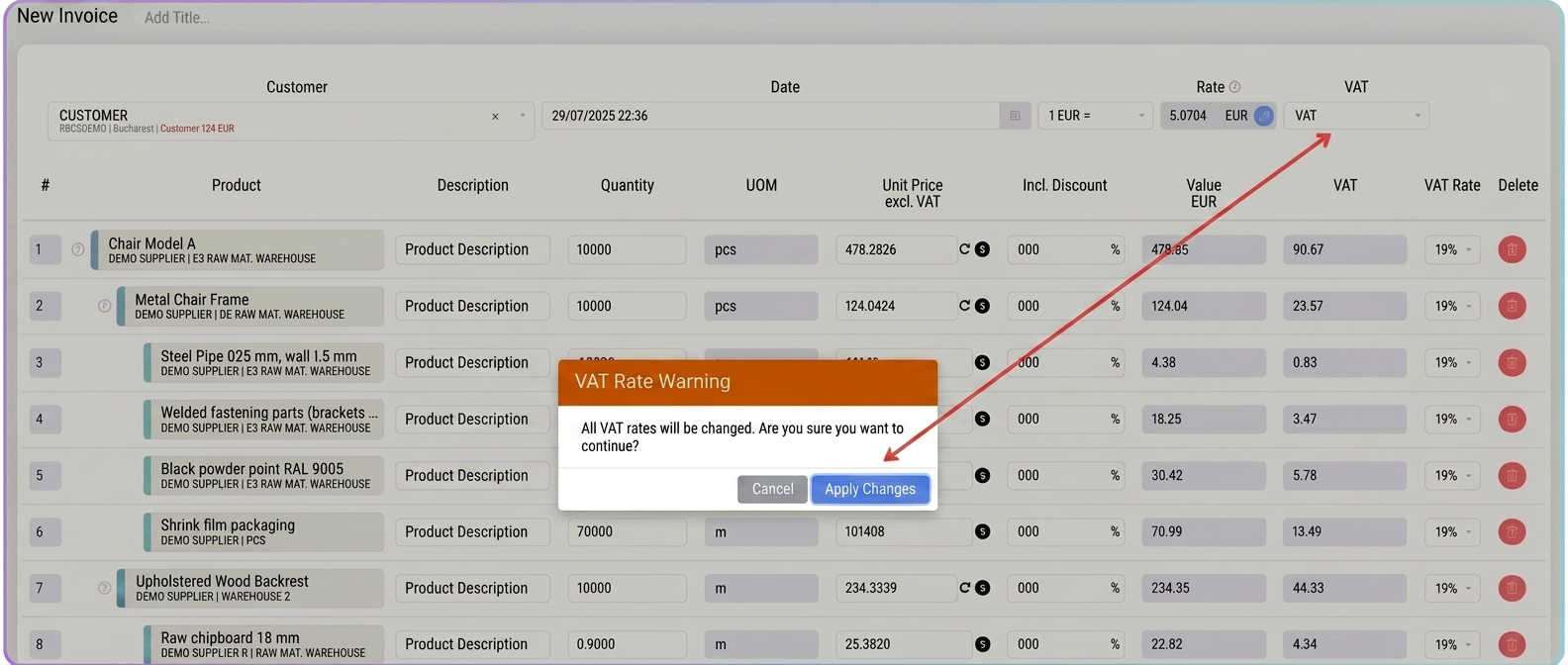
- At the top of the invoice, locate the main VAT field. It will display the old rate (e.g., 19%).
- Click on this field and select the new correct VAT rate (e.g., 21%).
- A confirmation window will appear with the message: "VAT Rates Warning - All VAT rates will be changed. Are you sure you want to continue?"
- Click the blue Apply Changes button.